
How to Set the Thickness Width of the Blinking Cursor in Windows 7 and Windows 8
Information
This will show you how to set the thickness of the blinking cursor to be thicker or thinner to make it easier for you to see it while typing anything inside of Windows 7, Windows 8, Windows RT, Windows 8.1, and Windows RT 8.1.
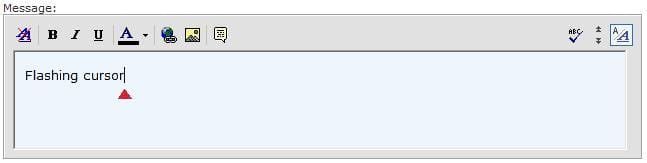
EXAMPLE: Default and Thicker Blinking Cursor

OPTION ONE
To Set Blinking Cursor Thickness in Ease of Access Center
Note
Anytime you make a change to a setting in the Ease of Access Center, it will reset your Visual Effects settings back to default, so you will need to check and set them again after using this option.
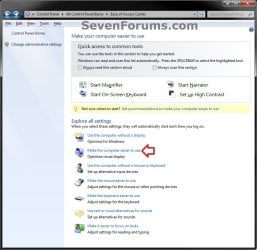
2. In Ease of Access Center, click/tap on the Make the computer easier to see link. (see screenshot below)
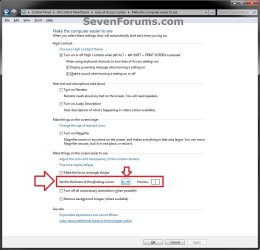
3. Scroll down towards the bottom until you see the Set the thickness of the blinking cursor option. Set how thick (1-20) you would like the cursor to be, and click/tap on OK. (see screenshot below)
NOTE: The default thickness is 1.
OPTION TWO
To Set Blinking Cursor Thickness using PC settings
NOTE: This option is only available in Windows 8, Windows RT, Windows 8.1, and Windows RT 8.1. 1. Open PC settings, click/tap on Ease of Access in the left pane, and do step 2 or 3 below for the Windows 8 you have. (see screenshots below)
2. In Windows 8 and Windows RT, click/tap on the Cursor thickness drop down menu on the right side, select how thick you want the cursor to be, and go to step 4 below. (see screenshot below)
NOTE: The default thickness is 1.

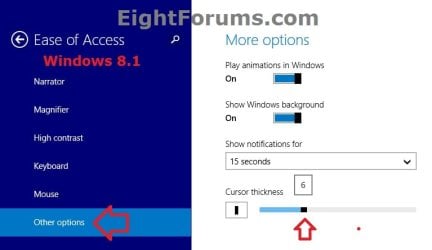
3. In Windows 8.1 and Windows RT 8.1, click/tap on Other Options on the left side. On the right side of "Other Options" under Cursor thickness, move the slider left (thinner) or right (thicker) to how thick you want the cursor to be, and go to step 4 below. (see screenshot below)
NOTE: The default thickness is 1.
4. When finished, you can close PC settings if you like.
OPTION THREE
To Set Blinking Cursor Thickness using Registry Editor
2. If prompted by UAC, then click/tap on Yes.
3. In regedit, navigate to the location below. (see screenshot below) HKEY_CURRENT_USER\Control Panel\Desktop

4. In the right pane of Desktop, double click/tap on CaretWidth to modify it. (see screenshot above)
5. Select (dot) Decimal, then type in a number between 1 and 20 for how thick you would like the blinking cursor to be, and click/tap on OK. (see screenshot below)
NOTE: The default thickness is 1.

6. Close regedit.
7. Log off and log on, or restart the computer to apply.
That's it,
Shawn
Last edited:


