Solved Deleting Files on Recvery Drive E

Moghth

New member
Local time
9:43 AM
Messages
6
Hello,

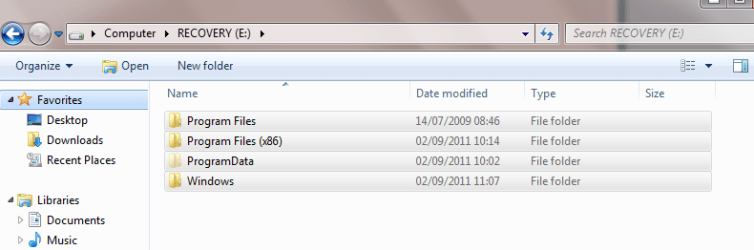
I managed to reinstall windows to my recovery drive instead of my OS drive.

I have since reinstalled windows to the OS drive and recovery and would now like to remove the additional copy of windows from the recovery drive.

I cannot format the drive.

I have changed the ownership of the drive from trusted installer to me.

I have changed the file permissions so that I have full control.

Now when I try to delete these files instead of telling me that I need permission from trusted installer, it tells me I need permission from me, which is somewhat annoying.

Any help is much appreciated.
 

My Computer My Computer

OS
Windows 7 Home 64bit
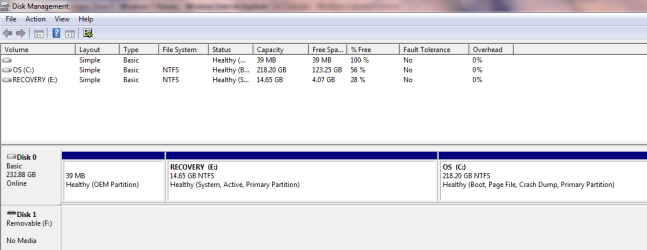
It'll help if you post a snipshot of the disk management window.
 

My Computer My Computer

Computer Manufacturer/Model Number
Too many to describe...
OS
Windows 7 x64 pro/ Windows 7 x86 Pro/ XP SP3 x86
Is this what you mean?
 

Attachments

  • Capture.PNG
    Capture.PNG
    16.6 KB · Views: 13

My Computer My Computer

OS
Windows 7 Home 64bit
There you go.
 

Attachments

  • Capture.PNG
    Capture.PNG
    18 KB · Views: 14

My Computer My Computer

OS
Windows 7 Home 64bit
Yes. The recovery partition E: is marked "System", that means the files windows needs to boot are located on that partition. Thats why you are unable to finger it.

There are different ways to go about this. Simplest would be first mark the windows partition active- right click on C: drive in that window and click Mark partition Active.

Then open a command prompt as admin (click start button, type cmd, in the results right click CMD and select Run as admin), then type the following and hit Enter:

bcdboot c:\windows /s c:

Reboot and let us know.
 

My Computer My Computer

Computer Manufacturer/Model Number
Too many to describe...
OS
Windows 7 x64 pro/ Windows 7 x86 Pro/ XP SP3 x86
Ok I may have just screwed this up royally....

Marked the partition as active...

Didn't run the command prompt, read it too quickly thought that was the second option... rebooted...

got a message BOOTMGR missing

Am booting from windows CD now,
 

My Computer My Computer

OS
Windows 7 Home 64bit
No problem. From the windows DVD, run startup repair. You may need to run this upto 3 times, in case it doesnt work the first time.
 

My Computer My Computer

Computer Manufacturer/Model Number
Too many to describe...
OS
Windows 7 x64 pro/ Windows 7 x86 Pro/ XP SP3 x86
Ok am doing that now, will keep you posted...

Thanks for your assistance, I would have been stuffed :cry: and considerably poorer otherwise :D
 

My Computer My Computer

OS
Windows 7 Home 64bit
Hi Bill2
I have managed to get the laptop working again, after reinstalling windows from the CD, I have removed the additional copy from the boot menu.

I have formatted the recovery partition to delete the previous version of windows installed there.

I guess I'll now create a system image on a separate hard drive so that I can get back here again if necessray.

Thanks for all of your help today you have been a superstar.

PS it didn't take me this long to sort things out, I had to put up a fence in the middle!

Thanks again.
 

My Computer My Computer

OS
Windows 7 Home 64bit
Back
Top