Solved Desktop Icons Not Displaying Correctly

  • Thread starter Thread starter michaelking
  • Start date Start date
M

michaelking

Guest
My desktop folder icons have been acting pretty buggy lately. I am sure everyone is aware of what the folder icon is supposed to look like when it has pictures, movies, etc in it, and what the folder icon should look like when it's empty. Well, the two folders on my desktop which always have something in them, will sometimes display as an empty folder, while other times they show up as filled. Could someone please help me resolve this issue. I have already un-checked always show icons, not thumbnails.

Thanks In Advance,
Michael.
 
How long has this been an issue? Has it started since last weeks Windows Update?

Something you can try is to type CMD into Windows Search.

Rt. Click the CMD icon and run as administrator.

Type sfc /scannow , then hit enter. (space between sfc and /)

Let us know if this fixes your issue.
 

My Computer My Computer

Computer Manufacturer/Model Number
Toshiba P300
OS
Windows 8 Pro
CPU
Intel Centrino Dual Core P7450 2.13GHz
Memory
4gb
Graphics Card(s)
ATI Mobility Raedon HD3650
Hard Drives
Toshiba MK3252GSX ATA
Internet Speed
Wish it were faster
It just recently started about a few days ago. It has only been affecting one folder out of seven. I will do the scan and see if that solves anything.
 
If it only one folder, why not create a new folder and drag the contents to the new folder.
 

My Computer My Computer

Computer type
PC/Desktop
Computer Manufacturer/Model Number
Dell XPS 420
OS
Windows 10, Home Clean Install
CPU
Intel Core2 processsor Q8200(2.33Ghz 1333FSB) Quad Core Tech
Motherboard
Dell
Memory
6 gb
Graphics Card(s)
ATI Radeon 256MB HD3650
Sound Card
Intergrated 7.1 Channel Audio
Monitor(s) Displays
Dell SP2009W 20"
Hard Drives
640 GB Serial ATA Hard drive
Cooling
Fan
Keyboard
Dell USB Keyboard
Mouse
Dell Premium Optical USB
Internet Speed
DSL 2.85
If there is nothing in the folder then delete it.
If You want to create a new folder then right click on desktop/name it/ then drag items into it.
Once completed then right click on the newly named folder/click on properties/customize it by changing icon to your satisfaction/hit ok and close it.
 

My Computer My Computer

Computer Manufacturer/Model Number
HP M9077c
OS
Windows 7 Home Premium 64bit
CPU
Intel(R)Core(TM)2 quad [email protected] 2.39GHz
Motherboard
ASUSeK
Memory
6GB DDR2 6400
Graphics Card(s)
GeForce 8500/512MB
Sound Card
Realtek High Def Audio
Monitor(s) Displays
HP w2408 LCD 24" widescreen
Screen Resolution
1920x1200
Cooling
6 pack of Bud
Keyboard
MS wireless Inteli
Mouse
MS wireless Inteli
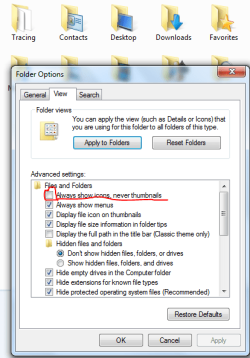
sorry for replying to an old topic...... look at the attachment....

Uncheck "Always show icons never thumbnails" :D
 

Attachments

  • pic32.PNG
    pic32.PNG
    23.3 KB · Views: 141

My Computer My Computer

Computer Manufacturer/Model Number
Advent/Roma
OS
Windows 7 Ultimate 32bit
CPU
Intel Celeron T3100
Motherboard
Phoenix 1.90AD, 12/04/2010
Memory
3GB
Graphics Card(s)
Intel GM45
Sound Card
Realtek High Definition Audio
Monitor(s) Displays
Generic PnP Monitor
Screen Resolution
1366x768
Hard Drives
320GB
Back
Top