Desktop icons resetting position

Kolardins

New member
Local time
8:43 AM
Messages
14
Sorry if this is in the wrong place. I've been running the same install of Windows 7 64 bit for about 2 years now without a problem.

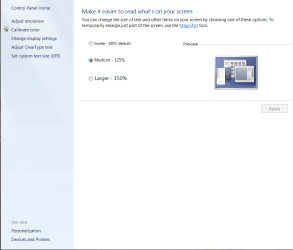
As of Monday all desktop icons refuse to stay put. I can place them where I want but after a reboot (or right click and refresh) they all end up on the left of the screen and 3 sizes larger that I had them set at.

I've checked most of what I can find on this forum (auto arrange settings, align to grid setting, various registry changes none of which existed in my registry).

Anyway, as you can imagine, it is really annoying. Especially if you're like me and have 50 icons on the desktop. Just though I'd start my own thread so I can work through the potential solutions. Thanks for any help.
 

My Computer My Computer

At a glance

Windows 7 64
OS
Windows 7 64
I hope it's ok to post an external link here. I found this on another forum...
Use midiox desktop restore...
Get both the GUI version and the command-line version. Then sort the desktop and save the layout, with a custom name, using the GUI version. Then create a new shortcut in the desktop. Fill the destination with the fully qualified name (drive:\path\name.exe /parameter) of the command-line version and set it to restore the custom named layout you created in the previous step. Set the shortcut to run minimized. Then move the shortcut to the startup folder in the start menu. I've never found one single system where midiox's files don't work, up to now. And it's freeware!
 

My Computer My Computer

At a glance

win 7 x64
OS
win 7 x64
Thanks for the help. I'll check this out but to be honest I'd rather find out what the problem is. How could this just start happening on a perfectly functioning 2 year old installation? Is it a virus or just some simple glitch? MSE shows no bugs onboard.
 

My Computer My Computer

At a glance

Windows 7 64
OS
Windows 7 64
Fill the destination with the fully qualified name (drive:\path\name.exe /parameter) of the command-line version and set it to restore the custom named layout you created in the previous step. Set the shortcut to run minimized. Then move the shortcut to the startup folder in the start menu.!
Sorry, but could you clarify a couple of things?

I set the file path (C:\Program Files (x86)\Desktop Issues\DesktopCmd64.exe) but I'm not sure what to put for the " /parameter" bit you mentioned.

I also am not sure how to do this: "set it to restore the custom named layout you created in the previous step". I tried opening the .exe but it just flashes and disappears. Thanks for any help.:)
 

My Computer My Computer

At a glance

Windows 7 64
OS
Windows 7 64
There is an rtf file included with the zip file for the command line version. That will show u how it is used.

Fill the destination with the fully qualified name (drive:\path\name.exe /parameter) of the command-line version and set it to restore the custom named layout you created in the previous step. Set the shortcut to run minimized. Then move the shortcut to the startup folder in the start menu.!
Sorry, but could you clarify a couple of things?

I set the file path (C:\Program Files (x86)\Desktop Issues\DesktopCmd64.exe) but I'm not sure what to put for the " /parameter" bit you mentioned.

I also am not sure how to do this: "set it to restore the custom named layout you created in the previous step". I tried opening the .exe but it just flashes and disappears. Thanks for any help.:)
 

My Computer My Computer

At a glance

win 7 x64
OS
win 7 x64

My Computer My Computer

At a glance

W7 Pro SP1 64biti78GBIntel HD Graphics
Computer type
Laptop
Computer Manufacturer/Model Number
Employer provided Dell Latitude
OS
W7 Pro SP1 64bit
CPU
i7
Memory
8GB
Graphics Card(s)
Intel HD Graphics
Hard Drives
crappy SSD
Antivirus
Employer mandated Symantec Endpoint Protection
Browser
Pale Moon 64bit, IE11 64bit & Chrome 64bit

My Computer My Computer

At a glance

Windows 7 64
OS
Windows 7 64
...after a reboot (or right click and refresh) they all end up on the left of the screen and 3 sizes larger that I had them set at...
Were the video drivers updated recently?

Any new desktop shortcuts - like to a server share?

Try this:
http://www.sevenforums.com/tutorial...ation-conflicts-performing-clean-startup.html
Nothing like that on the desktop and no I haven't updated the video drivers. I'll check into the clean start though. Thanks for the suggestion.
 
Last edited:

My Computer My Computer

At a glance

Windows 7 64
OS
Windows 7 64
EDIT: The clean startup did nothing to solve the problem.
 

My Computer My Computer

At a glance

Windows 7 64
OS
Windows 7 64

My Computer My Computer

At a glance

Windows 7 64
OS
Windows 7 64
Try changing the number in this registry key...
HKEY_CURRENT_USER\Control Panel\Desktop\WindowMetrics\Shell Icon Size

If that doesn't work then I'd try a 'dirty' way to fix it and that would be a macro program that u set up and create a macro that changes the size of the icons from whatever size windows always starts with to the size u want. Just put the macro in your startup folder.

Unfortunately this one doesn't remember icon size either. Apart from that it's great.
 

My Computer My Computer

At a glance

win 7 x64
OS
win 7 x64
It sounds like this is what you want to do here

Change the size then go back to the icon set then right click lock it up

Or just use this and make them all disappear with a right click

fences downloads - Free software downloads and software reviews - CNET Download.com called Fences it is a Icon tool
A friend on here gave this to me to make my whole walpaper shine it takes away all the icons and leave you with a screen like this

Probally make life easier if you try the program it is free good luck
 

Attachments

  • settings.PNG
    settings.PNG
    32.1 KB · Views: 21
  • desktop.jpg
    desktop.jpg
    135.1 KB · Views: 20

My Computer My Computer

At a glance

Windows 10 Home Premium 64bit sp1Intel I7-6700K @ 4.6 Ghz 1.344 volts everyday OC32GB G-Skill TridentZ 3200mhz 16-18-18-38 DDR4Sli Gigabyte Windforce GTX 980 G1
Computer type
PC/Desktop
Computer Manufacturer/Model Number
CoreI7-6700K MrFingerIII Special Builds
OS
Windows 10 Home Premium 64bit sp1
CPU
Intel I7-6700K @ 4.6 Ghz 1.344 volts everyday OC
Motherboard
Asrock Fatality K6 Z170 Socket 1151
Memory
32GB G-Skill TridentZ 3200mhz 16-18-18-38 DDR4
Graphics Card(s)
Sli Gigabyte Windforce GTX 980 G1
Sound Card
AC97 Creative Rage Tactic 3D Headphones Bluetooth
Monitor(s) Displays
27" Asus ROG Swift PG278Q G-Sync 48" Vizio Smart HD TV
Screen Resolution
2560x1440p 27"- 48" Currently Gaming at 2560x1440p Res 2K
Hard Drives
250GB Samsung Evo840SSD Seagate baracuda 500 GB WD Mybook 500Gb 1TB Seagate Barracuda
PSU
HX1050w Corsair Silver 80plus certified crosfire/sli
Case
Enthod Pro Full Tower
Cooling
Corsair H110i GT 280 mm High Performance WaterBlock
Keyboard
Logitech wireless keyboard
Mouse
Logitech wireless mouse
Internet Speed
Cox Cable 100+ mb
Antivirus
WebRoot Spysweeper with Antivirus
Browser
IE-10, Chrome, Opera
Other Info
My Other Rig is a AMD FX8320E @4.6Ghz 16GB Ballistic Sport Ram
Mobo Asrock Fatality 990FX 120GB OCZ SSD 1TB Seagate Barracuda Corsair H75 Cooling PSU Corsair CX750
GPU GTX Gigabyte 970G1
I had the same thing happen a couple of weeks ago on my old Vista computer. Have no idea why. Ended up using desktopok to save the icon positions and restore them with a click. You can download it from CNEt.
 

My Computer My Computer

At a glance

Windows 7 Professional 64 bit Service Pack 1Intel Core 2 Quad CPU6 GBATI Radeon HD 3600 Series
Computer Manufacturer/Model Number
Dell Studio 540
OS
Windows 7 Professional 64 bit Service Pack 1
CPU
Intel Core 2 Quad CPU
Motherboard
ECS Iris8
Memory
6 GB
Graphics Card(s)
ATI Radeon HD 3600 Series
Sound Card
AMD
Monitor(s) Displays
Samsung Syncmaster 2220WM
Hard Drives
Hitachi 400 GB
Unknown Brand 500 GB
FreeAgent Backup Drive 500 GB
This is my simple solution, found after a year of trying suggestions from various forums:

- Go to c:\Users\[account]\AppData\Local\Microsoft\Windows\UsrClass.dat
- Move the UsrClass.dat to a backup folder (I used "My Documents")
- arrange your icons, restart and let the system create a new file

thanks to hypercube HTML Code:
Windows 7 Help Forums - View Profile: hypercube
for original suggestion. I screwed up his instructions and found the above solution
 

My Computer My Computer

At a glance

Windows 7 Home Premium 64bit
Computer type
Laptop
Computer Manufacturer/Model Number
Toshiba Satellite E305
OS
Windows 7 Home Premium 64bit
Back
Top