Desktop Slideshow - Shuffle Images in Multiple Folders

How to Have Desktop Slideshow Shuffle Images in Multiple Folders in Windows 7


   Information
This will show you how to have your desktop background wallpaper slideshow shuffle through multiple folders for wallpapers instead of moving all your wallpapers into one folder to do so.
   Warning
If you checked the Turn off all unnecceassary animations box in the Ease of Access Center, or unchecked the fade option in the Visual Effects settings, then this will also remove the fade effect in the desktop slideshow.


Here's How:
First, what we're trying to achieve is to use multiple folders for your desktop slideshow. The easiest way to do this is to use your Public picture folder, because when you go to the wallpaper select options under Personalization - the "Picture Library" actually points to your Public Picture folder.


Public Picture folder is located under

%systemdrive%\Users\Public\

Usually %systemdrive% is your C: drive. 1.jpg
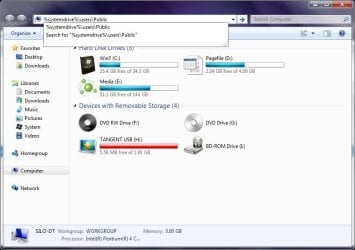
Once you've navigated to your Public Picture folder inside your explorer window, you can copy and paste folders into it OR you can change your Public Picture Folder.

In this case, we're going to move the Public Pictures folder to match your My Picture folder. In a multi-user environment this may not be effective since you will be moving the Public folder for every user. Most users will have their My Picture folder located on the same drive as their Public folder.

Right click the Public Picture folder and select properties, then go to Location and select Move... 2.jpg
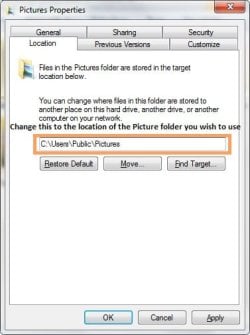
Navigate to:

%systemdrive%\Users\(Type your account name)\My Pictures


Hit OK

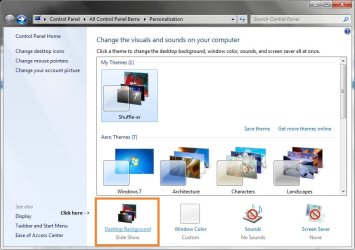
After that, right-click your Desktop and go to Personalize. 3.jpg
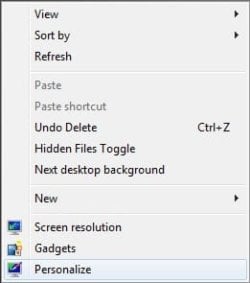
4.jpg
Click Desktop Background then go to the drop down menu Picture Location and select Pictures Library...


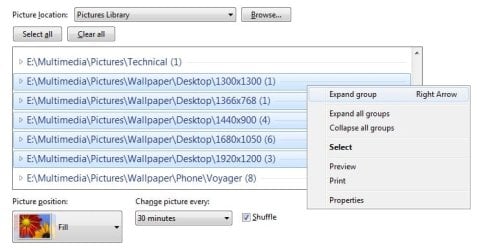
If you're anything like me, you will see multiple folders. This will include any folders you had in your My Pictures folder. I find it easiest to right click any folder header and hit "Collapse all groups." After, I go through and right click any folders I would like to use in my slideshow and hit "Expand group" 5.jpg
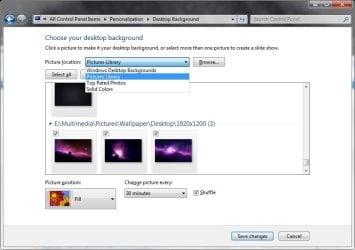
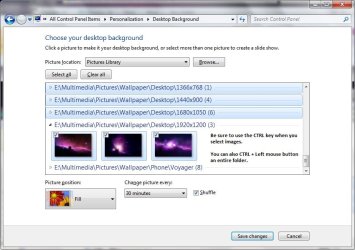
Once you've expanded all the folders you would like to use, you can begin selecting your wallpapers. Be careful, you can easily de-select all previous images you've selected if you don't make sure you hold CTRL on the keyboard and use the LEFT mouse button. If you want to select an entire folder, CTRL+Left mouse button the folder header. That will select the entire folder. 6.jpg
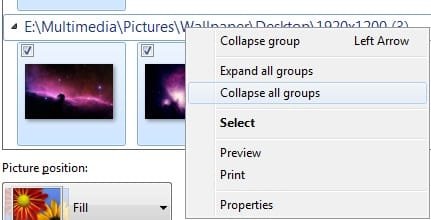
7.jpg

8.jpg
 
Last edited by a moderator:
I wonder if I can restore the default folder setting ?
 

My Computer My Computer

Computer Manufacturer/Model Number
HP 6530B
OS
Win 7
CPU
Intel Core 2 Dual P8600
Memory
2G*2
Hello,

For some reason it doesn't give me the "Restore Default / Move / Find Target" buttons when I click on the Location tab for the Public Pictures folder. I am logged on with the Administrator account. Could this possibly be because there is another user already set up (but not logged in) on this machine? I have been able to change the location of the My Documents & My Pictures folders - this is the first one I've run across that I can't change.

Thanks,
-StaggerLee
 

My Computer My Computer

OS
Window 7 Ultimate 64-bit
CPU
Intel i7-920
Motherboard
Asus P6T
Memory
6GB Corsair
Graphics Card(s)
ATI Radeon 4850 x1
Sound Card
(onboard Realtek)
Monitor(s) Displays
Samsung Syncmaster T240HD
Hard Drives
WD Caviar Green 500GB x2
PSU
Antec TP-750 Blue
Case
Antec P183
Cooling
CoolerMaster V8
Hello,

For some reason it doesn't give me the "Restore Default / Move / Find Target" buttons when I click on the Location tab for the Public Pictures folder. I am logged on with the Administrator account. Could this possibly be because there is another user already set up (but not logged in) on this machine? I have been able to change the location of the My Documents & My Pictures folders - this is the first one I've run across that I can't change.

Thanks,
-StaggerLee

Hi Stagger,
Unfortunately I can't help you on this, but how I solved my problem may be useful for you. In registry, HKU\Software\Microstof\Windows\CurrentVersion\Explorer\User Shell Folder
There you may see some things like My Music, My Pictures.... and the values should be like "%USERPROFILE%\Music", take my case as example, value of My Pictures is "%Derrick%\Pictures", so I changed the value back to "%USERPROFILE%\Pictures", and I did same thing to some other entries like this, and reboot, then my folder setting changed back to the default location. Thus maybe you can try to edit your registry and see if that works.
Sorry for my poor English, but I hope this helps you with your problem.
 

My Computer My Computer

Computer Manufacturer/Model Number
HP 6530B
OS
Win 7
CPU
Intel Core 2 Dual P8600
Memory
2G*2
I found out something interesting when fiddling with this.

If you don't have any need for the public pictures folder, you can do the following.

[right-click any folder] -> [Include in library] -> [Pictures]

Delete the public pictures folder (Or move it somewhere, just in case)

This should add the folder and all subfolders to the list when selecting [Pictures Library] from the dropdown list when selecting the picture location.

Can someone confirm this?
 
Last edited:

My Computer My Computer

OS
Windows 7 Pro x64
Hello,

For some reason it doesn't give me the "Restore Default / Move / Find Target" buttons when I click on the Location tab for the Public Pictures folder. I am logged on with the Administrator account. Could this possibly be because there is another user already set up (but not logged in) on this machine? I have been able to change the location of the My Documents & My Pictures folders - this is the first one I've run across that I can't change.

Thanks,
-StaggerLee

You could have possibly changed the folder already and don't remember. Sometimes it keeps the blank folder there after you move it? I'll check the registry, I think it might be the key Linc is refering to. If not, it is similar.
 

My Computer My Computer

OS
Windows 7 Ultimate
CPU
P4E Prescott
Motherboard
Intel D915PBL
Memory
3 GB
Graphics Card(s)
Radeon X800XL
I seem to have made my public pictures folder disappear at the stage where I changed location to my pictures.

I got a message saying would I like to move all files to the new location and I clicked OK.

When I now go to personalise the desktop nothing happens when I select the Pictures Library from the drop down menu.

Does anyone have an idea what I have done and how to fix it?
 

My Computer My Computer

OS
windows 7
Same thing happened here. Nothing happens when I select Pictures Library from the drop down menu. Really would appreciate the help, guys.
 

My Computer My Computer

OS
Windows 7 Ultimate x64
CPU
AMD Phoenom II x2 550 BE
Motherboard
Gigabyte GA-MA78G-DS3H (rev. 2.x)
Memory
Mushkin 2GB DDR2 800MHz + TeamGroup Elite 2GB DDR2 800MHz
Graphics Card(s)
Nvidia BFG 9800GTX+
Sound Card
Asus XONAR-DX
Monitor(s) Displays
Samsung T220
Screen Resolution
1680 x 1050
Hard Drives
Samsung 1 TB SATA2 5400 rpm 32 Mb EcoGreen F2
PSU
Seasonic M12-500
Case
Lancool PC-K7B
Cooling
3x Lancool 120mm Case Silentfans
Keyboard
Genius Slimstar 220 USB
Mouse
Gigabyte GM-M6880
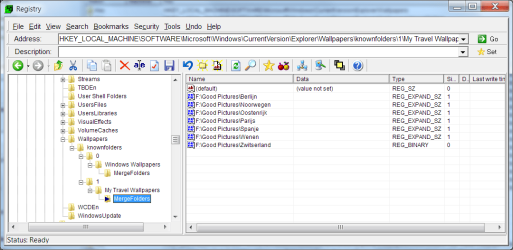
Actually if you edit the following you can get the same (or better) result .
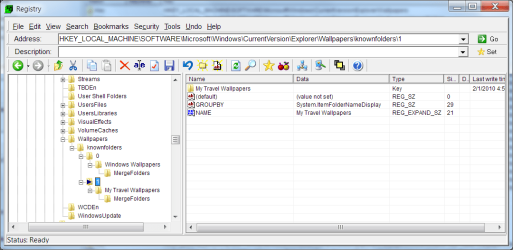
HKEY_LOCAL_MACHINE\SOFTWARE\Microsoft\Windows\CurrentVersion\Explorer\Wallpapers\knownfolders\0\Windows Wallpapers\MergeFolders

Then add a folder or change one in "Mergefolders" ,
Actually if you have only 1 folder it also looks in that folder`s subfolders.

Also you can add a folder by adding a folder to
HKEY_LOCAL_MACHINE\SOFTWARE\Microsoft\Windows\CurrentVersion\Explorer\Wallpapers\knownfolders
folder 1 for example
In that folder add the 2 keys from folder 0
GROUPBY System.ItemFolderNameDisplay
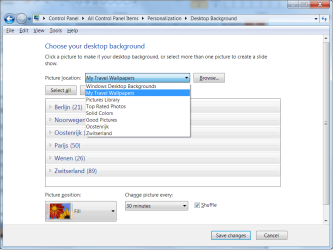
NAME My Travel pictures (name that shows up in "picture location")
 

Attachments

  • Choose Background.png
    Choose Background.png
    47.4 KB · Views: 1,135
  • Registry Background Folder.png
    Registry Background Folder.png
    38.7 KB · Views: 1,166
  • Registry Background Folders.png
    Registry Background Folders.png
    38.5 KB · Views: 1,270

My Computer My Computer

OS
7
Personally, I don't know what causes the error but since then I've had three formats. Two prior to this one had the same issue. Most recently I tried to change the folders by right clicking them inside the explorer library on the left side and change location that way.
 

My Computer My Computer

OS
Windows 7 Ultimate
CPU
P4E Prescott
Motherboard
Intel D915PBL
Memory
3 GB
Graphics Card(s)
Radeon X800XL
Slideshow vs. Wallpaper?

I have only been using Windows 7 for a few weeks. I don't understand what the difference is between setting the desktop wallpaper to change at a specified interval, versus creating a slideshow that changes the wallpaper at a specified interval? They both change the desktop background using a selected folder(s), right?
 

My Computer My Computer

Computer Manufacturer/Model Number
HP DV4-2155dx
OS
Windows 7 Home Premium 64
CPU
Intel Core i3
Memory
4gb
nice one brink:D..been looking for this..tired of moving all pictures to certain folder:confused:
 

My Computer My Computer

Computer Manufacturer/Model Number
Compaq Presario CQ40 502AU
OS
windows 7 professional x64 bit RTM
Motherboard
Compal 30FE
Memory
4G
Graphics Card(s)
ATI radeon HD 3200
Screen Resolution
1280 x 800
For anyone who still needs help

1. Create a library. e,g wallpapers
2. Include folders of wallpaper pics example include black walls in wallpaper library
3. Set library properties to pictures i,e right click and change from general to pictures
4. Right click desktop and choose personalize
5. Select library created in step 1. (eg. wallpaper library)

HTH
 

My Computer My Computer

OS
Windows 7 Ultimate x32
Back
Top