
How to Create a Desktop Slideshow in Windows 7
Information
This will show you how to create a slideshow of wallpaper images (pictures) on your Windows 7 desktop. You will have the option to select how often the pictures change and to shuffle them.
The default folder that Windows 7 uses to store the pictures in is located at:
C:\Windows\Web\Wallpaper.
The default folder that Windows 7 uses to store the pictures in is located at:
C:\Windows\Web\Wallpaper.
Note
The Windows 7 Starter and Home Basic editions do not include the Desktop Slideshow feature.
Lets talk about Windows 7 Starter - Windows 7 Team Blog - The Windows Blog
Instead, you will need to use the tutorial in the link below to have a Desktop Slideshow in the Windows 7 Starter and Home Basic editions.
How to Change the Desktop Background in Windows 7 Starter Edition
Lets talk about Windows 7 Starter - Windows 7 Team Blog - The Windows Blog
Instead, you will need to use the tutorial in the link below to have a Desktop Slideshow in the Windows 7 Starter and Home Basic editions.
How to Change the Desktop Background in Windows 7 Starter Edition
Warning
If you checked the Turn off all unnecceassary animations box in the Ease of Access Center, or uncheck the Animate controls and elements inside windows option in the Visual Effects settings, then this will also remove the fade effect between wallpapers in the desktop slideshow.
You must also be using a Aero theme to be able to use and set the desktop slideshow.
You must also be using a Aero theme to be able to use and set the desktop slideshow.
Here's How:
1. Right click on a empty space on the desktop and click on Personalize.
2. Click on the Desktop Background link at the bottom of the window. (see screenshot below)
NOTE: The name in gray under Desktop Background is the current desktop background file name.
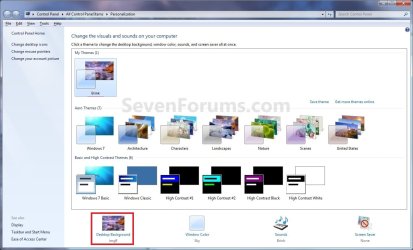
3. You will now see this window. (see screenshots below)
NOTE: You may need to scroll down or enlarge the window to see all available options like below.
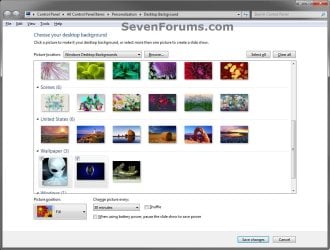
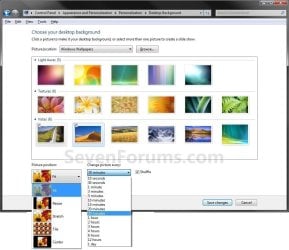
4. Select a Picture Location
A) Click on the drop down arrow menu to select from the list of available picture folder locations, or click on the Browse button to navigate to the picture folder or library location. (see screenshots above)
B) Select the picture folder and click on Select Folder.
5. Select Desktop Background Pictures
A) Select more than one picture by right clicking on an available picture, or clicking on the check box (to check) in the upper left corner of the picture. (see screenshots below and below step 3)
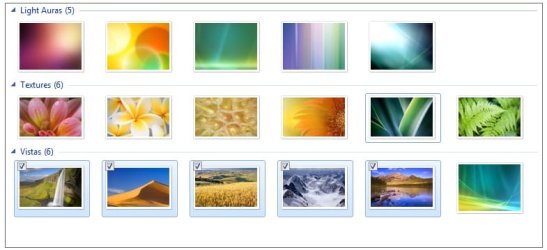
6. Select the Picture Position
A) Click on the drop down arrow menu, and click on the picture position you want for the desktop background images. (see screenshots below and below step 3)
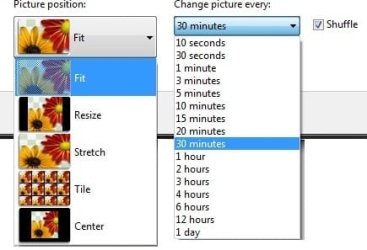
7. Select How Often to Change Pictures
A) Click on the drop down arrow menu, and click on how often you want the pictures to change. (see screenshots above and below step 3)
8. To Shuffle the Pictures
A) Check the Shuffle box to shuffle the selected pictures to change in a random order. (see screenshot below step 3 and below step 6)
NOTE: Uncheck the Shuffle box to have the selected pictures change in order.
9. To Pause Slide Show when on Battery Power
A) Check or uncheck the When using battery, pause the slide show to save power box for what you would like. (see left screenshot below step 3)
NOTE: This option is only available if you have a PC that has a battery (ex: laptop), or a destop with a UPS and it's data cable connected.
10. Click on Save changes to apply the changes. (see screenshots below step 3)
11. Close the Personalize window when done. (see screenshots below step 2)
12. Open your Advanced Power Plan Settings. Under Desktop background settings for Slide show, make sure that you have the setting as Available for both "Plugged in" or "On battery" (if available), and click on OK. (see screenshots below)
NOTE: The "On battery" option is the same setting in step 9 above.
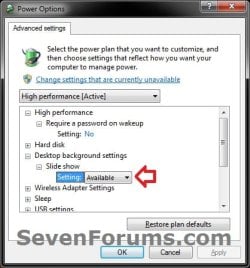
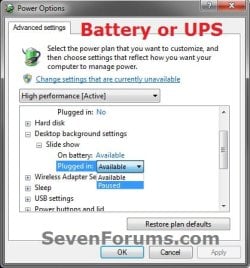
13. You will now have your selected images (step 5) change automatically on your desktop for how often (step 7) you set it to.
Tip
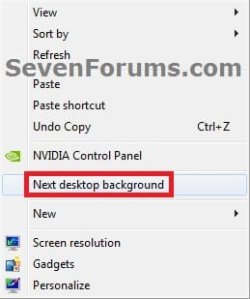
You can now also right click on your desktop, and click on Next desktop background to change or scroll your desktop background to the next image you had selected (step 5) in the slideshow.
The keyboard shortcut for this is:
Shift+F10 and press N
The keyboard shortcut for this is:
Shift+F10 and press N
That's it,
Shawn
Related Tutorials
- How to Have a Windows 7 Desktop Slideshow Shuffle Images in Multiple Folders
- How to Change or Save a Windows 7 Theme
- How to Change the Window Color and Appearance in Windows 7
- How to Change the Windows 7 Desktop Background
- How to Change the Desktop Background in Windows 7 Starter and Home Basic Editions
- How to Turn Aero Peek On or Off in Windows 7
- How to Play a Music Video as the Desktop Background
- Add or Remove "Next desktop background" from Desktop Context Menu in Windows 7 and Windows 8
- How to Add or Remove Desktop Background "Slide Show" in Power Options in Windows
Last edited:


