Solved "Destination Folder Access Denied" when modifying Program Files folder
hkBattousai

New member
Member
Local time
5:21 PM
Messages
64
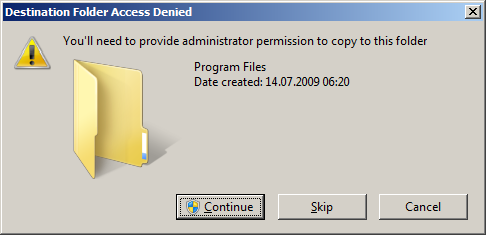
"Destination Folder Access Denied" when modifying Program Files folder

vIYQnPp.png


Code:
Destination Folder Access Denied
------------------------------------
You'll need to provide administrator permission to copy to this folder.
<Folder/Sub-Folder Name>
Date created: <Creation Date>
------------------------------------
Continue
Skip
Cancel

I get this dialog files whenever I try to modify (copy, delete or edit) contents of the "C:\Program Files" folder or its sub folders. When I click the Continue button, everything goes on fine without any problem. Some programs give write errors when I try to modify a file inside Program Files with them (e.g.; Notepad++ gives write error when I try to edit a text file inside one of the sub-folders of the Program Files folder).

I'm the only user on this computer, and I'm already the administrator who installed this Windows. There is no other OS installed on this machine.

This problem has been occurring for a long time. At first I ignored it, but later it started to became bothersome. I don't remember how have it started, or what had I done before it first appeared.

What can I do to stop Windows showing me this dialog box? I want to freely modify contents of any directory in my computer. This is a home computer, I have no social privacy concerns.

(OS: Windows 7 Ultimate x64 SP1, Up-to-date)
 

My Computer

OS
Windows 7 Ultimate x64
CPU
Intel i5 750
Motherboard
Gigabyte P55A U3DR
Memory
2x2GB DDR3 Dual-kit
Graphics Card(s)
ATI Radeon HD4670
Sound Card
Onboard
Monitor(s) Displays
Samsung SyncMaster P2350
Hard Drives
Western Digital 1TB, 64MB cache, internal
Samsung Story 1.5TB, external
PSU
400W rated, 460W max
Case
CoolerMaster
Cooling
Air
Hello HK,

This is because these are protected system files. This is done as a security measure to help prevent unauthorized changes and access to system files. For example, from malware.

By default, you could modify the file on your desktop, then copy it back into it's Program Files folder with the Continue prompt.

Your administrator account is an unelevated administrator account until you use "Run as administrator" to run or open something elevated.

If you like, you could also enable and log on to the built-in elevated "Administrator" account when you wanted to do modify files like this to have full unrestricted access.

http://www.sevenforums.com/tutorials/507-built-administrator-account-enable-disable.html

Hope this helps, :)
Shawn
 
Last edited:

My Computer

Computer type
PC/Desktop
Computer Manufacturer/Model Number
Self built custom
OS
64-bit Windows 11 Pro for Workstations
CPU
Intel i7-8700K OC'd to 5 GHz
Motherboard
ASUS ROG Maximus XI Formula Z390
Memory
64 GB (4x16GB) G.SKILL TridentZ RGB DDR4 3600 MHz
Graphics Card(s)
ASUS ROG-STRIX-GTX1080TI-O11G-GAMING
Sound Card
Integrated
Monitor(s) Displays
2 x Samsung Odyssey G7 27"
Screen Resolution
2560x1440
Hard Drives
1TB Samsung 990 PRO M.2,
4TB Samsung 990 PRO PRO M.2,
TerraMaster F8 SSD Plus NAS
PSU
Seasonic Prime Titanium 850W
Case
Thermaltake Core P3
Cooling
Corsair Hydro H115i
Keyboard
Logitech wireless K800
Mouse
Logitech MX Master 4
Internet Speed
2 Gb/s Download and 100 Mb/s Upload
Antivirus
Malwarebyte Anti-Malware Premium
Browser
Google Chrome
Other Info
Logitech Z625 speaker system,
Logitech BRIO 4K Pro webcam,
HP Color LaserJet Pro MFP M477fdn,
APC SMART-UPS RT 1000 XL - SURT1000XLI,
Galaxy S23 Plus phone
You could try disabling UAC.

Since it was easiest, I tried Cancerous' advice first, and it worked.

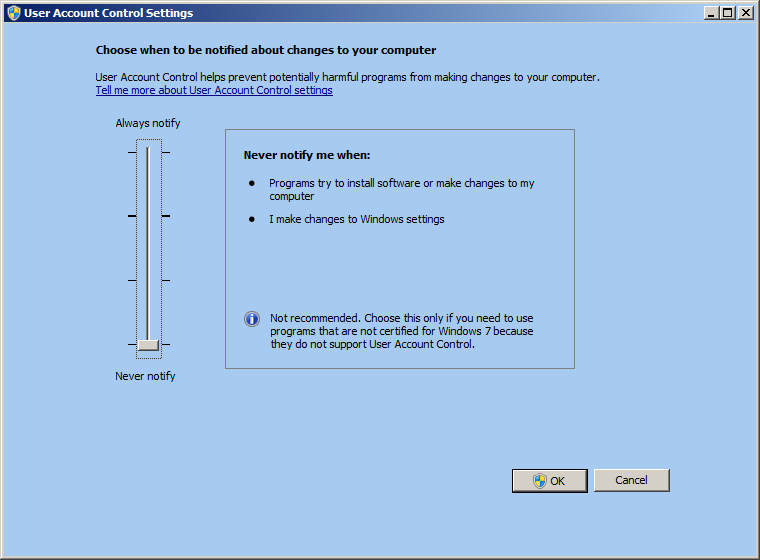
It was strange that UAC was already appeared to be turned off (the slider was at the bottom). I get suspicious of it, I moved the slider to an upper position, then I clicked OK, then I moved the slider to bottom again, then clicked OK again, and then restarted my computer.
I did nothing else and just doing it solved my problem.

http://www.sevenforums.com/tutorials/299-user-account-control-uac-change-notification-settings.html

yMSSWSi.png


Thank you Cancerous, and thank you for your reply Brink.
 
Last edited by a moderator:

My Computer

OS
Windows 7 Ultimate x64
CPU
Intel i5 750
Motherboard
Gigabyte P55A U3DR
Memory
2x2GB DDR3 Dual-kit
Graphics Card(s)
ATI Radeon HD4670
Sound Card
Onboard
Monitor(s) Displays
Samsung SyncMaster P2350
Hard Drives
Western Digital 1TB, 64MB cache, internal
Samsung Story 1.5TB, external
PSU
400W rated, 460W max
Case
CoolerMaster
Cooling
Air
Glad to hear it worked for you. :)
 

My Computer

Computer type
PC/Desktop
Computer Manufacturer/Model Number
Self built custom
OS
64-bit Windows 11 Pro for Workstations
CPU
Intel i7-8700K OC'd to 5 GHz
Motherboard
ASUS ROG Maximus XI Formula Z390
Memory
64 GB (4x16GB) G.SKILL TridentZ RGB DDR4 3600 MHz
Graphics Card(s)
ASUS ROG-STRIX-GTX1080TI-O11G-GAMING
Sound Card
Integrated
Monitor(s) Displays
2 x Samsung Odyssey G7 27"
Screen Resolution
2560x1440
Hard Drives
1TB Samsung 990 PRO M.2,
4TB Samsung 990 PRO PRO M.2,
TerraMaster F8 SSD Plus NAS
PSU
Seasonic Prime Titanium 850W
Case
Thermaltake Core P3
Cooling
Corsair Hydro H115i
Keyboard
Logitech wireless K800
Mouse
Logitech MX Master 4
Internet Speed
2 Gb/s Download and 100 Mb/s Upload
Antivirus
Malwarebyte Anti-Malware Premium
Browser
Google Chrome
Other Info
Logitech Z625 speaker system,
Logitech BRIO 4K Pro webcam,
HP Color LaserJet Pro MFP M477fdn,
APC SMART-UPS RT 1000 XL - SURT1000XLI,
Galaxy S23 Plus phone
UAC method worked

I tried disabling UAC and it also worked for me. The UAC slider also appeared all the way off, but when I moved it up then clicked ok, then moved it back down and clicked ok I was able to copy the file immediately with no restart. Very strange.
 

My Computer

Computer type
PC/Desktop
OS
Windows 7 64-bit
Back
Top