
How to Show and Access Hidden and Ghost Devices and Drivers in Device Manager
This will show you the devices and drivers from programs you no longer use, it will free up some disk space, not to mention help resolve potential conflicts between drivers that are no longer needed.
Warning
You do not want delete any Generic Volume Shadow Copy Drivers or Non-Plug and Play Devices before you make sure of their functions as you could disable the PC entirely or at the least some programs / apps will fail to function.
Let's get started!
1) In the Windows 7 start menu right click computer and select properties, in the "System" window that opens in the upper left pane select Advanced System Settings.


2) In the system properties window that opens under the advanced tab select the Environment Variables button, in the Environment Variables window select new, then in the New User Variable window type "devmgr_show_nonpresent_devices" (without the quotes) and give it a value of " 1 " then click ok to add the entry, then ok again to finish.
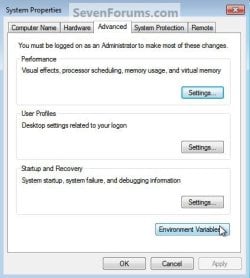

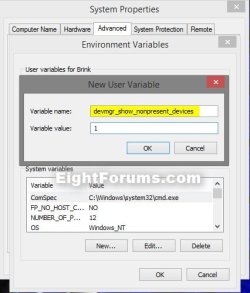
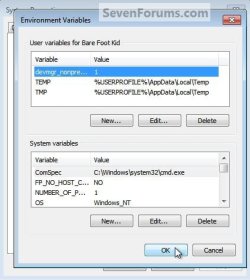
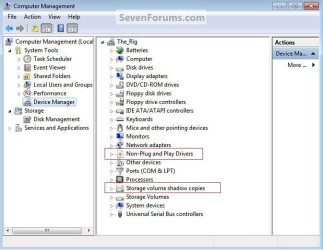
3) Again in the Windows start menu right click computer and this time select manage, in the window that opens in the left pane select Device Manager, at the top click view and select Show Hidden Devices.

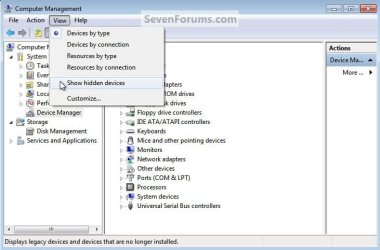
4) You can now see hidden / ghost drivers and devices by expanding the entry, they will be faded compared to the others.
Enjoy!

Related Tutorials
- http://www.sevenforums.com/tutorials/15856-device-manager-access-during-windows-7-installation.html
- http://www.sevenforums.com/tutorials/53667-device-manager-shortcut-create.html
- http://www.sevenforums.com/tutorials/2803-device-installation-settings.html
- http://www.sevenforums.com/tutorials/2791-devices-printers-device-stage.html
- How to Enable or Disable the Device Manager MMC Snap-in
- How to Uninstall a Device in Windows 7 and Windows 8
Last edited by a moderator:

