
How to Enable or Disable the Device Manager MMC Snap-in
Information
This will show you how to enable or disable all users on the computer from being able to open and view the Device Manager MMC snap-in window in Vista, Windows 7, and Windows 8.
You will need to be logged in as an administrator to be able to do this tutorial.
You will need to be logged in as an administrator to be able to do this tutorial.
Warning
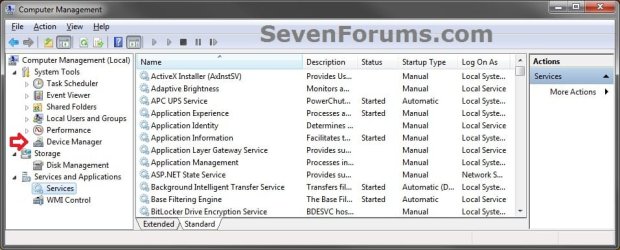
If you wanted to disable the Device Manager MMC, then you should also disable the Computer Management MMC to prevent Device Manager from being opened from within Computer Management.
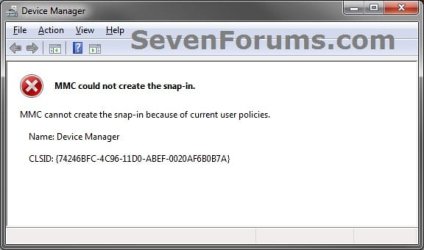
EXAMPLE: Device Manager MMC Snap-in Disabled

OPTION ONE
Enable or Disable Device Manager MMC using a REG File
1. To Enable Device Manager MMC Snap-in
NOTE: This is the default setting of Not Configured.
A) Click on the Download button below to download the file below.
Enable_Device_Manager_MMC.reg
Download
B) Go to step 4.
2. To Explicitly Enable Device Manager MMC Snap-in
NOTE: This is for if you have enabled the Restrict users to the explicitly permitted list of snap-ins option to only allow the MMC snap-ins with this setting set to open.
A) Click on the Download button below to download the file below.
Explicitly_Enable_Device_Manager_MMC.reg
Download
B) Go to step 4.
3. To Disable Device Manager MMC Snap-in
A) Click on the Download button below to download the file below.
Disable_Services_MMC.reg
Download
4. Click on Save, and save the .reg file to the desktop.
5. Right click on the downloaded .reg file and click on Merge.
6. Click on Run, Yes, Yes, and OK when prompted.
7. If open, close and reopen Device Manager (devmgmt.msc)to see the change.
8. When done, you can delete the downloaded .reg file if you like.
OPTION TWO
Enable or Disable Device Manager MMC in Group Policy
1. Open the all users, specific users or groups, or all users except administrators Local Group Policy Editor for how you want this policy applied.
2. In the left pane, click on to expand User Configuration, Administrative Templates, Windows Components, Microsoft Mangement Console, and Restricted/Permitted snap-ins. (see screenshot below)
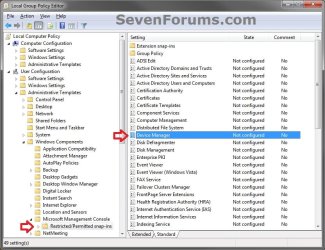
3. In the right pane, right click on Device Manager and click on Edit. (See screenshot above)
4. To Enable Device Manager MMC Snap-in
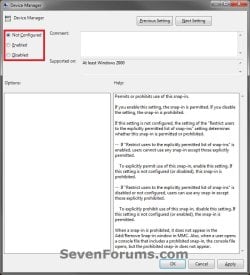
A) Select (dot) either Not Configured. (see screenshot below step 7)
NOTE: This is the default setting.
B) Go to step 7.
5. To Explicitly Enable Device Manager MMC Snap-in
A) Select (dot) either Enabled. (see screenshot below step 7)
NOTE: This is for if you have enabled the Restrict users to the explicitly permitted list of snap-ins option to only allow the MMC snap-ins with this setting set to open.
B) Go to step 7.
6. To Disable Device Manager MMC Snap-in
A) Select (dot) Disabled. (see screenshot below step 7)
7. Click on OK. (see screenshot below)
8. Close the Local Group Policy Editor window.
9. If open, close and reopen Device Manager (devmgmt.msc) to see the change.
That's it,
Shawn
Related Tutorials
Attachments
Last edited:


