Difficulty replacing a corrupt autochk.exe file

jnn

New member
Local time
2:19 AM
Messages
3
So my autochk.exe file is corrupt, this was a coincidental find whilst doing a sfc scan, I wasn't experiencing any problems whatsoever.

Now I have a good autochk.exe file, and my idea was to just plonk the good file in the place of the corrupted one.
My idea was to rename the corrupted file, put the good file next to it, then if the good file appears to work smoothly, delete the old renamed file.

Now here is my problem, no matter what I do, the old corrupted file will not budge.
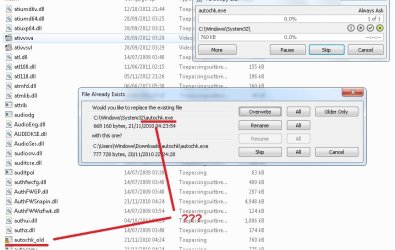
I tried to renaming it, it appears to be renamed, but when I go to paste in the working autochk.exe, it gives me an overwrite prompt, as there is already a file with that name in the folder. It basically acts like I have never renamed the file, although my screen clearly shows me I have (to autochk_old.exe). I can't remove the file from the folder either. After a while I had a "screw it" moment and decided to just try and overwrite, but again, that does not work.

I am not that tech savvy, and am well aware that this is likely caused by my ignorance, so excuse me if not all the necessary information was added. If any additional info is needed, let me know, and I will do my utmost best to help you help me.

I have given myself full administrative rights by following these instructions:

"Right click on Autochk.exe -> Properties
Click the Security tab, then click Advanced (button)
On the new window 'Advanced Security Settings for Autochk.exe' click the
'Owner' tab
Below the box labeled 'Change owner to:' click 'Edit...'
In the new window, under 'Change owner to:' select yourself (or the
Administrators group), then click OK
Close all property windows for autochk.exe, then go back to (right click)
Properties->Security
Click 'Edit...'
On the window 'Permissions for Autochk.exe' select the Administrators group,
then under 'Allow' click the 'Full Control' checkbox"
 

My Computer

Computer type
PC/Desktop
OS
64

My Computer

Computer type
PC/Desktop
Computer Manufacturer/Model Number
Lenovo IdeaCenter 450
OS
Windows 10 Pro X64
CPU
Intel Quad Core i7-4770 @ 3.4Ghz
Memory
16.0GB PC3-12800 DDR3 SDRAM 1600 MHz
Graphics Card(s)
Intel Integrated HD Graphics
Sound Card
Realtek HD Audio
Monitor(s) Displays
HP 22" LCD
Screen Resolution
1680 x 1050
Hard Drives
250GB Samsung EVO SATA-3 SSD
2TB Seagate ST2000DM001 SATA-2
1.5TB Seagate ST3150041AS SATA
Keyboard
Dell USB
Mouse
Lenovo USB
Internet Speed
Cable via Road Runner 3MB Upload, 30MB Download
Antivirus
Windows Defender, MBAM Pro, MBAE
Browser
Seamonkey
Other Info
UEFI/GPT
PLDS DVD-RW DH16AERSH
Replace system file

An easy method to use if you get stuck:

SysMate - Easily Replace Windows System Files - Technibble

You just need to run the program and ensure that the file that you replace with is the correct one.

A backup that can be restored will be created here:

C:\SysMate_Backup\autochk.exe
 

My Computer

Computer type
Laptop
Computer Manufacturer/Model Number
ASUS
OS
Microsoft Windows 7 Home Premium 64-bit 7601 Multiprocessor Free Service Pack 1
CPU
AMD C-60 APU with Radeon(tm) HD Graphics
Motherboard
ASUSTeK COMPUTER INC. X501U
Memory
4.00 GB
Graphics Card(s)
AMD Radeon HD 6290 Graphics
Sound Card
(1) AMD High Definition Audio Device (2) Realtek High Defi
Screen Resolution
1366 x 768 x 32 bits (4294967296 colors) @ 60 Hz
Hard Drives
Hitachi HTS545050A7E380 SATA Disk Device
Antivirus
Comodo CIS & FW, SecureAplus App Whitelisting, Threatfire
Browser
Cyberfox 64bit, Opera 64bit, Airfox
Other Info
Spy-The-Spy, HitmanPro.Alert, Norton Connect Safe, MJRegWatcher, BitDefender TrafficLight, Voodoo Shield, Zemana AntiMalware
Try this: http://www.sevenforums.com/tutorials/1911-take-ownership-shortcut.html?ltr=T

Once added to the context menu, right click on autochk.exe and select Take Ownership. That should do it.

From what I understood this does not work on .exe files. I used the /takeown script from an elevated command prompt instead, didn't really change anything compared to the method I used as described in my opening post.
I can still change the file name, but it doesn't actually seem to take effect. Visually it shows up as "autochk_old.exe", but for all other purposes it still treats it as if it were named "autochk.exe".
Meaning that when I try to paste in the uncorrupted autochk.exe file, it conflicts with the corrupted one, as my system treats them both as if they were name "autochk.exe", despite me having changed the name of the corrupted file.

I have added an attachment of what it looks like on my screen.


An easy method to use if you get stuck:

SysMate - Easily Replace Windows System Files - Technibble

You just need to run the program and ensure that the file that you replace with is the correct one.

A backup that can be restored will be created here:

C:\SysMate_Backup\autochk.exe


I just tried using this, both methods of the program for taking control failed.
 

Attachments

  • autochk.jpg
    autochk.jpg
    70.1 KB · Views: 0

My Computer

Computer type
PC/Desktop
OS
64
SysMate

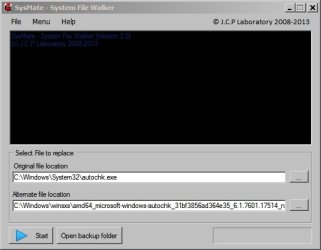
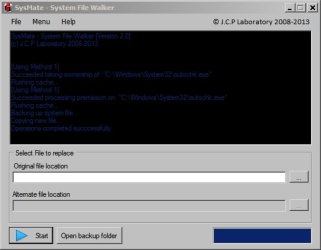
Hi. This software has always worked for me. I've used it today to replace autochk.exe with a copy. I'm not sure where you downloaded a copy or if there was a problem with the copy that you used.

SysMate - System File Walker.jpg
SysMate - System File Walker2.jpg

Try running the program from a folder on your desktop and right click the System File Walker.exe file and choose "Run as administrator" - you will have noticed that you need the correct version of .NET Framework installed. I used 4.0

Other than that - take a look at step #12 in the tutorial here:

http://www.sevenforums.com/tutorials/42776-extract-files-windows-7-installation-dvd.html
 
Last edited:

My Computer

Computer type
Laptop
Computer Manufacturer/Model Number
ASUS
OS
Microsoft Windows 7 Home Premium 64-bit 7601 Multiprocessor Free Service Pack 1
CPU
AMD C-60 APU with Radeon(tm) HD Graphics
Motherboard
ASUSTeK COMPUTER INC. X501U
Memory
4.00 GB
Graphics Card(s)
AMD Radeon HD 6290 Graphics
Sound Card
(1) AMD High Definition Audio Device (2) Realtek High Defi
Screen Resolution
1366 x 768 x 32 bits (4294967296 colors) @ 60 Hz
Hard Drives
Hitachi HTS545050A7E380 SATA Disk Device
Antivirus
Comodo CIS & FW, SecureAplus App Whitelisting, Threatfire
Browser
Cyberfox 64bit, Opera 64bit, Airfox
Other Info
Spy-The-Spy, HitmanPro.Alert, Norton Connect Safe, MJRegWatcher, BitDefender TrafficLight, Voodoo Shield, Zemana AntiMalware
The program still fails to take control of the file, after failing to do so, it terminates the attempt. How bad would it be to leave the file as is? I havent experienced any problems so far.
 

My Computer

Computer type
PC/Desktop
OS
64
Replacing autochk.exe

Hi,

Well as far as I can work out the autochk.exe file in system32 needs to match the autochk.exe file in the WINSXS folder. I must confess that after replacing autochk.exe using the method that I posted previously left chkdsk unable to run and resulted in a non-booting machine! That didn't concern me too much as I just restored a system image backup and all is well.

I'd ask you to seek more advice on this issue from other forum members and in any case it would be wise to back everything up even if you leave things as they are.

Some research shows possible fixes:

http://www.sevenforums.com/tutorials/3413-repair-install.html

Also see: http://www.sevenforums.com/performance-maintenance/290117-autochk-exe-corrupted.html but ignore the advice about replacing with a copy from the WINSXS folder as that fix left me with a non booting machine! Have a look at post #7. but it seems that you've already tried renaming the file in order to replace it!
 

My Computer

Computer type
Laptop
Computer Manufacturer/Model Number
ASUS
OS
Microsoft Windows 7 Home Premium 64-bit 7601 Multiprocessor Free Service Pack 1
CPU
AMD C-60 APU with Radeon(tm) HD Graphics
Motherboard
ASUSTeK COMPUTER INC. X501U
Memory
4.00 GB
Graphics Card(s)
AMD Radeon HD 6290 Graphics
Sound Card
(1) AMD High Definition Audio Device (2) Realtek High Defi
Screen Resolution
1366 x 768 x 32 bits (4294967296 colors) @ 60 Hz
Hard Drives
Hitachi HTS545050A7E380 SATA Disk Device
Antivirus
Comodo CIS & FW, SecureAplus App Whitelisting, Threatfire
Browser
Cyberfox 64bit, Opera 64bit, Airfox
Other Info
Spy-The-Spy, HitmanPro.Alert, Norton Connect Safe, MJRegWatcher, BitDefender TrafficLight, Voodoo Shield, Zemana AntiMalware
c:\windows\system32\autochk.exe is a hardlink to a file in c:\windows\Winsxs. Looks like that is the one you need to replace.

C:\Windows\System32>fsutil hardlink list "C:\Windows\System32\autochk.exe"
\Windows\System32\autochk.exe
\Windows\WinSxS\amd64_microsoft-windows-autochk_31bf3856ad364e35_6.2.9200.16612_
none_3b0749404b4e5a16\autochk.exe
 

My Computer

Computer type
PC/Desktop
Computer Manufacturer/Model Number
Lenovo IdeaCenter 450
OS
Windows 10 Pro X64
CPU
Intel Quad Core i7-4770 @ 3.4Ghz
Memory
16.0GB PC3-12800 DDR3 SDRAM 1600 MHz
Graphics Card(s)
Intel Integrated HD Graphics
Sound Card
Realtek HD Audio
Monitor(s) Displays
HP 22" LCD
Screen Resolution
1680 x 1050
Hard Drives
250GB Samsung EVO SATA-3 SSD
2TB Seagate ST2000DM001 SATA-2
1.5TB Seagate ST3150041AS SATA
Keyboard
Dell USB
Mouse
Lenovo USB
Internet Speed
Cable via Road Runner 3MB Upload, 30MB Download
Antivirus
Windows Defender, MBAM Pro, MBAE
Browser
Seamonkey
Other Info
UEFI/GPT
PLDS DVD-RW DH16AERSH
c:\windows\system32\autochk.exe is a hardlink to a file in c:\windows\Winsxs. Looks like that is the one you need to replace.

C:\Windows\System32>fsutil hardlink list "C:\Windows\System32\autochk.exe"
\Windows\System32\autochk.exe
\Windows\WinSxS\amd64_microsoft-windows-autochk_31bf3856ad364e35_6.2.9200.16612_
none_3b0749404b4e5a16\autochk.exe

Hi,

Thanks for the info. I'd already spotted that the file in the System32 folder is actually a hard link and from what I've been reading elsewhere it's the same file that is shown in the WinSxS folder. Indeed when I search for autochk.exe several locations are shown in search results. If I search the registry there are more enties depending upon which versions of Internet Explorer have been installed. I had no problems with my machine - but copying the autochk.exe file from WinSxS to System32 resulted in a non-booting machine after running chkdsk.

From the info that I see on hard links here:

https://blogs.technet.com/b/joscon/archive/2011/08/26/more-on-hard-links.aspx?Redirected=true

It would appear that the file exists in the MFT with hard links pointing at it. However after searching the contents of MFT on my machine I don't see the file. Possibly that's a fault with the MFT viewer.

From other forums I see that some users report a successful fix after replacing the files in WinSxS and Sytem32 with clean copies. That technique would seem to rely on performing an SFC/ scannow following file replacement as detailed in the above link......

"Later if you were to run ‘SFC /scannow’ Windows would remove the new copy and establish a new hard link using the file that was still stored under WinSxS!."


This seems to confirm what you're saying about replacing the WinSxS copy.
 
Last edited:

My Computer

Computer type
Laptop
Computer Manufacturer/Model Number
ASUS
OS
Microsoft Windows 7 Home Premium 64-bit 7601 Multiprocessor Free Service Pack 1
CPU
AMD C-60 APU with Radeon(tm) HD Graphics
Motherboard
ASUSTeK COMPUTER INC. X501U
Memory
4.00 GB
Graphics Card(s)
AMD Radeon HD 6290 Graphics
Sound Card
(1) AMD High Definition Audio Device (2) Realtek High Defi
Screen Resolution
1366 x 768 x 32 bits (4294967296 colors) @ 60 Hz
Hard Drives
Hitachi HTS545050A7E380 SATA Disk Device
Antivirus
Comodo CIS & FW, SecureAplus App Whitelisting, Threatfire
Browser
Cyberfox 64bit, Opera 64bit, Airfox
Other Info
Spy-The-Spy, HitmanPro.Alert, Norton Connect Safe, MJRegWatcher, BitDefender TrafficLight, Voodoo Shield, Zemana AntiMalware
Back
Top