Disable "F" keys on Windows 7 Pro DESKTOP PC

pallipe

New member
Local time
4:40 AM
Messages
4
Hello,

I have a desktop PC that is functioning as a kiosk in a library. I spent much time configuring the Group Policy locking it down for minimal public use (Internet/library's online catalog only), but when testing, I discovered that simply hitting "F1" will get the help window to pop up and within 30 seconds I was messing around in the control panel!!!! You can also get to the command line this way. Grrr...Not that MOST of the users would try to do this, know how to, or even want to, but there is the possibility that I would like to remove.

How can I disable either the F keys, F1 or Windows Help in this user profile? I scoured the Group Policy and found nothing. It seems like a big waste of time going through all of those settings to just dismiss them immediately. :(
If I cannot disable, how can I re-assign what the F keys do? Is it possible to do so without using 3rd party software?

The PC is an HP Compaq 4000 Pro.
The Keyboard is a standard HP keyboard
Windows 7 Pro

Thanks!
 

My Computer My Computer

At a glance

Windows 7 Professional 64-bit
OS
Windows 7 Professional 64-bit
I know of no way to pull the function keys or remap them.
By and large f1 is help either for windows or whatever application you have on top when you press it. Most the others vary from program to program. Some programs may allow remapping but so far as I know you can not disable them from within windows.

If you are looking for additional keys to make some more functionality sadly a keyboard with macro support and additional assignable buttons is probably your best bet.
 

My Computer My Computer

At a glance

Windows 7 x64Intel i7 2600kG.skill Ripjaw 16gigs @ 1866Nvidia gtx580 (evga)
Computer Manufacturer/Model Number
Insane hobo technologies. ;-)
OS
Windows 7 x64
CPU
Intel i7 2600k
Motherboard
Asrock z68 extreme 4 gen 3
Memory
G.skill Ripjaw 16gigs @ 1866
Graphics Card(s)
Nvidia gtx580 (evga)
Sound Card
Integrated HD audio + hdmi
Monitor(s) Displays
24" ASUS widescreen + 42" insignia
Screen Resolution
1080p (1920x1080)
Hard Drives
128 Samsung 830
256 Samsung 840
3 x 1tb storage drive (various)
1 western digital 1tb (eSATA)
1 Seagate 1tb (eSATA)
PSU
1 kilowatt SLI/Crossfire rated Silverstone modular
Case
NZXT Phantom + additional 220 fan
Cooling
Zalmann
Keyboard
Microsoft wireless 3000 (v2)
Mouse
MS - wireless 5000 (bluetrack)
Internet Speed
depends on if you ask me or my provider.
Other Info
The above information is provided as is, and the author assumes no responsibility for issues it may cause with your sanity or fanboyism.
......How can I disable either the F keys, F1 or Windows Help in this user profile? ~~~~~~~Is it possible to do so without using 3rd party software?...

First, you should probably respond to Brink's question to your post here.


I know that you did not want to use 3rd party software...
...but disabling the function keys via AutoIt3 is so easy:
Code:
#notrayicon

HotKeySet("{F1}", "do_nothing")
HotKeySet("{F2}", "do_nothing")

While 1
   Sleep(100)
WEnd

Func do_nothing()
EndFunc
See my post here about using AutoIt3 and false positives from AV programs.

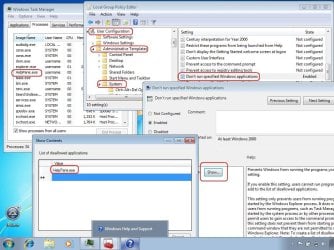
But - disabling F1 (and any other function key that you want) might not stop the user from opening the W7 Help Pane. Since this is in a public library - are you going to allow users to open/use/adjust the Windows Mobility Center? That mobility center (like other OS applets) has a little blue question mark on the interface. Clicking on that will also open the W7 Help Pane.

My attempts to prevent that Help Pane from running via GPO failed???

HelpPane.JPG


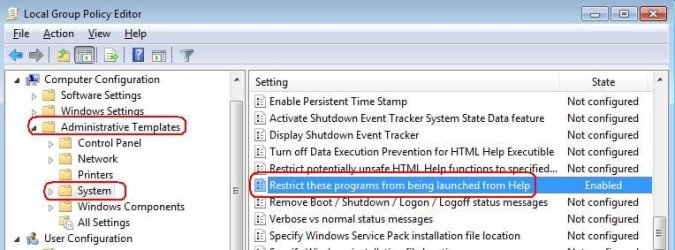
I know that you want to only restrict this one kiosk user and not your admin account, but maybe you can figure out a way to prevent control panel from launching from Help for the entire computer.

gpo.JPG


Also - will you be allowing the use of Internet Explorer? If so, have you disabled bring up Internet Options - which can lead to opening Windows (file) Explorer.
 
Last edited:

My Computer My Computer

At a glance

W7 Pro SP1 64biti78GBIntel HD Graphics
Computer type
Laptop
Computer Manufacturer/Model Number
Employer provided Dell Latitude
OS
W7 Pro SP1 64bit
CPU
i7
Memory
8GB
Graphics Card(s)
Intel HD Graphics
Hard Drives
crappy SSD
Antivirus
Employer mandated Symantec Endpoint Protection
Browser
Pale Moon 64bit, IE11 64bit & Chrome 64bit
Oh - you might also want to deal with the on-screen keyboard found under ease of use... see this link.

You probably should allow users to get to the original W7 version of the on screen keyboard - since that is one that they should have some familiarity with.

Adding this line to the AutoIt3 script in my previous post will "absorb" an Alt-F4:

HotKeySet("!{F4}", "do_nothing")
 

My Computer My Computer

At a glance

W7 Pro SP1 64biti78GBIntel HD Graphics
Computer type
Laptop
Computer Manufacturer/Model Number
Employer provided Dell Latitude
OS
W7 Pro SP1 64bit
CPU
i7
Memory
8GB
Graphics Card(s)
Intel HD Graphics
Hard Drives
crappy SSD
Antivirus
Employer mandated Symantec Endpoint Protection
Browser
Pale Moon 64bit, IE11 64bit & Chrome 64bit
Back
Top