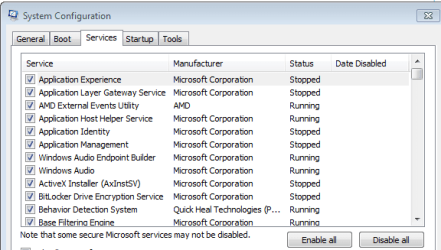
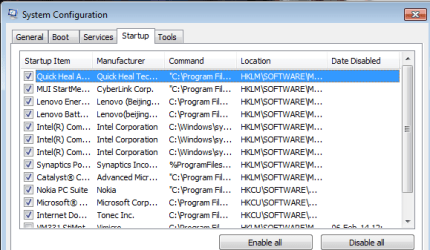
Disabling Unnecessary Processes and Services..........

Joe Ciaravino

New member
Member
Local time
4:47 AM
Messages
70
..................in Win 7.
 

My Computer My Computer

Computer type
PC/Desktop
Computer Manufacturer/Model Number
custom build
OS
Win 7 64 bit Home Premium
CPU
AMD A6 6400K
Motherboard
Gigabyte
Memory
8 bg
Hard Drives
SSD plus HDD

My Computer My Computer

Computer type
PC/Desktop
Computer Manufacturer/Model Number
home built
OS
Multi-Boot W7_Pro_x64 W8.1_Pro_x64 W10_Pro_x64 +Linux_VMs +Chromium_VM
CPU
AMD Athlon II x4 620
Motherboard
Gigabyte GA-MA785G-UD3H
Memory
6GB GSkill DDR2 800
Graphics Card(s)
AMD 4670 GPU + AMD 4200 IGP
Sound Card
on board Realtek ALC889A
Monitor(s) Displays
RCA 40" LCD TV, Insignia 32" LCD TV, HP 15" LCD monitor
Screen Resolution
1680 x 1050
Hard Drives
OCZ Vertex 3 120GB,
Samsung F3 1TB (3),
Several others - WD, Seagate, Hitachi, ...
PSU
Corsair 500 W
Case
Rosewill mid tower
Cooling
CM 90mm rifle
Keyboard
Gyration wireless, Logitech wireless, Dell USB wired
Mouse
Gyration wireless, Logitech wireless, V7 USB wired
Internet Speed
Spectrum - 100Mbps D / 10Mbps U
Antivirus
Avast, MBAM3, EMET, WinPatrol
Browser
Pale Moon, Firefox, IE
Other Info
2 multi-boot PC's
Mainly HTPC/Office/Gen purpose (no gaming).
Trendnet USB KVM.
LG DVD burner/Blue Ray Player.
Tray system for removable SATA backup drives.

Not currently OCd, under-volted.
I use Hybrid sleep, rarely re-boot or shutdown.

Hauppauge HD-PVR, Avermedia PCIe TV Tuner, Hauppauge PCI TV Tuner.
How to disable unnessary processes and services..

1.Go to windows task manager(Ctrl+shift+T)
Go to the processes tab and click on show processes from all users.
Now u can end the unwanted processes by selecting and clicking on end processes tab.

2.Go to start menu,type msconfig and hit enter.
Now go to services tab and u can stop unnecessary services from starting automatically.
Repeat same process tor startup tab.

3.The best way of managing startup programs and deactivating programs is by AVG PC Tuneup.....
 

Attachments

  • Capture.PNG
    Capture.PNG
    10.5 KB · Views: 92
  • Capture2.PNG
    Capture2.PNG
    11.3 KB · Views: 93

My Computer My Computer

Computer type
Laptop
Computer Manufacturer/Model Number
LENOVO G570
OS
windows 7 ultimate 64 bit
CPU
Intel core i3-2350M cpu@!2.30 Ghz
Motherboard
Lenovo
Memory
4.00 GB
Graphics Card(s)
AMD RADEON HD 6370M(1GB)
Monitor(s) Displays
Generic pnp Monitor
Screen Resolution
1366*768
Hard Drives
ST9500325AS ATA device(500GB) NTFS
Keyboard
Standard ps/2 keyboard
Mouse
synaptics ps/2 port Touchpad
Internet Speed
921.6 kbps(Dial up Connection)
Antivirus
Quick Heal,MSE
Browser
Opera,Chrome
Not a good idea to muck around with the services. There is nothing to be gained. Either they are dormant and do nothing and use no CPU time or they are running and are needed.
 

My Computer My Computer

Computer Manufacturer/Model Number
HP, Dell, Gateway, Toshiba - 4 laptops and 2 desktops
OS
Vista, Windows7, Mint Mate, Zorin, Windows 8
CPU
from 1.6GHz Duo to i7
Monitor(s) Displays
2x HP w2207
Hard Drives
5x HDD, 7x SSD, 12x Externals
Keyboard
with trackball - no mices
Mouse
Trackball mice
Internet Speed
DSL 6000
Disabling system services is risky and will gain you virtually nothing in terms of performance.
Before you can determine which services are unneeded you must first determine what each one does. That is a big problem. The descriptions provided in Service Manager are incomplete. Many services do more than is described. You will not find a complete list anywhere as Microsoft does not publish one.

The CPU time used by services is very low. On my Windows 7 system I found that CPU time used by all system services combined was about .3%. Unless you are desperately short on memory (and with 8 GB RAM that seems hardly likely) the savings there will be negligible.

Incidentally, setting a services startup to Manual is NOT a safe alternative to disabling it. In this state the system or an application can start a service if needed. But except for services whose default state is Manual this is unlikely to happen.
 

My Computer My Computer

Computer type
PC/Desktop
Computer Manufacturer/Model Number
HP
OS
Windows 7 Pro 64 bit
CPU
Xeon W3520
Memory
8 GB
Graphics Card(s)
Nvidia Geforce 210
I installed "RealPlayer Cloud" on my new machine and looked at taskmgr and saw 3 new processes running. I went msconfig, to services and set those 3 processes to manual. The computer has less load. RealPlayer still runs, but takes longer to load. I use it VERY rarely.............maybe once a month, so the long load time is not a problem.
 

My Computer My Computer

Computer type
PC/Desktop
Computer Manufacturer/Model Number
custom build
OS
Win 7 64 bit Home Premium
CPU
AMD A6 6400K
Motherboard
Gigabyte
Memory
8 bg
Hard Drives
SSD plus HDD
Distributed Link Tracking Client has prevented me from safely ejecting external USB drives, and IIRC, it has also been responsible for annoying full drive scans. I began disabling it probably four years ago.

I've been disabling SuperFetch (AKA StupidFetch) longer than that, because it definitely caused endless disk activity, and at the time I quit using it, it was caching multimedia files.

While not found in Services, I also disable ReadyBoot (not Boost, Boot), another source of pointless disk activity. Microsoft has tried to do these things that were intended to increase disk performance, but I never noticed them helping, and I always noticed the disk grinding. I'd recommend checking SuperFetch and ReadyBoot even after installing to an SSD, because Windows 7 x64 may not disable them automatically, and they're even more pointless for SSDs.

I don't use VMWare's NAT or DHCP servers so disable them along with the VMNet1 and VMNet8 adapters; I use Bridged mode in my VMs instead, which doesn't require these things, which to this day cause Event log spam with Computer Browser starting as often as every minute and closing after five seconds.

I disable the WMP Network Sharing Service because I can't get rid of WMP altogether without also taking out WMC, which I need for CableCard. As I must use WMC, and I use it only for TV, I delete all libraries except for Documents, mainly to avoid WMP/WMC from regularly scanning my rather large Music library for modifications. It also helps me with programs whose authors wrongly believe I want them to automatically scan my "libraries", and the only way to avoid that is to nuke the OS libraries so they don't have a standard place to look.
 

My Computer My Computer

Computer type
PC/Desktop
OS
Windows 7 Ultimate x64
Disabling Superfetch is counterproductive and has a negative impact on performance.
 

My Computer My Computer

Computer Manufacturer/Model Number
HP, Dell, Gateway, Toshiba - 4 laptops and 2 desktops
OS
Vista, Windows7, Mint Mate, Zorin, Windows 8
CPU
from 1.6GHz Duo to i7
Monitor(s) Displays
2x HP w2207
Hard Drives
5x HDD, 7x SSD, 12x Externals
Keyboard
with trackball - no mices
Mouse
Trackball mice
Internet Speed
DSL 6000
Disabling Superfetch is counterproductive and has a negative impact on performance.

Features like this are well-intentioned, but I never found them to work well enough to justify the annoyance factor they introduced, and by "working well enough", I mean their absence being noticeable in day to day use after disabling them.

Back in the days when my boot drive was a hard drive, the only difference I noticed after disabling StupidFetch was less noisy disk activity after I booted, and that was a positive thing. I started disabling it in Vista due to this and finding it was mindlessly caching multimedia files with Sysinternals Process Monitor. For SSDs, while the noise factor isn't an issue, there's also basically no performance argument to be made for using SuperFetch. Windows may or may not disable it itself when installed to an SSD, but if it doesn't, I'd recommend doing it oneself.
 

My Computer My Computer

Computer type
PC/Desktop
OS
Windows 7 Ultimate x64
I let Windows 7 take care of all memory and things like Superfetch.
I don't fool with Windows 7 Services. I let Windows 7 take care of that also.
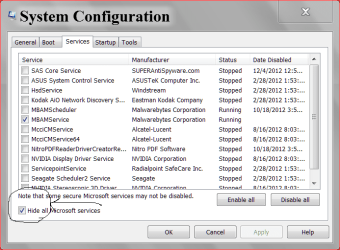
NON Windows 7 Services I just keep my security programs checked.
Seldom can I out smart Windows 7.

services msconfig.PNG
 

My Computer My Computer

Computer type
PC/Desktop
Computer Manufacturer/Model Number
Home made Desktop
OS
Windows 10 Pro. 64/ version 1709 Windows 7 Pro/64
CPU
Intel i7-6800K @ 4.3
Motherboard
ASUS X-99 Deluxe II
Memory
Corsair Platinum 16 gig @2400
Graphics Card(s)
EVGA GTX 1070 OC
Monitor(s) Displays
Asus 27" LED LCD/VE278Q
Screen Resolution
1920-1080 or 1280-720 HDMI
Hard Drives
INTEL SSD 730-240 Gb Sata 3.0/
PSU
EVGA Platium 1200W
Case
Phanteks Luxe Tempered Glass 8 fans/ one radiator
Cooling
XSPC/ Water Cooled CPU
Keyboard
Das 4 Professional
Mouse
Logitech M705/MX Anywhere 2-S
Internet Speed
100 mbits
Antivirus
Microsoft Security Essentials/ Malwarebytes Premium 3.0/ SAS
Browser
I.E. 11 default/Firefox/ ISP Time Warner Cable/Spectrum
Other Info
LG BluRay Burner/
Sound system-KLipsch-THX/
Icy Dock ssd Hot Swap bays.
Yes the SSD is fast, but RAM is a lot faster. And accessing a cached item from RAM beats accessing it from the SSD. All my systems run on SSDs but I always keep Superfetch because of the addl. performance gain.
 

My Computer My Computer

Computer Manufacturer/Model Number
HP, Dell, Gateway, Toshiba - 4 laptops and 2 desktops
OS
Vista, Windows7, Mint Mate, Zorin, Windows 8
CPU
from 1.6GHz Duo to i7
Monitor(s) Displays
2x HP w2207
Hard Drives
5x HDD, 7x SSD, 12x Externals
Keyboard
with trackball - no mices
Mouse
Trackball mice
Internet Speed
DSL 6000
For what it's worth, the Intel SSD toolbox recommends turning Superfetch off for Win 7, but apparently recommends on for Win 8. Maybe it's implemented differently in 8?

I dunno, mine is off on an Intel SSD and always has been. I'm perfectly satisfied with performance, but may not know what I'm missing.
 

My Computer My Computer

Computer type
PC/Desktop
Computer Manufacturer/Model Number
Ignatz Special; 4 speed manual gearbox; factory air conditioning; one of one
OS
Windows 7 Home Premium SP1, 64-bit
CPU
Intel Skylake i5-6600K, not overclocked
Motherboard
AsRock Z170M Extreme 4, micro ATX
Memory
8 GB HyperX DDR4-2666 (2 x 4 GB)
Graphics Card(s)
none; graphics are integrated on CPU
Sound Card
onboard: Realtek ALC1150; external: USB Behringer UF0-202
Monitor(s) Displays
Dell S2340M 23 inch IPS
Screen Resolution
1600 x 900
Hard Drives
System: Crucial MX100 series SSD, 128 GB;
Data: Samsung Spinpoint 103SJ, 1 TB;
Backup: WD Caviar Green WD30EZRX-00D8PB0, 3 TB
PSU
Rosewill SilentNight 500 watt fanless, semi-modular
Case
Antec Solo II
Cooling
Noctua NH-U12S; Noctua F12 intake, Noctua S12A exhaust
Keyboard
Microsoft 200 6JH-00001 USB
Mouse
Dell or Microsoft optical wired; USB
Antivirus
Microsoft Security Essentials and Malwarebytes Premium
Browser
Pale Moon
Other Info
All fans PWM; speeds at idle: CPU circa 500 rpm; intake circa 600 rpm; exhaust circa 600 rpm; CPU temps 27 idle and 47 C load in a warm room (27 C/81 F) when running Intel Extreme Tuning Utility stress test.
In 'the old days' they were recommending to turn Superfetch off because they thought the additional write operations may reduce the lifetime of the SSD. So Intel recommended that as kind of a 'cover my butt' recommendation.

Nowadays the SSDs are so reliable that this is no more an argument. If you compare the access times and data transfer times of SSDs and RAM, it figures that fetching from RAM cache is nearly 100 times faster than from a SSD. So turning it off really makes no sense.
 

My Computer My Computer

Computer Manufacturer/Model Number
HP, Dell, Gateway, Toshiba - 4 laptops and 2 desktops
OS
Vista, Windows7, Mint Mate, Zorin, Windows 8
CPU
from 1.6GHz Duo to i7
Monitor(s) Displays
2x HP w2207
Hard Drives
5x HDD, 7x SSD, 12x Externals
Keyboard
with trackball - no mices
Mouse
Trackball mice
Internet Speed
DSL 6000
I run Intel SSD's and they do recommend turning Superfetch off but I don't.
I keep it set to automatic.
I have lots of fast ram and I want to use it.

I think Wolfgang and I are saying the same thing in different ways.
 

My Computer My Computer

Computer type
PC/Desktop
Computer Manufacturer/Model Number
Home made Desktop
OS
Windows 10 Pro. 64/ version 1709 Windows 7 Pro/64
CPU
Intel i7-6800K @ 4.3
Motherboard
ASUS X-99 Deluxe II
Memory
Corsair Platinum 16 gig @2400
Graphics Card(s)
EVGA GTX 1070 OC
Monitor(s) Displays
Asus 27" LED LCD/VE278Q
Screen Resolution
1920-1080 or 1280-720 HDMI
Hard Drives
INTEL SSD 730-240 Gb Sata 3.0/
PSU
EVGA Platium 1200W
Case
Phanteks Luxe Tempered Glass 8 fans/ one radiator
Cooling
XSPC/ Water Cooled CPU
Keyboard
Das 4 Professional
Mouse
Logitech M705/MX Anywhere 2-S
Internet Speed
100 mbits
Antivirus
Microsoft Security Essentials/ Malwarebytes Premium 3.0/ SAS
Browser
I.E. 11 default/Firefox/ ISP Time Warner Cable/Spectrum
Other Info
LG BluRay Burner/
Sound system-KLipsch-THX/
Icy Dock ssd Hot Swap bays.
Yes the SSD is fast, but RAM is a lot faster. And accessing a cached item from RAM beats accessing it from the SSD. All my systems run on SSDs but I always keep Superfetch because of the addl. performance gain.

If it makes a difference, especially a big one, it should be possible to quantify it. How much additional performance gain do you perceive, and when and where do you perceive it? Are there any studies to back you up? Windows 7 itself will disable Superfetch on SSDs:

Windows 7, Solid State Drives and Why A WinSAT Score Matters - "Mark, I've Made A Huge Mistake..." - Site Home - TechNet Blogs

Again, I found that whatever performance benefit it might have provided when using hard drives was far outweighed by the excessive disk grinding it caused, and I never missed it after disabling it, and the performance benefit imparted to hard drives vs SSD should be an order of magnitude or two. So, it will take a lot of convincing for me to believe this was ever more than a good idea in theory, namely putting all available RAM to some sort of use, that just didn't work that well in practice. ISTR reading Microsoft papers where they claimed things like 20% speed-ups in boot times, like this guy reported here:

My computer is low on memory - [H]ard|Forum

I find going from 35 sec to 28 sec for the boot time to be a complete joke, and it's the best and only example that guy could give to ridicule the notion of disabling Superfetch. The thing is, it's still glacial, and I reboot my computers probably twice a month on average anyway, so who cares. Similarly, I couldn't care less that Windows 8 might boot in 6 sec when my Windows 7 x64, with Superfetch and ReadyBoot disabled, boots in 10 sec from its SSD.
 

My Computer My Computer

Computer type
PC/Desktop
OS
Windows 7 Ultimate x64
If I may add my two cents worth.. Just my perspective of things, and probably specific to my environment. Take away what you will. And I mean no disrespect to any one's responses before me.

There is much to be gained from disabling unnecessary services. Even on larger machines. memory is not the only consideration.

I once worked on a windows 7 system for a customer who was running 137 services on a 4gb laptop.

Many of these were application services. His virus program (ZoneAlarm IIRC), was using 11 services. Adobe was using 7 services. The list goes on. Many of these services are completely useless and simply demonstrate the vendors disregard for the performance of customer hardware. By the time I'd finished with it he was running 58 services, and it was performing substantially better.

For MS Services we disabled Indexing, search, IPv6 (yes I know it will be needed one day), Windows media player networking, and almost all application services that were just complete bloat.

Whilst this was the worst case scenario, it is not uncommon to find systems running 70 - 80 services. And there is just no need for it.

My PC runs 43 services after boot. At worst when I'm using Excel, encoding media, downloading and listening to music it never exceeds 60.

I have 32gb of RAM. I use 4gb of that for a RAMDrive for temporary files and temporary space for browsers and some smaller applications. My Boot drive is SSD and my storage is a 2TB Seagate. I have a server with 24TB of storage and moving stuff back and forth all the time. I've also disabled Remote Diff Compression, Removed tablet components and other Windows components.

Homegroup is another set of uneeded services if you know what you are doing. Networking is not all that hard, and Homegroup is simply a way of (supposedly), making it simpler for the masses (personally I think it fails).

The difference in performance for my machine, and all the machines here, was measurable. My kids even commented on the difference (You know teenagers, they know everything, and are always right ;))

We measured this in terms of time to copy large amounts of date to and from the server, encoding a video (Both DVD and Bluray), performing calculations on a large spreadsheet, opening applications like Word and Photoshop, boot time and monitoring data in performance monitor. I also used SiSoft Sandra to gather before and after information.

That's not to say that disabling services and tweaking windows components it right for everyone. I've been in I.T for 32 years and supporting Windows since 3.0. It can certainly be a minefield, and it deserves a committed amount of research if you intend to make such changes.

Just my 2 cents worth.

 

My Computer My Computer

Computer type
PC/Desktop
Computer Manufacturer/Model Number
Home Made
OS
Linux Mint 17 Cinnamon | Win 7 Ult x64
CPU
Intel I7-3770K @ 4.2ghz
Motherboard
ASRock Extreme 4
Memory
32GB G-Skill C10Q
Graphics Card(s)
EVGA GTX 670 2GB SC
Sound Card
Creative Fatality ExtremeGamer
Monitor(s) Displays
LG E2742V x 2
Screen Resolution
1920x1080
Hard Drives
256GB Vertex 4 SSD
2TB Seagate ST2000DM001
1TB Seagate ST1000DM003
PSU
Corsair HX 650
Case
HAF 932 advanced
Cooling
Corsair H100i liquid cooler
Keyboard
Logitech Wireless
Mouse
Logitech Wireless
Internet Speed
OptusNet NBN 100/40
Antivirus
Malwarebytes
Browser
Firefox 30
Other Info
Router: Sagemcom F@st 3846 Crippled by Optus.
I absolutely do not disagree on disabling unneccessary services. The Adobes and alike need not run. But I will not disable Superfetch because running without it does not compute. I am not going to make a scientific dissertation about it, but the raw nums speak against disabling Superfetch.
 

My Computer My Computer

Computer Manufacturer/Model Number
HP, Dell, Gateway, Toshiba - 4 laptops and 2 desktops
OS
Vista, Windows7, Mint Mate, Zorin, Windows 8
CPU
from 1.6GHz Duo to i7
Monitor(s) Displays
2x HP w2207
Hard Drives
5x HDD, 7x SSD, 12x Externals
Keyboard
with trackball - no mices
Mouse
Trackball mice
Internet Speed
DSL 6000
I absolutely do not disagree on disabling unneccessary services. The Adobes and alike need not run. But I will not disable Superfetch because running without it does not compute. I am not going to make a scientific dissertation about it, but the raw nums speak against disabling Superfetch.

Again, what "raw nums"?
 

My Computer My Computer

Computer type
PC/Desktop
OS
Windows 7 Ultimate x64
Here is the clue Tanya.
I've been in I.T for 32 years
You have the knowledge and experience to adapt your equipment and environment to meet your needs. I will bow to your knowledge.

I have been trying off and on for over a year to get Home Group to work. So far I have failed. So I'm not the sharpest knife in the toolbox.

For us non I.T. people I think messing with to many things in Microsoft Services can be and most likely will be a problem maker.
Now 3rd party services running are nothing but garbage in most cases in my opinion.
I hate auto update of anything but many won't check for needed updates of their programs on their own. So in their case it's needed.

Crawfish made a good point. Doing a bunch of magic to cut 2 or 3 seconds off of boot time is no big deal. It takes that long to take a good gulp of coffee.

I have never counted my running Microsoft Services but it would be close to what ever Windows 7 installs with.
I run with 46 processes according to Task Manager.

Window 7 like me so far.

W.E.I. 1 22 2014.PNG
 
Last edited:

My Computer My Computer

Computer type
PC/Desktop
Computer Manufacturer/Model Number
Home made Desktop
OS
Windows 10 Pro. 64/ version 1709 Windows 7 Pro/64
CPU
Intel i7-6800K @ 4.3
Motherboard
ASUS X-99 Deluxe II
Memory
Corsair Platinum 16 gig @2400
Graphics Card(s)
EVGA GTX 1070 OC
Monitor(s) Displays
Asus 27" LED LCD/VE278Q
Screen Resolution
1920-1080 or 1280-720 HDMI
Hard Drives
INTEL SSD 730-240 Gb Sata 3.0/
PSU
EVGA Platium 1200W
Case
Phanteks Luxe Tempered Glass 8 fans/ one radiator
Cooling
XSPC/ Water Cooled CPU
Keyboard
Das 4 Professional
Mouse
Logitech M705/MX Anywhere 2-S
Internet Speed
100 mbits
Antivirus
Microsoft Security Essentials/ Malwarebytes Premium 3.0/ SAS
Browser
I.E. 11 default/Firefox/ ISP Time Warner Cable/Spectrum
Other Info
LG BluRay Burner/
Sound system-KLipsch-THX/
Icy Dock ssd Hot Swap bays.
It takes 25 sec to boot into Win 7 and 40-55 secs for the SSD light to show no activity; it takes 10 sec to shut down.
Task mgr shows 45 processes running (if tskmgr is deducted); there are 65 services that are "started".

So what is the problem with disabling services, or at least setting them to "manual". If you keep a txt. document listing any changes made, then any undesirable behavior can be undone.
 

My Computer My Computer

Computer type
PC/Desktop
Computer Manufacturer/Model Number
custom build
OS
Win 7 64 bit Home Premium
CPU
AMD A6 6400K
Motherboard
Gigabyte
Memory
8 bg
Hard Drives
SSD plus HDD
Back
Top