Solved Disk partition shrink & expand

burnnoticefan

New member
Member
Local time
2:51 PM
Messages
34
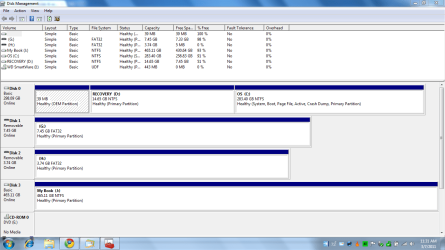
Hi, Running Win 7 x64 My primary drive has 2 partitions: C & D(recovery). D is approx.14.5 gb of which approx. 7.5gb is used. I went into disk management to shrink D partition which went fine. I then went into C to expand to capture space from D shrink. Will not allow me to expand C, where to click to expand not function. Anybody know how to capture this unused space in D into C? This 7.5 gb is just useless as now configured. Any help much appreciated!!! Thanks
 

My Computer

OS
Windows 7 64bit
First you have to make the space unallocated before you can reclaim it, also if it's to the right of D: then you can't reclaim it to c:

PS If you would post a screen shot of your disk mgmt it would help solveing your problem.
 

My Computer

Computer Manufacturer/Model Number
Dell XPS 730
OS
Windows 7 Home Premium 64 bit
CPU
Intel Core 2 quad Extreme Q9770 @ 3.2 GHz
Memory
4x2 GB Muskin 1600 MHz ram
Graphics Card(s)
NVidia GTX 250
Sound Card
Soundblaster X-Fi Fatality Champion
Monitor(s) Displays
2 Dell 2007WFP Ultrascans
Screen Resolution
3360 x 1050
Hard Drives
WD Black 1TB sata, 2-WD Black 500 sata, 2-Seagate 500 Go external
PSU
1000 Watt
Cooling
air
Keyboard
MS Natrual Keyboard Pro
Mouse
Logitech Wireless Trackball
Internet Speed
DSL Elite
You'll need to use free Partition Wizard bootable CD to shrink to the left.

If you'll post back a screenshot of your maximized full Disk Mgmt drive map with listings we can give you the exact steps and also look for any potential problems.
 
Sorry it took a couple days to reply but just got back home. Thanks
 

My Computer

OS
Windows 7 64bit
We need to see the Disk Mgmt drive map with listings. Type Disk Management in Start Search box.

use Snipping Tool in Start menu.
 
Please maximize the Disk Management window so that we can see all of the drives and listings.

There is no unallocated space showing where you shrunk D - did you undo it?

Have you made your Factory Recovery Disks off that partition before messing with it? It isn't recommended to change its size as it may not run - unless you want to get rid of it and rely on the Recovery disks if needed to recover.

Many tech enthusiasts use a clean-copy Win7 DVD installer when needed to http://www.sevenforums.com/installation-setup/125874-re-install-windows-7-a.html#post1086729. If you want to move in that direction, you dont' really need the factory OEM partition either since a clean reinstall wipes out the useless factory utilities which have better versions built into Win7.

Another consideration is to move storage to an external or secondary HD and limit C to OS/Programs and User folders - although even User folders can be linked to another HD or partition.

Tell us if there is anything else you'd desire as the tool we use can do anything at all that you want with your partitioning.
 
HI Again, I have another idea regarding the D partition recovery. Is it possible to just delete the recovery data and leave the partition in place. I am thinking I would put a Linux os in this space if this is possible. If possible, could you tell me how to delete data and leave partition. Is 14.6 gb big enough for Linux and browser and other add ons. Also, could you rec. a Linux os system that is easy and made for real non-teckkie. I am fairly new to computing but have no problem trying different things. Sorry for the lane change but this just came to me. Thanks!!!!!
 

My Computer

OS
Windows 7 64bit

The link is dead. Use Snipping tool to attach file with Paper Clip in Reply box.

If you delete the Recovery Partition on a Win7 preinstalled rig you will lose the most stable way to recover to factory condition. You should have already made the Recovery Disks although they are not as reliable - but you can always order another set from manufacturer.

Most tech enthusiasts clean reinstall using a Win7 installer for their version to get rid of the factory bloatware programs and useless factory utilities which have better versions built into Win7. Then by saviing a Win7 backup image you have a better Recovery option and the Recov and OEM partitions can be deleted. http://www.sevenforums.com/installation-setup/125874-re-install-windows-7-a.html#post1086729

You can also clean up your Win7 factory installation and save a backup image of it to use for Recovery: http://www.sevenforums.com/installa...p-all-four-primary-partitions.html#post952573

The best config for Dual Booting with Ubuntu is to use a second HD, unplug Win7 HD during install, then after install set preferred HD to boot first in BIOS setup, boot other HD using one-time BIOS boot menu key. This avoids having GRUB on the Win7 HD which can corrupt it.
 
Capture.PNG Hi, Thanks for your time & help. Yikes getting headache!! I have found a tool to burn Linux Mint to USB which I will do. I would like to just shrink D and then add this space to space to C if possible and if not to complicated. Hope this is possible and hope to put this problem to bed!! Again Thanks
 

My Computer

OS
Windows 7 64bit
Recovery might not run if you shrink it using Disk mgmt, then use free Partition Wizard to Resize Win7 to the left to take up the space. I would be sure to make your Recovery Disks first, then after doing this cue up the Recovery to see if it is still able to offer up options for Factory Recovery. This still doesn't mean it will complete Recovery, though.
 
Hi, Thanks for reply, guess best to leave things alone as certainly a non-teckkie. Too bad, 7gb of wasted space. oh well. Thanks for your time and expertise. Really appreciate your taking the time to try & help me. burnnoticefan
 

My Computer

OS
Windows 7 64bit
Hello.


Here's a step-by-step of the process of recovering all the space to the left of the Windows 7 C: partition, have a look at this tutorial at the link below.
Skip Step One as The C: partition is already the Active partition.

Partition : Recover Space Used by an Older OS


Then you could create useable space to the right of the C: partition using Method One.

How to Shrink a Partition or Volume in Windows 7


Be sure to post back with any further questions you may have and to keep us informed.
 

My Computer

Computer Manufacturer/Model Number
* BFK Customs *
OS
W 7 64-bit Ultimate
CPU
Intel Q9550 Yorkfield
Motherboard
ASUS P5Q Pro
Memory
8GB Dominator 8500C5D
Graphics Card(s)
ATI : XFX 5870
Sound Card
Realtek HD Audio 7-1
Monitor(s) Displays
1x 47" LCD HDMI & 3x 26" LCD HDMI
Screen Resolution
1920x1080P & 1920x1200
Hard Drives
1x 80GB Intel X25-M G2 SSD : 1x 500GB & 1x 640GB WD Caviar Black(s)
PSU
Corsair 620HX
Case
Cooler Master RC-690
Cooling
Tuniq Tower 120, 2x 140mm and 3x 120mm case fans
Keyboard
Microsoft 500
Mouse
Razer Diamondback 3G
Internet Speed
14 Mb/s
Other Info
1x Koutech 3Gb/s SATA HDD Hot Swap Rack
Hi Bare Foot Kid(gotta love it): Thanks for your reply. I think this is over my head as far as doing. Will Win7 x64 Home Premium wipe clean the D partition in an easy way? I will put Linux Mint 10 in this space if possible. Can I wipe the Linux from D if I no longer want it? Will I have any problem booting machine in this config? I have plenty of storage with external drive and lots of USB sticks, so I guess gaining extra space is not a big deal. That is a first rate tutorial you put together. I am a complete non teckkie, push the button and it better work. Thanks again for a first rate response.
 

My Computer

OS
Windows 7 64bit
If you don't want to do this then don't and no one will think less of you but it is very easy to do.

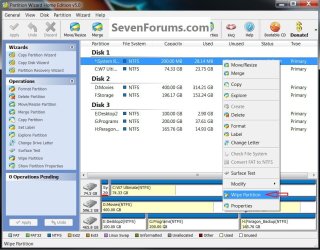
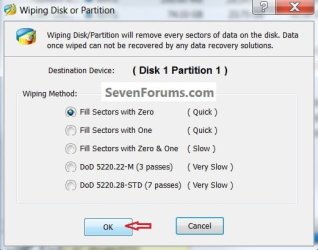
It you want to do this, let's do it this way, download and install the Partition Wizard Home program from this link below to the big 283.40GB Windows 7 partition, open the program and right click the first small 39MB partition to highlight it then click Wipe then OK for the second dialog box that opens.

Partition Wizard Free Home Edition

click to enlarge
wipe.jpgwipe2.jpg

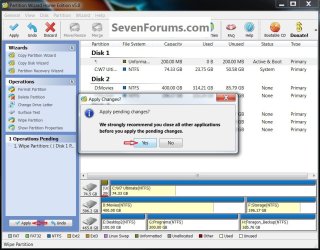
Then in the left pane Operations Pending column click Apply then Yes for the conformation dialog box, the wipe on this one will take about 3 seconds to complete.

Then close the PW program and restart Windows, if you are comfortable with that then do the same steps to the 14.65GB Recovery partition.

Once you have done that post back here with another snip of Windows 7 disk management and I'll give you the next steps.
wipe3.jpg
 

My Computer

Computer Manufacturer/Model Number
* BFK Customs *
OS
W 7 64-bit Ultimate
CPU
Intel Q9550 Yorkfield
Motherboard
ASUS P5Q Pro
Memory
8GB Dominator 8500C5D
Graphics Card(s)
ATI : XFX 5870
Sound Card
Realtek HD Audio 7-1
Monitor(s) Displays
1x 47" LCD HDMI & 3x 26" LCD HDMI
Screen Resolution
1920x1080P & 1920x1200
Hard Drives
1x 80GB Intel X25-M G2 SSD : 1x 500GB & 1x 640GB WD Caviar Black(s)
PSU
Corsair 620HX
Case
Cooler Master RC-690
Cooling
Tuniq Tower 120, 2x 140mm and 3x 120mm case fans
Keyboard
Microsoft 500
Mouse
Razer Diamondback 3G
Internet Speed
14 Mb/s
Other Info
1x Koutech 3Gb/s SATA HDD Hot Swap Rack
Hi, Thanks for your reply. This sounds easier, believe can handle this. Before I proceed, the small partition I am wiping, what is it?
 

My Computer

OS
Windows 7 64bit
You can right click it in Windows disk management to view the contents, I'm not sure, something added by the PC manufacturer, the same with the "Recovery" partition that now has an OS on it, it was intended to be used to create the factory recovery disks, but that is not possible now.


After you wipe the small partition and you are back in the big Windows 7 partition ...

type msconfig in the Windows start menu search box and under the Boot tab, post a snip of that.
 

My Computer

Computer Manufacturer/Model Number
* BFK Customs *
OS
W 7 64-bit Ultimate
CPU
Intel Q9550 Yorkfield
Motherboard
ASUS P5Q Pro
Memory
8GB Dominator 8500C5D
Graphics Card(s)
ATI : XFX 5870
Sound Card
Realtek HD Audio 7-1
Monitor(s) Displays
1x 47" LCD HDMI & 3x 26" LCD HDMI
Screen Resolution
1920x1080P & 1920x1200
Hard Drives
1x 80GB Intel X25-M G2 SSD : 1x 500GB & 1x 640GB WD Caviar Black(s)
PSU
Corsair 620HX
Case
Cooler Master RC-690
Cooling
Tuniq Tower 120, 2x 140mm and 3x 120mm case fans
Keyboard
Microsoft 500
Mouse
Razer Diamondback 3G
Internet Speed
14 Mb/s
Other Info
1x Koutech 3Gb/s SATA HDD Hot Swap Rack
Back
Top