Solved Disk partitioning help!

marylushman

New member
Local time
5:44 PM
Messages
11
Hello,

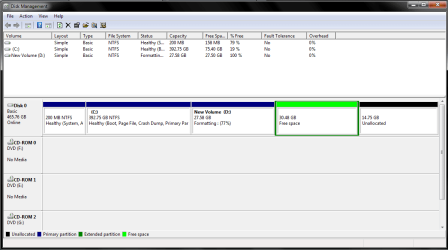
My current partitioning looks like this :Imagebin - A place to slap up your images.
If I erase D then instead of D it will show unallocated space, but I cannot merge with the other unallocated space chunk. Why?
The only thing I could guess is that the order matters(i can merge only two adjacent chunks), but a while back ago when I used to partition my hard disk with a bootable windows xp drive nothing like this has happened.
I would like to mention that the two partitions between D and the unallocated space chunk are ext4 and linux swap, and one of them contains linux. Here again, I would like to know which one are what?
Now, what I would like to do is have a partition where I could hold files that I could use from every OS and have an extra partition for each OS I have on my hard disk.
Also, googling about hard disk management does not help me much, I would like to know more precise what's happening there. Could someone recommend me a book?
 

My Computer

Computer type
Laptop
OS
Windows 7 Home Premium 64bit
Sorry for not posting a correct screenshot of the disk management.
No, I was looking for a clarification of my questions.
 

Attachments

  • curpartitioning2.png
    curpartitioning2.png
    21.2 KB · Views: 11

My Computer

Computer type
Laptop
OS
Windows 7 Home Premium 64bit
I would delete D and the free space, then make 1 partition out of all the unallocated space. Either Primary or Logical.

Use Partition Wizard if you want to make it a Primary Partition.
 
Last edited:

My Computer

Computer type
PC/Desktop
Computer Manufacturer/Model Number
Skylake Special #666
OS
Windows 10 Pro x64
CPU
Intel Core i7 6700K
Motherboard
Asus Sabertooth Z170 Mark 1
Memory
GSkill TridentZ RGB 16GB 3600 16-16-16-36
Graphics Card(s)
EVGA GTX 980 Ti SC x2
Sound Card
Realtek High Definition
Monitor(s) Displays
AOC G2460PG
Screen Resolution
1920 x 1080 144Hz
Hard Drives
Samsung 860 Pro 256GB, Seagate Barracuda 4TB x2
PSU
EVGA 1000 P2, EVGA White Custom Braided Cables
Case
Corsair Vengeance C70 Gunmetal Black
Cooling
Corsair H100i v2, Corsair ML120 x2, Thermal Grizzly Kryonaut
Keyboard
Logitech G910 Orion Spectrum
Mouse
Logitech G700s
Internet Speed
Verizon Fios Quantum Gateway 75/75
Antivirus
Windows Defender, Malwarebytes Free 3.8.3
Browser
Chrome
Other Info
Corsair SP120 x4, LG Blu-ray Drive, Durabrand HT-395 100 Watt Dolby Digital Amp, Corsair H2100 Wireless 7.1 Headset
I see you deleted the Linux partitions. If all you want to do is extend D to the right then as Theog suggested delete the Logical Free Space in Disk Mgmt by right clicking on it to Delete Volume. Then extend D to the right by as much space as you'd like. To create a new partition in the space use Partition or Volume - Create New

But if you want to create more than a total of four Primary partitions, make the fourth one Logical so you can add as many adjacent Logical as you wish. Partition Wizard Create Partition - Video Help You're limited to four Primary.
 
Thanks to all for your replies.
Since you've seen that I've deleted my Ubuntu partitions now I cannot boot windows 7.
Any ideas?
 

My Computer

Computer type
Laptop
OS
Windows 7 Home Premium 64bit
Yeah, did everything as the article says, but it did not work.
I have three partitions : the 200 mb one, the one with windows and an empty one. I set all of them except the one with the windows as inactive and the one with the windows as active. Did it 3 times in a row, the third time it told me that it could not find any problem with the startup and that i should disconect something and try restarting again.(i think it refers to a situation when one would have something as a camera connected to a laptop).
Still the grub rescue stuff!
 

My Computer

Computer type
Laptop
OS
Windows 7 Home Premium 64bit

My Computer

Computer type
PC/Desktop
Computer Manufacturer/Model Number
Golden Mk. I.4
OS
Windows 10 Pro x64 ; Xubuntu x64
CPU
Intel i7 860 @ 2.80 GHz O/C'ed to 4.0GHz
Motherboard
Gigabyte P55A-UD3R Rev.1. Award BIOS F13
Memory
16GB Corsair Vengance DDR3 @ 661 MHz Dual Channel (9-9-9-24)
Graphics Card(s)
EVGA NVidia GTX 560 1024MB
Sound Card
Realtek Integrated
Monitor(s) Displays
Dual Samsung SyncMaster 2494HS
Screen Resolution
1920*1080 and 1920*1080
Hard Drives
1*Samsung 840 EVO 120GB SSD;
1*OCZ Vertex 2 60GB SSD;
2*Samsung F3 SpinPoint 1TB in RAID0;
1*Samsung F1 SpinPoint 1TB;
2*Western Digital 1TB External USB 3.0
1*Western Digital 500GB External USB 3.0
1*Seagate 500GB External USB 2.0
PSU
Thermaltake ToughPower QFan 750W
Case
Thermaltake Element S VK60001W2Z
Cooling
Corsair H60 Water Cooling, 2*230mm and 2*80mm case fans
Keyboard
Logitech G110
Mouse
Logitech MX518
Thanks, Golden!
I just solved the problem using bootrec.
But now I have another problem, and that is:
In partition wizard I try to shrink c and extend d at the same time and it does this after restarting with partition wizard bootloader until 19 min and 10 sec have elapsed. And then it gives me a I/O Disk error, running status code : 24 (around 40% total). I have just checked for errors on the disk and only found 49 reparsed files(not sure what that is). I'll have to give it another go and see if this works.
 
Last edited:

My Computer

Computer type
Laptop
OS
Windows 7 Home Premium 64bit
Are you using the bootable version of Partition Wizard? If not, use that.

Shrink C: first, then lets look at your Disk Management screen.

Regards,
Golden
 

My Computer

Computer type
PC/Desktop
Computer Manufacturer/Model Number
Golden Mk. I.4
OS
Windows 10 Pro x64 ; Xubuntu x64
CPU
Intel i7 860 @ 2.80 GHz O/C'ed to 4.0GHz
Motherboard
Gigabyte P55A-UD3R Rev.1. Award BIOS F13
Memory
16GB Corsair Vengance DDR3 @ 661 MHz Dual Channel (9-9-9-24)
Graphics Card(s)
EVGA NVidia GTX 560 1024MB
Sound Card
Realtek Integrated
Monitor(s) Displays
Dual Samsung SyncMaster 2494HS
Screen Resolution
1920*1080 and 1920*1080
Hard Drives
1*Samsung 840 EVO 120GB SSD;
1*OCZ Vertex 2 60GB SSD;
2*Samsung F3 SpinPoint 1TB in RAID0;
1*Samsung F1 SpinPoint 1TB;
2*Western Digital 1TB External USB 3.0
1*Western Digital 500GB External USB 3.0
1*Seagate 500GB External USB 2.0
PSU
Thermaltake ToughPower QFan 750W
Case
Thermaltake Element S VK60001W2Z
Cooling
Corsair H60 Water Cooling, 2*230mm and 2*80mm case fans
Keyboard
Logitech G110
Mouse
Logitech MX518
Still, does'nt work.
@Golden
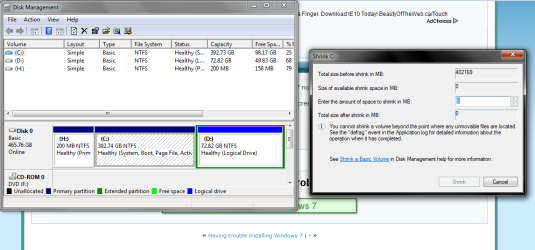
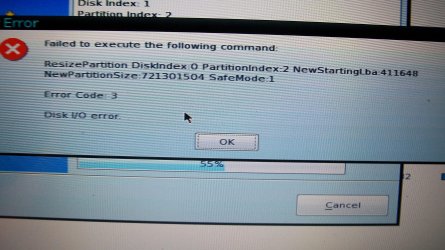
When I give the shrink command a window appears telling me that i need to stop all the processes using partition C so what it does is, it restarts and then Partition Wizard Boot appears and does it's work but crashes everytime about the same place when "Copying data". It also gives me "Error code 3". I could not find anything on google about that error.

Later edit: I've booted from a usb partition wizard boot and still the same thing.
 

Attachments

  • shrinkwithdiskmanagement.png
    shrinkwithdiskmanagement.png
    37.5 KB · Views: 6
  • 100_0682.jpg
    100_0682.jpg
    975.4 KB · Views: 4
Last edited:

My Computer

Computer type
Laptop
OS
Windows 7 Home Premium 64bit
You only have 98GB freespace on C: - by how much are you attempting to shrink by?

Do NOT use partition tools on C: whilst booted in Windows - you MUST use the bootable version.
 

My Computer

Computer type
PC/Desktop
Computer Manufacturer/Model Number
Golden Mk. I.4
OS
Windows 10 Pro x64 ; Xubuntu x64
CPU
Intel i7 860 @ 2.80 GHz O/C'ed to 4.0GHz
Motherboard
Gigabyte P55A-UD3R Rev.1. Award BIOS F13
Memory
16GB Corsair Vengance DDR3 @ 661 MHz Dual Channel (9-9-9-24)
Graphics Card(s)
EVGA NVidia GTX 560 1024MB
Sound Card
Realtek Integrated
Monitor(s) Displays
Dual Samsung SyncMaster 2494HS
Screen Resolution
1920*1080 and 1920*1080
Hard Drives
1*Samsung 840 EVO 120GB SSD;
1*OCZ Vertex 2 60GB SSD;
2*Samsung F3 SpinPoint 1TB in RAID0;
1*Samsung F1 SpinPoint 1TB;
2*Western Digital 1TB External USB 3.0
1*Western Digital 500GB External USB 3.0
1*Seagate 500GB External USB 2.0
PSU
Thermaltake ToughPower QFan 750W
Case
Thermaltake Element S VK60001W2Z
Cooling
Corsair H60 Water Cooling, 2*230mm and 2*80mm case fans
Keyboard
Logitech G110
Mouse
Logitech MX518
You only have 98GB freespace on C: - by how much are you attempting to shrink by?

Do NOT use partition tools on C: whilst booted in Windows - you MUST use the bootable version.
I tryed to shrink it by 50, it does not let you shrink it more thank 98GB. It does the calculations by itself.
Please check my previous post, I've put a picture with the error.
 

My Computer

Computer type
Laptop
OS
Windows 7 Home Premium 64bit
When I boot from the usb a command prompt appears :
boot:________
I had three options, one of them was linux0. I typed that one and entered, then partition wizard appeared, not entirely sure whether it was the one from the stick.
Also, I would like to add the fact that I tryed to resize these partitions with gparted from linux.(canceled the process due to the fact that it was slow)
 

My Computer

Computer type
Laptop
OS
Windows 7 Home Premium 64bit

Attachments

  • diag1.png
    diag1.png
    6.8 KB · Views: 3
  • diag2.png
    diag2.png
    6.2 KB · Views: 3
  • quicktest.png
    quicktest.png
    6.7 KB · Views: 3

My Computer

Computer type
Laptop
OS
Windows 7 Home Premium 64bit
What I would do in that case is run CCleaner on C drive. CCleaner 3.19.1721 - FileHippo.com

Then do a Puran Boot Time Defrag with full Disk Check on C drive: Puran Defrag Download

Now boot Partition Wizard, rightclick C to Resize, slide right border to the left by as much as you want, click OK: Partition Wizard Move/Resize Partition Video Help.

Then rightclick D to Resize, drag left border to the left into the space you made, click OK, Apply both steps.

There is no reason this should not work as it covers every base to free up space and move System files off the right end of partition.
 
@gregrocker
Followed your advice and it worked. Thank you!

More precise, i wiped the free space on C with Ccleaner, then used puran defrag(from boot).
I would still have some questions:
1) When defragmenting with puran I was shown 19% fragmented, then after the defragmenting process it shown 7% fragmented. Why didn't it defrag completely?
2)Again, when puran defragmenting, all was good until it reached the "Filling Gaps" part. It got stuck at 68% for 1-2 hours and then I canceled the process. Could someone explain to me what happened?
3) What does wiping free space mean?
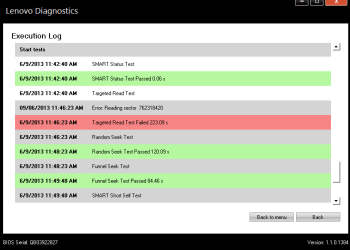
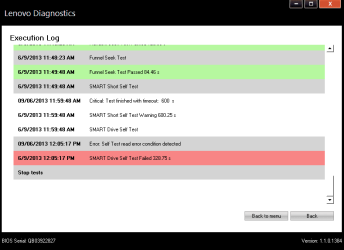
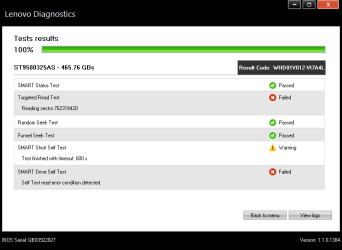
4) Why when I ran the storage test I was given those errors from my previous post(pics)?
5) Why isn't puran defrag an equivalent to disk management defrag? Or is it?
And last but not the least could someone please refer me a book about the precise computer architecture? (e.g. What exactly is bios?, how does OS's fit in a computer and stuff) I can take google and hit a lot of forums but that's not satisfactory. It just makes you feel that you know, when you, actually don't.
 

My Computer

Computer type
Laptop
OS
Windows 7 Home Premium 64bit
Back
Top