
How to Set Disk Quota Limits for Users in Windows
Information
This tutorial will show you how to enable or disable space usage quota limits on NTFS formatted hard disks for each user so a single user cannot fill the entire disk Vista, Windows 7, or Windows 8.
For more detailed information about disk quota limits, see Managing Disk Quotas (Windows).
You must be logged in as an administrator to be able to set disk quotas.
For more detailed information about disk quota limits, see Managing Disk Quotas (Windows).
You must be logged in as an administrator to be able to set disk quotas.
Note
Administrators can optionally configure the system to log an event in Event Viewer (eventvwr.msc) when users are near their quota (step 8 in Option Two below). You can view these logs under Windows Logs and System in Event Viewer with Ntfs as the Source.
Here is an example of a quota limit event log in Event Viewer:

Here is an example of a quota limit event log in Event Viewer:
OPTION ONE
To Disable Disk Quota Limits for a Hard Disk
Note
This will disable disk space quota usage limits on the selected NTFS hard disk for all users.
If you want to not limit disk space usage on the selected hard disk for individual users instead of all users, then see step 9 in OPTION TWO below.
If you want to not limit disk space usage on the selected hard disk for individual users instead of all users, then see step 9 in OPTION TWO below.
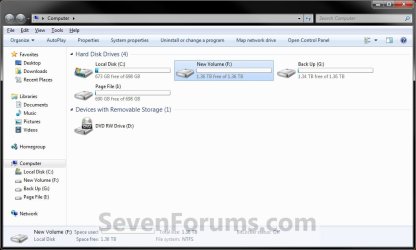
1. Open the Computer window, right click or press and hold on the NTFS formatted hard disk (ex: my F drive) that you want to disable all quota limits on for all users, and click/tap on Properties. (see screenshot below)
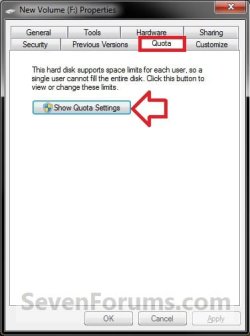
2. Click/tap on the Quota tab, and click/tap on the Show Quota Settings button. (see screenshot below)
3. If prompted by UAC, click/tap on Yes (Windows 7/8) or Continue (Vista).
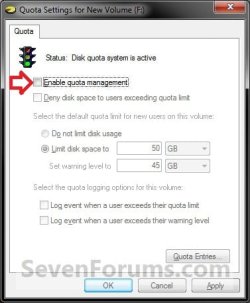
4. Uncheck the Enable quota management box, and click/tap on OK. (see screenshot below)
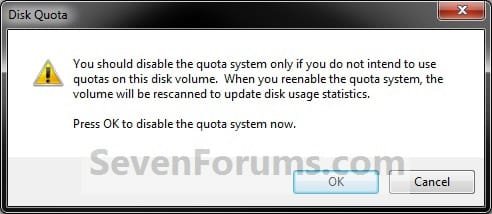
5. Click/tap on OK. (see screenshot below)
6. Click/tap on OK. (see screenshot below step 2)
7. When finished, close the Computer window.
OPTION TWO
To Enable Disk Quota Limits for a Hard Disk
NOTE: This will allow you to set disk space quota limits on the selected NTFS hard disk for all or select users of your choice.
1. Open the Computer (Start Menu) window, right click or press and hold on the NTFS formatted hard disk (ex: my F drive) that you want to disable all quota limits on for all users, and click/tap on Properties. (see screenshot below)
2. Click/tap on the Quota tab, and click/tap on the Show Quota Settings button. (see screenshot below)
3. If prompted by UAC, click/tap on Yes (Windows 7/8) or Continue (Vista).
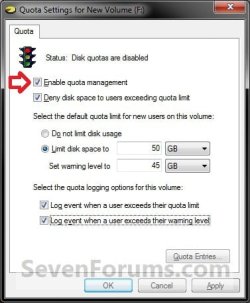
4. Check the Enable quota management box, and click/tap on Apply. (see screenshot below)
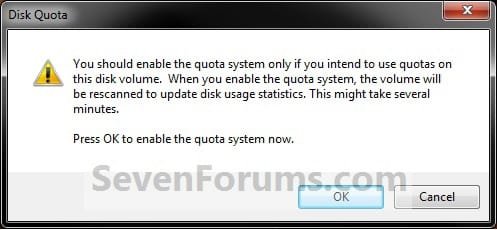
5. Click/tap on OK. (see sceenshot below)
6. If you would like to Deny disk space to users exceeding quota limit, then check this box. (see screenshot below step 4)
NOTE: Checking this box will prevent a user from being able to save anything to the selected hard disk (step 1) when they exceed their quota limit (step 7B or step 9D) for that hard disk.
7. To Set the Default Disk Quota Limit for New Users
NOTE: This does not affect existing user accounts. When a new user account is created after this has been set, they will automatically have this disk quota limit set for them. You can see the limits in step below.
A) For No Limits
- Select (dot) Do not limit disk usage, and click on Apply. Go to step 8. (see screenshot below)
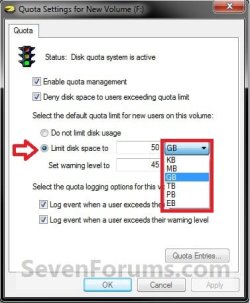
- Select (dot) Limit disk space to, and set how much disk space a new user is allowed to use on the selected disk (step 1). (see screenshot below)
- Set warning level to how much disk space a new user is to use before a warning is given to that new user about their disk quota limit. You can leave this blank if you do not wish to have a warning given to new users. (see screenshot below)
- Click/tap on Apply. (see screenshot below)
8. To Select Quota Logging Options
A) Check the boxes that you want to have an Event Viewer log for, and click/tap on Apply. (see screenshot below step 4)
NOTE: See the NOTE box at the top of the tutorial for more about how to find and read these logs.
9. To Set Disk Quota Limits for Existing Users
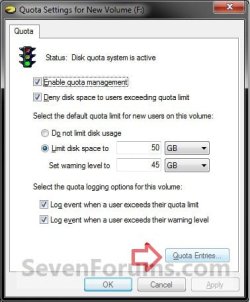
A) Click/tap on the Quota Entries button. (see screenshot below)
B) Double click/tap on the listed user name that you want to set a disk space quota limit on the selected hard disk (step 1). (see screenshot below)
NOTE: It may take a moment to retrieve the user names if this is the first time that you are setting a disk quota.
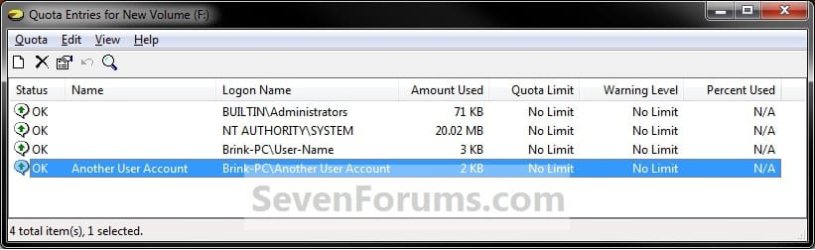
C) For No Limits
- Select (dot) Do not limit disk usage, and click/tap on OK. Go to step 9E. (see screenshots below)
- Select (dot) Limit disk space to, and set how much disk space this user is allowed to use on the selected disk (step 1). (see screenshots below)
- Set warning level to how much disk space this user is to use before a warning is given to the user about their disk quota limit. You can leave this blank if you do not wish to have a warning given. (see screenshots below)
- Click/tap on OK. (see screenshots below)
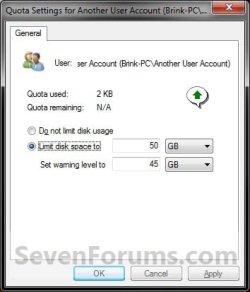
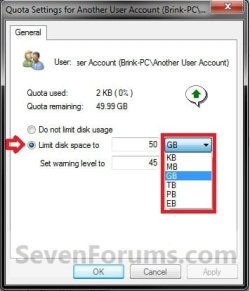
E) Close the Quota Entries window. (see screenshot below)
NOTE: You can see the changes you made here for the selected user's quota limit settings.
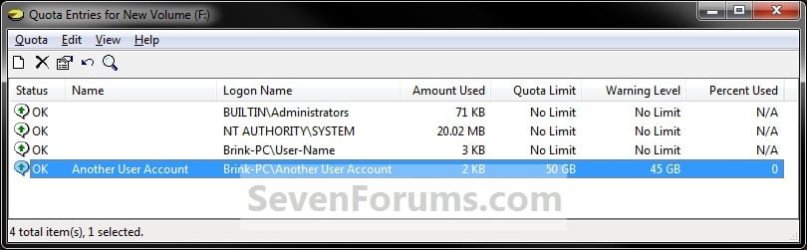
10. Click/tap on OK. (see screenshot below step 9A)
11. Click/tap on OK. (see screenshot below step 2)
12. When finished, close the Computer window.
That's it,
Shawn
Related Tutorials
- How to Export and Import User Disk Quota Entries in Windows 7 and Vista
- How to Setup and Use Parental Controls in Windows 7
- How to Convert a FAT or FAT32 Volume to NTFS in Windows 7
- How to Setup and Use Windows Media Center Parental Controls
- How to Turn DVD Playback Restrictions On or Off in Windows 7 Media Player
Last edited:


