Disk unallocated, unable to initialise, unable to assign drive letter

melo7ultimate

New member
Local time
10:47 AM
Messages
12
After online researching, I ended up into this forum >> http://www.sevenforums.com/hardware...1-unknown-not-initialized-unallocated-11.html

I downloaded the Partition Wizard from Jumanji's link, installed, and followed instructions until the end.

After assigning drive letter (G:\), the PW shows that it is indeed assigned to drive G:\ BUT, I still can't see it in My Computer so I checked Disk Management and it still shows the same status/problem as it was from the beginning.

Is/are there any further necessary step/s after assigning Drive letter to the recovered disk?

When I try to close the PW, it says "You are about to quit the program and cancel all pending operations. The changes you have made will be lost."

I don't know what to do from here. Please help

Thanks in advance..
 

My Computer My Computer

At a glance

Windows 7 Ultimate x86Intel Core [email protected] GHz
Computer type
Laptop
Computer Manufacturer/Model Number
Acer Travelmate 8372
OS
Windows 7 Ultimate x86
CPU
Intel Core [email protected] GHz
OK, It could be a simple matter.

But I want to have a clear picture of what exactly your problem was.

1. Are we dealing with in internal drive or external drive?

2. Was the drive suddenly not accessible in My Computer?

3. Was it seen in Disk Management? What did it show? Even now you can take a screenshot of how the drive appears in Windows Disk Management and post it
http://www.sevenforums.com/tutorials/274797-disk-management-post-screen-capture-image.html

We will then proceed step by step. I am here for the next 11 or 12 hours but peep in once in an hour or two and follow up.

I know you had used PW. But we shall get on to it after you post the Windows Disk Management screenshot.

BTW what is your local time? If you are in USA you can go to sleep and come back after six or eight hours. No problem.
 

My Computer My Computer

At a glance

Windows 7 Home Premium 32 bit
OS
Windows 7 Home Premium 32 bit
It's a laptop internal drive that became inaccessible after my bro ran chkdsk but cancelled in the middle of disk checking..

So, using an HDD reader then plugged it to another laptop and access it as external drive and that's how the problem arose.

I also tried to format it with installation CD, it shows 1 unallocated disk, but when I create a new partition, it doesn't want to.
 

My Computer My Computer

At a glance

Windows 7 Ultimate x86Intel Core [email protected] GHz
Computer type
Laptop
Computer Manufacturer/Model Number
Acer Travelmate 8372
OS
Windows 7 Ultimate x86
CPU
Intel Core [email protected] GHz
It's GMT+8 in our country so it's almost 3pm here and btw, I'm at the office til 5pm..

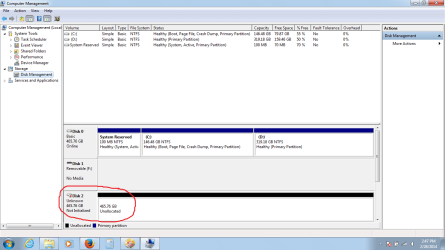
here's a screen shot of Disk Management.

sshot.png
 

My Computer My Computer

At a glance

Windows 7 Ultimate x86Intel Core [email protected] GHz
Computer type
Laptop
Computer Manufacturer/Model Number
Acer Travelmate 8372
OS
Windows 7 Ultimate x86
CPU
Intel Core [email protected] GHz
OK, Now run Partition Wizard and post a screenshot of how the drive looks in Partition Wizard.

Then run a quick scan with Partition Recovery Wizard in Partition Wizard. ( Follow the topic Recovery with Partition Wizard: SanDisk Cruzer Blade 16GB - in your case it will be your problem HDD ) in http://www.sevenforums.com/software...ive-turned-raw-partition-wizard-testdisk.html

After quick scan is completed, does it show the partitions found? Select the partition/partitions shown and double click on them. Does the Partition Explorer show the files? Please post the screenshots as in my thread above.

Edit: I missed your post#3. What is that HDD Reader? Ideally, I would have preferred recovery with the drive in its original location - the laptop.

Anyway, let us see what PW shows.
 

My Computer My Computer

At a glance

Windows 7 Home Premium 32 bit
OS
Windows 7 Home Premium 32 bit
Oh, I already did that twice. It shows 1 partition (NTFS), and about 8-10 boot file with 3.01Mb size..

When I D-click the NTFS file, it only shows the USER Folder, no WINDOWS folder. But still, I followed the instructions until the "change drive letter", and changed it to drive G:\. PW says it's successful but when I clicked Apply and waited for it to finish, windows reported the program stopped working and needs to close..

It takes about 3 hours or less for the 500GB HDD, but now I only have less than 2 hours til closing time.

I can't bring home the HDD reader because it's office-owned. one more thing is it's Friday here and office resumes Monday :(

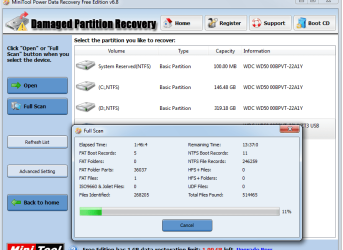
I am currently trying Damaged Partition Recovery, but again, it's 1 hr, 46 mins since I ran it and it's still at 11% :((

sshot2.png
 

My Computer My Computer

At a glance

Windows 7 Ultimate x86Intel Core [email protected] GHz
Computer type
Laptop
Computer Manufacturer/Model Number
Acer Travelmate 8372
OS
Windows 7 Ultimate x86
CPU
Intel Core [email protected] GHz
BTW sir, is there any way to show the results of my previous scan? I used PW, and was able to recover and assign drive letter to the recovered disk on my first scan but it closed that's why I did a second scan (another almost 3 hours of waiting). Can i just view my previous scan and start from there?
 

My Computer My Computer

At a glance

Windows 7 Ultimate x86Intel Core [email protected] GHz
Computer type
Laptop
Computer Manufacturer/Model Number
Acer Travelmate 8372
OS
Windows 7 Ultimate x86
CPU
Intel Core [email protected] GHz
OK, Now run Partition Wizard and post a screenshot of how the drive looks in Partition Wizard.

Then run a quick scan with Partition Recovery Wizard in Partition Wizard. ( Follow the topic Recovery with Partition Wizard: SanDisk Cruzer Blade 16GB - in your case it will be your problem HDD ) in http://www.sevenforums.com/software...ive-turned-raw-partition-wizard-testdisk.html

After quick scan is completed, does it show the partitions found? Select the partition/partitions shown and double click on them. Does the Partition Explorer show the files? Please post the screenshots as in my thread above.

Edit: I missed your post#3. What is that HDD Reader? Ideally, I would have preferred recovery with the drive in its original location - the laptop.

Anyway, let us see what PW shows.

I detached the HDD from laptop because it doesn't boot, and when I tried to format with installation CD, it won't create a new partition from the unallocated disk space, therefore, it won't proceed to formatting the drive.

So I detached the HDD, hooked it to the reader, plugged the reader in another laptop and view it as an external drive but it doesn't show in My Computer and as shown on the screen shot I posted on its status in the Disk Management
 

My Computer My Computer

At a glance

Windows 7 Ultimate x86Intel Core [email protected] GHz
Computer type
Laptop
Computer Manufacturer/Model Number
Acer Travelmate 8372
OS
Windows 7 Ultimate x86
CPU
Intel Core [email protected] GHz
OK, Now run Partition Wizard and post a screenshot of how the drive looks in Partition Wizard.

Then run a quick scan with Partition Recovery Wizard in Partition Wizard. ( Follow the topic Recovery with Partition Wizard: SanDisk Cruzer Blade 16GB - in your case it will be your problem HDD ) in http://www.sevenforums.com/software...ive-turned-raw-partition-wizard-testdisk.html

After quick scan is completed, does it show the partitions found? Select the partition/partitions shown and double click on them. Does the Partition Explorer show the files? Please post the screenshots as in my thread above.

Edit: I missed your post#3. What is that HDD Reader? Ideally, I would have preferred recovery with the drive in its original location - the laptop.

Anyway, let us see what PW shows.

I detached the HDD from laptop because it doesn't boot, and when I tried to format with installation CD, it won't create a new partition from the unallocated disk space, therefore, it won't proceed to formatting the drive.

So I detached the HDD, hooked it to the reader, plugged the reader in another laptop and view it as an external drive but it doesn't show in My Computer and as shown on the screen shot I posted on its status in the Disk Management

So your aim is to format the drive and not data recovery. Yes /No

Put the HDD back into laptop and from the installation DVD run diskpart clean all. http://www.sevenforums.com/tutorials/52129-disk-clean-clean-all-diskpart-command.html

Once the clean all completes, reinstall Windows formatting the drive.
 

My Computer My Computer

At a glance

Windows 7 Home Premium 32 bit
OS
Windows 7 Home Premium 32 bit
To fix the damage of the HDD in order to recover the files (if possible) and to be able to format it. Which are all impossible at the moment. I was trying to recover the files but there was a time that I gave up on it and just went to formatting the drive but was surprised when I can't even format the HDD as the unallocated disk space cannot be allocated. When I click NEW (new partition) in the Windows Installation GUI and set the size, it just comes back to Unallocated Disk Space, therefore, the FORMAT button is disabled :(
 

My Computer My Computer

At a glance

Windows 7 Ultimate x86Intel Core [email protected] GHz
Computer type
Laptop
Computer Manufacturer/Model Number
Acer Travelmate 8372
OS
Windows 7 Ultimate x86
CPU
Intel Core [email protected] GHz
When I used the PW, I saw some of my files in the recovered NTFS partition, but as I stated before, after recovering, I assigned a drive letter, and then I stopped there. I will try PW again as soon as I resume office. As of now, the DPR is still running at 28% and it's almost closing time.

Anyway, do I have to run PW again to scan the disk or can I just go the part where the recovery has finished and see what I can do from there? Is that possible? or re-scan?
 

My Computer My Computer

At a glance

Windows 7 Ultimate x86Intel Core [email protected] GHz
Computer type
Laptop
Computer Manufacturer/Model Number
Acer Travelmate 8372
OS
Windows 7 Ultimate x86
CPU
Intel Core [email protected] GHz
OK, if you want to recover the files, your best bet would be to run PhotoRec. No guarantee since the drive has already been manipulated in many ways.

Since you won't be able to do it in your office ( the scan will take a long time), get the HDD back into your brother's laptop and run PhotoRec from a bootable USB drive. Use the DOS version of TestDisk to create your bootable pendrive with Rufus. http://rufus.akeo.ie/

http://www.sevenforums.com/software/193467-guide-using-photorec-recovery-software.html
 

My Computer My Computer

At a glance

Windows 7 Home Premium 32 bit
OS
Windows 7 Home Premium 32 bit
OK, Now run Partition Wizard and post a screenshot of how the drive looks in Partition Wizard.

Then run a quick scan with Partition Recovery Wizard in Partition Wizard. ( Follow the topic Recovery with Partition Wizard: SanDisk Cruzer Blade 16GB - in your case it will be your problem HDD ) in http://www.sevenforums.com/software...ive-turned-raw-partition-wizard-testdisk.html

After quick scan is completed, does it show the partitions found? Select the partition/partitions shown and double click on them. Does the Partition Explorer show the files? Please post the screenshots as in my thread above.

Edit: I missed your post#3. What is that HDD Reader? Ideally, I would have preferred recovery with the drive in its original location - the laptop.

Anyway, let us see what PW shows.

I detached the HDD from laptop because it doesn't boot, and when I tried to format with installation CD, it won't create a new partition from the unallocated disk space, therefore, it won't proceed to formatting the drive.

So I detached the HDD, hooked it to the reader, plugged the reader in another laptop and view it as an external drive but it doesn't show in My Computer and as shown on the screen shot I posted on its status in the Disk Management

So your aim is to format the drive and not data recovery. Yes /No

Put the HDD back into laptop and from the installation DVD run diskpart clean all. http://www.sevenforums.com/tutorials/52129-disk-clean-clean-all-diskpart-command.html

Once the clean all completes, reinstall Windows formatting the drive.


Already did that. The clean command is successful, but I believe I still need to use assign command to give it a drive letter and it gives an error when I use the assign command.
 

My Computer My Computer

At a glance

Windows 7 Ultimate x86Intel Core [email protected] GHz
Computer type
Laptop
Computer Manufacturer/Model Number
Acer Travelmate 8372
OS
Windows 7 Ultimate x86
CPU
Intel Core [email protected] GHz
Sir Jumanji, if I proceed to formatting and disregard data recovery. What steps should I follow? BTW, thanks a lot for attending to my concerns. I'm too busy thinking of remedies that I even forgot to thank you..so THANK YOU AGAIN SIR :D
 

My Computer My Computer

At a glance

Windows 7 Ultimate x86Intel Core [email protected] GHz
Computer type
Laptop
Computer Manufacturer/Model Number
Acer Travelmate 8372
OS
Windows 7 Ultimate x86
CPU
Intel Core [email protected] GHz
I detached the HDD from laptop because it doesn't boot, and when I tried to format with installation CD, it won't create a new partition from the unallocated disk space, therefore, it won't proceed to formatting the drive.

So I detached the HDD, hooked it to the reader, plugged the reader in another laptop and view it as an external drive but it doesn't show in My Computer and as shown on the screen shot I posted on its status in the Disk Management

So your aim is to format the drive and not data recovery. Yes /No

Put the HDD back into laptop and from the installation DVD run diskpart clean all. http://www.sevenforums.com/tutorials/52129-disk-clean-clean-all-diskpart-command.html

Once the clean all completes, reinstall Windows formatting the drive.


Already did that. The clean command is successful, but I believe I still need to use assign command to give it a drive letter and it gives an error when I use the assign command.

Not just clean (which only zeroes the first sector of the HDD) but clean all which zeroes all sectors.

BTW, what make is the HDD? if it is Seagate or Western Digital you can also run the manufacturer's diagnostic/repair utility from a bootable pen drive to check the disk's health. If it passes the short test and long test, by using the same utility you can wipe the disk clean - write zeroes.

Now you have been given all options. It is upto you to do whatever you like.:)
 

My Computer My Computer

At a glance

Windows 7 Home Premium 32 bit
OS
Windows 7 Home Premium 32 bit
When I try to close the PW, it says "You are about to quit the program and cancel all pending operations. The changes you have made will be lost."

When you use Partition Wizard there are 2 steps to the process:
1) You start the chosen task, make your change, and say OK.
The task will now appear in the left of the window in the "Pending Operations" column.

2) You then must click on the "APPLY" button at the bottom left corner to start making the changes.

When you get that message in the quote above it means that you quit the program before applying the changes, so nothing was changed.
 

My Computer My Computer

At a glance

Windows 7 64 Bit Home Premium SP1i7-3820GSkill F3-14900CL9Q - 16GBEVGA GeForce GTX660 - Driver 352.86
Computer type
PC/Desktop
Computer Manufacturer/Model Number
Home Built - Jan 2013
OS
Windows 7 64 Bit Home Premium SP1
CPU
i7-3820
Motherboard
Asus P9X79-PRO - Bios 4608
Memory
GSkill F3-14900CL9Q - 16GB
Graphics Card(s)
EVGA GeForce GTX660 - Driver 352.86
Sound Card
On board Realtek ALC898
Monitor(s) Displays
Acer S271HL
Screen Resolution
1920 x 1080
Hard Drives
#1- Samsung 840 Pro Series
#2- Western Digital WD1002FAEX Sata3 Black
#3- Western Digital WD1002FAEX Sata3 Black
PSU
Corsair CMPSU-850TX-V2 - 850 watt (by Seasonic)
Case
Corsair Obsidian 550D
Cooling
Standard 3 120mm case fans, Cooler Master Hyper 212 EVO
Keyboard
MS KC-0405
Mouse
Intellimouse 5-button
Internet Speed
56 Mbits/Sec (on a good day)
Antivirus
Avast & Malwarebytes
Browser
Firefox
Other Info
Asus DVD - DRW-24B1ST 24X
^ I also thought it could be as simple as that. His earlier post indicated that he might not have clicked on APPLY.

Reason why I wanted him to run PW again so that we can get on to it.

But the OP had diverted into MiniTool Power Data Recovery Free Edition.

And also in a later post he tells "When I D-click the NTFS file, it only shows the USER Folder, no WINDOWS folder. But still, I followed the instructions until the "change drive letter", and changed it to drive G:\. PW says it's successful but when I clicked Apply and waited for it to finish, windows reported the program stopped working and needs to close.."

The OP does not seem to have a fixed goal as to what exactly he wants to do whether Recovery or format. He was also coming out with the history in bits and pieces. So in the end there was no other option except to suggest all means for data recovery and format and let him choose what he wants to do and give up tutoring..:) ( unless he comes out for any specific help while carrying out any process)
 

My Computer My Computer

At a glance

Windows 7 Home Premium 32 bit
OS
Windows 7 Home Premium 32 bit
I missed that. I read the first post and then skimmed to see if anyone addressed it. I guess I skimmed too fast!
Maybe it will help others though.
 

My Computer My Computer

At a glance

Windows 7 64 Bit Home Premium SP1i7-3820GSkill F3-14900CL9Q - 16GBEVGA GeForce GTX660 - Driver 352.86
Computer type
PC/Desktop
Computer Manufacturer/Model Number
Home Built - Jan 2013
OS
Windows 7 64 Bit Home Premium SP1
CPU
i7-3820
Motherboard
Asus P9X79-PRO - Bios 4608
Memory
GSkill F3-14900CL9Q - 16GB
Graphics Card(s)
EVGA GeForce GTX660 - Driver 352.86
Sound Card
On board Realtek ALC898
Monitor(s) Displays
Acer S271HL
Screen Resolution
1920 x 1080
Hard Drives
#1- Samsung 840 Pro Series
#2- Western Digital WD1002FAEX Sata3 Black
#3- Western Digital WD1002FAEX Sata3 Black
PSU
Corsair CMPSU-850TX-V2 - 850 watt (by Seasonic)
Case
Corsair Obsidian 550D
Cooling
Standard 3 120mm case fans, Cooler Master Hyper 212 EVO
Keyboard
MS KC-0405
Mouse
Intellimouse 5-button
Internet Speed
56 Mbits/Sec (on a good day)
Antivirus
Avast & Malwarebytes
Browser
Firefox
Other Info
Asus DVD - DRW-24B1ST 24X
So your aim is to format the drive and not data recovery. Yes /No

Put the HDD back into laptop and from the installation DVD run diskpart clean all. http://www.sevenforums.com/tutorials/52129-disk-clean-clean-all-diskpart-command.html

Once the clean all completes, reinstall Windows formatting the drive.


Already did that. The clean command is successful, but I believe I still need to use assign command to give it a drive letter and it gives an error when I use the assign command.

Not just clean (which only zeroes the first sector of the HDD) but clean all which zeroes all sectors.

BTW, what make is the HDD? if it is Seagate or Western Digital you can also run the manufacturer's diagnostic/repair utility from a bootable pen drive to check the disk's health. If it passes the short test and long test, by using the same utility you can wipe the disk clean - write zeroes.

Now you have been given all options. It is upto you to do whatever you like.:)


Good day from here sir:

I tried both options. First, I put HDD back into the laptop and used installation CD to run clean all, BUT there's an error and it cleaning was unsuccessful..

I went to WD website (HDD make), and downloaded utility repair tool. Tried all options in there until my last option, to write zeroes on all sectors, BUT AGAIN, it says "Error. Unable to write zeroes..Continue?" << this message box keeps popping on hundreds of sectors until eventually done BUT not fixed.

So I tried PW again and retried the recovery, BUT it got worse. It is now a Bad Disk w/c it wasn't before. Does this mean I need to buy a new HDD? It still shows in Disk Management though.

bad disk.png
 

My Computer My Computer

At a glance

Windows 7 Ultimate x86Intel Core [email protected] GHz
Computer type
Laptop
Computer Manufacturer/Model Number
Acer Travelmate 8372
OS
Windows 7 Ultimate x86
CPU
Intel Core [email protected] GHz
From what I have seen so far, if Partition Wizard shows it as Bad Disk, that is the end of the road. In this case you have also confirmed it by running WD's Data Lifeguard Diacnostic.

You have to buy a new HDD.

EDIT: I only wish you had come here for help with the problem even before taking the HDD out of the laptop. Unnecessarily manipulating the drive by taking it out and subjecting it to harsh read and writes without a proper plan and methodology, can only worsen the situation of a failing HDD.

If data recovery is the first priority the recovery software/process chosen should be run first.

Then and only then any attempt to retrieve the HDD should be undertaken and again in-situ.

In this particular case one could have checked whether the drive is accessible with a Linux Live CD and if yes the data should be recovered. Puts the least stress on a failing HDD.

If Linux did not help, one could have run the Partition Wizard (Bootable version) either from a bootable CD or pendrive to check the status of the HDD and Partition Recovery Wizard should have been run.

If PW shows it as a Bad Disk, all damage had already been done and a last ditch attempt to check and repair the HDD with the manufacturer's utility should be undertaken.
 
Last edited:

My Computer My Computer

At a glance

Windows 7 Home Premium 32 bit
OS
Windows 7 Home Premium 32 bit
Back
Top