Solved Unable to access a Windows share (able to ping)

eli2k

New member
Hi everyone, I am having weird network issues that I cannot figure out. I have a Windows 11 machine that is hosting a shared folder, and requires username/password to access. From Windows 10 machines, I can access it. From a Windows 7 machine, I used to be able to access it fine, but after a router reboot, I cannot access it. There was one time I was able to access it only if IPv6 was enabled (and only via WIN11-NUC and not IP address), but since I disabled it on the router, it stopped working. I ran `net stop workstation` on both machines with no resolution (found the idea here: Mapping network drive System error 64). Also, from the Windows 11 machine, I can access the Windows 7 share.

PS C:\Users\?> tracert 10.0.0.117 Tracing route to WIN11-NUC.lan [10.0.0.117] over a maximum of 30 hops: 1 <1 ms <1 ms 1 ms WIN11-NUC.lan [10.0.0.117] Trace complete. PS C:\Users\?> nslookup 10.0.0.117 Server: OpenWrt.lan Address: 10.0.0.1 Name: WIN11-NUC.lan Address: 10.0.0.117 PS C:\Users\?> nslookup win11-nuc Server: OpenWrt.lan Address: 10.0.0.1 Name: win11-nuc Address: 10.0.0.117 PS C:\Users\?> net use \\10.0.0.117 System error 64 has occurred. The specified network name is no longer available.

I also have issues from a Linux machine. I can ping it fine. I used to be able to mount it just fine, but now it returns this error. I am able to mount a shared folder from another Windows machine.

?@ubuntu-media:/mnt/share-nfs$ sudo mount -t cifs -o ro,username=?,password=? //10.0.0.117/share-nfs /mnt/share-nfs [sudo] password for ?: mount error: Server abruptly closed the connection. This can happen if the server does not support the SMB version you are trying to use. The default SMB version recently changed from SMB1 to SMB2.1 and above. Try mounting with vers=1.0. mount error(112): Host is down Refer to the mount.cifs(8) manual page (e.g. man mount.cifs) and kernel log messages (dmesg) ?@ubuntu-media:/mnt/share-nfs$ sudo mount -t cifs -o ro,username=?,password=? //win11-nuc/share-nfs /mnt/share-nfs mount error: Server abruptly closed the connection. This can happen if the server does not support the SMB version you are trying to use. The default SMB version recently changed from SMB1 to SMB2.1 and above. Try mounting with vers=1.0. mount error(112): Host is down Refer to the mount.cifs(8) manual page (e.g. man mount.cifs) and kernel log messages (dmesg)
Do you have any ideas what is going on? I don't believe nor recall that I did any network reconfiguration that would have caused it. Maybe I should get rid of Windows 11 and replace it with Windows 10 because Windows 11 feels really slow. Thank you.
 
Last edited:

My Computer

OS
Windows 7 x64
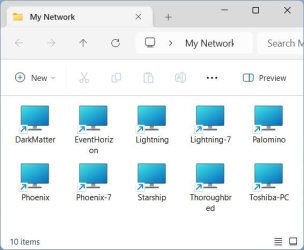
I assume you are trying to access your computer using File Explorer > Network. Since that is problematic with Windows 10 and 11 I don't depend on that. I created a folder on one computer's desktop called My Network. In that folder I placed shortcuts to each computer on my network. A computer's shortcut is \\ + ComputerName. For example, the shortcut to computer DarkMatter is \\Darkmatter. When done I copied that folder to the desktops of all my computers.

Here is what the folder My Network looks like on my Windows 11 laptop. Note the computers are a mix of Windows XP, Windows 7, Windows 10 and Windows 11.

2023-11-05 08_27_51-My Network.jpg
 

My Computers

System One System Two

  • Computer type
    PC/Desktop
    Computer Manufacturer/Model Number
    Custom build
    OS
    Windows 7 Home Premium 64-bits
    CPU
    AMD FX-8350
    Motherboard
    Gigabyte GA-990FXA-UD3 (AM3+)
    Memory
    GSKILL Ripjaw-X PC3 12800 8GB (2x4GB)
    Graphics Card(s)
    ASUS ROG STRIX GTX 1060 6GB
    Sound Card
    Integrated
    Monitor(s) Displays
    Asus VE228H (21.5-in)
    Screen Resolution
    1920x1080 60Hz
    Hard Drives
    SAMSUNG 870 EVO 2.5 Inch SATA SSD (1TB)
    SAMSUNG 870 EVO 2.5 Inch SATA SSD (1TB)
    SAMSUNG 870 EVO 2.5 Inch SATA SSD (1TB)
    PSU
    Corsair RM750x (750 watts)
    Case
    Corsair Carbide Series 200R
    Cooling
    Corsair Hydro Series H60 (CWCH60)
    Keyboard
    Logitech Elite
    Mouse
    Logitech M510 Wireless Mouse
    Internet Speed
    Comcast Gigabit Extra (1200Mbps down / 35Mbps up)
    Antivirus
    Malwarebytes
    Browser
    Firefox, Edge, Chrome
    Other Info
    ASUS DRW-24B1ST DVD-RW (24X) optical drive
    Seagate Expansion Desk (5TB) external SATA/USB HDD
    Comcast XB8 Internet Gateway
  • Computer type
    PC/Desktop
    System Manufacturer/Model Number
    Custom
    OS
    Windows 7 Pro (64-bit)
    CPU
    AMD Phenom II 960T X4
    Motherboard
    ASUS M4N82 Deluxe
    Memory
    Corsair XMS2 DDR2-800 8GB (4x2GB)
    Graphics Card(s)
    ASUS ENGTX560 DCII OC/2DI/1GD5 1GB
    Monitor(s) Displays
    Samsung 930B 19-inch LCD
    Screen Resolution
    1280x1024
    Hard Drives
    Samsung SSD 870 EVO 1000 GB (Windows 10)
    Seagate ST1000DM003 1000 GB (Windows 7)
    PSU
    Antec TruePower (new) TP-650
    Case
    Antec Three Hundred
    Cooling
    AMD stock cooler from FX8350
    Mouse
    Logitech M100
    Internet Speed
    Xfinity Gigabit Extra 1200/35 Mbps
I assume you are trying to access your computer using File Explorer > Network. Since that is problematic with Windows 10 and 11 I don't depend on that. I created a folder on one computer's desktop called My Network. In that folder I placed shortcuts to each computer on my network. A computer's shortcut is \\ + ComputerName. For example, the shortcut to computer DarkMatter is \\Darkmatter. When done I copied that folder to the desktops of all my computers.
Thanks. I still have the problem when I try to create a shortcut, I still can't point it to `\\win11-nuc` or `\\10.0.0.117` because it will not connect.

Good news update -- I decided to do a `Network reset` from the Control Panel and it works again :)
 
Last edited:

My Computer

OS
Windows 7 x64
Thanks. I still have the problem when I try to create a shortcut, I still can't point it to `\\win11-nuc` or `\\10.0.0.117` because it will not connect.
Can you still ping each computer from the other one? If not then there is a problem with your network.

As long as both computers are turned on and awake the shortcuts always work for me.

I assume you made shortcuts like this

2023-11-05 10_44_30-Greenshot #2.jpg

I just powered up several of my computers. Including the following:
  • DarkMatter - Windows 10 Pro
  • Lightning - Windows 10 Pro
  • Palomino - Windows XP Pro
  • Phoenix-7 - Windows 7 Pro
  • Starship - Windows 11 Pro
  • Thoroughbred - Windows XP Pro
Here is a screenshot I made on my Windows 7 computer Phoenix-7. Note that in Network I can only see 2 computers. However, if I click on the shortcut of any of the computers turned on in the list above I can access their shares.

2023-11-05 11_41_16-Greenshot.jpg
 

My Computers

System One System Two

  • Computer type
    PC/Desktop
    Computer Manufacturer/Model Number
    Custom build
    OS
    Windows 7 Home Premium 64-bits
    CPU
    AMD FX-8350
    Motherboard
    Gigabyte GA-990FXA-UD3 (AM3+)
    Memory
    GSKILL Ripjaw-X PC3 12800 8GB (2x4GB)
    Graphics Card(s)
    ASUS ROG STRIX GTX 1060 6GB
    Sound Card
    Integrated
    Monitor(s) Displays
    Asus VE228H (21.5-in)
    Screen Resolution
    1920x1080 60Hz
    Hard Drives
    SAMSUNG 870 EVO 2.5 Inch SATA SSD (1TB)
    SAMSUNG 870 EVO 2.5 Inch SATA SSD (1TB)
    SAMSUNG 870 EVO 2.5 Inch SATA SSD (1TB)
    PSU
    Corsair RM750x (750 watts)
    Case
    Corsair Carbide Series 200R
    Cooling
    Corsair Hydro Series H60 (CWCH60)
    Keyboard
    Logitech Elite
    Mouse
    Logitech M510 Wireless Mouse
    Internet Speed
    Comcast Gigabit Extra (1200Mbps down / 35Mbps up)
    Antivirus
    Malwarebytes
    Browser
    Firefox, Edge, Chrome
    Other Info
    ASUS DRW-24B1ST DVD-RW (24X) optical drive
    Seagate Expansion Desk (5TB) external SATA/USB HDD
    Comcast XB8 Internet Gateway
  • Computer type
    PC/Desktop
    System Manufacturer/Model Number
    Custom
    OS
    Windows 7 Pro (64-bit)
    CPU
    AMD Phenom II 960T X4
    Motherboard
    ASUS M4N82 Deluxe
    Memory
    Corsair XMS2 DDR2-800 8GB (4x2GB)
    Graphics Card(s)
    ASUS ENGTX560 DCII OC/2DI/1GD5 1GB
    Monitor(s) Displays
    Samsung 930B 19-inch LCD
    Screen Resolution
    1280x1024
    Hard Drives
    Samsung SSD 870 EVO 1000 GB (Windows 10)
    Seagate ST1000DM003 1000 GB (Windows 7)
    PSU
    Antec TruePower (new) TP-650
    Case
    Antec Three Hundred
    Cooling
    AMD stock cooler from FX8350
    Mouse
    Logitech M100
    Internet Speed
    Xfinity Gigabit Extra 1200/35 Mbps
I am able to ping all the computers.

I think it has something to do with the Windows 11 share being served over hostname and IPv6 instead of IPv4.

On the Linux machine I had issues where I can only mount via hostname (eg \\win11-nuc), and a new issue occurred where the share would stop working after a bit. I was able to mount it via IPv6 address (eg \\fd8c:e93f:4be4::117\my-share) and that seems to be working for now.

Not sure how to explain that at this point. Could be Windows 11 problem, or network problem with my router. But I am not sure how to troubleshoot. I think I will leave it as it since it is all working for now. Thank you for helping.
 

My Computer

OS
Windows 7 x64
Guys, I finally fixed this issue today with ChatGPT :) Trouble was on the WIN11 machine.
Two things listening on port 445 (on WIN11 machine):
Code:
PS C:\Windows\system32> netstat -ano | findstr ":445"
  TCP    0.0.0.0:445            0.0.0.0:0            LISTENING       4
  TCP    0.0.0.0:445            0.0.0.0:0            LISTENING       3244
  TCP    [::]:445               [::]:0               LISTENING       4

Turns out it is something called IP Helper using the port:
Code:
PS C:\Windows\system32> tasklist /fi "PID eq 3244"
Image Name                     PID Session Name        Session#    Mem Usage
========================= ======== ================ =========== ============
svchost.exe                   3244 Services                   0      7,120 K

PS C:\Windows\system32> Get-CimInstance Win32_Service | Where-Object {$_.ProcessId -eq 3244} | Select Name,DisplayName,State,StartMode,PathName
Name        : iphlpsvc
DisplayName : IP Helper
State       : Running
StartMode   : Auto
PathName    : C:\Windows\System32\svchost.exe -k NetSvcs -p

I had a bunch of portproxy rules:

Code:
PS C:\Windows\system32> netsh interface portproxy show all
Listen on ipv4:             Connect to ipv4:Address         Port        Address         Port
--------------- ----------  --------------- ----------
  //////////
0.0.0.0         445         172.26.109.163  445

Removed it with
Code:
netsh interface portproxy delete v4tov4 listenaddress=0.0.0.0 listenport=445

I am able to access the windows share using `\\IP.ADD.RES.S` now!

I ran WSL in the past, and had a script that forwarded many ports to WSL instance to do stuff, but I no longer use WSL on this machine, and did not realize that :shock:
 

My Computer

OS
Windows 7 x64
Back
Top