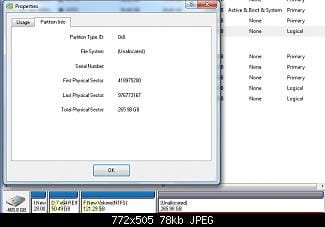
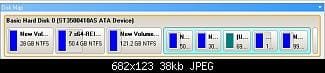
And yet, we have two apparently conflicting screenshots:
That is precisely why I mentioned one of the Partition Wizard bugs.
I'm still trying to understand...
Are you saying that THIS presentation from PW, purportedly showing "100% unallocated", is actually a bug in PW?
I really do find that hard to believe.
Let's review what he's shown us.
(1) DISKPART LIST DISK shows two hard drives, the second with 232GB and 0GB free is the one in question, Iomega Prestige--250gb--54AJ34J763.
(2) DISKPART LIST VOLUME shows 11 volumes, of which VOLUME 10 is this 232GB disk partition with "RAW", i.e. factory unformatted with no file system on it.
(3) DISKMGMT showing the two hard drives, the second of which is "healthy, active + primary" of 232GB but no file system on it.
(4) DISKMGMT showing two hard drives, the second of which has now been partitioned (with PW presumably, following my suggested recipe steps) into two partitions: G - 184GB primary but with no NTFS file system, and M - 48GB logical with NTFS file system.
Personally, I believe this problem with G (showing no file system) can easily be fixed by PW, simply by selecting the 184GB space and then selecting the "Format partition" item from the left side available operations list. The partition that currently has no file system should be properly formatted as NTFS, if the setup here is followed correctly.
I've never seen "no file system" in a partition created by PW, so either (a) he failed to have NTFS in the file system box when he created the partition, or (b) there's something about the RAW Iomega drive which also requires a separate second "FORMAT" step after creating the partition... which I hadn't thought of before now.
Alternatively, even within DISKMGMT, if you select that 184GB space, and then right-click, there is also a "FORMAT..." option presented. Again, a properly formatted NTFS partition should result.
(5) Partition Wizard showing once again NO PARTITIONS, but instead showing 100% unallocated 232GB space.
You say this is due to a "bug" in PW? I'm not convinced. I think he must have taken the first action in my "start over" method, and once again performed "delete all partitions". What's called for right now is simply a restart from my original step (7), namely "create partition" from the 100% unallocated free space, performed twice to create two partitions (but hopefully both logical this time, although it's not critical) and specifying NTFS as the file system for both new partitions.
It still may be necessary to also use the FORMAT function (something I hadn't thought to suggest but which now appears that it may well be needed), to properly place a correctly formatted NTFS file system onto the new partitions of this Iomega drive which appears to have arrived "RAW".
So, I would like to see a new and current pair of screenshots from both DISKMGMT and PW. I'm guessing they will both show 100% unallocated space. He must have repeated the first "delete all partitions" step as I asked him to, to "start over".
Then, select the 100% unallocated space in PW, select "create partition" on the left (or, the same operation can be selected from the popup menu if you right-click on the space), define 184GB logical NTFS partition, and OK. The graphic image will now change to show a 184GB partition and 48GB of unallocated space.
Next, select the 48GB unallocated space, select "create partition" on the left (or from the popup menu from right-click), define 48GB logical NTFS partition, and OK. the graphic image will now change to show both a 184GB partition as well as a 48GB partition.
There are now two queued operations in the list shown in the lower-left corner.
Just to be absolutely sure we get NTFS on both partitions, select the 184GB partition in the graphic, and select "format partition" on the left (or right-click and select "format" from the popup menu), and OK.
Repeat for the 48GB partition the same, again adding "format partition" for the 48GB partition to the queued operation list in the lower-left corner.
There are now four queued operations in the list shown in the lower-left corner.
Now push the APPLY button, and it should all work. He should end up with two new partitions on the Iomega drive, freshly created and formatted as NTFS and with two default drive letters assigned.
That's my recommendation.