
How to Add or Remove "Display" from Desktop Context Menu in Windows 7 and Windows 8
Information
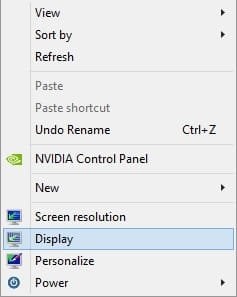
This tutorial will show you how to add Display to the desktop context menu of all users to make it easer to open the display DPI settings in Windows 7 and Windows 8.
EXAMPLE: Display
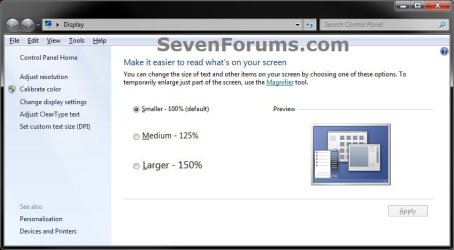
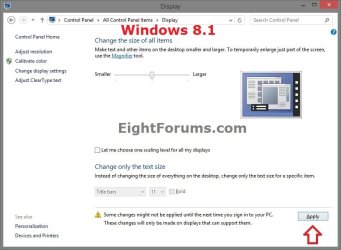
EXAMPLE: Desktop Context Menu
Here's How: 1. To Add "Display" to Desktop Context Menu A) Click/tap on the Download button below to download the file below, and go to step 3 below. Add_Display_to_Desktop_Context_Menu.reg
Download
2. To Remove Add "Display" from Desktop Context Menu
NOTE: This is the default setting. A) Click/tap on the Download button below to download the file below, and go to step 3 below. Remove_Display_to_Desktop_Context_Menu.reg
Download
3. Save the .reg file to your desktop.
4. Double click/tap on the downloaded .reg file to merge it.
5. If prompted, click/tap on Run, Yes (UAC), Yes, and OK.
6. When finished, you can delete the downloaded .reg file if you like.That's it,
Shawn
Related Tutorials
- How to Change the Display DPI Size in Windows 7 and Windows 8
- Enable or Disable Changing "DPI" and "Screen Resolution" Display Settings in Windows 7 and Windows 8
- How to Create a "Display" DPI Shortcut in Windows 7 and Windows 8
- How to Add or Remove "Screen resolution" from Desktop Context Menu in Windows
Attachments
Last edited:


