
How to Change the Display Language in Vista and Windows 7 Ultimate and Enterprise
Information
This will show you how to change the display language that Vista and Windows 7 Ultimate and Enterprise uses to display text in wizards, dialog boxes, menus, and other items in the user interface (UI).
By default Windows uses the language selected during it's installation.
By default Windows uses the language selected during it's installation.
Note
When you install a language pack and change the display language to it, this will also automatically add a keyboard input language for this language in the Language bar.
EXAMPLE: BEFORE and AFTER Display Language Change
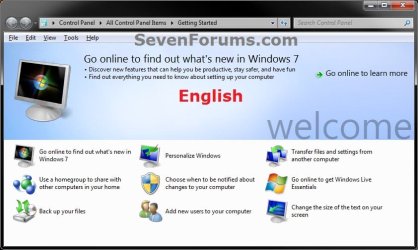
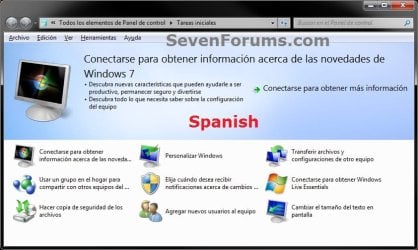
OPTION ONE
To Change the UI Display Language in only Your User Account
NOTE: This option will only be applied to the user account that this is done in. 1. Open the Control Panel (icon view), and click on the Region and Language icon.
2. Click on the Keyboards and Languages tab, then choose a display language and click on OK. (see screenshots below)
NOTE: If you do not see a Choose a display language option or the language that you want, then this means that you will need to install the language pack that you want to change the display language to first.
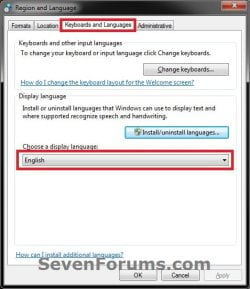

3. Click Log off now. (see screenshot below)
WARNING: This will log you off immediately. Be sure to save and close all work and opened programs first.
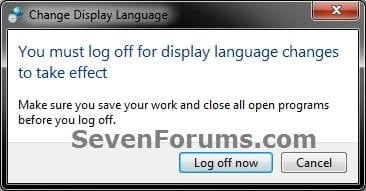
OPTION TWO
To Change the System UI Display Language
NOTE: This have the administrator's display language applied in the Welcome screen (log on) and in system accounts. 1. Log on to an administrator account.
2. Do OPTION ONE first to set the administrator account's display language to be the what you want to be applied to the system, then log back on to the same administrator account.
3. Use step 4 in the tutorial below to check the Welcome screen and system acccounts box. How to Copy Your Region and Language Settings to New Users and Welcome Screen
OPTION THREE
To Change the Default UI Display Language of New User Accounts
NOTE: This will have any new user account created on the computer to have the administrator's display language applied to it. Existing user accounts aren't affected. 1. Log on to an administrator account.
2. Do OPTION ONE first to set the administrator account's display language to be the what you want to be applied to the system, then log back on to the same administrator account.
3. Use step 5 in the tutorial below to check the New user accounts box. How to Copy Your Region and Language Settings to New Users and Welcome Screen
That's it,
Shawn
Related Tutorials
- How to Install and Uninstall Display Languages in Windows 7 Ultimate and Enterprise
- How to Add or Remove a Keyboard Input Language in Windows 7
- How to Create a Region and Language Shortcut in Windows 7
- How to Change the Keyboard Layout in Windows 7
- How to Hide or Show the Language Bar in Windows 7
- How to Copy Your Region and Language Settings to New Users and Welcome Screen
- How to Create a "Install or Uninstall Display Languages" Shortcut in Windows 7
- How to Overwrite the Display Language of All Users with the System Display Language
- How to Create a "Windows Live Language Setting" Shortcut
- How to Change the Language for Non-Unicode Programs in Windows
Last edited:


