
stevefsusd
New member
- Local time
- 7:13 AM
- Messages
- 7
I feel like a little background is necessary before I get into the Win 7 issue.
One way I've restored XP computers to an earlier time that has worked really well is to boot the PC that is failing to work off of a flash drive that has Parted Magic on it. This loads the Linux OS into RAM. Once Parted Magic is up (any Linux OS that runs off of RAM or the flash drive would work) I open two file manager windows.
I drill down into the C:\Windows\System32\Config folder in one window.
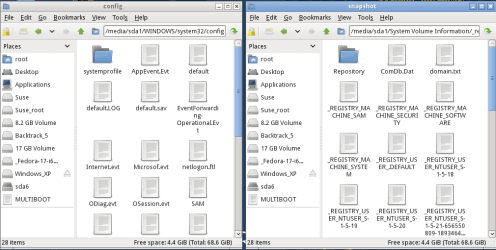
I drill down into the C:\System Volume Information\Restore folder in the other window. I pick the restore point I want to use (based on going to Properties and looking at the date and time), then open the folder and drill down into the Snapshot folder.
The Config folder contains five files I need to delete: default, sam, security, software, and system. I delete those files (if this was the first time you were doing this you might want to rename them if that makes you feel better).
I then copy and paste the files from whichever restore point I decide to go with (located in the C:\System Volume Information\Restore folder\RPXXX\Snapshot). So I copy the same five files over. They have extra stuff in the name so the one for System for example looks like "_REGISTRY_MACHINE_SYSTEM". So once they are copied over to the C:\Windows\System32\Config folder, I'd turn that into "System" (without the quotes of course). So you rename the five files so they are: default, sam, security, software, and system. With that done, I reboot the PC and it has been restored to whichever date/time I picked. Super fast thing to do, don't need to do any command line stuff, don't need to find a restore disk. Can be really handy when you are unable to boot into Safe Mode to do a restore. Don't have to worry about permissions to access the System Volume Information folder because Linux is more than happy to grant you all the access you need.
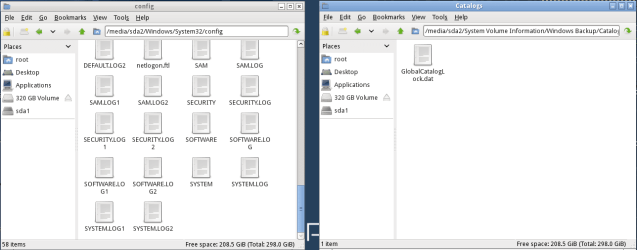
Now for the Windows 7 issue...I've checked several forums online and everything seems to point to the restore points being kept in the same location (System Volume Information) and yet when I do to that on a Win 7 computer, I am unable to find them. I am attaching a couple of screenshots (one from an XP example and another from a Win 7 example) that show what I see when I'm working with these folders.
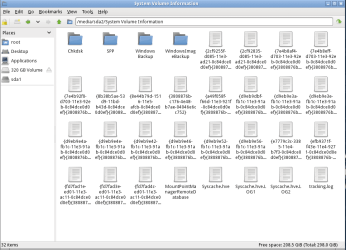
I am also attaching a screenshot which shows the Windows 7 computer's System Volume Information folder. There are several files in there that, I believe have to do with the restore points since the dates match up with the restore points listed when I go into the Win 7 OS and look at them. But, I don't see the five files I believe I need to copy over. I see them in the Config folder on the Win 7 machine so it isn't like Win 7 doesn't use them. It clearly does, I just don't see them in the Sys Vol Info folder. I've drilled down into the folders that are listed (Specifically checked out the Windows Backup folder) but don't find the five files I'm looking for.
Any advice will be appreciated.
One way I've restored XP computers to an earlier time that has worked really well is to boot the PC that is failing to work off of a flash drive that has Parted Magic on it. This loads the Linux OS into RAM. Once Parted Magic is up (any Linux OS that runs off of RAM or the flash drive would work) I open two file manager windows.
I drill down into the C:\Windows\System32\Config folder in one window.
I drill down into the C:\System Volume Information\Restore folder in the other window. I pick the restore point I want to use (based on going to Properties and looking at the date and time), then open the folder and drill down into the Snapshot folder.
The Config folder contains five files I need to delete: default, sam, security, software, and system. I delete those files (if this was the first time you were doing this you might want to rename them if that makes you feel better).
I then copy and paste the files from whichever restore point I decide to go with (located in the C:\System Volume Information\Restore folder\RPXXX\Snapshot). So I copy the same five files over. They have extra stuff in the name so the one for System for example looks like "_REGISTRY_MACHINE_SYSTEM". So once they are copied over to the C:\Windows\System32\Config folder, I'd turn that into "System" (without the quotes of course). So you rename the five files so they are: default, sam, security, software, and system. With that done, I reboot the PC and it has been restored to whichever date/time I picked. Super fast thing to do, don't need to do any command line stuff, don't need to find a restore disk. Can be really handy when you are unable to boot into Safe Mode to do a restore. Don't have to worry about permissions to access the System Volume Information folder because Linux is more than happy to grant you all the access you need.
Now for the Windows 7 issue...I've checked several forums online and everything seems to point to the restore points being kept in the same location (System Volume Information) and yet when I do to that on a Win 7 computer, I am unable to find them. I am attaching a couple of screenshots (one from an XP example and another from a Win 7 example) that show what I see when I'm working with these folders.
I am also attaching a screenshot which shows the Windows 7 computer's System Volume Information folder. There are several files in there that, I believe have to do with the restore points since the dates match up with the restore points listed when I go into the Win 7 OS and look at them. But, I don't see the five files I believe I need to copy over. I see them in the Config folder on the Win 7 machine so it isn't like Win 7 doesn't use them. It clearly does, I just don't see them in the Sys Vol Info folder. I've drilled down into the folders that are listed (Specifically checked out the Windows Backup folder) but don't find the five files I'm looking for.
Any advice will be appreciated.
Attachments
My Computer
- Computer type
- Laptop
- Computer Manufacturer/Model Number
- HP ProBook 6470b
- OS
- Windows 7 Professional 64-bit
- CPU
- Intel(R) Core(TM) i3-3120M CPU @ 2.50 GHz 2.5 GHz
- Memory
- 4.00 GB
- Antivirus
- McAfee
- Browser
- Chrome

 Why not just use a repair disk to restore to a previous state? Or better yet have additionally an image backup set up (say, with Macrium free)?

