Drive Icon - Change

How to Change a Drive Icon in Vista, Windows 7, and Windows 8


   Information
This tutorial will show you how to change a drive icon for an internal or external drive that has a drive letter in the Computer window to any icon you want for just your or all user accounts in Vista, Windows 7, and Windows 8.

   Tip
If your default drive icon is missing or was changed and you did not do it with the methods below, then look for a hidden (not always hidden though) autorun.inf file (OPTION ONE below) in the root directory of the affected drive, right click on the autorun.inf file, and click on Delete. Next, approve the deletion. If this was an external device, then you may need to disconnect and reconnect the device for the icon to appear afterwards.

   Warning
If you select to use a custom icon of your own, then it must be a 256x256 pixel icon (.ico) file for it to display properly in all icon sizes.


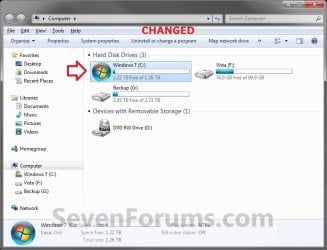
EXAMPLE: C Drive icon - Default and Changed
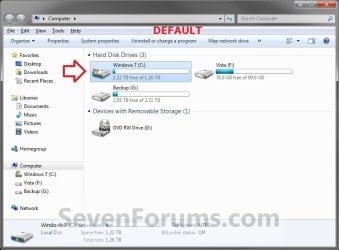
Default.jpg

Changed.jpg


OPTION ONE

Change a Drive Icon using a "autorun.inf" File


NOTE: While this option can be used for any drive, it is really useful for external drives like a USB flash drive.
1. Set your known file extentions to no longer be hidden.
NOTE: This way you will be able to rename the file extension in step 3 below.

2. Connect and/or open the drive that you want to change the icon of.

3. In the root of the drive that you want to change the icon of, right click or press and hold on an empty space, and click/tap on New and Text Document. Rename this .txt file to autorun.inf, and press Enter. (see screenshots below)
NOTE: If you already have a autorun.inf file in the root of this drive, then skip this step and proceed to step 4.
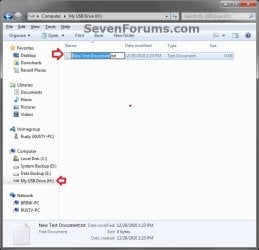
Step1.jpg

Step2.jpg

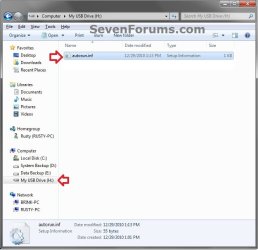
4. Copy the icon .ico file (ex: Thumb_Drive.ico) that you want to use to the root of the drive that you want to change the icon of. (see right screenshot below)
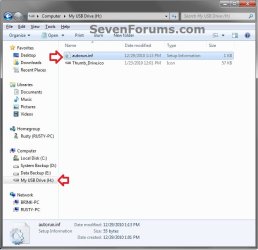
Step3.jpg
5. If this is a New autorun.inf File
A) Open the autorun.inf file, then type each line below followed by pressing enter. (see screenshot below)
NOTE: Substitute icon file name with the actual name of your icon file (ex: Thumb_Drive.ico) from step 4.
Code:
[autorun]
icon="[B][COLOR=red]icon file name[/COLOR][/B].ico"
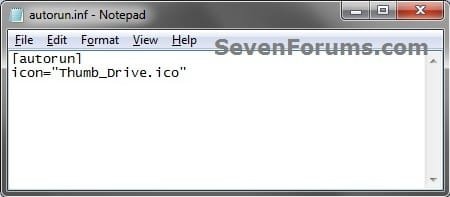
Icon.jpg
B) Click/tap on File (menu bar) and Save, then close the autorun.inf file. (see screenshot above)
6. If you already have an autorun.inf File
NOTE: Be sure that you also check the Show hidden files, folders, and drives option in Folder Options in case the existing autorun.inf file (if there) may have been hidden.
A) Open the autorun.inf file, then add or change the icon= line below. (see screenshots below)
NOTE: Substitute icon file name with the actual name of your icon file (ex: Thumb_Drive.ico) from step 4.
Code:
[autorun]
[B]icon="[COLOR=red]icon file name[/COLOR].ico"[/B]
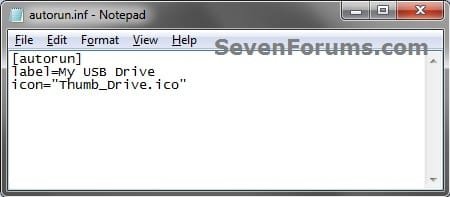
Icon.jpg

TXT_file.jpg

B) Click/tap on File (menu bar) and Save, then close the autorun.inf file. (see screenshots above)
7. If this is for an Internal or eSATA Dive
A) Restart the computer to apply.
8. If this is for an External Dive
A) Unplug and plug in the drive to apply.
9. Open the Computer window to see the changes.

   Note
To Restore the Default Icon


You would just need to do either option below and repeat steps 7 to 9 above.
  • Delete the autorun.inf and .ico file.
OR

  • If you have other lines (ex: label=) in the autorun.inf while editing it that you wish to continue using, then remove the icon= line entry for the drive, and save the changes.


OPTION TWO

Change a Drive Icon in Registry Editor for Current User Account Only


1. If you did OPTION ONE previously, then you will need to either remove the icon=icon file name.ico entry from the autorun.inf file, or delete the autorun.inf file in the root of the drive that you want to change the icon of.

2. Press the Windows + R keys to open the Run dialog, type regedit, and press Enter.

3. If prompted by UAC, then click/tap on Yes (Windows 7/8) or Continue (Vista).

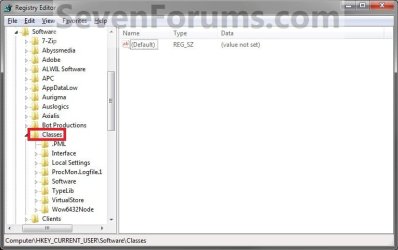
4. In regedit, navigate to the location below. (see screenshot below)
HKEY_CURRENT_USER\Software\Classes
Current_Step1.jpg
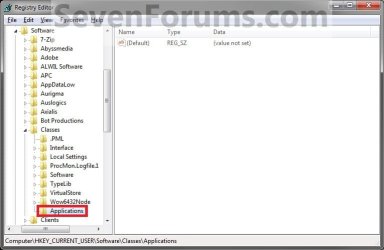
5. In the left pane, right click on Classes, click/tap on New and Key, type Applications, and press Enter.
NOTE: If you already have the Applications key under Classes, then go to step 6. (see screenshot above and below)
Current_Step2.jpg
6. In the left pane, right click on Applications, click/tap on New and Key, type Explorer.exe, and press Enter.
NOTE: If you already have the Explorer.exe key under Applications, then go to step 7. (see screenshot above and below)
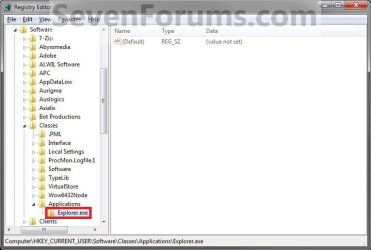
Current_Step3.jpg
7. In the left pane, right click on Explorer.exe, click/tap on New and Key, type Drives, and press Enter.
NOTE: If you already have the Drives key under Explorer.exe, then go to step 8. (see screenshot above and below)
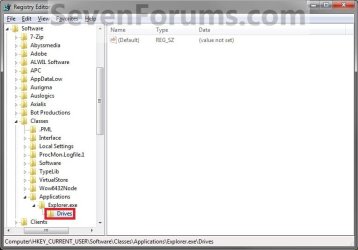
Current_Step4.jpg
8. In the left pane, right click on Drives, click/tap on New and Key, type the drive letter (ex: C ) that you want to change the icon for, and press Enter.
NOTE: If you already have the drive letter (ex: C ) key under Drives, then go to step 9. (see screenshot above and below)
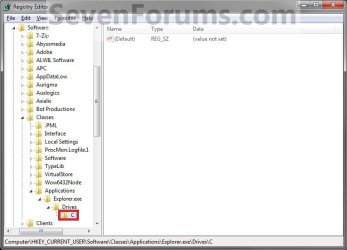
Current_Step5.jpg
9. In the left pane, right click on the drive letter (ex: C ), click/tap on New and Key, type DefaultIcon, and press Enter.
NOTE: If you already have the DefaultIcon key under the drive letter (ex: C ), then go to step 10, 11, or 12. (see screenshot above and below)
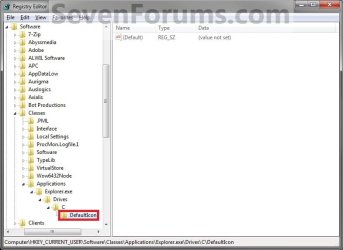
Current_Step6.jpg
10. To Restore the Default Drive Icon
A) Right click on the drive letter (ex: C ) from step 8 above that you want to restore, and click/tap on Delete and Yes. (see screenshot below step 8)

B) Go to step 14.
11. To Use a Custom Icon of Your Own
A) Make sure that the icon is unblocked if not already.

B) Make sure that the icon is located in a folder where you have access permission rights. The icon will need to stay here for as long as you are using it for the drive icon, otherwise it will break the link and no longer display as the drive's icon.

C) In the right pane of DefaultIcon, double click/tap on (Default) to modify it. (see screenshot below step 9)

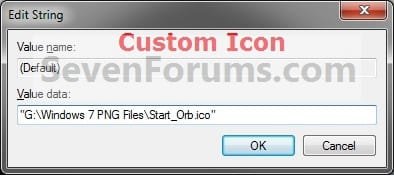
D) In the Modify window, type this below, and click/tap on OK. (see screenshot below)
NOTE: Substitute with your icons full path and name with file extension in quotes instead.

Code:
"[B][COLOR=red]full path of the icon file with file extension[/COLOR][/B]"
FOR EXAMPLE:
Code:
"G:\Windows 7 PNG Files\Start_Orb.ico"
Current_Step7.jpg
E) Go to step 13.
12. To Use another Icon Included in Windows 7
A) Download and install the free program IconViewer for your 32-bit or 64-bit Windows 7.
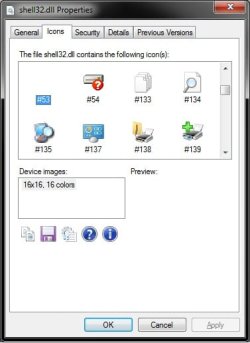
NOTE: This program will add a Icons tab to files (ex: imageres.dll) that contain a icon library in them so you can see the icons available in it.

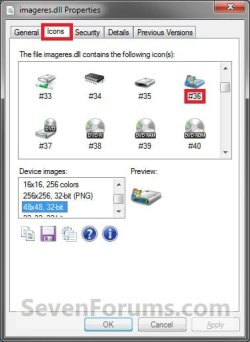
B) In Windows Explorer, navigate to C:\Windows\System32\imageres.dll and right click on imageres.dll, click on Properties, and click on the Icons tab.
NOTE: You can use any of the Windows 7 files that include icons in them that you want though. This is just the most common one.

C) Scroll through the icons and make note of the icon number of the one you want to use to replace the default file extension icon with, then close the properties window. (see screenshot below)
NOTE: For example, icon number 36 for the default C drive icon.
Icon_Viewer.jpg
D) In the right pane of DefaultIcon, double click/tap on (Default) to modify it. (see screenshot below step 9)

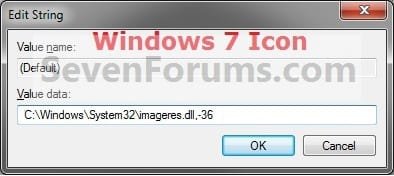
E) In the Modify window, type in the location below, and click/tap on OK. (see screenshot below)

Code:
[B][COLOR=red](full path of the Windows 7 file with file extension)[/COLOR][/B],-[B][COLOR=red]####[/COLOR][/B]
FOR EXAMPLE:
Code:
C:\Windows\System32\imageres.dll,-36
Windows7_Icon.jpg
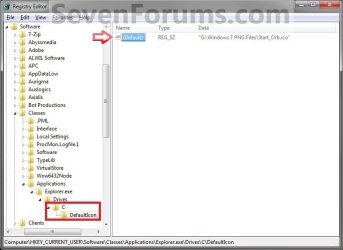
13. The registry should look similar to this now depending on the icon path you entered in either step 11 or 12. (see screenshot below)
Current_Step8.jpg
12. Close Regedit.

13. The changes should be immediate, but in some cases you may need to restart the computer to apply the changes. If the drive icon does not change for you using this option, then try OPTION ONE or OPTION THREE to change it instead.


OPTION THREE

Change a Drive Icon in Registry Editor for All User Accounts


NOTE: You must be logged in as an administrator to be able to do this option.
1. If you did OPTION ONE previously, then you will need to either remove the icon=icon file name.ico entry from the autorun.inf file, or delete the autorun.inf file in the root of the drive that you want to change the icon of.

2. Press the Windows + R keys to open the Run dialog, type regedit, and press Enter.

3. If prompted by UAC, then click/tap on Yes (Windows 7/8) or Continue (Vista).

4. In regedit, navigate to the location below. (see screenshot below)
HKEY_LOCAL_MACHINE\SOFTWARE\Microsoft\Windows\CurrentVersion\Explorer
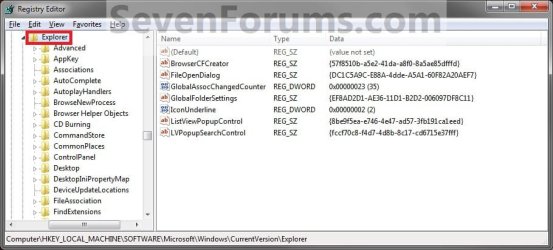
All_Step1.jpg
5. In the left pane, right click on Explorer, click/tap on New and Key, type DriveIcons, and press Enter.
NOTE: If you already have the DriveIcons key under Explorer, then go to step 6. (see screenshot above and below)
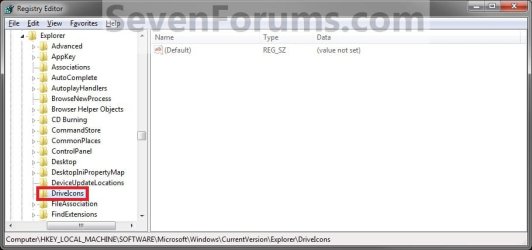
All_Step2.jpg
6. In the left pane, right click on DriveIcons and click/tap on New and Key, type the drive letter (ex: C ) that you want to change the icon for, and press Enter.
NOTE: If you already have the drive letter (ex: C ) key under DriveIcons, then go to step 7. (see screenshot above and below)
All_Step3.jpg
7. In the left pane, right click on the drive letter (ex: C ), click/tap on New and Key, type DefaultIcon, and press Enter.
NOTE: If you already have the DefaultIcon key under the drive letter (ex: C ), then go to step 8, 9, or 10. (see screenshot above and below)
All_Step4.jpg
8. To Restore the Default Drive Icon
A) Right click on the drive letter (ex: C ) from step 6 above that you want to restore, and click/tap on Delete and Yes. (see screenshot below step 6)

B) Go to step 12.
9. To Use a Custom Icon of Your Own
A) Make sure that the icon is unblocked if not already.

B) Make sure that the icon is located in a folder (ex: a C:\Users\Public folder) where all users (everyone) have access permission rights. The icon will need to stay here for as long as you are using it for the drive icon, otherwise it will break the link and no longer display as the drive's icon.

C) In the right pane of DefaultIcon, double click/tap on (Default) to modify it. (see screenshot below step 7)

D) In the Modify window, type this below, and click/tap on OK. (see screenshot below)
NOTE: Substitute with your icons full path and name with file extension in quotes instead.

Code:
"[B][COLOR=red]full path of the icon file with file extension[/COLOR][/B]"
FOR EXAMPLE:
Code:
"G:\Windows 7 PNG Files\Start_Orb.ico"
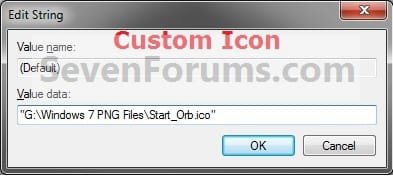
All_Step5.jpg
   Warning
The custom icon file that you are using must be saved at a location that can be accessed by all user accounts for it to be displayed in all user accounts. For example, in the C:\Users\Public folder.


E) Go to step 11.
10. To Use another Icon Included in Windows 7
A) Download and install the free program IconViewer for your 32-bit or 64-bit Windows 7.
NOTE: This program will add a Icons tab to files (ex: imageres.dll) that contain a icon library in them so you can see the icons available in it.

B) In Windows Explorer, navigate to C:\Windows\System32\imageres.dll and right click on imageres.dll, click on Properties, and click on the Icons tab.
NOTE: You can use any of the Windows 7 files that include icons in them that you want though. This is just the most common one.

C) Scroll through the icons and make note of the icon number of the one you want to use to replace the default file extension icon with, then close the properties window. (see screenshot below)
NOTE: For example, icon number 36 for the default C drive icon.
Icon_Viewer.jpg
D) In the right pane of DefaultIcon, double click/tap on (Default) to modify it. (see screenshot below step 7)

E) In the Modify window, type in the location below, and click/tap on OK. (see screenshot below)

Code:
[B][COLOR=red](full path of the Windows 7 file with file extension)[/COLOR][/B],-[B][COLOR=red]####[/COLOR][/B]
FOR EXAMPLE:
Code:
C:\Windows\System32\imageres.dll,-36
Windows7_Icon.jpg
11. The registry should look similar to this now depending on the icon path you entered in either step 9 or 10. (see screenshot below)
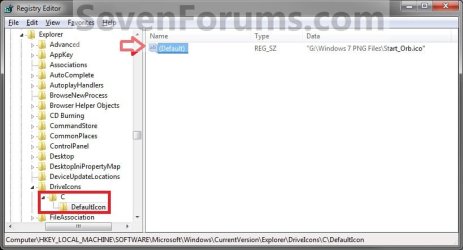
All_Step6.jpg
12. Close Regedit.

13. The changes should be immediate, but in some cases you may need to restart the computer to apply the changes.
That's it,
Shawn


Last edited:
great tutorial Brink, i use TuneUp Utilities for most icon changes, but it doesn't always get the job done, a good registry edit is sometimes the best solution, if you know what you are doing, of course, so i thank you for sharing those informations ;)
 

My Computer

Computer type
PC/Desktop
Computer Manufacturer/Model Number
2015 Home Made with Great Performance
OS
Windows 8.1 x64 Enterprise
CPU
i5 4690K
Motherboard
Gigabyte GA-Z87X-UD5H
Memory
Corsair 16 GB DDR3 2000Mhz
Graphics Card(s)
Asus GTX760 2GB 256bit
Sound Card
Realtek OnBoard
Monitor(s) Displays
Samsung SyncMaster SA350 + LG 42LA660S
Screen Resolution
1920x1080 Full HD
Hard Drives
1x 640GB Western Digital SATA
1x 4TB Western Digital Green SATA
3x 2TB Western Digital Caviar Green RS SATA
1x 3TB Western Digital Caviar Green SATA
1x 128GB Corsair Force Red SSD
PSU
Corsair CX 600W
Case
Nexus Prominent 5
Cooling
CPU: Artic Cooler Freezer 13 + 5x120mm Case Fans @ 700RPM
Keyboard
Microsoft Wired Keyboard 600
Mouse
Microsoft Wireless Mobile Mouse 1000
Internet Speed
FO 1 Gbit/s
Antivirus
ESET / Malwarebytes
Browser
Opera / Chrome
Other Info
- Fan Controller Aerocool X-Vision 5
- 1x 1TB Hitachi DeskPlus External USB
- 1x 1TB Western Digital Passport External USB3
Thank you Maranello. Yeah, I like to use the registry where I can.
 

My Computer

Computer type
PC/Desktop
Computer Manufacturer/Model Number
Self built custom
OS
64-bit Windows 11 Pro for Workstations
CPU
Intel i7-8700K OC'd to 5 GHz
Motherboard
ASUS ROG Maximus XI Formula Z390
Memory
64 GB (4x16GB) G.SKILL TridentZ RGB DDR4 3600 MHz
Graphics Card(s)
ASUS ROG-STRIX-GTX1080TI-O11G-GAMING
Sound Card
Integrated
Monitor(s) Displays
2 x Samsung Odyssey G7 27"
Screen Resolution
2560x1440
Hard Drives
1TB Samsung 990 PRO M.2,
4TB Samsung 990 PRO PRO M.2,
TerraMaster F8 SSD Plus NAS
PSU
Seasonic Prime Titanium 850W
Case
Thermaltake Core P3
Cooling
Corsair Hydro H115i
Keyboard
Logitech wireless K800
Mouse
Logitech MX Master 4
Internet Speed
2 Gb/s Download and 100 Mb/s Upload
Antivirus
Malwarebyte Anti-Malware Premium
Browser
Google Chrome
Other Info
Logitech Z625 speaker system,
Logitech BRIO 4K Pro webcam,
HP Color LaserJet Pro MFP M477fdn,
APC SMART-UPS RT 1000 XL - SURT1000XLI,
Galaxy S23 Plus phone
Thanks =)
 

My Computer

OS
Windows 7 Better then yours
Sound Card
Sound blaster live!
Monitor(s) Displays
samsung SyncMaster T200
Screen Resolution
Better than yours
Keyboard
Pro
Mouse
Pro
Internet Speed
The fastes =) beat that
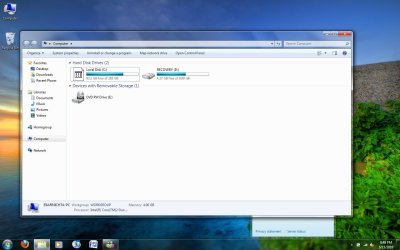
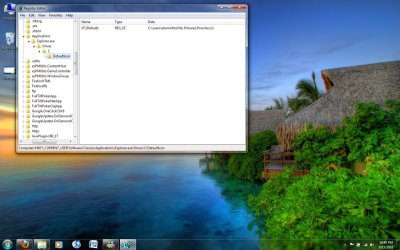
I did everything correct, and double checked everything and this is what it looks like.

Any suggestions?
 

Attachments

  • icon.jpg
    icon.jpg
    106.9 KB · Views: 3,185
  • regedit.jpg
    regedit.jpg
    166.5 KB · Views: 2,945
Last edited:

My Computer

Computer Manufacturer/Model Number
Dell XPS M1530
OS
Windows 7 Ultimate x64
CPU
Intel Core Duo T7500 @ 2.20 GHz
Memory
4 GB
Graphics Card(s)
GeForce 8400m GS
Hello Ebarn,

Could you post back with a screenshot of the registry location showing everything you added with the path to the icon so we can double check just to make sure that something may not be correct?
 

My Computer

Computer type
PC/Desktop
Computer Manufacturer/Model Number
Self built custom
OS
64-bit Windows 11 Pro for Workstations
CPU
Intel i7-8700K OC'd to 5 GHz
Motherboard
ASUS ROG Maximus XI Formula Z390
Memory
64 GB (4x16GB) G.SKILL TridentZ RGB DDR4 3600 MHz
Graphics Card(s)
ASUS ROG-STRIX-GTX1080TI-O11G-GAMING
Sound Card
Integrated
Monitor(s) Displays
2 x Samsung Odyssey G7 27"
Screen Resolution
2560x1440
Hard Drives
1TB Samsung 990 PRO M.2,
4TB Samsung 990 PRO PRO M.2,
TerraMaster F8 SSD Plus NAS
PSU
Seasonic Prime Titanium 850W
Case
Thermaltake Core P3
Cooling
Corsair Hydro H115i
Keyboard
Logitech wireless K800
Mouse
Logitech MX Master 4
Internet Speed
2 Gb/s Download and 100 Mb/s Upload
Antivirus
Malwarebyte Anti-Malware Premium
Browser
Google Chrome
Other Info
Logitech Z625 speaker system,
Logitech BRIO 4K Pro webcam,
HP Color LaserJet Pro MFP M477fdn,
APC SMART-UPS RT 1000 XL - SURT1000XLI,
Galaxy S23 Plus phone
Hello Ebarn,

Could you post back with a screenshot of the registry location showing everything you added with the path to the icon so we can double check just to make sure that something may not be correct?

That's the second attachment on my previous post. Or do you mean something else?
 

My Computer

Computer Manufacturer/Model Number
Dell XPS M1530
OS
Windows 7 Ultimate x64
CPU
Intel Core Duo T7500 @ 2.20 GHz
Memory
4 GB
Graphics Card(s)
GeForce 8400m GS
LOL, I think I was posting while you added the images.

Try using that path in quotes instead to see if that works for you since the "My Pictures" folder has a space in it.

"C:\Users\ebarnichta\My Pictures\Porsche.ico"
 

My Computer

Computer type
PC/Desktop
Computer Manufacturer/Model Number
Self built custom
OS
64-bit Windows 11 Pro for Workstations
CPU
Intel i7-8700K OC'd to 5 GHz
Motherboard
ASUS ROG Maximus XI Formula Z390
Memory
64 GB (4x16GB) G.SKILL TridentZ RGB DDR4 3600 MHz
Graphics Card(s)
ASUS ROG-STRIX-GTX1080TI-O11G-GAMING
Sound Card
Integrated
Monitor(s) Displays
2 x Samsung Odyssey G7 27"
Screen Resolution
2560x1440
Hard Drives
1TB Samsung 990 PRO M.2,
4TB Samsung 990 PRO PRO M.2,
TerraMaster F8 SSD Plus NAS
PSU
Seasonic Prime Titanium 850W
Case
Thermaltake Core P3
Cooling
Corsair Hydro H115i
Keyboard
Logitech wireless K800
Mouse
Logitech MX Master 4
Internet Speed
2 Gb/s Download and 100 Mb/s Upload
Antivirus
Malwarebyte Anti-Malware Premium
Browser
Google Chrome
Other Info
Logitech Z625 speaker system,
Logitech BRIO 4K Pro webcam,
HP Color LaserJet Pro MFP M477fdn,
APC SMART-UPS RT 1000 XL - SURT1000XLI,
Galaxy S23 Plus phone
LOL, I think I was posting while you added the images.

Try using that path in quotes instead to see if that works for you since the "My Pictures" folder has a space in it.

"C:\Users\ebarnichta\My Pictures\Porsche.ico"

Changed it and nothing. So I rebooted just to check if that would change it, and still nothing. Might it be the .ico file?

Yeah, since my edit and your post were just a minute apart I figured we just crossed paths and didnt even notice.
 

My Computer

Computer Manufacturer/Model Number
Dell XPS M1530
OS
Windows 7 Ultimate x64
CPU
Intel Core Duo T7500 @ 2.20 GHz
Memory
4 GB
Graphics Card(s)
GeForce 8400m GS
LOL, no problem.

Could you upload the icon in a ZIP file? I'll test it out on my system to see if something may be wrong with it.

Also double check your C: drive root using the yellow TIP box at the top of the tutorial to see if you may have a hidden (not always hidden though) autorun.inf file that needs to be deleted.
 

My Computer

Computer type
PC/Desktop
Computer Manufacturer/Model Number
Self built custom
OS
64-bit Windows 11 Pro for Workstations
CPU
Intel i7-8700K OC'd to 5 GHz
Motherboard
ASUS ROG Maximus XI Formula Z390
Memory
64 GB (4x16GB) G.SKILL TridentZ RGB DDR4 3600 MHz
Graphics Card(s)
ASUS ROG-STRIX-GTX1080TI-O11G-GAMING
Sound Card
Integrated
Monitor(s) Displays
2 x Samsung Odyssey G7 27"
Screen Resolution
2560x1440
Hard Drives
1TB Samsung 990 PRO M.2,
4TB Samsung 990 PRO PRO M.2,
TerraMaster F8 SSD Plus NAS
PSU
Seasonic Prime Titanium 850W
Case
Thermaltake Core P3
Cooling
Corsair Hydro H115i
Keyboard
Logitech wireless K800
Mouse
Logitech MX Master 4
Internet Speed
2 Gb/s Download and 100 Mb/s Upload
Antivirus
Malwarebyte Anti-Malware Premium
Browser
Google Chrome
Other Info
Logitech Z625 speaker system,
Logitech BRIO 4K Pro webcam,
HP Color LaserJet Pro MFP M477fdn,
APC SMART-UPS RT 1000 XL - SURT1000XLI,
Galaxy S23 Plus phone
Here you go.

And didn't find autorun.inf in the C:\ drive.
 

Attachments

My Computer

Computer Manufacturer/Model Number
Dell XPS M1530
OS
Windows 7 Ultimate x64
CPU
Intel Core Duo T7500 @ 2.20 GHz
Memory
4 GB
Graphics Card(s)
GeForce 8400m GS
Ah, I think I see what's wrong now. The icon works just fine for me, but I noticed you had "My Pictures" instead of "Pictures" for the user folder name. When you press and hold Shift, right click on the icon file, and click on Copy as path, you get the location below when you paste it in the registry.

"C:\Users\ebarnichta\Pictures\Porsche.ico"
 

My Computer

Computer type
PC/Desktop
Computer Manufacturer/Model Number
Self built custom
OS
64-bit Windows 11 Pro for Workstations
CPU
Intel i7-8700K OC'd to 5 GHz
Motherboard
ASUS ROG Maximus XI Formula Z390
Memory
64 GB (4x16GB) G.SKILL TridentZ RGB DDR4 3600 MHz
Graphics Card(s)
ASUS ROG-STRIX-GTX1080TI-O11G-GAMING
Sound Card
Integrated
Monitor(s) Displays
2 x Samsung Odyssey G7 27"
Screen Resolution
2560x1440
Hard Drives
1TB Samsung 990 PRO M.2,
4TB Samsung 990 PRO PRO M.2,
TerraMaster F8 SSD Plus NAS
PSU
Seasonic Prime Titanium 850W
Case
Thermaltake Core P3
Cooling
Corsair Hydro H115i
Keyboard
Logitech wireless K800
Mouse
Logitech MX Master 4
Internet Speed
2 Gb/s Download and 100 Mb/s Upload
Antivirus
Malwarebyte Anti-Malware Premium
Browser
Google Chrome
Other Info
Logitech Z625 speaker system,
Logitech BRIO 4K Pro webcam,
HP Color LaserJet Pro MFP M477fdn,
APC SMART-UPS RT 1000 XL - SURT1000XLI,
Galaxy S23 Plus phone
Ah, I think I see what's wrong now. The icon works just fine for me, but I noticed you had "My Pictures" instead of "Pictures" for the user folder name. When you press and hold Shift, right click on the icon file, and click on Copy as path, you get the location below when you paste it in the registry.

"C:\Users\ebarnichta\Pictures\Porsche.ico"

Yes.. Now it's working. Sorry had to go AFK for a while.

Thanks again, Brink.
 

My Computer

Computer Manufacturer/Model Number
Dell XPS M1530
OS
Windows 7 Ultimate x64
CPU
Intel Core Duo T7500 @ 2.20 GHz
Memory
4 GB
Graphics Card(s)
GeForce 8400m GS
You're most welcome Edmon. I'm happy to hear it's working for you now. :)
 

My Computer

Computer type
PC/Desktop
Computer Manufacturer/Model Number
Self built custom
OS
64-bit Windows 11 Pro for Workstations
CPU
Intel i7-8700K OC'd to 5 GHz
Motherboard
ASUS ROG Maximus XI Formula Z390
Memory
64 GB (4x16GB) G.SKILL TridentZ RGB DDR4 3600 MHz
Graphics Card(s)
ASUS ROG-STRIX-GTX1080TI-O11G-GAMING
Sound Card
Integrated
Monitor(s) Displays
2 x Samsung Odyssey G7 27"
Screen Resolution
2560x1440
Hard Drives
1TB Samsung 990 PRO M.2,
4TB Samsung 990 PRO PRO M.2,
TerraMaster F8 SSD Plus NAS
PSU
Seasonic Prime Titanium 850W
Case
Thermaltake Core P3
Cooling
Corsair Hydro H115i
Keyboard
Logitech wireless K800
Mouse
Logitech MX Master 4
Internet Speed
2 Gb/s Download and 100 Mb/s Upload
Antivirus
Malwarebyte Anti-Malware Premium
Browser
Google Chrome
Other Info
Logitech Z625 speaker system,
Logitech BRIO 4K Pro webcam,
HP Color LaserJet Pro MFP M477fdn,
APC SMART-UPS RT 1000 XL - SURT1000XLI,
Galaxy S23 Plus phone
Hi,

I'm also having trouble with the icon change. I tried both changing it for the user as well as on the machine. I only have one internal HDD, D is a soft partition and is NTFS, so there should be no errors about it.

I use a autorun.inf with shell32.dll on my external so I know that it's nothing to do with permissions for the shell32 file.

Here's a screenshot... Thanks for any help possible!

iconerror.jpg
 
Last edited by a moderator:

My Computer

OS
win 7
Hello Jayce, and welcome to Seven Forums.

Well, you did everything correctly except that there is not a icon with the 87 number in the shell32.dll file. This is why you are getting the default icon instead. What icon were you wanting to use in this file? You can download and install (using Run as administrator) the free program IconViewer to add a Icons tab in the Properties page of files that contains icons in them.

Properties.jpg
 

My Computer

Computer type
PC/Desktop
Computer Manufacturer/Model Number
Self built custom
OS
64-bit Windows 11 Pro for Workstations
CPU
Intel i7-8700K OC'd to 5 GHz
Motherboard
ASUS ROG Maximus XI Formula Z390
Memory
64 GB (4x16GB) G.SKILL TridentZ RGB DDR4 3600 MHz
Graphics Card(s)
ASUS ROG-STRIX-GTX1080TI-O11G-GAMING
Sound Card
Integrated
Monitor(s) Displays
2 x Samsung Odyssey G7 27"
Screen Resolution
2560x1440
Hard Drives
1TB Samsung 990 PRO M.2,
4TB Samsung 990 PRO PRO M.2,
TerraMaster F8 SSD Plus NAS
PSU
Seasonic Prime Titanium 850W
Case
Thermaltake Core P3
Cooling
Corsair Hydro H115i
Keyboard
Logitech wireless K800
Mouse
Logitech MX Master 4
Internet Speed
2 Gb/s Download and 100 Mb/s Upload
Antivirus
Malwarebyte Anti-Malware Premium
Browser
Google Chrome
Other Info
Logitech Z625 speaker system,
Logitech BRIO 4K Pro webcam,
HP Color LaserJet Pro MFP M477fdn,
APC SMART-UPS RT 1000 XL - SURT1000XLI,
Galaxy S23 Plus phone
Really?
Hmm, I thought I counted right... o___o It's the one with the folder and the star... o___O

I managed to find 150, the house, just fine that way... o___o

btw... thank you so much for the quick response!! You're incredible!
 

My Computer

OS
win 7
If you mean this icon below, then you would want to use this path below instead with the imageres.dll file instead. The shell32.dll file mostly has the smaller icons instead of the full size 256x256 in it.

C:\Windows\System32\imageres.dll,-115

icon.png
 

My Computer

Computer type
PC/Desktop
Computer Manufacturer/Model Number
Self built custom
OS
64-bit Windows 11 Pro for Workstations
CPU
Intel i7-8700K OC'd to 5 GHz
Motherboard
ASUS ROG Maximus XI Formula Z390
Memory
64 GB (4x16GB) G.SKILL TridentZ RGB DDR4 3600 MHz
Graphics Card(s)
ASUS ROG-STRIX-GTX1080TI-O11G-GAMING
Sound Card
Integrated
Monitor(s) Displays
2 x Samsung Odyssey G7 27"
Screen Resolution
2560x1440
Hard Drives
1TB Samsung 990 PRO M.2,
4TB Samsung 990 PRO PRO M.2,
TerraMaster F8 SSD Plus NAS
PSU
Seasonic Prime Titanium 850W
Case
Thermaltake Core P3
Cooling
Corsair Hydro H115i
Keyboard
Logitech wireless K800
Mouse
Logitech MX Master 4
Internet Speed
2 Gb/s Download and 100 Mb/s Upload
Antivirus
Malwarebyte Anti-Malware Premium
Browser
Google Chrome
Other Info
Logitech Z625 speaker system,
Logitech BRIO 4K Pro webcam,
HP Color LaserJet Pro MFP M477fdn,
APC SMART-UPS RT 1000 XL - SURT1000XLI,
Galaxy S23 Plus phone
If you mean this icon below, then you would want to use this path below instead with the imageres.dll file instead. The shell32.dll file mostly has the smaller icons instead of the full size 256x256 in it.

C:\Windows\System32\imageres.dll,-115

View attachment 83699


Thank you so much for all your help!!! ^___^ It worked perfectly!
 

My Computer

OS
win 7
You're most welcome Jayce. :)
 

My Computer

Computer type
PC/Desktop
Computer Manufacturer/Model Number
Self built custom
OS
64-bit Windows 11 Pro for Workstations
CPU
Intel i7-8700K OC'd to 5 GHz
Motherboard
ASUS ROG Maximus XI Formula Z390
Memory
64 GB (4x16GB) G.SKILL TridentZ RGB DDR4 3600 MHz
Graphics Card(s)
ASUS ROG-STRIX-GTX1080TI-O11G-GAMING
Sound Card
Integrated
Monitor(s) Displays
2 x Samsung Odyssey G7 27"
Screen Resolution
2560x1440
Hard Drives
1TB Samsung 990 PRO M.2,
4TB Samsung 990 PRO PRO M.2,
TerraMaster F8 SSD Plus NAS
PSU
Seasonic Prime Titanium 850W
Case
Thermaltake Core P3
Cooling
Corsair Hydro H115i
Keyboard
Logitech wireless K800
Mouse
Logitech MX Master 4
Internet Speed
2 Gb/s Download and 100 Mb/s Upload
Antivirus
Malwarebyte Anti-Malware Premium
Browser
Google Chrome
Other Info
Logitech Z625 speaker system,
Logitech BRIO 4K Pro webcam,
HP Color LaserJet Pro MFP M477fdn,
APC SMART-UPS RT 1000 XL - SURT1000XLI,
Galaxy S23 Plus phone
Back
Top