Drive Icon - Change

How to Change a Drive Icon in Vista, Windows 7, and Windows 8


   Information
This tutorial will show you how to change a drive icon for an internal or external drive that has a drive letter in the Computer window to any icon you want for just your or all user accounts in Vista, Windows 7, and Windows 8.

   Tip
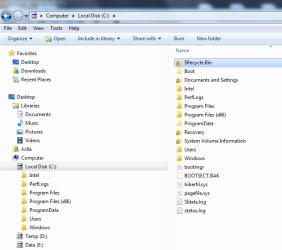
If your default drive icon is missing or was changed and you did not do it with the methods below, then look for a hidden (not always hidden though) autorun.inf file (OPTION ONE below) in the root directory of the affected drive, right click on the autorun.inf file, and click on Delete. Next, approve the deletion. If this was an external device, then you may need to disconnect and reconnect the device for the icon to appear afterwards.

   Warning
If you select to use a custom icon of your own, then it must be a 256x256 pixel icon (.ico) file for it to display properly in all icon sizes.


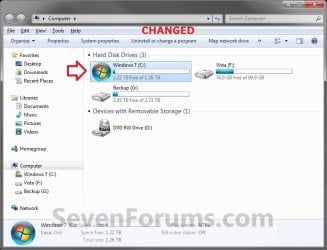
EXAMPLE: C Drive icon - Default and Changed
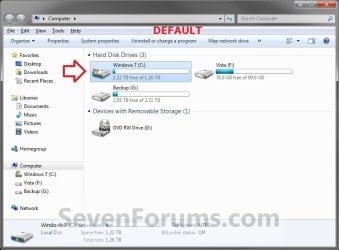
Default.jpg

Changed.jpg


OPTION ONE

Change a Drive Icon using a "autorun.inf" File


NOTE: While this option can be used for any drive, it is really useful for external drives like a USB flash drive.
1. Set your known file extentions to no longer be hidden.
NOTE: This way you will be able to rename the file extension in step 3 below.

2. Connect and/or open the drive that you want to change the icon of.

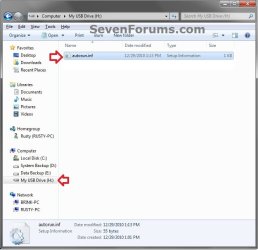
3. In the root of the drive that you want to change the icon of, right click or press and hold on an empty space, and click/tap on New and Text Document. Rename this .txt file to autorun.inf, and press Enter. (see screenshots below)
NOTE: If you already have a autorun.inf file in the root of this drive, then skip this step and proceed to step 4.
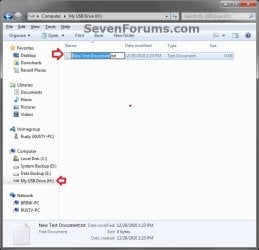
Step1.jpg

Step2.jpg

4. Copy the icon .ico file (ex: Thumb_Drive.ico) that you want to use to the root of the drive that you want to change the icon of. (see right screenshot below)
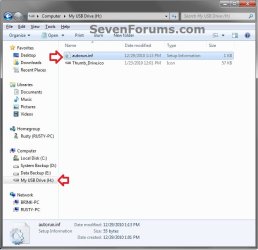
Step3.jpg
5. If this is a New autorun.inf File
A) Open the autorun.inf file, then type each line below followed by pressing enter. (see screenshot below)
NOTE: Substitute icon file name with the actual name of your icon file (ex: Thumb_Drive.ico) from step 4.
Code:
[autorun]
icon="[B][COLOR=red]icon file name[/COLOR][/B].ico"
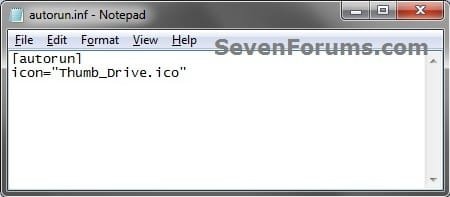
Icon.jpg
B) Click/tap on File (menu bar) and Save, then close the autorun.inf file. (see screenshot above)
6. If you already have an autorun.inf File
NOTE: Be sure that you also check the Show hidden files, folders, and drives option in Folder Options in case the existing autorun.inf file (if there) may have been hidden.
A) Open the autorun.inf file, then add or change the icon= line below. (see screenshots below)
NOTE: Substitute icon file name with the actual name of your icon file (ex: Thumb_Drive.ico) from step 4.
Code:
[autorun]
[B]icon="[COLOR=red]icon file name[/COLOR].ico"[/B]
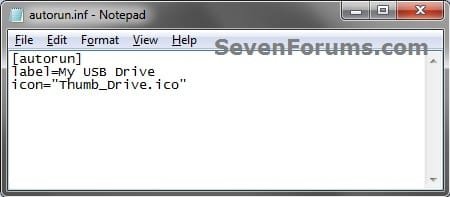
Icon.jpg

TXT_file.jpg

B) Click/tap on File (menu bar) and Save, then close the autorun.inf file. (see screenshots above)
7. If this is for an Internal or eSATA Dive
A) Restart the computer to apply.
8. If this is for an External Dive
A) Unplug and plug in the drive to apply.
9. Open the Computer window to see the changes.

   Note
To Restore the Default Icon


You would just need to do either option below and repeat steps 7 to 9 above.
  • Delete the autorun.inf and .ico file.
OR

  • If you have other lines (ex: label=) in the autorun.inf while editing it that you wish to continue using, then remove the icon= line entry for the drive, and save the changes.


OPTION TWO

Change a Drive Icon in Registry Editor for Current User Account Only


1. If you did OPTION ONE previously, then you will need to either remove the icon=icon file name.ico entry from the autorun.inf file, or delete the autorun.inf file in the root of the drive that you want to change the icon of.

2. Press the Windows + R keys to open the Run dialog, type regedit, and press Enter.

3. If prompted by UAC, then click/tap on Yes (Windows 7/8) or Continue (Vista).

4. In regedit, navigate to the location below. (see screenshot below)
HKEY_CURRENT_USER\Software\Classes
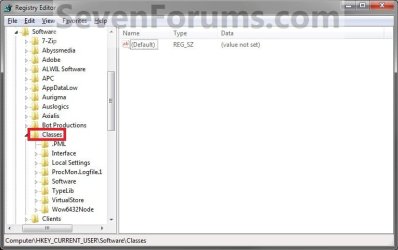
Current_Step1.jpg
5. In the left pane, right click on Classes, click/tap on New and Key, type Applications, and press Enter.
NOTE: If you already have the Applications key under Classes, then go to step 6. (see screenshot above and below)
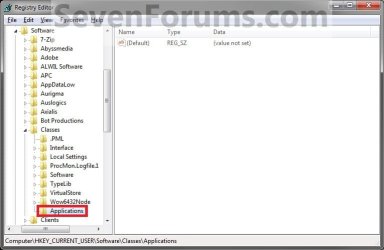
Current_Step2.jpg
6. In the left pane, right click on Applications, click/tap on New and Key, type Explorer.exe, and press Enter.
NOTE: If you already have the Explorer.exe key under Applications, then go to step 7. (see screenshot above and below)
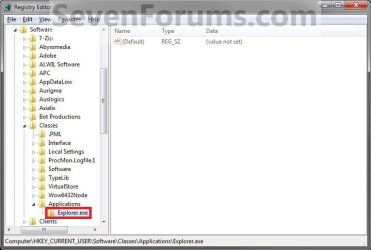
Current_Step3.jpg
7. In the left pane, right click on Explorer.exe, click/tap on New and Key, type Drives, and press Enter.
NOTE: If you already have the Drives key under Explorer.exe, then go to step 8. (see screenshot above and below)
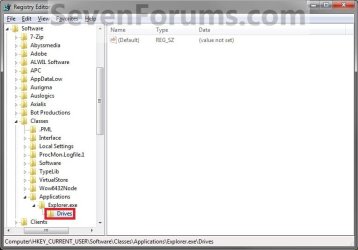
Current_Step4.jpg
8. In the left pane, right click on Drives, click/tap on New and Key, type the drive letter (ex: C ) that you want to change the icon for, and press Enter.
NOTE: If you already have the drive letter (ex: C ) key under Drives, then go to step 9. (see screenshot above and below)
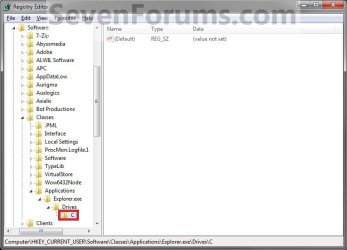
Current_Step5.jpg
9. In the left pane, right click on the drive letter (ex: C ), click/tap on New and Key, type DefaultIcon, and press Enter.
NOTE: If you already have the DefaultIcon key under the drive letter (ex: C ), then go to step 10, 11, or 12. (see screenshot above and below)
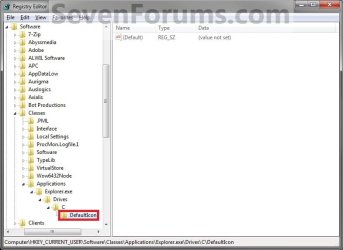
Current_Step6.jpg
10. To Restore the Default Drive Icon
A) Right click on the drive letter (ex: C ) from step 8 above that you want to restore, and click/tap on Delete and Yes. (see screenshot below step 8)

B) Go to step 14.
11. To Use a Custom Icon of Your Own
A) Make sure that the icon is unblocked if not already.

B) Make sure that the icon is located in a folder where you have access permission rights. The icon will need to stay here for as long as you are using it for the drive icon, otherwise it will break the link and no longer display as the drive's icon.

C) In the right pane of DefaultIcon, double click/tap on (Default) to modify it. (see screenshot below step 9)

D) In the Modify window, type this below, and click/tap on OK. (see screenshot below)
NOTE: Substitute with your icons full path and name with file extension in quotes instead.

Code:
"[B][COLOR=red]full path of the icon file with file extension[/COLOR][/B]"
FOR EXAMPLE:
Code:
"G:\Windows 7 PNG Files\Start_Orb.ico"
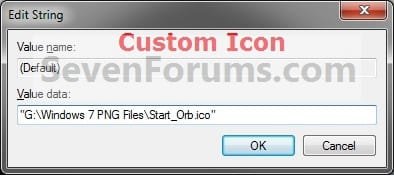
Current_Step7.jpg
E) Go to step 13.
12. To Use another Icon Included in Windows 7
A) Download and install the free program IconViewer for your 32-bit or 64-bit Windows 7.
NOTE: This program will add a Icons tab to files (ex: imageres.dll) that contain a icon library in them so you can see the icons available in it.

B) In Windows Explorer, navigate to C:\Windows\System32\imageres.dll and right click on imageres.dll, click on Properties, and click on the Icons tab.
NOTE: You can use any of the Windows 7 files that include icons in them that you want though. This is just the most common one.

C) Scroll through the icons and make note of the icon number of the one you want to use to replace the default file extension icon with, then close the properties window. (see screenshot below)
NOTE: For example, icon number 36 for the default C drive icon.
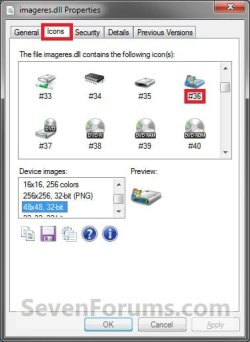
Icon_Viewer.jpg
D) In the right pane of DefaultIcon, double click/tap on (Default) to modify it. (see screenshot below step 9)

E) In the Modify window, type in the location below, and click/tap on OK. (see screenshot below)

Code:
[B][COLOR=red](full path of the Windows 7 file with file extension)[/COLOR][/B],-[B][COLOR=red]####[/COLOR][/B]
FOR EXAMPLE:
Code:
C:\Windows\System32\imageres.dll,-36
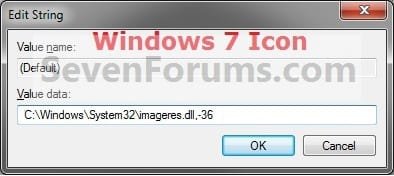
Windows7_Icon.jpg
13. The registry should look similar to this now depending on the icon path you entered in either step 11 or 12. (see screenshot below)
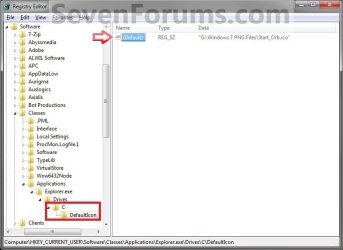
Current_Step8.jpg
12. Close Regedit.

13. The changes should be immediate, but in some cases you may need to restart the computer to apply the changes. If the drive icon does not change for you using this option, then try OPTION ONE or OPTION THREE to change it instead.


OPTION THREE

Change a Drive Icon in Registry Editor for All User Accounts


NOTE: You must be logged in as an administrator to be able to do this option.
1. If you did OPTION ONE previously, then you will need to either remove the icon=icon file name.ico entry from the autorun.inf file, or delete the autorun.inf file in the root of the drive that you want to change the icon of.

2. Press the Windows + R keys to open the Run dialog, type regedit, and press Enter.

3. If prompted by UAC, then click/tap on Yes (Windows 7/8) or Continue (Vista).

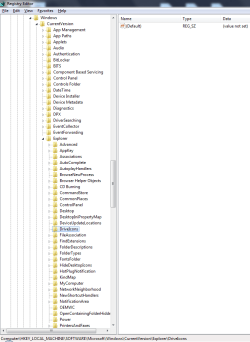
4. In regedit, navigate to the location below. (see screenshot below)
HKEY_LOCAL_MACHINE\SOFTWARE\Microsoft\Windows\CurrentVersion\Explorer
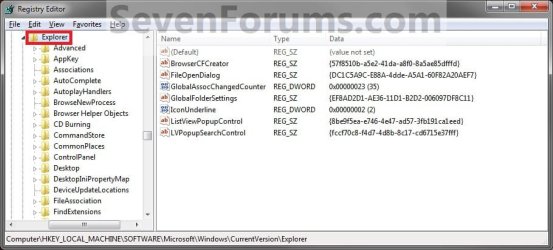
All_Step1.jpg
5. In the left pane, right click on Explorer, click/tap on New and Key, type DriveIcons, and press Enter.
NOTE: If you already have the DriveIcons key under Explorer, then go to step 6. (see screenshot above and below)
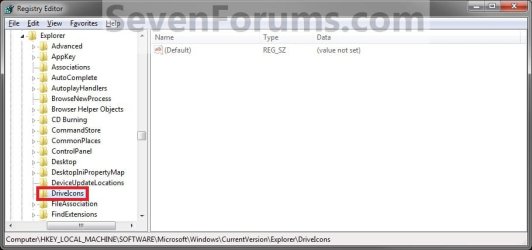
All_Step2.jpg
6. In the left pane, right click on DriveIcons and click/tap on New and Key, type the drive letter (ex: C ) that you want to change the icon for, and press Enter.
NOTE: If you already have the drive letter (ex: C ) key under DriveIcons, then go to step 7. (see screenshot above and below)
All_Step3.jpg
7. In the left pane, right click on the drive letter (ex: C ), click/tap on New and Key, type DefaultIcon, and press Enter.
NOTE: If you already have the DefaultIcon key under the drive letter (ex: C ), then go to step 8, 9, or 10. (see screenshot above and below)
All_Step4.jpg
8. To Restore the Default Drive Icon
A) Right click on the drive letter (ex: C ) from step 6 above that you want to restore, and click/tap on Delete and Yes. (see screenshot below step 6)

B) Go to step 12.
9. To Use a Custom Icon of Your Own
A) Make sure that the icon is unblocked if not already.

B) Make sure that the icon is located in a folder (ex: a C:\Users\Public folder) where all users (everyone) have access permission rights. The icon will need to stay here for as long as you are using it for the drive icon, otherwise it will break the link and no longer display as the drive's icon.

C) In the right pane of DefaultIcon, double click/tap on (Default) to modify it. (see screenshot below step 7)

D) In the Modify window, type this below, and click/tap on OK. (see screenshot below)
NOTE: Substitute with your icons full path and name with file extension in quotes instead.

Code:
"[B][COLOR=red]full path of the icon file with file extension[/COLOR][/B]"
FOR EXAMPLE:
Code:
"G:\Windows 7 PNG Files\Start_Orb.ico"
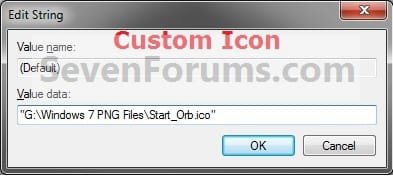
All_Step5.jpg
   Warning
The custom icon file that you are using must be saved at a location that can be accessed by all user accounts for it to be displayed in all user accounts. For example, in the C:\Users\Public folder.


E) Go to step 11.
10. To Use another Icon Included in Windows 7
A) Download and install the free program IconViewer for your 32-bit or 64-bit Windows 7.
NOTE: This program will add a Icons tab to files (ex: imageres.dll) that contain a icon library in them so you can see the icons available in it.

B) In Windows Explorer, navigate to C:\Windows\System32\imageres.dll and right click on imageres.dll, click on Properties, and click on the Icons tab.
NOTE: You can use any of the Windows 7 files that include icons in them that you want though. This is just the most common one.

C) Scroll through the icons and make note of the icon number of the one you want to use to replace the default file extension icon with, then close the properties window. (see screenshot below)
NOTE: For example, icon number 36 for the default C drive icon.
Icon_Viewer.jpg
D) In the right pane of DefaultIcon, double click/tap on (Default) to modify it. (see screenshot below step 7)

E) In the Modify window, type in the location below, and click/tap on OK. (see screenshot below)

Code:
[B][COLOR=red](full path of the Windows 7 file with file extension)[/COLOR][/B],-[B][COLOR=red]####[/COLOR][/B]
FOR EXAMPLE:
Code:
C:\Windows\System32\imageres.dll,-36
Windows7_Icon.jpg
11. The registry should look similar to this now depending on the icon path you entered in either step 9 or 10. (see screenshot below)
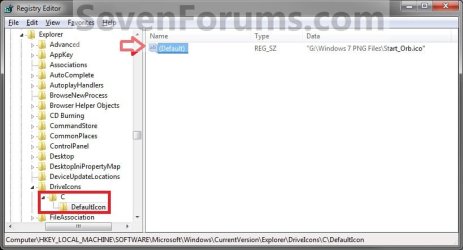
All_Step6.jpg
12. Close Regedit.

13. The changes should be immediate, but in some cases you may need to restart the computer to apply the changes.
That's it,
Shawn


Last edited:
Brink,


I recently installed Acronis True Image Home 2011 and now the drive icons for all my hard drive's partitions are not showing. See the picture attached below. Any ideas on how to restore the default icons.The registry HKEY_LOCAL_MACHINE\SOFTWARE\Microsoft\Windows\CurrentVersion\Explorer\DriveIcons is empty.

http://forum.acronis.com/sites/default/files/forum/2011/02/19107/clipboard01.png

Thanks.

Try that
http://www.sevenforums.com/tutorials/49819-icon-cache-rebuild.html
 

My Computer

Computer type
PC/Desktop
Computer Manufacturer/Model Number
Custom Build
OS
Windows 10 Pro x64, Arch Linux
CPU
Intel Core 2 Quad Q8200 OC'd 3.08GHz
Motherboard
Asus Rampage formula LGA775
Memory
8GB DDR2 900Mhz
Graphics Card(s)
MSI GT730 2GB GDDR5 (Kepler)
Sound Card
Supreme FX2
Monitor(s) Displays
Samsung LS22F350 LED
Screen Resolution
1080P
Hard Drives
Kingston SSDNow UV400 120GB, 500GB Hitachi, 2TB Samsung, 500GB Seagate FreeAgent, 640GB Samsung, 160GB Toshiba (Arch)
PSU
AeroCool 500W Bronze
Cooling
Cooler Master V6 + 3X fans
Keyboard
Prolink keyboard
Mouse
Logitech M705
Internet Speed
1MiB/s
Browser
Chrome Beta
Hello Mojonba, and welcome to Seven Forums.

If rebuilding the icon cache suggested by Yowan above doesn't help, then.......

Double check to see if you have the registry location below, and that it is empty as well.

HKEY_CURRENT_USER\Software\Microsoft\Windows\CurrentVersion\Explorer\DriveIcons

Also, check using OPTION ONE to see if you may have a autorun.inf file in the root directory of these HDDs as well.

Hope this helps,
Shawn
 

My Computer

Computer type
PC/Desktop
Computer Manufacturer/Model Number
Self built custom
OS
64-bit Windows 11 Pro for Workstations
CPU
Intel i7-8700K OC'd to 5 GHz
Motherboard
ASUS ROG Maximus XI Formula Z390
Memory
64 GB (4x16GB) G.SKILL TridentZ RGB DDR4 3600 MHz
Graphics Card(s)
ASUS ROG-STRIX-GTX1080TI-O11G-GAMING
Sound Card
Integrated
Monitor(s) Displays
2 x Samsung Odyssey G7 27"
Screen Resolution
2560x1440
Hard Drives
1TB Samsung 990 PRO M.2,
4TB Samsung 990 PRO PRO M.2,
TerraMaster F8 SSD Plus NAS
PSU
Seasonic Prime Titanium 850W
Case
Thermaltake Core P3
Cooling
Corsair Hydro H115i
Keyboard
Logitech wireless K800
Mouse
Logitech MX Master 4
Internet Speed
2 Gb/s Download and 100 Mb/s Upload
Antivirus
Malwarebyte Anti-Malware Premium
Browser
Google Chrome
Other Info
Logitech Z625 speaker system,
Logitech BRIO 4K Pro webcam,
HP Color LaserJet Pro MFP M477fdn,
APC SMART-UPS RT 1000 XL - SURT1000XLI,
Galaxy S23 Plus phone
thanks for the replies guys,

HKEY_CURRENT_USER\Software\Microsoft\Windows\CurrentVersion\Explorer\DriveIcons doesnot exist.

Rebuilding icon cache didnot work. And there is not autorun.inf in any drive.
 

My Computer

OS
W7 x64
Mojonba,

When you were looking for a autorun.inf file, did you also check the Show hidden files, folders, and drivesoption in Folder Options in case the autorun.inf file may have been hidden?
 

My Computer

Computer type
PC/Desktop
Computer Manufacturer/Model Number
Self built custom
OS
64-bit Windows 11 Pro for Workstations
CPU
Intel i7-8700K OC'd to 5 GHz
Motherboard
ASUS ROG Maximus XI Formula Z390
Memory
64 GB (4x16GB) G.SKILL TridentZ RGB DDR4 3600 MHz
Graphics Card(s)
ASUS ROG-STRIX-GTX1080TI-O11G-GAMING
Sound Card
Integrated
Monitor(s) Displays
2 x Samsung Odyssey G7 27"
Screen Resolution
2560x1440
Hard Drives
1TB Samsung 990 PRO M.2,
4TB Samsung 990 PRO PRO M.2,
TerraMaster F8 SSD Plus NAS
PSU
Seasonic Prime Titanium 850W
Case
Thermaltake Core P3
Cooling
Corsair Hydro H115i
Keyboard
Logitech wireless K800
Mouse
Logitech MX Master 4
Internet Speed
2 Gb/s Download and 100 Mb/s Upload
Antivirus
Malwarebyte Anti-Malware Premium
Browser
Google Chrome
Other Info
Logitech Z625 speaker system,
Logitech BRIO 4K Pro webcam,
HP Color LaserJet Pro MFP M477fdn,
APC SMART-UPS RT 1000 XL - SURT1000XLI,
Galaxy S23 Plus phone
Yes hidden & os protected files are shown.

Clipboard01.png
Clipboard02.png
 
Last edited:

My Computer

OS
W7 x64

My Computer

Computer type
PC/Desktop
Computer Manufacturer/Model Number
Self built custom
OS
64-bit Windows 11 Pro for Workstations
CPU
Intel i7-8700K OC'd to 5 GHz
Motherboard
ASUS ROG Maximus XI Formula Z390
Memory
64 GB (4x16GB) G.SKILL TridentZ RGB DDR4 3600 MHz
Graphics Card(s)
ASUS ROG-STRIX-GTX1080TI-O11G-GAMING
Sound Card
Integrated
Monitor(s) Displays
2 x Samsung Odyssey G7 27"
Screen Resolution
2560x1440
Hard Drives
1TB Samsung 990 PRO M.2,
4TB Samsung 990 PRO PRO M.2,
TerraMaster F8 SSD Plus NAS
PSU
Seasonic Prime Titanium 850W
Case
Thermaltake Core P3
Cooling
Corsair Hydro H115i
Keyboard
Logitech wireless K800
Mouse
Logitech MX Master 4
Internet Speed
2 Gb/s Download and 100 Mb/s Upload
Antivirus
Malwarebyte Anti-Malware Premium
Browser
Google Chrome
Other Info
Logitech Z625 speaker system,
Logitech BRIO 4K Pro webcam,
HP Color LaserJet Pro MFP M477fdn,
APC SMART-UPS RT 1000 XL - SURT1000XLI,
Galaxy S23 Plus phone
Brink

I downloaded and ran Default_Drive.reg, restarted and nothing. Still no default icons. Unless you have other ideas to restore the default icon, I believe my only option is to setup a custom icon with the default icon.

Thanks.
 

My Computer

OS
W7 x64
Mojonba,

LOL, that was going to be my next suggestion to do OPTION ONE or OPTION THREE in the tutorial for a custom icon using the default icons in the imageress.dll file. :)
 

My Computer

Computer type
PC/Desktop
Computer Manufacturer/Model Number
Self built custom
OS
64-bit Windows 11 Pro for Workstations
CPU
Intel i7-8700K OC'd to 5 GHz
Motherboard
ASUS ROG Maximus XI Formula Z390
Memory
64 GB (4x16GB) G.SKILL TridentZ RGB DDR4 3600 MHz
Graphics Card(s)
ASUS ROG-STRIX-GTX1080TI-O11G-GAMING
Sound Card
Integrated
Monitor(s) Displays
2 x Samsung Odyssey G7 27"
Screen Resolution
2560x1440
Hard Drives
1TB Samsung 990 PRO M.2,
4TB Samsung 990 PRO PRO M.2,
TerraMaster F8 SSD Plus NAS
PSU
Seasonic Prime Titanium 850W
Case
Thermaltake Core P3
Cooling
Corsair Hydro H115i
Keyboard
Logitech wireless K800
Mouse
Logitech MX Master 4
Internet Speed
2 Gb/s Download and 100 Mb/s Upload
Antivirus
Malwarebyte Anti-Malware Premium
Browser
Google Chrome
Other Info
Logitech Z625 speaker system,
Logitech BRIO 4K Pro webcam,
HP Color LaserJet Pro MFP M477fdn,
APC SMART-UPS RT 1000 XL - SURT1000XLI,
Galaxy S23 Plus phone
Brinks,

I did just that, a custom icon based on the default icon and all is good now. Thanks for the help.

Clipboard03.png
 

My Computer

OS
W7 x64
You're most welcome Mojonba. That's great news. :)
 

My Computer

Computer type
PC/Desktop
Computer Manufacturer/Model Number
Self built custom
OS
64-bit Windows 11 Pro for Workstations
CPU
Intel i7-8700K OC'd to 5 GHz
Motherboard
ASUS ROG Maximus XI Formula Z390
Memory
64 GB (4x16GB) G.SKILL TridentZ RGB DDR4 3600 MHz
Graphics Card(s)
ASUS ROG-STRIX-GTX1080TI-O11G-GAMING
Sound Card
Integrated
Monitor(s) Displays
2 x Samsung Odyssey G7 27"
Screen Resolution
2560x1440
Hard Drives
1TB Samsung 990 PRO M.2,
4TB Samsung 990 PRO PRO M.2,
TerraMaster F8 SSD Plus NAS
PSU
Seasonic Prime Titanium 850W
Case
Thermaltake Core P3
Cooling
Corsair Hydro H115i
Keyboard
Logitech wireless K800
Mouse
Logitech MX Master 4
Internet Speed
2 Gb/s Download and 100 Mb/s Upload
Antivirus
Malwarebyte Anti-Malware Premium
Browser
Google Chrome
Other Info
Logitech Z625 speaker system,
Logitech BRIO 4K Pro webcam,
HP Color LaserJet Pro MFP M477fdn,
APC SMART-UPS RT 1000 XL - SURT1000XLI,
Galaxy S23 Plus phone
I am not a "newbie" to registry hacks. I use UltraEdit as my "ultimate" text editor and UltraCompare for checking files that are the same. But I seem to have a hard time CREATING my own .reg entries. Brink, could you please upload a ZIPped .reg file so that I can edit it with the types of ICONS that I want to use so I can understand how this works better. Every time I seem to export certain segments of my registry to use later if (and when :) my system decides to "tank" again I can just merge the file with my new registry. Thanks. Since this is first (I think) post I would like to say that I really enjoy the vast information that this site and your knowledge has enlightened me and helped me in my endeavors.

Incidentally, I will get A LOT of use out of that Icon "Tab" program that you suggested...

What is the best program to use for Windows 7 x64 (Ultimate) to automate the process where it will pull out ALL of the icons, including the PNG icons (256x256x32).
 
Last edited by a moderator:

My Computer

Computer Manufacturer/Model Number
ASUS N90Sv-A1
OS
Windows 7 Ultimate x64 Service Pack 1 and ASUS ExpressGate
CPU
Intel Core2 Duo CPU T9550 @ 2.6GHz Penryn Core Socket P
Motherboard
ASUS N90Sv (NB: SiS 671/FX/DX/MX; SB: SiS 968 rev 01)
Memory
Kingston 4096 MB DDR2 Single Channel (SODIMM)
Graphics Card(s)
NVIDIA GeForce GT 130M 1GB (Core 600 MHz / RAM 500 MHz)
Sound Card
Realtek HD 5.1 Surround Sound
Monitor(s) Displays
18.4" HD LCD screen
Screen Resolution
1920 by 1080
Hard Drives
Internal: One Seagate 250GB & One 500GB
External: Pair (2) Seagate GoFlex 1.5TB USB 2.0/3.0
External: One Seagate GoFlex Satellite WiFi Hotspot 500GB
PSU
Standard ASUS Notebook Power Supply
Case
notebook case
Cooling
standard stock cooling fan
Keyboard
Builtin Standard notebook keyboard with numeric keypad
Mouse
Logitech Performance MX Wireless and Synaptics Touchpad
Internet Speed
PAN: BT RFCOMM v2.1-LAN: SiS 191 1GB-WAN: Atheros 928x BGN
Other Info
Although this notebook did not come with one I upgraded to a Blue Ray burner Matshita (Panasonic) BD-MLT UJ240AS ATA drive.
integrated SD Slot and PCMCIA card slot with TV tuner by AVerMedia.
Hello Spirit Wolfe, and welcome to Seven Forums.

I'm not sure if the REG file will help much since it will look different than what you type, but here's an example based on using OPTION THREE. If you follow that option step by step and use step 9 for your custom icon, then it should work out ok. If not, then please let me know. I'll be happy to help. :)
 

Attachments

My Computer

Computer type
PC/Desktop
Computer Manufacturer/Model Number
Self built custom
OS
64-bit Windows 11 Pro for Workstations
CPU
Intel i7-8700K OC'd to 5 GHz
Motherboard
ASUS ROG Maximus XI Formula Z390
Memory
64 GB (4x16GB) G.SKILL TridentZ RGB DDR4 3600 MHz
Graphics Card(s)
ASUS ROG-STRIX-GTX1080TI-O11G-GAMING
Sound Card
Integrated
Monitor(s) Displays
2 x Samsung Odyssey G7 27"
Screen Resolution
2560x1440
Hard Drives
1TB Samsung 990 PRO M.2,
4TB Samsung 990 PRO PRO M.2,
TerraMaster F8 SSD Plus NAS
PSU
Seasonic Prime Titanium 850W
Case
Thermaltake Core P3
Cooling
Corsair Hydro H115i
Keyboard
Logitech wireless K800
Mouse
Logitech MX Master 4
Internet Speed
2 Gb/s Download and 100 Mb/s Upload
Antivirus
Malwarebyte Anti-Malware Premium
Browser
Google Chrome
Other Info
Logitech Z625 speaker system,
Logitech BRIO 4K Pro webcam,
HP Color LaserJet Pro MFP M477fdn,
APC SMART-UPS RT 1000 XL - SURT1000XLI,
Galaxy S23 Plus phone
Hello Brink,

I have 3 partitions on my HDD and i will be using Option 3, the manual registry thing.
So now do i have to create new keys for each partition and then create new subkey Defaulticon for all?
Ex: one key for C, one for D, one for E Partitons?

Also, is it the same procedure for my optical drives & virtual drive?

I would also like if you could suggest sum more safe software tht could change automatically, as the one mentioned here doesnt create desktop/start menu shorcuts.

PS: Using x64bits
 

My Computer

OS
Win7 x64
Hello Zinbart,

Yes, you would need to create a different drive letter subkey under DefaultIcons in step 6 Option Three for each drive letter that you wanted to change the drive icon for.

You could manually create shortcuts of the drives on the desktop and Start Menu if you like without 3rd party software.

Hope this helps,
Shawn
 

My Computer

Computer type
PC/Desktop
Computer Manufacturer/Model Number
Self built custom
OS
64-bit Windows 11 Pro for Workstations
CPU
Intel i7-8700K OC'd to 5 GHz
Motherboard
ASUS ROG Maximus XI Formula Z390
Memory
64 GB (4x16GB) G.SKILL TridentZ RGB DDR4 3600 MHz
Graphics Card(s)
ASUS ROG-STRIX-GTX1080TI-O11G-GAMING
Sound Card
Integrated
Monitor(s) Displays
2 x Samsung Odyssey G7 27"
Screen Resolution
2560x1440
Hard Drives
1TB Samsung 990 PRO M.2,
4TB Samsung 990 PRO PRO M.2,
TerraMaster F8 SSD Plus NAS
PSU
Seasonic Prime Titanium 850W
Case
Thermaltake Core P3
Cooling
Corsair Hydro H115i
Keyboard
Logitech wireless K800
Mouse
Logitech MX Master 4
Internet Speed
2 Gb/s Download and 100 Mb/s Upload
Antivirus
Malwarebyte Anti-Malware Premium
Browser
Google Chrome
Other Info
Logitech Z625 speaker system,
Logitech BRIO 4K Pro webcam,
HP Color LaserJet Pro MFP M477fdn,
APC SMART-UPS RT 1000 XL - SURT1000XLI,
Galaxy S23 Plus phone
Thank YOU !!

Hi Shawn,

Well, I finally found this Tutorial ...
I searched within Seven Forums and never did find it.
I used "Google" and found the Tutorial there.

I so Thank YOU, I now have my DRIVE icon straightened out.
I have also bookmarked this in case it happens to me again.

I have no idea why my D: drive's icon went generic.
I have two internal drives,
C: and D: and the C: drive was okay.
Anyway, things are fixed now THANKS to YOU.

I appreciate the time and effort you put into these tutorials.
They are always so easy to follow.
You are definitely
1.gif


Again, THANKS so very much.

malasmiley2.gif
Jenn
 

My Computer

Computer type
Laptop
Computer Manufacturer/Model Number
HP Pavilion m7 Notebook PC
OS
Microsoft Windows 7 Home Premium, Service Pack 1 64-bit
CPU
Intel(R) Core(TM) CPU i7-3610QM CPU 2.30 GHz
Memory
8 GB Ram
Graphics Card(s)
Intel(R) HD Graphics 4000
Sound Card
IDT High Definition Audio CODEC
Hard Drives
Local Disk (C:) 697 GB Free of 909 GB
Recovery Disk (D:)
Antivirus
Webroot Secure/Anywhere 9.0.24.49
Browser
Firefox Quantum 65.0.2
You're most welcome Jenn. :)
 

My Computer

Computer type
PC/Desktop
Computer Manufacturer/Model Number
Self built custom
OS
64-bit Windows 11 Pro for Workstations
CPU
Intel i7-8700K OC'd to 5 GHz
Motherboard
ASUS ROG Maximus XI Formula Z390
Memory
64 GB (4x16GB) G.SKILL TridentZ RGB DDR4 3600 MHz
Graphics Card(s)
ASUS ROG-STRIX-GTX1080TI-O11G-GAMING
Sound Card
Integrated
Monitor(s) Displays
2 x Samsung Odyssey G7 27"
Screen Resolution
2560x1440
Hard Drives
1TB Samsung 990 PRO M.2,
4TB Samsung 990 PRO PRO M.2,
TerraMaster F8 SSD Plus NAS
PSU
Seasonic Prime Titanium 850W
Case
Thermaltake Core P3
Cooling
Corsair Hydro H115i
Keyboard
Logitech wireless K800
Mouse
Logitech MX Master 4
Internet Speed
2 Gb/s Download and 100 Mb/s Upload
Antivirus
Malwarebyte Anti-Malware Premium
Browser
Google Chrome
Other Info
Logitech Z625 speaker system,
Logitech BRIO 4K Pro webcam,
HP Color LaserJet Pro MFP M477fdn,
APC SMART-UPS RT 1000 XL - SURT1000XLI,
Galaxy S23 Plus phone
Icon Help

Hi Shawn.

Well looks like I got excited a little to quick.

My Internal Hard drive (D: drive) works perfectly ...

However when I fixed my EXTERNAL Drive (G: drive) I've got a problem.

From outward appearance the assigned Icon looks okay ..
LostIcon1.jpg


Now onto my problem .....

The assigned ICON (Heart) is showing inside EVERY Sub-Folder on my Drive.

I took a Screen Shot of my Paint Shop Pro folder to show you.

This is only ONE Folder ALL the SubFolders in every category are the same.
LostIcon2.jpg


Any idea what could have happened to this EXTERNAL Drive ?

Like I said, my INTERNAL Drive is fine and I did them both the same way.

I sure hope you can help me because that big red heart is terribly distracting.
Not enough love in the world for all that.
SMILEY13.gif


Thank YOU in advance for ANY help.

malasmiley2.gif
Jenn
 

My Computer

Computer type
Laptop
Computer Manufacturer/Model Number
HP Pavilion m7 Notebook PC
OS
Microsoft Windows 7 Home Premium, Service Pack 1 64-bit
CPU
Intel(R) Core(TM) CPU i7-3610QM CPU 2.30 GHz
Memory
8 GB Ram
Graphics Card(s)
Intel(R) HD Graphics 4000
Sound Card
IDT High Definition Audio CODEC
Hard Drives
Local Disk (C:) 697 GB Free of 909 GB
Recovery Disk (D:)
Antivirus
Webroot Secure/Anywhere 9.0.24.49
Browser
Firefox Quantum 65.0.2
Hello Jenn,

It looks like they really like you. :D

Could you post back with a full copy of the autorun.inf file's text when you edit it to see if there might be a mistake made in it?
 

My Computer

Computer type
PC/Desktop
Computer Manufacturer/Model Number
Self built custom
OS
64-bit Windows 11 Pro for Workstations
CPU
Intel i7-8700K OC'd to 5 GHz
Motherboard
ASUS ROG Maximus XI Formula Z390
Memory
64 GB (4x16GB) G.SKILL TridentZ RGB DDR4 3600 MHz
Graphics Card(s)
ASUS ROG-STRIX-GTX1080TI-O11G-GAMING
Sound Card
Integrated
Monitor(s) Displays
2 x Samsung Odyssey G7 27"
Screen Resolution
2560x1440
Hard Drives
1TB Samsung 990 PRO M.2,
4TB Samsung 990 PRO PRO M.2,
TerraMaster F8 SSD Plus NAS
PSU
Seasonic Prime Titanium 850W
Case
Thermaltake Core P3
Cooling
Corsair Hydro H115i
Keyboard
Logitech wireless K800
Mouse
Logitech MX Master 4
Internet Speed
2 Gb/s Download and 100 Mb/s Upload
Antivirus
Malwarebyte Anti-Malware Premium
Browser
Google Chrome
Other Info
Logitech Z625 speaker system,
Logitech BRIO 4K Pro webcam,
HP Color LaserJet Pro MFP M477fdn,
APC SMART-UPS RT 1000 XL - SURT1000XLI,
Galaxy S23 Plus phone
@ Shawn/Brink

Hello Jenn,

It looks like they really like you. :D

Could you post back with a full copy of the autorun.inf file's text when you edit it to see if there might be a mistake made in it?


Hello Shawn,

Here is a Screenshot showing the Dreaded Heart Icon ..
Along with the Autorun file opened.
LostIcon3.jpg


Also, When I VIEW FILES on this G: drive ..
All the Main Folders are not having this issue.

I have to open a Main Folder then ..
ALL the SUB-FOLDERS inside are
marked with the DREADED HEART ICON ...
UNLESS, it's been assigned a dedicated icon.

Do you think if I deleted the Heart Icon and Autorun.inf file
and started this all over that it might work ..
Or do you think I should go into the Registry and see what's up.

I've only fooled inside the registry a couple of times but I do
understand the Explorer TREE for lack of a better word.

I could do it with instructions from you because
your directions are always very clear.

Would appreciate any help you can share with me.
I'm totally perplexed with this one.
Thank YOU so much.


wwinesmiley3.gif
Jenn
 

My Computer

Computer type
Laptop
Computer Manufacturer/Model Number
HP Pavilion m7 Notebook PC
OS
Microsoft Windows 7 Home Premium, Service Pack 1 64-bit
CPU
Intel(R) Core(TM) CPU i7-3610QM CPU 2.30 GHz
Memory
8 GB Ram
Graphics Card(s)
Intel(R) HD Graphics 4000
Sound Card
IDT High Definition Audio CODEC
Hard Drives
Local Disk (C:) 697 GB Free of 909 GB
Recovery Disk (D:)
Antivirus
Webroot Secure/Anywhere 9.0.24.49
Browser
Firefox Quantum 65.0.2
Jenn,

You might see if clearing both the thumbnail cache and icon cache may help first. If not, then delete the autorun.inf file, restart, and try again to see if they still show or not to start over.
 

My Computer

Computer type
PC/Desktop
Computer Manufacturer/Model Number
Self built custom
OS
64-bit Windows 11 Pro for Workstations
CPU
Intel i7-8700K OC'd to 5 GHz
Motherboard
ASUS ROG Maximus XI Formula Z390
Memory
64 GB (4x16GB) G.SKILL TridentZ RGB DDR4 3600 MHz
Graphics Card(s)
ASUS ROG-STRIX-GTX1080TI-O11G-GAMING
Sound Card
Integrated
Monitor(s) Displays
2 x Samsung Odyssey G7 27"
Screen Resolution
2560x1440
Hard Drives
1TB Samsung 990 PRO M.2,
4TB Samsung 990 PRO PRO M.2,
TerraMaster F8 SSD Plus NAS
PSU
Seasonic Prime Titanium 850W
Case
Thermaltake Core P3
Cooling
Corsair Hydro H115i
Keyboard
Logitech wireless K800
Mouse
Logitech MX Master 4
Internet Speed
2 Gb/s Download and 100 Mb/s Upload
Antivirus
Malwarebyte Anti-Malware Premium
Browser
Google Chrome
Other Info
Logitech Z625 speaker system,
Logitech BRIO 4K Pro webcam,
HP Color LaserJet Pro MFP M477fdn,
APC SMART-UPS RT 1000 XL - SURT1000XLI,
Galaxy S23 Plus phone
Back
Top