Dual Boot - Delete a OS

How to Properly Delete a OS in a Dual Boot

   Information
Deleting a double booted OS may seem simple - you just delete the partition with the OS you want to get rid of and you are done. Well, it is not that easy. With said approach you may get yourself into a lot of trouble. This tutorial describes a safe way how to properly delete a double booted OS.


Step 1 - Check where the bootmgr resides
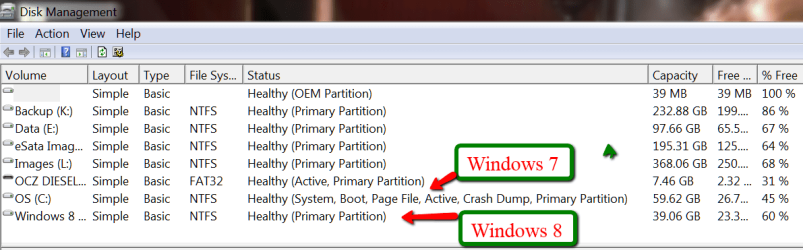
Open Disk Management and find the partition that is marked "active". That is the partition that contains the bootmgr. If there are several active partitions, you have to look for the system flag - best seen in Computer.

The active partition is usually from the OS that was on the system first - e.g. if you installed Windows 7 on an XP system, the XP system would be the active partition. But there are also other cases.

If Windows 7 was the first OS on the system, then your bootmgr resides most likely in a separate system partition which is usually small.

If you installed Windows 7 as first OS to a disk that was not attached to the Sata port0, it can very well be that the bootmgr resides on an arbitrary partition on the disk that is attached to port0.

If you have e.g. a Dell system, your bootmgr may be on the recovery partition. Other OEMs may do the same, but I was not able to verify that.

This is the example of my current system. Note the two last partitions which are Windows 7 and Windows 8. The Windows 7 partition is marked as active. You also see that I have no small system partition because I have eliminated that partition after I moved the bootmgr from that small system partition to the Windows 7 partition.

pic 1.png

If I would delete the Windows 7 partition, my Windows 8 would not boot any more because it would have lost it's bootmgr that is in cohabitation with the Windows7 bootmgr.

In order to avoid such an unfortunate situation, we launch the system that we want to retain and move the bootmgr to that system's OS partition. Here is how.
Step 2 - Delete the unwanted OS partition and reuse the space (Optional)
Stay in the OS that you want to keep and open Disk Management. Right click on the partition that contains the OS you want to delete and Delete Volume. Then right click on the deleted volume and Delete Partition. Now you should have "Freespace" where this partition originally was.

With Disk Management, you can define a new partition in that freespace or you can add it to the partition that shows to the left of that freespce. Just click on the partition which is to the left and Extend Volume.

If, however, you want to add that freespace to a partition that is to the right of the freespace, then you have to use an external tool. I suggest the bootable CD of Partition Wizard. Here is how.

A word of caution: before you manipulate partitions with Partition Wizard, make an image of all partitions on that disk. I once lost all my partitions on a disk because I made a small mistake manipulating one partition with Partition Wizard. For imaging I recommend Free Macrium. Here is how.
Step 3 - Cleanup the bootmgr
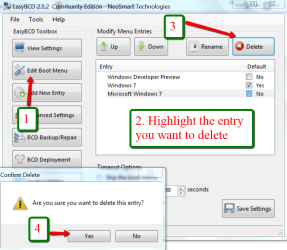
Now that we removed one OS, we have a surplus entry in the bootmgr. We will remove this entry with EasyBCD. As you can see in the picture, the operation takes only 4 clicks.

EasyBCD is a very handy tool for a variety of operations on the bootmgr. You should have that in your toolkit anyhow.

pic 2.png


If you stop at this step, the MBR is still in a double boot configuration and when you boot, the BIOS will present you the black screen where you have to choose the operating sytem - although only one operating system is present. This is not a disaster, but it is an unnecessary step that requires your intervention.

The next two steps will reset the MBR to your current OS and then your system will automatically boot into that.

Important: You absolutely have to execute both Steps 4 and Step 5. If you only do Step 4, your system will not boot any more.

Step 4 - Clean the MBR
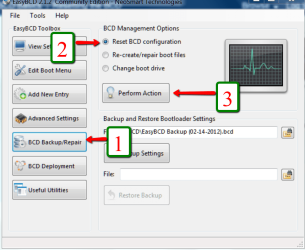
Pic 3.png


Step 5 - Reset MBR with the entry of the current OS
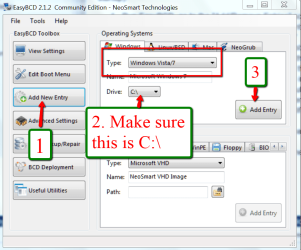
Pic 4.png


Last edited:
@MexicoMatt

You should start your own thread for help with your specific problem.
I'm not sure how or if you can do what you want remotely.

Can you have someone available "hands-on" at the remote PC, so you can give them instructions for what to do ?

I help people remotely, and face the same type of problem, so i'm interested if there is "better solution" than what i know.
 

My Computer

Computer type
PC/Desktop
Computer Manufacturer/Model Number
home built
OS
Multi-Boot W7_Pro_x64 W8.1_Pro_x64 W10_Pro_x64 +Linux_VMs +Chromium_VM
CPU
AMD Athlon II x4 620
Motherboard
Gigabyte GA-MA785G-UD3H
Memory
6GB GSkill DDR2 800
Graphics Card(s)
AMD 4670 GPU + AMD 4200 IGP
Sound Card
on board Realtek ALC889A
Monitor(s) Displays
RCA 40" LCD TV, Insignia 32" LCD TV, HP 15" LCD monitor
Screen Resolution
1680 x 1050
Hard Drives
OCZ Vertex 3 120GB,
Samsung F3 1TB (3),
Several others - WD, Seagate, Hitachi, ...
PSU
Corsair 500 W
Case
Rosewill mid tower
Cooling
CM 90mm rifle
Keyboard
Gyration wireless, Logitech wireless, Dell USB wired
Mouse
Gyration wireless, Logitech wireless, V7 USB wired
Internet Speed
Spectrum - 100Mbps D / 10Mbps U
Antivirus
Avast, MBAM3, EMET, WinPatrol
Browser
Pale Moon, Firefox, IE
Other Info
2 multi-boot PC's
Mainly HTPC/Office/Gen purpose (no gaming).
Trendnet USB KVM.
LG DVD burner/Blue Ray Player.
Tray system for removable SATA backup drives.

Not currently OCd, under-volted.
I use Hybrid sleep, rarely re-boot or shutdown.

Hauppauge HD-PVR, Avermedia PCIe TV Tuner, Hauppauge PCI TV Tuner.
Hello all,
I need to remove one of the OS on my DELL laptop, when I start it up it gives me the black screen (BIOS?) and I have to choose between Windows 7 & Windows 7...
When I go to Disk Management to follow your tutorial, there are the 3 partitions:
OEM partition
C: Primary partition
E: the System, Boot, Page File, Active, Crash Dump, Primary Partition

But it doesn't show 2x Windows 7 on there. So how do I get this solved? I just want it to start Windows 7 straight away when I start the computer, not ask me which one to start...

Thanks for your help!
(I'm not an expert, so would help if answer is not too technical... :D Thanks!)
 

My Computer

Computer type
Laptop
Computer Manufacturer/Model Number
Toshiba
OS
Windows 10 Home 64bit
CPU
Intel(R) Core(TM) i5-5200U
Memory
8GB
Antivirus
AVG Free, SuperAntiSpyware, Malwarebytes Anti-Malware
Browser
Google Chrome
@mchldpy @DavidE
Sorry i just saw your replies, I didn't get any email notifications.

OK well, remotely was not going to happen, so i tried to get it sorted at the week-end while at home. Don't remember how I ended up with that layout on the HDD, apart fro there was another partition there which i deleted, hence the Unallocated space.

Anyway i had the idea of Cloning the Win 8.1 partition to the Unallocated space, which worked, I then used EasyBCD to copy the Bootmgr from the Win7 to the NEW Win8.1 partition (now primary), which also worked, i then figured i could boot into the new cloned Win8.1 and delete the others. Sounded great in theory, but could not get the thing to boot into the new partition, kept booting into the original Win8.1 (and i know it did as I intentionally made them different sizes to tell the difference), even after changing the boot menu with EasyBCD and editing it so the other partition were not even an option, somehow, still didn't work. In the end I got fed up and decided i would just wipe everything and reinstall Win 8.1! However on going that route, i got as far as a missing media driver during the install so couldn't even do that, at that point i gave up and decided to enjoy the rest of my week-end!!

Thanks for looking in though.
 

My Computer

OS
W7 Home Premium x64 / W7 Ultimate x86
I have a Win 7/Win 8.1 dual boot system.....so obviously, in setting this up in the beginning, Win 8.1 was loaded after Win 7.

However, now I would liike to upgrade the Win 8.1 OS to Win 10, leaving Win 7.....resulting in a Win 7/Win 10 dual boot system.

Do I need to delete the Win 8.1 first, then add Win 10 or can I simply somehow upgrade the Win 8.1 to Win 10 on my existing system?

Many thanks in advance....
 

My Computer

Computer type
PC/Desktop
OS
Win 7 Enterprise x64/Win 8.1 Pro x64

My Computer

Computer type
PC/Desktop
Computer Manufacturer/Model Number
Self built custom
OS
64-bit Windows 11 Pro for Workstations
CPU
Intel i7-8700K OC'd to 5 GHz
Motherboard
ASUS ROG Maximus XI Formula Z390
Memory
64 GB (4x16GB) G.SKILL TridentZ RGB DDR4 3600 MHz
Graphics Card(s)
ASUS ROG-STRIX-GTX1080TI-O11G-GAMING
Sound Card
Integrated
Monitor(s) Displays
2 x Samsung Odyssey G7 27"
Screen Resolution
2560x1440
Hard Drives
1TB Samsung 990 PRO M.2,
4TB Samsung 990 PRO PRO M.2,
TerraMaster F8 SSD Plus NAS
PSU
Seasonic Prime Titanium 850W
Case
Thermaltake Core P3
Cooling
Corsair Hydro H115i
Keyboard
Logitech wireless K800
Mouse
Logitech MX Master 4
Internet Speed
2 Gb/s Download and 100 Mb/s Upload
Antivirus
Malwarebyte Anti-Malware Premium
Browser
Google Chrome
Other Info
Logitech Z625 speaker system,
Logitech BRIO 4K Pro webcam,
HP Color LaserJet Pro MFP M477fdn,
APC SMART-UPS RT 1000 XL - SURT1000XLI,
Galaxy S23 Plus phone
Many thanks Brink, that's great news....and thank you for the welcome.

But you know what, as I have been sitting here, I just remembered that I've got my Windows 8.1 working on two separate partitions and each partition is on a separate hard drive (C: and D:)....and I changed the registry so that all new programs load onto the D: drive....so I'm wondering if Windows 10 will simply not be able to complete the upgrade because of that registry change?? (maybe I could go back into the registry and revert the changes first??)

Here's the system I have now:

--On one hard drive (a solid state hard drive) I have a partition for Windows 7 and Windows 8.1
--On a second hard drive (a SATA drive) I have corresponding data partitions for Windows 7 and Windows
8.1

So when I boot up either operating system, the C: drive is the solid state drive and the D: drive is the SATA drive.

I guess I would wonder if I could just load a regular Windows 10 disc (not an upgrade) while I'm in Windows 7 and just pick the partition that Windows 8.1 is now loaded on and just let it load that way??
I think not.....I imagine I would need to delete the Windows 8.1 OS first and then try loading a new Windows 10 system while I'm in Windows 7....just like I did initially when I loaded Windows 8.1 as the second operating system from within Windows 7....??
 

My Computer

Computer type
PC/Desktop
OS
Win 7 Enterprise x64/Win 8.1 Pro x64
Hi, I deleted my second partition, but when it gets the the easybcd part it says you must do steps 4 and 5, but in that picture there is no step 5, or maybe im just blind...

EDIT: nevermind I thought it meant the steps in the picture not the step afterwards... whoops
 
Last edited:

My Computer

Computer type
PC/Desktop
Computer Manufacturer/Model Number
My Build
OS
Windows 10 X64
CPU
AMD FX-8350
Motherboard
Asus M5A78L-M/USB3
Memory
16GB
Graphics Card(s)
Asus Nvidia GTX 960
Monitor(s) Displays
Dell E178FP
Screen Resolution
1280x1024
Hard Drives
WDC WD10EZEX-00WN4A0 ATA Device
Samsung SSD 850 EVO 250GB ATA Device
PSU
Corsair VS550
Case
Corsair 100r
Keyboard
Powercool Mech1
Mouse
Sumvision Nemesis Kata
Antivirus
Bitdefender Free
Browser
Google Chrome
Other Info
Front USB ports aren't compatible with case, but otherwise works fine
Hello yotoprules, :)

Sorry for the confusion. It would be for "Step 4 - Clean the MBR" and "Step 5 - Reset MBR with the entry of the current OS" in the tutorial, and not in the screenshots.
 

My Computer

Computer type
PC/Desktop
Computer Manufacturer/Model Number
Self built custom
OS
64-bit Windows 11 Pro for Workstations
CPU
Intel i7-8700K OC'd to 5 GHz
Motherboard
ASUS ROG Maximus XI Formula Z390
Memory
64 GB (4x16GB) G.SKILL TridentZ RGB DDR4 3600 MHz
Graphics Card(s)
ASUS ROG-STRIX-GTX1080TI-O11G-GAMING
Sound Card
Integrated
Monitor(s) Displays
2 x Samsung Odyssey G7 27"
Screen Resolution
2560x1440
Hard Drives
1TB Samsung 990 PRO M.2,
4TB Samsung 990 PRO PRO M.2,
TerraMaster F8 SSD Plus NAS
PSU
Seasonic Prime Titanium 850W
Case
Thermaltake Core P3
Cooling
Corsair Hydro H115i
Keyboard
Logitech wireless K800
Mouse
Logitech MX Master 4
Internet Speed
2 Gb/s Download and 100 Mb/s Upload
Antivirus
Malwarebyte Anti-Malware Premium
Browser
Google Chrome
Other Info
Logitech Z625 speaker system,
Logitech BRIO 4K Pro webcam,
HP Color LaserJet Pro MFP M477fdn,
APC SMART-UPS RT 1000 XL - SURT1000XLI,
Galaxy S23 Plus phone
Hi! Your tutorial was absolutely clear, but I'd like to be sure before doing something unrecoverable ;)
I've seen similar situations in the post replies, but...

I had a 32bit Windows 7 installed first, and a 64bit installed later. Now I'm sure that I don't need anymore the 32bit version, and I'd like to remove it.
The 32bit is installed on the O: partition on Disk 1 (SSD), while the 64bit on the C: partition (of course, this is the situation as it is seen in the 64bit environment...).
The Disk 2 (HD) is a copy of Disk 1, made before I changed the partitions size on Disk 1...
HD.jpg

First question: steps 3, 4 and 5 can be done independently from steps 1 and 2? In my understanding there is no actual dependency... I could clean the boot manager and the BMR, with no need to change something in the HD paritions... Is it correct?

Second question: In my understanding, my BMR is on a partition on Disk 1 without any label ("Active & Boot"). The N: partition is just a copy of that one. Is it correct? The strange thing is that EasyBCD identifies N: as "Easy BCD Boot Device". Is that normal? Should I first label the (*) partition on Disk 1 and move the "Easy BCD Boot Device" to that partition? Or, better, on partition C:? Ok, those are third, fourth, fifth.... many questions :)

So, my intention is to delete the 32bit version entry from the Boot Menu (Step 3 of the tutorial), reset BCD Configuration (Step 4), add the 64bit version as New Entry (Step 5).
After that, if everything goes ok, I should have just one O.S. (64bit) booting without any menu asking for any choice...

After that, I'd like to change my partitions on Disk 1, having just one partition C:. This means that I should delete the O: partition, then add the resulting freespace on the existing C:. Is this the case you called as "add that freespace to a partition that is to the right of the freespace"? Should I "Resize" partition or "Extend" it? What is preferrable? Is it mandatory to use a bootable CD or can I simply manage it through MiniTool Partition Wizard and it will perform actions at the first reboot?

Thanks in advance for your support!
Francesco
 

My Computer

Computer type
PC/Desktop
Computer Manufacturer/Model Number
Custom build
OS
Windows 7 (32 and 64) / Windows 10 on a laptop
CPU
Intel i7
Motherboard
Asus
Memory
10GByte
Graphics Card(s)
AMD
Antivirus
Avira
Browser
Firefox
A little update...
I used EasyBCD and made c: as active and boot partition, removed Win32 from the boot menu, reset the BCD, add Win64 in c: as new entry and everything works fine... Win64 boots from c: without any menu... Next step will be to delete the old partition with Win32 and then expand/resize c: to occupy all the available space.
I used AOMEI Backupper to create an image (iso) of the c: partition on an external USB hard disk (image verified to be ok), and then I created with AOMEI PE Builder a USB bootable key with the AOMEI tool that could be used to restore c: partition in case something goes wrong.
I didn't use Partition Wizard bootable version because it seems to be no more a tool available for free. Can you confirm that (the information could be useful for people reading your great tutorial)?
I should be now ready to do the last, risky step....


As suggested by Samuria in another post, I used Partition Wizard deleting the win32 partition and then to move C: on the left. Everything worked perfectly.


HD After.jpg


Only one last step is missing: expanding the partition on the right, but this is straightforward...
Francesco
 
Last edited:

My Computer

Computer type
PC/Desktop
Computer Manufacturer/Model Number
Custom build
OS
Windows 7 (32 and 64) / Windows 10 on a laptop
CPU
Intel i7
Motherboard
Asus
Memory
10GByte
Graphics Card(s)
AMD
Antivirus
Avira
Browser
Firefox
Are steps 3, 4 and 5 required?

I installed Win Ultimate 32 bit on a corsair SSd. I then installed a Samsung 850 Pro SSd and installed Win Ultimate 64bit on it in a dual boot situation. I tried to clone my 64 bit onto a new Samsung SSD but it won't boot because the bootmgr is on the Corsaire drive. I no longer need the 32 bit drive but didn't want to delete it.
Can I just do steps 1 and 2 and remove the corsair drive? Will that allow me to boot into the Samsung 850 Pro 64bit? Capture.PNG
 

My Computer

Computer type
PC/Desktop
OS
7 Ultimate 64
CPU
i7-3770 3.4 GHz
Motherboard
Asus P8Z77-V LE
Memory
12 GB
Graphics Card(s)
GeForce GTX 1060 6GB
Back
Top