Dual Boot Installation with Windows 7 and XP

How to Setup a Dual Boot Installation with Windows 7 and XP


   Information
This will show you how to install Windows 7 and XP to dual boot with when you already have either Windows 7 or XP installed first.
   Note
With a dual boot installaton, you will have two operating systems (OS) installed. When you start the computer, you will have the choice to choose which OS you would like to start up to. This method is the easiest way of doing a dual boot with these two operating systems.
   Tip
When dual booting with another OS (ex: Vista or XP), you may not always have that OS partition show up in Computer with a driver letter in Windows 7. If this happens, then you will just need to add a drive letter to the OS (ex: Vista or XP) partition in Windows 7 Disk Management for it to show up in Computer with a driver letter.
   Warning
To stop XP from deleting your Windows 7 System Restore Points everytime XP is started, then see System Restore Points - Stop XP Dual Boot Delete to hide Windows 7 from XP.

Windows 7 Minimum Hardware Requirements


NOTE: For more information on this, see: Windows 7 system requirements
  • 1 GHz 32-bit or 64-bit processor
  • 1 GB RAM for 32-bit Windows 7 OR 2 GB RAM for 64-bit Windows 7
  • 16 GB available disk space 32-bit Windows 7 OR 20 GB for 64-bit Windows 7
  • Support for DirectX 9 graphics with 128 MB memory (in order to enable Aero theme)
  • DVD-R/W Drive
  • Internet or phone access to activate Windows 7.
Windows XP Minimum Hardware Requirements

NOTE: For more information on this, see: System requirements for Windows XP operating systems
  • PC with 300 megahertz (MHz) or higher processor clock speed recommended; 233-MHz minimum required;* Intel Pentium/Celeron family, AMD K6/Athlon/Duron family, or compatible processor recommended
  • 128 megabytes (MB) of RAM or higher recommended (64 MB minimum supported; may limit performance and some features)
  • 1.5 gigabyte (GB) of available hard disk space.*
  • Super VGA (800 × 600) or higher resolution video adapter and monitor
  • CD-ROM or DVD drive
  • Keyboard and Microsoft Mouse or compatible pointing device
EXAMPLE: Windows Boot Manager
NOTE: This is the boot screen where you select what operating system that you would like to start. By default, you have 30 seconds to choose another operating system before the default operating system will start automatically.
Example.jpg


OPTION ONE

When XP is Installed First


NOTE: If you have a RAID setup, you will need to have the Windows 7 RAID drivers on a USB flash drive available to select and load while installing Windows 7.
1. Do step 2 or 3 below for where you wanted to install Windows 7 at.

2. To Create a New Partition from the XP Hard Disk Drive
A) With your Windows 7 installation disc boot into the Command Prompt from the System Recovery Options screen.
NOTE: Make sure that the CD/DVD drive is selected first in the boot order in the BIOS.

B) In the command prompt, select and shrink the XP volume by how many MB (1024 MB = 1 GB) you want to have for this Windows 7 partition. (See screenshot below)
NOTE: You would do steps 2 to 9 in METHOD TWO at that link. Windows 7 will need a minimum of 16 GB (16384 MB).

XP-W7_1.jpg
C) Click on the X at the top right corner to close the command prompt. (See screenshot above)

D) Click on the X at the top right corner to close System Recovery Options. (See screenshot below)
XP-W7_2.jpg
E) Go to step 4.
3. To Use a Separate Hard Disk Drive than the XP Drive
A) Boot from your Windows 7 installation disc.
NOTE: Make sure that the CD/DVD drive is selected first in the boot order in the BIOS.
4. Click on the Install now button. (See screenshot below)

XP-W7_3.jpg
5. When you get to this point, select the partition (step 2) or hard drive to install Windows 7 on. (See screenshot below)

XP-W7_4.jpg
6. Finish installing Windows 7.
NOTE: You would start at step 9 in that link to finish installing Windows 7.

7. When finished, restart the computer to have the option to boot from XP (Earlier Verision of Windows) or Windows 7. (See screenshot below)

   Note
If you are only booting into Windows 7 and do not have XP listed in the Windows Boot Manager, then you can install only EasyBCD (step 8 Option Two below) to add XP (or Windows 7) while started in Windows 7 the same way to the boot list.

Example.jpg


OPTION TWO

When Windows 7 is Installed First


   Warning

1. To Create a New Partition from the Windows 7 Hard Disk Drive
NOTE: If you want to install XP on a separate internal hard drive instead, then skip this step and go to step 2.
A) In Windows 7, select and shrink the Windows 7 volume in Disk Management by how many MB (1024 MB = 1 GB) you want to have for this XP partition. (See screenshots below)
NOTE: You would do all of Method One at that link.

W7-XP-1.jpg

W7-XP-2.jpg

W7-XP-3.jpg
2. Insert your XP installation disc, then restart the computer and press any key to boot from it when prompted. (See screenshot below)
NOTE: Make sure that the CD/DVD drive is selected first in the boot order in the BIOS.

Step1.jpg
3. From XP Setup, Press Enter. (See screenshot below)


   Warning

W7-XP-4.jpg
4. Press F8. (See screenshot below)
NOTE: On some multimedia keyboards, you may need to press the F-Lock or Function key before pressing F8.
W7-XP-5.jpg
5. Select the partition (step 1) or hard drive that you want to install XP on using the arrow keys and press Enter.

W7-XP-6.jpg
6. Finish installing XP.


   Tip
If you get Error loading Operating System after XP restarts:
  • Using your Windows 7 installation disc, boot to the command prompt at startup.
  • Type in these comands below, and press enter after each one.
    • bootrec /FixMbr
    • bootrec /FixBoot
    • bootrec /RebuildBcd
  • Exit the command prompt and restart the computer.
  • At this point, Windows 7 should boot up the same way before trying to install XP.
  • Continue to step 8 below and run EasyBCD from Windows 7 instead.

7. In XP, download and install .Net Framework 2.0 (32-bit) version or .Net Framework 2.0 (64-bit) version first, and EasyBCD (free version) for your 32-bit (x86) or 64-bit (x86) XP.
NOTE: In XP, Net Framework is required to be installed to run EasyBCD. After you click on Register (at bottom of link) for the free EasyBCD, registration is not required to download it.

8. Run EasyBCD (free version).
NOTE: This is required to repair the Windows 7 boot file and add XP to the Windows Boot Manager list.

9. On the left side of EasyBCD, click on the Add New Entry button. (See screenshot below)
A) In the top section under Operating Systems, click on the Windows tab. (See screenshot below)
B) To the right of Type, select Windows NT/2k/XP/2k3 from the drop down menu. (See screenshot below)
:warn:WARNING: Be sure to leave the Automatically detect correct drive box checked.

C) To the right of Name, you can leave the default Microsoft Windows XP as the name to be displayed in the Windows Boot Manager, or you can type whatever name you would like to have instead. (See screenshot below)
D) Click on the Add Entry button. (See screenshot below)
W7-XP-7.jpg
10. On the left side of EasyBCD, click on the BCD Deployment button, select (dot) the Install the Windows Vista/7 bootloader to the MBR option, and click on the Write MBR button. (See screenshot below)

W7-XP-9.jpg
11. Close EasyBCD.

12. Restart the computer to have the option to boot from Microsoft Windows XP or Windows 7. (See screenshot below)

Example2.jpg
   Tip
If Windows 7 will not start up when selected, then use your Windows 7 installation DVD to do a Startup Repair.

That's it,
Shawn


Last edited:
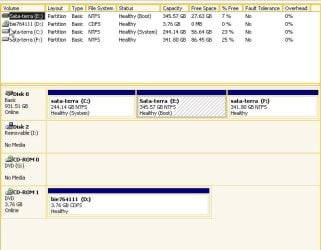
Brink, to briefly follow up on one of your answers--
I followed Method Two of this tutorial. Is it the normal result for the
newly installed Win XP to be on drive F: instead of C:? And is it normal for
both 7 and XP to be able to see and read each other's files? The impression
I had was that the two were somehow 'insulated' from each other.
That being said, everything on the XP side works--in particular the
circuit design/simulation/layout suite OrCAD works better and faster than
it ever did on my old computer. You just change all fully-rooted path names
to start with F: instead of C:. Like other posters I notice that XP and 7
have different ideas of which drive letter belongs to what disk but it
doesn't matter, everything seems to work.
Your tutorial is excellent, thanks for the help.
 

My Computer My Computer

At a glance

Windows 7 Professional 32bitIntel Core2 Quad Q8400 2.66GHz4GB DDR2 800 dual-chanNVIDIA GeForce 7300 SE / 7200 GS
Computer type
Laptop
Computer Manufacturer/Model Number
Dell Latitude E6400
OS
Windows 7 Professional 32bit
CPU
Intel Core2 Quad Q8400 2.66GHz
Motherboard
MSI G41M4-F aka MS-7592
Memory
4GB DDR2 800 dual-chan
Graphics Card(s)
NVIDIA GeForce 7300 SE / 7200 GS
Sound Card
sound on mobo
Monitor(s) Displays
Soyo 24-in Topaz S 1920x1200
Hard Drives
596 GB Western Digital WD6400AARS SATA 3Gb/sec -- w/Advanced Format
You're most welcome Burrbarr, and welcome to Seven Forums.

Yes, it's normal to be able to see XP and Windows 7 from each OS like this in a multiboot. You may be thinking about XP and Windows 7 possibly not seeing each other on a network instead.

If you get the issue where your Windows 7 restore points get deleted everytime you start in XP, then the tutorial below may help by hiding Windows 7 in XP. You would just substitute Vista for Windows 7 in the tutorial.

System Restore Points - Stop XP Dual Boot Delete - Vista Forums
 

My Computer My Computer

At a glance

64-bit Windows 11 Pro for WorkstationsIntel i7-8700K OC'd to 5 GHz64 GB (4x16GB) G.SKILL TridentZ RGB DDR4 3600...ASUS ROG-STRIX-GTX1080TI-O11G-GAMING
Computer type
PC/Desktop
Computer Manufacturer/Model Number
Self built custom
OS
64-bit Windows 11 Pro for Workstations
CPU
Intel i7-8700K OC'd to 5 GHz
Motherboard
ASUS ROG Maximus XI Formula Z390
Memory
64 GB (4x16GB) G.SKILL TridentZ RGB DDR4 3600 MHz
Graphics Card(s)
ASUS ROG-STRIX-GTX1080TI-O11G-GAMING
Sound Card
Integrated
Monitor(s) Displays
2 x Samsung Odyssey G7 27"
Screen Resolution
2560x1440
Hard Drives
1TB Samsung 990 PRO M.2,
4TB Samsung 990 PRO PRO M.2,
TerraMaster F8 SSD Plus NAS
PSU
Seasonic Prime Titanium 850W
Case
Thermaltake Core P3
Cooling
Corsair Hydro H115i
Keyboard
Logitech wireless K800
Mouse
Logitech MX Master 4
Internet Speed
2 Gb/s Download and 100 Mb/s Upload
Antivirus
Malwarebyte Anti-Malware Premium
Browser
Google Chrome
Other Info
Logitech Z625 speaker system,
Logitech BRIO 4K Pro webcam,
HP Color LaserJet Pro MFP M477fdn,
APC SMART-UPS RT 1000 XL - SURT1000XLI,
Galaxy S23 Plus phone
Running into an issue at nearly every step.

Hoping someone can help me out because almost every step presents something no one covers and I've been searching for solutions for each issue for days now.

I have Windows 7 installed first and am trying to set up a dual boot to XP.

The first issue is in partitioning. In the disk management wizard I am able to shrink to create a space for XP. The issue is mine isn't automatically a primary partition like every tutorial screenshot I've seen across the web. It's a simple volume. The result of this I think is my second issue. When I boot from the XP CD it doesn't see that partition I set up and I think it's due to the fact that It's a simple volume and OS's need primary partitions?
The only way I could get it to recognize space is if I leave the space unallocated so that I might be able to format it from the XP boot process. The issue I run into there is twofold. First it automatically assigns C: to the empty space which may or may not cause issues. Second is then I try and use that space it says that
"However, this disk does not contain a Windows XP-compatible partition.

To continue installing Windows XP, return to the partition selection screen and create a Windows XP-compatible partition on the disk above. If there is no free space on the disk, delete an existing partition, and then create a new one."

I try deleting that one and creating a new one and it gives the same issue.
 

My Computer My Computer

At a glance

Windows 7 Home Premium 64-bit
OS
Windows 7 Home Premium 64-bit
You can have a maximum of four Primary Partitions.

If you already have 3 Primary partitions, you can create a fourth using free Partition Wizard bootable CD: http://www.sevenforums.com/tutorials/93322-partition-wizard-use-bootable-cd.html (Option 1).

If you have four primary partitions already, you can use PW CD to convert a Primary data partition to Logical. You need primary for your OS and System Reserved partitions, and Recovery partiiton or other factory OEM partition if it is marked Active.

If you'd like further advice on how to manage your partitions, please post back a screenshot of your full Disk Mgmt drive map, using Snipping Tool in Start Menu.

You may still need to insert your SATA controller driver at F6 prompt (if you have floppy drive) or by slipstreaming into CD, if XP can't see the partition but it seems like it might once partitioning is sorted: http://www.sevenforums.com/tutorials/66010-sata-drivers-load-windows-xp-setup-dual-boot.html
 
I only have two primary partitions at the moment. Disk Management shows my others as simple volumes.

Desktop.jpg
 

My Computer My Computer

At a glance

Windows 7 Home Premium 64-bit
OS
Windows 7 Home Premium 64-bit
It looks like you allowed it to convert your HD to Dynamic disk, which is problematic and needs to be converted back.

Your Recovery and boot partitions remained Basic so that Win7 can boot and you can run Factory Recovery. So make your Recovery Disks now from the Recovery Partition if you haven't already. Then back up your data externally.

Now Convert Dynamic to Basic using free Partiiton Wizard version 4.2 which still has the free option on it's Disk tab: partition wizard 4.2 free.zip - Windows Live#

Once you apply the conversion post back another screenshot for further steps, or go ahead to rightclick>Convert data partition to Logical, OK, then if necessary rightclick XP target partition to Convert to Primary, OK, then Apply.

Have your Win7 DVD or Repair CD standing by as you may need to boot it to Repair the System MBR as the System flag is mysteriously missing from 100mb boot partition. Check if you still have the Repair console on the F8 Advanced boot options menu:
http://www.sevenforums.com/tutorials/105541-startup-repair-run-3-separate-times.html
http://www.sevenforums.com/performance-maintenance/51100-repair-cd-system-repair-disk.html
http://www.sevenforums.com/tutorials/666-advanced-boot-options.html
 
Appreciate the advice. Unfortunately with it being a multi-user work machine it's not an option at this time for me to re-format or backup settings/configurations. I'm gonna do what I need on a separate machine in the meantime. Thanks for the help though.
 

My Computer My Computer

At a glance

Windows 7 Home Premium 64-bit
OS
Windows 7 Home Premium 64-bit
The HD has been mistakenly converted to Dynamic and should be converted back to Basic. http://msdn.microsoft.com/en-us/library/aa363785(v=vs.85).aspx

When attempting to create the new Partition, a warning box that disk would be converted to Dynamic was likely ignored. Your OEM had protected its boot and Recovery partitions from conversion.

The link provided is for the only method which will do this non-destructively.

We have not had any reports that it has failed, however backing up your data and making the Recovery Disks is always a wise precaution.
 
I tried to install Window xp on my Comaq cq 60. as soon as i booted from the CD and initial copying of the setup files my system shut down. I had to use recovery CD to restore it. Even built recovery did not work because system kept shutting down every time I started.

Any thoughts. I am trying to Install xp because i need to install qnd work on HP ALM. which is not compatible with windows 7
 

My Computer My Computer

At a glance

windows 7 home premium 32bitAMD athlon dual core2gb
Computer Manufacturer/Model Number
Comaq CQ 60
OS
windows 7 home premium 32bit
CPU
AMD athlon dual core
Memory
2gb
Hard Drives
250gb
Did you shrink HD space to install XP, but leave the creation and format of the partition to XP CD?

If it didn't get any further than loading files then it may be a bad CD burn - is this a known-good CD that has recently installed successfully?

It's likely the SATA or AHCI drivers will need to be inserted at the F6 prompt during loading phase (if you reach it and providing you have floppy drive) or slipstreamed into the install ISO: http://www.sevenforums.com/tutorials/72185-sata-drivers-slipstream-into-windows-xp-cd.html?ltr=S
 
Sorry if this has been covered but I have spent 2 days reading and I can still not see my specific situation.

I have an XP system that is installed on my E drive.

C and D used to have windows on them but they became corrupted so thats why I was up to E drive.

LOL


I now want to install window 7 but dual boot with my old XP while I spend some weeks getting the new windows 7 populated with my programs and passwords for websites etc etc

I can see that I can shrink one of the existing partitons and then install windows 7 but should I be doing this on the old C drive or the old E drive.

Thanks in advance
 

My Computer My Computer

At a glance

Xp pro
OS
Xp pro
Hello Andy, and welcome to Seven Forums.

If you do not have anything that you want to keep on the C drive since they are corrupted, then you might as well use it to install Windows 7 to if there's enough room on it. It'll save you the trouble of having to create another partition.

Hope this helps,
Shawn
 

My Computer My Computer

At a glance

64-bit Windows 11 Pro for WorkstationsIntel i7-8700K OC'd to 5 GHz64 GB (4x16GB) G.SKILL TridentZ RGB DDR4 3600...ASUS ROG-STRIX-GTX1080TI-O11G-GAMING
Computer type
PC/Desktop
Computer Manufacturer/Model Number
Self built custom
OS
64-bit Windows 11 Pro for Workstations
CPU
Intel i7-8700K OC'd to 5 GHz
Motherboard
ASUS ROG Maximus XI Formula Z390
Memory
64 GB (4x16GB) G.SKILL TridentZ RGB DDR4 3600 MHz
Graphics Card(s)
ASUS ROG-STRIX-GTX1080TI-O11G-GAMING
Sound Card
Integrated
Monitor(s) Displays
2 x Samsung Odyssey G7 27"
Screen Resolution
2560x1440
Hard Drives
1TB Samsung 990 PRO M.2,
4TB Samsung 990 PRO PRO M.2,
TerraMaster F8 SSD Plus NAS
PSU
Seasonic Prime Titanium 850W
Case
Thermaltake Core P3
Cooling
Corsair Hydro H115i
Keyboard
Logitech wireless K800
Mouse
Logitech MX Master 4
Internet Speed
2 Gb/s Download and 100 Mb/s Upload
Antivirus
Malwarebyte Anti-Malware Premium
Browser
Google Chrome
Other Info
Logitech Z625 speaker system,
Logitech BRIO 4K Pro webcam,
HP Color LaserJet Pro MFP M477fdn,
APC SMART-UPS RT 1000 XL - SURT1000XLI,
Galaxy S23 Plus phone
Ah that was the bit I did not really understand.

I do have files on there I wish to keep but the windows folder (or the OS in it is corrupt) .

I "think" I understand that installing windows 7 to a partition will trash any files in that partition hence I will actually need to shrink one of my drives.

The main thing I did not know was is it better to use the c drive and shrink that or the e drive with the working XP on it!

I "think" what I am saying is I "think" some of the boot files are located on the C drive even though I have windows on the E drive.

You can tell I do a lot of thinking (I also question myself a lot) lol

PS thanks for the welcome
 

My Computer My Computer

At a glance

Xp pro
OS
Xp pro
LOL, no problem Andy. We'll be happy to help you through this.

Are you able to access the fiiles on the C drive while you have XP started? If so, you could backup anything that you didn't want to lose to be safe.

Could you post back a screenshot of your Disk Management in XP showing all of your drive's layout. This will help us better understand your setup and allow us to give better recommendations.
 

My Computer My Computer

At a glance

64-bit Windows 11 Pro for WorkstationsIntel i7-8700K OC'd to 5 GHz64 GB (4x16GB) G.SKILL TridentZ RGB DDR4 3600...ASUS ROG-STRIX-GTX1080TI-O11G-GAMING
Computer type
PC/Desktop
Computer Manufacturer/Model Number
Self built custom
OS
64-bit Windows 11 Pro for Workstations
CPU
Intel i7-8700K OC'd to 5 GHz
Motherboard
ASUS ROG Maximus XI Formula Z390
Memory
64 GB (4x16GB) G.SKILL TridentZ RGB DDR4 3600 MHz
Graphics Card(s)
ASUS ROG-STRIX-GTX1080TI-O11G-GAMING
Sound Card
Integrated
Monitor(s) Displays
2 x Samsung Odyssey G7 27"
Screen Resolution
2560x1440
Hard Drives
1TB Samsung 990 PRO M.2,
4TB Samsung 990 PRO PRO M.2,
TerraMaster F8 SSD Plus NAS
PSU
Seasonic Prime Titanium 850W
Case
Thermaltake Core P3
Cooling
Corsair Hydro H115i
Keyboard
Logitech wireless K800
Mouse
Logitech MX Master 4
Internet Speed
2 Gb/s Download and 100 Mb/s Upload
Antivirus
Malwarebyte Anti-Malware Premium
Browser
Google Chrome
Other Info
Logitech Z625 speaker system,
Logitech BRIO 4K Pro webcam,
HP Color LaserJet Pro MFP M477fdn,
APC SMART-UPS RT 1000 XL - SURT1000XLI,
Galaxy S23 Plus phone
Why NTFS? XP works better on FAT32 cause NTFS was unstable (used to be)..
I etc are flash memory vs disk drive.. not relevant..

FAT32 is decent - the limit for FAT32 is only 32GB.
System Restore will NOT WORK with FAT32.

There are advantages and dis advantages for both file systems.

Although, FAT32 is extremely handy on USB Flash Drives.
 

My Computer My Computer

At a glance

Win 7 Pro x64 SP1 OS X Snow Leopard 10.6.7Intel Core i7 2820QM 2.3GHz (Quad-Core)8GB 1333 MHz PC3-10600 DDR3 SDRAMATI Radeon HD 6750M (1GB, GDDR5)
Computer Manufacturer/Model Number
Macbook Pro 15" (2011) (Matte Version)
OS
Win 7 Pro x64 SP1 OS X Snow Leopard 10.6.7
CPU
Intel Core i7 2820QM 2.3GHz (Quad-Core)
Motherboard
N/A
Memory
8GB 1333 MHz PC3-10600 DDR3 SDRAM
Graphics Card(s)
ATI Radeon HD 6750M (1GB, GDDR5)
Sound Card
N/A
Monitor(s) Displays
1 Display
Screen Resolution
1,680 x 1050 (Matte Screen, Anti-Glare)
Hard Drives
750GB SATA (5400 rpm)
WD My Passport Essential 1TB Portable Hard Drive
PSU
N/A
Case
N/A
Cooling
N/A
Keyboard
Apple Wireless Keyboard
Mouse
Apple Wireless Magic Mouse
Internet Speed
Max - 2.2MB/sec; DSL provided by Telecom NZ
Other Info
MS Office Professional 2010
McAfee Total Protection 2011
On a Laptop Stand (Hand-Built)
Should be attached now mate cheers.

I can access the files on that partition but I have a terrabyte disc and the files are large and hard to back up easy.
 

Attachments

  • discmanagement.jpg
    discmanagement.jpg
    42.9 KB · Views: 172

My Computer My Computer

At a glance

Xp pro
OS
Xp pro
Andy,

Your E drive with XP on it is your boot drive, so that's good.

Here's an option for you.

You could do a custom install on C with Windows 7. It's like a clean install, but the current installation on C will be placed into a C:\Windows.old folder during the new installation. Afterwards you can copy whet you want from within the C:\Windows.old folder back into the new installation, then delete the C:\Windows.old folder when finished to regain the HDD space.

If for some reason XP is not available to select from at boot and only Windows 7 is, then you could use EasyBCD to add XP to the MBR as in this tutorial.
 

My Computer My Computer

At a glance

64-bit Windows 11 Pro for WorkstationsIntel i7-8700K OC'd to 5 GHz64 GB (4x16GB) G.SKILL TridentZ RGB DDR4 3600...ASUS ROG-STRIX-GTX1080TI-O11G-GAMING
Computer type
PC/Desktop
Computer Manufacturer/Model Number
Self built custom
OS
64-bit Windows 11 Pro for Workstations
CPU
Intel i7-8700K OC'd to 5 GHz
Motherboard
ASUS ROG Maximus XI Formula Z390
Memory
64 GB (4x16GB) G.SKILL TridentZ RGB DDR4 3600 MHz
Graphics Card(s)
ASUS ROG-STRIX-GTX1080TI-O11G-GAMING
Sound Card
Integrated
Monitor(s) Displays
2 x Samsung Odyssey G7 27"
Screen Resolution
2560x1440
Hard Drives
1TB Samsung 990 PRO M.2,
4TB Samsung 990 PRO PRO M.2,
TerraMaster F8 SSD Plus NAS
PSU
Seasonic Prime Titanium 850W
Case
Thermaltake Core P3
Cooling
Corsair Hydro H115i
Keyboard
Logitech wireless K800
Mouse
Logitech MX Master 4
Internet Speed
2 Gb/s Download and 100 Mb/s Upload
Antivirus
Malwarebyte Anti-Malware Premium
Browser
Google Chrome
Other Info
Logitech Z625 speaker system,
Logitech BRIO 4K Pro webcam,
HP Color LaserJet Pro MFP M477fdn,
APC SMART-UPS RT 1000 XL - SURT1000XLI,
Galaxy S23 Plus phone
That sounds good BUT...I have been and purcahsed another terrabyte hard disc and was wondering how I could add that so I could install Windows 7 onto that and if it all went belly up at some stage (or that disc just died) I would have an xp install on a separate disc.

The bonus being I could then back up my really important files on BOTH discs and if either goes bang have immediate access.

Am I correct in my thinking.

My main problem is I dont really understand the way Sata drives hierarchy work. With IDE I stood a chance but they are now both SATA drives I have at my disposal.
 

My Computer My Computer

At a glance

Xp pro
OS
Xp pro
Andy,

That would also be a great option. Especially for your backups.

With IDE, you had to manually select the master/slave jumper.

With SATA, you no longer have to worry it. SATA is truly plug and play.
 

My Computer My Computer

At a glance

64-bit Windows 11 Pro for WorkstationsIntel i7-8700K OC'd to 5 GHz64 GB (4x16GB) G.SKILL TridentZ RGB DDR4 3600...ASUS ROG-STRIX-GTX1080TI-O11G-GAMING
Computer type
PC/Desktop
Computer Manufacturer/Model Number
Self built custom
OS
64-bit Windows 11 Pro for Workstations
CPU
Intel i7-8700K OC'd to 5 GHz
Motherboard
ASUS ROG Maximus XI Formula Z390
Memory
64 GB (4x16GB) G.SKILL TridentZ RGB DDR4 3600 MHz
Graphics Card(s)
ASUS ROG-STRIX-GTX1080TI-O11G-GAMING
Sound Card
Integrated
Monitor(s) Displays
2 x Samsung Odyssey G7 27"
Screen Resolution
2560x1440
Hard Drives
1TB Samsung 990 PRO M.2,
4TB Samsung 990 PRO PRO M.2,
TerraMaster F8 SSD Plus NAS
PSU
Seasonic Prime Titanium 850W
Case
Thermaltake Core P3
Cooling
Corsair Hydro H115i
Keyboard
Logitech wireless K800
Mouse
Logitech MX Master 4
Internet Speed
2 Gb/s Download and 100 Mb/s Upload
Antivirus
Malwarebyte Anti-Malware Premium
Browser
Google Chrome
Other Info
Logitech Z625 speaker system,
Logitech BRIO 4K Pro webcam,
HP Color LaserJet Pro MFP M477fdn,
APC SMART-UPS RT 1000 XL - SURT1000XLI,
Galaxy S23 Plus phone
Thanks for the tutorial, great job.

BUT... Using method two, I can never actually finish the XP set up.

You know when the XP setup copies a bunch of files to the target drive and reboots (then the system should boot off the XP partition to complete the set up) ?

Well, I get the "Error loading OS" message. I fix it with the tip in the yellow section, Windows 7 boots again but the XP installation was never completed.

All I have in the partition is this WINXP folder and that's it.

Win7 is on a SATA SSD drive and the target drive for XP is IDE.


EasyBCD does not recognize a Windows XP installation there, quite expectably since the installation is not complete.

So, what am I doing wrong ?
 

My Computer My Computer

At a glance

Windows 7 Enteprise x64 SP1Intel Q8200Nvidia GTX 260
Computer Manufacturer/Model Number
ASUS
OS
Windows 7 Enteprise x64 SP1
CPU
Intel Q8200
Motherboard
P5Q SE
Graphics Card(s)
Nvidia GTX 260
Back
Top