Dual Boot Installation with Windows 7 and XP

How to Setup a Dual Boot Installation with Windows 7 and XP


   Information
This will show you how to install Windows 7 and XP to dual boot with when you already have either Windows 7 or XP installed first.
   Note
With a dual boot installaton, you will have two operating systems (OS) installed. When you start the computer, you will have the choice to choose which OS you would like to start up to. This method is the easiest way of doing a dual boot with these two operating systems.
   Tip
When dual booting with another OS (ex: Vista or XP), you may not always have that OS partition show up in Computer with a driver letter in Windows 7. If this happens, then you will just need to add a drive letter to the OS (ex: Vista or XP) partition in Windows 7 Disk Management for it to show up in Computer with a driver letter.
   Warning
To stop XP from deleting your Windows 7 System Restore Points everytime XP is started, then see System Restore Points - Stop XP Dual Boot Delete to hide Windows 7 from XP.

Windows 7 Minimum Hardware Requirements


NOTE: For more information on this, see: Windows 7 system requirements
  • 1 GHz 32-bit or 64-bit processor
  • 1 GB RAM for 32-bit Windows 7 OR 2 GB RAM for 64-bit Windows 7
  • 16 GB available disk space 32-bit Windows 7 OR 20 GB for 64-bit Windows 7
  • Support for DirectX 9 graphics with 128 MB memory (in order to enable Aero theme)
  • DVD-R/W Drive
  • Internet or phone access to activate Windows 7.
Windows XP Minimum Hardware Requirements

NOTE: For more information on this, see: System requirements for Windows XP operating systems
  • PC with 300 megahertz (MHz) or higher processor clock speed recommended; 233-MHz minimum required;* Intel Pentium/Celeron family, AMD K6/Athlon/Duron family, or compatible processor recommended
  • 128 megabytes (MB) of RAM or higher recommended (64 MB minimum supported; may limit performance and some features)
  • 1.5 gigabyte (GB) of available hard disk space.*
  • Super VGA (800 × 600) or higher resolution video adapter and monitor
  • CD-ROM or DVD drive
  • Keyboard and Microsoft Mouse or compatible pointing device
EXAMPLE: Windows Boot Manager
NOTE: This is the boot screen where you select what operating system that you would like to start. By default, you have 30 seconds to choose another operating system before the default operating system will start automatically.
Example.jpg


OPTION ONE

When XP is Installed First


NOTE: If you have a RAID setup, you will need to have the Windows 7 RAID drivers on a USB flash drive available to select and load while installing Windows 7.
1. Do step 2 or 3 below for where you wanted to install Windows 7 at.

2. To Create a New Partition from the XP Hard Disk Drive
A) With your Windows 7 installation disc boot into the Command Prompt from the System Recovery Options screen.
NOTE: Make sure that the CD/DVD drive is selected first in the boot order in the BIOS.

B) In the command prompt, select and shrink the XP volume by how many MB (1024 MB = 1 GB) you want to have for this Windows 7 partition. (See screenshot below)
NOTE: You would do steps 2 to 9 in METHOD TWO at that link. Windows 7 will need a minimum of 16 GB (16384 MB).

XP-W7_1.jpg
C) Click on the X at the top right corner to close the command prompt. (See screenshot above)

D) Click on the X at the top right corner to close System Recovery Options. (See screenshot below)
XP-W7_2.jpg
E) Go to step 4.
3. To Use a Separate Hard Disk Drive than the XP Drive
A) Boot from your Windows 7 installation disc.
NOTE: Make sure that the CD/DVD drive is selected first in the boot order in the BIOS.
4. Click on the Install now button. (See screenshot below)

XP-W7_3.jpg
5. When you get to this point, select the partition (step 2) or hard drive to install Windows 7 on. (See screenshot below)

XP-W7_4.jpg
6. Finish installing Windows 7.
NOTE: You would start at step 9 in that link to finish installing Windows 7.

7. When finished, restart the computer to have the option to boot from XP (Earlier Verision of Windows) or Windows 7. (See screenshot below)

   Note
If you are only booting into Windows 7 and do not have XP listed in the Windows Boot Manager, then you can install only EasyBCD (step 8 Option Two below) to add XP (or Windows 7) while started in Windows 7 the same way to the boot list.

Example.jpg


OPTION TWO

When Windows 7 is Installed First


   Warning

1. To Create a New Partition from the Windows 7 Hard Disk Drive
NOTE: If you want to install XP on a separate internal hard drive instead, then skip this step and go to step 2.
A) In Windows 7, select and shrink the Windows 7 volume in Disk Management by how many MB (1024 MB = 1 GB) you want to have for this XP partition. (See screenshots below)
NOTE: You would do all of Method One at that link.

W7-XP-1.jpg

W7-XP-2.jpg

W7-XP-3.jpg
2. Insert your XP installation disc, then restart the computer and press any key to boot from it when prompted. (See screenshot below)
NOTE: Make sure that the CD/DVD drive is selected first in the boot order in the BIOS.

Step1.jpg
3. From XP Setup, Press Enter. (See screenshot below)


   Warning

W7-XP-4.jpg
4. Press F8. (See screenshot below)
NOTE: On some multimedia keyboards, you may need to press the F-Lock or Function key before pressing F8.
W7-XP-5.jpg
5. Select the partition (step 1) or hard drive that you want to install XP on using the arrow keys and press Enter.

W7-XP-6.jpg
6. Finish installing XP.


   Tip
If you get Error loading Operating System after XP restarts:
  • Using your Windows 7 installation disc, boot to the command prompt at startup.
  • Type in these comands below, and press enter after each one.
    • bootrec /FixMbr
    • bootrec /FixBoot
    • bootrec /RebuildBcd
  • Exit the command prompt and restart the computer.
  • At this point, Windows 7 should boot up the same way before trying to install XP.
  • Continue to step 8 below and run EasyBCD from Windows 7 instead.

7. In XP, download and install .Net Framework 2.0 (32-bit) version or .Net Framework 2.0 (64-bit) version first, and EasyBCD (free version) for your 32-bit (x86) or 64-bit (x86) XP.
NOTE: In XP, Net Framework is required to be installed to run EasyBCD. After you click on Register (at bottom of link) for the free EasyBCD, registration is not required to download it.

8. Run EasyBCD (free version).
NOTE: This is required to repair the Windows 7 boot file and add XP to the Windows Boot Manager list.

9. On the left side of EasyBCD, click on the Add New Entry button. (See screenshot below)
A) In the top section under Operating Systems, click on the Windows tab. (See screenshot below)
B) To the right of Type, select Windows NT/2k/XP/2k3 from the drop down menu. (See screenshot below)
:warn:WARNING: Be sure to leave the Automatically detect correct drive box checked.

C) To the right of Name, you can leave the default Microsoft Windows XP as the name to be displayed in the Windows Boot Manager, or you can type whatever name you would like to have instead. (See screenshot below)
D) Click on the Add Entry button. (See screenshot below)
W7-XP-7.jpg
10. On the left side of EasyBCD, click on the BCD Deployment button, select (dot) the Install the Windows Vista/7 bootloader to the MBR option, and click on the Write MBR button. (See screenshot below)

W7-XP-9.jpg
11. Close EasyBCD.

12. Restart the computer to have the option to boot from Microsoft Windows XP or Windows 7. (See screenshot below)

Example2.jpg
   Tip
If Windows 7 will not start up when selected, then use your Windows 7 installation DVD to do a Startup Repair.

That's it,
Shawn


Last edited:
well, what I called a virtual partition is a partition that is in the same physical hard drive than another one... to make the difference with a physical partition that is in a separate hard drive.
 

My Computer My Computer

At a glance

Windows 7 Family Premium 32bit
OS
Windows 7 Family Premium 32bit
Physical partitions are also on the same HD.

It's best when installing an XP Dual Boot to use the XP CD to actually create and full format it's install partiition.

Please post up the requested screenshot of maximized full Disk Mgmt screenshot, using Snipping Tool in Start Menu.
 
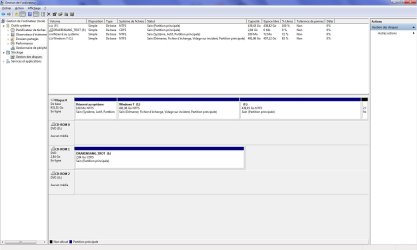
this is my disc manager screen
 

Attachments

  • Sans titre.jpg
    Sans titre.jpg
    100.2 KB · Views: 158

My Computer My Computer

At a glance

Windows 7 Family Premium 32bit
OS
Windows 7 Family Premium 32bit
Hi again Dan -

There's nothing installed on F. What I would do is delete that Partition in Disk Management, or using the XP installation CD, then create New partition there and full format it with XP CD. See if that helps.
 
More XP Dual Boot Problems

I am attempting to add XP Pro to a Win 7 Professional pre-install on a Lenovo SL510.
I got the AHCI stuff fixed, and got the bootloader installed, but now when I try to boot to XP I get an error stating that the file \NST\ntldr could not be loaded because it is missing or corrupt. I suspect it is not where it belongs, or the bootloader is pointing to the wrong place. I'm using easyBSD 2.0.2


Status says 0x000000f
 

My Computer My Computer

At a glance

Windows 7 Professional 64 bit pre-installT6670
Computer Manufacturer/Model Number
Levovo (2847-D2U) SL510
OS
Windows 7 Professional 64 bit pre-install
CPU
T6670
Hi, afew hours ago, I tried the tutorial to install Windows XP. It went through the installation process, but when it tried to start up, it show a blue screen. My Windows 7 came with the pc, I have the recovery disc. I tried booting into the Safe Mode with Command Prompt, but after it loads the big list, it loops back to the recovery disc options to either "Boot from disc" or "Boot from hard drive" (not exact words). Is there something I did wrong? Please help. Thanks in advance.

P.S. When it asked me where to install Windows XP, I chose my external hard drive.
 

My Computer My Computer

At a glance

Windows 7 Home Premium 64bit
OS
Windows 7 Home Premium 64bit
Try unplugging the external drive and see if you can boot into 7.
 

My Computers My Computers

  • At a glance

    7 X64i5 84002x8gb 3200mhz
    Computer type
    PC/Desktop
    OS
    7 X64
    CPU
    i5 8400
    Motherboard
    gigabyte b365m ds3h
    Memory
    2x8gb 3200mhz
    Hard Drives
    various
    PSU
    pure power 11 400w cm
    Case
    Coolermaster
    Cooling
    cryorig m9i
  • At a glance

    7x64g54008gb ddr4 2400
    Computer type
    PC/Desktop
    OS
    7x64
    CPU
    g5400
    Motherboard
    ga b365m ds3h
    Memory
    8gb ddr4 2400
    PSU
    xfx pro 450w
After unplugging the external hard drive, it shows this message:
"Windows could not start because of a computer disk hardware configuration problem.
Could not read from the selected boot disk. Check boot path and disk hardware.
Please check the Windows documentation about hardware disk configuration and your hardware reference manuals for additional information"

After pressing any key, it loops back to the same message.
 

My Computer My Computer

At a glance

Windows 7 Home Premium 64bit
OS
Windows 7 Home Premium 64bit
I am attempting to add XP Pro to a Win 7 Professional pre-install on a Lenovo SL510.
I got the AHCI stuff fixed, and got the bootloader installed, but now when I try to boot to XP I get an error stating that the file \NST\ntldr could not be loaded because it is missing or corrupt. I suspect it is not where it belongs, or the bootloader is pointing to the wrong place. I'm using easyBSD 2.0.2

Try deleting XP on the EasyBCD Edit OS tab. then add it back on Add OS tab. It should offer to install XP boot files to Win7, accept, it will autocomplete, Save, restart.

If this fails, please post back a screenshot of your full Disk Mgmt drive map with listings, using Snipping Tool in Start Menu. Explain how you got Win7 started after XP install.

When it asked me where to install Windows XP, I chose my external hard drive.

You cannot install an OS to an external HD unless it was plugged into a SATA or IDE port.

Try to access http://www.sevenforums.com/tutorials/668-system-recovery-options.html to make sure that Win7 partition is marked Active: http://www.sevenforums.com/tutorials/71432-partition-mark-active.html This can also be done with a graphical interface using free Partition Wizard bootable CD: http://www.partitionwizard.com/download.html

Once Win7 partition is marked Active, from System Recover options on F8, DVD or Repair CD run http://www.sevenforums.com/tutorials/105541-startup-repair-run-3-separate-times.html until Win7 will start again.

If you want to install XP correctly first before starting Win7 back up, you can use PW CD to shrink Win7 partition, install XP in that space, then start Win7 using the steps above, install EasyBCD 2.0 to Add XP.
 
When you start up - you should have an option to press an F key to access the one time bios boot menu .

Try it and see what options it lists.
 

My Computers My Computers

  • At a glance

    7 X64i5 84002x8gb 3200mhz
    Computer type
    PC/Desktop
    OS
    7 X64
    CPU
    i5 8400
    Motherboard
    gigabyte b365m ds3h
    Memory
    2x8gb 3200mhz
    Hard Drives
    various
    PSU
    pure power 11 400w cm
    Case
    Coolermaster
    Cooling
    cryorig m9i
  • At a glance

    7x64g54008gb ddr4 2400
    Computer type
    PC/Desktop
    OS
    7x64
    CPU
    g5400
    Motherboard
    ga b365m ds3h
    Memory
    8gb ddr4 2400
    PSU
    xfx pro 450w
@gregrocker Inside advanced boot options, there isn't the option "Repair your computer". Also, at the top it doesn't say Choose Advanced Options for: Windows 7, it says Windows Setup.

@SIW2 Don't have a key for bios

With Recovery disc in drive, I got into Advanced Boot Options, from there I selected "Start Windows Normally", but before selecting, I removed the Recovery disc. Then I got into http://www.sevenforums.com/tutorials/668-system-recovery-options.html and selected Startup Repair, it restore my computer to its previous state.

Don't know if that was the correct procedure, but I appreciate SIW2 and gregrocker's help. I will retry this tutorial. Thanks again.
 

My Computer My Computer

At a glance

Windows 7 Home Premium 64bit
OS
Windows 7 Home Premium 64bit
Thanks for the tutorial! Dual boot successful!
 

My Computer My Computer

At a glance

Windows 7 Home Premium 64bit
OS
Windows 7 Home Premium 64bit
Hi again Dan -

There's nothing installed on F. What I would do is delete that Partition in Disk Management, or using the XP installation CD, then create New partition there and full format it with XP CD. See if that helps.


Hi gregrocker,

Actually I started installing Win XP on F. The first step of the installation (when files are copied from cd to partition) was OK. Then it reboots the computer and there I got the loading Operating System error. The installation of XP was not finished, that's why you see nothing installed on F.

I would like to finish the installation but don't know how.
 

My Computer My Computer

At a glance

Windows 7 Family Premium 32bit
OS
Windows 7 Family Premium 32bit
Why don't you try my suggestion? XP uses a different partition table than Win7 so creating and formatting with it's CD sometimes helps.

If not, please post back the verbatim fail message.
 
I am trying to work through the tutorial With Windows 7 installed first, however, when I am installing XP and need to select the partition I have created for it, the only visible partition is...

C: Partition1 [Unknown] 131072 MB < 131071 free>

How do I get my partitions to show up? I am assuming that it is because my XP install disk does not have any service pack updates on it, but I am not familiar enough with slipstreaming or how to get the service pack updates without XP already installed so I can download them.
 

Attachments

  • New Image.JPG
    New Image.JPG
    63.5 KB · Views: 137
  • New Image2.JPG
    New Image2.JPG
    42.9 KB · Views: 171
Last edited:

My Computer My Computer

At a glance

Windows 7 Home Premium & XP Pro Dual Boot
OS
Windows 7 Home Premium & XP Pro Dual Boot
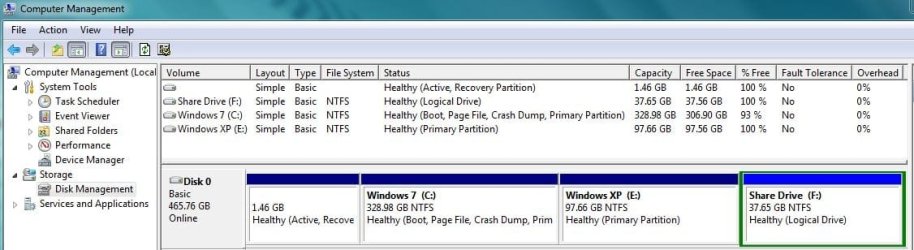
Strange that no System partition is listed - we have to guess it is the 1.46 gb since that is labeled Active. Is that an XP Recovery partition as it is too small to be for Vista or Win7? If so has it generated the Recovery DIsks or will it run from boot?

First I would delete the two partitions created for XP and "Share" at the end of the HD, boot the XP CD to create and full format your XP partition during install.

If this fails, I would consider wiping the HD of possible boot sector corruption to clean reinstall Win7 after installing XP so that Win7 configures the Dual Boot correctly as it does when installed last. SSD - HDD Optimize for Windows Reinstallation - Windows 7 Forums

If this sounds like more trouble than it is worth, consider trying to install XP programs to Win7 in Compatibility Mode, or virtualize XP in Win7 using VMWare, VIrtual Player or Virtual Box.
 
Last edited:
I think I might have got it working now, XP is installing at the moment. I'm not sure why disk manager wasn't showing a system partition anywhere either. Actually, I didn't even notice that until you mentioned it. I did figure out how to slipstream SP2 updates into my install disk though and it corrected the issue with the partitions not showing up correctly during the XP install. Also, the disk 0 partition 1 showed up as the system disk. BTW, I already created my backups as well. I will post back with updates hopefully after the installation is complete. Thank you for your help.
 

My Computer My Computer

At a glance

Windows 7 Home Premium & XP Pro Dual Boot
OS
Windows 7 Home Premium & XP Pro Dual Boot
Hi ... I've read the tutorial ... but not through the 120 pages of posts!

I have Win7 x64 fresh installed on a new drive. When I first formatted, I created a partition on the new drive for XP, which was previously on the system. I have an Acronis Disc Image of my former XP install loaded on an external drive.

I think I'm ready to go ... but I have become concerned about (1) any chance of losing my Win7 installation; (2) what will happen with my XP install as I am placing it on other than a 'C' drive in my current system; (3) whether the former system will work now that it's on a new drive (although physically on the same mobo connection) and I have increased my installed RAM; and finally, (4) what will happen with the whole 'bootloader' issue when I power up the first time.

As noted, the only physical changes are that the hard drive where my Win7 is installed is a physical replacement of what set at that mobo connection and that I have increased my RAM from 1 2x2 pair to 4 2x2 pairs. My system is also Scsi Attached Sata (SAS) if that is of any consideration in my questions.

Can anyone provide me direction?

Thank you.

Prado
 

My Computer My Computer

At a glance

Win7 Pro X64dual dualcore Xeon 3.0GhzCorsair DDR2ATI Radeon 128
Computer Manufacturer/Model Number
Dell P690
OS
Win7 Pro X64
CPU
dual dualcore Xeon 3.0Ghz
Motherboard
Intel
Memory
Corsair DDR2
Graphics Card(s)
ATI Radeon 128
Sound Card
RME Multiface II
Monitor(s) Displays
NEC Multisync LCD 1770GX and Viewsonic VP2365sub
Hard Drives
Seagate Barracudas (4)
PSU
Dell 750 Watt
Case
Dell P690
Cooling
Dell
You can use Acronis True Image installed to Win7 to reimage XP to the partition you created; under Options choose Primary partition but do not set Active, also do not copy the MBR or Track0. Set it to auto determine the drive letter.

Once XP is reimaged, immediately install EasyBCD 2.0 to Win7, on Add OS tab Add XP by name, type and let it autocomplete drive letter, accept any offered boot files. Restart the computer and you should have a Dual Boot Menu. EasyBCD 2.0.2 - NeoSmart Technologies
 
Thanks for the quick response.

Just one other thing I didn't think about before. I've never installed Acronis on Win7. I just have the Acronis boot disc from when I made the image with Acronis loaded to XP.

Any reason I can't install the image directly using the boot disc instead of from Win7?

Or ... does that create extra steps, or not work with the proceedure you've outlined?

Thanks again.

Prado
 

My Computer My Computer

At a glance

Win7 Pro X64dual dualcore Xeon 3.0GhzCorsair DDR2ATI Radeon 128
Computer Manufacturer/Model Number
Dell P690
OS
Win7 Pro X64
CPU
dual dualcore Xeon 3.0Ghz
Motherboard
Intel
Memory
Corsair DDR2
Graphics Card(s)
ATI Radeon 128
Sound Card
RME Multiface II
Monitor(s) Displays
NEC Multisync LCD 1770GX and Viewsonic VP2365sub
Hard Drives
Seagate Barracudas (4)
PSU
Dell 750 Watt
Case
Dell P690
Cooling
Dell
Back
Top