
How to Setup a Dual Boot Installation with Windows 7 and XP
Information
This will show you how to install Windows 7 and XP to dual boot with when you already have either Windows 7 or XP installed first.
Note
With a dual boot installaton, you will have two operating systems (OS) installed. When you start the computer, you will have the choice to choose which OS you would like to start up to. This method is the easiest way of doing a dual boot with these two operating systems.
Tip
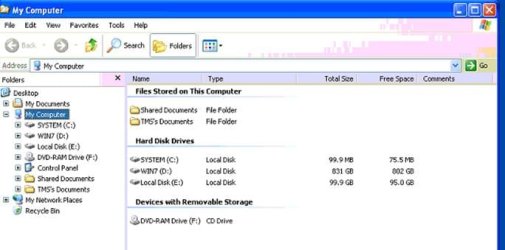
When dual booting with another OS (ex: Vista or XP), you may not always have that OS partition show up in Computer with a driver letter in Windows 7. If this happens, then you will just need to add a drive letter to the OS (ex: Vista or XP) partition in Windows 7 Disk Management for it to show up in Computer with a driver letter.
Warning
To stop XP from deleting your Windows 7 System Restore Points everytime XP is started, then see System Restore Points - Stop XP Dual Boot Delete to hide Windows 7 from XP.
Windows 7 Minimum Hardware Requirements
NOTE: For more information on this, see: Windows 7 system requirements
NOTE: For more information on this, see: System requirements for Windows XP operating systems
Windows 7 Minimum Hardware Requirements
NOTE: For more information on this, see: Windows 7 system requirements
- 1 GHz 32-bit or 64-bit processor
- 1 GB RAM for 32-bit Windows 7 OR 2 GB RAM for 64-bit Windows 7
- 16 GB available disk space 32-bit Windows 7 OR 20 GB for 64-bit Windows 7
- Support for DirectX 9 graphics with 128 MB memory (in order to enable Aero theme)
- DVD-R/W Drive
- Internet or phone access to activate Windows 7.
NOTE: For more information on this, see: System requirements for Windows XP operating systems
- PC with 300 megahertz (MHz) or higher processor clock speed recommended; 233-MHz minimum required;* Intel Pentium/Celeron family, AMD K6/Athlon/Duron family, or compatible processor recommended
- 128 megabytes (MB) of RAM or higher recommended (64 MB minimum supported; may limit performance and some features)
- 1.5 gigabyte (GB) of available hard disk space.*
- Super VGA (800 × 600) or higher resolution video adapter and monitor
- CD-ROM or DVD drive
- Keyboard and Microsoft Mouse or compatible pointing device
NOTE: This is the boot screen where you select what operating system that you would like to start. By default, you have 30 seconds to choose another operating system before the default operating system will start automatically.

OPTION ONE
When XP is Installed First
NOTE: If you have a RAID setup, you will need to have the Windows 7 RAID drivers on a USB flash drive available to select and load while installing Windows 7.
1. Do step 2 or 3 below for where you wanted to install Windows 7 at.
2. To Create a New Partition from the XP Hard Disk Drive
A) With your Windows 7 installation disc boot into the Command Prompt from the System Recovery Options screen.
NOTE: Make sure that the CD/DVD drive is selected first in the boot order in the BIOS.
B) In the command prompt, select and shrink the XP volume by how many MB (1024 MB = 1 GB) you want to have for this Windows 7 partition. (See screenshot below)
NOTE: You would do steps 2 to 9 in METHOD TWO at that link. Windows 7 will need a minimum of 16 GB (16384 MB).

C) Click on the X at the top right corner to close the command prompt. (See screenshot above)
D) Click on the X at the top right corner to close System Recovery Options. (See screenshot below)

E) Go to step 4.
3. To Use a Separate Hard Disk Drive than the XP Drive
A) Boot from your Windows 7 installation disc.
NOTE: Make sure that the CD/DVD drive is selected first in the boot order in the BIOS.
4. Click on the Install now button. (See screenshot below)

5. When you get to this point, select the partition (step 2) or hard drive to install Windows 7 on. (See screenshot below)

6. Finish installing Windows 7.
NOTE: You would start at step 9 in that link to finish installing Windows 7.
7. When finished, restart the computer to have the option to boot from XP (Earlier Verision of Windows) or Windows 7. (See screenshot below)
Note
If you are only booting into Windows 7 and do not have XP listed in the Windows Boot Manager, then you can install only EasyBCD (step 8 Option Two below) to add XP (or Windows 7) while started in Windows 7 the same way to the boot list.
OPTION TWO
When Windows 7 is Installed First
Warning
- If you have a RAID setup, you will need to have the XP RAID drivers for your specific motherboard on a Floppy disc available to select and load at the F6 prompt while installing XP.
- If you have a SATA drive, then you will need to do either one of these options to load the SATA drivers for XP for your specific motherboard.
- How to Slipstream SATA drivers into Windows XP setup CD with Dual Boot of Windows 7 or Vista
- How to Load SATA Drivers in Windows XP Setup on your Dual Boot PC with Vista or Windows 7 for how to load your SATA drivers from a Floppy disc at the F6 prompt while installing XP.
NOTE: If you want to install XP on a separate internal hard drive instead, then skip this step and go to step 2.
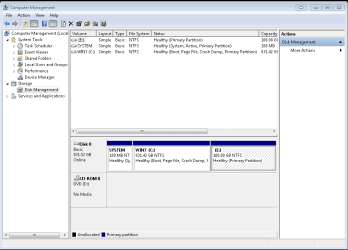
A) In Windows 7, select and shrink the Windows 7 volume in Disk Management by how many MB (1024 MB = 1 GB) you want to have for this XP partition. (See screenshots below)
NOTE: You would do all of Method One at that link.



2. Insert your XP installation disc, then restart the computer and press any key to boot from it when prompted. (See screenshot below)
NOTE: Make sure that the CD/DVD drive is selected first in the boot order in the BIOS.

3. From XP Setup, Press Enter. (See screenshot below)
Warning
- If you have a RAID setup, you will need to have the XP RAID drivers for your specific motherboard on a Floppy disc available to select and load at the F6 prompt while installing XP.
- If you have a SATA drive, then you will need to do either one of these options to load the SATA drivers for XP for your specific motherboard.
- How to Slipstream SATA drivers into Windows XP setup CD with Dual Boot of Windows 7 or Vista
- How to Load SATA Drivers in Windows XP Setup on your Dual Boot PC with Vista or Windows 7 for how to load your SATA drivers from a Floppy disc at the F6 prompt while installing XP.

4. Press F8. (See screenshot below)
NOTE: On some multimedia keyboards, you may need to press the F-Lock or Function key before pressing F8.

5. Select the partition (step 1) or hard drive that you want to install XP on using the arrow keys and press Enter.

6. Finish installing XP.
Tip
If you get Error loading Operating System after XP restarts:
- Using your Windows 7 installation disc, boot to the command prompt at startup.
- Type in these comands below, and press enter after each one.
- bootrec /FixMbr
- bootrec /FixBoot
- bootrec /RebuildBcd
- Exit the command prompt and restart the computer.
- At this point, Windows 7 should boot up the same way before trying to install XP.
- Continue to step 8 below and run EasyBCD from Windows 7 instead.
7. In XP, download and install .Net Framework 2.0 (32-bit) version or .Net Framework 2.0 (64-bit) version first, and EasyBCD (free version) for your 32-bit (x86) or 64-bit (x86) XP.
NOTE: In XP, Net Framework is required to be installed to run EasyBCD. After you click on Register (at bottom of link) for the free EasyBCD, registration is not required to download it.
8. Run EasyBCD (free version).
NOTE: This is required to repair the Windows 7 boot file and add XP to the Windows Boot Manager list.
9. On the left side of EasyBCD, click on the Add New Entry button. (See screenshot below)
A) In the top section under Operating Systems, click on the Windows tab. (See screenshot below)
B) To the right of Type, select Windows NT/2k/XP/2k3 from the drop down menu. (See screenshot below)
:warn:WARNING: Be sure to leave the Automatically detect correct drive box checked.
C) To the right of Name, you can leave the default Microsoft Windows XP as the name to be displayed in the Windows Boot Manager, or you can type whatever name you would like to have instead. (See screenshot below)
D) Click on the Add Entry button. (See screenshot below)

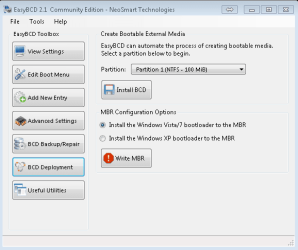
10. On the left side of EasyBCD, click on the BCD Deployment button, select (dot) the Install the Windows Vista/7 bootloader to the MBR option, and click on the Write MBR button. (See screenshot below)

11. Close EasyBCD.
12. Restart the computer to have the option to boot from Microsoft Windows XP or Windows 7. (See screenshot below)

Tip
If Windows 7 will not start up when selected, then use your Windows 7 installation DVD to do a Startup Repair.
That's it,
Shawn
Related Tutorials
- How to Setup a Dual Boot Installation with Windows 7 and Vista
- How to Setup a Dual Boot Installation with Windows Vista and XP
- How to Do a Dual Boot Installation with Windows 7 and Windows 8
- How to Dual Boot Windows 7 and Ubuntu
- How to Correctly Setup a Dual Boot with Windows 7 and LinuxMint13
- How to Change Time to Display Operating Systems at Boot in Windows 7
- How to Change the Listed OS Arrangement Order in Windows Boot Manager Screen
- How to Change the Default Operating System to Start in Windows 7
- How to Delete an Operating System Listed in Windows Boot Manager
- How to Change the OS Name in Windows Boot Manager
- How to Do a Clean Installation with Windows 7
- How to Install Windows 7 FAST without a DVD or USB Device
- Install Windows 7 Without Using Any External Device
- How to Setup Windows 7 to Boot from a VHD (Virtual Hard Disk)
- How to Create a Windows 7 VHD at Boot to Start with from Boot
- How to Do a Custom Installation of Windows 7
- How to Load SATA Drivers in Windows XP Setup on your Dual Boot PC with Vista or Windows 7
- How to Slipstream SATA drivers into Windows XP setup CD with Dual Boot of Windows 7 or Vista
- How to Load SATA Driver Using Shift+F10 to Open Command Prompt
- How to Recover a Partition Used by an Older OS in a Dual Boot
- How to Properly Delete a OS in a Dual Boot
- How to Stop System Restore Points from being Deleted in Vista and Windows 7 when Dual Booting with XP
Last edited:


 I appreciate any responses or new ideas and appreciate you reading this long drawn out post.


 I don't know why it says X86 instead of X64 but it does. I actually took the advice of using the Virtual XP Mode and everything's working great. Thanks for the help and rapid response.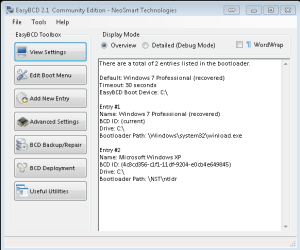

 )
)

