Dual Boot Installation with Windows 7 and XP

How to Setup a Dual Boot Installation with Windows 7 and XP


   Information
This will show you how to install Windows 7 and XP to dual boot with when you already have either Windows 7 or XP installed first.
   Note
With a dual boot installaton, you will have two operating systems (OS) installed. When you start the computer, you will have the choice to choose which OS you would like to start up to. This method is the easiest way of doing a dual boot with these two operating systems.
   Tip
When dual booting with another OS (ex: Vista or XP), you may not always have that OS partition show up in Computer with a driver letter in Windows 7. If this happens, then you will just need to add a drive letter to the OS (ex: Vista or XP) partition in Windows 7 Disk Management for it to show up in Computer with a driver letter.
   Warning
To stop XP from deleting your Windows 7 System Restore Points everytime XP is started, then see System Restore Points - Stop XP Dual Boot Delete to hide Windows 7 from XP.

Windows 7 Minimum Hardware Requirements


NOTE: For more information on this, see: Windows 7 system requirements
  • 1 GHz 32-bit or 64-bit processor
  • 1 GB RAM for 32-bit Windows 7 OR 2 GB RAM for 64-bit Windows 7
  • 16 GB available disk space 32-bit Windows 7 OR 20 GB for 64-bit Windows 7
  • Support for DirectX 9 graphics with 128 MB memory (in order to enable Aero theme)
  • DVD-R/W Drive
  • Internet or phone access to activate Windows 7.
Windows XP Minimum Hardware Requirements

NOTE: For more information on this, see: System requirements for Windows XP operating systems
  • PC with 300 megahertz (MHz) or higher processor clock speed recommended; 233-MHz minimum required;* Intel Pentium/Celeron family, AMD K6/Athlon/Duron family, or compatible processor recommended
  • 128 megabytes (MB) of RAM or higher recommended (64 MB minimum supported; may limit performance and some features)
  • 1.5 gigabyte (GB) of available hard disk space.*
  • Super VGA (800 × 600) or higher resolution video adapter and monitor
  • CD-ROM or DVD drive
  • Keyboard and Microsoft Mouse or compatible pointing device
EXAMPLE: Windows Boot Manager
NOTE: This is the boot screen where you select what operating system that you would like to start. By default, you have 30 seconds to choose another operating system before the default operating system will start automatically.
Example.jpg


OPTION ONE

When XP is Installed First


NOTE: If you have a RAID setup, you will need to have the Windows 7 RAID drivers on a USB flash drive available to select and load while installing Windows 7.
1. Do step 2 or 3 below for where you wanted to install Windows 7 at.

2. To Create a New Partition from the XP Hard Disk Drive
A) With your Windows 7 installation disc boot into the Command Prompt from the System Recovery Options screen.
NOTE: Make sure that the CD/DVD drive is selected first in the boot order in the BIOS.

B) In the command prompt, select and shrink the XP volume by how many MB (1024 MB = 1 GB) you want to have for this Windows 7 partition. (See screenshot below)
NOTE: You would do steps 2 to 9 in METHOD TWO at that link. Windows 7 will need a minimum of 16 GB (16384 MB).

XP-W7_1.jpg
C) Click on the X at the top right corner to close the command prompt. (See screenshot above)

D) Click on the X at the top right corner to close System Recovery Options. (See screenshot below)
XP-W7_2.jpg
E) Go to step 4.
3. To Use a Separate Hard Disk Drive than the XP Drive
A) Boot from your Windows 7 installation disc.
NOTE: Make sure that the CD/DVD drive is selected first in the boot order in the BIOS.
4. Click on the Install now button. (See screenshot below)

XP-W7_3.jpg
5. When you get to this point, select the partition (step 2) or hard drive to install Windows 7 on. (See screenshot below)

XP-W7_4.jpg
6. Finish installing Windows 7.
NOTE: You would start at step 9 in that link to finish installing Windows 7.

7. When finished, restart the computer to have the option to boot from XP (Earlier Verision of Windows) or Windows 7. (See screenshot below)

   Note
If you are only booting into Windows 7 and do not have XP listed in the Windows Boot Manager, then you can install only EasyBCD (step 8 Option Two below) to add XP (or Windows 7) while started in Windows 7 the same way to the boot list.

Example.jpg


OPTION TWO

When Windows 7 is Installed First


   Warning

1. To Create a New Partition from the Windows 7 Hard Disk Drive
NOTE: If you want to install XP on a separate internal hard drive instead, then skip this step and go to step 2.
A) In Windows 7, select and shrink the Windows 7 volume in Disk Management by how many MB (1024 MB = 1 GB) you want to have for this XP partition. (See screenshots below)
NOTE: You would do all of Method One at that link.

W7-XP-1.jpg

W7-XP-2.jpg

W7-XP-3.jpg
2. Insert your XP installation disc, then restart the computer and press any key to boot from it when prompted. (See screenshot below)
NOTE: Make sure that the CD/DVD drive is selected first in the boot order in the BIOS.

Step1.jpg
3. From XP Setup, Press Enter. (See screenshot below)


   Warning

W7-XP-4.jpg
4. Press F8. (See screenshot below)
NOTE: On some multimedia keyboards, you may need to press the F-Lock or Function key before pressing F8.
W7-XP-5.jpg
5. Select the partition (step 1) or hard drive that you want to install XP on using the arrow keys and press Enter.

W7-XP-6.jpg
6. Finish installing XP.


   Tip
If you get Error loading Operating System after XP restarts:
  • Using your Windows 7 installation disc, boot to the command prompt at startup.
  • Type in these comands below, and press enter after each one.
    • bootrec /FixMbr
    • bootrec /FixBoot
    • bootrec /RebuildBcd
  • Exit the command prompt and restart the computer.
  • At this point, Windows 7 should boot up the same way before trying to install XP.
  • Continue to step 8 below and run EasyBCD from Windows 7 instead.

7. In XP, download and install .Net Framework 2.0 (32-bit) version or .Net Framework 2.0 (64-bit) version first, and EasyBCD (free version) for your 32-bit (x86) or 64-bit (x86) XP.
NOTE: In XP, Net Framework is required to be installed to run EasyBCD. After you click on Register (at bottom of link) for the free EasyBCD, registration is not required to download it.

8. Run EasyBCD (free version).
NOTE: This is required to repair the Windows 7 boot file and add XP to the Windows Boot Manager list.

9. On the left side of EasyBCD, click on the Add New Entry button. (See screenshot below)
A) In the top section under Operating Systems, click on the Windows tab. (See screenshot below)
B) To the right of Type, select Windows NT/2k/XP/2k3 from the drop down menu. (See screenshot below)
:warn:WARNING: Be sure to leave the Automatically detect correct drive box checked.

C) To the right of Name, you can leave the default Microsoft Windows XP as the name to be displayed in the Windows Boot Manager, or you can type whatever name you would like to have instead. (See screenshot below)
D) Click on the Add Entry button. (See screenshot below)
W7-XP-7.jpg
10. On the left side of EasyBCD, click on the BCD Deployment button, select (dot) the Install the Windows Vista/7 bootloader to the MBR option, and click on the Write MBR button. (See screenshot below)

W7-XP-9.jpg
11. Close EasyBCD.

12. Restart the computer to have the option to boot from Microsoft Windows XP or Windows 7. (See screenshot below)

Example2.jpg
   Tip
If Windows 7 will not start up when selected, then use your Windows 7 installation DVD to do a Startup Repair.

That's it,
Shawn


Last edited:
I tried manually removing a drive letter from C: but that didn't work. Gave me the same error as the other day.

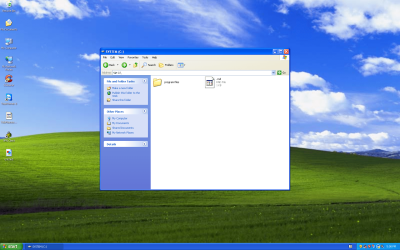
So, I used Paragon following the guide here: http://www.sevenforums.com/installation-setup/51503-moving-win7-partition-another-drive-5.html by releasing, on the XP partition, the partition of C: (100MB system partition) and then changing the letter drive of E: (actual XP) to C:. Rebooted into XP and it seems to boot fine till it hangs at the XP splash screen. I just reverted back to C: as the 100MB and E: as XP and XP boots fine again, but with the same drive lettering as before. SYSTEM partition is still labeled as drive C:. Also, drive C: went from having 72MB free space to now only having 32MB of free space. When I opened C:\ now it shows a Program Files folder which shouldn't be there...Do I have any other options before I ask and see if I can reinstall XP, or even better, install XP over everything then install Win7?
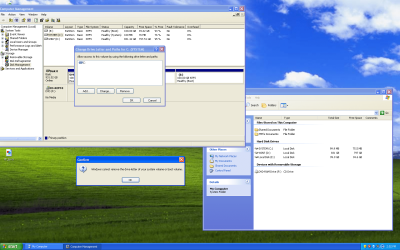
Attached some images to show what I mean.

Thanks for the help.
 

Attachments

  • XP_Error.PNG
    XP_Error.PNG
    267.2 KB · Views: 155
  • untitled.PNG
    untitled.PNG
    489.8 KB · Views: 142

My Computer My Computer

At a glance

Windows 7 Professional X64
OS
Windows 7 Professional X64
Yes. You can Boot the XP CD to run an XP Repair Install

Once it repairs and hopefully claims C for XP, follow Steps 13-17 in Method Two of this tutorial to add Win7 to the Dual Boot.

If this fails, boot the Win7 DVD to mark 100mb partition Active: Partition - Mark as Active (Method Two). Then from DVD Repair console run Startup Repair - Run 3 Separate Times until Win7 starts. Install EasyBCD 2.02 to Add XP.

The only other thing that I can think of is to mark XP partition Active before running XP Repair install to try to force repair to write XP System boot files to XP, thereby possibly claiming C. Then boot Win7 DVD to mark 100mb Active, Repair Win7, add XP using EasyBCD.

If neither of these work you can reinstall using Method One for the easiest Dual Booting method without possible interference by the 100mb SysReserved partition.
 
You can't successfully change an o/s drive letter after it has been installed.

The paragon app. is for changing it back to it's original installed letter - not for making it something different.

Some kind of reinstall is needed.

Perhaps the repair reinstall Greg mentioned will do it - I am not familiar with XP - so it'a worth a shot.


Might be easier to install the app in question on another machine - track the registry changes - export them and change any letters in the .reg file. as necessary.
 

My Computers My Computers

  • At a glance

    7 X64i5 84002x8gb 3200mhz
    Computer type
    PC/Desktop
    OS
    7 X64
    CPU
    i5 8400
    Motherboard
    gigabyte b365m ds3h
    Memory
    2x8gb 3200mhz
    Hard Drives
    various
    PSU
    pure power 11 400w cm
    Case
    Coolermaster
    Cooling
    cryorig m9i
  • At a glance

    7x64g54008gb ddr4 2400
    Computer type
    PC/Desktop
    OS
    7x64
    CPU
    g5400
    Motherboard
    ga b365m ds3h
    Memory
    8gb ddr4 2400
    PSU
    xfx pro 450w
IMO, Best to a clean install, with Methed one.
 

My Computer My Computer

At a glance

ME/XP/Vista/Win7
OS
ME/XP/Vista/Win7
The XP drive letter did not slip or change, Windows XP will always take the 'next available' drive letter for its self during install, it's not smart enough to tell the difference like Windows 7 can.

If there is a SysResv partition in the first position on a HDD/SSD XP will always letter it as C:

XP will not allow the SysResv as C: the "System" partition or the XP drive letter to be changed without HAL errors.

If XP is installed to the first partition as C: it must be left as the "Active, System" partition for the Windows 7 install or you will get HAL errors when next booting to XP.

The only way to get XP installed as C: is to install it to the first physical partition on a HDD/SSD.
 

My Computer My Computer

At a glance

W 7 64-bit UltimateIntel Q9550 Yorkfield8GB Dominator 8500C5DATI : XFX 5870
Computer Manufacturer/Model Number
* BFK Customs *
OS
W 7 64-bit Ultimate
CPU
Intel Q9550 Yorkfield
Motherboard
ASUS P5Q Pro
Memory
8GB Dominator 8500C5D
Graphics Card(s)
ATI : XFX 5870
Sound Card
Realtek HD Audio 7-1
Monitor(s) Displays
1x 47" LCD HDMI & 3x 26" LCD HDMI
Screen Resolution
1920x1080P & 1920x1200
Hard Drives
1x 80GB Intel X25-M G2 SSD : 1x 500GB & 1x 640GB WD Caviar Black(s)
PSU
Corsair 620HX
Case
Cooler Master RC-690
Cooling
Tuniq Tower 120, 2x 140mm and 3x 120mm case fans
Keyboard
Microsoft 500
Mouse
Razer Diamondback 3G
Internet Speed
14 Mb/s
Other Info
1x Koutech 3Gb/s SATA HDD Hot Swap Rack
Win XP will always make SysResv as C: When Windows 7 is installed first.

You can remark Win Xp to C: the with Paragon app.

But the biggist is problem is HAL errors.
 

My Computer My Computer

At a glance

ME/XP/Vista/Win7
OS
ME/XP/Vista/Win7
I've just wasted 12 hours following this howto. This is an existing Win7 PC. Somehow the XP installation corrupted the Win7 partition.

Long ago there was a product called Boot Magic. IIRC it would hide inactive partitions so you could have several windows (or other) installations on different partitions and they could all be drive C: and would not conflict with each others. It doesn't seem like it still exists though?

Basically the object of the exercise is to have a separate partition to use for games for my kid in order to not have my "business" partition messed up by the games. I though having the game partition using XP would make it easier, obviously not so.

I see there's a Win7/Vista howto but no Win7/Win7. Maybe there is no difference?

Essentially I would prefer the two partitions would be completely separated from each others. If VM's weren't so poor for gaming I'd install a VM for it.
 

My Computer My Computer

At a glance

Windows 7 Ultimate x64
OS
Windows 7 Ultimate x64
I've just wasted 12 hours following this howto. This is an existing Win7 PC. Somehow the XP installation corrupted the Win7 partition.

Long ago there was a product called Boot Magic. IIRC it would hide inactive partitions so you could have several windows (or other) installations on different partitions and they could all be drive C: and would not conflict with each others. It doesn't seem like it still exists though?

Basically the object of the exercise is to have a separate partition to use for games for my kid in order to not have my "business" partition messed up by the games. I though having the game partition using XP would make it easier, obviously not so.

I see there's a Win7/Vista howto but no Win7/Win7. Maybe there is no difference?

Essentially I would prefer the two partitions would be completely separated from each others. If VM's weren't so poor for gaming I'd install a VM for it.

Did you use Method one or method two?

If you wont Win XP to be C: & Windows 7 to be C:, you need to use Method one.
 

My Computer My Computer

At a glance

ME/XP/Vista/Win7
OS
ME/XP/Vista/Win7
As this was an existing Win7 PC adding an XP partition I naturally used method 2.

Actually I want them both to be drive C as I explained.
 

My Computer My Computer

At a glance

Windows 7 Ultimate x64
OS
Windows 7 Ultimate x64
The XP drive letter did not slip or change, Windows XP will always take the 'next available' drive letter for its self during install, it's not smart enough to tell the difference like Windows 7 can.

If there is a SysResv partition in the first position on a HDD/SSD XP will always letter it as C:

XP will not allow the SysResv as C: the "System" partition or the XP drive letter to be changed without HAL errors.

If XP is installed to the first partition as C: it must be left as the "Active, System" partition for the Windows 7 install or you will get HAL errors when next booting to XP.

The only way to get XP installed as C: is to install it to the first physical partition on a HDD/SSD.

As this was an existing Win7 PC adding an XP partition I naturally used method 2.

Actually I want them both to be drive C as I explained.
Hello peterpallesen, welcome to Seven Forums!

To be " C: " XP must be the first partition on the HDD or it will be the "next available" drive letter.
 

My Computer My Computer

At a glance

W 7 64-bit UltimateIntel Q9550 Yorkfield8GB Dominator 8500C5DATI : XFX 5870
Computer Manufacturer/Model Number
* BFK Customs *
OS
W 7 64-bit Ultimate
CPU
Intel Q9550 Yorkfield
Motherboard
ASUS P5Q Pro
Memory
8GB Dominator 8500C5D
Graphics Card(s)
ATI : XFX 5870
Sound Card
Realtek HD Audio 7-1
Monitor(s) Displays
1x 47" LCD HDMI & 3x 26" LCD HDMI
Screen Resolution
1920x1080P & 1920x1200
Hard Drives
1x 80GB Intel X25-M G2 SSD : 1x 500GB & 1x 640GB WD Caviar Black(s)
PSU
Corsair 620HX
Case
Cooler Master RC-690
Cooling
Tuniq Tower 120, 2x 140mm and 3x 120mm case fans
Keyboard
Microsoft 500
Mouse
Razer Diamondback 3G
Internet Speed
14 Mb/s
Other Info
1x Koutech 3Gb/s SATA HDD Hot Swap Rack
Ok well it's not really important, what is important is that an XP installation in another partition can wreck havoc in an already existing Win7 partition.

How about installing a second instance of Win7. Will that also mess with the first Win7 install?
 

My Computer My Computer

At a glance

Windows 7 Ultimate x64
OS
Windows 7 Ultimate x64
Ok well it's not really important, what is important is that an XP installation in another partition can wreck havoc in an already existing Win7 partition.

How about installing a second instance of Win7. Will that also mess with the first Win7 install?


I've never had issues running XP from the same HDD as Windows 7.

Yes you can dual boot two instances of Windows 7, though it is (as well as XP) always better using separate HDDs and the BIOS to manage the dual boot instead of a Windows managed dual boot, using the BIOS one-time boot menu.


  • Asus - F8
  • HP/Compaq - Esc
  • Sony - F2
  • Acer – F12
  • Gateway - F10
  • eMachnes - F10
  • Gigabyte – F12
  • Toshiba - F12
  • Dell - F12
  • IBM/Lenovo - the blue Thinkvantage button
 

My Computer My Computer

At a glance

W 7 64-bit UltimateIntel Q9550 Yorkfield8GB Dominator 8500C5DATI : XFX 5870
Computer Manufacturer/Model Number
* BFK Customs *
OS
W 7 64-bit Ultimate
CPU
Intel Q9550 Yorkfield
Motherboard
ASUS P5Q Pro
Memory
8GB Dominator 8500C5D
Graphics Card(s)
ATI : XFX 5870
Sound Card
Realtek HD Audio 7-1
Monitor(s) Displays
1x 47" LCD HDMI & 3x 26" LCD HDMI
Screen Resolution
1920x1080P & 1920x1200
Hard Drives
1x 80GB Intel X25-M G2 SSD : 1x 500GB & 1x 640GB WD Caviar Black(s)
PSU
Corsair 620HX
Case
Cooler Master RC-690
Cooling
Tuniq Tower 120, 2x 140mm and 3x 120mm case fans
Keyboard
Microsoft 500
Mouse
Razer Diamondback 3G
Internet Speed
14 Mb/s
Other Info
1x Koutech 3Gb/s SATA HDD Hot Swap Rack
Thanks for the info guys. I was able to use it to tell the client that it would only work if XP installed first then we install Win7.

Forgive if this seems like a stupid question - GParted didn't see the RAID config so I used an ubuntu livecd to delete the existing partitions. I left the 100MB system partition alone. I am currently installing XP on the single unallocated partition however when it gave the option of where to install to - it saw that 100MB partition as C: and the unallocaated space. I of course chose the unallocated space. It's formating that partition now, but its saying as letter drive E:.

Did I do that right in terms of deleting the existing partitions, leaving the 100MB system alone, and installing XP in the single unallocated space? By the looks of it it will keep that 100MB as C: and install XP as E: again? The whole point is to install XP so it sees itself as C:. Should I have removed the letter drive of C: before I ran the XP install? Is it ok if I delete that 100MB partition when installing XP over everything so I can use method 1 here?

Thanks for the information in advance.
 

My Computer My Computer

At a glance

Windows 7 Professional X64
OS
Windows 7 Professional X64
Thanks for the info guys. I was able to use it to tell the client that it would only work if XP installed first then we install Win7.

Forgive if this seems like a stupid question - GParted didn't see the RAID config so I used an ubuntu livecd to delete the existing partitions. I left the 100MB system partition alone. I am currently installing XP on the single unallocated partition however when it gave the option of where to install to - it saw that 100MB partition as C: and the unallocaated space. I of course chose the unallocated space. It's formating that partition now, but its saying as letter drive E:.

Did I do that right in terms of deleting the existing partitions, leaving the 100MB system alone, and installing XP in the single unallocated space? By the looks of it it will keep that 100MB as C: and install XP as E: again? The whole point is to install XP so it sees itself as C:. Should I have removed the letter drive of C: before I ran the XP install? Is it ok if I delete that 100MB partition when installing XP over everything so I can use method 1 here?

Thanks for the information in advance.

You need to delete all partitions & a fresh.than Make two new partitions

http://www.sevenforums.com/tutorials/91339-ssd-hdd-optimize-windows-reinstallation.html
 

My Computer My Computer

At a glance

ME/XP/Vista/Win7
OS
ME/XP/Vista/Win7

My Computer My Computer

At a glance

W 7 64-bit UltimateIntel Q9550 Yorkfield8GB Dominator 8500C5DATI : XFX 5870
Computer Manufacturer/Model Number
* BFK Customs *
OS
W 7 64-bit Ultimate
CPU
Intel Q9550 Yorkfield
Motherboard
ASUS P5Q Pro
Memory
8GB Dominator 8500C5D
Graphics Card(s)
ATI : XFX 5870
Sound Card
Realtek HD Audio 7-1
Monitor(s) Displays
1x 47" LCD HDMI & 3x 26" LCD HDMI
Screen Resolution
1920x1080P & 1920x1200
Hard Drives
1x 80GB Intel X25-M G2 SSD : 1x 500GB & 1x 640GB WD Caviar Black(s)
PSU
Corsair 620HX
Case
Cooler Master RC-690
Cooling
Tuniq Tower 120, 2x 140mm and 3x 120mm case fans
Keyboard
Microsoft 500
Mouse
Razer Diamondback 3G
Internet Speed
14 Mb/s
Other Info
1x Koutech 3Gb/s SATA HDD Hot Swap Rack
Thanks Theog, Greg, and the Bare Foot Kid for all the help and advice. Couldn't of had the assurance of to do this the right way without you guy's help, you all have been an invaluable resource with this tricky issue. Got the machine working this morning. Wiped all the old partitions, installed XP first then Win7 in a dual boot config and it now works the 'right' way. XP has C: and Win7 knows what to do and works just fine. Who knew that installing two windows OS's side by side could be such a headache. Reminded daily why I love linux...
 

My Computer My Computer

At a glance

Windows 7 Professional X64
OS
Windows 7 Professional X64
Thanks Theog, Greg, and the Bare Foot Kid for all the help and advice


You're welcome, good to see you got it sorted and thanks for the update.
 

My Computer My Computer

At a glance

W 7 64-bit UltimateIntel Q9550 Yorkfield8GB Dominator 8500C5DATI : XFX 5870
Computer Manufacturer/Model Number
* BFK Customs *
OS
W 7 64-bit Ultimate
CPU
Intel Q9550 Yorkfield
Motherboard
ASUS P5Q Pro
Memory
8GB Dominator 8500C5D
Graphics Card(s)
ATI : XFX 5870
Sound Card
Realtek HD Audio 7-1
Monitor(s) Displays
1x 47" LCD HDMI & 3x 26" LCD HDMI
Screen Resolution
1920x1080P & 1920x1200
Hard Drives
1x 80GB Intel X25-M G2 SSD : 1x 500GB & 1x 640GB WD Caviar Black(s)
PSU
Corsair 620HX
Case
Cooler Master RC-690
Cooling
Tuniq Tower 120, 2x 140mm and 3x 120mm case fans
Keyboard
Microsoft 500
Mouse
Razer Diamondback 3G
Internet Speed
14 Mb/s
Other Info
1x Koutech 3Gb/s SATA HDD Hot Swap Rack
Hi to all

I m a new member to this forum. I was using WindowsXP SP3 and recently I installed Windows 7 Ultmate (32bit) in a separate partition. So I have a dual boot now. Everything was fine for first few days. But a few days later when I tried to open my windows XP it didnt start. The boot manager shows the options of Previous versions of windows and Windows 7. But when I click the 'Previous version of Windows' option, it comes back to the same screen after restarting...means my windows XP is not booting..! I dont want to reinstall it. Plz help me to fix my problem...Thanks in advance.
 

My Computer My Computer

At a glance

Windows 7 Ultimate (32bit) and Windows XP pro...Dual Core2 GB
Computer Manufacturer/Model Number
Acer
OS
Windows 7 Ultimate (32bit) and Windows XP pro SP3
CPU
Dual Core
Motherboard
Asus
Memory
2 GB
Hello Riaz35, welcome to Seven Forums!


Before we make any specific recommendations will you please post a snip/screen-shot of the entire disk management drive map with a full description as to which drive/partition is which, so we can see what you have going on as there may be a fairly simple way to resolve the situation.

In the Windows start menu right click computer and click manage, in the left pane of the "Computer Management" window that opens click disk management and post a maximized snip of that.


How to Upload and Post a Screenshot and File in Seven Forums


My Computer My Computer

At a glance

W 7 64-bit UltimateIntel Q9550 Yorkfield8GB Dominator 8500C5DATI : XFX 5870
Computer Manufacturer/Model Number
* BFK Customs *
OS
W 7 64-bit Ultimate
CPU
Intel Q9550 Yorkfield
Motherboard
ASUS P5Q Pro
Memory
8GB Dominator 8500C5D
Graphics Card(s)
ATI : XFX 5870
Sound Card
Realtek HD Audio 7-1
Monitor(s) Displays
1x 47" LCD HDMI & 3x 26" LCD HDMI
Screen Resolution
1920x1080P & 1920x1200
Hard Drives
1x 80GB Intel X25-M G2 SSD : 1x 500GB & 1x 640GB WD Caviar Black(s)
PSU
Corsair 620HX
Case
Cooler Master RC-690
Cooling
Tuniq Tower 120, 2x 140mm and 3x 120mm case fans
Keyboard
Microsoft 500
Mouse
Razer Diamondback 3G
Internet Speed
14 Mb/s
Other Info
1x Koutech 3Gb/s SATA HDD Hot Swap Rack
Back
Top