Dual Boot Installation with Windows 7 and XP

How to Setup a Dual Boot Installation with Windows 7 and XP


   Information
This will show you how to install Windows 7 and XP to dual boot with when you already have either Windows 7 or XP installed first.
   Note
With a dual boot installaton, you will have two operating systems (OS) installed. When you start the computer, you will have the choice to choose which OS you would like to start up to. This method is the easiest way of doing a dual boot with these two operating systems.
   Tip
When dual booting with another OS (ex: Vista or XP), you may not always have that OS partition show up in Computer with a driver letter in Windows 7. If this happens, then you will just need to add a drive letter to the OS (ex: Vista or XP) partition in Windows 7 Disk Management for it to show up in Computer with a driver letter.
   Warning
To stop XP from deleting your Windows 7 System Restore Points everytime XP is started, then see System Restore Points - Stop XP Dual Boot Delete to hide Windows 7 from XP.

Windows 7 Minimum Hardware Requirements


NOTE: For more information on this, see: Windows 7 system requirements
  • 1 GHz 32-bit or 64-bit processor
  • 1 GB RAM for 32-bit Windows 7 OR 2 GB RAM for 64-bit Windows 7
  • 16 GB available disk space 32-bit Windows 7 OR 20 GB for 64-bit Windows 7
  • Support for DirectX 9 graphics with 128 MB memory (in order to enable Aero theme)
  • DVD-R/W Drive
  • Internet or phone access to activate Windows 7.
Windows XP Minimum Hardware Requirements

NOTE: For more information on this, see: System requirements for Windows XP operating systems
  • PC with 300 megahertz (MHz) or higher processor clock speed recommended; 233-MHz minimum required;* Intel Pentium/Celeron family, AMD K6/Athlon/Duron family, or compatible processor recommended
  • 128 megabytes (MB) of RAM or higher recommended (64 MB minimum supported; may limit performance and some features)
  • 1.5 gigabyte (GB) of available hard disk space.*
  • Super VGA (800 × 600) or higher resolution video adapter and monitor
  • CD-ROM or DVD drive
  • Keyboard and Microsoft Mouse or compatible pointing device
EXAMPLE: Windows Boot Manager
NOTE: This is the boot screen where you select what operating system that you would like to start. By default, you have 30 seconds to choose another operating system before the default operating system will start automatically.
Example.jpg


OPTION ONE

When XP is Installed First


NOTE: If you have a RAID setup, you will need to have the Windows 7 RAID drivers on a USB flash drive available to select and load while installing Windows 7.
1. Do step 2 or 3 below for where you wanted to install Windows 7 at.

2. To Create a New Partition from the XP Hard Disk Drive
A) With your Windows 7 installation disc boot into the Command Prompt from the System Recovery Options screen.
NOTE: Make sure that the CD/DVD drive is selected first in the boot order in the BIOS.

B) In the command prompt, select and shrink the XP volume by how many MB (1024 MB = 1 GB) you want to have for this Windows 7 partition. (See screenshot below)
NOTE: You would do steps 2 to 9 in METHOD TWO at that link. Windows 7 will need a minimum of 16 GB (16384 MB).

XP-W7_1.jpg
C) Click on the X at the top right corner to close the command prompt. (See screenshot above)

D) Click on the X at the top right corner to close System Recovery Options. (See screenshot below)
XP-W7_2.jpg
E) Go to step 4.
3. To Use a Separate Hard Disk Drive than the XP Drive
A) Boot from your Windows 7 installation disc.
NOTE: Make sure that the CD/DVD drive is selected first in the boot order in the BIOS.
4. Click on the Install now button. (See screenshot below)

XP-W7_3.jpg
5. When you get to this point, select the partition (step 2) or hard drive to install Windows 7 on. (See screenshot below)

XP-W7_4.jpg
6. Finish installing Windows 7.
NOTE: You would start at step 9 in that link to finish installing Windows 7.

7. When finished, restart the computer to have the option to boot from XP (Earlier Verision of Windows) or Windows 7. (See screenshot below)

   Note
If you are only booting into Windows 7 and do not have XP listed in the Windows Boot Manager, then you can install only EasyBCD (step 8 Option Two below) to add XP (or Windows 7) while started in Windows 7 the same way to the boot list.

Example.jpg


OPTION TWO

When Windows 7 is Installed First


   Warning

1. To Create a New Partition from the Windows 7 Hard Disk Drive
NOTE: If you want to install XP on a separate internal hard drive instead, then skip this step and go to step 2.
A) In Windows 7, select and shrink the Windows 7 volume in Disk Management by how many MB (1024 MB = 1 GB) you want to have for this XP partition. (See screenshots below)
NOTE: You would do all of Method One at that link.

W7-XP-1.jpg

W7-XP-2.jpg

W7-XP-3.jpg
2. Insert your XP installation disc, then restart the computer and press any key to boot from it when prompted. (See screenshot below)
NOTE: Make sure that the CD/DVD drive is selected first in the boot order in the BIOS.

Step1.jpg
3. From XP Setup, Press Enter. (See screenshot below)


   Warning

W7-XP-4.jpg
4. Press F8. (See screenshot below)
NOTE: On some multimedia keyboards, you may need to press the F-Lock or Function key before pressing F8.
W7-XP-5.jpg
5. Select the partition (step 1) or hard drive that you want to install XP on using the arrow keys and press Enter.

W7-XP-6.jpg
6. Finish installing XP.


   Tip
If you get Error loading Operating System after XP restarts:
  • Using your Windows 7 installation disc, boot to the command prompt at startup.
  • Type in these comands below, and press enter after each one.
    • bootrec /FixMbr
    • bootrec /FixBoot
    • bootrec /RebuildBcd
  • Exit the command prompt and restart the computer.
  • At this point, Windows 7 should boot up the same way before trying to install XP.
  • Continue to step 8 below and run EasyBCD from Windows 7 instead.

7. In XP, download and install .Net Framework 2.0 (32-bit) version or .Net Framework 2.0 (64-bit) version first, and EasyBCD (free version) for your 32-bit (x86) or 64-bit (x86) XP.
NOTE: In XP, Net Framework is required to be installed to run EasyBCD. After you click on Register (at bottom of link) for the free EasyBCD, registration is not required to download it.

8. Run EasyBCD (free version).
NOTE: This is required to repair the Windows 7 boot file and add XP to the Windows Boot Manager list.

9. On the left side of EasyBCD, click on the Add New Entry button. (See screenshot below)
A) In the top section under Operating Systems, click on the Windows tab. (See screenshot below)
B) To the right of Type, select Windows NT/2k/XP/2k3 from the drop down menu. (See screenshot below)
:warn:WARNING: Be sure to leave the Automatically detect correct drive box checked.

C) To the right of Name, you can leave the default Microsoft Windows XP as the name to be displayed in the Windows Boot Manager, or you can type whatever name you would like to have instead. (See screenshot below)
D) Click on the Add Entry button. (See screenshot below)
W7-XP-7.jpg
10. On the left side of EasyBCD, click on the BCD Deployment button, select (dot) the Install the Windows Vista/7 bootloader to the MBR option, and click on the Write MBR button. (See screenshot below)

W7-XP-9.jpg
11. Close EasyBCD.

12. Restart the computer to have the option to boot from Microsoft Windows XP or Windows 7. (See screenshot below)

Example2.jpg
   Tip
If Windows 7 will not start up when selected, then use your Windows 7 installation DVD to do a Startup Repair.

That's it,
Shawn


Last edited:
I tried to delete the XP partition and make the partition in XP setup but this time it will only detect the 2 partitions and no unallocated space. Well I got an XP with SP3 now, I'll try it and I hope it work 'coz if the problem's the SATA driver...I don't know where to get it :( Anyway, I'll be back after I try it. Thanks :)

Your Win XP partition would be better before the Logical Drive.
 

My Computer My Computer

At a glance

ME/XP/Vista/Win7
OS
ME/XP/Vista/Win7
Greetings Friends!

I am happy to report that I have solved my booting problems to my complete satisfaction!

After doing a good bit of reading, on this forum based on your suggestions and advice, and the EasyBCD Documentation, I understood how things work enough to fix them.

Right now I can boot using a nice EasyBCD generated boot menu into any of my three OS's, but can also boot XP using the BIOS one-off boot menu if I choose to, with a slight edit required to make that work.

The solution was simple, the main problem turned out being the fact that two seperate partitions where marked active (winXp and the initial Win7 installation), and this was confusing the boot sequence and the startup repair attmepts.

I set the WinXP partition on disk 1 to inactive. That solved the fact that is was booting first into XP, before the win7 boot menu could appear. But XP wasnt booting at all after doing that. Deleting and recreating the entry for the XP OS in Easy BCD solved that very handily (I left the auto-select drive option turned on). At this point everything was working fine already. Im pretty sure it was booting off of the Win7 Office partition as that was active and marked as a 'sytem' partition.

However, since i realized that my initial win7 installations had been loading of the system reserved partition, and that partition was now was left there unused and unloved, I decided to make that my active system partition to boot off of. Its not a bad idea, having it seperate from the rest of the OS, I may grow to like this arrangment :-). This feat was achieved painlessley, first I set the system reserved drive to active and the Win7 Office partition to inactive using Disk managment and diskpart. Then, using EasyBCD, on the BCD Backup/Repair page, I changed the boot drive to the system reserved drive, and then did 're-create/Repair boot files'. That worked immediately, no 3 reboots or anything :-)

As a bonus if I want to sperately boot my XP OS without using the win7 compatible bootloader, I set it to active in Disk Management, and it boots up first, without any problems, and also through the BIOS one-off boot menu if I so choose.

Since I never had my two win7 OS's able to boot independantly to begin with, it doesnt bother me that they dont now, but if I wanted them too i pretty sure writing a default win7 bootloader with just one OS to the appropiate partitions with EasyBCD will do the trick.

All in all, an awesome result, many thanks to all who contributed, you are the best! I wish you all an enjoyable rest of the summer, Peace!
Alex
 

My Computer My Computer

At a glance

Win7 Ultimate x64 & WinXP SP3 x86 Dual Boot
OS
Win7 Ultimate x64 & WinXP SP3 x86 Dual Boot
I finally got it working! XP Sp3 solved my problem. Thanks for all the help I got here. It's nice to finally found an active forum :) Thanks again
 

My Computer My Computer

At a glance

Microsoft Windows 7 Ultimate 32-bit SP1Intel(R) Pentium(R) Dual CPU E2160 @ 1.80GHz2.50 GB DDR2SiS Mirage 3 Graphics
Computer Manufacturer/Model Number
Acer Veriton M261
OS
Microsoft Windows 7 Ultimate 32-bit SP1
CPU
Intel(R) Pentium(R) Dual CPU E2160 @ 1.80GHz
Motherboard
Acer F672CR
Memory
2.50 GB DDR2
Graphics Card(s)
SiS Mirage 3 Graphics
Sound Card
Realtek ALC1200 @ SiS High Definition Audio Controller
Monitor(s) Displays
Acer AL1716,17" LCD (SXGA)
Screen Resolution
1280 x 1024 x 32 bits @ 60 Hz
Hard Drives
Hitachi HDS721616PLA380 ATA Device (160 GB, 7200 RPM, SATA-II)
PSU
Acer - 250 W
Case
Desktop Case
Cooling
Built-in Cooling
Keyboard
Standard PS/2 Keyboard
Mouse
PS/2 Compatible Mouse
Internet Speed
768 kbps
Other Info
Overall...Uselss PC :D
Sir I am in a state of dying...
I am really frustated..plz help
I did everything as per article...after copying files(in xp insatallation),when system rebooted an error
occured and now none of my os are booting...
again and again I am getting the same error..
I dont have win 7 dvd...bt if required i can arrange it..
plz tell solution.. I AM SERIOUSLY FRUSTATED..
PLZ DO REPLY..
 

My Computer My Computer

At a glance

Windows 7 Ultimate x64intel core i5-450m4 gb ddr3 sdati 5470 hd
Computer Manufacturer/Model Number
Dell Studio 1558
OS
Windows 7 Ultimate x64
CPU
intel core i5-450m
Memory
4 gb ddr3 sd
Graphics Card(s)
ati 5470 hd
Hard Drives
500 gb 7200 rpm
Yes the installation was half done,,,but after a reboot it started giving error...
thanks for your quick reply I will again try to install it in the created partition..
But why my previous os(win 7) got inactive??
 

My Computer My Computer

At a glance

Windows 7 Ultimate x64intel core i5-450m4 gb ddr3 sdati 5470 hd
Computer Manufacturer/Model Number
Dell Studio 1558
OS
Windows 7 Ultimate x64
CPU
intel core i5-450m
Memory
4 gb ddr3 sd
Graphics Card(s)
ati 5470 hd
Hard Drives
500 gb 7200 rpm
XP installation steals the System Active flags from Win7 partition for itself, requiring those final steps in Method Two of installing EasyBCD to XP to reinstate WIn7 back to a Dual Boot menu.

However if XP installation fails repeatedly, at any point you can restart Win7 following the steps I gave you.
 
XP installation steals the System Active flags from Win7 partition for itself, requiring those final steps in Method Two of installing EasyBCD to XP to reinstate WIn7 back to a Dual Boot menu.

However if XP installation fails repeatedly, at any point you can restart Win7 following the steps I gave you.
Ok sir now I can boot back to win7 as previous...after that I followed from step 8...
But after restarting system is not showing any boot option..instead it is automatically booting win7..
Any suggestions??
 

My Computer My Computer

At a glance

Windows 7 Ultimate x64intel core i5-450m4 gb ddr3 sdati 5470 hd
Computer Manufacturer/Model Number
Dell Studio 1558
OS
Windows 7 Ultimate x64
CPU
intel core i5-450m
Memory
4 gb ddr3 sd
Graphics Card(s)
ati 5470 hd
Hard Drives
500 gb 7200 rpm
You said that XP installation failed halfway through, so there would be no XP to add to a Dual Boot.

If XP installation has completed, then after starting Win7 you would install EasyBCD (older versions are still free) to add XP on Add OS Entry tab, accept XP boot files, let it autocomplete, restart to Dual Boot Menu.

But it will not work if XP did not complete install. You may need to start over with Method Two.
 
win7 made actual C: drive too small

My Laptop Lenovo B560 came with pre installed win7.
I installed XP after Win7 (for dual boot) by changing SATA controller Mode to Compatible.

I changed it several times , Compatible for XP and AHCI for Win7.
I done the following...

XP Installed in D: (with errors)
Lost win7 from boot menu.
I found 1 extra partition E:
and surprised Win7 was in D:
:shock:
C: was blank.
but when I was using win7, win7 was in C:
(I concluded C: is reserved drive /HIDDEN in Win7)

Tried editing C:\boot.ini but it failed Hence...:o.
I studied about bootloaders of Xp and Win7.
(frm Windows no longer starts after you install an earlier version of the Windows operating system in a dual-boot configuration):cool:
Inserted Vista DVD and replaced Boot rights to Win7.

I got my Win 7 back.
And I thought I install Xp in C: and pass rights to win 7 as done before. and use EasyBCD in win7 to add Xp in boot Manager.
(This is because I do not have Win 7 DVD and Drivers for my Laptop and I dont want to loose old one)

and I Continued with XP setup again...
When I was asked to choose partition,
knowing that win7 is actually installed in D: (but when booted into win7 D: is nothing but C: )

I tried to choose C:. but there was no enough free space. (C:=94MB).

>How can I extend C: by adding amount of storage from E: so I continue with setup?
 

My Computer My Computer

At a glance

Windows 7 Home Premium 32bit
OS
Windows 7 Home Premium 32bit
The C drive is a system recovery partition that is hidden in the original OS that the laptop originally came with, but appears when you decide to install another OS. I'd suggest NOT to mess around with it.
 

My Computer My Computer

At a glance

Windows 7 Ultimate SP1 x64 and Windows XP Pro...Intel Core i3-3110M @ 2.4 GHz16 GB DDR3 (2x8GB PC3-12800 Crucial Ram)Intel HD 4000
Computer type
Laptop
Computer Manufacturer/Model Number
HP ProBook 4540s
OS
Windows 7 Ultimate SP1 x64 and Windows XP Professional SP3 x32 (Dual Boot)
CPU
Intel Core i3-3110M @ 2.4 GHz
Memory
16 GB DDR3 (2x8GB PC3-12800 Crucial Ram)
Graphics Card(s)
Intel HD 4000
Screen Resolution
1366x768
Hard Drives
HGST 1TB 5400 RPM 2.5-inch Internal Hard Drive

Western Digital My Book Essentials 4 TB External Hard Drive

Western Digital My Passport Ultra 2 TB Portable Hard Drive
Antivirus
Microsoft Security Essentials 4.5.216.0
Browser
Mozilla Firefox 32.0
Hi ItsNiL

1) Go back to page one of this tutorial. Method two.
2) Reset the BISO back to default.
3) Use the Sata Controller drivers.
4) http://www.sevenforums.com/tutorials/2083-system-repair-disc-create.html

First check for all the Win XP drivers for your hardware on the manufacturer's web site.
If your Win XP CD, does not support your Sata Controller, you will need to load drivers to uses at F6.
Load Sata Controller drivers with a floppy disk is the best way.
http://www.sevenforums.com/tutorials/66010-sata-drivers-load-windows-xp-setup-dual-boot.html
OR
http://www.sevenforums.com/tutorials/72185-sata-drivers-slipstream-into-windows-xp-cd.html
 

My Computer My Computer

At a glance

ME/XP/Vista/Win7
OS
ME/XP/Vista/Win7
Would it be better if I just install Windows XP using VMware player and use it with Ubuntu which is already installed? This is much faster and I have had good experience with using VMWare player so far.
 

My Computer My Computer

At a glance

Windows 7 Professional 32 BitGenuine Intel(R) CPU T2080 @ 1.73GHz 1.73 GHz2GBATI Mobility Radeon X1400
Computer Manufacturer/Model Number
Dell Inspiron E 1505
OS
Windows 7 Professional 32 Bit
CPU
Genuine Intel(R) CPU T2080 @ 1.73GHz 1.73 GHz
Motherboard
DELL
Memory
2GB
Graphics Card(s)
ATI Mobility Radeon X1400
Sound Card
High Definition Audio Device
Screen Resolution
1280 by 800
Hard Drives
136 GB
Recovery 10 GB
My blue Scr at Method 2 Step 3 doesn't look like yours

I have followed the steps of Method 2 and tried to install WinXP. The blue screen in Step 3 simply says Windows Setup and then on the bottom white line I see many files being installed and then I get a blue error screen with a lot of writing and the following:

***Stop: 0x0000007E (0xC0000005, 0xF748E08F, 0xF78DA208, 0xF78D9F08)

*** pci.sys - Address F748E08F base at F7487000 DateStamp 3b7d855c

When I started the machine again Win7 booted up. I checked the XP Partition and there were two file folders; $RECYCLE.BIN and System Volume Information and nothing more. (I did check to make sure all files were unhidden, and that I have admin privileges)

What other info would you like? Thanks muchly for your help
 

My Computer My Computer

At a glance

Win7 Home Prem. x64Intel Core i3 CPU 550 @3.20GHz8 GB RAM 4-Hynix Semicon. DDR3-SDRAM (1333MHz)ati radeon hd 5450 DrVer 8.740.0.0 5-17-2010
Computer Manufacturer/Model Number
Dell Inspiron 580S
OS
Win7 Home Prem. x64
CPU
Intel Core i3 CPU 550 @3.20GHz
Motherboard
Dell 0C2KJT Chip:Intel PCH H57 BIOS:A07 ROM 8MB SMBios 2.6
Memory
8 GB RAM 4-Hynix Semicon. DDR3-SDRAM (1333MHz)
Graphics Card(s)
ati radeon hd 5450 DrVer 8.740.0.0 5-17-2010
Sound Card
Realtek HiDef DrVer6.0.1.6043, 2-3-2010
Monitor(s) Displays
2 generic pnp monitors
Hard Drives
Samsung HD103SJ ATA 1 TB
See post 1491 to proceed:

First check for all the Win XP drivers for your hardware on the manufacturer's web site.
If your Win XP CD, does not support your Sata Controller, you will need to load drivers to uses at F6.
Load Sata Controller drivers with a floppy disk is the best way.
http://www.sevenforums.com/tutorials/66010-sata-drivers-load-windows-xp-setup-dual-boot.html
OR
http://www.sevenforums.com/tutorials/72185-sata-drivers-slipstream-into-windows-xp-cd.html
 
Last edited by a moderator:
Thanks Gregrocker for your reply.

From 1985, I tried to keep up with all things computer, but it's not my job, thus about the time WinXP came out, I gave up, so please forgive my ignorance.


  1. I thought that you would be able to see my system spec from my profile, but it was limited (See System Information doc View attachment System Information.doc)
  2. In 1491 "3) Use the Sata Controller drivers."
    • My HD is listed as ATA, not SATA
    • Clicking on the "driver" link brings up a Uniblue webpage. Downloading their DriverScanner, it tells me that all my drivers are out of date, and I have to purchase their product to get the downloads.
    • I just bought the computer a couple months ago and Dell tells me that the drivers are all good.
      • If I go out to Dell to get drivers, I am only given a choice operating systems of BIOS, Win7 or Vista and for anything else I will have to go to the manufacturer.
      • In that case, which drivers will I need to get in prep for nLite?
  3. At Step 9of Slipstream SATA, there is a Service pack choice. I have a disk for SP2, but there is a newer SP3 at Microsoft. Should I include that?
  4. At Step 10, it shows Copy & Paste, but from where? It looks like the copy scr is from a dvd. Is it the dvd for Win7 or for WinXP?
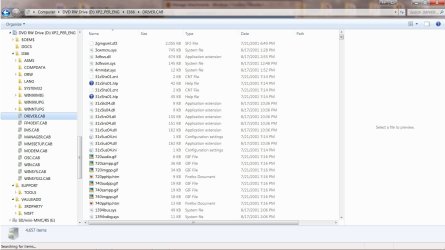
    • If WinXP, the only choices I have for the drivers is a CAB folder with 4,657 files
    • CAB.jpg
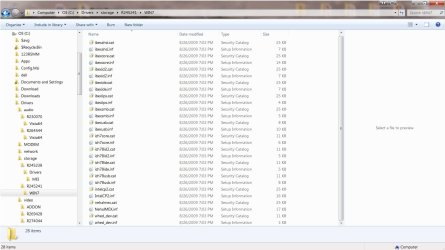
    • Looking in my computer in C:\Drivers:
    • WinDrivers.jpg
Am I looking in all the wrong places? Much again, thank you for your help


I have WinXP installed on a HD in a computer whose motherboard has quit. Could I add that HD to the Win7 computer and then either boot from the old XP drive or the new 7 drive? Would that be easier? If so, what would that require? Thanks
 
Last edited by a moderator:

My Computer My Computer

At a glance

Win7 Home Prem. x64Intel Core i3 CPU 550 @3.20GHz8 GB RAM 4-Hynix Semicon. DDR3-SDRAM (1333MHz)ati radeon hd 5450 DrVer 8.740.0.0 5-17-2010
Computer Manufacturer/Model Number
Dell Inspiron 580S
OS
Win7 Home Prem. x64
CPU
Intel Core i3 CPU 550 @3.20GHz
Motherboard
Dell 0C2KJT Chip:Intel PCH H57 BIOS:A07 ROM 8MB SMBios 2.6
Memory
8 GB RAM 4-Hynix Semicon. DDR3-SDRAM (1333MHz)
Graphics Card(s)
ati radeon hd 5450 DrVer 8.740.0.0 5-17-2010
Sound Card
Realtek HiDef DrVer6.0.1.6043, 2-3-2010
Monitor(s) Displays
2 generic pnp monitors
Hard Drives
Samsung HD103SJ ATA 1 TB
Yes it should be easier but it requires a Repair Install done on XP to readjust it to the new drivers: XP Repair Install - Part 1 of 2

Do this with the Win7 HD unplugged, XP HD set first to boot in BIOS setup.

Once XP starts on its own, set preferred HD as first to boot in BIOS setup, then to trigger the other HD instead use the one-time BIOS Boot Menu key given on first boot screen - which on Dell is F12.
 

My Computer My Computer

At a glance

ME/XP/Vista/Win7
OS
ME/XP/Vista/Win7
Hi - short-time reader, first-time poster. ;) I ran into a problem during method 2 of this great guide that I was able to fix, but it isn't mentioned in the guide so I thought I'd post it here and then hopefully someone can add it.

The problem relates to the, "Error loading operating system", message that may appear after the first restart during the XP installation. I followed the advice in the guide to fix this but nothing worked. Eventually I figured it out myself: my motherboard (Gigabyte EP45-UD3P) has the following BIOS setting:

- SATA RAID/AHCI Mode

I had this set to "AHCI". After changing it to "IDE", XP was able to install just fine. After that, I was able to fix the Win7 bootloader per the advice in the guide and all was well.

However, changing this setting in this way means that you obviously lose the benefits of AHCI in Win7 (including TRIM support if you have an SSD, for example). Also, if later on you change this setting back to "AHCI", your XP installation will fail to boot, so be aware of that. If, however, you don't have an SSD and don't really care about AHCI then this fix will work fine for you.
 

My Computer My Computer

At a glance

Win7 Ultimate, 64-bit
OS
Win7 Ultimate, 64-bit
Gomer: It looks like Dell doesn't provide a WinXP SATA driver for that particular computer. Typically, this means you're simply out of luck and you won't be able to install XP. However, it might be possible to find another driver that will work. I'm not sure how you'd go about finding one though.

My HD is listed as ATA, not SATA
Just FYI, your drive (Samsung HD103SJ) is a SATA drive. Listing it as "ATA" is somewhat confusing but not wrong - all SATA drives are ATA drives. "SATA" means "Serial ATA".
 

My Computer My Computer

At a glance

Win7 Ultimate, 64-bit
OS
Win7 Ultimate, 64-bit
Back
Top