Dual Boot Installation with Windows 7 and XP

How to Setup a Dual Boot Installation with Windows 7 and XP


   Information
This will show you how to install Windows 7 and XP to dual boot with when you already have either Windows 7 or XP installed first.
   Note
With a dual boot installaton, you will have two operating systems (OS) installed. When you start the computer, you will have the choice to choose which OS you would like to start up to. This method is the easiest way of doing a dual boot with these two operating systems.
   Tip
When dual booting with another OS (ex: Vista or XP), you may not always have that OS partition show up in Computer with a driver letter in Windows 7. If this happens, then you will just need to add a drive letter to the OS (ex: Vista or XP) partition in Windows 7 Disk Management for it to show up in Computer with a driver letter.
   Warning
To stop XP from deleting your Windows 7 System Restore Points everytime XP is started, then see System Restore Points - Stop XP Dual Boot Delete to hide Windows 7 from XP.

Windows 7 Minimum Hardware Requirements


NOTE: For more information on this, see: Windows 7 system requirements
  • 1 GHz 32-bit or 64-bit processor
  • 1 GB RAM for 32-bit Windows 7 OR 2 GB RAM for 64-bit Windows 7
  • 16 GB available disk space 32-bit Windows 7 OR 20 GB for 64-bit Windows 7
  • Support for DirectX 9 graphics with 128 MB memory (in order to enable Aero theme)
  • DVD-R/W Drive
  • Internet or phone access to activate Windows 7.
Windows XP Minimum Hardware Requirements

NOTE: For more information on this, see: System requirements for Windows XP operating systems
  • PC with 300 megahertz (MHz) or higher processor clock speed recommended; 233-MHz minimum required;* Intel Pentium/Celeron family, AMD K6/Athlon/Duron family, or compatible processor recommended
  • 128 megabytes (MB) of RAM or higher recommended (64 MB minimum supported; may limit performance and some features)
  • 1.5 gigabyte (GB) of available hard disk space.*
  • Super VGA (800 × 600) or higher resolution video adapter and monitor
  • CD-ROM or DVD drive
  • Keyboard and Microsoft Mouse or compatible pointing device
EXAMPLE: Windows Boot Manager
NOTE: This is the boot screen where you select what operating system that you would like to start. By default, you have 30 seconds to choose another operating system before the default operating system will start automatically.
Example.jpg


OPTION ONE

When XP is Installed First


NOTE: If you have a RAID setup, you will need to have the Windows 7 RAID drivers on a USB flash drive available to select and load while installing Windows 7.
1. Do step 2 or 3 below for where you wanted to install Windows 7 at.

2. To Create a New Partition from the XP Hard Disk Drive
A) With your Windows 7 installation disc boot into the Command Prompt from the System Recovery Options screen.
NOTE: Make sure that the CD/DVD drive is selected first in the boot order in the BIOS.

B) In the command prompt, select and shrink the XP volume by how many MB (1024 MB = 1 GB) you want to have for this Windows 7 partition. (See screenshot below)
NOTE: You would do steps 2 to 9 in METHOD TWO at that link. Windows 7 will need a minimum of 16 GB (16384 MB).

XP-W7_1.jpg
C) Click on the X at the top right corner to close the command prompt. (See screenshot above)

D) Click on the X at the top right corner to close System Recovery Options. (See screenshot below)
XP-W7_2.jpg
E) Go to step 4.
3. To Use a Separate Hard Disk Drive than the XP Drive
A) Boot from your Windows 7 installation disc.
NOTE: Make sure that the CD/DVD drive is selected first in the boot order in the BIOS.
4. Click on the Install now button. (See screenshot below)

XP-W7_3.jpg
5. When you get to this point, select the partition (step 2) or hard drive to install Windows 7 on. (See screenshot below)

XP-W7_4.jpg
6. Finish installing Windows 7.
NOTE: You would start at step 9 in that link to finish installing Windows 7.

7. When finished, restart the computer to have the option to boot from XP (Earlier Verision of Windows) or Windows 7. (See screenshot below)

   Note
If you are only booting into Windows 7 and do not have XP listed in the Windows Boot Manager, then you can install only EasyBCD (step 8 Option Two below) to add XP (or Windows 7) while started in Windows 7 the same way to the boot list.

Example.jpg


OPTION TWO

When Windows 7 is Installed First


   Warning

1. To Create a New Partition from the Windows 7 Hard Disk Drive
NOTE: If you want to install XP on a separate internal hard drive instead, then skip this step and go to step 2.
A) In Windows 7, select and shrink the Windows 7 volume in Disk Management by how many MB (1024 MB = 1 GB) you want to have for this XP partition. (See screenshots below)
NOTE: You would do all of Method One at that link.

W7-XP-1.jpg

W7-XP-2.jpg

W7-XP-3.jpg
2. Insert your XP installation disc, then restart the computer and press any key to boot from it when prompted. (See screenshot below)
NOTE: Make sure that the CD/DVD drive is selected first in the boot order in the BIOS.

Step1.jpg
3. From XP Setup, Press Enter. (See screenshot below)


   Warning

W7-XP-4.jpg
4. Press F8. (See screenshot below)
NOTE: On some multimedia keyboards, you may need to press the F-Lock or Function key before pressing F8.
W7-XP-5.jpg
5. Select the partition (step 1) or hard drive that you want to install XP on using the arrow keys and press Enter.

W7-XP-6.jpg
6. Finish installing XP.


   Tip
If you get Error loading Operating System after XP restarts:
  • Using your Windows 7 installation disc, boot to the command prompt at startup.
  • Type in these comands below, and press enter after each one.
    • bootrec /FixMbr
    • bootrec /FixBoot
    • bootrec /RebuildBcd
  • Exit the command prompt and restart the computer.
  • At this point, Windows 7 should boot up the same way before trying to install XP.
  • Continue to step 8 below and run EasyBCD from Windows 7 instead.

7. In XP, download and install .Net Framework 2.0 (32-bit) version or .Net Framework 2.0 (64-bit) version first, and EasyBCD (free version) for your 32-bit (x86) or 64-bit (x86) XP.
NOTE: In XP, Net Framework is required to be installed to run EasyBCD. After you click on Register (at bottom of link) for the free EasyBCD, registration is not required to download it.

8. Run EasyBCD (free version).
NOTE: This is required to repair the Windows 7 boot file and add XP to the Windows Boot Manager list.

9. On the left side of EasyBCD, click on the Add New Entry button. (See screenshot below)
A) In the top section under Operating Systems, click on the Windows tab. (See screenshot below)
B) To the right of Type, select Windows NT/2k/XP/2k3 from the drop down menu. (See screenshot below)
:warn:WARNING: Be sure to leave the Automatically detect correct drive box checked.

C) To the right of Name, you can leave the default Microsoft Windows XP as the name to be displayed in the Windows Boot Manager, or you can type whatever name you would like to have instead. (See screenshot below)
D) Click on the Add Entry button. (See screenshot below)
W7-XP-7.jpg
10. On the left side of EasyBCD, click on the BCD Deployment button, select (dot) the Install the Windows Vista/7 bootloader to the MBR option, and click on the Write MBR button. (See screenshot below)

W7-XP-9.jpg
11. Close EasyBCD.

12. Restart the computer to have the option to boot from Microsoft Windows XP or Windows 7. (See screenshot below)

Example2.jpg
   Tip
If Windows 7 will not start up when selected, then use your Windows 7 installation DVD to do a Startup Repair.

That's it,
Shawn


Last edited:
Hi There

Firstly, thanks for these guides - they are invaluable.

My Dad is in the process of upgrading to Win 7, but still wants to retain use of XP, probably as a safety blanket more than any real need.

Anyways, my intention had been to remove his current XP installation HDD, and install a clean version of Windows 7 32 Bit on his new SSD. Once that was installed, I was then going re-attach the XP HDD, and hopefully set up a dual boot system from there.

Is that possible? I think from reading the above it should be okay, but it may be preferable to use the Bios to switch between the hard drives rather than the microsoft software option. I think my Dad would prefer the latter, though.

Am I right in thinking that Easy BCD should enable me to add XP to the boot menu on the Win7? Any potential problems with that?

Any help gratefully received!

TIA

Paul
 

My Computer My Computer

At a glance

Windows 7 32bit professional and XP
OS
Windows 7 32bit professional and XP
Hello Paul, and welcome to Seven Forums.

You could do that, but you could also do OPTION ONE in the tutorial to be able to select XP or Windows 7 at boot for which one to run at startup instead. It would be a lot less complicated. :)

Hope this helps,
Shawn
 

My Computer My Computer

At a glance

64-bit Windows 11 Pro for WorkstationsIntel i7-8700K OC'd to 5 GHz64 GB (4x16GB) G.SKILL TridentZ RGB DDR4 3600...ASUS ROG-STRIX-GTX1080TI-O11G-GAMING
Computer type
PC/Desktop
Computer Manufacturer/Model Number
Self built custom
OS
64-bit Windows 11 Pro for Workstations
CPU
Intel i7-8700K OC'd to 5 GHz
Motherboard
ASUS ROG Maximus XI Formula Z390
Memory
64 GB (4x16GB) G.SKILL TridentZ RGB DDR4 3600 MHz
Graphics Card(s)
ASUS ROG-STRIX-GTX1080TI-O11G-GAMING
Sound Card
Integrated
Monitor(s) Displays
2 x Samsung Odyssey G7 27"
Screen Resolution
2560x1440
Hard Drives
1TB Samsung 990 PRO M.2,
4TB Samsung 990 PRO PRO M.2,
TerraMaster F8 SSD Plus NAS
PSU
Seasonic Prime Titanium 850W
Case
Thermaltake Core P3
Cooling
Corsair Hydro H115i
Keyboard
Logitech wireless K800
Mouse
Logitech MX Master 4
Internet Speed
2 Gb/s Download and 100 Mb/s Upload
Antivirus
Malwarebyte Anti-Malware Premium
Browser
Google Chrome
Other Info
Logitech Z625 speaker system,
Logitech BRIO 4K Pro webcam,
HP Color LaserJet Pro MFP M477fdn,
APC SMART-UPS RT 1000 XL - SURT1000XLI,
Galaxy S23 Plus phone
Thanks for the reply, Shawn.

One thing I forgot to mention was that he has bought an upgrade version of Win7 rather than the full version. He has other copies of XP he can 'retire', but he wants to retain his current installation - that comfort blanket thing, I guess.

If I followed Option One, would the upgrade version want to delete that XP Installation if it was still attached when it was installing?

Thanks again for the speedy reply.

Cheers

Paul
 

My Computer My Computer

At a glance

Windows 7 32bit professional and XP
OS
Windows 7 32bit professional and XP

My Computer My Computer

At a glance

64-bit Windows 11 Pro for WorkstationsIntel i7-8700K OC'd to 5 GHz64 GB (4x16GB) G.SKILL TridentZ RGB DDR4 3600...ASUS ROG-STRIX-GTX1080TI-O11G-GAMING
Computer type
PC/Desktop
Computer Manufacturer/Model Number
Self built custom
OS
64-bit Windows 11 Pro for Workstations
CPU
Intel i7-8700K OC'd to 5 GHz
Motherboard
ASUS ROG Maximus XI Formula Z390
Memory
64 GB (4x16GB) G.SKILL TridentZ RGB DDR4 3600 MHz
Graphics Card(s)
ASUS ROG-STRIX-GTX1080TI-O11G-GAMING
Sound Card
Integrated
Monitor(s) Displays
2 x Samsung Odyssey G7 27"
Screen Resolution
2560x1440
Hard Drives
1TB Samsung 990 PRO M.2,
4TB Samsung 990 PRO PRO M.2,
TerraMaster F8 SSD Plus NAS
PSU
Seasonic Prime Titanium 850W
Case
Thermaltake Core P3
Cooling
Corsair Hydro H115i
Keyboard
Logitech wireless K800
Mouse
Logitech MX Master 4
Internet Speed
2 Gb/s Download and 100 Mb/s Upload
Antivirus
Malwarebyte Anti-Malware Premium
Browser
Google Chrome
Other Info
Logitech Z625 speaker system,
Logitech BRIO 4K Pro webcam,
HP Color LaserJet Pro MFP M477fdn,
APC SMART-UPS RT 1000 XL - SURT1000XLI,
Galaxy S23 Plus phone
Hello - I a new to the forum and it's really hard going through 159 pages of posts, so I hope you don't mins me asking this, and perhaps someone can answer. Thanks in advance.

Basically, I have an XP laptop that I want to add Windows 7 to, while keeping the XP system. My understanding is that you must first create a new partition, make sure it has an independent drive letter, and then use the Windows 7 DVD to install the system software in the new partition.

Here's where I am a little surprised. I would then think that, when making a choice at rebooting as to which OS to use, that the second un-booted drive comes up for full use by the active system. In other words, if I already have Office 2007 installed on my XP partition and now I want to boot up from Windows 7, that Office 2009 would be available to me to use.

But, from what I understand, you basically have to install all new copies of your XP software onto the Windows 7 partition for it to work, and vice versa. So, each drive partition should be viewed as completely independent hard drives that operate as their own little universe.

Data files would certainly be usable from one drive to the other, would they not? Or is the other partition not even mounted at all?

This being the case, how (if at all possible) do I best utilize the hard disk space to make this work best?

Am I going to have to install 2 complete copies of Office or Adobe CS to have them work on both partitions? How would this affect the serial number scheme - would I be using two installations, or is it computer based, meaning that it would view this still as one installation since it is on the same computer?

Does it make sense (and is it even possible) to have 3 disk partitions: one for only the XP system, a second for only Windows 7, and a third for all installed software and documents? Would that setup allow me to have only one copy of everything?

Just thinking logically on this, I can't imagine the third partition idea would work, insofar as Windows programs require entries into the registry, and whatever program (i.e. Office) installed on the third partition would only be known and registered on the OS partition that was active at that time. Also, all the Windows DLLS they install only get loaded onto the active WINDOWS folder.

It would seem to make sense that the OS would be smart enough to say, I have two valid OS partitions, when a program gets installed - write the install registry data to both registries, and copy all the files to both WINDOWS folders.

I guess that a dual-OS machine isn't something Microsoft wants to support that well, so the only way is to essentially have 2 drives that operate separately from each other. I did notice some discussion on just going with Windows 7 and then using that XP-boot option when needed. Is this another alternative, or if I want a real XP experience, do I need to continue along the lines of separate partitions?

Anyway, many thanks for someone to help me as I have the laptop ready for the operation, I just need a skilled surgeon for some good advice.
 

My Computer My Computer

At a glance

XP
OS
XP
To my earlier post, it looks like the virtual XP option from within Windows 7 is a little bulky and definitely not foolproof. The truth is that I have a very large hard drive, and at the end of the day the programs only takes up around 10 Gbyte, so it would seem the easiest thing to do is create a second partition. The only issue I would have is how Adobe and Microsoft would view the installations, since I don't want to waste the serial number if it counts as a separately-counted install. Does anyone know how this would work?

Any other thoughts would be greatly appreciated!
 

My Computer My Computer

At a glance

XP
OS
XP
You can share your files from whatever drive they are on, or place them on a third drive linked to Win7 thusly: User Folders - Change Default Location

You have the basic idea down, but need to see the two more as separate Systems which require their own software. There are some softwares (CCleaner, Steam) that will run from their .exe on the other partition but this is the exception.

Shrink XP using free Partition Wizard bootable CD - you needn't partition or letter it as Win7 will do that simply by choosing it for Install and click Next, into the future.

Clean Install Windows 7
 
If I'm going to be using the HD equally between Xp and 7, doesn't it make sense to just split the HD into two equal partitions? And if I can use the Win7 DVD to create the partition before install, does it just take the space from the free space of the existing XP partition, or must I first do something in XP to take the free space and un-allocate it first so that Win7 sees the space as available for the new partition? In other words, if I have 300 Gbyte free on my HD and start the install process of Win7 and select new partition, will it let me just take the 300 Gbytes and go from there, or will I have to first do something in XP to get that 300 Gbytes available for that purpose, and how would I do that? Thanks!
 

My Computer My Computer

At a glance

XP
OS
XP
The installer will not shrink XP. As stated in my post above you'll need to use free Partition Wizard bootable CD to shrink XP partition safely to the size you want, then Win7 installer will create and format the partition there when you select it during booted Custom Install.

Do not forget to boot the installer, not run it from XP. Clean Install Windows 7
 
Hi,

I'm having bit troubles with doing this. I am using option 2 (Windows 7 already installed).

I get to step 5 ("Select the partition (step 1) or hard drive that you want to install XP on using the arrow keys and press Enter."), the XP installation reboots the computer then I get the "Error loading Operating System" message and the XP installation doesn't complete. I've followed the tip about using bootrec, follow the rest of the guide to Step 12, but when I restart the computer, it just boots straight into Windows 7 and doesn't give me the option to finish the installation of XP.

I've used Bootsect.exe and Bcdedit.exe to create a dual boot that looks like this in EasyBCD:

There are a total of 2 entries listed in the bootloader.

Default: Windows 7 Home Premium
Timeout: 10 seconds
EasyBCD Boot Device: C:\

Entry #1
Name: Windows 7 Home Premium
BCD ID: {current}
Drive: C:\
Bootloader Path: \Windows\system32\winload.exe

Entry #2
Name: Windows XP
BCD ID: {ntldr}
Drive: E:\
Bootloader Path: \WINDOWS\system32\setup.exe

But when I select Windows XP on the boot selection screen, it just goes blank. Am I pointing it to the correct place to continue the installation? Am I on completely the wrong track? I just want it to finish installing!!!

Any help would be really appreciated, as it's for my dad's business and it I don't get it sorted within the next 48 hours, it'll be a couple of months before I'm around again to help him.

Thanks!
 

My Computer My Computer

At a glance

Windows 7 Ultimate (HTPC) and Windows 7 Profe...Intel Q82002GBNVidia GeForce 7100/nForce 630i (onboard)
OS
Windows 7 Ultimate (HTPC) and Windows 7 Professional (Desktop PC)
CPU
Intel Q8200
Motherboard
Gigabyte GA-73PVM-S2H
Memory
2GB
Graphics Card(s)
NVidia GeForce 7100/nForce 630i (onboard)
Sound Card
NVidia HD Audio (onboard)
Monitor(s) Displays
BENQ FP9G+
Hard Drives
1 x Samsung 250gb
1 x Samsung 500gb
PSU
Antec 380w
Case
Antec Sonata I
Cooling
Scythe Mini Ninja
Does it show the partitions correctly to choose from on the XP Drive selection menu? If not you may need to add SATA controllers which are too modern to be in the XP installer:
SATA Drivers - Load in Windows XP Setup on Dual Boot
SATA Drivers - Slipstream into Windows XP CD

It's also best to use an XP installer for your version with SP3.

If you don't want to go to the trouble of inserting the SATA controller drivers or troubleshooting, try virtualizing XP in Win7 using XP Mode in Ultimate or Pro, Virtual Box, Virtual Player or VMWare.
 
Hi,

I've already slipstreamed the SATA controllers onto the installation disk. The XP installation gets to the point where it's already copied a bunch of files to the new partition and reboots the computer to continue the installation. Once it's rebooted, I get the "Error loading Operating System" message and it won't continue the installation.

I haven't put SP3 in, but would that really have an effect? At that point the setup programme surely won't have installed SP3.
 

My Computer My Computer

At a glance

Windows 7 Ultimate (HTPC) and Windows 7 Profe...Intel Q82002GBNVidia GeForce 7100/nForce 630i (onboard)
OS
Windows 7 Ultimate (HTPC) and Windows 7 Professional (Desktop PC)
CPU
Intel Q8200
Motherboard
Gigabyte GA-73PVM-S2H
Memory
2GB
Graphics Card(s)
NVidia GeForce 7100/nForce 630i (onboard)
Sound Card
NVidia HD Audio (onboard)
Monitor(s) Displays
BENQ FP9G+
Hard Drives
1 x Samsung 250gb
1 x Samsung 500gb
PSU
Antec 380w
Case
Antec Sonata I
Cooling
Scythe Mini Ninja
I've followed the tip about using bootrec, follow the rest of the guide to Step 12, but when I restart the computer, it just boots straight into Windows 7 and doesn't give me the option to finish the installation of XP.

You can only use Bootsect.exe and Bcdedit.exe when Win XP has finished installing.
 

My Computer My Computer

At a glance

ME/XP/Vista/Win7
OS
ME/XP/Vista/Win7
During install try full formatting the partition after deleting it first. If it fails again I would locate an XP with SP3 installer for your version, which must be retail- or OEM-specific. If you use a torrent make sure to check the comments to be sure nothing has been added like a crack.
 
Hi guys, new to the forums!

I am a bit stuck. I have windows 7 ultimate running on my computer at the moment but want to dual boot with windows XP, I insert windows XP Disk and get to the blue screen when it starts loading files and then I get stuck on "windows is loading setup" or something similar, stays there for hours. Now I can fix this issue by pressing F5 when prompted to press F6 on the beginning of this setup, if I choose another option (say standard PC or ACPI PC) it will get past the "windows is loading setup" and allow me to choose which partition to install XP too. I install to a partition, it copies files then wants to restart.

After it restarts if I dont boot from disk I get the error message; A disk error has occoured. Press CTRL+ALT+DEL to restart.

Now I can fix that using the repair option on my win 7 disk, the XP files are copied to the hard drive but it just does not continue the installation.

Any ideas? Thanks in advance
 

My Computer My Computer

At a glance

Windows 7 Ultimate x64, Windows XP HE
OS
Windows 7 Ultimate x64, Windows XP HE
Are you using an XP CD with SP3? I'd try that first. You likely don't need SATA controller drivers added if it sees the partitions on HD.

Have you considered virtualizing XP in XP Mode which is available to install free in Ultimate version?
 
Hi Guys,
perhaps you can help?
My daughter has a HP DV9820 17" laptop and has bought a Seagate Momentus XT 500 GB hybrid hard drive for it.
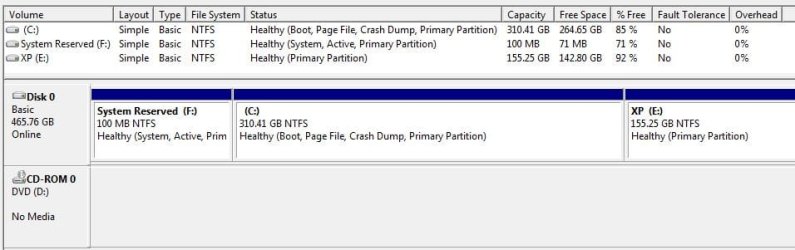
I successfully installed Windows 7 Ultimate 64 bit on it with a couple of hardware driver related problems which I soon sorted with reading some old threads on here. While installing Windows 7 I formatted the hard drive as
System Reserved (C 100 MB
Primary Partition (D 310 GB Where Windows 7 Ultimate 64 bit is installed
XP (E 155GB Where I installed XP Pro 32 bit is installed.
No problem with any installation, just a few more problems getting drivers for the XP installation, had to modify an ini file to install the Connextant HD Audio as windows would not install the drivers for it. The Laptop was built for Vista.
Both OS fully updated.
The problem I am getting is that when I try to hide the System Reserved C: and the D: where Windows 7 is installed in XP by the manual registry edit procedure to protect the recovery files for Windows 7 the drives will not hide.
I have tried this with regedit in XP as per the tutorial, accepted the warnings and restarted. Still the drives are there and able to access documents on them.
I have tried this in safe mode as an Administrator with regedt32 and looked at the permissions and as an Administrator the permissions are Full Control. I can right click \DosDevices\C: and delete them with a "Confirm Value Delete" box, on which I click yes and the item disappears from the screen.
Exit the Registry Editor and restart the machine and the entries are still there.
Any ideas greatly appreciated as I am at a complete loss on this one.
Regards
And thanks for looking
KingWhiskers :confused:
 
Last edited:

My Computer My Computer

At a glance

Windows 7 Ultimate x64intel i7 3610QM8GBNvidia 630 M 2GB
Computer type
PC/Desktop
Computer Manufacturer/Model Number
ASUS N56VM
OS
Windows 7 Ultimate x64
CPU
intel i7 3610QM
Memory
8GB
Graphics Card(s)
Nvidia 630 M 2GB
Sound Card
Realtek HD Audio
Monitor(s) Displays
Laptop Display
Screen Resolution
1920 x1080 Native Resolution
Hard Drives
Seagate ST500LM012 HN-M500MBB 500GB
Keyboard
English UK
Mouse
Microsoft Trackball Explorer, Synaptics Touchpad
Internet Speed
17 Meg Broadfband
Browser
Chrome
Have you tried removing the drive letters in XP Disk Management? What happens exactly?
 
Hi gregrocker,
In disc management I was Able to remove the drive letter for D: and it is now removed from "My Computer".
The System Reserved (C: ) Drive, Disk management would not let you remove the drive letter.
I will now try rebooting it and seeing if restore points remain.
Many thanks for the help,
Regards
KingWhiskers :)
 

My Computer My Computer

At a glance

Windows 7 Ultimate x64intel i7 3610QM8GBNvidia 630 M 2GB
Computer type
PC/Desktop
Computer Manufacturer/Model Number
ASUS N56VM
OS
Windows 7 Ultimate x64
CPU
intel i7 3610QM
Memory
8GB
Graphics Card(s)
Nvidia 630 M 2GB
Sound Card
Realtek HD Audio
Monitor(s) Displays
Laptop Display
Screen Resolution
1920 x1080 Native Resolution
Hard Drives
Seagate ST500LM012 HN-M500MBB 500GB
Keyboard
English UK
Mouse
Microsoft Trackball Explorer, Synaptics Touchpad
Internet Speed
17 Meg Broadfband
Browser
Chrome
Disappearing restore files in 7 Ultimate

  1. Hi all,
I do not know what I am doing wrong here.
I installed 7 Ultimate 64 bit on a new Seagate Momentus XT hybrid 500 GB hard drive.
a few driver issues but sorted easily from help on the forums here.
The install of 7 formatted the hard drive and it created a
System Reserved C: 100 Mb
And I dived the remaining space for 7 and XP to
Install drive for 7 D: 310 GB
And left for XP E: 155 GB
Installed XP Pro SP3 on E: a few problems finding Drivers as the laptop was built for Vista but now fully working and updated.
After following the Tutorial for hiding Vista & 7 from XP by Brink I still have a problem with XP deleting the 7 restore files.
screen shots from XP And 7 Disc management.

As you can see XP is installed in E: and 7 is installed in D: with the drive letter removed and it does not show in My Computer.

In the Disc Management from 7 all the Drives are listed and Lettered.
The F: drive is the System Reserved Drive that I had to assign a letter to to be able to Dual Boot with for Easy BCD.

I know I have Bit locker in 7 Ultimate but I did not really want to use it.
Any suggestions gratefully received.
If starting again and installing XP first would help to sort this out I would do that as there is nothing on there to worry about.
I can either run Seatools from CD and clean the drive totally or take it out and run it on my desktop and start fresh.
Many thanks
KingWhiskers
 

Attachments

  • XPDiscManagement130112.jpg
    XPDiscManagement130112.jpg
    33.5 KB · Views: 139
  • DiscManagement7Ultimate130112.JPG
    DiscManagement7Ultimate130112.JPG
    43.6 KB · Views: 124

My Computer My Computer

At a glance

Windows 7 Ultimate x64intel i7 3610QM8GBNvidia 630 M 2GB
Computer type
PC/Desktop
Computer Manufacturer/Model Number
ASUS N56VM
OS
Windows 7 Ultimate x64
CPU
intel i7 3610QM
Memory
8GB
Graphics Card(s)
Nvidia 630 M 2GB
Sound Card
Realtek HD Audio
Monitor(s) Displays
Laptop Display
Screen Resolution
1920 x1080 Native Resolution
Hard Drives
Seagate ST500LM012 HN-M500MBB 500GB
Keyboard
English UK
Mouse
Microsoft Trackball Explorer, Synaptics Touchpad
Internet Speed
17 Meg Broadfband
Browser
Chrome
Back
Top