Dual Boot Installation with Windows 7 and XP

How to Setup a Dual Boot Installation with Windows 7 and XP


   Information
This will show you how to install Windows 7 and XP to dual boot with when you already have either Windows 7 or XP installed first.
   Note
With a dual boot installaton, you will have two operating systems (OS) installed. When you start the computer, you will have the choice to choose which OS you would like to start up to. This method is the easiest way of doing a dual boot with these two operating systems.
   Tip
When dual booting with another OS (ex: Vista or XP), you may not always have that OS partition show up in Computer with a driver letter in Windows 7. If this happens, then you will just need to add a drive letter to the OS (ex: Vista or XP) partition in Windows 7 Disk Management for it to show up in Computer with a driver letter.
   Warning
To stop XP from deleting your Windows 7 System Restore Points everytime XP is started, then see System Restore Points - Stop XP Dual Boot Delete to hide Windows 7 from XP.

Windows 7 Minimum Hardware Requirements


NOTE: For more information on this, see: Windows 7 system requirements
  • 1 GHz 32-bit or 64-bit processor
  • 1 GB RAM for 32-bit Windows 7 OR 2 GB RAM for 64-bit Windows 7
  • 16 GB available disk space 32-bit Windows 7 OR 20 GB for 64-bit Windows 7
  • Support for DirectX 9 graphics with 128 MB memory (in order to enable Aero theme)
  • DVD-R/W Drive
  • Internet or phone access to activate Windows 7.
Windows XP Minimum Hardware Requirements

NOTE: For more information on this, see: System requirements for Windows XP operating systems
  • PC with 300 megahertz (MHz) or higher processor clock speed recommended; 233-MHz minimum required;* Intel Pentium/Celeron family, AMD K6/Athlon/Duron family, or compatible processor recommended
  • 128 megabytes (MB) of RAM or higher recommended (64 MB minimum supported; may limit performance and some features)
  • 1.5 gigabyte (GB) of available hard disk space.*
  • Super VGA (800 × 600) or higher resolution video adapter and monitor
  • CD-ROM or DVD drive
  • Keyboard and Microsoft Mouse or compatible pointing device
EXAMPLE: Windows Boot Manager
NOTE: This is the boot screen where you select what operating system that you would like to start. By default, you have 30 seconds to choose another operating system before the default operating system will start automatically.
Example.jpg


OPTION ONE

When XP is Installed First


NOTE: If you have a RAID setup, you will need to have the Windows 7 RAID drivers on a USB flash drive available to select and load while installing Windows 7.
1. Do step 2 or 3 below for where you wanted to install Windows 7 at.

2. To Create a New Partition from the XP Hard Disk Drive
A) With your Windows 7 installation disc boot into the Command Prompt from the System Recovery Options screen.
NOTE: Make sure that the CD/DVD drive is selected first in the boot order in the BIOS.

B) In the command prompt, select and shrink the XP volume by how many MB (1024 MB = 1 GB) you want to have for this Windows 7 partition. (See screenshot below)
NOTE: You would do steps 2 to 9 in METHOD TWO at that link. Windows 7 will need a minimum of 16 GB (16384 MB).

XP-W7_1.jpg
C) Click on the X at the top right corner to close the command prompt. (See screenshot above)

D) Click on the X at the top right corner to close System Recovery Options. (See screenshot below)
XP-W7_2.jpg
E) Go to step 4.
3. To Use a Separate Hard Disk Drive than the XP Drive
A) Boot from your Windows 7 installation disc.
NOTE: Make sure that the CD/DVD drive is selected first in the boot order in the BIOS.
4. Click on the Install now button. (See screenshot below)

XP-W7_3.jpg
5. When you get to this point, select the partition (step 2) or hard drive to install Windows 7 on. (See screenshot below)

XP-W7_4.jpg
6. Finish installing Windows 7.
NOTE: You would start at step 9 in that link to finish installing Windows 7.

7. When finished, restart the computer to have the option to boot from XP (Earlier Verision of Windows) or Windows 7. (See screenshot below)

   Note
If you are only booting into Windows 7 and do not have XP listed in the Windows Boot Manager, then you can install only EasyBCD (step 8 Option Two below) to add XP (or Windows 7) while started in Windows 7 the same way to the boot list.

Example.jpg


OPTION TWO

When Windows 7 is Installed First


   Warning

1. To Create a New Partition from the Windows 7 Hard Disk Drive
NOTE: If you want to install XP on a separate internal hard drive instead, then skip this step and go to step 2.
A) In Windows 7, select and shrink the Windows 7 volume in Disk Management by how many MB (1024 MB = 1 GB) you want to have for this XP partition. (See screenshots below)
NOTE: You would do all of Method One at that link.

W7-XP-1.jpg

W7-XP-2.jpg

W7-XP-3.jpg
2. Insert your XP installation disc, then restart the computer and press any key to boot from it when prompted. (See screenshot below)
NOTE: Make sure that the CD/DVD drive is selected first in the boot order in the BIOS.

Step1.jpg
3. From XP Setup, Press Enter. (See screenshot below)


   Warning

W7-XP-4.jpg
4. Press F8. (See screenshot below)
NOTE: On some multimedia keyboards, you may need to press the F-Lock or Function key before pressing F8.
W7-XP-5.jpg
5. Select the partition (step 1) or hard drive that you want to install XP on using the arrow keys and press Enter.

W7-XP-6.jpg
6. Finish installing XP.


   Tip
If you get Error loading Operating System after XP restarts:
  • Using your Windows 7 installation disc, boot to the command prompt at startup.
  • Type in these comands below, and press enter after each one.
    • bootrec /FixMbr
    • bootrec /FixBoot
    • bootrec /RebuildBcd
  • Exit the command prompt and restart the computer.
  • At this point, Windows 7 should boot up the same way before trying to install XP.
  • Continue to step 8 below and run EasyBCD from Windows 7 instead.

7. In XP, download and install .Net Framework 2.0 (32-bit) version or .Net Framework 2.0 (64-bit) version first, and EasyBCD (free version) for your 32-bit (x86) or 64-bit (x86) XP.
NOTE: In XP, Net Framework is required to be installed to run EasyBCD. After you click on Register (at bottom of link) for the free EasyBCD, registration is not required to download it.

8. Run EasyBCD (free version).
NOTE: This is required to repair the Windows 7 boot file and add XP to the Windows Boot Manager list.

9. On the left side of EasyBCD, click on the Add New Entry button. (See screenshot below)
A) In the top section under Operating Systems, click on the Windows tab. (See screenshot below)
B) To the right of Type, select Windows NT/2k/XP/2k3 from the drop down menu. (See screenshot below)
:warn:WARNING: Be sure to leave the Automatically detect correct drive box checked.

C) To the right of Name, you can leave the default Microsoft Windows XP as the name to be displayed in the Windows Boot Manager, or you can type whatever name you would like to have instead. (See screenshot below)
D) Click on the Add Entry button. (See screenshot below)
W7-XP-7.jpg
10. On the left side of EasyBCD, click on the BCD Deployment button, select (dot) the Install the Windows Vista/7 bootloader to the MBR option, and click on the Write MBR button. (See screenshot below)

W7-XP-9.jpg
11. Close EasyBCD.

12. Restart the computer to have the option to boot from Microsoft Windows XP or Windows 7. (See screenshot below)

Example2.jpg
   Tip
If Windows 7 will not start up when selected, then use your Windows 7 installation DVD to do a Startup Repair.

That's it,
Shawn


Last edited:
This is rare since both drives should be visible to the other by default. Have you changed any settings that might at all affect this?

Try sharing the drive in it's Properties.
 
Last edited:
No option to share it while in XP. Shared it in W7 but in XP it still shows empty with the incorrect label.
 

My Computer My Computer

At a glance

Windows 7 Professional 64 bit
OS
Windows 7 Professional 64 bit
I also got this from the tutorial author:
If for some reason his XP doesn't see the Windows 7 installation, then he might check to see if it's something like in the tutorial below where it may be hidden.

System Restore Points - Stop XP Dual Boot Delete - Vista Forums

Was there anything done differently during install or setup that might have blocked the normal default behavior of Explorer seeing the other OS's files?
 
I don't think I did anything they may have blocked the normal default behavior of Explorer seeing the other OS's files?
I did do the manual regedit to prevent XP from deleting W7 restore points.
 

My Computer My Computer

At a glance

Windows 7 Professional 64 bit
OS
Windows 7 Professional 64 bit
Was this before the files stopped being visible?

Did you set a Restore Point?

If so I would undo the regedit to see if it changes.
 
I did not check it until after I did the regedit fix.I have done a couple of restore points in W7. If I change the XP registry back won't I lose my restore points in W7.

I went into Disk Management in both OSs and this is the way they are listed;

XP Disk Management shows the XP Drive as: XP (C) Healthy (System), W7 drive as (D) Healthy and spare as Spare (F) Healthy (Active).
W7 Disk Management shows the XP Drive as: XP (D) Healthy (System, Active, Primary Partition), W7 drive as W7(D) Healthy (Boot, Page File, Crash Dump, Primary Partition) and spare as Spare (F) Healthy (Active, Primary Partition).

I just noticed on the link you gave me on restore points.
System Restore Points - Stop XP Dual Boot Delete - Vista Forums

There is a warning "This does not actually fix the problem. It is a workaround that will stop XP from deleting the restore points and shadow copies. After you restart XP, you will not be able to access the volume Vista and/or Windows 7 is on from XP. However, you can still access the volume that XP is on from Vista and Windows 7."

So I guess it's a known problem without a fix at this point.

I logged into W7 and checked the Restore Points. There were 5. I then logged into XP and changed the registry back. I booted back into XP as the instructions said. I now see the folders and files on the W7 drive and the label was correct. I then booted into W7 and checked the restore points. There were none. I will change the registry back as I would rather have the restore points and deal with the viewing of the W7 drive problem.
 
Last edited by a moderator:

My Computer My Computer

At a glance

Windows 7 Professional 64 bit
OS
Windows 7 Professional 64 bit
Hi I am trying to install xp on laptop that already has windows 7 I followed instructions above and everytime my computer reboots with xp disk I get the blue screen of death it tells me it shut down before any damage can take place and will go no further I cant even get to the installation part. Any ideas?
 

My Computer My Computer

At a glance

windows 7 64 bit
OS
windows 7 64 bit
Hi I am trying to install xp on laptop that already has windows 7 I followed instructions above and everytime my computer reboots with xp disk I get the blue screen of death it tells me it shut down before any damage can take place and will go no further I cant even get to the installation part. Any ideas?

1) First check for all the Win XP drivers for your hardware on the manufacturer's web site.
2) Can you post a screen shot of Disk management?
3) For better help with problems, Can you post your specs.
 

My Computer My Computer

At a glance

ME/XP/Vista/Win7
OS
ME/XP/Vista/Win7
First try booting the XP CD to see if you can create a partition there and full Format NTFS. Report back exactly what happens including verbatim error messages.

no go. when i remove the boot option of my dvd drive, i just get a blinking cursor after after i boot from XP Installation CD and it partitions / full formats / copies the XP install files / reboots on it's own

xperror2.jpg


would using this type of HD cause a roblem ?

Western Digital Caviar Blue 320 GB Bulk/OEM Hard Drive 3.5 Inch, 16 MB Cache, 7200 RPM SATA II WD3200AAKS
 

My Computer My Computer

At a glance

Windows 7 Ultimate 32bit.
OS
Windows 7 Ultimate 32bit.
I dont' know why the HD would be the problem, it's the SATA controller driver which is not in the XP CD typically.

But since the CD sees your HD and formats a partition on it, then it must be something else. Are you using an SP3 XP CD? Are you sure it's only completed copying the files when it reboots and hangs? If so, try pulling out the CD as it reboots.

Have you also tried setting HD first to boot, then triggering the CD to boot using the one-time BIOS Boot Menu key given on first boot screen?

You can try another (perhaps older) HD to see. Having XP on a separate HD installed with the other HD unplugged is a much better Dual Boot solution, anyway.
 
I dont' know why the HD would be the problem, it's the SATA controller driver which is not in the XP CD typically.

But since the CD sees your HD and formats a partition on it, then it must be something else. Are you using an SP3 XP CD? Are you sure it's only completed copying the files when it reboots and hangs? If so, try pulling out the CD as it reboots.

yes, i'm sure. i watched 4 times, i'll pull the CD next time

Have you also tried setting HD first to boot, then triggering the CD to boot using the one-time BIOS Boot Menu key given on first boot screen?

yes, as instructed before
 

My Computer My Computer

At a glance

Windows 7 Ultimate 32bit.
OS
Windows 7 Ultimate 32bit.
Still 0x0000_0078 BSOD on Boot to XP

Hello, I have two 1 TB SATA drives in my system. In Win 7 they appear as C, D, and E on the first drive and F, G, and H on the second drive. There is also a small 100 MB Boot on the first drive that I labelled as B: in Disk Manager. Tried installing XP to D: (XP thinks it's E, which is okay) and it loaded fine until it wanted to restart and then wouldn't. So I used the Win 7 disk to repair the MBR and used Easy BCD to make the dual boot selection work, which it does. But whenever I try to boot to XP I get the BSOD and the 0x0000_0078 error.

I then noticed that the partition I installed XP to was labelled as a "Healthy logical drive" and not a Primary Boot Partition. So I repeated the process only this time installing XP to the "G: drive" on the second 1 TB drive which is labelled as a "Healthy Primary Partition". Reran EasyBCD and all and pointed to XP in the partition on the second drive, but still the BSOD and 0x0000_0078 whenever I try to boot to XP.

Since I could successfully write to partitions on both hard drives, I can't believe that there is a problem with the way I slipstreamed the drivers onto the XP disk.

Sure would appreciate any help that anyone might be able to give. By the way, the first parameter in parentheses following the error is 0xF789_E524 which is different than what most people report in the middle two digits.
 

My Computer My Computer

At a glance

Windows 7 Pro 64 biti7 950 3.06 GHz6 GB DDR3 1600 MHzRadeon HD 5970 2 GB
Computer Manufacturer/Model Number
Digital Storm
OS
Windows 7 Pro 64 bit
CPU
i7 950 3.06 GHz
Motherboard
ASUS Sabretooth X58
Memory
6 GB DDR3 1600 MHz
Graphics Card(s)
Radeon HD 5970 2 GB
Sound Card
On Motherboard
Monitor(s) Displays
LG W2453V
Hard Drives
Western Digital Black Caviar WD1002FAEX
PSU
1000W Digital Storm Certified
Case
Cooler Master 942 HAF X
Cooling
Air
Since XP is installing successfully (correct?) it appears there is a problem with creating a Windows Dual Boot so use the best method for dual booting via the BIOS when there are separate HD's.

If you have a second HD, then unplug all others when installing XP to a Primary partition. After install, set preferred OS HD to boot first in BIOS setup, boot the other OS HD when needed using the one-time BIOS Boot Menu key.
 
Sorry, I don't know what a one time boot BIOS key is? Also, if I wanted to keep XP in the second partition on the first drive, does it need to be a Primary partition or is just a logical drive sufficient?

I forgot to answer the question about the XP install. I think it installed correctly as far as it went. However, when it tried to do a restart it wouldn't boot back into XP so I don't think that the XP installation ever finished. However, the WINDOWS file is out there on the partition I expected it to be with a lot of folders and files under it so I guess at least the first part went okay. It just got lost after the restart, so I had to boot with the Win 7 disk to fix the MBR and boot back up into Win 7. That's when I'd use EasyBcd to get the boot record set up for the dual boot.
 
Last edited by a moderator:

My Computer My Computer

At a glance

Windows 7 Pro 64 biti7 950 3.06 GHz6 GB DDR3 1600 MHzRadeon HD 5970 2 GB
Computer Manufacturer/Model Number
Digital Storm
OS
Windows 7 Pro 64 bit
CPU
i7 950 3.06 GHz
Motherboard
ASUS Sabretooth X58
Memory
6 GB DDR3 1600 MHz
Graphics Card(s)
Radeon HD 5970 2 GB
Sound Card
On Motherboard
Monitor(s) Displays
LG W2453V
Hard Drives
Western Digital Black Caviar WD1002FAEX
PSU
1000W Digital Storm Certified
Case
Cooler Master 942 HAF X
Cooling
Air
blank xp boot

Hi am not sure if this will help? In your bios did you put the drive with XP as the 1st boot drive?
 

My Computer My Computer

At a glance

XP 32 bitAmd dual core4 GBGsx 8400
Computer Manufacturer/Model Number
Home built
OS
XP 32 bit
CPU
Amd dual core
Motherboard
asus
Memory
4 GB
Graphics Card(s)
Gsx 8400
Sound Card
built in
Monitor(s) Displays
1 Acer 22"
Hard Drives
c drive western digital 1 terabit
d drive seagate 400 gb
PSU
Corsair 600 wats
Case
Na
Cooling
6 fans
The Boot Menu key should be given on the first boot screen - on most Asus mobos the key is F8.

It sounds like the XP installation is not completing although there are several restarts so we'd need to know which one to know how far it's progressing. Are you using a SP3 installer, and does the installer see the HD partitions correctly?
 
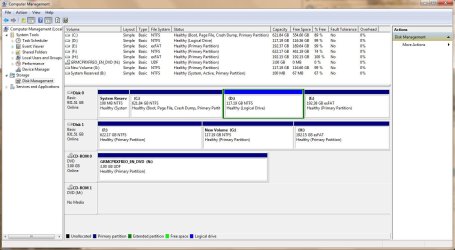
Hi Greg Rocker. I'm trying to install Win XP Pro SP2, a 32 bit version. The CD is labelled version 2002 but carries a copyright daate of 2004. It hangs after the first restart. That's why I use the Win 7 disk to repair the MBR and then run EasyBcd so I can try to boot off of it. Yes, the installer sees all the partitions on the hard drive. I've attached a .jpg from Win 7's disk manager. But the installer sees all of the partitions. I've tried installing on partition D and G which XP sees as E and H.
 

Attachments

  • Capture.JPG
    Capture.JPG
    128.4 KB · Views: 169

My Computer My Computer

At a glance

Windows 7 Pro 64 biti7 950 3.06 GHz6 GB DDR3 1600 MHzRadeon HD 5970 2 GB
Computer Manufacturer/Model Number
Digital Storm
OS
Windows 7 Pro 64 bit
CPU
i7 950 3.06 GHz
Motherboard
ASUS Sabretooth X58
Memory
6 GB DDR3 1600 MHz
Graphics Card(s)
Radeon HD 5970 2 GB
Sound Card
On Motherboard
Monitor(s) Displays
LG W2453V
Hard Drives
Western Digital Black Caviar WD1002FAEX
PSU
1000W Digital Storm Certified
Case
Cooler Master 942 HAF X
Cooling
Air
Well if it's hangs after first restart there is likely no installation to use EasyBCD to set up. Does it show up in the Easy Add OS tab?

Try deleting D in Disk Management, then boot the XP CD to create a new partition there and full format before install. This should be a Primary partition since four are allowed. If not use free Partition Wizard to create a Primary partition there.

If that fails try unplugging all other HD's.

I would next try to find a XP Pro SP3 disk, either OEM- or Retail-specific. If you download from the web be sure to read the comments to make sure no cracks or anything else are added - you want a pristine copy.
 
Hey, first time trying to dual boot, I've followed instructions as best I can and have gotten as far as trying to install XP on the partition I made, after it restarts for the 1st time when installing it gives me a ntoskrnl.exe file missing or corrupt black screen.

Was wondering if anyone has any clues as to what i could do to get it installed?

Trying to install XP Professional SP3 32 bit dual boot with Windows 7 Home Premium 64 bit on an Acer 5750G laptop.
 

My Computer My Computer

At a glance

Windows 7 Home Premium 64 bit
OS
Windows 7 Home Premium 64 bit
this brilliant tutorial when followed to the letter was the reason i just lost windows 7......and everything on my hard drive. thanks for not only nothing but anti progress .....you $T%@#^# idiot
 

My Computer My Computer

At a glance

windows 7
OS
windows 7
Back
Top