Dual Boot Installation with Windows 7 and XP

How to Setup a Dual Boot Installation with Windows 7 and XP


   Information
This will show you how to install Windows 7 and XP to dual boot with when you already have either Windows 7 or XP installed first.
   Note
With a dual boot installaton, you will have two operating systems (OS) installed. When you start the computer, you will have the choice to choose which OS you would like to start up to. This method is the easiest way of doing a dual boot with these two operating systems.
   Tip
When dual booting with another OS (ex: Vista or XP), you may not always have that OS partition show up in Computer with a driver letter in Windows 7. If this happens, then you will just need to add a drive letter to the OS (ex: Vista or XP) partition in Windows 7 Disk Management for it to show up in Computer with a driver letter.
   Warning
To stop XP from deleting your Windows 7 System Restore Points everytime XP is started, then see System Restore Points - Stop XP Dual Boot Delete to hide Windows 7 from XP.

Windows 7 Minimum Hardware Requirements


NOTE: For more information on this, see: Windows 7 system requirements
  • 1 GHz 32-bit or 64-bit processor
  • 1 GB RAM for 32-bit Windows 7 OR 2 GB RAM for 64-bit Windows 7
  • 16 GB available disk space 32-bit Windows 7 OR 20 GB for 64-bit Windows 7
  • Support for DirectX 9 graphics with 128 MB memory (in order to enable Aero theme)
  • DVD-R/W Drive
  • Internet or phone access to activate Windows 7.
Windows XP Minimum Hardware Requirements

NOTE: For more information on this, see: System requirements for Windows XP operating systems
  • PC with 300 megahertz (MHz) or higher processor clock speed recommended; 233-MHz minimum required;* Intel Pentium/Celeron family, AMD K6/Athlon/Duron family, or compatible processor recommended
  • 128 megabytes (MB) of RAM or higher recommended (64 MB minimum supported; may limit performance and some features)
  • 1.5 gigabyte (GB) of available hard disk space.*
  • Super VGA (800 × 600) or higher resolution video adapter and monitor
  • CD-ROM or DVD drive
  • Keyboard and Microsoft Mouse or compatible pointing device
EXAMPLE: Windows Boot Manager
NOTE: This is the boot screen where you select what operating system that you would like to start. By default, you have 30 seconds to choose another operating system before the default operating system will start automatically.
Example.jpg


OPTION ONE

When XP is Installed First


NOTE: If you have a RAID setup, you will need to have the Windows 7 RAID drivers on a USB flash drive available to select and load while installing Windows 7.
1. Do step 2 or 3 below for where you wanted to install Windows 7 at.

2. To Create a New Partition from the XP Hard Disk Drive
A) With your Windows 7 installation disc boot into the Command Prompt from the System Recovery Options screen.
NOTE: Make sure that the CD/DVD drive is selected first in the boot order in the BIOS.

B) In the command prompt, select and shrink the XP volume by how many MB (1024 MB = 1 GB) you want to have for this Windows 7 partition. (See screenshot below)
NOTE: You would do steps 2 to 9 in METHOD TWO at that link. Windows 7 will need a minimum of 16 GB (16384 MB).

XP-W7_1.jpg
C) Click on the X at the top right corner to close the command prompt. (See screenshot above)

D) Click on the X at the top right corner to close System Recovery Options. (See screenshot below)
XP-W7_2.jpg
E) Go to step 4.
3. To Use a Separate Hard Disk Drive than the XP Drive
A) Boot from your Windows 7 installation disc.
NOTE: Make sure that the CD/DVD drive is selected first in the boot order in the BIOS.
4. Click on the Install now button. (See screenshot below)

XP-W7_3.jpg
5. When you get to this point, select the partition (step 2) or hard drive to install Windows 7 on. (See screenshot below)

XP-W7_4.jpg
6. Finish installing Windows 7.
NOTE: You would start at step 9 in that link to finish installing Windows 7.

7. When finished, restart the computer to have the option to boot from XP (Earlier Verision of Windows) or Windows 7. (See screenshot below)

   Note
If you are only booting into Windows 7 and do not have XP listed in the Windows Boot Manager, then you can install only EasyBCD (step 8 Option Two below) to add XP (or Windows 7) while started in Windows 7 the same way to the boot list.

Example.jpg


OPTION TWO

When Windows 7 is Installed First


   Warning

1. To Create a New Partition from the Windows 7 Hard Disk Drive
NOTE: If you want to install XP on a separate internal hard drive instead, then skip this step and go to step 2.
A) In Windows 7, select and shrink the Windows 7 volume in Disk Management by how many MB (1024 MB = 1 GB) you want to have for this XP partition. (See screenshots below)
NOTE: You would do all of Method One at that link.

W7-XP-1.jpg

W7-XP-2.jpg

W7-XP-3.jpg
2. Insert your XP installation disc, then restart the computer and press any key to boot from it when prompted. (See screenshot below)
NOTE: Make sure that the CD/DVD drive is selected first in the boot order in the BIOS.

Step1.jpg
3. From XP Setup, Press Enter. (See screenshot below)


   Warning

W7-XP-4.jpg
4. Press F8. (See screenshot below)
NOTE: On some multimedia keyboards, you may need to press the F-Lock or Function key before pressing F8.
W7-XP-5.jpg
5. Select the partition (step 1) or hard drive that you want to install XP on using the arrow keys and press Enter.

W7-XP-6.jpg
6. Finish installing XP.


   Tip
If you get Error loading Operating System after XP restarts:
  • Using your Windows 7 installation disc, boot to the command prompt at startup.
  • Type in these comands below, and press enter after each one.
    • bootrec /FixMbr
    • bootrec /FixBoot
    • bootrec /RebuildBcd
  • Exit the command prompt and restart the computer.
  • At this point, Windows 7 should boot up the same way before trying to install XP.
  • Continue to step 8 below and run EasyBCD from Windows 7 instead.

7. In XP, download and install .Net Framework 2.0 (32-bit) version or .Net Framework 2.0 (64-bit) version first, and EasyBCD (free version) for your 32-bit (x86) or 64-bit (x86) XP.
NOTE: In XP, Net Framework is required to be installed to run EasyBCD. After you click on Register (at bottom of link) for the free EasyBCD, registration is not required to download it.

8. Run EasyBCD (free version).
NOTE: This is required to repair the Windows 7 boot file and add XP to the Windows Boot Manager list.

9. On the left side of EasyBCD, click on the Add New Entry button. (See screenshot below)
A) In the top section under Operating Systems, click on the Windows tab. (See screenshot below)
B) To the right of Type, select Windows NT/2k/XP/2k3 from the drop down menu. (See screenshot below)
:warn:WARNING: Be sure to leave the Automatically detect correct drive box checked.

C) To the right of Name, you can leave the default Microsoft Windows XP as the name to be displayed in the Windows Boot Manager, or you can type whatever name you would like to have instead. (See screenshot below)
D) Click on the Add Entry button. (See screenshot below)
W7-XP-7.jpg
10. On the left side of EasyBCD, click on the BCD Deployment button, select (dot) the Install the Windows Vista/7 bootloader to the MBR option, and click on the Write MBR button. (See screenshot below)

W7-XP-9.jpg
11. Close EasyBCD.

12. Restart the computer to have the option to boot from Microsoft Windows XP or Windows 7. (See screenshot below)

Example2.jpg
   Tip
If Windows 7 will not start up when selected, then use your Windows 7 installation DVD to do a Startup Repair.

That's it,
Shawn


Last edited:
Thanks...

Why are you reinstalling XP - this was not at all suggested? This will again steal the boot from Win7 requiring you to start it up again to add XP using EasyBCD.

To do this mark Win7 Active and run up to 3 separate Startup Repairs.

Thanks Theog...I probably sound like I'm trying to be difficult but I promise I'm not.

Yes, that's my machine.

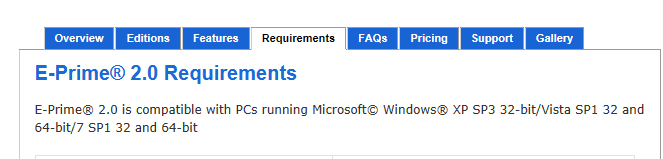
The software I need to run under XP is Eprime (Psychology Software Tools: Stimulus Presentation Software and Hardware for Research, Assessment, and Education). It interacts with low level hardware. The company will not support it run in a virtual OS, assuming it would even work. I need to run it under XP. I have done this with my laptop using this site, and it works fine. I will try going forward without streaming in the drivers and hope it works.

Your second suggestion, wiping the drive and installing XP, sounds like it would not get me a dual boot win7 + XP machine. I use win7 64 to run matlab under 16 gigs of ram. Just need to program in Eprime sometimes.

Will let you know what happened (or didn't).

Jim
 
Last edited by a moderator:

My Computer My Computer

At a glance

Microsoft Windows 7 Professional 64-bit 7601 ...Intel(R) Core(TM)2 Duo CPU E8400 @ 3.00GHz16.00 GBATI Radeon HD 5450
Computer type
PC/Desktop
Computer Manufacturer/Model Number
Dell Optiplex 780
OS
Microsoft Windows 7 Professional 64-bit 7601 Multiprocessor Free Service Pack 1
CPU
Intel(R) Core(TM)2 Duo CPU E8400 @ 3.00GHz
Motherboard
Dell Inc. 0C27VV
Memory
16.00 GB
Graphics Card(s)
ATI Radeon HD 5450
Sound Card
(1) AMD High Definition Audio Device (2) High Definition A
Screen Resolution
1920 x 1200 x 32 bits (4294967296 colors) @ 60 Hz
Hard Drives
(1) ST2000DM001-1CH164 (2) ST31000528AS (3) WD My Book 1130 USB Device
what happened

I got the blue screen of death when XP tried to boot off the install CD. I am guessing this means that either the install version of XP can't see the CD/DVD drive, or it can't see the hard drive. I thought XP boots from the CD or DVD drive. This would mean I need an XP driver for the CD/DVD drive? Or does this mean that as you said I need the SATA driver for XP for my machine?

Thanks...this is the error I got....quoted from a web site:

The most popular Blue Screen of Death error in Windows is the STOP 0x0000007B error, sometimes called the 0x7b error or the "INACCESSIBLE BOOT DEVICE" BSOD.

This BSOD (which is actually the common name for a STOP Error) could mean that there's a serious hardware problem with a hard drive controller, a driver issue, or even a boot sector virus.
 

My Computer My Computer

At a glance

Microsoft Windows 7 Professional 64-bit 7601 ...Intel(R) Core(TM)2 Duo CPU E8400 @ 3.00GHz16.00 GBATI Radeon HD 5450
Computer type
PC/Desktop
Computer Manufacturer/Model Number
Dell Optiplex 780
OS
Microsoft Windows 7 Professional 64-bit 7601 Multiprocessor Free Service Pack 1
CPU
Intel(R) Core(TM)2 Duo CPU E8400 @ 3.00GHz
Motherboard
Dell Inc. 0C27VV
Memory
16.00 GB
Graphics Card(s)
ATI Radeon HD 5450
Sound Card
(1) AMD High Definition Audio Device (2) High Definition A
Screen Resolution
1920 x 1200 x 32 bits (4294967296 colors) @ 60 Hz
Hard Drives
(1) ST2000DM001-1CH164 (2) ST31000528AS (3) WD My Book 1130 USB Device
Why are you reinstalling XP - this was not at all suggested? This will again steal the boot from Win7 requiring you to start it up again to add XP using EasyBCD.

To do this mark Win7 Active and run up to 3 separate Startup Repairs.

It was really very confusing, so its better to start fresh, from scratch. One more thing, this Bios have automatic option for AHCI, which i belive cause all the problems. So i will put on manual and AHCI enabled and start fresh.
 

My Computer My Computer

At a glance

Windows 7 Home Premium 64bit
OS
Windows 7 Home Premium 64bit
Yes that did the trick, thank you gregrocker for you're help. So for everybody , check you're bios settings before you start dual boot installation, it will save you couple of hours of you're life and a lot less greys on you're head :) .
 
Last edited:

My Computer My Computer

At a glance

Windows 7 Home Premium 64bit
OS
Windows 7 Home Premium 64bit
This is a work machine, so would prefer not trying to get the OS from anywhere except the official CD my IT people require I use.

Your second suggestion, wiping the drive and installing XP, sounds like it would not get me a dual boot Windows 7 + XP machine.

Is this the Dell PC you are talking about?


Dell OptiPlex 780 Specs (Core 2 Duo E8400 3 GHz) - Desktops - CNET Reviews


Operating System / Software


OS Provided: Microsoft Windows 7 Professional / XP Professional downgrade


If Yes,


2) Reformat the HD Drive & Install XP Pro with the Dell XP Professional downgrade rights DVD. No drivers needed.

Than install Windows 7 as in Option One.


I use Windows 7 64 to run matlab under 16 gigs of ram. Just need to program in Eprime sometimes.

The most popular Blue Screen of Death error in Windows is the STOP 0x0000007B error, sometimes called the 0x7b error or the "INACCESSIBLE BOOT DEVICE" BSOD.

This BSOD (which is actually the common name for a STOP Error) could mean that there's a serious hardware problem with a hard drive controller, a driver issue, or even a boot sector virus.

This is a work machine, so would prefer not trying to get the OS from anywhere except the official CD my IT people require I use.

Problem One: No Sata controller drivers in your XP CD.
Install drivers with a Floppy Disk.
http://www.sevenforums.com/tutorials/66010-sata-drivers-load-windows-xp-setup-dual-boot.html

Problem Two: 16 gigs of ram.
Trying installing XP with 2 gigs of ram

The software I need to run under XP is Eprime (Psychology Software Tools: Stimulus Presentation Software and Hardware for Research, Assessment, and Education). It interacts with low level hardware. The company will not support it run in a virtual OS, assuming it would even work. I need to run it under XP. I have done this with my laptop using this site, and it works fine.


I can not help with the your software.
Psychology Software Tools: Stimulus Presentation Software and Hardware for Research, Assessment, and Education
Screenshot from your link.

Capture0001.PNG

I would have a word with there Support team.
or you can open a thread in
Software - Windows 7 Forums
 

My Computer My Computer

At a glance

ME/XP/Vista/Win7
OS
ME/XP/Vista/Win7
Please Help!

Hello Everyone!

I just purchased a new HDD, and loaded windows 7 on it. I already have my main HDD with windows xp on it.

I followed the instructions here as to how to load windows 7 on #2 HDD, while having windows xp on the other.

I installed windows 7 on the new HDD, and everything went good, up until I logged off after the install was complete.

Now it won't show the new drive in the boot menu in bios. :mad:

I downloaded the EASYBCD and it gave me an error. Maybe it is outdated or something. Or maybe it won't work with windows xp.!?

Any help to correcting my issue would be greatly appreciated! :D

Thanks in advanced!

John G.
 

My Computer My Computer

At a glance

Windows XP Pro
OS
Windows XP Pro
Hello Everyone!

I just purchased a new HDD, and loaded windows 7 on it. I already have my main HDD with windows xp on it.

I followed the instructions here as to how to load windows 7 on #2 HDD, while having windows xp on the other.

I installed windows 7 on the new HDD, and everything went good, up until I logged off after the install was complete.

Now it won't show the new drive in the boot menu in bios. :mad:

I downloaded the EASYBCD and it gave me an error. Maybe it is outdated or something. Or maybe it won't work with windows xp.!?

Any help to correcting my issue would be greatly appreciated! :D

Thanks in advanced!

John G.

EASYBCD wont work without Framework 2.0
 

My Computer My Computer

At a glance

Windows 7 Home Premium 64bit
OS
Windows 7 Home Premium 64bit
Which OS is booting now because it's HD is set first to boot in BIOS boot order?

Try to reboot and trigger the other HD by tapping the one-time BIOS Boot Menu key given on first screen. You may need to click on HD to expand choices. But some mobos don't give a choice.

In this case set Win7 HD first to boot, boot into WIn7 to install EasyBCD, add XP on Add OS Entry menu, accept offered boot files, Save, reboot.
 
[/QUOTE]EASYBCD wont work without Framework 2.0[/QUOTE]

Hello kimicg,

I tried to install the .net framework 2.0, but it would not let me. It said to remove any other .net 2.0 stuff in add/remove programs. I tried uninstalling them, but windows xp said that I could not uninstall them. I guess I will have to try some other approach.

Thanks for wanting to help!

John G.
 

My Computer My Computer

At a glance

Windows XP Pro
OS
Windows XP Pro
EASYBCD wont work without Framework 2.0[/QUOTE]

Hello kimicg,

I tried to install the .net framework 2.0, but it would not let me. It said to remove any other .net 2.0 stuff in add/remove programs. I tried uninstalling them, but windows xp said that I could not uninstall them. I guess I will have to try some other approach.

Thanks for wanting to help!

John G.[/QUOTE]

Strange problem you got there with EASYBCD, write exact error. I suppose new HDD is Sata, what about old drive with XP?

Of course i want to help, i was here couple days ago also with the problem, i know how frustrating can be :)
 

My Computer My Computer

At a glance

Windows 7 Home Premium 64bit
OS
Windows 7 Home Premium 64bit
Which OS is booting now because it's HD is set first to boot in BIOS boot order?

Try to reboot and trigger the other HD by tapping the one-time BIOS Boot Menu key given on first screen. You may need to click on HD to expand choices. But some mobos don't give a choice.

In this case set Win7 HD first to boot, boot into WIn7 to install EasyBCD, add XP on Add OS Entry menu, accept offered boot files, Save, reboot.

Hello gregrocker,

I appreciate you trying to help me! Please excuse my lack of knowledge about computers, as I am fairly new with loading another HDD and using windows 7. I have basic knowledge about this, but would like to learn more.

I will try and follow your suggestion here and let you know what happens. I am not sure if this will tell you anything, but when I open up my computer, it shows the following folders under Hard Disk Drives: Local Disk-(C) Local Disk-(E) System Reserved-(F) Local Disk-(G)

Here is my system information: My mo-bo is a Gigabyte GA-MA770-UD3

Thanks again for your info and help!

John G.
 

My Computer My Computer

At a glance

Windows XP Pro
OS
Windows XP Pro
Hi John - Are you booted into Windows 7 or XP? What happens when you try to boot into the other OS by setting it's HD first to boot in BIOS setup?

Type Disk Management in Start Search Box. Use the Snipping tool in Start menu to capture a snip of the maximized window including listing and drive map: Screen Shots
 
EASYBCD wont work without Framework 2.0

Hello kimicg,

I tried to install the .net framework 2.0, but it would not let me. It said to remove any other .net 2.0 stuff in add/remove programs. I tried uninstalling them, but windows xp said that I could not uninstall them. I guess I will have to try some other approach.

Thanks for wanting to help!

John G.[/QUOTE]

Strange problem you got there with EASYBCD, write exact error. I suppose new HDD is Sata, what about old drive with XP?

Of course i want to help, i was here couple days ago also with the problem, i know how frustrating can be :)[/QUOTE]

I'm not sure what happened when trying to install the EASYBCD. Yes, it is very frustrating when things don't go as planned. Both HDD's are SATA connected.

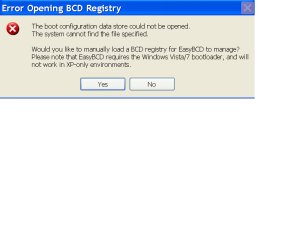
Here is the error message I get from EASYBCD:
BCD.PNG

Thanks again!
 

My Computer My Computer

At a glance

Windows XP Pro
OS
Windows XP Pro
Hi John - Are you booted into Windows 7 or XP? What happens when you try to boot into the other OS by setting it's HD first to boot in BIOS setup?

Type Disk Management in Start Search Box. Use the Snipping tool in Start menu to capture a snip of the maximized window including listing and drive map: Screen Shots

Hello gregrocker!

I am booted in Windows XP. I am still going to try to see if my mo-bo will let me boot up with Windows 7, as you had suggested to do in your earlier post. I have had some things to do with xp, but will try it in just a little while. Thanks again for your help!

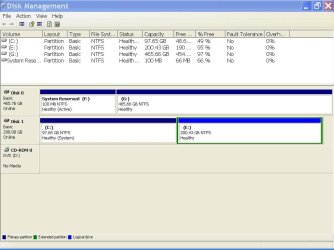
Here is the screen shot of the disk management:

Disk Management.JPG
 

My Computer My Computer

At a glance

Windows XP Pro
OS
Windows XP Pro
Hi John - Are you booted into Windows 7 or XP? What happens when you try to boot into the other OS by setting it's HD first to boot in BIOS setup?

Type Disk Management in Start Search Box. Use the Snipping tool in Start menu to capture a snip of the maximized window including listing and drive map: Screen Shots


I was able to go into the boot first option by pressing the F12 key. I selected the boot from hard drive, and was able to get into Windows 7. I loaded the EASYBCD program from windows xp to a usb flash drive, and was able to install it onto Windows 7. I ran the program, but am unsure as to what to do with it. I don't want to mess uo anything. Can you let me know what I should do at this point?

Thanks again! :D

John G.
 

My Computer My Computer

At a glance

Windows XP Pro
OS
Windows XP Pro
Hi John -

I'd like to see a screenshot from Win7 Disk Mgmt as well. It looks like you can boot into either XP or Win7 via the BIOS which is the cleanest method to Dual Boot.

However only the XP HD is marked System which means that Win7 is booting off of the XP partition and likely cannot boot on its own without XP plugged in. So we need to double-check that Win7 doesn't have its own boot files by seeing it's Disk Mgmt picture.

If not we can help you recover Win7's boot files into its partition so that it can boot independently, then you can continue booting via the BIOS or install EasyBCD to Win7 to add XP to a Windows Dual Boot menu - your choice.
 
Hi John -

I'd like to see a screenshot from Win7 Disk Mgmt as well. It looks like you can boot into either XP or Win7 via the BIOS which is the cleanest method to Dual Boot.

However only the XP HD is marked System which means that Win7 is booting off of the XP partition and likely cannot boot on its own without XP plugged in. So we need to double-check that Win7 doesn't have its own boot files by seeing it's Disk Mgmt picture.

If not we can help you recover Win7's boot files into its partition so that it can boot independently, then you can continue booting via the BIOS or install EasyBCD to Win7 to add XP to a Windows Dual Boot menu - your choice.

Hi Greg!

Sorry for the delay!

Here is the screenshot of Windows 7 Disk Management:

Windows 7 Disk Management.png

Should I try and run the EASYCBD yet, or maybe I will just wait for your reply.

Thanks again for your help!:party:

John G.
 

My Computer My Computer

At a glance

Windows XP Pro
OS
Windows XP Pro
I'd set Win7 first HD to boot in BIOS setup, then if you need to boot XP use the F12 key at boot. This keeps the HD's independent to come and go as you please.

If this isn't to your liking after trying it for awhile, install EasyBCD to Win7, on Add OS Entry tab add XP by type, name and let it autocomplete. If it offers to install Boot files to Win7 SysReserved partition accept and Save, then reboot to Dual Boot menu.
 
I'd set Win7 first HD to boot in BIOS setup, then if you need to boot XP use the F12 key at boot. This keeps the HD's independent to come and go as you please.

If this isn't to your liking after trying it for awhile, install EasyBCD to Win7, on Add OS Entry tab add XP by type, name and let it autocomplete. If it offers to install Boot files to Win7 SysReserved partition accept and Save, then reboot to Dual Boot menu.

It appears that the bios wants to start windows xp. The only way that I can get into windows 7 is by pressing the F12 key and choosing the Hard Drive option to get into the next window to select the appropiate drive. The drives that are listed are the HDD-Windows xp-320GB and the other is the new HDD-Windows 7-500GB. It does not list the windows operating systems, just the HDD and size of the drive.

When pressing the F12 key in the beginning, it takes me to a window that has around 8 choices. It always has Floppy checked as the main one on the top of the list. I have to go down to hard drive and select that option to bring me to the window that allows me to choose what drive to boot from. I guess in a way it is like getting the choice of which OS to boot from in the windows boot choice screen, only takes more time. No big deal.

Do you think that using the F12 key is the better way to go when choosing which OS to boot from?

If I decide to use the EASYCBD for dual boot screen, can this be reversed if I want to go back to the F12 key booting?

Thanks again! You have been very helpful!!! :thumbsup:

John G.
 

My Computer My Computer

At a glance

Windows XP Pro
OS
Windows XP Pro
Yes you can always remove the other OS entry from the Dual Boot menu in EasyBCD Edit Boot Menu tab.

You should also be able to change the default HD set first to boot in BIOS setup. Look for the key to tap on the first boot screen to Enter BIOS Setup, then look through the menus for Boot Order, navigate using the keys shown to change the order so Win7 HD is set first, XP HD second. I would also try to find a listing to remove the floppy drive entirely, or physically uninstall it so it can't later interfere.

Then if you need the other HD, CD/DVD drive, or USB flash stick to boot choose it using F12.
 
Back
Top