Dual Boot Installation with Windows 7 and XP

How to Setup a Dual Boot Installation with Windows 7 and XP


   Information
This will show you how to install Windows 7 and XP to dual boot with when you already have either Windows 7 or XP installed first.
   Note
With a dual boot installaton, you will have two operating systems (OS) installed. When you start the computer, you will have the choice to choose which OS you would like to start up to. This method is the easiest way of doing a dual boot with these two operating systems.
   Tip
When dual booting with another OS (ex: Vista or XP), you may not always have that OS partition show up in Computer with a driver letter in Windows 7. If this happens, then you will just need to add a drive letter to the OS (ex: Vista or XP) partition in Windows 7 Disk Management for it to show up in Computer with a driver letter.
   Warning
To stop XP from deleting your Windows 7 System Restore Points everytime XP is started, then see System Restore Points - Stop XP Dual Boot Delete to hide Windows 7 from XP.

Windows 7 Minimum Hardware Requirements


NOTE: For more information on this, see: Windows 7 system requirements
  • 1 GHz 32-bit or 64-bit processor
  • 1 GB RAM for 32-bit Windows 7 OR 2 GB RAM for 64-bit Windows 7
  • 16 GB available disk space 32-bit Windows 7 OR 20 GB for 64-bit Windows 7
  • Support for DirectX 9 graphics with 128 MB memory (in order to enable Aero theme)
  • DVD-R/W Drive
  • Internet or phone access to activate Windows 7.
Windows XP Minimum Hardware Requirements

NOTE: For more information on this, see: System requirements for Windows XP operating systems
  • PC with 300 megahertz (MHz) or higher processor clock speed recommended; 233-MHz minimum required;* Intel Pentium/Celeron family, AMD K6/Athlon/Duron family, or compatible processor recommended
  • 128 megabytes (MB) of RAM or higher recommended (64 MB minimum supported; may limit performance and some features)
  • 1.5 gigabyte (GB) of available hard disk space.*
  • Super VGA (800 × 600) or higher resolution video adapter and monitor
  • CD-ROM or DVD drive
  • Keyboard and Microsoft Mouse or compatible pointing device
EXAMPLE: Windows Boot Manager
NOTE: This is the boot screen where you select what operating system that you would like to start. By default, you have 30 seconds to choose another operating system before the default operating system will start automatically.
Example.jpg


OPTION ONE

When XP is Installed First


NOTE: If you have a RAID setup, you will need to have the Windows 7 RAID drivers on a USB flash drive available to select and load while installing Windows 7.
1. Do step 2 or 3 below for where you wanted to install Windows 7 at.

2. To Create a New Partition from the XP Hard Disk Drive
A) With your Windows 7 installation disc boot into the Command Prompt from the System Recovery Options screen.
NOTE: Make sure that the CD/DVD drive is selected first in the boot order in the BIOS.

B) In the command prompt, select and shrink the XP volume by how many MB (1024 MB = 1 GB) you want to have for this Windows 7 partition. (See screenshot below)
NOTE: You would do steps 2 to 9 in METHOD TWO at that link. Windows 7 will need a minimum of 16 GB (16384 MB).

XP-W7_1.jpg
C) Click on the X at the top right corner to close the command prompt. (See screenshot above)

D) Click on the X at the top right corner to close System Recovery Options. (See screenshot below)
XP-W7_2.jpg
E) Go to step 4.
3. To Use a Separate Hard Disk Drive than the XP Drive
A) Boot from your Windows 7 installation disc.
NOTE: Make sure that the CD/DVD drive is selected first in the boot order in the BIOS.
4. Click on the Install now button. (See screenshot below)

XP-W7_3.jpg
5. When you get to this point, select the partition (step 2) or hard drive to install Windows 7 on. (See screenshot below)

XP-W7_4.jpg
6. Finish installing Windows 7.
NOTE: You would start at step 9 in that link to finish installing Windows 7.

7. When finished, restart the computer to have the option to boot from XP (Earlier Verision of Windows) or Windows 7. (See screenshot below)

   Note
If you are only booting into Windows 7 and do not have XP listed in the Windows Boot Manager, then you can install only EasyBCD (step 8 Option Two below) to add XP (or Windows 7) while started in Windows 7 the same way to the boot list.

Example.jpg


OPTION TWO

When Windows 7 is Installed First


   Warning

1. To Create a New Partition from the Windows 7 Hard Disk Drive
NOTE: If you want to install XP on a separate internal hard drive instead, then skip this step and go to step 2.
A) In Windows 7, select and shrink the Windows 7 volume in Disk Management by how many MB (1024 MB = 1 GB) you want to have for this XP partition. (See screenshots below)
NOTE: You would do all of Method One at that link.

W7-XP-1.jpg

W7-XP-2.jpg

W7-XP-3.jpg
2. Insert your XP installation disc, then restart the computer and press any key to boot from it when prompted. (See screenshot below)
NOTE: Make sure that the CD/DVD drive is selected first in the boot order in the BIOS.

Step1.jpg
3. From XP Setup, Press Enter. (See screenshot below)


   Warning

W7-XP-4.jpg
4. Press F8. (See screenshot below)
NOTE: On some multimedia keyboards, you may need to press the F-Lock or Function key before pressing F8.
W7-XP-5.jpg
5. Select the partition (step 1) or hard drive that you want to install XP on using the arrow keys and press Enter.

W7-XP-6.jpg
6. Finish installing XP.


   Tip
If you get Error loading Operating System after XP restarts:
  • Using your Windows 7 installation disc, boot to the command prompt at startup.
  • Type in these comands below, and press enter after each one.
    • bootrec /FixMbr
    • bootrec /FixBoot
    • bootrec /RebuildBcd
  • Exit the command prompt and restart the computer.
  • At this point, Windows 7 should boot up the same way before trying to install XP.
  • Continue to step 8 below and run EasyBCD from Windows 7 instead.

7. In XP, download and install .Net Framework 2.0 (32-bit) version or .Net Framework 2.0 (64-bit) version first, and EasyBCD (free version) for your 32-bit (x86) or 64-bit (x86) XP.
NOTE: In XP, Net Framework is required to be installed to run EasyBCD. After you click on Register (at bottom of link) for the free EasyBCD, registration is not required to download it.

8. Run EasyBCD (free version).
NOTE: This is required to repair the Windows 7 boot file and add XP to the Windows Boot Manager list.

9. On the left side of EasyBCD, click on the Add New Entry button. (See screenshot below)
A) In the top section under Operating Systems, click on the Windows tab. (See screenshot below)
B) To the right of Type, select Windows NT/2k/XP/2k3 from the drop down menu. (See screenshot below)
:warn:WARNING: Be sure to leave the Automatically detect correct drive box checked.

C) To the right of Name, you can leave the default Microsoft Windows XP as the name to be displayed in the Windows Boot Manager, or you can type whatever name you would like to have instead. (See screenshot below)
D) Click on the Add Entry button. (See screenshot below)
W7-XP-7.jpg
10. On the left side of EasyBCD, click on the BCD Deployment button, select (dot) the Install the Windows Vista/7 bootloader to the MBR option, and click on the Write MBR button. (See screenshot below)

W7-XP-9.jpg
11. Close EasyBCD.

12. Restart the computer to have the option to boot from Microsoft Windows XP or Windows 7. (See screenshot below)

Example2.jpg
   Tip
If Windows 7 will not start up when selected, then use your Windows 7 installation DVD to do a Startup Repair.

That's it,
Shawn


Last edited:
What do I do if I have Windows 7 installed first, a SATA drive, and no floppy disk drive?

If when you boot the XP CD it fails to see the HD at drive selection screen, then you'll have to slipstream the SATA driver into the CD ISO: SATA Drivers - Slipstream into Windows XP CD

A much better choice at this late date, however, is to use virtualization freeware like Virtual Box, VMWare, Virtual Player or XP Mode in Ultimate/Pro.
 
Last edited by a moderator:
"A much better choice at this late date, however, is to use virtualization freeware like Virtual Box, VMWare, Virtual Player or XP Mode in Ultimate/Pro. "

Thanks Gregrocker. For the virtualization freeware, do you need a bootable version of XP?
 

My Computer My Computer

At a glance

Windows 7
OS
Windows 7
Hello Clarkerots, and welcome to Seven Forums.

I find having a bootable ISO of the OS works best to install it on a virtual machine.

What edition of Windows 7 do you have? If you have Windows 7 Professional, Ultimate, or Enterprise, then you could use XP Mode to have XP already setup and installed in a virtual machine with Windows Virtual PC.

http://www.sevenforums.com/tutorials/8247-windows-xp-mode-install-setup.html

Hope this helps,
Shawn
 

My Computer My Computer

At a glance

64-bit Windows 11 Pro for WorkstationsIntel i7-8700K OC'd to 5 GHz64 GB (4x16GB) G.SKILL TridentZ RGB DDR4 3600...ASUS ROG-STRIX-GTX1080TI-O11G-GAMING
Computer type
PC/Desktop
Computer Manufacturer/Model Number
Self built custom
OS
64-bit Windows 11 Pro for Workstations
CPU
Intel i7-8700K OC'd to 5 GHz
Motherboard
ASUS ROG Maximus XI Formula Z390
Memory
64 GB (4x16GB) G.SKILL TridentZ RGB DDR4 3600 MHz
Graphics Card(s)
ASUS ROG-STRIX-GTX1080TI-O11G-GAMING
Sound Card
Integrated
Monitor(s) Displays
2 x Samsung Odyssey G7 27"
Screen Resolution
2560x1440
Hard Drives
1TB Samsung 990 PRO M.2,
4TB Samsung 990 PRO PRO M.2,
TerraMaster F8 SSD Plus NAS
PSU
Seasonic Prime Titanium 850W
Case
Thermaltake Core P3
Cooling
Corsair Hydro H115i
Keyboard
Logitech wireless K800
Mouse
Logitech MX Master 4
Internet Speed
2 Gb/s Download and 100 Mb/s Upload
Antivirus
Malwarebyte Anti-Malware Premium
Browser
Google Chrome
Other Info
Logitech Z625 speaker system,
Logitech BRIO 4K Pro webcam,
HP Color LaserJet Pro MFP M477fdn,
APC SMART-UPS RT 1000 XL - SURT1000XLI,
Galaxy S23 Plus phone
Hello Clarkerots, and welcome to Seven Forums.

I find having a bootable ISO of the OS works best to install it on a virtual machine.

What edition of Windows 7 do you have? If you have Windows 7 Professional, Ultimate, or Enterprise, then you could use XP Mode to have XP already setup and installed in a virtual machine with Windows Virtual PC.

http://www.sevenforums.com/tutorials/8247-windows-xp-mode-install-setup.html

Hope this helps,
Shawn

Hello Shawn,

Unfortunately I have the Premium version. If I would've known that basically all of my old software would become useless with Windows 7 I never would've gotten the upgrade. :)
 

My Computer My Computer

At a glance

Windows 7
OS
Windows 7
You can try installing the software in Compatibility Mode which tricks the program into thinking its being installed to XP.

Next you can try one of the virtualization freewares I mentioned which will install to Win7, to see if they render your XP programs satisfactorily.

If not and the XP CD will not boot and see the HD to install, we can help you find the SATA driver to slipstream into the disk if you'll post back the computer or mobo make/model to check the manufacturer's Support Downloads webpage for XP SATA controller drivers - or google if they are elusive.
 
Hi I've followed all the steps you advise but I'm having trouble with the install itself. I have Win 7 64 bit Home Premium installed first and when entering the XP install stage (drives are all visible with no need to slipstream SATA etc) the install gets to the first restart portion but doesn't boot to the set up phase of the install. When the computer reboots after the first stage of the install it reads "boot from CD" and doesn't proceed to do anything else. So after this I get out my Win 7 DVD and repair the boot up.

I can't get past this stage, is there anything I can do, or is it simply that I can't install XP on my computer?

Many thanks

-Beta
 

My Computer My Computer

At a glance

Windows 7 64 bit
OS
Windows 7 64 bit
Try deleting, recreating and full formatting the XP partition from the booted XP CD.

Is this an XP SP3 CD which is clean and unscratched? When was it last used to install successfully?
 
Try deleting, recreating and full formatting the XP partition from the booted XP CD.

Is this an XP SP3 CD which is clean and unscratched? When was it last used to install successfully?
The CD is the XP Home Edition with service pack 1a, brand new and sealed so it hasn't been used until today. I've tried installing it four times so far with no luck.
 

My Computer My Computer

At a glance

Windows 7 64 bit
OS
Windows 7 64 bit
Sorry, what is Service Pack 1a? I'd find XP with SP3 as anything less is unlikely to work as well at this late date.
 
Help needed with dual booting and easy bcd

Hi All,
I bought an Acer Aspire One D270. It came with Win 7 Starter already installed (hence no disk, but I did save a restore point to external HD). I needed to install Win XP, since a program I am using is only XP Compatible (Pro Tools 7.4).
I updated and setup Win7 to my specs (thought WiFi +modem were working, I didn't get internet connection. Was going to fix this after completing dual boot), then made a partition on the only internal HD. I rebooted and installed XP on that partition. I installed SP2, 2.0 Framework + another component (can't remember right now, was doing this at 2am, but it's right) needed to run Easy BCD I installed Easy BCD, then installed SP3.
I updated the XP and then ran Easy BCD. This is the sequence I followed:

1. To the right of Type, select Windows NT/2k/XP/2k3 from the drop down menu.
2. To the right of Name, you can leave the default Microsoft Windows XP as the name to be displayed in the Windows Boot Manager, or you can type whatever name you would like to have instead.
3. Click on the Add Entry button.
4. On the left side of EasyBCD, click on the BCD Deployment button, select (dot) the Install the Windows Vista/7 bootloader to the MBR option, and click on the Write MBR button.
5. Close EasyBCD
6. Restart the computer to have the option to boot from Microsoft Windows XP or Windows 7.

Point 6 is where the problem happens. After the reboot, the Acer logo appears with F2 for Bios and F12 for boot selection. I let the boot continue, and it starts loading Win 7 (without any propting from me). After about 6 or 7 passes of the scrolling loading bar, a blue screen flashes, then it reboots.
The reboot starts, F2 and F12 then Windows error recovery screen, with "Windows failed to start. A recent hardware or software change might be the cause."
I tried Launch startup repair (with external HD + restore point, and USB LiteOn (Original Win XP CD) plugged in. It launches Startup repair, loops for a while, then says it's unable to repair automatically.
"Send information to Microsoft" is useless since WiFi isn't running.
Does anyone know how I can get XP and 7 running on this laptop. I need to use this on Tue for mobile recording, and am stressing, since this should have been a simple procedure.
I would appreciate any help sincerely.
Thank you in advance.
 

My Computer My Computer

At a glance

win 7 starter + win xp
Computer Manufacturer/Model Number
acer aspire one d270
OS
win 7 starter + win xp
Mark Win7 partition Active before running Startup Repair - Run 3 Separate Times until Win7 starts and holds the System Active flags.

Then install EasyBCD to Win7 to add XP, accept offered boot files, autocompletes, Save, reboot to Menu.

Download your wireless driver from the Acer Support Downloads webpage for your model to CD/flash stick, unzip and install it to get online to update Win7 including the latest drivers in optional Windows Updates. Absent XP drivers you may to search to find an XP driver for the wireless device if the oldest one on Acer webpage doesn't work in XP, even installed in Compatibility Mode
 
Sorry, what is Service Pack 1a? I'd find XP with SP3 as anything less is unlikely to work as well at this late date.

Hey just thought I'd report back on this, I bought XP pro with SP3 just tried to install it today and it's a no go. When it first restarts it doesn't go to the config screen it idles in the boot screen (press any key to boot from CD screen).

Looks like it won't install for me at all.

Edit: Wiped my computer and installed XP first then Win 7. Issues with BCD though, the duel boot screen doesn't show up, in fact the boot manager doesn't even work at all so I've had to run a repair from disc for win 7 meaning I can't access the XP partition at all now.
 
Last edited:

My Computer My Computer

At a glance

Windows 7 64 bit
OS
Windows 7 64 bit
So others know: You didn't need to buy XP SP3 if you already own the OS, only find the CD with SP3 for your version available on the web.

Install EasyBCD to Win7 to add XP on the Add OS Entry tab: Accept offered boot files, let it autocomplete, Save, reboot. EasyBCD (free Download at bottom of page - no name or email required)

Let us know if this works. If not post back a screenshot of your maximized Win7 Drive map with listings, using Snipping Tool in Start Menu.
 
Help needed with dual Windows boot instilation

I am having a problem getting a dual boot instillation working. I have read all the tutorials and serched for a solution with no success.

Briefly, I have a computer (self assembled) with Windows XP that I use for image processing and want to upgrage to a 64 bit system. I bought Windows 7 pro and installed it without difficulty on a new 1 TB drive; nothing else is on that drive. Windows XP resides on its own drive. I can access either operating system with no difficulty by going through the BIOS and changing the boot order of the HD.
I installed Easy BCD on the drive with Windows 7 as suggested by many and get both Windows 7 and Windows XP as choices when I start the computer and the drive with Windows 7 is first in the BIOS boot order.
Selecting Windows 7 will start Windows 7 . Selecting Windows XP gives the error message:

Invalid Boot.inf file
Booting from C:\windows
NTDETECT failed

I have replaced NTDETECT with no effect. I realize this is some sort of boot configuration problem but have been unable to fix it or find a solution after several weeks .

Any help would be greatly appreciated

John
 

My Computer My Computer

At a glance

Windows 7 64 bit pro2.6 gighz AMD Athlon 64 FX 2.64 MBNVIDA GeForce FX 5200, NVIDA GeForce 9500 GT
Computer Manufacturer/Model Number
self assembled
OS
Windows 7 64 bit pro
CPU
2.6 gighz AMD Athlon 64 FX 2.6
Motherboard
Asus A8N SLI Delux
Memory
4 MB
Graphics Card(s)
NVIDA GeForce FX 5200, NVIDA GeForce 9500 GT
Sound Card
none
Monitor(s) Displays
Dell U2410, ViewSVG730monic
Hard Drives
Maxtor 6B300S0 (two)
WD Caviar Black 1TB
Case
Chenbro
Did you have the problem before adding XP with EasyBCD? If not, try removing it using Edit OS Menu tab, then after rebooting add it again.

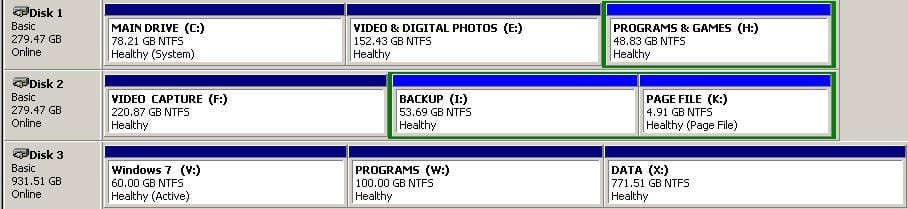
Please post back a screenshot of the maximized Win7 Disk Mgmt drive map and listings.

If XP HD still retains the System Active flags in Disk Mgmt, can you unplug the Win7 HD, enter BIOS setup to set XP HD first HD to boot, then get the XP HD to boot?

If so I would leave it that way, plug back in the Win7 HD to boot via BIOS Boot Menu key. You can remove the XP entry in EasyBCD.

If not then with Win7 HD unplugged try this:
  1. Boot the Windows XP CD
  2. F6 if RAID drivers are required and install when prompted
  3. Repair Windows
  4. Logon to the Recovery Console
  5. fixmbr \Device\HardDisk0 [Enter]
  6. fixboot c: [Enter]
  7. Exit [Enter]
  8. Restart into the OS.
You may finally need an XP Repair Install.
 
I followed all steps bt the "boot menu" never appears.
 

My Computer My Computer

At a glance

Windows 7 Enterprise x64Core i7 950 3.06GhzPatriot Viper II Sector 7 DDR3 24GB (6x4) 160...2 x Sapphire Radeon HD5450
OS
Windows 7 Enterprise x64
CPU
Core i7 950 3.06Ghz
Motherboard
Asus P6X58D Premium
Memory
Patriot Viper II Sector 7 DDR3 24GB (6x4) 1600Mhz
Graphics Card(s)
2 x Sapphire Radeon HD5450
Sound Card
Inclided in the moterboard
Monitor(s) Displays
2 x ViewSonic VX1940W
Screen Resolution
1650x1050
Hard Drives
Internal:
======
1 x SSD OCZ Agility 2 Series 120G SATA II
1 x Seagate 1.5TB SATA II
2 x WD Green Caviar 2TB (RAID 1) SATA II

External:
======
Mediasonic ProRAID HFR2-SU3S2
with 4 x WD 2TB SATA II (RAID 5) through USB 3.0
Case
CoolerMaster Cosmos 1000 / CoolerMaster Silent Pro Gold 800W
Cooling
Included FANs (Case and CPU)
Keyboard
Logitech Wave Corded
Internet Speed
2 Mbps
Thanks for reply. I have tried installing Windows 7 with the Windows XP disconnected and than replacing the XP drive and adding Easy BCD-no difference.
I had no problems with XP b4 adding Easy BCD. As mentioned I can selectively boot either one by changing the boot order of the HD in the BIOS. I have not been able to do selective booting with Easy BCD.

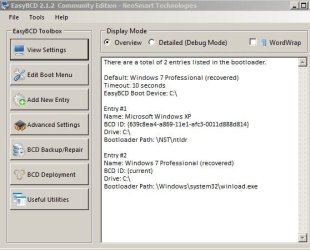
Attached are screen shots of the disc management drive map as well as that of Easy BCD

John
 

Attachments

  • Capture-Easy BCD.JPG
    Capture-Easy BCD.JPG
    43.2 KB · Views: 175
  • disc managment screen shot.jpg
    disc managment screen shot.jpg
    33.9 KB · Views: 123

My Computer My Computer

At a glance

Windows 7 64 bit pro2.6 gighz AMD Athlon 64 FX 2.64 MBNVIDA GeForce FX 5200, NVIDA GeForce 9500 GT
Computer Manufacturer/Model Number
self assembled
OS
Windows 7 64 bit pro
CPU
2.6 gighz AMD Athlon 64 FX 2.6
Motherboard
Asus A8N SLI Delux
Memory
4 MB
Graphics Card(s)
NVIDA GeForce FX 5200, NVIDA GeForce 9500 GT
Sound Card
none
Monitor(s) Displays
Dell U2410, ViewSVG730monic
Hard Drives
Maxtor 6B300S0 (two)
WD Caviar Black 1TB
Case
Chenbro
I gave you a series of steps to try and instead you tried something altogether different. If you were going to reinstall Win7 you should have left XP plugged in since Win7 installer will configure a Dual Boot menu when it's installed last.

Your first post also said XP wasn't booting but now you post back a screenshot of XP DIsk Mgmt and what appears to be EasyBCD output from XP.

After reinstalling Win7 did you install EasyBCD to try to add XP, accept offered boot files, let it autocomplete and then reboot? Make sure the drive letter for each OS shown are correct, or Edit the entry to delete and then Add it again.

If that fails then I would boot the choice of OS's via the BIOS boot order and Asus F8 boot menu keys, removing any faulty entries using EasyBCD Edit OS menu.
 
Last edited:
My EasyBcd show exactly the same data as in your screenshot, but the "boot menu" simply never appears.
 

My Computer My Computer

At a glance

Windows 7 Enterprise x64Core i7 950 3.06GhzPatriot Viper II Sector 7 DDR3 24GB (6x4) 160...2 x Sapphire Radeon HD5450
OS
Windows 7 Enterprise x64
CPU
Core i7 950 3.06Ghz
Motherboard
Asus P6X58D Premium
Memory
Patriot Viper II Sector 7 DDR3 24GB (6x4) 1600Mhz
Graphics Card(s)
2 x Sapphire Radeon HD5450
Sound Card
Inclided in the moterboard
Monitor(s) Displays
2 x ViewSonic VX1940W
Screen Resolution
1650x1050
Hard Drives
Internal:
======
1 x SSD OCZ Agility 2 Series 120G SATA II
1 x Seagate 1.5TB SATA II
2 x WD Green Caviar 2TB (RAID 1) SATA II

External:
======
Mediasonic ProRAID HFR2-SU3S2
with 4 x WD 2TB SATA II (RAID 5) through USB 3.0
Case
CoolerMaster Cosmos 1000 / CoolerMaster Silent Pro Gold 800W
Cooling
Included FANs (Case and CPU)
Keyboard
Logitech Wave Corded
Internet Speed
2 Mbps
Make sure the drive letters for the OS entries are correct. If not, edit the entry to delete it and Add it again forcing the correct drive letter.

Try running EasyBCD from Win7 which works better. The steps are given to start Win7 many times in these comments.
 
Back
Top