
Dual Boot Installation with Windows 7 and XP

How to Setup a Dual Boot Installation with Windows 7 and XP


   Information
This will show you how to install Windows 7 and XP to dual boot with when you already have either Windows 7 or XP installed first.
   Note
With a dual boot installaton, you will have two operating systems (OS) installed. When you start the computer, you will have the choice to choose which OS you would like to start up to. This method is the easiest way of doing a dual boot with these two operating systems.
   Tip
When dual booting with another OS (ex: Vista or XP), you may not always have that OS partition show up in Computer with a driver letter in Windows 7. If this happens, then you will just need to add a drive letter to the OS (ex: Vista or XP) partition in Windows 7 Disk Management for it to show up in Computer with a driver letter.
   Warning
To stop XP from deleting your Windows 7 System Restore Points everytime XP is started, then see System Restore Points - Stop XP Dual Boot Delete to hide Windows 7 from XP.

Windows 7 Minimum Hardware Requirements


NOTE: For more information on this, see: Windows 7 system requirements
  • 1 GHz 32-bit or 64-bit processor
  • 1 GB RAM for 32-bit Windows 7 OR 2 GB RAM for 64-bit Windows 7
  • 16 GB available disk space 32-bit Windows 7 OR 20 GB for 64-bit Windows 7
  • Support for DirectX 9 graphics with 128 MB memory (in order to enable Aero theme)
  • DVD-R/W Drive
  • Internet or phone access to activate Windows 7.
Windows XP Minimum Hardware Requirements

NOTE: For more information on this, see: System requirements for Windows XP operating systems
  • PC with 300 megahertz (MHz) or higher processor clock speed recommended; 233-MHz minimum required;* Intel Pentium/Celeron family, AMD K6/Athlon/Duron family, or compatible processor recommended
  • 128 megabytes (MB) of RAM or higher recommended (64 MB minimum supported; may limit performance and some features)
  • 1.5 gigabyte (GB) of available hard disk space.*
  • Super VGA (800 × 600) or higher resolution video adapter and monitor
  • CD-ROM or DVD drive
  • Keyboard and Microsoft Mouse or compatible pointing device
EXAMPLE: Windows Boot Manager
NOTE: This is the boot screen where you select what operating system that you would like to start. By default, you have 30 seconds to choose another operating system before the default operating system will start automatically.
Example.jpg


OPTION ONE

When XP is Installed First


NOTE: If you have a RAID setup, you will need to have the Windows 7 RAID drivers on a USB flash drive available to select and load while installing Windows 7.
1. Do step 2 or 3 below for where you wanted to install Windows 7 at.

2. To Create a New Partition from the XP Hard Disk Drive
A) With your Windows 7 installation disc boot into the Command Prompt from the System Recovery Options screen.
NOTE: Make sure that the CD/DVD drive is selected first in the boot order in the BIOS.

B) In the command prompt, select and shrink the XP volume by how many MB (1024 MB = 1 GB) you want to have for this Windows 7 partition. (See screenshot below)
NOTE: You would do steps 2 to 9 in METHOD TWO at that link. Windows 7 will need a minimum of 16 GB (16384 MB).

XP-W7_1.jpg
C) Click on the X at the top right corner to close the command prompt. (See screenshot above)

D) Click on the X at the top right corner to close System Recovery Options. (See screenshot below)
XP-W7_2.jpg
E) Go to step 4.
3. To Use a Separate Hard Disk Drive than the XP Drive
A) Boot from your Windows 7 installation disc.
NOTE: Make sure that the CD/DVD drive is selected first in the boot order in the BIOS.
4. Click on the Install now button. (See screenshot below)

XP-W7_3.jpg
5. When you get to this point, select the partition (step 2) or hard drive to install Windows 7 on. (See screenshot below)

XP-W7_4.jpg
6. Finish installing Windows 7.
NOTE: You would start at step 9 in that link to finish installing Windows 7.

7. When finished, restart the computer to have the option to boot from XP (Earlier Verision of Windows) or Windows 7. (See screenshot below)

   Note
If you are only booting into Windows 7 and do not have XP listed in the Windows Boot Manager, then you can install only EasyBCD (step 8 Option Two below) to add XP (or Windows 7) while started in Windows 7 the same way to the boot list.

Example.jpg


OPTION TWO

When Windows 7 is Installed First


   Warning

1. To Create a New Partition from the Windows 7 Hard Disk Drive
NOTE: If you want to install XP on a separate internal hard drive instead, then skip this step and go to step 2.
A) In Windows 7, select and shrink the Windows 7 volume in Disk Management by how many MB (1024 MB = 1 GB) you want to have for this XP partition. (See screenshots below)
NOTE: You would do all of Method One at that link.

W7-XP-1.jpg

W7-XP-2.jpg

W7-XP-3.jpg
2. Insert your XP installation disc, then restart the computer and press any key to boot from it when prompted. (See screenshot below)
NOTE: Make sure that the CD/DVD drive is selected first in the boot order in the BIOS.

Step1.jpg
3. From XP Setup, Press Enter. (See screenshot below)


   Warning

W7-XP-4.jpg
4. Press F8. (See screenshot below)
NOTE: On some multimedia keyboards, you may need to press the F-Lock or Function key before pressing F8.
W7-XP-5.jpg
5. Select the partition (step 1) or hard drive that you want to install XP on using the arrow keys and press Enter.

W7-XP-6.jpg
6. Finish installing XP.


   Tip
If you get Error loading Operating System after XP restarts:
  • Using your Windows 7 installation disc, boot to the command prompt at startup.
  • Type in these comands below, and press enter after each one.
    • bootrec /FixMbr
    • bootrec /FixBoot
    • bootrec /RebuildBcd
  • Exit the command prompt and restart the computer.
  • At this point, Windows 7 should boot up the same way before trying to install XP.
  • Continue to step 8 below and run EasyBCD from Windows 7 instead.

7. In XP, download and install .Net Framework 2.0 (32-bit) version or .Net Framework 2.0 (64-bit) version first, and EasyBCD (free version) for your 32-bit (x86) or 64-bit (x86) XP.
NOTE: In XP, Net Framework is required to be installed to run EasyBCD. After you click on Register (at bottom of link) for the free EasyBCD, registration is not required to download it.

8. Run EasyBCD (free version).
NOTE: This is required to repair the Windows 7 boot file and add XP to the Windows Boot Manager list.

9. On the left side of EasyBCD, click on the Add New Entry button. (See screenshot below)
A) In the top section under Operating Systems, click on the Windows tab. (See screenshot below)
B) To the right of Type, select Windows NT/2k/XP/2k3 from the drop down menu. (See screenshot below)
:warn:WARNING: Be sure to leave the Automatically detect correct drive box checked.

C) To the right of Name, you can leave the default Microsoft Windows XP as the name to be displayed in the Windows Boot Manager, or you can type whatever name you would like to have instead. (See screenshot below)
D) Click on the Add Entry button. (See screenshot below)
W7-XP-7.jpg
10. On the left side of EasyBCD, click on the BCD Deployment button, select (dot) the Install the Windows Vista/7 bootloader to the MBR option, and click on the Write MBR button. (See screenshot below)

W7-XP-9.jpg
11. Close EasyBCD.

12. Restart the computer to have the option to boot from Microsoft Windows XP or Windows 7. (See screenshot below)

Example2.jpg
   Tip
If Windows 7 will not start up when selected, then use your Windows 7 installation DVD to do a Startup Repair.

That's it,
Shawn


Last edited:
I have to give credit / mention to Brink for this.

brilliant... worked a treat.

thank you.
 

My Computer My Computer

At a glance

Windows 7 Professional / Windows 8 Prointel i5 - 3450, 3.10GHz, 6MB CacheKingston Hyper x 8gb 1600mhzEVGA Nvidia 550Ti with 3D
Computer type
PC/Desktop
Computer Manufacturer/Model Number
custom build
OS
Windows 7 Professional / Windows 8 Pro
CPU
intel i5 - 3450, 3.10GHz, 6MB Cache
Motherboard
gigabyte Z77-D3H
Memory
Kingston Hyper x 8gb 1600mhz
Graphics Card(s)
EVGA Nvidia 550Ti with 3D
Sound Card
N/A
Monitor(s) Displays
BenQ XL2411T 23inch gaming monitor
Screen Resolution
120mhz
Hard Drives
Kingston Hyper X 3K SSD 120GB
PSU
Corsair CX600M
Case
Zalman Z5
Cooling
coolermaster Hyper TX3
Keyboard
Cherry ZF5000
Mouse
Cherry ZF5000
Internet Speed
Sky Fibre 26meg download / 9mb upload
Antivirus
MSE free anti virus
Browser
Firefox
Alex,
I've resolved my problem now. Since it's pretty much the same as your, you might want to try doing the following:
Open EasyBCD and make sure windows 7 is shown as the default booting OS, since it's installed on hard disc 0.

Now on the Edit Boot Menu, DELETE the boot entry for Windows XP if it exists.

On the BCD Deployment tab, click the Write MBR button.

Now go to the Add New Entry and select Windows NT\2K/XP/2K3 from the dropdown menu. Now, UNcheck the Auto Detect box, then select "D" drive (or which ever partition XP is installed on), from the Drive drop down menu, then click "Add Entry.

Next, go to "View Settings" to make sure the XP entry was added properly. Now Close EasyBCD and reboot the PC. Let us know if that corrected your dual-boot menu options.
 

My Computer My Computer

At a glance

Win7 32bitIntel C2D E66002 MBOnboard Video
Computer Manufacturer/Model Number
Home Brew
OS
Win7 32bit
CPU
Intel C2D E6600
Motherboard
Gigabyte
Memory
2 MB
Graphics Card(s)
Onboard Video
Sound Card
Onboard Sound
Monitor(s) Displays
22 in Samsung 2ms
Hard Drives
1 TB on two hard internal drives
2.5 TB on three external hard drives
PSU
550 Watt
Case
WindStorm
Cooling
Home brew
I am planning on setting up a dual boot with Windows XP 32-bit installed first on a 300GB SATA drive, with Windows 7 64-bit Pro installed next on a 256GB SSD drive. Windows XP will be used only to play old games that do not play nice with Windows 7, even in XP mode, while the majority of computing time will be in W7. I also am planning on having a RAID 0 set up with two Seagate Momentus XT hybrid drives to store very large image files (some more than a Gig) for use in Photoshop. I have two questions.

1: My case (Cosmos 2) has hot swap bays in front. I would like to install the XP on the 300 Gig drive while in one of the hot swap bays, and complete the dual boot installation of W7 on the internal SSD to free up a SATA port on the motherboard, leaving me the option to remove the XP drive from the bay during times that I am not playing any of the XP games. If I pull the XP drive out of the bay, will the system recognize the single Windows 7 installlation and simply boot into it (and by extension give me the dual boot option when I put the XP drive back into the bay)? Or will the system go into fits when I boot after pulling the XP drive out of the bay?

2. Since neither of the two drives striped by the RAID 0 have an operating system, can I load both operating systems on their own drives, re-boot into BIOS and do a hardware RAID on the hybrids, and be good to go in either operating system?
 

My Computer My Computer

At a glance

Windows 7 Professional 64 bit, XP 32-bitCore I732 GigNvidia 670 x 2
Computer type
PC/Desktop
Computer Manufacturer/Model Number
custom
OS
Windows 7 Professional 64 bit, XP 32-bit
CPU
Core I7
Motherboard
Gigabyte Assassin
Memory
32 Gig
Graphics Card(s)
Nvidia 670 x 2
Hard Drives
256G SATA SSD
256G mSATA SSD
300G Velociraptor
2TB WD Black
Antivirus
Webroot SecureAnywhere + Malwarebytes
Browser
Firefox
Hello Perturbed, and welcome to Seven Forums.

For what you are wanting to do, I would recommend to remove all drives except the one you want to install XP on. This way it will have it's own separate boot manager.

This way you will have XP and Windows 7 installed basically like to separate installations on the same PC.

You will need to remove the OS drive that you do not want to run at startup before booting the PC though.

Yes, you will be able to set the RAID 0 that way later without having to remove them.

Hope this helps, :)
Shawn
 

My Computer My Computer

At a glance

64-bit Windows 11 Pro for WorkstationsIntel i7-8700K OC'd to 5 GHz64 GB (4x16GB) G.SKILL TridentZ RGB DDR4 3600...ASUS ROG-STRIX-GTX1080TI-O11G-GAMING
Computer type
PC/Desktop
Computer Manufacturer/Model Number
Self built custom
OS
64-bit Windows 11 Pro for Workstations
CPU
Intel i7-8700K OC'd to 5 GHz
Motherboard
ASUS ROG Maximus XI Formula Z390
Memory
64 GB (4x16GB) G.SKILL TridentZ RGB DDR4 3600 MHz
Graphics Card(s)
ASUS ROG-STRIX-GTX1080TI-O11G-GAMING
Sound Card
Integrated
Monitor(s) Displays
2 x Samsung Odyssey G7 27"
Screen Resolution
2560x1440
Hard Drives
1TB Samsung 990 PRO M.2,
4TB Samsung 990 PRO PRO M.2,
TerraMaster F8 SSD Plus NAS
PSU
Seasonic Prime Titanium 850W
Case
Thermaltake Core P3
Cooling
Corsair Hydro H115i
Keyboard
Logitech wireless K800
Mouse
Logitech MX Master 4
Internet Speed
2 Gb/s Download and 100 Mb/s Upload
Antivirus
Malwarebyte Anti-Malware Premium
Browser
Google Chrome
Other Info
Logitech Z625 speaker system,
Logitech BRIO 4K Pro webcam,
HP Color LaserJet Pro MFP M477fdn,
APC SMART-UPS RT 1000 XL - SURT1000XLI,
Galaxy S23 Plus phone
To best accomplish what you want, keep all other HD's unplugged when installing each OS. This will make them independently booted via the BIOS. Set Win7 first HD to boot in BIOS setup, then when you want to boot XP trigger it at boot using the one-time BIOS Boot Menu key.

If this is not to your liking, install EasyBCD (click Download - no Name or Email required)
to Win7, add XP on Add OS Entry menu by name, type and let it autocomplete drive letter, Save and reboot to Dual Boot menu. By doing it this way, it will not write both OS's System Boot files to XP as when you install XP first and WIn7 second with both HD's plugged in, requiring surgery to remove XP. Either OS HD can come and go as you please.

Edit: Oops, Shawn beat me to it. Oh well you have two votes now.
 
Unplugging the SSD drive from the MB every time I wanted to run XP would be kind of a hassle.

As I understand Greg's first option, I unplug all hard drives except the one docked in the bay and install XP (I'd have to take an mSata out of the MB but I can do that). Then I undock the XP, plug in an SSD and install W7 separately. Reboot with both and in BIOS set W7 as the first boot drive, XP as the second. When I want to run XP, I reboot, hit F-something-or-other while BIOS is running and select the XP drive to boot.

As I understand Greg's second option (and maybe I don't), I first install Windows XP with all other drives unplugged as above, then plug in the SSD and do a dual boot installation of W7 second. I download EasyBCD and install it to W7 and add XP to the W7 Boot menu. Is this backwards, though? If W7 boot procedures are set for two operating systems, and the XP is not in the bay it won't see it. Shouldn't I set up XP to be the one giving me two options in a boot menu and W7 to only show one boot option?
 

My Computer My Computer

At a glance

Windows 7 Professional 64 bit, XP 32-bitCore I732 GigNvidia 670 x 2
Computer type
PC/Desktop
Computer Manufacturer/Model Number
custom
OS
Windows 7 Professional 64 bit, XP 32-bit
CPU
Core I7
Motherboard
Gigabyte Assassin
Memory
32 Gig
Graphics Card(s)
Nvidia 670 x 2
Hard Drives
256G SATA SSD
256G mSATA SSD
300G Velociraptor
2TB WD Black
Antivirus
Webroot SecureAnywhere + Malwarebytes
Browser
Firefox
As stated if the XP HD is left plugged in when installing Win7, the booted Win7 installer will write the Win7 SYstem boot files onto the XP partition so that XP boots both OS's, and Win7 HD cannot independently boot itself without surgery: marking 7 Active to run Startup Repair 3 times.

Avoid this by unplugging the newly-installed XP HD, install Win7 to it's HD, then try booting either via BIOS as preferred.

If that isn't to your liking, install EasyBCD to Win7, add XP so that Win7 will be only providing a Windows Dual Boot menu, but each OS will still have its own boot files so that either HD can boot itself, and come and go as you please.
 
". . . the booted Windows 7 installer will write the Windows 7 System boot files onto the XP partition so that XP boots both OS's, and Windows 7 HD cannot be removed without marking it Active to run Startup Repair 3 times."

Maybe I'm missing something here, but I'm fine with XP drive booting both operating systems and giving me a choice, because it's the XP drive that will come and go, and I'm not planning on ever removing the Windows 7 hard drive. Assuming that I install XP first, with the SSD drive upon which Windows 7 will be installed not yet in the MB, then the XP boot files won't be written onto the SSD during XP install. If I install Windows 7 onto the SSD drive with the XP drive still hooked up, I'm assuming that W7 installation will write its boot files to the XP drive, and will also transfer the XP boot files to the W7 partition to give me a dual boot option when W7 starts and when XP starts, so I should take the XP drive out during W7 install, also.

What happens after that is the question. I could always choose a boot drive during BIOS as stated by choice 1 above. Alternatively, it seems I can use EasyBCD to modify a boot procedure, but intuitively in that case, I would think that I should set BIOS up to have the XP drive be the first boot option and the W7 drive be the second, and have EasyBCD set up the XP drive to add a W7 boot option. If both drives are in, the XP drive will boot first, and give me an option for XP or W7. If the XP drive is out of the bay, BIOS will move to the W7 drive (the second boot drive in BIOS) and the W7 drive only has W7 boot files installed, so it boots straight into W7.

In any case, why do I have to leave other drives (besides the 300GB XP drive and the 256 SSD drive) unplugged while installing each OP? If I data drive or a game drive has boot files from both OPs installed, but is itself not a bootable drive, I would assume that they would be available regardless of which OP was booted.
 

My Computer My Computer

At a glance

Windows 7 Professional 64 bit, XP 32-bitCore I732 GigNvidia 670 x 2
Computer type
PC/Desktop
Computer Manufacturer/Model Number
custom
OS
Windows 7 Professional 64 bit, XP 32-bit
CPU
Core I7
Motherboard
Gigabyte Assassin
Memory
32 Gig
Graphics Card(s)
Nvidia 670 x 2
Hard Drives
256G SATA SSD
256G mSATA SSD
300G Velociraptor
2TB WD Black
Antivirus
Webroot SecureAnywhere + Malwarebytes
Browser
Firefox
If I install Windows 7 onto the SSD drive with the XP drive still hooked up, I'm assuming that W7 installation will write its boot files to the XP drive, and will also transfer the XP boot files to the W7 partition to give me a dual boot option when W7 starts and when XP starts, so I should take the XP drive out during W7 install, also.

Why would you assume that? I told you that Win7 would write its System boot files onto the XP partition, nothing more.

The XP drive cannot come and go if it is booting both OS's. This is why each HD should have its own System Active Boot OS partition. This is achieved by unplugging the other HD during install.

The reason to not have any other drives plugged in except the one being installed upon is that if any drive is in a preceding slot with Primary partitions, particularly if marked Active, then the installer will write the System boot files to it. This is incorrect and a common mistake we see here regularly.

It is easiest to set the Win7 HD first to boot since most all users rely on it much more and abandon XP in time, often quickly.

If you don't like BIOS boot of your HD choice, install EasyBCD to Win7 to add XP which will give you a Windows Dual Boot menu at boot, and leave the System Boot files on each drive so they remain independently bootable.
 
Guys you are my only hope to solve this (self inflicted) problem. I have checked various posts, tried few solutions but nothing works. About year ago, following this tutorial I had installed Win7 Ultimate along with already installed WinXP Pro and everything was working ok until I started messing up with disk managment. I must have set partition with Win 7 to active and of course could not longer boot with NTLDR is Missing error message. Being total moron instead of going for recovery I decided to format partition with Win XP and reinstall it.BIG MISTAKE. With great difficulties managed to install EasyBCD but on start up Windows boots straight into Windows XP. Did try various combination with EasyBCD only to get all sorts of non start errors -so far reinstalled XP 4 times and no luck. If anyone could pls help me to get back to dual boot so I can have Win7 running again.

Your help will be greatly appreciated
 

My Computer My Computer

At a glance

Windows 7 Ultimate x64bit.650W11GBGTX1050
Computer type
PC/Desktop
OS
Windows 7 Ultimate x64bit.
CPU
650W
Motherboard
Asus PT6 Deluxe
Memory
11GB
Graphics Card(s)
GTX1050
Mark Partition Active the Win7 100mb System Reserved boot partition (preferred if you have it) or Win7 partition.

Run Startup Repair - Run up to 3 Separate Times.

If it hasn't been too messed up then it should start Win7 and add XP to the Boot Menu. If not add XP using EasyBCD from Win7.

If Win7 won't start with SysReserved marked Active, move the Active flag to C to try repairs again.

If that fails, use Easy BCD from XP to transfer the System boot to Win7: Bootmgr - Move to C:\ with EasyBCD - Windows 7 Help Forums. But this may not rewrite the Repair My Computer link to F8 Advanced Boot Options, so if not run Startup Repair a few times until the link appears.
 
Hi.
First post on here :)

I tried the tutorial stated, but I can't boot Win XP.

Firstly, I had Win7 Ult x64 installed. (C:)
I then used a WinXP installation disk to boot from it and install it on another drive. (D:)
After Windows XP install, when it reboots for the last time to get into Windows XP itself (and not the installation process screens)
it keeps restarting the computer.
For a split second I see the choice of TWO Windows XPs, in a black screen bootloader,
then for another split second a BSOD, then the computer reboots. (repeats over and over)

I then proceeded to use my Win 7 CD to boot, then go to command prompt and fix the booting issue via command prompt as stated in the tutorial.

I boot into Windows 7, use Easy BCD 2.2, Add New entry.
When I first did this, it directed the bootloader path to C:\
which didn't work.

So I manually switched it to D:\ , the drive Winxp was installed in.

Now when I boot, I do get the bootloader menu between Win 7 and Win XP.

However, when I select Windows XP, I get the error 0xc000000f
stating that the bootloader path \NST\easyldr2 is missing of corrupt, and I cannot boot Win XP.


Any ideas why I can't boot into Win XP?


Oh, FYI
my main reason for the dual boot is to play some DRM video and music files I got from way back.
Win7 and WMP seems to have an inherent problem where after a certain amount of plays,
you have to restart the damn computer to play any more files....
 
Last edited:

My Computer My Computer

At a glance

Windows 7 Ultimate x64, trying to get WinXP d...i5-3570k16GB7850
Computer type
PC/Desktop
Computer Manufacturer/Model Number
Custom
OS
Windows 7 Ultimate x64, trying to get WinXP dual boot
CPU
i5-3570k
Motherboard
Gigabyte z77 chipset MB
Memory
16GB
Graphics Card(s)
7850
Hard Drives
Win7: OCZ Agility
WinXP: OCZ Vertex
Antivirus
MSE
Browser
Chrome
Thank you so much this was a easy to follow guide ;)
 

My Computer My Computer

At a glance

Windows 8.1 Pro with classic shell.Core i3-63208 GB DDR4-2400 Avexir Core SeriesEVGA GTX 1050Ti SSC
Computer type
PC/Desktop
Computer Manufacturer/Model Number
Custom Build
OS
Windows 8.1 Pro with classic shell.
CPU
Core i3-6320
Motherboard
MSI H170A PC Mate
Memory
8 GB DDR4-2400 Avexir Core Series
Graphics Card(s)
EVGA GTX 1050Ti SSC
Sound Card
Integrated Audio from mobo
Monitor(s) Displays
Cheap AOC 1080p monitor.
Screen Resolution
1920x1080
Hard Drives
Western Digital Blue 1TB 5400RPM
PSU
430 Watt EVGA PSU
Case
Corsair H100r with window.
Cooling
Cooler Master SickleFlow 69.7 CFM 120mm Fan
Keyboard
Logitech K120
Mouse
Logitech M100 Wired Optical Mouse
Internet Speed
100 Mbps Download 30 Mbps Upload
Antivirus
Kaspersky Total Security
Browser
Google Chrome, Firefox
Hi.
First post on here :)

I tried the tutorial stated, but I can't boot Win XP.

Firstly, I had Win7 Ult x64 installed. (C:)
I then used a WinXP installation disk to boot from it and install it on another drive. (D:)
After Windows XP install, when it reboots for the last time to get into Windows XP itself (and not the installation process screens)
it keeps restarting the computer.
For a split second I see the choice of TWO Windows XPs, in a black screen bootloader,
then for another split second a BSOD, then the computer reboots. (repeats over and over)

I then proceeded to use my Win 7 CD to boot, then go to command prompt and fix the booting issue via command prompt as stated in the tutorial.

I boot into Windows 7, use Easy BCD 2.2, Add New entry.
When I first did this, it directed the bootloader path to C:\
which didn't work.

So I manually switched it to D:\ , the drive Winxp was installed in.

Now when I boot, I do get the bootloader menu between Win 7 and Win XP.

However, when I select Windows XP, I get the error 0xc000000f
stating that the bootloader path \NST\easyldr2 is missing of corrupt, and I cannot boot Win XP.


Any ideas why I can't boot into Win XP?


Oh, FYI
my main reason for the dual boot is to play some DRM video and music files I got from way back.
Win7 and WMP seems to have an inherent problem where after a certain amount of plays,
you have to restart the damn computer to play any more files....

Since XP never started we can assume it never started correctly. You can boot into the disk to run bootrec /fixboot and bootrec /fixmbr to see if it can be started the old fashioned way, but there is much complication Dual Booting XP so it may be permanently fouled.

Do you have a UEFI BIOS vs. Legacy BIOS - YouTube ? XP does not support UEFI although we've seen it installed to UEFI once here.

You can try running Win7 Startup Repair to see if it will sort the Dual Boot for you. You can also try deleting the XP listing in EasyBCD and then adding it back. You can try to reinstall while doing a full format of the XP partition to see if that helps.

What I would do is virtualize XP from within Win7 which is much less work, using freeware like VirtualBox, VMWare, or XP Mode available in Ultimate.
 
Last edited:

My Computer My Computer

At a glance

Windows 7 SP1 Ultimate x64Intel Core 2 Duo4GB KingstonNvidia GeForce GT 430
Computer type
PC/Desktop
Computer Manufacturer/Model Number
Custom Build
OS
Windows 7 SP1 Ultimate x64
CPU
Intel Core 2 Duo
Memory
4GB Kingston
Graphics Card(s)
Nvidia GeForce GT 430
Monitor(s) Displays
LG CRT
Screen Resolution
1024x768
Hard Drives
500 GB Hitachi
Case
Orient Generic Mesh Type Case
Cooling
Generic Cooling Fans
Keyboard
A4Tech
Mouse
A4Tech
Antivirus
ESET Smart Security 7
Browser
Pale Moon x64
Back again, with more problems :eek:. So I installed the dual boot using method 2 of this tutorial (7 installed first) Everything was working fine. I had to do a fresh install of 7 only. I re-installed 7 and it booted up the first time and is working fine, like new again. However, Now when I try to boot into XP I get a black screen that says windows failed to start.
file: \NST\ntldr
status: 0xc000000f
Any idea how to fix this so XP will boot again? Thanks.
 
Last edited:

My Computer My Computer

At a glance

Windows 7 Professional 32 Bit
Computer type
Laptop
OS
Windows 7 Professional 32 Bit

My Computer My Computer

At a glance

64-bit Windows 11 Pro for WorkstationsIntel i7-8700K OC'd to 5 GHz64 GB (4x16GB) G.SKILL TridentZ RGB DDR4 3600...ASUS ROG-STRIX-GTX1080TI-O11G-GAMING
Computer type
PC/Desktop
Computer Manufacturer/Model Number
Self built custom
OS
64-bit Windows 11 Pro for Workstations
CPU
Intel i7-8700K OC'd to 5 GHz
Motherboard
ASUS ROG Maximus XI Formula Z390
Memory
64 GB (4x16GB) G.SKILL TridentZ RGB DDR4 3600 MHz
Graphics Card(s)
ASUS ROG-STRIX-GTX1080TI-O11G-GAMING
Sound Card
Integrated
Monitor(s) Displays
2 x Samsung Odyssey G7 27"
Screen Resolution
2560x1440
Hard Drives
1TB Samsung 990 PRO M.2,
4TB Samsung 990 PRO PRO M.2,
TerraMaster F8 SSD Plus NAS
PSU
Seasonic Prime Titanium 850W
Case
Thermaltake Core P3
Cooling
Corsair Hydro H115i
Keyboard
Logitech wireless K800
Mouse
Logitech MX Master 4
Internet Speed
2 Gb/s Download and 100 Mb/s Upload
Antivirus
Malwarebyte Anti-Malware Premium
Browser
Google Chrome
Other Info
Logitech Z625 speaker system,
Logitech BRIO 4K Pro webcam,
HP Color LaserJet Pro MFP M477fdn,
APC SMART-UPS RT 1000 XL - SURT1000XLI,
Galaxy S23 Plus phone
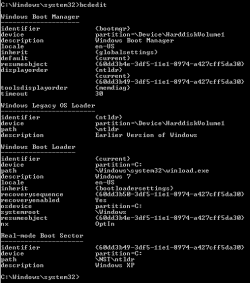
Even though it says to do step 6 in option 2 says when 7 doesn't load (in my case 7 loads fine, but XP does not) I thought it wouldn't hurt to try it. I already did that before I asked the question and unfortunately it didn't fix it.

Here is a Screenshot. Thanks for the help.
 

Attachments

  • bcdedit.PNG
    bcdedit.PNG
    5 KB · Views: 541

My Computer My Computer

At a glance

Windows 7 Professional 32 Bit
Computer type
Laptop
OS
Windows 7 Professional 32 Bit
In that case try step 8 on in OPTION TWO to add XP to the MBR.
 

My Computer My Computer

At a glance

64-bit Windows 11 Pro for WorkstationsIntel i7-8700K OC'd to 5 GHz64 GB (4x16GB) G.SKILL TridentZ RGB DDR4 3600...ASUS ROG-STRIX-GTX1080TI-O11G-GAMING
Computer type
PC/Desktop
Computer Manufacturer/Model Number
Self built custom
OS
64-bit Windows 11 Pro for Workstations
CPU
Intel i7-8700K OC'd to 5 GHz
Motherboard
ASUS ROG Maximus XI Formula Z390
Memory
64 GB (4x16GB) G.SKILL TridentZ RGB DDR4 3600 MHz
Graphics Card(s)
ASUS ROG-STRIX-GTX1080TI-O11G-GAMING
Sound Card
Integrated
Monitor(s) Displays
2 x Samsung Odyssey G7 27"
Screen Resolution
2560x1440
Hard Drives
1TB Samsung 990 PRO M.2,
4TB Samsung 990 PRO PRO M.2,
TerraMaster F8 SSD Plus NAS
PSU
Seasonic Prime Titanium 850W
Case
Thermaltake Core P3
Cooling
Corsair Hydro H115i
Keyboard
Logitech wireless K800
Mouse
Logitech MX Master 4
Internet Speed
2 Gb/s Download and 100 Mb/s Upload
Antivirus
Malwarebyte Anti-Malware Premium
Browser
Google Chrome
Other Info
Logitech Z625 speaker system,
Logitech BRIO 4K Pro webcam,
HP Color LaserJet Pro MFP M477fdn,
APC SMART-UPS RT 1000 XL - SURT1000XLI,
Galaxy S23 Plus phone
Thank you Brink. Got it working. Weird thing is, it was already showing up in easybcd, as well as in windows boot manager upon turning on PC. I first deleted the other 2 in easybcd, then proceeded to re-add XP and then it booted up fine.
 

My Computer My Computer

At a glance

Windows 7 Professional 32 Bit
Computer type
Laptop
OS
Windows 7 Professional 32 Bit
Back
Top


