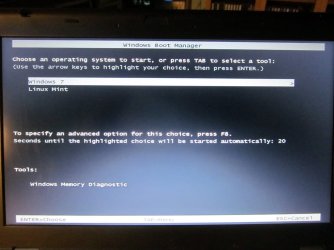
Solved Dual boot with Win7 - problem with boot menus on Lenovo laptop

Copy and paste the commands from my post one at a time. Press enter after each.

When we have seen what the effect that has, we can proceed.

It is odd you are getting system recovery prompt, normally on Lenovo you need to press F11 to get that menu. Posssibly your F11 key is a little sticky.
 

My Computers My Computers

  • At a glance

    7 X64i5 84002x8gb 3200mhz
    Computer type
    PC/Desktop
    OS
    7 X64
    CPU
    i5 8400
    Motherboard
    gigabyte b365m ds3h
    Memory
    2x8gb 3200mhz
    Hard Drives
    various
    PSU
    pure power 11 400w cm
    Case
    Coolermaster
    Cooling
    cryorig m9i
  • At a glance

    7x64g54008gb ddr4 2400
    Computer type
    PC/Desktop
    OS
    7x64
    CPU
    g5400
    Motherboard
    ga b365m ds3h
    Memory
    8gb ddr4 2400
    PSU
    xfx pro 450w
Thanks SIW2. Will now tackle the BCD editing as you advise...

On the point about system recovery prompt, I'm not familiar with Lenovo laptops (this T430 is my first - my other laptops were/are Compaq, Dell, Samsung, HP and Acer). All I can do is describe as accurately as possible what happens and what I see when booting up this machine.

It seems as if almost none of the "normal" Function key options are enabled. According to the Lenovo user manual, pressing F8 on startup should bring up the "Advanced Boot Options" menu with Safe Mode options, Repair Your Computer, Last Known Good etc. On this machine, it doesn't...

The F11 key doesn't seem to be sticky. The user manual does indeed say that pressing F11 on startup gets you to what they call the "Rescue and Recovery workspace". Not on this machine.....F11 doesn't have any effect.

The only way of interrupting the boot process is to hit Enter as soon as the Lenovo logo appears. This brings up a screen titled "Boot Menu" which has five options thus:
Esc - resume boot
F1 - BIOS Setup Utility
F10 - diagnose hardware
F12 - choose temporary startup device
<Ctrl-P> - to enter the management engine setup screen

I've tried each of them except the last, and from this menu the Fn keys work as stated (I have used F12 whenever I wanted to boot from an external USB or disk).

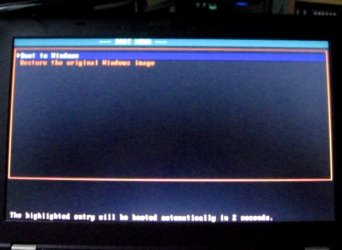
The screen which I do see briefly if I don't interrupt the boot process is also simply headed "Boot Menu". It isn't titled System Recovery, or Advanced Boot Options, or anything like that. It just lists the two options (Boot Normally or Restore the original System Image) with a 3 sec timeout.

If I let it boot normally, after that menu there is a momentary glimpse for a nanosecond of a screen which has three lines of green text on it (which might include "NTDLR"????), But it flashes up and vanishes too quickly to read what the wording says. And then the Windows logo screen appears and we're into Win7.
 
Last edited:

My Computer My Computer

At a glance

Windows 7 Professional 64-bit SP1 dual boot w...Intel Core i5-3320M 2.60GHz8 GB
Computer type
Laptop
Computer Manufacturer/Model Number
Lenovo ThinkPad T430
OS
Windows 7 Professional 64-bit SP1 dual boot with Linux Mint 18.2
CPU
Intel Core i5-3320M 2.60GHz
Memory
8 GB
Screen Resolution
1600 x 900
Hard Drives
240 GB SSD
Browser
Firefox
1.
The F11 key doesn't seem to be sticky. The user manual does indeed say that pressing F11 on startup gets you to what they call the "Rescue and Recovery workspace". Not on this machine.....F11 doesn't have any effect.

Might be because of reinstall - it should be possible to reinstate both the F11 and F8 functions, if you like. They are both custom bcd entries which use scankey codes ( for the keyboard)


2.
The screen which I do see briefly if I don't interrupt the boot process is also simply headed "Boot Menu". It isn't titled System Recovery, or Advanced Boot Options, or anything like that. It just lists the two options (Boot Normally or Restore the original System Image) with a 3 sec timeout.

You might be able to get rid of that somewhere in bios - you need to go into bios setup and have a look.


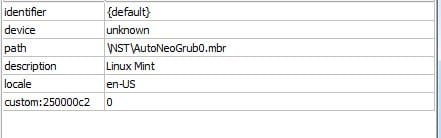
3. The locate entries the bcd you posted can cause problems with multiboot. For example,

The device element is locate=custom:12000002. That tells it to scan to finds the data in element 12000002.

That data is \Windows\system32\winload.exe.

Another way to display the same thing is like this:

locate=\Windows\system32\winload.exe.

locate-win7.jpg

The problem is it will stop after those locate functions, useless in a multiboot situation.

We are changing both the device and osdevice values to [boot], which means the active partition (which is C in your case)


4. The other problems are there is no device listed on which to find the \NST\Autoneogrub0.mbr file.

locate-autoneogrub.jpg

We need to tell it that is on C. We can also use the value [boot] coz C is the active partition.


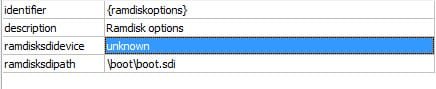
5. Also your RamdiskSDIdevice was unknown, so again we set it to [boot], which means C in this your case.

ramdisksdi.jpg
 

My Computers My Computers

  • At a glance

    7 X64i5 84002x8gb 3200mhz
    Computer type
    PC/Desktop
    OS
    7 X64
    CPU
    i5 8400
    Motherboard
    gigabyte b365m ds3h
    Memory
    2x8gb 3200mhz
    Hard Drives
    various
    PSU
    pure power 11 400w cm
    Case
    Coolermaster
    Cooling
    cryorig m9i
  • At a glance

    7x64g54008gb ddr4 2400
    Computer type
    PC/Desktop
    OS
    7x64
    CPU
    g5400
    Motherboard
    ga b365m ds3h
    Memory
    8gb ddr4 2400
    PSU
    xfx pro 450w
You might also want to fix Resume from Hibernate:

bcdedit /set {06f87eb3-4038-11e0-aecc-c1f066e6c02a} filedevice "partition=C:"

bcdedit /set {06f87eb3-4038-11e0-aecc-c1f066e6c02a} device "partition=C:"
 

My Computers My Computers

  • At a glance

    7 X64i5 84002x8gb 3200mhz
    Computer type
    PC/Desktop
    OS
    7 X64
    CPU
    i5 8400
    Motherboard
    gigabyte b365m ds3h
    Memory
    2x8gb 3200mhz
    Hard Drives
    various
    PSU
    pure power 11 400w cm
    Case
    Coolermaster
    Cooling
    cryorig m9i
  • At a glance

    7x64g54008gb ddr4 2400
    Computer type
    PC/Desktop
    OS
    7x64
    CPU
    g5400
    Motherboard
    ga b365m ds3h
    Memory
    8gb ddr4 2400
    PSU
    xfx pro 450w
Thanks - yet again - for that explanation, SIW2. We're bumping up against the limits of my understanding here.... some of this stuff still seems like witchcraft and magic to me!

But I'm relying on you to interpret the mysteries of the BCD and to reconfigure it to something closer to normality, so we'll see how it goes when I've done the editing using the commands you've suggested. For the moment I'm not too anxious about not having the F8 and F11 keys operating. This seems to be a separate issue, and as long as I can use Enter to interrupt the boot process and then get to F12 so I can when necessary boot from a USB or external drive, that's OK for now.

I've had a look at the BIOS Setup screens, and I confess I can't immediately identify anything which appears to refer to that mysterious "Boot Menu" screen with the Boot Normally/Restore System Image options...

On a separate but possibly related angle, I did come across an article online which said that there were situations in which a Lenovo couldn't be booted into Safe Mode because of a "Security Chip" setting. The article is here. I'm not sure I fully understand the detail, but the process of disabling the chip seems pretty straightforward. I'm tempted to try it, on the basis that if it doesn't change anything then - I hope - I can get back into the BIOS setup to reinstate the previous setting.
 

My Computer My Computer

At a glance

Windows 7 Professional 64-bit SP1 dual boot w...Intel Core i5-3320M 2.60GHz8 GB
Computer type
Laptop
Computer Manufacturer/Model Number
Lenovo ThinkPad T430
OS
Windows 7 Professional 64-bit SP1 dual boot with Linux Mint 18.2
CPU
Intel Core i5-3320M 2.60GHz
Memory
8 GB
Screen Resolution
1600 x 900
Hard Drives
240 GB SSD
Browser
Firefox
If you look in bios under Startup Tab . There is probably something called "Boot Mode" with several settings. Fast/rapid - Normal- Diagnostic.

Select Normal, then save and exit. That might get rid of the annoying boot menu.
 

My Computers My Computers

  • At a glance

    7 X64i5 84002x8gb 3200mhz
    Computer type
    PC/Desktop
    OS
    7 X64
    CPU
    i5 8400
    Motherboard
    gigabyte b365m ds3h
    Memory
    2x8gb 3200mhz
    Hard Drives
    various
    PSU
    pure power 11 400w cm
    Case
    Coolermaster
    Cooling
    cryorig m9i
  • At a glance

    7x64g54008gb ddr4 2400
    Computer type
    PC/Desktop
    OS
    7x64
    CPU
    g5400
    Motherboard
    ga b365m ds3h
    Memory
    8gb ddr4 2400
    PSU
    xfx pro 450w
If you look in bios under Startup Tab . There is probably something called "Boot Mode" with several settings. Fast/rapid - Normal- Diagnostic.

Select Normal, then save and exit. That might get rid of the annoying boot menu.

Yup, went and had a look at that. On the Startup screen of the BIOS Setup, there are 6 'headings':
Network Boot - [PCI LAN etc]
UEFI/Legacy Boot - set to [Both], with Legacy first priority
Boot Mode - where the only two settings are either [Quick] (the default) or [Diagnostic]
Option Key Display - [Enabled]
Boot Device List F12 Option - [Enabled]
Boot Order Lock - [Disabled]

I re-set the Boot Mode to [Diagnostic] and rebooted. The only difference was on startup two or three additional screens showed up with detailed tech info..... then up came the mysterious/annoying boot menu and on we went into Win7.

So I set Boot Mode back again to the default [Quick] setting, and now the boot is as before: first the ThinkPad logo screen, then the annoying Boot Normally/System Image Restore menu, then a nanosecond of another screen, then the Win7 logo....

So that particular mystery (why do I get that Boot Normally/System Image Restore screen) remains unsolved....
 

My Computer My Computer

At a glance

Windows 7 Professional 64-bit SP1 dual boot w...Intel Core i5-3320M 2.60GHz8 GB
Computer type
Laptop
Computer Manufacturer/Model Number
Lenovo ThinkPad T430
OS
Windows 7 Professional 64-bit SP1 dual boot with Linux Mint 18.2
CPU
Intel Core i5-3320M 2.60GHz
Memory
8 GB
Screen Resolution
1600 x 900
Hard Drives
240 GB SSD
Browser
Firefox
Very curious. Those entries are not in the bcd store you posted.

Take a look at the bcd store on the recovery partition and on the 100mb system partition.

You might need to give the recovery partition a letter to get at it - often Lenovo use Q for that. And give the 100mb thing letter S.
 

My Computers My Computers

  • At a glance

    7 X64i5 84002x8gb 3200mhz
    Computer type
    PC/Desktop
    OS
    7 X64
    CPU
    i5 8400
    Motherboard
    gigabyte b365m ds3h
    Memory
    2x8gb 3200mhz
    Hard Drives
    various
    PSU
    pure power 11 400w cm
    Case
    Coolermaster
    Cooling
    cryorig m9i
  • At a glance

    7x64g54008gb ddr4 2400
    Computer type
    PC/Desktop
    OS
    7x64
    CPU
    g5400
    Motherboard
    ga b365m ds3h
    Memory
    8gb ddr4 2400
    PSU
    xfx pro 450w
Well the more we dig around, the more curious and strange it all seems to be. I still haven't launched into the BCD editing for which you provided the commands.....

I have a way of looking at what is in all the partitions (but not necessarily editing them) - and that is by booting up into a Live session of Linux Mint from a USB plugged into this pesky Lenovo computer. That's a lot easier than trying to navigate and interpret Windows command prompts....

In such a Live session I can open up the Linux equivalent of Windows Explorer (the File Manager) and I can easily access the Win7 partition (C:), the Recovery partition, and even the System Reserved partition.

Obviously a lot of the files that show in these latter partitions are what I think are called "binary files" (which I cannot open or interpret). There are also some text files (which I can open); and other files which I simply don't recognise.

I can see the BCD (store) file in the 'Boot' folder on the Win7 OS partition (the one which Windows labels 'active'). I guess this is the one which I copied, zipped and posted earlier.

In that same Win7 OS partition (C:) are about a dozen other files. One is a file called Menu.lst which I can open with a text editor..... and that actually contains all the text, and formatting instructions, of that weird/annoying menu screen (Boot Normally/Restore System Image) that comes up when I boot up the laptop normally. And there is a binary file called bootmgr, and others called ANG0, BOOTSECT.BAK, grldr, hiberfile.sys, ... plus a few more.

In the Recovery partition is a Boot folder, and inside that is a bcd file (or store) - evidently another binary file. I think I ought to be able to make a copy of that and post it up if you would like to look at it.

Also in the Recovery folder is a binary file called bootmgr and various other files. One is imagex.exe which I guess might be the actual system image? Interestingly there is also a file called menu.lst which is a text file and contains the same wording as in the Menu.lst file on the Win7 OS partition described above.

Finally I have looked into the System Reserved partition. In there is another binary file called bootmgr, a file called BOOTSECT.BAK, and a folder called Boot inside which is another BCD file (or store?).

That's of course not a complete list of all the contents of these partitions. I have just mentioned those which seem most relevant to the booting process. I'm afraid that although I can see all these files and folders, I don't know what they contain, nor how they work. Would it help to copy, zip and paste any of them? We do seem to be getting into ever deeper and darker waters.....

I am also conscious that this is taking a lot of time and attention, which I appreciate - but I am beginning to feel guilty. I'm wondering whether I should give up, cut my losses, wipe the drive completely, and just install Linux. It's an option - but feels like admitting defeat!
 

My Computer My Computer

At a glance

Windows 7 Professional 64-bit SP1 dual boot w...Intel Core i5-3320M 2.60GHz8 GB
Computer type
Laptop
Computer Manufacturer/Model Number
Lenovo ThinkPad T430
OS
Windows 7 Professional 64-bit SP1 dual boot with Linux Mint 18.2
CPU
Intel Core i5-3320M 2.60GHz
Memory
8 GB
Screen Resolution
1600 x 900
Hard Drives
240 GB SSD
Browser
Firefox
It should be easy to give the 100mb and the recovery partition letters. Just right click each in disk management and assign a letter.

It can be done in seconds. Then you can access the contents from within windows.

If one of those bcd stores contains the entries you see at startup, then that indicates it is being pulled up by your machine at that point.

I still haven't launched into the BCD editing for which you provided the commands.....

A child can copy and paste those lines into an admin command prompt, pressing enter after each one. Takes about 20 seconds.
 

My Computers My Computers

  • At a glance

    7 X64i5 84002x8gb 3200mhz
    Computer type
    PC/Desktop
    OS
    7 X64
    CPU
    i5 8400
    Motherboard
    gigabyte b365m ds3h
    Memory
    2x8gb 3200mhz
    Hard Drives
    various
    PSU
    pure power 11 400w cm
    Case
    Coolermaster
    Cooling
    cryorig m9i
  • At a glance

    7x64g54008gb ddr4 2400
    Computer type
    PC/Desktop
    OS
    7x64
    CPU
    g5400
    Motherboard
    ga b365m ds3h
    Memory
    8gb ddr4 2400
    PSU
    xfx pro 450w
Okay, will do. Will aim to copy and post up the two other BCD stores which evidently reside in the Recovery and System Reserved partitions. Do we know which one(s) are actually being used to manage the current boot process? Will all three have to be edited?
 

My Computer My Computer

At a glance

Windows 7 Professional 64-bit SP1 dual boot w...Intel Core i5-3320M 2.60GHz8 GB
Computer type
Laptop
Computer Manufacturer/Model Number
Lenovo ThinkPad T430
OS
Windows 7 Professional 64-bit SP1 dual boot with Linux Mint 18.2
CPU
Intel Core i5-3320M 2.60GHz
Memory
8 GB
Screen Resolution
1600 x 900
Hard Drives
240 GB SSD
Browser
Firefox
Do we know which one(s) are actually being used

Not until I see the other two.
 

My Computers My Computers

  • At a glance

    7 X64i5 84002x8gb 3200mhz
    Computer type
    PC/Desktop
    OS
    7 X64
    CPU
    i5 8400
    Motherboard
    gigabyte b365m ds3h
    Memory
    2x8gb 3200mhz
    Hard Drives
    various
    PSU
    pure power 11 400w cm
    Case
    Coolermaster
    Cooling
    cryorig m9i
  • At a glance

    7x64g54008gb ddr4 2400
    Computer type
    PC/Desktop
    OS
    7x64
    CPU
    g5400
    Motherboard
    ga b365m ds3h
    Memory
    8gb ddr4 2400
    PSU
    xfx pro 450w
Okay - thanks for hanging in there... it's late night here now, I think I'll have to take a break and tackle the copying of those other two BCDs tomorrow. Should I push on and edit the BCD you've seen before you check out these other two? Just wondering if after seeing the other two there will need to be further changes (cart before horse situation?).


Take your point about this being child's play. But this is a bit like learning how to ride a bike: the experienced rider can do it easily, even with no hands. The novice wobbles a lot until he gets the hang of it. That's how I feel when asked to use command prompts and to edit BCD!
 

My Computer My Computer

At a glance

Windows 7 Professional 64-bit SP1 dual boot w...Intel Core i5-3320M 2.60GHz8 GB
Computer type
Laptop
Computer Manufacturer/Model Number
Lenovo ThinkPad T430
OS
Windows 7 Professional 64-bit SP1 dual boot with Linux Mint 18.2
CPU
Intel Core i5-3320M 2.60GHz
Memory
8 GB
Screen Resolution
1600 x 900
Hard Drives
240 GB SSD
Browser
Firefox
identifying and editing BCD files

Next instalment in the saga....

I think (or hope) I have copied and zipped up the other two BCDs. Here they are...

First, the bcd from the Recovery partition (Q:) which I have labelled "bcd-copyQ"

View attachment bcd-copyQ.zip

Second, the bcd from the System Reserved partition (which already had the letter D: assigned), so it is labelled "bcd-copyD"

View attachment bcd-copyD.zip

I'll be interested to learn what these two reveal - and which is actually being used in the current boot process. Presumably that will help in figuring out what editing needs to be done to all three BCDs?
 

My Computer My Computer

At a glance

Windows 7 Professional 64-bit SP1 dual boot w...Intel Core i5-3320M 2.60GHz8 GB
Computer type
Laptop
Computer Manufacturer/Model Number
Lenovo ThinkPad T430
OS
Windows 7 Professional 64-bit SP1 dual boot with Linux Mint 18.2
CPU
Intel Core i5-3320M 2.60GHz
Memory
8 GB
Screen Resolution
1600 x 900
Hard Drives
240 GB SSD
Browser
Firefox
I'll have a look.
 

My Computers My Computers

  • At a glance

    7 X64i5 84002x8gb 3200mhz
    Computer type
    PC/Desktop
    OS
    7 X64
    CPU
    i5 8400
    Motherboard
    gigabyte b365m ds3h
    Memory
    2x8gb 3200mhz
    Hard Drives
    various
    PSU
    pure power 11 400w cm
    Case
    Coolermaster
    Cooling
    cryorig m9i
  • At a glance

    7x64g54008gb ddr4 2400
    Computer type
    PC/Desktop
    OS
    7x64
    CPU
    g5400
    Motherboard
    ga b365m ds3h
    Memory
    8gb ddr4 2400
    PSU
    xfx pro 450w

My Computers My Computers

  • At a glance

    7 X64i5 84002x8gb 3200mhz
    Computer type
    PC/Desktop
    OS
    7 X64
    CPU
    i5 8400
    Motherboard
    gigabyte b365m ds3h
    Memory
    2x8gb 3200mhz
    Hard Drives
    various
    PSU
    pure power 11 400w cm
    Case
    Coolermaster
    Cooling
    cryorig m9i
  • At a glance

    7x64g54008gb ddr4 2400
    Computer type
    PC/Desktop
    OS
    7x64
    CPU
    g5400
    Motherboard
    ga b365m ds3h
    Memory
    8gb ddr4 2400
    PSU
    xfx pro 450w
Well that's an unexpected twist in the tale!

I have to say I'm finding it hard to grasp the logic. How can a keyboard or machine fault (physical or hardware malfunction) be responsible for the sequence of screens that appear during the boot-up process?

The only key pressed during the current boot process is the 'Power On' button - which works fine. No other key is touched as the sequence of screens goes from the initial ThinkPad logo, to the weird 'Boot Normally or Restore System Image' screen, to the momentary black screen with green wording, to the 'Win7 starting' splash logo screen. So how might a faulty keyboard be to blame?

As I understand it the boot sequence is - or should be - fairly straightforward. In very simplistic terms, the theory is that after the initial POST stage, the BCD (in the MBR?) then fires up, and passes the action on to the Windows Boot Manager which then activates the boot loader (where there is a single OS) or which (in a dual boot) shows a list of options including the other OS , or diagnostic mode or whatever, from which the user has to choose. That then fires up the relevant bootloader.

So one of the BCDs must be driving the current bootup of this Lenovo laptop. But the original and obvious questions remain. For example:

1. Which of the three BCDs we seem to have found is actually involved in the current boot process?

2. Is it normal to have three BCDs? There is one in the System Reserved (MBR?) partition, which is surely to be expected. There is one in the Win7 OS (C:) partition - why? And there is one in the Recovery partition (is this necessary in order to fire up the Recovery process and restore the system image?).

3. Since we can see that at least one of the BCDs has entries for the Windows Boot Manager and the Windows Boot Loader, why do they apparently not form part of the boot-up sequence?

4. Is there still a need - or any point - in amending that BCD, or either of the others, since it has already been established (in post #23) that there is a problem with the "device locate" entry (which may be taking the process to a specific data location .... where it stops.... thus perhaps preventing the usual onward sequence into bootmgr and bootloader etc??)

5. Are there other entries in any or all of the existing three BCDs which are unorthodox and ought to be changed? Such as (for example (ref post #23 again) the ramdiskSDIdevice setting?

I do apologise for setting this out in what may be imprecise or inexpert terms. But I'm still a profound non-expert, and I'm just trying to be systematic and methodical in attempting to figure out the cause(s) of the unusual boot behaviour.

Surely at least part of the problem has to be about how the MBR/BCD/Boot Manager/Bootloaders are configured?


6. One other point still unexplained. None of the three BCDs apparently has an "entry" which relates to the mysterious/weird/annoying (Boot Normally or Restore System Image) screen which appears during the boot process. Okay. But as noted in my post #29, when I explored the files in the C: partition and the Recovery partition which I could read using a text editor, I found in each of them a menu.lst file which contained exactly the wording, and formatting instructions, which appear in that weird screen. So what is that menu.lst file, and how/why is it activated as part of the bootup sequence?

 
Last edited:

My Computer My Computer

At a glance

Windows 7 Professional 64-bit SP1 dual boot w...Intel Core i5-3320M 2.60GHz8 GB
Computer type
Laptop
Computer Manufacturer/Model Number
Lenovo ThinkPad T430
OS
Windows 7 Professional 64-bit SP1 dual boot with Linux Mint 18.2
CPU
Intel Core i5-3320M 2.60GHz
Memory
8 GB
Screen Resolution
1600 x 900
Hard Drives
240 GB SSD
Browser
Firefox
1. Which of the three BCDs we seem to have found is actually involved in the current boot process?

The first one you posted which you got by exporting the {current} bcd store

2. Is it normal to have three BCDs? There is one in the System Reserved (MBR?) partition, which is surely to be expected. There is one in the Win7 OS (C:) partition - why? And there is one in the Recovery partition (is this necessary in order to fire up the Recovery process and restore the system image?).

Yes, there is nothing strange about having several bcd stores.

The MBR is not "in a partition", it is right at the beginning of the disk.

The bcd store has to be on the partition marked Active, for Bootmgr to find it. That is why there is one on your win7 partition.

OEM's will vary in their recovery options, but it is not uncommon for the recovery process to use the bcd store on the recovery partition.

3. Since we can see that at least one of the BCDs has entries for the Windows Boot Manager and the Windows Boot Loader, why do they apparently not form part of the boot-up sequence?

They do, otherwise you would not be able to boot. I would advise you to change the entries in the {current} store using the commands I posted.

4. Is there still a need - or any point - in amending that BCD

Yes, I advise you make to changes to the {current } bcd store that is why I posted the commands. I didn't do it it just because I enjoy typing.

5. Are there other entries in any or all of the existing three BCDs which are unorthodox and ought to be changed?

If you wish, you can make corrections to the bcd store on the recovery partition, it doesn't seem to point at a bootable wim - which is what it should do. That should allow you the possibility to mark the recovery partition Active, then boot into the recovery process - should the need arise.

But you will need to find the paths to the bootable wim and the boot.sdi file on the recovery partition because they are needed for the bcd entry.
 

My Computers My Computers

  • At a glance

    7 X64i5 84002x8gb 3200mhz
    Computer type
    PC/Desktop
    OS
    7 X64
    CPU
    i5 8400
    Motherboard
    gigabyte b365m ds3h
    Memory
    2x8gb 3200mhz
    Hard Drives
    various
    PSU
    pure power 11 400w cm
    Case
    Coolermaster
    Cooling
    cryorig m9i
  • At a glance

    7x64g54008gb ddr4 2400
    Computer type
    PC/Desktop
    OS
    7x64
    CPU
    g5400
    Motherboard
    ga b365m ds3h
    Memory
    8gb ddr4 2400
    PSU
    xfx pro 450w
Still looking for clues

I would advise you to change the entries in the {current} store using the commands I posted....... that is why I posted the commands. I didn't do it it just because I enjoy typing.

Yes sir, will do! Just that I'm a believer in two wise maxims. 'Time spent in reconnaissance is never wasted', and the carpenter's approach, 'measure twice, cut once'.

In between forum-posts I've been continuing my efforts at non-destructive exploration: trying to look into, and learn about, the booting arrangements without actually changing (=cutting!) anything.

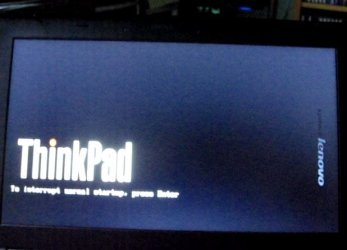
Belatedly, I realised there was a way, using my digital camera, of capturing exactly what appears on the sequence of screens when I boot up the Lenovo laptop. I attach the sequence of four screenshots which show each and all of the screens that appear. It starts with the ThinkPad logo when I power up...
Lenovo boot screen 1 - the ThinkPad logo.JPG


then comes the "weird and mysterious" screen...


Lenovo boot screen 2 - boot or restore image.JPG

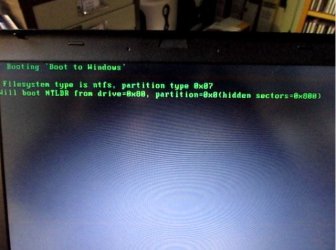
and for a fleeting moment, this screen which finally I've been able to capture and read


Lenovo Boot screen 3 - the brief glimpse.JPG

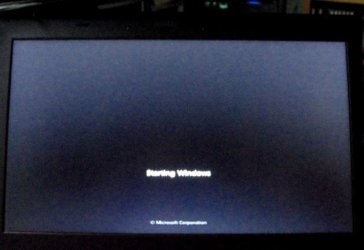
after that, it goes into a familiar starting screen


Lenovo boot screen 4 - starting Windows.JPG

So I have, finally, been able to capture the screen which flashes up only for a nanosecond (it is the third image, above). I wonder if the info it contains is useful? The image isn't brilliantly sharp, but it looks like the boot is happening from drive=0x00 or maybe 0x80, and partition=0x0 (hidden sectors 0x 800 or maybe 0x600).

Is it significant that that display screen says it is "booting the NTLDR" ? I'm hazy on detail, but I thought that NTLDR was for booting WinXP, and that Vista, Win7 and later had different "architecture" for the boot manager and boot loader.

I'm groping in the dark here - but does this connect in any way with the discovery (see point 6 in my earlier post #37 ) that there are menu.lst text files, which have the text and configuration of that mysterious 'Boot or Restore Image' screen (second image above), in a couple of the partitions on this system. Is the boot process using NTLDR and going to the screen provided by menu.lst, rather than doing what a Win7 BCD/Boot Manager/Boot loader would normally do? Does that explain why (see below) the attempt to edit the BCD seems to have failed?

Do those screen images help with figuring out why the boot process is unusual? At least it shows exactly what I see.
 
Last edited:

My Computer My Computer

At a glance

Windows 7 Professional 64-bit SP1 dual boot w...Intel Core i5-3320M 2.60GHz8 GB
Computer type
Laptop
Computer Manufacturer/Model Number
Lenovo ThinkPad T430
OS
Windows 7 Professional 64-bit SP1 dual boot with Linux Mint 18.2
CPU
Intel Core i5-3320M 2.60GHz
Memory
8 GB
Screen Resolution
1600 x 900
Hard Drives
240 GB SSD
Browser
Firefox
More exploration and reconnaissance

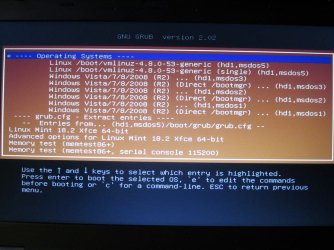
I have tried one other angle. I have a software tool on a USB called SuperGrub2Disk. It is basically a Linux/Grub tool for booting up installed systems (Windows or Linux) when they won't otherwise boot. It has no editing power. But it can reveal detailed info about the operating systems and boot manager(s) on a computer. So I ran it. It listed all the bootloaders it could find on the computer. I attach an image which shows that list. Basically it confirms what we know: that there are three Windows bootloaders, and one Linux Mint Grub.

Lenovo - Supergrub2disk - list resized.jpg

I thought the location info might means something. I'm not too clever at reading and understanding the hdX, msdosX notation and working out what this actually means in terms of the different partitions, but by clicking on each entry I can look at what comes up as the boot screen display. Here are the results for the Windows boot entries:

hd1, msdos1 - goes directly into Win7 - straight to the Windows splash/logo screen, no boot menus.

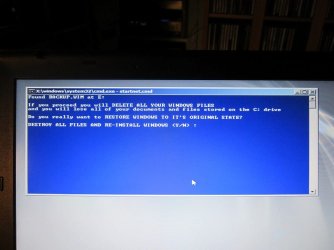
hd1, msdos2 - is clearly the recovery partition one. It shows a progress bar "Windows is loading files", then up comes a dire warning screen asking if you really want to delete everything and restore the OS image - see this screenshot!

Lenovo - Supergrub2disk - the warning - resized.jpg


hd1, msdos3 - brings up (hooray!) a Windows Boot Manager screen (see image below) which offers the choice of Win7 or Linux Mint. This is obviously the BCD/boot manager which EasyBCD has already edited to add Linux Mint; and it is the screen I would have wanted and expected to see all along!

Lenovo - Supergrub2disk - Win Boot Mgr - resized.jpg

Is hd1, msdos3 the Win7 (C:) partition and hd1, msdos1 the MBR/System Reserved one?

So it seems to me the challenge is to figure out how to ensure that the 'normal' boot process doesn't go to that weird screen with "Boot Normally or Restore Image", but rather goes to, or through, that route which fires up the bootloader on hd1,msdos3 and so offers the dual boot Win7 or Linux Mint options.

Maybe the long-recommended editing of the BCD which I should have done will deliver this?
 

My Computer My Computer

At a glance

Windows 7 Professional 64-bit SP1 dual boot w...Intel Core i5-3320M 2.60GHz8 GB
Computer type
Laptop
Computer Manufacturer/Model Number
Lenovo ThinkPad T430
OS
Windows 7 Professional 64-bit SP1 dual boot with Linux Mint 18.2
CPU
Intel Core i5-3320M 2.60GHz
Memory
8 GB
Screen Resolution
1600 x 900
Hard Drives
240 GB SSD
Browser
Firefox
Back
Top