
Hi, recently I've been experiencing random spikes of lag in my laptop. I use AllCPUMeter gadget to monitor my systems. The symptom was that CPU usage would increase highly without any major programs being runned. This had happened while my laptop was idle and after a few seconds of hang, my Aero crashes ( turns to basic for a second ) and restores itself. Then, my Nvidia driver would pop up saying the display driver crashed. I've tried opening task manager to find out what was using up power when it starts to spike and unfortunately, the usage would always return to normal as soon as I open it.
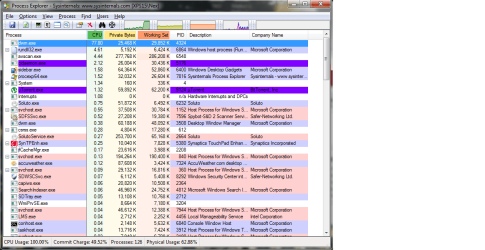
After some digging around, I used Process Explorer and determined that dwm.exe is the culprit. However this seems to be a second exe as you can see from the picture I've attached. It shows the high usage and a bit below another dwm.exe.
Some other things I've noticed is rundll32.exe went up to approximately 10% at times but not while the spikes happen. Could any of this be related to my friend unplugging my laptop ?
This is not a huge problem exactly but it is annoying. I cant watch a movie for 10 minutes without the screen going black and the temperature soars extremely high. So if anyone has any idea how to deal with this problem, please help me.
Update : It seems that the lag occurs when the laptop is idle and will continue until I move the mouse or interact with the laptop.
After some digging around, I used Process Explorer and determined that dwm.exe is the culprit. However this seems to be a second exe as you can see from the picture I've attached. It shows the high usage and a bit below another dwm.exe.
Some other things I've noticed is rundll32.exe went up to approximately 10% at times but not while the spikes happen. Could any of this be related to my friend unplugging my laptop ?
This is not a huge problem exactly but it is annoying. I cant watch a movie for 10 minutes without the screen going black and the temperature soars extremely high. So if anyone has any idea how to deal with this problem, please help me.
Update : It seems that the lag occurs when the laptop is idle and will continue until I move the mouse or interact with the laptop.
Attachments
Last edited:
My Computer
- OS
- Windows 7 Home Premium 64-bit

