
How to Add "Eject/Close CD/DVD Tray" to the Context Menu in Windows
Information
This tutorial will show you how to add Eject/Close CD/DVD Tray to the folder background, drive, and desktop context menu, and file/folder context menu in Vista, Windows 7, and Windows 8.
When used by a user, it will toggle the default CD/DVD drive's tray to eject (open) or close.
When used by a user, it will toggle the default CD/DVD drive's tray to eject (open) or close.
Note
You must be logged in as an administrator to be able to add this to the desktop context menu, but all users on the computer will be able to use it after it has been added.
If you need this to work for a specific CD/DVD drive letter instead, then please post and let me know. I'll be happy to modify the .bat and .reg files below for the drive letter you wanted instead.
If you need this to work for a specific CD/DVD drive letter instead, then please post and let me know. I'll be happy to modify the .bat and .reg files below for the drive letter you wanted instead.
EXAMPLE: "Eject/Close CD/DVD Tray" added to Desktop Context Menu
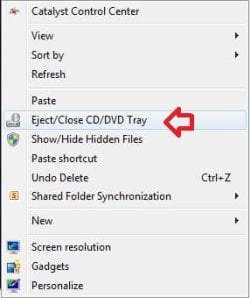
Here's How:
1. Do either step 2 or 3 below for what you would like to do.
2. To Add "Eject/Close CD/DVD Tray" to Context Menu
A) Download the 32-bit or 64-bit version of NirCmd that is the same as your 32-bit or 64-bit Windows at the bottom of the website below, and save the ZIP file to your desktop.
NirCmd - Windows command line tool
B) Open the downloaded ZIP file, and extract (drag and drop) the nircmd.exe file to your desktop, and unblock the file.
C) Click/tap on the Download button below to download the .bat file below, and save the .bat to your desktop.
Eject-Close_CD-DVD.bat
Download
D) Unblock the .bat file.
E) Move both the unblocked nircmd.exe file and unblocked Eject-Close_CD-DVD.bat file into your C:\Windows\System32 folder, and approve (Continue-Yes).
NOTE: The bat file must be named this exactly. Rename if needed.
F) Click on the Download button below to download the .reg file below, and save the .reg file to your desktop.
Add_Eject-Close_CD-DVD_Tray_to_Context_Menu.reg
Download
G) Double click/tap on the REG file to merge it, then click/tap on Run, Yes (UAC-Windows 7/8) or Continue (UAC-Vista), Yes, and OK when prompted to approve the merge.
3. To Remove "Eject/Close CD/DVD Tray" from Context Menu
A) Click/tap on the Download button below to download the file below.
Remove_Eject-Close_CD-DVD_Tray_from_Context_Menu.reg
Download
B) In Windows Explorer, navigate to C:\Windows\System32, and delete the nircmd.exe and Eject-Close_CD-DVD.bat files.
That's it,
Shawn
Attachments
Last edited:


