
How to Add "Restart" Computer to the Desktop Context Menu in Windows 7
Information
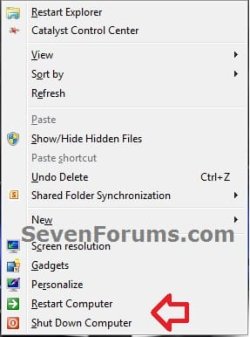
This will show you how to add or remove Restart Computer to the desktop context menu in Vista and Windows 7.
EXAMPLE: Restart Computer in Desktop Context Menu
Here's How:
1. To Add "Restart" to the Desktop Context Menu
A) Click on the Download button below to download the file below.
Add_Restart_to_Desktop_Context_Menu.reg
Download
B) Go to step 3.
2. To Remove "Restart" from the Desktop Context Menu
A) Click on the Download button below to download the file below.
Remove_Restart_from_Desktop_Context_Menu.reg
Download
3. Click on Save, and save the REG file to the desktop.
4. Double click on the REG file to merge it, and click on Run, Yes (UAC-Windows 7) or Continue (UAC-Vista), Yes, and OK when prompted to approve the merge.
5. When done, you can delete the downloaded .reg file if you like.
6. Right click on your desktop to see the change.
That's it,
Shawn
Related Tutorials
- How to Perform an Emergency Restart in Vista, Windows 7, and Windows 8
- How to Add "Shut Down" Computer to the Desktop Context Menu in Windows 7
- How to Add "Log Off" Computer to the Desktop Context Menu in Windows 7
- How to Add "Lock Computer" to the Desktop Context Menu in Windows 7
- How to Create a "Restart" Computer Shortcut in Windows 7
- How to See What Your Windows 7 Restart Time is
- How to Add or Remove the Shut Down, Restart, Sleep, and Hibernate Commands in Windows 7
- How to Add a "Power" Cascading Desktop Context Menu in Windows 7
Attachments
Last edited:

 Thanks


