How to Create a Task to Run a Program at Startup and Log On in Windows 7
Information
This will show you how to create a task in Windows 7 Task Scheduler to run a program of your choice at the Startup and/or Log On of any user account.
Note
By default, you cannot run a elevated (Run as administrator) program that requires UAC permission at startup using the normal Windows 7 startup programs.
For a Administrator User Account:
You are able to have Run as administrator (elevated) programs run at startup or at log on for a administrator account in a task in Task Scheduler.
For a Standard User Account:
You will not be able to run elevated programs at startup or at log on for a standard user account though. Only unelevated programs (ex: Notepad).
For a Administrator User Account:
You are able to have Run as administrator (elevated) programs run at startup or at log on for a administrator account in a task in Task Scheduler.
For a Standard User Account:
You will not be able to run elevated programs at startup or at log on for a standard user account though. Only unelevated programs (ex: Notepad).
Here's How:
1. Log on to the user account that you want to create this task to run for.
2. Open the Start Menu, then type taskschd.msc in the search box and press enter.
3. If prompted by UAC, click on Yes.
4. In the left pane of Task Scheduler, click on the Task Scheduler Library folder, then click on New Folder in the far right pane. (see screenshot below)
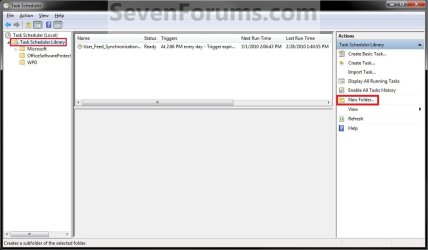
5. Type in a name (ex: program name "Core Temp") you want for the new task folder to make finding the task easier, then click on OK. (see screenshot below)

6. In the left pane of Task Scheduler, click on the new task folder (ex: Core Temp), and click on Create Task in the far right pane. (see screenshot below)
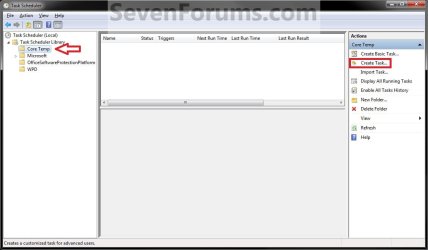
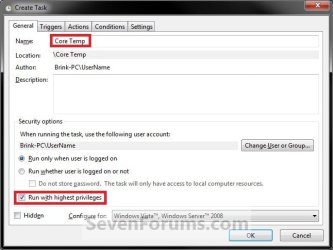
7. Under the General tab, type in a name for the task (ex: Program Name "Core Temp"). (see screenshot below)
8. Under the General tab,
- If Used in a Administrator User Account
- Check the Run with highest Privileges box. (see screenshot above)
- If Used in a Standard User Account
- Leave the Run with highest Privileges box unchecked. (see screenshot above)
NOTE: This is like compatibility mode. If the program does not support running in Windows 7 normally, then you can select the OS that is does support running in instead to have it run in compatibility mode as if it was running in that OS instead of Windows 7.

10. Do steps 11 and/or 12 below for when you would like to have this task run.
11. To Have the Task Run "At startup"
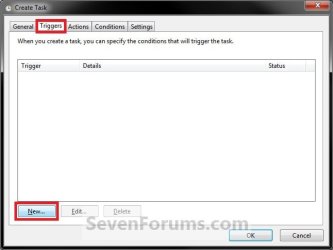
A) Click on the Triggers tab and New button. (see screenshot below)
B) In the Begin the task drop down menu list, select At startup. Next, make sure that Enabled is checked, and click on OK. (see screenshot below)
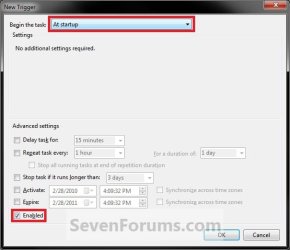
C) Do step 12 as well. It is required for the "At startup" to work.
12. To Have the Task Run "At log on"
A) Under the Triggers tab, click on the New button. (see screenshot below)
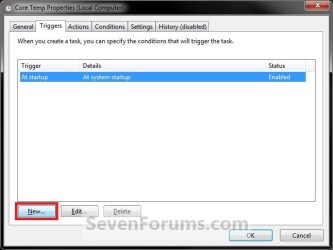
B) In the Begin the task drop down menu list, select At log on. Next, make sure that Enabled is checked, and click on OK. (see screenshot below)
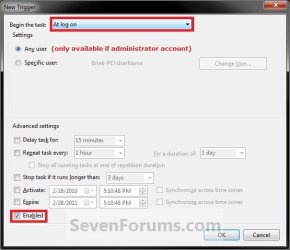
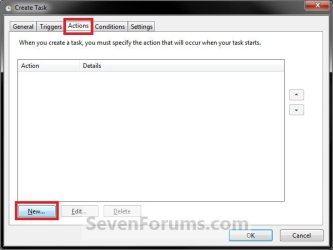
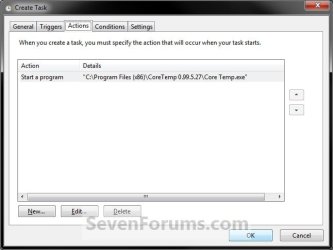
13. Click on the Actions tab and New button. (see screenshot below)
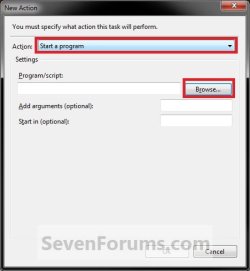
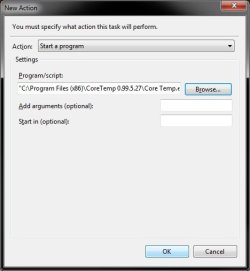
14. In the Action drop down menu list, select Start a program, then click on the Browse button. (see screenshot below)
15. Navigate to and select the program's EXE file or shortcut to the EXE file, then click on Open. (see screenshot below)
NOTE: Remember that a standard user account cannot run a elevated program at startup or log on. See NOTE at top of tutorial for more information.
Tip
If you created an elevated program shortcut and wanted to run it at startup and/or log in, you would enter the full path of the elevated program shortcut here.
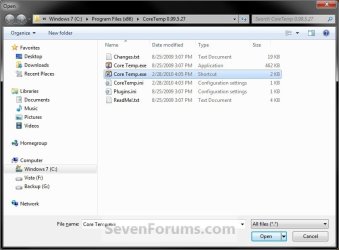
16. Click on OK. (see screenshot below)
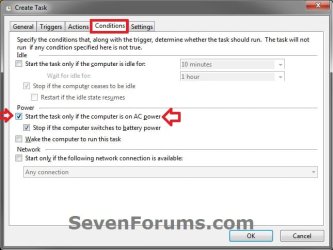
17. Click on the Conditions tab, and uncheck the Stop if the computer switches to battery power box first, then uncheck the Start the task only if the computer is on AC power box. (see screenshots below)
NOTE: This step is mostly for laptops, so that you will be able to run the program when the laptop is running on battery power.
18. Click on the Settings tab, and check the If the task fails, restart every box. (see screenshot below)
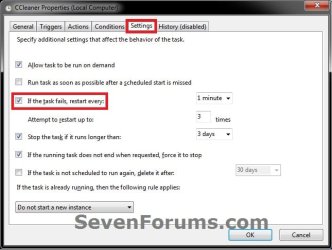
19. Click on OK. (see screenshot above)
20. You can now close Task Scheduler. (see screenshot below)
NOTE: If you look in the middle pane under the Author column for the task that you just created, you will be able to tell what user account the task is for.
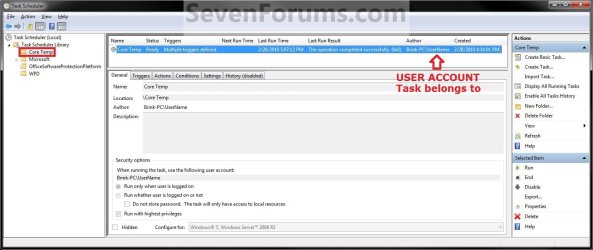
21. Log off and log on this user account, or restart the computer to test you new task.
Tip
To Delete the Task:
If you decide you would like to delete the task later, then you can right click on the task (step 8) in the middle pane and click on Delete and Yes. Next, you can delete the task folder (step 5) when empty the same way. (see screenshot above)
If you decide you would like to delete the task later, then you can right click on the task (step 8) in the middle pane and click on Delete and Yes. Next, you can delete the task folder (step 5) when empty the same way. (see screenshot above)
That's it,
Shawn
Related Tutorials
- How to Change the Startup Programs in Windows 7
- How to Run Specific Programs and Documents at User Logon in Vista, Windows 7, and Windows 8
- How to Create a Automated Task that Runs at a Set Time in Windows 7
- How to Fix Task Scheduler Error (Event ID 404)
- How to Automatically Create A System Restore Point at Startup
- How to Create a Task that will Shut Down the PC Automatically
- How to Create a Elevated Program Shortcut without a UAC Prompt
- How to Create a Elevated Program Shortcut a Standard User is able to Run in Windows 7
- How to Display a Message Reminder in Windows with Task Scheduler
Last edited: