
Elevated Program Shortcut - Create for Standard User

How to Create an Elevated Program Shortcut Any User is able to Run in Vista, Windows 7, and Windows 8

   Information
This will show you how to create an elevated program shortcut that allows any user (ex: Standard user) to be able to run a program that runs as administrator without being prompted to enter the administator's password each time in Vista, Windows 7, and Windows 8.

   Note
If the user you want to have this shortcut has been restricted with Parental Controls in Windows 7 with it set as Standard Account can only use the programs I allow, then they will not be able to use the shortcut in this tutorial since they will not be allowed to use the runas.exe file used by this shortcut. Windows 7 will not allow runas.exe to be added to the allowed to run list.


If the user you want to have this shortcut has been restricted with Family Safety in Windows 8 with it set as (user) can only use the apps I allow, then they will not be able to use the shortcut in this tutorial since they will not be allowed to use the runas.exe file used by this shortcut. Windows 8 will not allow runas.exe to be added to the allowed to run list.


You will not be able to do this in Vista Starter, Vista Home Basic, Vista Home Premium, Windows 7 Home Basic, and Windows 7 Starter editions since the runas /savecred switch option is not available and will be ignored in them.


If you disable the built-in Administrator account, the elevated shortcut will stop working until you enable the built-in Administrator again. This is because the elevated shortcut uses the password of the built-in Administrator to approve running it.


OPTION ONE

To Create Elevated Shortcut for User using RunasSPC Program


1. Download the free RunasSPC program in a .zip file at the site below.

Download


2. The link below can help show you how to use the program.
Runas Spc guidance and examples
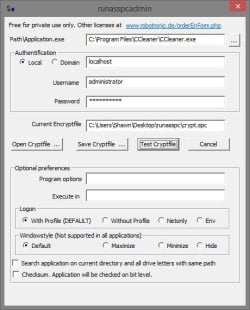

runasspcadmin.jpg


OPTION TWO

To Create Elevated Shortcut for User using runas Command


   Tip
This option uses the runas command included in Windows.

The Administrator's password (credential) used by the elevated shortcut is encrypted and stored in the Credential Manager (Control Panel (icons view)) as an "interactive logon" entry under Windows Credentials for only that user account like below.

The Administrator account's password cannot be viewed.

If you like, you can Remove (delete) this credential at anytime in Credential Manager to strip the password from the elevated shortcut to make it ask for the password again when opened like in step 18 below.
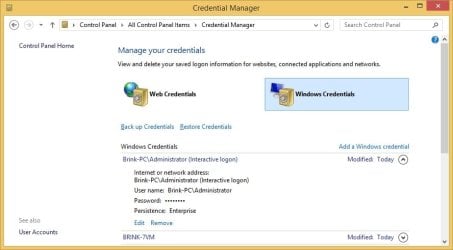
Credential_Manager.jpg

   Warning
This elevated shortcut creates a security hole.

It would be best to only do this with a trusted user.

Once you have created the elevated shortcut, the user can use the built-in Administrator's saved credentials in Credential Manager along with the command below to run and access anything they want on the computer with the same rights as the built-in Administrator.

RUNAS /savecred /user:administrator "command to run"


1. If you have not already, enable the built-in elevated "Administrator" account, and create a password for it.

   Warning
You must use the actual built-in Administrator account, and not just another administrator type user account. If you don't the shortcut will not work.


2. Log in to the built-in Administrator account, right click or press and hold on an empty space on the desktop, and click/tap on New and Shortcut.


3. Type the location below into the location area, and click/tap on the Next button. (see screenshot below)
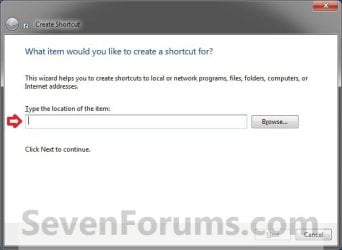
Step1.jpg

   Note

  • You would substitute ComputerName in the command below with the actual computer name.
  • If the Administrator account has been renamed, then you would also need to substitute Administrator in the command below with the new name.
  • You would substitute Full path to program's exe file in the command below with the actual full path of the elevated program's exe file within quotes that you want to have the standard user be able to run.
Code:
runas /user:[B][COLOR=red]ComputerName[/COLOR][/B]\[B]Administrator[/B] /savecred "[B][COLOR=red]Full path to program's exe file[/COLOR][/B]"
For example: I would like to have a standard user to be able to run CCleaner without me or them having to enter the Administrator's account password each time. For this, I would type this:
Code:
runas /user:[B][COLOR=red]Brink-PC[/COLOR][/B]\[B]Administrator[/B] /savecred "[B][COLOR=red]C:\Program Files\CCleaner\CCleaner.exe[/COLOR][/B]"
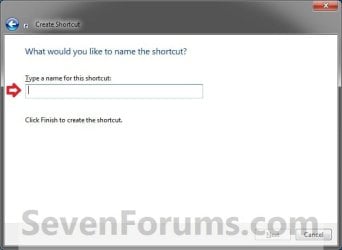
3. Type in the name of the program (ex: CCleaner), and click/tap on the Finish button. (see screenshot below)
Step2.jpg
4. Right click or press and hold on the new shortcut, click/tap on Properties, Shortcut tab, and on the Change Icon button. (see screenshot below)
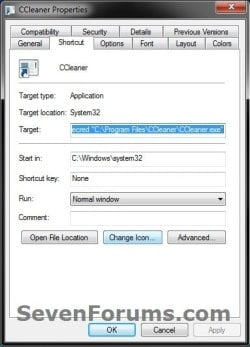
Step3.jpg
5. Click/tap on OK. (see screenshot below)
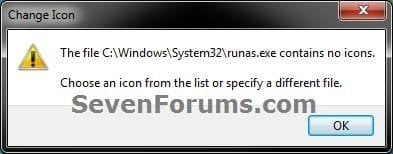
Step4.jpg
6. Click/tap on the Browse button, navigate to the location of the program's (ex: CCleaner) exe file, click on Open, select the program's icon, and click/tap on OK. (see screenshots below)
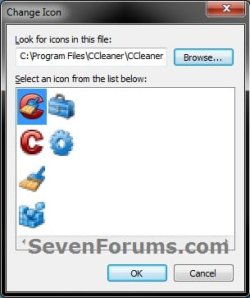
Step5A.jpg

Step5B.jpg

7. Click/tap on OK. (see screenshot below)
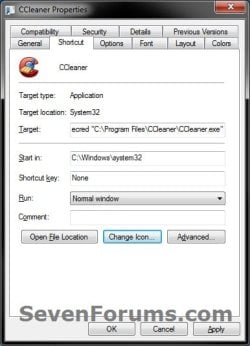
Step6.jpg
8. While still logged in to the "Administrator" account, copy the shortcut to the desktop folder of the user account (ex: Test) that you would like to be able to run this elevated program without getting a UAC prompt or having to provide the administrator's password for it.
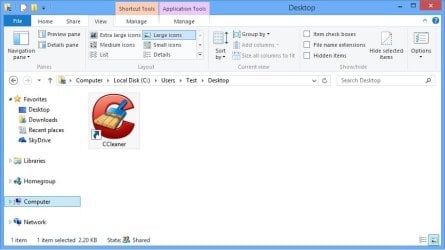
Desktop.jpg
9. Right click or swipe down on the shortcut on the user's desktop that you just copied to, and click/tap on Properties. (see screenshot above)

10. Click/tap on the Security tab, and Advanced button. (see screenshot below)
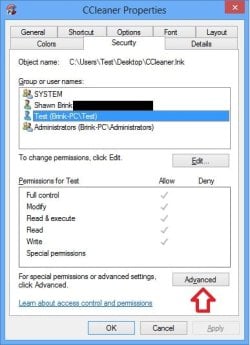
Security-1.jpg
11. Select the user account (ex: Test) that the elevated shortcut is for, and click/tap on the Disable inheritance button. (see screenshot below)
Security-2.jpg
12. Click/tap on Convert inherited permissions into explicit permissions on this object. (see screenshot below)
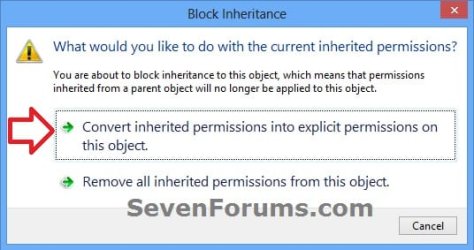
Security-3.jpg
13. Select the user account (ex: Test), and click/tap on the Edit button. (see screenshot below)
security-4.jpg
14. Make sure that only the Read & execute and Read "Allow" permissions are checked, and click/tap on OK. (see screenshot below)
NOTE: This will prevent the user (ex: Test) from being able to change the target of the elevated shortcut, and only be able to run the program the elevated shortcut was created to run.
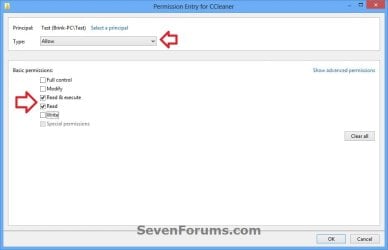
Security-5.jpg
15. Click/tap on OK. (see screenshot below)
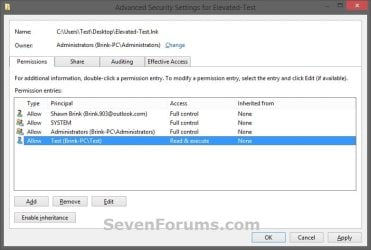
Read_Execute.jpg
16. Click/tap on OK. (see screenshot below)
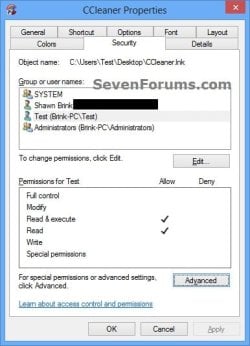
Security-7.jpg
17. Log on to the user account (ex: Test) that you made a copy of this shortcut to, and run the shortcut.

18. In the command prompt that opened, type in your built-in Administrator account's password and press Enter. You will not see the password while you are typing it in. (see screenshot below)

NOTE: You will only have to enter the Administrator's password for only the first time that this shortcut is ran in the user account (ex: Test). Afterwards, it will be remembered and entered automatically for the user when they run it without anyone being able to see the password.
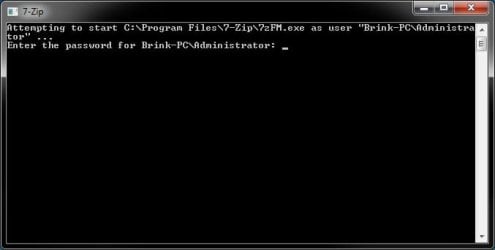
step7.jpg
19. In Vista and Windows 7, the user can now Pin to Taskbar (Windows 7 only) or Pin to Start Menu, add to Quick Launch, assign a keyboard shortcut to it, or move this shortcut to where you like for easy use.

20. In Windows 8 and 8.1, the user can Pin to Taskbar on desktop, Pin to Start screen, add to Quick Launch, assign a keyboard shortcut to it, or move this shortcut to where you like for easy use.


That's it,
Shawn


Last edited:
Ah, ok.

It appears to be a bug where the shortcut will not work if the program doesn't run elevated natively and you use compatibility mode with Run this program as an administrator checked. I get the same thing as you when doing it like that. :(
 

My Computer

Computer type
PC/Desktop
Computer Manufacturer/Model Number
Self built custom
OS
64-bit Windows 11 Pro for Workstations
CPU
Intel i7-8700K OC'd to 5 GHz
Motherboard
ASUS ROG Maximus XI Formula Z390
Memory
64 GB (4x16GB) G.SKILL TridentZ RGB DDR4 3600 MHz
Graphics Card(s)
ASUS ROG-STRIX-GTX1080TI-O11G-GAMING
Sound Card
Integrated
Monitor(s) Displays
2 x Samsung Odyssey G7 27"
Screen Resolution
2560x1440
Hard Drives
1TB Samsung 990 PRO M.2,
4TB Samsung 990 PRO PRO M.2,
TerraMaster F8 SSD Plus NAS
PSU
Seasonic Prime Titanium 850W
Case
Thermaltake Core P3
Cooling
Corsair Hydro H115i
Keyboard
Logitech wireless K800
Mouse
Logitech MX Master 4
Internet Speed
2 Gb/s Download and 100 Mb/s Upload
Antivirus
Malwarebyte Anti-Malware Premium
Browser
Google Chrome
Other Info
Logitech Z625 speaker system,
Logitech BRIO 4K Pro webcam,
HP Color LaserJet Pro MFP M477fdn,
APC SMART-UPS RT 1000 XL - SURT1000XLI,
Galaxy S23 Plus phone
Thanx. The conclusion is some programs this technique will not work on. :)
 

My Computer

Computer type
PC/Desktop
Computer Manufacturer/Model Number
Custom Built
OS
Windows 10 Pro
CPU
Core2Quad (2.6 Ghz)
Motherboard
nVidia 775
Memory
8 Gigs DDR2
Graphics Card(s)
Geforce Titan Black
Sound Card
Motherboard Audio
Monitor(s) Displays
25" Asus LCD
Screen Resolution
1680x1050
Hard Drives
120 Gig SSD
60 Gig SSD
750 Gig HDD
PSU
850 Watts
Case
Mid-Size
Keyboard
Logitech
Mouse
Logitech - I love logitech mouses
Internet Speed
DSL 25Mbps - Although extremely expensive
Antivirus
Microsoft Anti-Virus
Browser
FireFox 36.x
Yeah, it seems that the ones that you use compatibility mode with Run this program as an administrator checked on do not always seem to work with this shortcut. :(
 

My Computer

Computer type
PC/Desktop
Computer Manufacturer/Model Number
Self built custom
OS
64-bit Windows 11 Pro for Workstations
CPU
Intel i7-8700K OC'd to 5 GHz
Motherboard
ASUS ROG Maximus XI Formula Z390
Memory
64 GB (4x16GB) G.SKILL TridentZ RGB DDR4 3600 MHz
Graphics Card(s)
ASUS ROG-STRIX-GTX1080TI-O11G-GAMING
Sound Card
Integrated
Monitor(s) Displays
2 x Samsung Odyssey G7 27"
Screen Resolution
2560x1440
Hard Drives
1TB Samsung 990 PRO M.2,
4TB Samsung 990 PRO PRO M.2,
TerraMaster F8 SSD Plus NAS
PSU
Seasonic Prime Titanium 850W
Case
Thermaltake Core P3
Cooling
Corsair Hydro H115i
Keyboard
Logitech wireless K800
Mouse
Logitech MX Master 4
Internet Speed
2 Gb/s Download and 100 Mb/s Upload
Antivirus
Malwarebyte Anti-Malware Premium
Browser
Google Chrome
Other Info
Logitech Z625 speaker system,
Logitech BRIO 4K Pro webcam,
HP Color LaserJet Pro MFP M477fdn,
APC SMART-UPS RT 1000 XL - SURT1000XLI,
Galaxy S23 Plus phone
Thanx. The conclusion is some programs this technique will not work on. :)

I'm new here, but thought I'd mention that I went through this too with a program I needed to run as Administrator without entering the password each time and I (eventually) figured out a solution. In my case my children's PCs have their accounts set up as standard users. One game required execution with an administrative account (due to some anti-hacking protection). Initially I made the same choice as you and configured the program to run in compatibility mode as administrator, but discovered that this forces the requirement that a password always be entered (if the logon account is a standard user) - even if "runas" is used through a shortcut.

The solution is to deselect "run as administrator" under program properties and then force an administrator account to be used to run the program using the technique outlined here. If you choose to both enable and use the actual "Administrator" account, this has the benefit of getting rid of the UAC prompt too (as well as no password entry) since UAC is automatically disabled for the actual "Administrator" account. If you use any other user with administrative privileges you will still have to click the "Yes" button, but you won't have to type in a password. This technique also works with Vista too.

BTW, to enable the "Administrator" account you need to:

http://www.sevenforums.com/tutorials/507-built-administrator-account-enable-disable.html

at an elevated command prompt. After that you can configure a shortcut to use runas using "Administrator" and this should remove both the password entry requirement (after the first run) as well as the UAC prompt. Make sure you add a password for the "Administrator" account if you enable it.
 

My Computer

Computer Manufacturer/Model Number
Custom Workstation
OS
Windows 7 Home Premium 64bit & Ultimate 64bit
CPU
2x Xeon E5420 @ 3.0 GHz
Motherboard
Tyan Tempest S5397
Memory
64 GB FBDIMMs (16x4GB)
Graphics Card(s)
Radeon HD6950 2GB & FirePro V5700 512MB
Sound Card
Asus Xonar DX
Monitor(s) Displays
Hanns.G HH281
Hard Drives
4x Seagate 500GB
3x Seagate 1 TB
1x Seagate 640GB
PSU
Supermicro 865W SQ
Case
Supermicro SC743TQ-865B-SQ
Cooling
7xSupermicro PWM fans + Supermicro 150W CPU heatpipe cooler
Thank you Slider, and welcome to Seven Forums.

I have updated the tutorial to allow this shortcut to work no matter how the program is running elevated (run as administrator). :)

@Jerome,

This updated tutorial should now allow what you want to use work now with it. :)
 

My Computer

Computer type
PC/Desktop
Computer Manufacturer/Model Number
Self built custom
OS
64-bit Windows 11 Pro for Workstations
CPU
Intel i7-8700K OC'd to 5 GHz
Motherboard
ASUS ROG Maximus XI Formula Z390
Memory
64 GB (4x16GB) G.SKILL TridentZ RGB DDR4 3600 MHz
Graphics Card(s)
ASUS ROG-STRIX-GTX1080TI-O11G-GAMING
Sound Card
Integrated
Monitor(s) Displays
2 x Samsung Odyssey G7 27"
Screen Resolution
2560x1440
Hard Drives
1TB Samsung 990 PRO M.2,
4TB Samsung 990 PRO PRO M.2,
TerraMaster F8 SSD Plus NAS
PSU
Seasonic Prime Titanium 850W
Case
Thermaltake Core P3
Cooling
Corsair Hydro H115i
Keyboard
Logitech wireless K800
Mouse
Logitech MX Master 4
Internet Speed
2 Gb/s Download and 100 Mb/s Upload
Antivirus
Malwarebyte Anti-Malware Premium
Browser
Google Chrome
Other Info
Logitech Z625 speaker system,
Logitech BRIO 4K Pro webcam,
HP Color LaserJet Pro MFP M477fdn,
APC SMART-UPS RT 1000 XL - SURT1000XLI,
Galaxy S23 Plus phone
Follow the same tutorial you originally wrote which has been changed or follow post #23 as well as the original tutorial ?
 

My Computer

Computer type
PC/Desktop
Computer Manufacturer/Model Number
Custom Built
OS
Windows 10 Pro
CPU
Core2Quad (2.6 Ghz)
Motherboard
nVidia 775
Memory
8 Gigs DDR2
Graphics Card(s)
Geforce Titan Black
Sound Card
Motherboard Audio
Monitor(s) Displays
25" Asus LCD
Screen Resolution
1680x1050
Hard Drives
120 Gig SSD
60 Gig SSD
750 Gig HDD
PSU
850 Watts
Case
Mid-Size
Keyboard
Logitech
Mouse
Logitech - I love logitech mouses
Internet Speed
DSL 25Mbps - Although extremely expensive
Antivirus
Microsoft Anti-Virus
Browser
FireFox 36.x
Sorry Jerome. That would be follow the updated tutorial from scratch now. It has been updated to include post #23.
 

My Computer

Computer type
PC/Desktop
Computer Manufacturer/Model Number
Self built custom
OS
64-bit Windows 11 Pro for Workstations
CPU
Intel i7-8700K OC'd to 5 GHz
Motherboard
ASUS ROG Maximus XI Formula Z390
Memory
64 GB (4x16GB) G.SKILL TridentZ RGB DDR4 3600 MHz
Graphics Card(s)
ASUS ROG-STRIX-GTX1080TI-O11G-GAMING
Sound Card
Integrated
Monitor(s) Displays
2 x Samsung Odyssey G7 27"
Screen Resolution
2560x1440
Hard Drives
1TB Samsung 990 PRO M.2,
4TB Samsung 990 PRO PRO M.2,
TerraMaster F8 SSD Plus NAS
PSU
Seasonic Prime Titanium 850W
Case
Thermaltake Core P3
Cooling
Corsair Hydro H115i
Keyboard
Logitech wireless K800
Mouse
Logitech MX Master 4
Internet Speed
2 Gb/s Download and 100 Mb/s Upload
Antivirus
Malwarebyte Anti-Malware Premium
Browser
Google Chrome
Other Info
Logitech Z625 speaker system,
Logitech BRIO 4K Pro webcam,
HP Color LaserJet Pro MFP M477fdn,
APC SMART-UPS RT 1000 XL - SURT1000XLI,
Galaxy S23 Plus phone
Sliders fix which was in post #23 won't work in Home Premium (NOTE: This option will only be available in the Windows 7 Professional, Ultimate, and Enterprise editions.) Is there solution ?
 

My Computer

Computer type
PC/Desktop
Computer Manufacturer/Model Number
Custom Built
OS
Windows 10 Pro
CPU
Core2Quad (2.6 Ghz)
Motherboard
nVidia 775
Memory
8 Gigs DDR2
Graphics Card(s)
Geforce Titan Black
Sound Card
Motherboard Audio
Monitor(s) Displays
25" Asus LCD
Screen Resolution
1680x1050
Hard Drives
120 Gig SSD
60 Gig SSD
750 Gig HDD
PSU
850 Watts
Case
Mid-Size
Keyboard
Logitech
Mouse
Logitech - I love logitech mouses
Internet Speed
DSL 25Mbps - Although extremely expensive
Antivirus
Microsoft Anti-Virus
Browser
FireFox 36.x
Jerome,

That's just for OPTION ONE in that tutorial, you will be able to use OPTION TWO. I include more than one option for how to do what the tutorial is for since some editions of Windows 7 do not include features that say Windows 7 Ultimate has. ;)
 

My Computer

Computer type
PC/Desktop
Computer Manufacturer/Model Number
Self built custom
OS
64-bit Windows 11 Pro for Workstations
CPU
Intel i7-8700K OC'd to 5 GHz
Motherboard
ASUS ROG Maximus XI Formula Z390
Memory
64 GB (4x16GB) G.SKILL TridentZ RGB DDR4 3600 MHz
Graphics Card(s)
ASUS ROG-STRIX-GTX1080TI-O11G-GAMING
Sound Card
Integrated
Monitor(s) Displays
2 x Samsung Odyssey G7 27"
Screen Resolution
2560x1440
Hard Drives
1TB Samsung 990 PRO M.2,
4TB Samsung 990 PRO PRO M.2,
TerraMaster F8 SSD Plus NAS
PSU
Seasonic Prime Titanium 850W
Case
Thermaltake Core P3
Cooling
Corsair Hydro H115i
Keyboard
Logitech wireless K800
Mouse
Logitech MX Master 4
Internet Speed
2 Gb/s Download and 100 Mb/s Upload
Antivirus
Malwarebyte Anti-Malware Premium
Browser
Google Chrome
Other Info
Logitech Z625 speaker system,
Logitech BRIO 4K Pro webcam,
HP Color LaserJet Pro MFP M477fdn,
APC SMART-UPS RT 1000 XL - SURT1000XLI,
Galaxy S23 Plus phone
I followed the instructions step-by-step. Including creating the Administrator account which worked out successfully. Launching the shortcut and entering in the password that's when things break and space sniffer doesn't work. Here is the error message.

Enter the password for <pcname>-PC\Administrator:
Attempting to start C:\SpaceSniffer\SpaceSniffer.exe as user "<account-name>-PC\Admi
nistrator" ...
RUNAS ERROR: Unable to run - C:\SpaceSniffer\SpaceSniffer.exe
-2147467259: Unspecified error
 

My Computer

Computer type
PC/Desktop
Computer Manufacturer/Model Number
Custom Built
OS
Windows 10 Pro
CPU
Core2Quad (2.6 Ghz)
Motherboard
nVidia 775
Memory
8 Gigs DDR2
Graphics Card(s)
Geforce Titan Black
Sound Card
Motherboard Audio
Monitor(s) Displays
25" Asus LCD
Screen Resolution
1680x1050
Hard Drives
120 Gig SSD
60 Gig SSD
750 Gig HDD
PSU
850 Watts
Case
Mid-Size
Keyboard
Logitech
Mouse
Logitech - I love logitech mouses
Internet Speed
DSL 25Mbps - Although extremely expensive
Antivirus
Microsoft Anti-Virus
Browser
FireFox 36.x
I followed the instructions step-by-step. Including creating the Administrator account which worked out successfully. Launching the shortcut and entering in the password that's when things break and space sniffer doesn't work. Here is the error message.

Enter the password for <pcname>-PC\Administrator:
Attempting to start C:\SpaceSniffer\SpaceSniffer.exe as user "<account-name>-PC\Admi
nistrator" ...
RUNAS ERROR: Unable to run - C:\SpaceSniffer\SpaceSniffer.exe
-2147467259: Unspecified error


Jerome,

I'm not sure what the problem is. It works perfectly fine for me when using SpaceSniffer 1.1.3.1 at the same location as you. :confused:
 
Last edited:

My Computer

Computer type
PC/Desktop
Computer Manufacturer/Model Number
Self built custom
OS
64-bit Windows 11 Pro for Workstations
CPU
Intel i7-8700K OC'd to 5 GHz
Motherboard
ASUS ROG Maximus XI Formula Z390
Memory
64 GB (4x16GB) G.SKILL TridentZ RGB DDR4 3600 MHz
Graphics Card(s)
ASUS ROG-STRIX-GTX1080TI-O11G-GAMING
Sound Card
Integrated
Monitor(s) Displays
2 x Samsung Odyssey G7 27"
Screen Resolution
2560x1440
Hard Drives
1TB Samsung 990 PRO M.2,
4TB Samsung 990 PRO PRO M.2,
TerraMaster F8 SSD Plus NAS
PSU
Seasonic Prime Titanium 850W
Case
Thermaltake Core P3
Cooling
Corsair Hydro H115i
Keyboard
Logitech wireless K800
Mouse
Logitech MX Master 4
Internet Speed
2 Gb/s Download and 100 Mb/s Upload
Antivirus
Malwarebyte Anti-Malware Premium
Browser
Google Chrome
Other Info
Logitech Z625 speaker system,
Logitech BRIO 4K Pro webcam,
HP Color LaserJet Pro MFP M477fdn,
APC SMART-UPS RT 1000 XL - SURT1000XLI,
Galaxy S23 Plus phone
Hi, my problem is that when I click on the launch the shortcut and it comes up with the window asking for the admin password, I can not type anything in. The cursor flashes but can not type at all.
Any ideas?

EDIT:
Ok, I realized that I wasn't supposed to see the password being typed in, so that's fine. The problem now is that the application won't launch with the shortcut under standard user, after typing the password in, it would just close. It's fine when launched under the admin account. Can anybody help please?
 
Last edited by a moderator:

My Computer

OS
Windows 7 Ultimate x64 SP1
CPU
Intel Core i5 750
Motherboard
Asus P7P55D
Memory
4087 MB (DDR3-1333 DDR3 SDRAM)
Graphics Card(s)
ATI Radeon HD 4670
Hello Zoli, and welcome to Seven Forums. :)

What application is this for?

Are you using any compatibilty mode settings for it?

Did you copy the shortcut to the standard user account first, log on to the standard user account, run the shortcut, then enter the password while in the standard user account?
 

My Computer

Computer type
PC/Desktop
Computer Manufacturer/Model Number
Self built custom
OS
64-bit Windows 11 Pro for Workstations
CPU
Intel i7-8700K OC'd to 5 GHz
Motherboard
ASUS ROG Maximus XI Formula Z390
Memory
64 GB (4x16GB) G.SKILL TridentZ RGB DDR4 3600 MHz
Graphics Card(s)
ASUS ROG-STRIX-GTX1080TI-O11G-GAMING
Sound Card
Integrated
Monitor(s) Displays
2 x Samsung Odyssey G7 27"
Screen Resolution
2560x1440
Hard Drives
1TB Samsung 990 PRO M.2,
4TB Samsung 990 PRO PRO M.2,
TerraMaster F8 SSD Plus NAS
PSU
Seasonic Prime Titanium 850W
Case
Thermaltake Core P3
Cooling
Corsair Hydro H115i
Keyboard
Logitech wireless K800
Mouse
Logitech MX Master 4
Internet Speed
2 Gb/s Download and 100 Mb/s Upload
Antivirus
Malwarebyte Anti-Malware Premium
Browser
Google Chrome
Other Info
Logitech Z625 speaker system,
Logitech BRIO 4K Pro webcam,
HP Color LaserJet Pro MFP M477fdn,
APC SMART-UPS RT 1000 XL - SURT1000XLI,
Galaxy S23 Plus phone
Hello Brink, thanks. :)

This is actually a game, Toy Story 3.
I'm not using compatibility mode, and yes i did copy the shortcut to the standard user's desktop under the admin acc. ,then logged on to the standard user, ran the shortcut, entered the password and then the window would just close and that's it.
 

My Computer

OS
Windows 7 Ultimate x64 SP1
CPU
Intel Core i5 750
Motherboard
Asus P7P55D
Memory
4087 MB (DDR3-1333 DDR3 SDRAM)
Graphics Card(s)
ATI Radeon HD 4670
Zoli,

I'm not familiar with how that game runs, but does it really run as administrator (elevated) to where a standard user cannot run it by using the normal shortcut that is installed with the game?

Did you use the bult-in Administrator account and not just a normal administrator account?
 

My Computer

Computer type
PC/Desktop
Computer Manufacturer/Model Number
Self built custom
OS
64-bit Windows 11 Pro for Workstations
CPU
Intel i7-8700K OC'd to 5 GHz
Motherboard
ASUS ROG Maximus XI Formula Z390
Memory
64 GB (4x16GB) G.SKILL TridentZ RGB DDR4 3600 MHz
Graphics Card(s)
ASUS ROG-STRIX-GTX1080TI-O11G-GAMING
Sound Card
Integrated
Monitor(s) Displays
2 x Samsung Odyssey G7 27"
Screen Resolution
2560x1440
Hard Drives
1TB Samsung 990 PRO M.2,
4TB Samsung 990 PRO PRO M.2,
TerraMaster F8 SSD Plus NAS
PSU
Seasonic Prime Titanium 850W
Case
Thermaltake Core P3
Cooling
Corsair Hydro H115i
Keyboard
Logitech wireless K800
Mouse
Logitech MX Master 4
Internet Speed
2 Gb/s Download and 100 Mb/s Upload
Antivirus
Malwarebyte Anti-Malware Premium
Browser
Google Chrome
Other Info
Logitech Z625 speaker system,
Logitech BRIO 4K Pro webcam,
HP Color LaserJet Pro MFP M477fdn,
APC SMART-UPS RT 1000 XL - SURT1000XLI,
Galaxy S23 Plus phone
When I launch the game UAC comes up asking if I want to allow the program from an unknown publisher to make changes to the computer. This happens under admin acc. as well.
Yes, i did use the built-in admin account to create the shortcut.
 

My Computer

OS
Windows 7 Ultimate x64 SP1
CPU
Intel Core i5 750
Motherboard
Asus P7P55D
Memory
4087 MB (DDR3-1333 DDR3 SDRAM)
Graphics Card(s)
ATI Radeon HD 4670
Ok, it may be the "unknown publisher" that is causing this then. As a test, check the game's orginal shortcut (not the one created by this tutorial) and the game's exe file to see if you may be able to unblock it using the method below.

http://www.sevenforums.com/tutorials/124367-open-file-security-warning-unblock-file.html

If that is not an option, then you could do the tutorial below to hopefully stop the "unknown publisher" message and have the elevated shortcut for standard users work afterwards.

http://www.sevenforums.com/tutorials/182353-open-file-security-warning-enable-disable.html
 

My Computer

Computer type
PC/Desktop
Computer Manufacturer/Model Number
Self built custom
OS
64-bit Windows 11 Pro for Workstations
CPU
Intel i7-8700K OC'd to 5 GHz
Motherboard
ASUS ROG Maximus XI Formula Z390
Memory
64 GB (4x16GB) G.SKILL TridentZ RGB DDR4 3600 MHz
Graphics Card(s)
ASUS ROG-STRIX-GTX1080TI-O11G-GAMING
Sound Card
Integrated
Monitor(s) Displays
2 x Samsung Odyssey G7 27"
Screen Resolution
2560x1440
Hard Drives
1TB Samsung 990 PRO M.2,
4TB Samsung 990 PRO PRO M.2,
TerraMaster F8 SSD Plus NAS
PSU
Seasonic Prime Titanium 850W
Case
Thermaltake Core P3
Cooling
Corsair Hydro H115i
Keyboard
Logitech wireless K800
Mouse
Logitech MX Master 4
Internet Speed
2 Gb/s Download and 100 Mb/s Upload
Antivirus
Malwarebyte Anti-Malware Premium
Browser
Google Chrome
Other Info
Logitech Z625 speaker system,
Logitech BRIO 4K Pro webcam,
HP Color LaserJet Pro MFP M477fdn,
APC SMART-UPS RT 1000 XL - SURT1000XLI,
Galaxy S23 Plus phone
Brink,

Thx for your replies.
What comes up here is the UAC and not the "Open File Security Warning" that you are referring to with the links below.
The only option I get is to turn the UAC off which I obviously do not want to do.
 

My Computer

OS
Windows 7 Ultimate x64 SP1
CPU
Intel Core i5 750
Motherboard
Asus P7P55D
Memory
4087 MB (DDR3-1333 DDR3 SDRAM)
Graphics Card(s)
ATI Radeon HD 4670
Zoli,

It seems that you may not be able to use this for that game. :(
 

My Computer

Computer type
PC/Desktop
Computer Manufacturer/Model Number
Self built custom
OS
64-bit Windows 11 Pro for Workstations
CPU
Intel i7-8700K OC'd to 5 GHz
Motherboard
ASUS ROG Maximus XI Formula Z390
Memory
64 GB (4x16GB) G.SKILL TridentZ RGB DDR4 3600 MHz
Graphics Card(s)
ASUS ROG-STRIX-GTX1080TI-O11G-GAMING
Sound Card
Integrated
Monitor(s) Displays
2 x Samsung Odyssey G7 27"
Screen Resolution
2560x1440
Hard Drives
1TB Samsung 990 PRO M.2,
4TB Samsung 990 PRO PRO M.2,
TerraMaster F8 SSD Plus NAS
PSU
Seasonic Prime Titanium 850W
Case
Thermaltake Core P3
Cooling
Corsair Hydro H115i
Keyboard
Logitech wireless K800
Mouse
Logitech MX Master 4
Internet Speed
2 Gb/s Download and 100 Mb/s Upload
Antivirus
Malwarebyte Anti-Malware Premium
Browser
Google Chrome
Other Info
Logitech Z625 speaker system,
Logitech BRIO 4K Pro webcam,
HP Color LaserJet Pro MFP M477fdn,
APC SMART-UPS RT 1000 XL - SURT1000XLI,
Galaxy S23 Plus phone
hey!

Hey! alright i made the shortcut and everything and it works, however once i launch the program it never comes up. in the task manager is shows the process running. if i try to click the shortcut again it says only once process of this can run at a time.

the program in question is the SWTOR launcher.

any ideas?
 

My Computer

Computer Manufacturer/Model Number
Camisado Inc.
OS
Windows 7 Pro/Prem 64bit
CPU
AMD Phenom II x6 1090T
Motherboard
Gigabyte 990XA-UC3
Memory
6gb DDR3 1333mhz
Graphics Card(s)
Gigabyte Nvidia Geforce 560 1gb GDDR5
Sound Card
Onboard
Monitor(s) Displays
LG 350XT projector
Screen Resolution
720~1080p
Hard Drives
Asus 500gb 7200rpm
Back
Top