
How to Create a Shortcut to Run a Program as a Specified User
Information
This will show you how to create a Run as different user shortcut that will run a program specified by you as a specified user on the Windows 7 and Vista computer.
The user account that you want to run the program as must be password protected.
The user account that you want to run the program as must be password protected.
Note
When you use the runas shortcut that you created below, you will be prompted to enter the user's password in a command prompt before the program will run as the specified user.
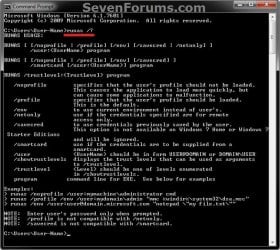
EXAMPLE: RUNAS command
NOTE: These are all of the different options available for the RUNAS command that you could also use with the command in step 2 below.
Here's How:
1. Right click on a empty area on desktop, and click on New and Shortcut.
2. Type either command below into the location area, and click on the Next button. (see screenshot below)
NOTE: You would substitute USER-NAME in the command with the actual name of the user account that you want to run the program as.
(To have to enter credentials each time opened)
runas /user:USER-NAME "C:\full\path\of\Program.exe"
For example, if I wanted to run Notepad as the test user, I would type this command below.
runas /user:test "C:\Windows\system32\notepad.exe"
OR
(To remember credentials after entered first time to automatically be entered afterwards)
runas /savecred /user:USER-NAME "C:\full\path\of\Program.exe"
For example, if I wanted to run Notepad as the test user, I would type this command below.
runas /savecred /user:test "C:\Windows\system32\notepad.exe"

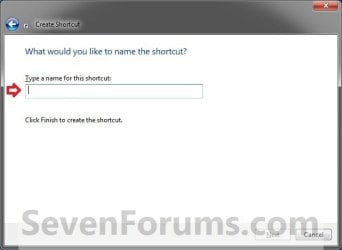
3. Type in something like Program Name - Run as User for the name, and click on the Finish button. (see screenshot below)
NOTE: You can name this anything you would like though.
4. Right click on the new Program Name - Run as User shortcut on the Desktop and click on Properties.
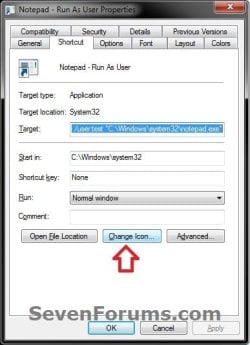
5. Click on the Shortcut tab, then click on the Change Icon button. (see screenshot below)
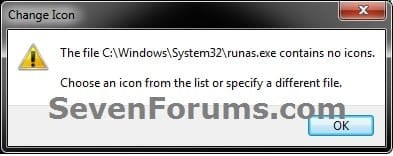
6. Click on OK. (see screenshot below)
7. Click on Browse (see screenshot below step 8), navigate to the location of the EXE file (ex: notepad.exe) of the program, select it, and click on Open. (see screenshot below)
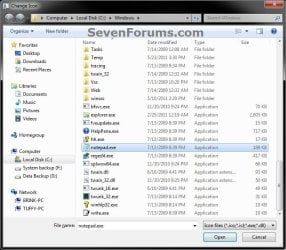
8. Select the program's icon, and click on OK. (see screenshot below)
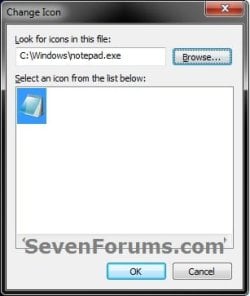
9. Click on OK. (see screenshot below)
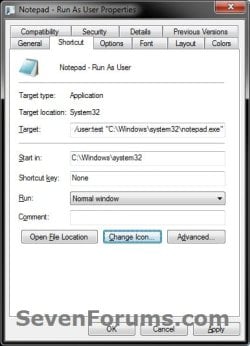
10. In Vista and Windows 7, you can now Pin to Taskbar (Windows 7 only) or Pin to Start Menu, add to Quick Launch, assign a keyboard shortcut to it, or move this shortcut to where you like for easy use.
11. In Windows 8, you can Pin to Taskbar on desktop, Pin to Start screen, add to Quick Launch, assign a keyboard shortcut to it, or move this shortcut to where you like for easy use.
That's it,
Shawn
Related Tutorials
- How to Create a Elevated Program Shortcut a Standard User is able to Run in Windows 7
- How to Run a Program as a Different User in Windows 7 and Windows 8
- How to See What User Name a Program is Running as in Windows 7
- How to See What User Name a Program is Running as in Windows 8
- How to Run a Program as an Administrator in Windows 7
- Add "Run in Separate Memory Space" to Windows 7 Run Command
- How to Add or Remove "Run as Different User" in Context Menu in Windows 7 and Windows 8
- How to Use "Run as different user" Context Menu Item With or Without Shift+Right Click
Last edited:
 ublic\Desktop\$ShortcutFileName.lnk"


