How to Create an Elevated Program Shortcut without a UAC Prompt in Windows
Information
This will show you how to create an elevated "Run as administrator" shortcut of any installed program using Task Scheduler so that it will not give you a UAC prompt for permission when you start it while still having UAC turned on in Vista, Windows 7, and Windows 8.
In the tutorial, you will first create a new task, then a new shortcut to run the task. Afterwards, how to change the icon of the shortcut.
In the tutorial, you will first create a new task, then a new shortcut to run the task. Afterwards, how to change the icon of the shortcut.
Warning
- This shortcut and task can only be created and work while logged in as an administrator account.
- This shortcut will not work in a standard user account.
Here's How:
1. Press the Windows + R keys to open the Run dialog, type taskschd.msc, and press Enter.
NOTE: This will open Task Scheduler. This file is located at:
C:\Windows\system32\taskschd.msc.
2. While having Task Scheduler Library selected in the left pane, click/tap on Create task in the far right pane. (see screenshot below)
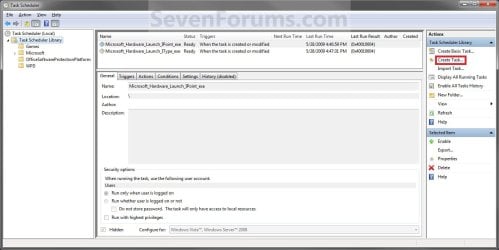
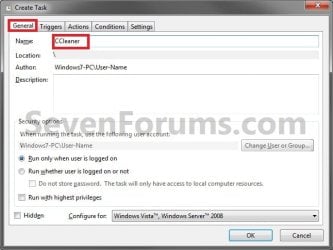
3. Under the General tab, type in the "Name" of the program you want to create this shortcut for. (see screenshot below)
NOTE: This will be the name of the task. As an example, I will use CCleaner for that program. Make note of this name, you will need it later in step 12 and 14 below.
4. Check the Run with highest privileges box. (See screenshot below)
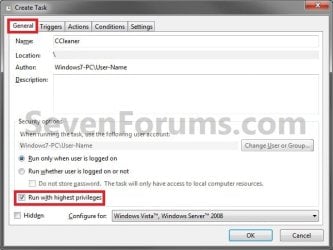
5. Click/tap on the Configure for drop down box to open it, and select Windows® 7, Windows Server™ 2008 R2 or the Windows you are currently in. (see screenshot above and below)
NOTE: This is like compatibility mode. If the program does not support running in Windows 7 normally, then you can select the OS that is does support running in instead to have it run in compatibility mode as if it was running in that OS instead of Windows 7.

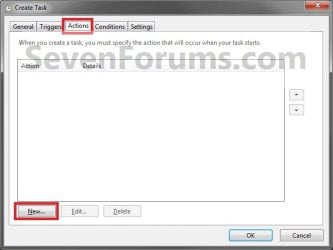
6. Click/tap on the Actions tab, then on the New button. (see screenshot below)
7. In the Program/script: box in the Actions tab, copy and paste the path below. (see screenshot below step 9)
NOTE: Thank you to chillz for the updated steps 7 and 8.
%windir%\System32\cmd.exe
8. In the Add arguments (optional): box in the Actions tab, type in the argument below. (see screenshot below step 9)
NOTE: Substitute Task Name in the argument below with the name you entered in step 3 (ex: CCleaner) within quotes, and substitute Full Path of Program in the argument below with the actual full path of the program's .exe file within quote.
/c start "Task Name" "Full Path of Program"
For example:
Code:
/c start "CCleaner" "C:\Program Files\CCleaner\CCleaner64.exe"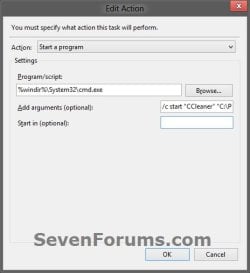
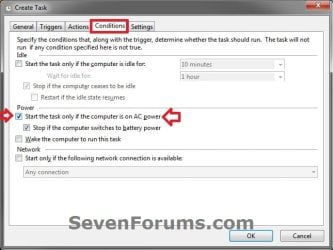
10. Click/tap on the Conditions tab, and uncheck the Stop if the computer switches to battery power box first, then uncheck the Start the task only if the computer is on AC power box. (see screenshots below)
NOTE: This step is mostly for laptops, so that you will be able to run the program when the laptop is running on battery power.

11. Click/tap on OK. (See screenshots above)
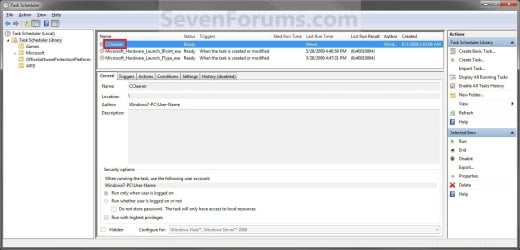
12. You will now see your new task created with the name (ex: CCleaner) you gave it in step 3. Close Task Scheduler. (see screenshot below)
13. Right click or press and hold on an empty area of your desktop, then click/tap on New and Shortcut.
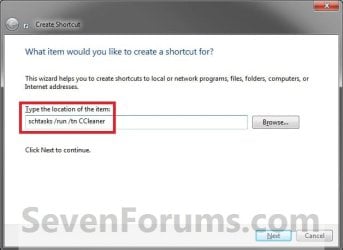
14. Type in the target below for the location field, then click/tap on the Next button. (see screenshot below)
NOTE: Subsitute task-name in the target with the name (ex: CCleaner) within quotes that you used in step 3.
schtasks /run /tn "task-name"
For example: For my task name CCleaner I used from step 3, I would type:
schtasks /run /tn "CCleaner"
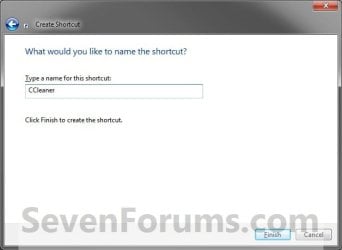
15. Type in a name you want for the shortcut (ex: CCleaner), then click/tap on the Finish button. (see screenshot below)
16. Right click on the new shortcut (ex: CCleaner) on the desktop, then click/tap on Properties.
17. Click/tap on the Shortcut tab, and on the Change Icon button. (see screenshot below)

18. Click/tap on OK. (see screenshot below)
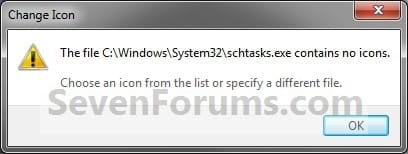
19. Click/tap on the Browse button. (see screenshot below)
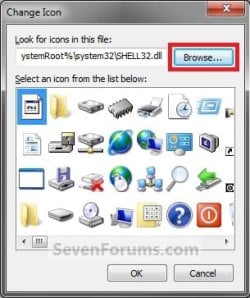
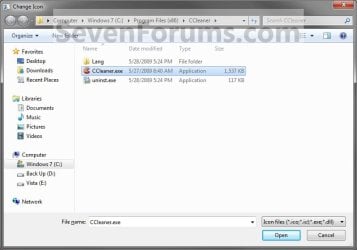
20. Navigate to the .exe file of the program that you have created this shortcut with, select it, and click/tap on Open. (see screenshot below)
NOTE: If you have a icon of your own that you would prefer to use instead, then navigate to where you have that icon saved at instead.
21. Select the icon you want for the shortcut, then click/tap on OK. (see screenshot below)
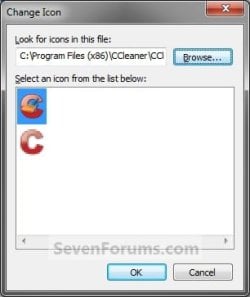
22. Click/tap on OK. (see screenshot below)
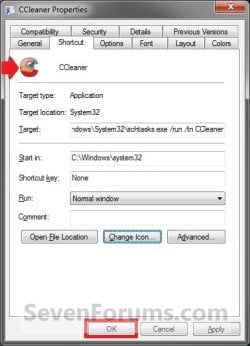
23. You can now use this elevated shortcut to run at startup in your "Startup" folder, run at startup as a task, Pin to Start Menu, Pin to Taskbar, assign a keyboard shortcut, or move to where you like for easy use.
24. When you run this new elevated shortcut, you will now no longer have to click/tap on YES to approve the UAC prompt to allow the program run as administrator.
Tip
To Undo and Remove this Task:
- While having Task Scheduler Library selected in the left pane, right click on the task in the right pane that you created in step 12, then click on Delete and Yes to approve.
- Delete the shortcut.
Shawn
Related Tutorials
- How to Set Priority Level for Applications and Processes in Windows 7
- How to Run a Program as an Administrator in Windows 7
- How to See if Process is running as administrator (elevated) in Vista and Windows 7
- How to See if Process is running as administrator (elevated) in Windows 8 and 8.1
- How to Create an Elevated Command Prompt Shortcut in Windows 7 and Windows 8
- How to Create an Elevated Windows 7 Task Manager Shortcut
- How to Change UAC Notification Settings in Windows 7
- How to Create a Task to Run a Program at Startup and Log On in Windows 7
- Enable or Disable the User Account Control (UAC) Blacking Out of Screen in Vista and Windows 7
- How to Elevate All Administrator Accounts UAC Privilege Level
- How to Add "Run as administrator" to VBS File Context Menu
- How to Add "Run as administrator" to MSI File Context Menu
- How to Require Users to Press CTRL+ALT+DEL to Approve UAC Elevation
- How to Create an Elevated Program Shortcut a Standard User is able to Run in Windows 7
- How to Change Behavior of User Account Control (UAC) Prompt for Standard Users
- How to Display a Message Reminder in Windows with Task Scheduler
Last edited: