Elevated Program Shortcut without UAC Prompt - Create

How to Create an Elevated Program Shortcut without a UAC Prompt in Windows


   Information
This will show you how to create an elevated "Run as administrator" shortcut of any installed program using Task Scheduler so that it will not give you a UAC prompt for permission when you start it while still having UAC turned on in Vista, Windows 7, and Windows 8.

In the tutorial, you will first create a new task, then a new shortcut to run the task. Afterwards, how to change the icon of the shortcut.

   Note
Special thanks to OEM for pointing this out, and the previous Vista version by DMEX.

   Warning


  • This shortcut and task can only be created and work while logged in as an administrator account.
  • This shortcut will not work in a standard user account.


Here's How:
1. Press the Windows + R keys to open the Run dialog, type taskschd.msc, and press Enter.
NOTE: This will open Task Scheduler. This file is located at:
C:\Windows\system32\taskschd.msc.

2. While having Task Scheduler Library selected in the left pane, click/tap on Create task in the far right pane. (see screenshot below)
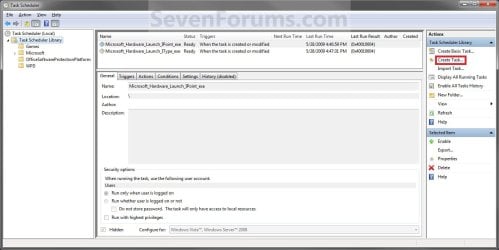
Step1.jpg
3. Under the General tab, type in the "Name" of the program you want to create this shortcut for. (see screenshot below)
NOTE: This will be the name of the task. As an example, I will use CCleaner for that program. Make note of this name, you will need it later in step 12 and 14 below.
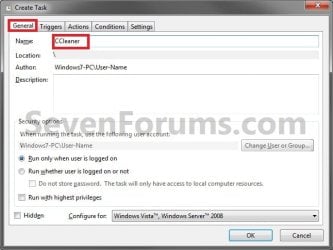
Step2.jpg
4. Check the Run with highest privileges box. (See screenshot below)
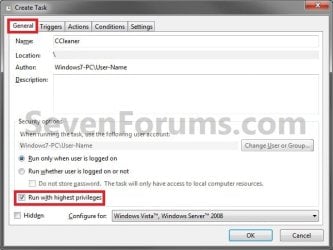
Step3.jpg
5. Click/tap on the Configure for drop down box to open it, and select Windows® 7, Windows Server™ 2008 R2 or the Windows you are currently in. (see screenshot above and below)
NOTE: This is like compatibility mode. If the program does not support running in Windows 7 normally, then you can select the OS that is does support running in instead to have it run in compatibility mode as if it was running in that OS instead of Windows 7.

Drop_Down_Box.jpg
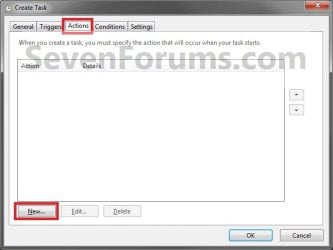
6. Click/tap on the Actions tab, then on the New button. (see screenshot below)
Step4.jpg
7. In the Program/script: box in the Actions tab, copy and paste the path below. (see screenshot below step 9)
NOTE: Thank you to chillz for the updated steps 7 and 8.
%windir%\System32\cmd.exe
8. In the Add arguments (optional): box in the Actions tab, type in the argument below. (see screenshot below step 9)

NOTE: Substitute Task Name in the argument below with the name you entered in step 3 (ex: CCleaner) within quotes, and substitute Full Path of Program in the argument below with the actual full path of the program's .exe file within quote.
/c start "Task Name" "Full Path of Program"


For example:

Code:
/c start "CCleaner" "C:\Program Files\CCleaner\CCleaner64.exe"
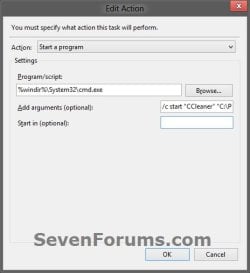
9. Click/tap on OK. (see screenshot below)
step7.jpg
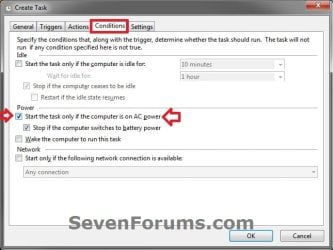
10. Click/tap on the Conditions tab, and uncheck the Stop if the computer switches to battery power box first, then uncheck the Start the task only if the computer is on AC power box. (see screenshots below)
NOTE: This step is mostly for laptops, so that you will be able to run the program when the laptop is running on battery power.
step8.jpg

Conditions.jpg

11. Click/tap on OK. (See screenshots above)

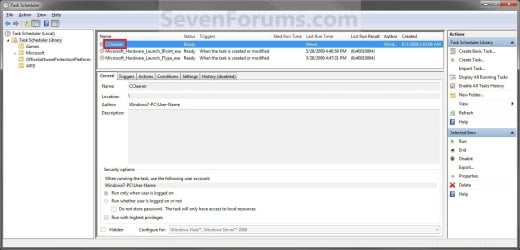
12. You will now see your new task created with the name (ex: CCleaner) you gave it in step 3. Close Task Scheduler. (see screenshot below)
Step9.jpg
13. Right click or press and hold on an empty area of your desktop, then click/tap on New and Shortcut.

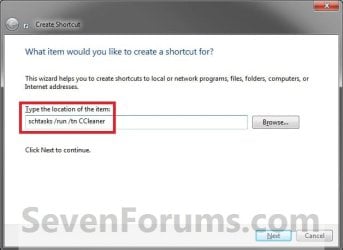
14. Type in the target below for the location field, then click/tap on the Next button. (see screenshot below)
NOTE: Subsitute task-name in the target with the name (ex: CCleaner) within quotes that you used in step 3.
schtasks /run /tn "task-name"

For example: For my task name CCleaner I used from step 3, I would type:
schtasks /run /tn "CCleaner"
Step10.jpg
15. Type in a name you want for the shortcut (ex: CCleaner), then click/tap on the Finish button. (see screenshot below)
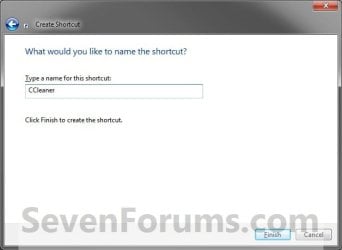
Step11.jpg
16. Right click on the new shortcut (ex: CCleaner) on the desktop, then click/tap on Properties.

17. Click/tap on the Shortcut tab, and on the Change Icon button. (see screenshot below)
Step12.jpg
18. Click/tap on OK. (see screenshot below)
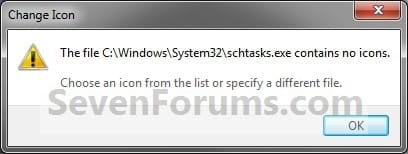
Step13.jpg
19. Click/tap on the Browse button. (see screenshot below)
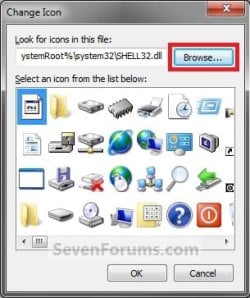
Step14.jpg
20. Navigate to the .exe file of the program that you have created this shortcut with, select it, and click/tap on Open. (see screenshot below)
NOTE: If you have a icon of your own that you would prefer to use instead, then navigate to where you have that icon saved at instead.
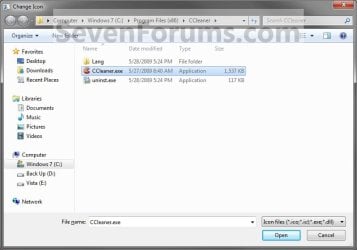
Step15.jpg
21. Select the icon you want for the shortcut, then click/tap on OK. (see screenshot below)
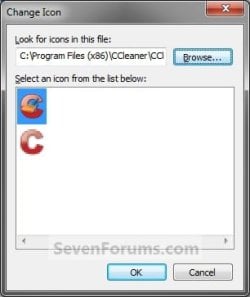
Step16.jpg
22. Click/tap on OK. (see screenshot below)
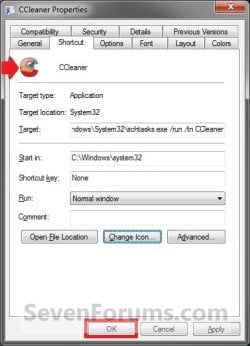
Step17.jpg
23. You can now use this elevated shortcut to run at startup in your "Startup" folder, run at startup as a task, Pin to Start Menu, Pin to Taskbar, assign a keyboard shortcut, or move to where you like for easy use.

24. When you run this new elevated shortcut, you will now no longer have to click/tap on YES to approve the UAC prompt to allow the program run as administrator.


   Tip
To Undo and Remove this Task:
  • While having Task Scheduler Library selected in the left pane, right click on the task in the right pane that you created in step 12, then click on Delete and Yes to approve.
  • Delete the shortcut.
That's it,
Shawn


Last edited:

My Computer

Computer type
PC/Desktop
Computer Manufacturer/Model Number
Self built custom
OS
64-bit Windows 11 Pro for Workstations
CPU
Intel i7-8700K OC'd to 5 GHz
Motherboard
ASUS ROG Maximus XI Formula Z390
Memory
64 GB (4x16GB) G.SKILL TridentZ RGB DDR4 3600 MHz
Graphics Card(s)
ASUS ROG-STRIX-GTX1080TI-O11G-GAMING
Sound Card
Integrated
Monitor(s) Displays
2 x Samsung Odyssey G7 27"
Screen Resolution
2560x1440
Hard Drives
1TB Samsung 990 PRO M.2,
4TB Samsung 990 PRO PRO M.2,
TerraMaster F8 SSD Plus NAS
PSU
Seasonic Prime Titanium 850W
Case
Thermaltake Core P3
Cooling
Corsair Hydro H115i
Keyboard
Logitech wireless K800
Mouse
Logitech MX Master 4
Internet Speed
2 Gb/s Download and 100 Mb/s Upload
Antivirus
Malwarebyte Anti-Malware Premium
Browser
Google Chrome
Other Info
Logitech Z625 speaker system,
Logitech BRIO 4K Pro webcam,
HP Color LaserJet Pro MFP M477fdn,
APC SMART-UPS RT 1000 XL - SURT1000XLI,
Galaxy S23 Plus phone
Hello Willy, and welcome to Seven Forums.

Thank you, Brink . . . or Shawn . . . or . . . Mr. Shawn Brink. A man of many names. :) I have been in this web site every day for the past week. It's like a university course in Windows7. I am most grateful.

See if you may be able to use this tutorial to run the shortcut in the tutorial below for this instead.

http://www.sevenforums.com/tutorials/10499-task-manager-create-elevated-shortcut.html

Be sure to do this option below at step 23 for the create task. :)

Step 23? The above tutorial stops at step 7 and the one you refer to below stops at step 21. No matter because . . .

This is exactly the tutorial I followed that resulted in my Shortcut for Task Manager that now resides in my Startup folder. Despite the fact that it doesn't actually launch my Shortcut during system startup, it is a convenient item I will leave there because if, for example, I fat-finger something & manage to close Task Manager while I'm doing stuff, this Shortcut does let me relaunch Task Manager in Administrator mode without the UAC prompt. So it wasn't all a lost effort.


Aha! Hard to believe that in all the dozens of times I was in Task Scheduler to try to solve this that I never noticed that the Task Scheduler Library item in the left pane was a directory structure with cascading children under it. I'm such an astute observer. Anyway, after creating the folder as your tutorial directs, I didn't see my folder on the left at first. And that's when I finally twigged to the little triangular bullet thingy like what you see in Windows Explorer.

All together now . . . DUH!!!!!

So I cascaded that all out & discovered this is where all those other mysterious things running in my system all the time come from. Like I said, university course.

And the folder I just created according to your instructions was there. From that point on, I was duplicating the steps I had already performed several times by following the tutorial at the head of this thread.

The step for executing schtasks /run /tn task-name didn't do anything observable at all. I didn't get any errors from this procedure but it also didn't do what I wanted.

Hope this helps,
Shawn

Hope? Beyond hope, my friend. THIS WORKED!! Blessings upon thee, O Jedi Master. The only difference is that when my created item in the Task Scheduler is just another item in the Task Scheduler Library, it doesn't launch at system startup. When the exact same item is inside a Folder inside the Task Scheduler Library, it works like a champ. I note that the first reply post in this tutorial is dated June 2009, three years ago. Perhaps that procedure worked on the W7 current at the time, but the system has changed in the interim & the advice is no longer valid. I am wholly unqualified to answer that question.

I suppose that now, if there's anything else I want to launch automatically at system startup, and it doesn't work from the plain vanilla Startup folder, I can just add another task in this folder in the Task Scheduler and it should do the trick.

By the way, your instructions talk about doing a search for taskschd.msc to get to the Task Scheduler. On my system, I just navigate Start Menu -> All Programs -> System Tools, and it's there. I admit I have shuffled things around in my Start Menu to make them a little less cluttered & more organized so maybe mileage varies on this point. But I'm pretty sure there was already a Task Scheduler item somewhere in my Start Menu from the outset.

So. Bottom line. Another one bites the dust. Thank you thank you thank you mille fois merci.
 
Last edited:

My Computer

Computer type
PC/Desktop
Computer Manufacturer/Model Number
ASUS (assembled myself)
OS
Windows 7 Professional 64-bit
CPU
Intel Core i7-4790K Quad CPU @ 4.00 GHz
Motherboard
ASUS Z97-AR, Intel Z97 Express chipset, ATX form factor
Memory
2x4G DDR3 1600MHz DIMMs
Graphics Card(s)
Intel HD Graphics 4600 on mobo; NVidia GeForce GT 710 PCI-E
Sound Card
Realtek High Definition Audio, integrated on mobo
Monitor(s) Displays
Dell SE2417HGX, 20.5"x11.5" viewable area; 32" Toshiba HDTV
Screen Resolution
1920 x 1080 @ 60 Hz, 32-bit color depth
Hard Drives
Western Digital 500G SATA
Seagate 150G SATA
2 x Seagate 6T SATA
2 x Seagate 18T SATA
PSU
EVGA 500B (500 Watts)
Case
NZXT H230 mid-tower
Cooling
CPU fan, PSU fan, 2 case fans, NVidia fan
Keyboard
Perixx 513H
Mouse
Touch pad integrated into keyboard
Internet Speed
Intel Ethernet Conn(2)I218-V, on mobo, ISP=cableTV 400Mbps
Antivirus
Comodo
Browser
Firefox
Other Info
Ext'l DVD rec: LG HL-DT-ST DVDRAM GP10NB20 USB
Monitor conn to VideoPort via HDMI-to-VideoPort adap
Realtek ALC892 8-channel High Definition Audio CODEC featuring Crystal Sound 2
Audio conn to surr recv via 25' optical S/PDIF TOSLINK audio cable
SYSINFO: 11 NIC ports but only 1 actively conn via DHCP to ISP
ISP bundled w/ cable TV+cell, claims 400Mbps,
but really 50 million bytes/sec
That's great news Willy. You're most welcome.

By default, anything that runs elevated (run as administrator) will not run at startup if it's just simply placed in the "Startup" folder. Only through Task Scheduler will it run elevated at startup instead. :)
 

My Computer

Computer type
PC/Desktop
Computer Manufacturer/Model Number
Self built custom
OS
64-bit Windows 11 Pro for Workstations
CPU
Intel i7-8700K OC'd to 5 GHz
Motherboard
ASUS ROG Maximus XI Formula Z390
Memory
64 GB (4x16GB) G.SKILL TridentZ RGB DDR4 3600 MHz
Graphics Card(s)
ASUS ROG-STRIX-GTX1080TI-O11G-GAMING
Sound Card
Integrated
Monitor(s) Displays
2 x Samsung Odyssey G7 27"
Screen Resolution
2560x1440
Hard Drives
1TB Samsung 990 PRO M.2,
4TB Samsung 990 PRO PRO M.2,
TerraMaster F8 SSD Plus NAS
PSU
Seasonic Prime Titanium 850W
Case
Thermaltake Core P3
Cooling
Corsair Hydro H115i
Keyboard
Logitech wireless K800
Mouse
Logitech MX Master 4
Internet Speed
2 Gb/s Download and 100 Mb/s Upload
Antivirus
Malwarebyte Anti-Malware Premium
Browser
Google Chrome
Other Info
Logitech Z625 speaker system,
Logitech BRIO 4K Pro webcam,
HP Color LaserJet Pro MFP M477fdn,
APC SMART-UPS RT 1000 XL - SURT1000XLI,
Galaxy S23 Plus phone
Is this tutorial in PDF format, for offline viewing ?
 

My Computer

Computer type
PC/Desktop
Computer Manufacturer/Model Number
Custom Built
OS
Windows 10 Pro
CPU
Core2Quad (2.6 Ghz)
Motherboard
nVidia 775
Memory
8 Gigs DDR2
Graphics Card(s)
Geforce Titan Black
Sound Card
Motherboard Audio
Monitor(s) Displays
25" Asus LCD
Screen Resolution
1680x1050
Hard Drives
120 Gig SSD
60 Gig SSD
750 Gig HDD
PSU
850 Watts
Case
Mid-Size
Keyboard
Logitech
Mouse
Logitech - I love logitech mouses
Internet Speed
DSL 25Mbps - Although extremely expensive
Antivirus
Microsoft Anti-Virus
Browser
FireFox 36.x
Hello JerometheGiraff,

Sorry, but no. However, you could click on File and Save as in IE9 to then save the tutorial page as a webpage, complete .htm file. :)

Hope this helps,
Shawn
 

My Computer

Computer type
PC/Desktop
Computer Manufacturer/Model Number
Self built custom
OS
64-bit Windows 11 Pro for Workstations
CPU
Intel i7-8700K OC'd to 5 GHz
Motherboard
ASUS ROG Maximus XI Formula Z390
Memory
64 GB (4x16GB) G.SKILL TridentZ RGB DDR4 3600 MHz
Graphics Card(s)
ASUS ROG-STRIX-GTX1080TI-O11G-GAMING
Sound Card
Integrated
Monitor(s) Displays
2 x Samsung Odyssey G7 27"
Screen Resolution
2560x1440
Hard Drives
1TB Samsung 990 PRO M.2,
4TB Samsung 990 PRO PRO M.2,
TerraMaster F8 SSD Plus NAS
PSU
Seasonic Prime Titanium 850W
Case
Thermaltake Core P3
Cooling
Corsair Hydro H115i
Keyboard
Logitech wireless K800
Mouse
Logitech MX Master 4
Internet Speed
2 Gb/s Download and 100 Mb/s Upload
Antivirus
Malwarebyte Anti-Malware Premium
Browser
Google Chrome
Other Info
Logitech Z625 speaker system,
Logitech BRIO 4K Pro webcam,
HP Color LaserJet Pro MFP M477fdn,
APC SMART-UPS RT 1000 XL - SURT1000XLI,
Galaxy S23 Plus phone
I can run the tasks I created from the Task Scheduler(In the task Scheduler, right click, run), but not from the Shortcuts I created. What could the problem be?

For example; this shows in the target area, same as the others except the task name, but the programs doesn't start when I try to run them from the shortcuts.

Target: C:\Windows\System32\schtasks.exe /run /tn "Better File Rename"

Start in: C:\Windows\system32
 
Last edited:

My Computer

Computer Manufacturer/Model Number
ASUS G72 Notebook
OS
Windows 7 Ultimate 64-bit
CPU
Intel® Core™2 Duo mobile processor P8700 2.53 GHz
Memory
6GB DDRII
Graphics Card(s)
NVIDIA GeForce GTX 260M
Sound Card
EAX Advanced HD 4.0 + Logitech Wireless Headset G930
Monitor(s) Displays
17.3" LED-backlit LCD high-definition plus widescreen
Screen Resolution
1600 x 900
Hard Drives
2 x Seagate Momentus 500 GB 5400.6 SATA 3Gb/s
Cooling
Targus
Mouse
Logitech Wireless Trackball M570
Internet Speed
3 to 6 Mbps Download / .5 to 1 Mbps Upload
Other Info
Clear Modem with Wi-fi*
Comodo Internet Security Premium
Hello IMAyNeed,

There may have been a mistake made in one of the steps. The most critical part in the steps is to make sure that the task name used in step 3 is used in step 8 and with the shortcut's target at step 14. Could you post screenshots showing what you entered in Task Scheduler to see if something may stand out? I'll be happy to look through them to help double check. :)
 

My Computer

Computer type
PC/Desktop
Computer Manufacturer/Model Number
Self built custom
OS
64-bit Windows 11 Pro for Workstations
CPU
Intel i7-8700K OC'd to 5 GHz
Motherboard
ASUS ROG Maximus XI Formula Z390
Memory
64 GB (4x16GB) G.SKILL TridentZ RGB DDR4 3600 MHz
Graphics Card(s)
ASUS ROG-STRIX-GTX1080TI-O11G-GAMING
Sound Card
Integrated
Monitor(s) Displays
2 x Samsung Odyssey G7 27"
Screen Resolution
2560x1440
Hard Drives
1TB Samsung 990 PRO M.2,
4TB Samsung 990 PRO PRO M.2,
TerraMaster F8 SSD Plus NAS
PSU
Seasonic Prime Titanium 850W
Case
Thermaltake Core P3
Cooling
Corsair Hydro H115i
Keyboard
Logitech wireless K800
Mouse
Logitech MX Master 4
Internet Speed
2 Gb/s Download and 100 Mb/s Upload
Antivirus
Malwarebyte Anti-Malware Premium
Browser
Google Chrome
Other Info
Logitech Z625 speaker system,
Logitech BRIO 4K Pro webcam,
HP Color LaserJet Pro MFP M477fdn,
APC SMART-UPS RT 1000 XL - SURT1000XLI,
Galaxy S23 Plus phone
The problem was at the beginning.
In my task scheduler library, there were already like 40 tasks (OS and Software auto created, not by me); so, I created a folder inside the library to put my tasks in there so that I wouldn't confuse my tasks with the computers. I haven't thought of this subfolder thing before.

I changed the target in the shortcut to C:\Windows\System32\schtasks.exe /run /tn "\Elevated Tasks\Better File Rename"

and it worked.

So, the problem was the tasks being in a subfolder.

Thank you for the tutorial by the way.
 

My Computer

Computer Manufacturer/Model Number
ASUS G72 Notebook
OS
Windows 7 Ultimate 64-bit
CPU
Intel® Core™2 Duo mobile processor P8700 2.53 GHz
Memory
6GB DDRII
Graphics Card(s)
NVIDIA GeForce GTX 260M
Sound Card
EAX Advanced HD 4.0 + Logitech Wireless Headset G930
Monitor(s) Displays
17.3" LED-backlit LCD high-definition plus widescreen
Screen Resolution
1600 x 900
Hard Drives
2 x Seagate Momentus 500 GB 5400.6 SATA 3Gb/s
Cooling
Targus
Mouse
Logitech Wireless Trackball M570
Internet Speed
3 to 6 Mbps Download / .5 to 1 Mbps Upload
Other Info
Clear Modem with Wi-fi*
Comodo Internet Security Premium
IMAyNeed,

The tutorial will not work with the tasks in a subfolder of Task Scheduler Library instead as it's written. I just didn't include subfolders to make the tutorial universal and easier. That's all.

However, for the shortcut to work using a subfolder, you would just need to use the location below instead at step 14. :)

schtasks /run /tn "subfolder name\task name"


For example: If used a subfolder named CCleaner under "Task Scheduler Library" for the task CCleaner Test (step 3), I would type:

schtasks /run /tn "CCleaner\CCleaner Test"
 

My Computer

Computer type
PC/Desktop
Computer Manufacturer/Model Number
Self built custom
OS
64-bit Windows 11 Pro for Workstations
CPU
Intel i7-8700K OC'd to 5 GHz
Motherboard
ASUS ROG Maximus XI Formula Z390
Memory
64 GB (4x16GB) G.SKILL TridentZ RGB DDR4 3600 MHz
Graphics Card(s)
ASUS ROG-STRIX-GTX1080TI-O11G-GAMING
Sound Card
Integrated
Monitor(s) Displays
2 x Samsung Odyssey G7 27"
Screen Resolution
2560x1440
Hard Drives
1TB Samsung 990 PRO M.2,
4TB Samsung 990 PRO PRO M.2,
TerraMaster F8 SSD Plus NAS
PSU
Seasonic Prime Titanium 850W
Case
Thermaltake Core P3
Cooling
Corsair Hydro H115i
Keyboard
Logitech wireless K800
Mouse
Logitech MX Master 4
Internet Speed
2 Gb/s Download and 100 Mb/s Upload
Antivirus
Malwarebyte Anti-Malware Premium
Browser
Google Chrome
Other Info
Logitech Z625 speaker system,
Logitech BRIO 4K Pro webcam,
HP Color LaserJet Pro MFP M477fdn,
APC SMART-UPS RT 1000 XL - SURT1000XLI,
Galaxy S23 Plus phone
Yes, I got that right after I typed my reply. Thanks again.
 

My Computer

Computer Manufacturer/Model Number
ASUS G72 Notebook
OS
Windows 7 Ultimate 64-bit
CPU
Intel® Core™2 Duo mobile processor P8700 2.53 GHz
Memory
6GB DDRII
Graphics Card(s)
NVIDIA GeForce GTX 260M
Sound Card
EAX Advanced HD 4.0 + Logitech Wireless Headset G930
Monitor(s) Displays
17.3" LED-backlit LCD high-definition plus widescreen
Screen Resolution
1600 x 900
Hard Drives
2 x Seagate Momentus 500 GB 5400.6 SATA 3Gb/s
Cooling
Targus
Mouse
Logitech Wireless Trackball M570
Internet Speed
3 to 6 Mbps Download / .5 to 1 Mbps Upload
Other Info
Clear Modem with Wi-fi*
Comodo Internet Security Premium
LOL, posting inbetween each other. I'm happy to hear that you got it sorted. :)
 

My Computer

Computer type
PC/Desktop
Computer Manufacturer/Model Number
Self built custom
OS
64-bit Windows 11 Pro for Workstations
CPU
Intel i7-8700K OC'd to 5 GHz
Motherboard
ASUS ROG Maximus XI Formula Z390
Memory
64 GB (4x16GB) G.SKILL TridentZ RGB DDR4 3600 MHz
Graphics Card(s)
ASUS ROG-STRIX-GTX1080TI-O11G-GAMING
Sound Card
Integrated
Monitor(s) Displays
2 x Samsung Odyssey G7 27"
Screen Resolution
2560x1440
Hard Drives
1TB Samsung 990 PRO M.2,
4TB Samsung 990 PRO PRO M.2,
TerraMaster F8 SSD Plus NAS
PSU
Seasonic Prime Titanium 850W
Case
Thermaltake Core P3
Cooling
Corsair Hydro H115i
Keyboard
Logitech wireless K800
Mouse
Logitech MX Master 4
Internet Speed
2 Gb/s Download and 100 Mb/s Upload
Antivirus
Malwarebyte Anti-Malware Premium
Browser
Google Chrome
Other Info
Logitech Z625 speaker system,
Logitech BRIO 4K Pro webcam,
HP Color LaserJet Pro MFP M477fdn,
APC SMART-UPS RT 1000 XL - SURT1000XLI,
Galaxy S23 Plus phone
Nice! I had a program that was bugging me off with UAC (a simple text editor) as it most likely doesn't need it, but with this I can execute without problems and UAC, and even better, somehow runs smootly now (whereas clicking the prompt made the program run slower... O_o).

Just for asking as it is not really important, is there any way to get the program focused while executing? because of the CMD being oppened (no matter if it is minimized or not) the program looses focus... just for asking, if there is no way to get this is not really important.

Thanks for the tutorial Brink!!! You always have something nice and useful for all us :)

See ya!!! :D
 

My Computer

Computer type
PC/Desktop
Computer Manufacturer/Model Number
Assembled Desktop PC
OS
Microsoft Windows 7 Home Premium SP1 64-bit Build 7600
CPU
AMD Athlon 64 X2 5200+ Dual Core CPU @ 2.7 Ghz (Brisbane)
Motherboard
PCChips A13G+ v3.0
Memory
2x2 GB DDR2 PC-5300 (667 Mhz) Kingston ValueRAM
Graphics Card(s)
XFX ATI Radeon HD 4350 GPU (512 MB + 512 MB HM)
Sound Card
Realtek High Definition Audio Driver ALC660 @ MCP61S
Monitor(s) Displays
HP S2031 20" LED HD Widescreen Display Monitor
Screen Resolution
1600 x 900 px
Hard Drives
Maxtor Diamond Max 10 (160 GB, 7200 RPM, SATA-II Hard Disk)
Western Digital Scorpion Blue (250 GB, 5400 RPM, SATA-II External Hard Disk - Personal Data)
Toshiba MQ01ABD050 (500 GB, 5400 RPM, SATA-II External Hard Disk - Software & ISOs)
PSU
Pixxo Transformer 850W 80+ Certification PSU
Case
Compaq 5BW353 Case
Cooling
Many solutions, see other info...
Keyboard
Green Leaf (Mitzu) Standard Keyboard
Mouse
Microsoft USB Lasser Pointing Device
Internet Speed
10 MB
Antivirus
Avast Antivirus Free
Browser
Firefox, Chrome, Internet Explorer
Other Info
Windows Experience Index Result: 3.8 of 7.9.

Cooling solutions:
- AVC @ 2000/5000 RPM Copper Heatpipes (For Athlon 64 X2 6000+ CPU used in an Athlon 64 X2 5200+)
- Rear Fan 80 mm @ 2700 RPM for heat extraction
- Manhatan Chipset Cooler @ 4700/7200 RPM (For nVidia Chipset in MoBo)
- Foxconn @ 2500 RPM (Old Pentium III heatsink fan) in XFX ATI Radeon HD 4350
You're welcome FerchogtX, and thank you. :)

The program used for this shortcut should open as the active/focused window by default. The only exception should be if click on something else right after it opens, or have another program/window opening right after it.

What program is this for? I'll be happy to test with it if I'm able to.
 

My Computer

Computer type
PC/Desktop
Computer Manufacturer/Model Number
Self built custom
OS
64-bit Windows 11 Pro for Workstations
CPU
Intel i7-8700K OC'd to 5 GHz
Motherboard
ASUS ROG Maximus XI Formula Z390
Memory
64 GB (4x16GB) G.SKILL TridentZ RGB DDR4 3600 MHz
Graphics Card(s)
ASUS ROG-STRIX-GTX1080TI-O11G-GAMING
Sound Card
Integrated
Monitor(s) Displays
2 x Samsung Odyssey G7 27"
Screen Resolution
2560x1440
Hard Drives
1TB Samsung 990 PRO M.2,
4TB Samsung 990 PRO PRO M.2,
TerraMaster F8 SSD Plus NAS
PSU
Seasonic Prime Titanium 850W
Case
Thermaltake Core P3
Cooling
Corsair Hydro H115i
Keyboard
Logitech wireless K800
Mouse
Logitech MX Master 4
Internet Speed
2 Gb/s Download and 100 Mb/s Upload
Antivirus
Malwarebyte Anti-Malware Premium
Browser
Google Chrome
Other Info
Logitech Z625 speaker system,
Logitech BRIO 4K Pro webcam,
HP Color LaserJet Pro MFP M477fdn,
APC SMART-UPS RT 1000 XL - SURT1000XLI,
Galaxy S23 Plus phone
Ha, you will make laugh of me, is a program called Fighter Factory Ultimate used to créate MUGEN chars (I do this in my lil' free time),
You can get it from here:
VirtuallTek Systems
Is a lil' harmless program, but needs UAC (????) to execute just because some of the data for configurations is stored at C:\ProgramData\VirtuallTek once executed the first time instead of other folder XD. That's why your tutorial was so usefull ;)

Another thing is that I was in need to modify a lil' the method, instead of adding cmd + the parameters, I just added the program shortcut (In my case, D:\Programs\MUGEN\VirtualTek\ff32.exe) because cmd wasn't hidden with the start minimized option in the final shortcut using the cmd + parameters method.

Hope this gives you a whole panorama, but anyway is not that important ;)

Thanks again for the tutorial :) and also for those for Windows 8, they saved me lots of troubles :P

See ya!!! :D
 

My Computer

Computer type
PC/Desktop
Computer Manufacturer/Model Number
Assembled Desktop PC
OS
Microsoft Windows 7 Home Premium SP1 64-bit Build 7600
CPU
AMD Athlon 64 X2 5200+ Dual Core CPU @ 2.7 Ghz (Brisbane)
Motherboard
PCChips A13G+ v3.0
Memory
2x2 GB DDR2 PC-5300 (667 Mhz) Kingston ValueRAM
Graphics Card(s)
XFX ATI Radeon HD 4350 GPU (512 MB + 512 MB HM)
Sound Card
Realtek High Definition Audio Driver ALC660 @ MCP61S
Monitor(s) Displays
HP S2031 20" LED HD Widescreen Display Monitor
Screen Resolution
1600 x 900 px
Hard Drives
Maxtor Diamond Max 10 (160 GB, 7200 RPM, SATA-II Hard Disk)
Western Digital Scorpion Blue (250 GB, 5400 RPM, SATA-II External Hard Disk - Personal Data)
Toshiba MQ01ABD050 (500 GB, 5400 RPM, SATA-II External Hard Disk - Software & ISOs)
PSU
Pixxo Transformer 850W 80+ Certification PSU
Case
Compaq 5BW353 Case
Cooling
Many solutions, see other info...
Keyboard
Green Leaf (Mitzu) Standard Keyboard
Mouse
Microsoft USB Lasser Pointing Device
Internet Speed
10 MB
Antivirus
Avast Antivirus Free
Browser
Firefox, Chrome, Internet Explorer
Other Info
Windows Experience Index Result: 3.8 of 7.9.

Cooling solutions:
- AVC @ 2000/5000 RPM Copper Heatpipes (For Athlon 64 X2 6000+ CPU used in an Athlon 64 X2 5200+)
- Rear Fan 80 mm @ 2700 RPM for heat extraction
- Manhatan Chipset Cooler @ 4700/7200 RPM (For nVidia Chipset in MoBo)
- Foxconn @ 2500 RPM (Old Pentium III heatsink fan) in XFX ATI Radeon HD 4350
After testing it with the elevated shortcut created exactly as written in the tutorial, the cmd window stayed open for me for a few seconds longer than normal for only the first time I ran the program before closing. Afterwards, I never saw the CMD window again when running the program with the shortcut.


To have it open in focus, you will need to use %windir%\System32\cmd.exe at step 7 instead.

For me, the file path to ff32.exe was this below instead:
"C:\Program Files (x86)\VirtuallTek\Fighter Factory Ultimate\ff32.exe"
I used Fighter Factory Ultimate as the task name, so I used this at step 8.
Code:
/c start "Fighter Factory Ultimate" "C:\Program Files (x86)\VirtuallTek\Fighter Factory Ultimate\ff32.exe"
....and used this for the shortcut:
schtasks /run /tn "Fighter Factory Ultimate"


My Computer

Computer type
PC/Desktop
Computer Manufacturer/Model Number
Self built custom
OS
64-bit Windows 11 Pro for Workstations
CPU
Intel i7-8700K OC'd to 5 GHz
Motherboard
ASUS ROG Maximus XI Formula Z390
Memory
64 GB (4x16GB) G.SKILL TridentZ RGB DDR4 3600 MHz
Graphics Card(s)
ASUS ROG-STRIX-GTX1080TI-O11G-GAMING
Sound Card
Integrated
Monitor(s) Displays
2 x Samsung Odyssey G7 27"
Screen Resolution
2560x1440
Hard Drives
1TB Samsung 990 PRO M.2,
4TB Samsung 990 PRO PRO M.2,
TerraMaster F8 SSD Plus NAS
PSU
Seasonic Prime Titanium 850W
Case
Thermaltake Core P3
Cooling
Corsair Hydro H115i
Keyboard
Logitech wireless K800
Mouse
Logitech MX Master 4
Internet Speed
2 Gb/s Download and 100 Mb/s Upload
Antivirus
Malwarebyte Anti-Malware Premium
Browser
Google Chrome
Other Info
Logitech Z625 speaker system,
Logitech BRIO 4K Pro webcam,
HP Color LaserJet Pro MFP M477fdn,
APC SMART-UPS RT 1000 XL - SURT1000XLI,
Galaxy S23 Plus phone
Funny thing is that it appears the command window for a lil sec and then FFU is loaded... well then, I can live with it XD.
Thanks for this man!! :D
 

My Computer

Computer type
PC/Desktop
Computer Manufacturer/Model Number
Assembled Desktop PC
OS
Microsoft Windows 7 Home Premium SP1 64-bit Build 7600
CPU
AMD Athlon 64 X2 5200+ Dual Core CPU @ 2.7 Ghz (Brisbane)
Motherboard
PCChips A13G+ v3.0
Memory
2x2 GB DDR2 PC-5300 (667 Mhz) Kingston ValueRAM
Graphics Card(s)
XFX ATI Radeon HD 4350 GPU (512 MB + 512 MB HM)
Sound Card
Realtek High Definition Audio Driver ALC660 @ MCP61S
Monitor(s) Displays
HP S2031 20" LED HD Widescreen Display Monitor
Screen Resolution
1600 x 900 px
Hard Drives
Maxtor Diamond Max 10 (160 GB, 7200 RPM, SATA-II Hard Disk)
Western Digital Scorpion Blue (250 GB, 5400 RPM, SATA-II External Hard Disk - Personal Data)
Toshiba MQ01ABD050 (500 GB, 5400 RPM, SATA-II External Hard Disk - Software & ISOs)
PSU
Pixxo Transformer 850W 80+ Certification PSU
Case
Compaq 5BW353 Case
Cooling
Many solutions, see other info...
Keyboard
Green Leaf (Mitzu) Standard Keyboard
Mouse
Microsoft USB Lasser Pointing Device
Internet Speed
10 MB
Antivirus
Avast Antivirus Free
Browser
Firefox, Chrome, Internet Explorer
Other Info
Windows Experience Index Result: 3.8 of 7.9.

Cooling solutions:
- AVC @ 2000/5000 RPM Copper Heatpipes (For Athlon 64 X2 6000+ CPU used in an Athlon 64 X2 5200+)
- Rear Fan 80 mm @ 2700 RPM for heat extraction
- Manhatan Chipset Cooler @ 4700/7200 RPM (For nVidia Chipset in MoBo)
- Foxconn @ 2500 RPM (Old Pentium III heatsink fan) in XFX ATI Radeon HD 4350
You're most welcome. :)

Yeah, the cmd window usually opens and closes so fast that you normally would only see a quick flash if that.
 

My Computer

Computer type
PC/Desktop
Computer Manufacturer/Model Number
Self built custom
OS
64-bit Windows 11 Pro for Workstations
CPU
Intel i7-8700K OC'd to 5 GHz
Motherboard
ASUS ROG Maximus XI Formula Z390
Memory
64 GB (4x16GB) G.SKILL TridentZ RGB DDR4 3600 MHz
Graphics Card(s)
ASUS ROG-STRIX-GTX1080TI-O11G-GAMING
Sound Card
Integrated
Monitor(s) Displays
2 x Samsung Odyssey G7 27"
Screen Resolution
2560x1440
Hard Drives
1TB Samsung 990 PRO M.2,
4TB Samsung 990 PRO PRO M.2,
TerraMaster F8 SSD Plus NAS
PSU
Seasonic Prime Titanium 850W
Case
Thermaltake Core P3
Cooling
Corsair Hydro H115i
Keyboard
Logitech wireless K800
Mouse
Logitech MX Master 4
Internet Speed
2 Gb/s Download and 100 Mb/s Upload
Antivirus
Malwarebyte Anti-Malware Premium
Browser
Google Chrome
Other Info
Logitech Z625 speaker system,
Logitech BRIO 4K Pro webcam,
HP Color LaserJet Pro MFP M477fdn,
APC SMART-UPS RT 1000 XL - SURT1000XLI,
Galaxy S23 Plus phone
You're welcome Collin. I'm happy to hear that it was able to help you. :)
 

My Computer

Computer type
PC/Desktop
Computer Manufacturer/Model Number
Self built custom
OS
64-bit Windows 11 Pro for Workstations
CPU
Intel i7-8700K OC'd to 5 GHz
Motherboard
ASUS ROG Maximus XI Formula Z390
Memory
64 GB (4x16GB) G.SKILL TridentZ RGB DDR4 3600 MHz
Graphics Card(s)
ASUS ROG-STRIX-GTX1080TI-O11G-GAMING
Sound Card
Integrated
Monitor(s) Displays
2 x Samsung Odyssey G7 27"
Screen Resolution
2560x1440
Hard Drives
1TB Samsung 990 PRO M.2,
4TB Samsung 990 PRO PRO M.2,
TerraMaster F8 SSD Plus NAS
PSU
Seasonic Prime Titanium 850W
Case
Thermaltake Core P3
Cooling
Corsair Hydro H115i
Keyboard
Logitech wireless K800
Mouse
Logitech MX Master 4
Internet Speed
2 Gb/s Download and 100 Mb/s Upload
Antivirus
Malwarebyte Anti-Malware Premium
Browser
Google Chrome
Other Info
Logitech Z625 speaker system,
Logitech BRIO 4K Pro webcam,
HP Color LaserJet Pro MFP M477fdn,
APC SMART-UPS RT 1000 XL - SURT1000XLI,
Galaxy S23 Plus phone
Sub question, do I modify my associations to call this instead of the program directly to achieve the same thing with associated file opening? That is, Right Click -> Edit -> Audition So instead of Audition, should I point it to the modified shortcut on the desktop?
 

My Computer

OS
Windows 7
Back
Top