Elevated Program Shortcut without UAC Prompt - Create

How to Create an Elevated Program Shortcut without a UAC Prompt in Windows


   Information
This will show you how to create an elevated "Run as administrator" shortcut of any installed program using Task Scheduler so that it will not give you a UAC prompt for permission when you start it while still having UAC turned on in Vista, Windows 7, and Windows 8.

In the tutorial, you will first create a new task, then a new shortcut to run the task. Afterwards, how to change the icon of the shortcut.

   Note
Special thanks to OEM for pointing this out, and the previous Vista version by DMEX.

   Warning


  • This shortcut and task can only be created and work while logged in as an administrator account.
  • This shortcut will not work in a standard user account.


Here's How:
1. Press the Windows + R keys to open the Run dialog, type taskschd.msc, and press Enter.
NOTE: This will open Task Scheduler. This file is located at:
C:\Windows\system32\taskschd.msc.

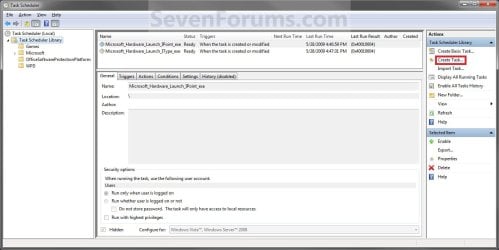
2. While having Task Scheduler Library selected in the left pane, click/tap on Create task in the far right pane. (see screenshot below)
Step1.jpg
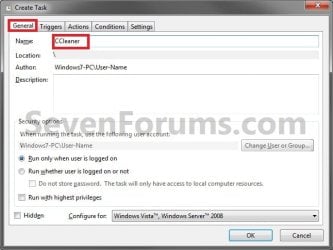
3. Under the General tab, type in the "Name" of the program you want to create this shortcut for. (see screenshot below)
NOTE: This will be the name of the task. As an example, I will use CCleaner for that program. Make note of this name, you will need it later in step 12 and 14 below.
Step2.jpg
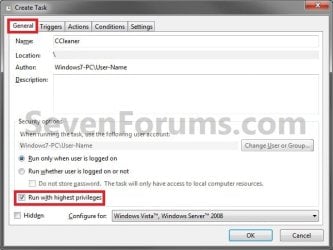
4. Check the Run with highest privileges box. (See screenshot below)
Step3.jpg
5. Click/tap on the Configure for drop down box to open it, and select Windows® 7, Windows Server™ 2008 R2 or the Windows you are currently in. (see screenshot above and below)
NOTE: This is like compatibility mode. If the program does not support running in Windows 7 normally, then you can select the OS that is does support running in instead to have it run in compatibility mode as if it was running in that OS instead of Windows 7.

Drop_Down_Box.jpg
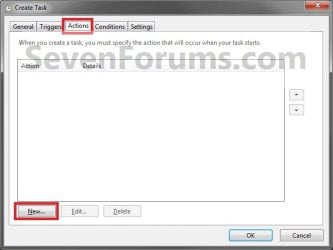
6. Click/tap on the Actions tab, then on the New button. (see screenshot below)
Step4.jpg
7. In the Program/script: box in the Actions tab, copy and paste the path below. (see screenshot below step 9)
NOTE: Thank you to chillz for the updated steps 7 and 8.
%windir%\System32\cmd.exe
8. In the Add arguments (optional): box in the Actions tab, type in the argument below. (see screenshot below step 9)

NOTE: Substitute Task Name in the argument below with the name you entered in step 3 (ex: CCleaner) within quotes, and substitute Full Path of Program in the argument below with the actual full path of the program's .exe file within quote.
/c start "Task Name" "Full Path of Program"


For example:

Code:
/c start "CCleaner" "C:\Program Files\CCleaner\CCleaner64.exe"
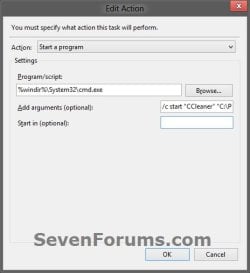
9. Click/tap on OK. (see screenshot below)
step7.jpg
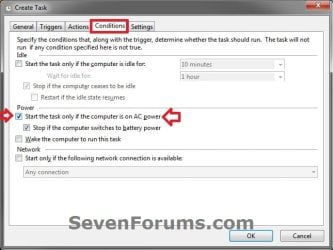
10. Click/tap on the Conditions tab, and uncheck the Stop if the computer switches to battery power box first, then uncheck the Start the task only if the computer is on AC power box. (see screenshots below)
NOTE: This step is mostly for laptops, so that you will be able to run the program when the laptop is running on battery power.
step8.jpg

Conditions.jpg

11. Click/tap on OK. (See screenshots above)

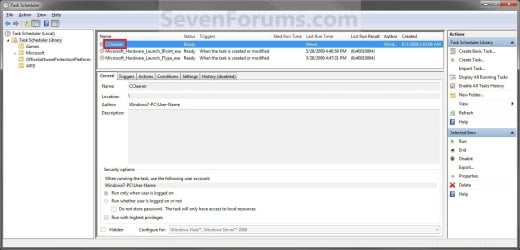
12. You will now see your new task created with the name (ex: CCleaner) you gave it in step 3. Close Task Scheduler. (see screenshot below)
Step9.jpg
13. Right click or press and hold on an empty area of your desktop, then click/tap on New and Shortcut.

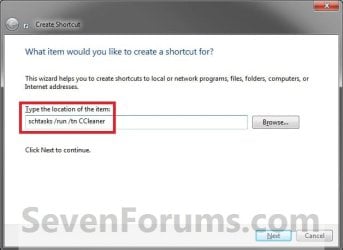
14. Type in the target below for the location field, then click/tap on the Next button. (see screenshot below)
NOTE: Subsitute task-name in the target with the name (ex: CCleaner) within quotes that you used in step 3.
schtasks /run /tn "task-name"

For example: For my task name CCleaner I used from step 3, I would type:
schtasks /run /tn "CCleaner"
Step10.jpg
15. Type in a name you want for the shortcut (ex: CCleaner), then click/tap on the Finish button. (see screenshot below)
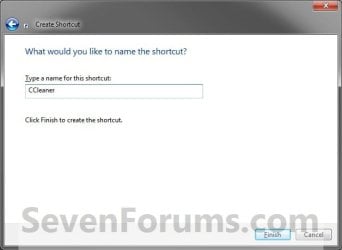
Step11.jpg
16. Right click on the new shortcut (ex: CCleaner) on the desktop, then click/tap on Properties.

17. Click/tap on the Shortcut tab, and on the Change Icon button. (see screenshot below)
Step12.jpg
18. Click/tap on OK. (see screenshot below)
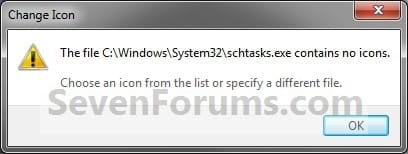
Step13.jpg
19. Click/tap on the Browse button. (see screenshot below)
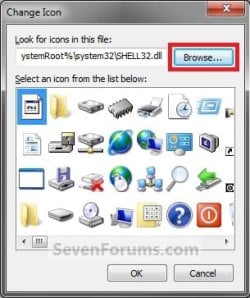
Step14.jpg
20. Navigate to the .exe file of the program that you have created this shortcut with, select it, and click/tap on Open. (see screenshot below)
NOTE: If you have a icon of your own that you would prefer to use instead, then navigate to where you have that icon saved at instead.
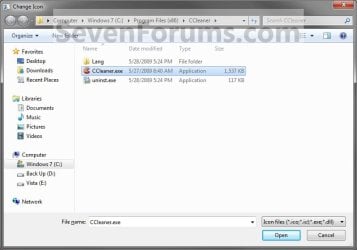
Step15.jpg
21. Select the icon you want for the shortcut, then click/tap on OK. (see screenshot below)
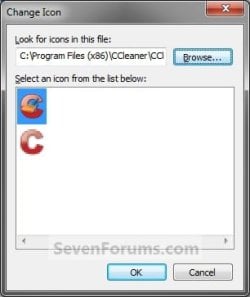
Step16.jpg
22. Click/tap on OK. (see screenshot below)
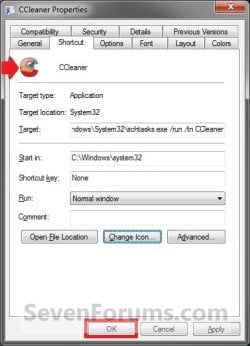
Step17.jpg
23. You can now use this elevated shortcut to run at startup in your "Startup" folder, run at startup as a task, Pin to Start Menu, Pin to Taskbar, assign a keyboard shortcut, or move to where you like for easy use.

24. When you run this new elevated shortcut, you will now no longer have to click/tap on YES to approve the UAC prompt to allow the program run as administrator.


   Tip
To Undo and Remove this Task:
  • While having Task Scheduler Library selected in the left pane, right click on the task in the right pane that you created in step 12, then click on Delete and Yes to approve.
  • Delete the shortcut.
That's it,
Shawn


Last edited:
You've checked (taskmanager) that utorrent isn't still running?

I've seen this message a lot, when I forget to set the "close utorrent" option (default action on close window is minimise to tray)
 

My Computer

Computer type
Laptop
Computer Manufacturer/Model Number
Dell
OS
Windows 7 Ultimate 64bit
CPU
2.2
Memory
8Gb
Graphics Card(s)
NVIDIA
Screen Resolution
1280/762
Mouse
built in pad || iphone || MS wireless
Internet Speed
100MB
Antivirus
Avast
Browser
Chrome, Chrome portable
You've checked (taskmanager) that utorrent isn't still running?

I've seen this message a lot, when I forget to set the "close utorrent" option (default action on close window is minimise to tray)

uTorrent is running because I have started it before, when I added a new torrent a few hours back. But when I try to add another torrent, I get this error.
 

My Computer

Computer type
PC/Desktop
OS
Windows 8.1 Pro x64 with Media Center
AutoHotkey Arguments

How can I pass an argument into this....
I use alot of AutoHotKey scripts, and have elevated my AutoHotKey.exe file, but when I drop a script onto the elevated shortcut, nothing happens. I need to be able to run all my scripts this way if possible. I'd rather not have to elevate each and every script I create and test.

Any suggestions on passing arguments such as the script to run, through tasksched to my elevated AutoHotKey.exe?

The scripts run if I drop them on the normal Autohotkey shortcut, although with the UAC interupting, I would like to be able to do this without the UAC interupting.

Thanks for any assistance you can provide.
 

My Computer

Computer type
PC/Desktop
Computer Manufacturer/Model Number
Custom
OS
Win 7 x64 and Win 8.1 update x64
CPU
i7 920 2.67GHz
Motherboard
ASUS P6T Deluxe v2
Memory
6GB DDR3
Graphics Card(s)
AMD Radeon HD 7700
Hard Drives
Crucial c300 128GB SATA600 2.5" ssd
Seagate ST2000DL003-9VT166 2TB SATA600 5900rpm
WD WD1002FAEX-00Z3A0 1TB SATA600 3.5" 7200rpm
Antivirus
MS Security essentials
Browser
FireFox
Hello jsmain, and welcome to Seven Forums.

You might be able to use this method below instead for what you want using the built-in Administrator's rights to not get the UAC prompt.

You could skip steps 9-16 if you like. Those steps were just designed to prevent a standard user from being able to change the target of the shortcut and run whatever they wanted with the built-in Administrator's rights.

http://www.sevenforums.com/tutorials/193743-elevated-program-shortcut-create-standard-user.html

Hope this helps, :)
Shawn
 

My Computer

Computer type
PC/Desktop
Computer Manufacturer/Model Number
Self built custom
OS
64-bit Windows 11 Pro for Workstations
CPU
Intel i7-8700K OC'd to 5 GHz
Motherboard
ASUS ROG Maximus XI Formula Z390
Memory
64 GB (4x16GB) G.SKILL TridentZ RGB DDR4 3600 MHz
Graphics Card(s)
ASUS ROG-STRIX-GTX1080TI-O11G-GAMING
Sound Card
Integrated
Monitor(s) Displays
2 x Samsung Odyssey G7 27"
Screen Resolution
2560x1440
Hard Drives
1TB Samsung 990 PRO M.2,
4TB Samsung 990 PRO PRO M.2,
TerraMaster F8 SSD Plus NAS
PSU
Seasonic Prime Titanium 850W
Case
Thermaltake Core P3
Cooling
Corsair Hydro H115i
Keyboard
Logitech wireless K800
Mouse
Logitech MX Master 4
Internet Speed
2 Gb/s Download and 100 Mb/s Upload
Antivirus
Malwarebyte Anti-Malware Premium
Browser
Google Chrome
Other Info
Logitech Z625 speaker system,
Logitech BRIO 4K Pro webcam,
HP Color LaserJet Pro MFP M477fdn,
APC SMART-UPS RT 1000 XL - SURT1000XLI,
Galaxy S23 Plus phone
Thanks Brink!

I am uncertain however how that solution would be any better.

This solution works, but needs to be able to accept arguments.

My case is this....
I use an xkeys controller for example, and assign my scripts to each key. Currently, each key launches a script that gets run as admin, and throws a UAC prompt to accept the action. That is unacceptable. If I use the process provided in this thread, I can elevate the scripts to run without the UAC which is acceptable, but I need to do this with maybe hundreds of scripts, of which again, is unacceptable.

I have elevated Autohotkey.exe itself which is necessary to run the raw scripts, but then I need a way for it to accept the script as an argument, so any script run will be done so using the elevated Autohotkey.exe shortcut.

Is that possible?
 

My Computer

Computer type
PC/Desktop
Computer Manufacturer/Model Number
Custom
OS
Win 7 x64 and Win 8.1 update x64
CPU
i7 920 2.67GHz
Motherboard
ASUS P6T Deluxe v2
Memory
6GB DDR3
Graphics Card(s)
AMD Radeon HD 7700
Hard Drives
Crucial c300 128GB SATA600 2.5" ssd
Seagate ST2000DL003-9VT166 2TB SATA600 5900rpm
WD WD1002FAEX-00Z3A0 1TB SATA600 3.5" 7200rpm
Antivirus
MS Security essentials
Browser
FireFox
I'm sure it may be possible, but I just don't know how either. :(
 

My Computer

Computer type
PC/Desktop
Computer Manufacturer/Model Number
Self built custom
OS
64-bit Windows 11 Pro for Workstations
CPU
Intel i7-8700K OC'd to 5 GHz
Motherboard
ASUS ROG Maximus XI Formula Z390
Memory
64 GB (4x16GB) G.SKILL TridentZ RGB DDR4 3600 MHz
Graphics Card(s)
ASUS ROG-STRIX-GTX1080TI-O11G-GAMING
Sound Card
Integrated
Monitor(s) Displays
2 x Samsung Odyssey G7 27"
Screen Resolution
2560x1440
Hard Drives
1TB Samsung 990 PRO M.2,
4TB Samsung 990 PRO PRO M.2,
TerraMaster F8 SSD Plus NAS
PSU
Seasonic Prime Titanium 850W
Case
Thermaltake Core P3
Cooling
Corsair Hydro H115i
Keyboard
Logitech wireless K800
Mouse
Logitech MX Master 4
Internet Speed
2 Gb/s Download and 100 Mb/s Upload
Antivirus
Malwarebyte Anti-Malware Premium
Browser
Google Chrome
Other Info
Logitech Z625 speaker system,
Logitech BRIO 4K Pro webcam,
HP Color LaserJet Pro MFP M477fdn,
APC SMART-UPS RT 1000 XL - SURT1000XLI,
Galaxy S23 Plus phone
Bugger!

Thanks anyway.

Perhaps someone else?
I'm looking into it as well, so if I do find an answer, I'll be sure to report back.
 

My Computer

Computer type
PC/Desktop
Computer Manufacturer/Model Number
Custom
OS
Win 7 x64 and Win 8.1 update x64
CPU
i7 920 2.67GHz
Motherboard
ASUS P6T Deluxe v2
Memory
6GB DDR3
Graphics Card(s)
AMD Radeon HD 7700
Hard Drives
Crucial c300 128GB SATA600 2.5" ssd
Seagate ST2000DL003-9VT166 2TB SATA600 5900rpm
WD WD1002FAEX-00Z3A0 1TB SATA600 3.5" 7200rpm
Antivirus
MS Security essentials
Browser
FireFox
Use in a Context Menu

Hi Brink ...

First, thanks for the great tutorial.

I just purchased a new PC with Win 7 Home Premium and found the UAC process a bit tedious for programs I run frequently, for example, Search Everything. I followed your tutorial and it's working fine.

However, more often than not, I want to run it from a context menu. Way back in post #'s 10 and 11, I *think* Lebon14 also wanted to do this and you responded with a registry add like this:

[HKEY_CLASSES_ROOT\*\shell\Every Search]
[HKEY_CLASSES_ROOT\*\shell\Every Search\command]
@=”\”C:\\Users\\Ed\\Desktop\\Every Search.lnk\” \”%1\”"

but obviously with the program (Notepad++) he was concerned with.

My question - if I stuck those three lines in a text editor such as Notepad and changed the file extension to .reg, is that sufficient to correctly update the registry?

Thanks for your help
EdP
 

My Computer

Computer type
PC/Desktop
Computer Manufacturer/Model Number
Dell
OS
win 7 Home Premium
CPU
3.4GhZ
Motherboard
Dell 0KWVT8
Memory
8GB
Graphics Card(s)
NVIDIA GeForce GT 635
Monitor(s) Displays
Dell 2407
Hard Drives
ST1000DM003
Antivirus
Windows/SAS/MBAM
Browser
Firefox
Hello Ed,

I'm not sure how it will work or not with that program, but you could create the .reg file with this below. You just needed to add the top line for registry files in addition to changing the file extension to .reg. :)

Code:
Windows Registry Editor Version 5.00
 
[HKEY_CLASSES_ROOT\*\shell\Every Search]
[HKEY_CLASSES_ROOT\*\shell\Every Search\command]
@=”\”C:\\Users\\Ed\\Desktop\\Every Search.lnk\” \”%1\”"
 

My Computer

Computer type
PC/Desktop
Computer Manufacturer/Model Number
Self built custom
OS
64-bit Windows 11 Pro for Workstations
CPU
Intel i7-8700K OC'd to 5 GHz
Motherboard
ASUS ROG Maximus XI Formula Z390
Memory
64 GB (4x16GB) G.SKILL TridentZ RGB DDR4 3600 MHz
Graphics Card(s)
ASUS ROG-STRIX-GTX1080TI-O11G-GAMING
Sound Card
Integrated
Monitor(s) Displays
2 x Samsung Odyssey G7 27"
Screen Resolution
2560x1440
Hard Drives
1TB Samsung 990 PRO M.2,
4TB Samsung 990 PRO PRO M.2,
TerraMaster F8 SSD Plus NAS
PSU
Seasonic Prime Titanium 850W
Case
Thermaltake Core P3
Cooling
Corsair Hydro H115i
Keyboard
Logitech wireless K800
Mouse
Logitech MX Master 4
Internet Speed
2 Gb/s Download and 100 Mb/s Upload
Antivirus
Malwarebyte Anti-Malware Premium
Browser
Google Chrome
Other Info
Logitech Z625 speaker system,
Logitech BRIO 4K Pro webcam,
HP Color LaserJet Pro MFP M477fdn,
APC SMART-UPS RT 1000 XL - SURT1000XLI,
Galaxy S23 Plus phone
Hi, I just mounted the Software hive (TimSW) from a build with Everything installed on... In "HKEY_LOCAL_MACHINE\TimSW\Classes\Folder\shell\Search Everything..." (ie normally HKLM\Software\Classes\folder\shell\Everything) the command key has a string (no name) with

"C:\Program Files\Everything\Everything.exe" -path "%1"

This might work with portable also.. Personally, I'd go for the folder context over desktop context, where the -path parameter is used to refine the "search domain"...

Hope this helps...

One more thing: if you right click on your .lnk file and select open file location, you should get the location of the (everything.exe) target of your shortcut. It's good practice to reference this directly in the reg (what if your shortcut's deleted, or moved?) alt+d and ctrl+c will get you your address (from address bar,to clipboard :)
 

My Computer

Computer type
Laptop
Computer Manufacturer/Model Number
Dell
OS
Windows 7 Ultimate 64bit
CPU
2.2
Memory
8Gb
Graphics Card(s)
NVIDIA
Screen Resolution
1280/762
Mouse
built in pad || iphone || MS wireless
Internet Speed
100MB
Antivirus
Avast
Browser
Chrome, Chrome portable
Hi Brink ...

First, thanks for the great tutorial.

I just purchased a new PC with Win 7 Home Premium and found the UAC process a bit tedious for programs I run frequently, for example, Search Everything. I followed your tutorial and it's working fine.

However, more often than not, I want to run it from a context menu. Way back in post #'s 10 and 11, I *think* Lebon14 also wanted to do this and you responded with a registry add like this:

[HKEY_CLASSES_ROOT\*\shell\Every Search]
[HKEY_CLASSES_ROOT\*\shell\Every Search\command]
@=”\”C:\\Users\\Ed\\Desktop\\Every Search.lnk\” \”%1\”"

but obviously with the program (Notepad++) he was concerned with.

My question - if I stuck those three lines in a text editor such as Notepad and changed the file extension to .reg, is that sufficient to correctly update the registry?

Thanks for your help
EdP

What do you mean by having it run from a context menu ?
 

My Computer

Computer type
PC/Desktop
Computer Manufacturer/Model Number
Custom Built
OS
Windows 10 Pro
CPU
Core2Quad (2.6 Ghz)
Motherboard
nVidia 775
Memory
8 Gigs DDR2
Graphics Card(s)
Geforce Titan Black
Sound Card
Motherboard Audio
Monitor(s) Displays
25" Asus LCD
Screen Resolution
1680x1050
Hard Drives
120 Gig SSD
60 Gig SSD
750 Gig HDD
PSU
850 Watts
Case
Mid-Size
Keyboard
Logitech
Mouse
Logitech - I love logitech mouses
Internet Speed
DSL 25Mbps - Although extremely expensive
Antivirus
Microsoft Anti-Virus
Browser
FireFox 36.x
>What do you mean by having it run from a context menu ? <

When I right-click a drive or folder in Explorer (or, in my case xplorer2), I'd like Search Everything to appear in the pop-up menu and, when selected, search only the drive or folder that was right-clicked.
 

My Computer

Computer type
PC/Desktop
Computer Manufacturer/Model Number
Dell
OS
win 7 Home Premium
CPU
3.4GhZ
Motherboard
Dell 0KWVT8
Memory
8GB
Graphics Card(s)
NVIDIA GeForce GT 635
Monitor(s) Displays
Dell 2407
Hard Drives
ST1000DM003
Antivirus
Windows/SAS/MBAM
Browser
Firefox
everything (folder) context menu

Windows Registry Editor Version 5.00

[HKEY_LOCAL_MACHINE\SOFTWARE\Classes\Folder\shell\Search Everything...\command]
@="\"C:\\Program Files\\Everything\\Everything.exe\" -path \"%1\""


save as reg+import, or use as ref to manually create reg string at above location.

To add to drive context-menus, the key needs to be added to HKEY_LOCAL_MACHINE\SOFTWARE\Classes\Drive\shell

(I just tried this and it works: Using advanced registry editor, I was able to copy the key (HKEY_LOCAL_MACHINE\SOFTWARE\Classes\Drive\shell\Search Everything...\command) easily, by

  1. Navigating to "source" key [HKLM\SOFTWARE\Classes\Folder\shell\Search Everything...\command]
  2. Copying (full) key name
  3. right-click key and select "copy to"
  4. PASTE the key name, change "FOLDER" to "DRIVE"
  5. Select ok / Hit Enter to copy the key

Here's the exported [drive] reg.

Good luck!

Windows Registry Editor Version 5.00

[HKEY_LOCAL_MACHINE\SOFTWARE\Classes\Drive\shell\Search Everything...]

[HKEY_LOCAL_MACHINE\SOFTWARE\Classes\Drive\shell\Search Everything...\command]
@="\"C:\\Program Files\\Everything\\Everything.exe\" -path \"%1\""
 

My Computer

Computer type
Laptop
Computer Manufacturer/Model Number
Dell
OS
Windows 7 Ultimate 64bit
CPU
2.2
Memory
8Gb
Graphics Card(s)
NVIDIA
Screen Resolution
1280/762
Mouse
built in pad || iphone || MS wireless
Internet Speed
100MB
Antivirus
Avast
Browser
Chrome, Chrome portable
jonny ...

Thanks much for taking the time to help.

I suddenly found myself in the middle of an oobleck storm and can't concentrate on much else. As soon as I try it out, I'll report back.

EdP
 

My Computer

Computer type
PC/Desktop
Computer Manufacturer/Model Number
Dell
OS
win 7 Home Premium
CPU
3.4GhZ
Motherboard
Dell 0KWVT8
Memory
8GB
Graphics Card(s)
NVIDIA GeForce GT 635
Monitor(s) Displays
Dell 2407
Hard Drives
ST1000DM003
Antivirus
Windows/SAS/MBAM
Browser
Firefox
Hey all. Google led me to this site based on some searches, so this is going to sound strange...

A while back, I had set up one of my Win 8.1 PCs to run a TeamSpeak server at start, with admin privileges and all, and it worked just fine for a good long time. However, my curious side managed to convince me to try out SteamOS on that particular machine, and create a dedicated server, but in doing so, I completely forgot to write down what I had done to configure the system, so now I'm in some trouble.

After spending the last few days wrestling with Ubuntu on the new server (just setting up an automated mount for hot-plugged drives was a nightmare), I decided to install Win 8.1 on it to make remote management easier, but I cannot for the life of me figure out how to get the TeamSpeak server to run with admin privileges at startup. I cannot remember what I did to configure it previously, outside of just simply adding a shortcut to the startup folder.

I've attempted this tutorial (from this thread) to set up a shortcut that automatically runs the TeamSpeak server at boot, but for some reason, it either starts and promptly closes itself once a client connects, or simply doesn't start at all. I then attempted a separate tutorial to create a Task Manager entry, but that refused to start up as well. If I add the shortcut without admin rights to the startup folder, then the server rejects all connections, so getting it to start as admin is critical.

I guess my main question is "What am I doing wrong?". Previously, I remembered moving the server folder from the 64-bit program files to the x86 version to solve the issue (e.g. c:\program files (x86)\teamspeak 3 server\), but that no longer seems to work as I remember it.
 

My Computer

Computer type
PC/Desktop
OS
Windows 8.1 Update 1 x64
>What do you mean by having it run from a context menu ? <

When I right-click a drive or folder in Explorer (or, in my case xplorer2), I'd like Search Everything to appear in the pop-up menu and, when selected, search only the drive or folder that was right-clicked.

If you don't mind when you try johnny registry edit, if you can show a screen shot of this in action, quite curious whether it would benefit me !
 

My Computer

Computer type
PC/Desktop
Computer Manufacturer/Model Number
Custom Built
OS
Windows 10 Pro
CPU
Core2Quad (2.6 Ghz)
Motherboard
nVidia 775
Memory
8 Gigs DDR2
Graphics Card(s)
Geforce Titan Black
Sound Card
Motherboard Audio
Monitor(s) Displays
25" Asus LCD
Screen Resolution
1680x1050
Hard Drives
120 Gig SSD
60 Gig SSD
750 Gig HDD
PSU
850 Watts
Case
Mid-Size
Keyboard
Logitech
Mouse
Logitech - I love logitech mouses
Internet Speed
DSL 25Mbps - Although extremely expensive
Antivirus
Microsoft Anti-Virus
Browser
FireFox 36.x
Jonny ...

Actually, that registry entry doesn't work and didn't work months ago. I found out the problem was the ending double-quote. When removed, it worked perfectly.
"C:\Program Files\Everything\everything.exe" -filename "%1"
to
"C:\Program Files\Everything\everything.exe" -filename "%1

>if you right click on your .lnk file and select open file location, you should get the location of the (everything.exe) target of your shortcut<
Thanks, I didn't know that. But because of the way I work, it takes less time and effort to right-click the deisred drive/folder, click SearchEverything, and just click the UAC YES button.

In your latest post, it appears to me that you're referring to the SearchEverything program itself, not the shortcut to the Task. What I'm trying to do is get the Task shortcut in the context menu.

Not sure if I made myself clear.

EdP
 

My Computer

Computer type
PC/Desktop
Computer Manufacturer/Model Number
Dell
OS
win 7 Home Premium
CPU
3.4GhZ
Motherboard
Dell 0KWVT8
Memory
8GB
Graphics Card(s)
NVIDIA GeForce GT 635
Monitor(s) Displays
Dell 2407
Hard Drives
ST1000DM003
Antivirus
Windows/SAS/MBAM
Browser
Firefox
I followed the instructions step by step. But when I finish and start up the program, it doesn't work. I am using this for Google Chrome.
 

My Computer

Computer type
PC/Desktop
Computer Manufacturer/Model Number
HP
OS
Windows 7 Home 32bit
CPU
Pentium 4 HT
Motherboard
HP
Memory
4 GB
Hard Drives
trying to install HD that is 500 GB
already has 80GB
Hello Win7User2nd,

Google Chrome doesn't require to run elevated to open it. :confused:
 

My Computer

Computer type
PC/Desktop
Computer Manufacturer/Model Number
Self built custom
OS
64-bit Windows 11 Pro for Workstations
CPU
Intel i7-8700K OC'd to 5 GHz
Motherboard
ASUS ROG Maximus XI Formula Z390
Memory
64 GB (4x16GB) G.SKILL TridentZ RGB DDR4 3600 MHz
Graphics Card(s)
ASUS ROG-STRIX-GTX1080TI-O11G-GAMING
Sound Card
Integrated
Monitor(s) Displays
2 x Samsung Odyssey G7 27"
Screen Resolution
2560x1440
Hard Drives
1TB Samsung 990 PRO M.2,
4TB Samsung 990 PRO PRO M.2,
TerraMaster F8 SSD Plus NAS
PSU
Seasonic Prime Titanium 850W
Case
Thermaltake Core P3
Cooling
Corsair Hydro H115i
Keyboard
Logitech wireless K800
Mouse
Logitech MX Master 4
Internet Speed
2 Gb/s Download and 100 Mb/s Upload
Antivirus
Malwarebyte Anti-Malware Premium
Browser
Google Chrome
Other Info
Logitech Z625 speaker system,
Logitech BRIO 4K Pro webcam,
HP Color LaserJet Pro MFP M477fdn,
APC SMART-UPS RT 1000 XL - SURT1000XLI,
Galaxy S23 Plus phone
It used to open without the UAC but now the UAC prompts up when I launch Chrome.
 

My Computer

Computer type
PC/Desktop
Computer Manufacturer/Model Number
HP
OS
Windows 7 Home 32bit
CPU
Pentium 4 HT
Motherboard
HP
Memory
4 GB
Hard Drives
trying to install HD that is 500 GB
already has 80GB
Back
Top