Elevated Program Shortcut without UAC Prompt - Create

How to Create an Elevated Program Shortcut without a UAC Prompt in Windows


   Information
This will show you how to create an elevated "Run as administrator" shortcut of any installed program using Task Scheduler so that it will not give you a UAC prompt for permission when you start it while still having UAC turned on in Vista, Windows 7, and Windows 8.

In the tutorial, you will first create a new task, then a new shortcut to run the task. Afterwards, how to change the icon of the shortcut.

   Note
Special thanks to OEM for pointing this out, and the previous Vista version by DMEX.

   Warning


  • This shortcut and task can only be created and work while logged in as an administrator account.
  • This shortcut will not work in a standard user account.


Here's How:
1. Press the Windows + R keys to open the Run dialog, type taskschd.msc, and press Enter.
NOTE: This will open Task Scheduler. This file is located at:
C:\Windows\system32\taskschd.msc.

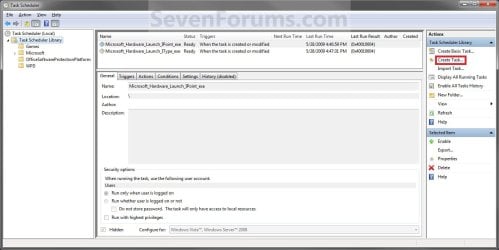
2. While having Task Scheduler Library selected in the left pane, click/tap on Create task in the far right pane. (see screenshot below)
Step1.jpg
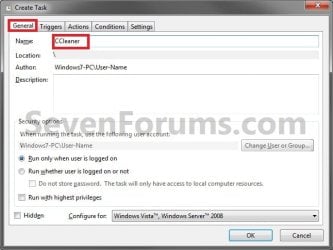
3. Under the General tab, type in the "Name" of the program you want to create this shortcut for. (see screenshot below)
NOTE: This will be the name of the task. As an example, I will use CCleaner for that program. Make note of this name, you will need it later in step 12 and 14 below.
Step2.jpg
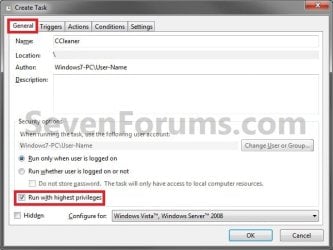
4. Check the Run with highest privileges box. (See screenshot below)
Step3.jpg
5. Click/tap on the Configure for drop down box to open it, and select Windows® 7, Windows Server™ 2008 R2 or the Windows you are currently in. (see screenshot above and below)
NOTE: This is like compatibility mode. If the program does not support running in Windows 7 normally, then you can select the OS that is does support running in instead to have it run in compatibility mode as if it was running in that OS instead of Windows 7.

Drop_Down_Box.jpg
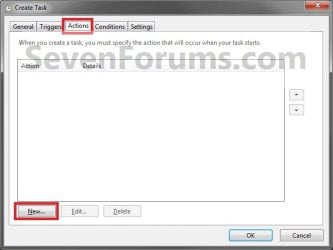
6. Click/tap on the Actions tab, then on the New button. (see screenshot below)
Step4.jpg
7. In the Program/script: box in the Actions tab, copy and paste the path below. (see screenshot below step 9)
NOTE: Thank you to chillz for the updated steps 7 and 8.
%windir%\System32\cmd.exe
8. In the Add arguments (optional): box in the Actions tab, type in the argument below. (see screenshot below step 9)

NOTE: Substitute Task Name in the argument below with the name you entered in step 3 (ex: CCleaner) within quotes, and substitute Full Path of Program in the argument below with the actual full path of the program's .exe file within quote.
/c start "Task Name" "Full Path of Program"


For example:

Code:
/c start "CCleaner" "C:\Program Files\CCleaner\CCleaner64.exe"
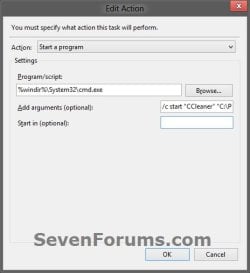
9. Click/tap on OK. (see screenshot below)
step7.jpg
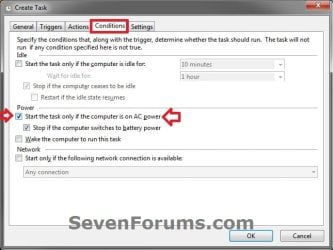
10. Click/tap on the Conditions tab, and uncheck the Stop if the computer switches to battery power box first, then uncheck the Start the task only if the computer is on AC power box. (see screenshots below)
NOTE: This step is mostly for laptops, so that you will be able to run the program when the laptop is running on battery power.
step8.jpg

Conditions.jpg

11. Click/tap on OK. (See screenshots above)

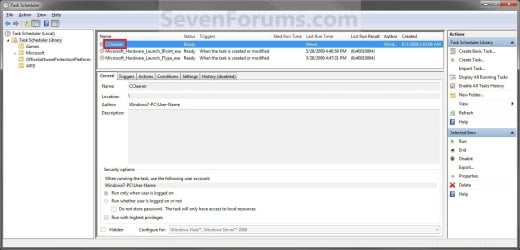
12. You will now see your new task created with the name (ex: CCleaner) you gave it in step 3. Close Task Scheduler. (see screenshot below)
Step9.jpg
13. Right click or press and hold on an empty area of your desktop, then click/tap on New and Shortcut.

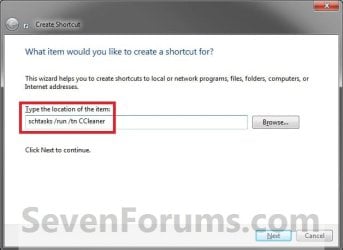
14. Type in the target below for the location field, then click/tap on the Next button. (see screenshot below)
NOTE: Subsitute task-name in the target with the name (ex: CCleaner) within quotes that you used in step 3.
schtasks /run /tn "task-name"

For example: For my task name CCleaner I used from step 3, I would type:
schtasks /run /tn "CCleaner"
Step10.jpg
15. Type in a name you want for the shortcut (ex: CCleaner), then click/tap on the Finish button. (see screenshot below)
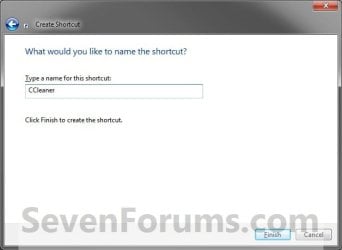
Step11.jpg
16. Right click on the new shortcut (ex: CCleaner) on the desktop, then click/tap on Properties.

17. Click/tap on the Shortcut tab, and on the Change Icon button. (see screenshot below)
Step12.jpg
18. Click/tap on OK. (see screenshot below)
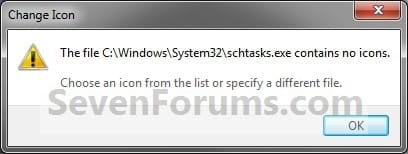
Step13.jpg
19. Click/tap on the Browse button. (see screenshot below)
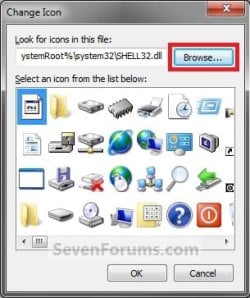
Step14.jpg
20. Navigate to the .exe file of the program that you have created this shortcut with, select it, and click/tap on Open. (see screenshot below)
NOTE: If you have a icon of your own that you would prefer to use instead, then navigate to where you have that icon saved at instead.
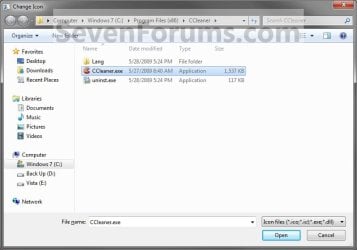
Step15.jpg
21. Select the icon you want for the shortcut, then click/tap on OK. (see screenshot below)
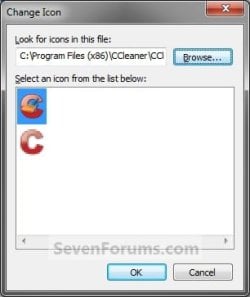
Step16.jpg
22. Click/tap on OK. (see screenshot below)
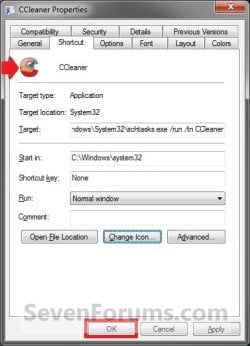
Step17.jpg
23. You can now use this elevated shortcut to run at startup in your "Startup" folder, run at startup as a task, Pin to Start Menu, Pin to Taskbar, assign a keyboard shortcut, or move to where you like for easy use.

24. When you run this new elevated shortcut, you will now no longer have to click/tap on YES to approve the UAC prompt to allow the program run as administrator.


   Tip
To Undo and Remove this Task:
  • While having Task Scheduler Library selected in the left pane, right click on the task in the right pane that you created in step 12, then click on Delete and Yes to approve.
  • Delete the shortcut.
That's it,
Shawn


Last edited:
Anytime. :)
 

My Computer

Computer type
PC/Desktop
Computer Manufacturer/Model Number
Self built custom
OS
64-bit Windows 11 Pro for Workstations
CPU
Intel i7-8700K OC'd to 5 GHz
Motherboard
ASUS ROG Maximus XI Formula Z390
Memory
64 GB (4x16GB) G.SKILL TridentZ RGB DDR4 3600 MHz
Graphics Card(s)
ASUS ROG-STRIX-GTX1080TI-O11G-GAMING
Sound Card
Integrated
Monitor(s) Displays
2 x Samsung Odyssey G7 27"
Screen Resolution
2560x1440
Hard Drives
1TB Samsung 990 PRO M.2,
4TB Samsung 990 PRO PRO M.2,
TerraMaster F8 SSD Plus NAS
PSU
Seasonic Prime Titanium 850W
Case
Thermaltake Core P3
Cooling
Corsair Hydro H115i
Keyboard
Logitech wireless K800
Mouse
Logitech MX Master 4
Internet Speed
2 Gb/s Download and 100 Mb/s Upload
Antivirus
Malwarebyte Anti-Malware Premium
Browser
Google Chrome
Other Info
Logitech Z625 speaker system,
Logitech BRIO 4K Pro webcam,
HP Color LaserJet Pro MFP M477fdn,
APC SMART-UPS RT 1000 XL - SURT1000XLI,
Galaxy S23 Plus phone
I have created a desktop shortcut without UAC Prompt for the "Everything" search program that works fine, but I still get a UAC prompt at boot (screenshot) as I have Everything set to start at system startup & run in the background. Is there a way to avoid this?

View attachment 326485

Thanks, UBM.
 
Last edited:

My Computer

Computer type
Laptop
Computer Manufacturer/Model Number
MSI PE60 6QE
OS
Win 10 Pro x64, Win 7 Pro x64
CPU
Intel Core i7-6700HQ Skylake
Motherboard
MSI MS-16J5
Memory
16gb Crucial DDR4
Graphics Card(s)
NVIDIA GeForce GTX 960M 2 GB
Screen Resolution
1920 x 1080
Hard Drives
Samsung 850 EVO 250 GB M.2 SSD (MZ-N5E250BW)
HGST 1TB @7200 RPM HTS721010A9E630
Case
Plastic
Keyboard
Got one...
Mouse
Yep, one of those too.
Internet Speed
FIOS 75/75
Antivirus
Defender
Browser
Chrome/FFox/Ex-PLODE-r/(L)Edge
Other Info
Defender, Custom Hosts, uBlock, regular backups w/ Macrium (Free)
I have created a desktop shortcut without UAC Prompt for the "Everything" search program that works fine, but I still get a UAC prompt at boot (screenshot) as I have Everything set to start at system startup & run in the background. Is there a way to avoid this?

View attachment 326485

Thanks, UBM.

Hello Joe,

Double check through the steps to see if you may have missed something or made a mistake anywhere. :)
 

My Computer

Computer type
PC/Desktop
Computer Manufacturer/Model Number
Self built custom
OS
64-bit Windows 11 Pro for Workstations
CPU
Intel i7-8700K OC'd to 5 GHz
Motherboard
ASUS ROG Maximus XI Formula Z390
Memory
64 GB (4x16GB) G.SKILL TridentZ RGB DDR4 3600 MHz
Graphics Card(s)
ASUS ROG-STRIX-GTX1080TI-O11G-GAMING
Sound Card
Integrated
Monitor(s) Displays
2 x Samsung Odyssey G7 27"
Screen Resolution
2560x1440
Hard Drives
1TB Samsung 990 PRO M.2,
4TB Samsung 990 PRO PRO M.2,
TerraMaster F8 SSD Plus NAS
PSU
Seasonic Prime Titanium 850W
Case
Thermaltake Core P3
Cooling
Corsair Hydro H115i
Keyboard
Logitech wireless K800
Mouse
Logitech MX Master 4
Internet Speed
2 Gb/s Download and 100 Mb/s Upload
Antivirus
Malwarebyte Anti-Malware Premium
Browser
Google Chrome
Other Info
Logitech Z625 speaker system,
Logitech BRIO 4K Pro webcam,
HP Color LaserJet Pro MFP M477fdn,
APC SMART-UPS RT 1000 XL - SURT1000XLI,
Galaxy S23 Plus phone
Hi Shawn, thanks for replying!

Let me clarify: The desktop shortcut I created works fine (no UAC prompt). The UAC prompt appears when powering on. If I remove the Start Everything on system startup checkmark there's no UAC prompt.

View attachment 326497

@eddyq: Thanks for the reply but I have absolutely no idea what any of that meant @ your link... I'm just an average user noob :o
 
Last edited:

My Computer

Computer type
Laptop
Computer Manufacturer/Model Number
MSI PE60 6QE
OS
Win 10 Pro x64, Win 7 Pro x64
CPU
Intel Core i7-6700HQ Skylake
Motherboard
MSI MS-16J5
Memory
16gb Crucial DDR4
Graphics Card(s)
NVIDIA GeForce GTX 960M 2 GB
Screen Resolution
1920 x 1080
Hard Drives
Samsung 850 EVO 250 GB M.2 SSD (MZ-N5E250BW)
HGST 1TB @7200 RPM HTS721010A9E630
Case
Plastic
Keyboard
Got one...
Mouse
Yep, one of those too.
Internet Speed
FIOS 75/75
Antivirus
Defender
Browser
Chrome/FFox/Ex-PLODE-r/(L)Edge
Other Info
Defender, Custom Hosts, uBlock, regular backups w/ Macrium (Free)
Ah, ok. Uncheck the Start Everything on system startup box. This is the one that's causing the UAC prompt as you found out.

Instead, you would want to put the elevated shortcut you created in your Startup folder. :)
 

My Computer

Computer type
PC/Desktop
Computer Manufacturer/Model Number
Self built custom
OS
64-bit Windows 11 Pro for Workstations
CPU
Intel i7-8700K OC'd to 5 GHz
Motherboard
ASUS ROG Maximus XI Formula Z390
Memory
64 GB (4x16GB) G.SKILL TridentZ RGB DDR4 3600 MHz
Graphics Card(s)
ASUS ROG-STRIX-GTX1080TI-O11G-GAMING
Sound Card
Integrated
Monitor(s) Displays
2 x Samsung Odyssey G7 27"
Screen Resolution
2560x1440
Hard Drives
1TB Samsung 990 PRO M.2,
4TB Samsung 990 PRO PRO M.2,
TerraMaster F8 SSD Plus NAS
PSU
Seasonic Prime Titanium 850W
Case
Thermaltake Core P3
Cooling
Corsair Hydro H115i
Keyboard
Logitech wireless K800
Mouse
Logitech MX Master 4
Internet Speed
2 Gb/s Download and 100 Mb/s Upload
Antivirus
Malwarebyte Anti-Malware Premium
Browser
Google Chrome
Other Info
Logitech Z625 speaker system,
Logitech BRIO 4K Pro webcam,
HP Color LaserJet Pro MFP M477fdn,
APC SMART-UPS RT 1000 XL - SURT1000XLI,
Galaxy S23 Plus phone
Thanks again Shawn, I'm just going to leave the "Start at system startup" unchecked as there's no perceptible difference... the program is blazingly fast whether loaded @ startup or not.

You're the MAN Shawn, thanks for this... and other... invaluable site(s). FWIW this site and Grinler's Bleepingcomputer are IMO No's 1 & 2 for computer help on the innernetz.
 

My Computer

Computer type
Laptop
Computer Manufacturer/Model Number
MSI PE60 6QE
OS
Win 10 Pro x64, Win 7 Pro x64
CPU
Intel Core i7-6700HQ Skylake
Motherboard
MSI MS-16J5
Memory
16gb Crucial DDR4
Graphics Card(s)
NVIDIA GeForce GTX 960M 2 GB
Screen Resolution
1920 x 1080
Hard Drives
Samsung 850 EVO 250 GB M.2 SSD (MZ-N5E250BW)
HGST 1TB @7200 RPM HTS721010A9E630
Case
Plastic
Keyboard
Got one...
Mouse
Yep, one of those too.
Internet Speed
FIOS 75/75
Antivirus
Defender
Browser
Chrome/FFox/Ex-PLODE-r/(L)Edge
Other Info
Defender, Custom Hosts, uBlock, regular backups w/ Macrium (Free)
You're most welcome.

Yeah, the checked box caused you to have it to run at startup in two places (here and Startup folder). No need to have it checked for the UAC version. :)
 

My Computer

Computer type
PC/Desktop
Computer Manufacturer/Model Number
Self built custom
OS
64-bit Windows 11 Pro for Workstations
CPU
Intel i7-8700K OC'd to 5 GHz
Motherboard
ASUS ROG Maximus XI Formula Z390
Memory
64 GB (4x16GB) G.SKILL TridentZ RGB DDR4 3600 MHz
Graphics Card(s)
ASUS ROG-STRIX-GTX1080TI-O11G-GAMING
Sound Card
Integrated
Monitor(s) Displays
2 x Samsung Odyssey G7 27"
Screen Resolution
2560x1440
Hard Drives
1TB Samsung 990 PRO M.2,
4TB Samsung 990 PRO PRO M.2,
TerraMaster F8 SSD Plus NAS
PSU
Seasonic Prime Titanium 850W
Case
Thermaltake Core P3
Cooling
Corsair Hydro H115i
Keyboard
Logitech wireless K800
Mouse
Logitech MX Master 4
Internet Speed
2 Gb/s Download and 100 Mb/s Upload
Antivirus
Malwarebyte Anti-Malware Premium
Browser
Google Chrome
Other Info
Logitech Z625 speaker system,
Logitech BRIO 4K Pro webcam,
HP Color LaserJet Pro MFP M477fdn,
APC SMART-UPS RT 1000 XL - SURT1000XLI,
Galaxy S23 Plus phone
Thanks for this great guide!
I have followed all the steps and it works except for this one part.

I get that "quick flashing CMD pop-up" despite setting the shortcut to Minimized.

any suggestions?
 

My Computer

Computer type
PC/Desktop
Computer Manufacturer/Model Number
Custom
OS
Windows 8.1 Professional 64Bit
Hello Wilflare, and welcome to Seven Forums.

Yeah, setting the elevated shortcut to run minimized would have not affect on this.

I'm not sure the command prompts flashing can be avoided for this workaround. :(
 

My Computer

Computer type
PC/Desktop
Computer Manufacturer/Model Number
Self built custom
OS
64-bit Windows 11 Pro for Workstations
CPU
Intel i7-8700K OC'd to 5 GHz
Motherboard
ASUS ROG Maximus XI Formula Z390
Memory
64 GB (4x16GB) G.SKILL TridentZ RGB DDR4 3600 MHz
Graphics Card(s)
ASUS ROG-STRIX-GTX1080TI-O11G-GAMING
Sound Card
Integrated
Monitor(s) Displays
2 x Samsung Odyssey G7 27"
Screen Resolution
2560x1440
Hard Drives
1TB Samsung 990 PRO M.2,
4TB Samsung 990 PRO PRO M.2,
TerraMaster F8 SSD Plus NAS
PSU
Seasonic Prime Titanium 850W
Case
Thermaltake Core P3
Cooling
Corsair Hydro H115i
Keyboard
Logitech wireless K800
Mouse
Logitech MX Master 4
Internet Speed
2 Gb/s Download and 100 Mb/s Upload
Antivirus
Malwarebyte Anti-Malware Premium
Browser
Google Chrome
Other Info
Logitech Z625 speaker system,
Logitech BRIO 4K Pro webcam,
HP Color LaserJet Pro MFP M477fdn,
APC SMART-UPS RT 1000 XL - SURT1000XLI,
Galaxy S23 Plus phone
thanks for the reply!
hmm is this a Windows 8.1 limitation?
(because the guide on the first post mentioned it could be avoided :/)

but thanks really! glad I didn't have to disable UAC
 

My Computer

Computer type
PC/Desktop
Computer Manufacturer/Model Number
Custom
OS
Windows 8.1 Professional 64Bit
Yeah, running the shortcut minimized doesn't seem to work anymore to stop the command prompt flash. :)
 

My Computer

Computer type
PC/Desktop
Computer Manufacturer/Model Number
Self built custom
OS
64-bit Windows 11 Pro for Workstations
CPU
Intel i7-8700K OC'd to 5 GHz
Motherboard
ASUS ROG Maximus XI Formula Z390
Memory
64 GB (4x16GB) G.SKILL TridentZ RGB DDR4 3600 MHz
Graphics Card(s)
ASUS ROG-STRIX-GTX1080TI-O11G-GAMING
Sound Card
Integrated
Monitor(s) Displays
2 x Samsung Odyssey G7 27"
Screen Resolution
2560x1440
Hard Drives
1TB Samsung 990 PRO M.2,
4TB Samsung 990 PRO PRO M.2,
TerraMaster F8 SSD Plus NAS
PSU
Seasonic Prime Titanium 850W
Case
Thermaltake Core P3
Cooling
Corsair Hydro H115i
Keyboard
Logitech wireless K800
Mouse
Logitech MX Master 4
Internet Speed
2 Gb/s Download and 100 Mb/s Upload
Antivirus
Malwarebyte Anti-Malware Premium
Browser
Google Chrome
Other Info
Logitech Z625 speaker system,
Logitech BRIO 4K Pro webcam,
HP Color LaserJet Pro MFP M477fdn,
APC SMART-UPS RT 1000 XL - SURT1000XLI,
Galaxy S23 Plus phone
Oh My God, thank you thank you sooooo much, have been having so much difficulty with this, was trying to create a schedule where a system restore point is create upon logging on / at start up, without prompting the UAC, this has helped so much.
 

My Computer

Computer type
Laptop
Computer Manufacturer/Model Number
Acer Aspire V3 VA70
OS
Microsoft Windows 8 (6.2) 64-bit (Build 9200)
CPU
Intel(R) Core(TM) i5-3230M CPU @ 2.60GHz, 2594 MHz
Motherboard
Acer Aspire V3-771
Memory
8GB DDR3
Graphics Card(s)
Nvidia GeForce 710m
Hard Drives
TOSHIBA MQ01ABD100 (931 GB)
Antivirus
McAfee
Browser
Google Chrome
Hi,

I'm having trouble getting a programme called blue iris to start automatically at start-up but when I carry out post instructions and restart, command prompt flashes up and disappears but ten nothing. I am using windows 7 home premium and it says administrator account in control panel - could it be that I don't have a password set on the account?
 

My Computer

OS
windows 7

My Computer

Computer type
PC/Desktop
Computer Manufacturer/Model Number
Self built custom
OS
64-bit Windows 11 Pro for Workstations
CPU
Intel i7-8700K OC'd to 5 GHz
Motherboard
ASUS ROG Maximus XI Formula Z390
Memory
64 GB (4x16GB) G.SKILL TridentZ RGB DDR4 3600 MHz
Graphics Card(s)
ASUS ROG-STRIX-GTX1080TI-O11G-GAMING
Sound Card
Integrated
Monitor(s) Displays
2 x Samsung Odyssey G7 27"
Screen Resolution
2560x1440
Hard Drives
1TB Samsung 990 PRO M.2,
4TB Samsung 990 PRO PRO M.2,
TerraMaster F8 SSD Plus NAS
PSU
Seasonic Prime Titanium 850W
Case
Thermaltake Core P3
Cooling
Corsair Hydro H115i
Keyboard
Logitech wireless K800
Mouse
Logitech MX Master 4
Internet Speed
2 Gb/s Download and 100 Mb/s Upload
Antivirus
Malwarebyte Anti-Malware Premium
Browser
Google Chrome
Other Info
Logitech Z625 speaker system,
Logitech BRIO 4K Pro webcam,
HP Color LaserJet Pro MFP M477fdn,
APC SMART-UPS RT 1000 XL - SURT1000XLI,
Galaxy S23 Plus phone
Hello Rincal,

Yes, the administrator account will need to be password protected.

Double check in Control Panel -> User Accounts to see if it password protected. :)

http://www.sevenforums.com/tutorials/288-password-create-user-account.html


Created a password for account but still same thing, command prompt quickly flashes on and off then nothing.

I can start program from original shortcut without problem but when I try to start from created short cut the same thing as above.

I've gone through it many time - Any ideas?
 

My Computer

OS
windows 7
Try this: In scheduled task, change the start of the value for Add arguments (optional) from /c to /k
Then the command prompt won't flash but stay visible. If something is wrong with that argument hopefully you'll now be able to see the error message.
 

My Computer

Computer type
Laptop
Computer Manufacturer/Model Number
HP Elitebook 8540p
OS
Windows 7 Pro 32
CPU
Intel(R) Core(TM) i5 CPU M 540 @ 2.53GHz
Motherboard
Hewlett-Packard 1521
Memory
4,00 GB (Usable 2,98)
Graphics Card(s)
NVIDIA NVS 5100M
Sound Card
NVIDIA High Definition Audio
Screen Resolution
1600x900
Hard Drives
INTEL SSDSA2CW120G3
Antivirus
F-Secure Internet Security
Browser
IE, Firefox, Opera
Other Info
Sandboxie,
SRP (Software Restriction Policy),
EMET (Enhanced Mitigation Experience Toolkit),
WFC (Windows Firewall Control by BiniSoft),
Malwarebytes Premium
I managed to sort it.

I noticed that when I had the task selected in scheduler a clicked the run button in bottom right window, the command prompt flashed and this time the programme started - I knew that the task was ok so had to be problem with the shortcut. I believe that my error was not putting quotes in the first part of shortcut creation. any way all working ok.

thanks Brink for creating post/help and thanks Tookeri.
 

My Computer

OS
windows 7
Great news Rincal. :)
 

My Computer

Computer type
PC/Desktop
Computer Manufacturer/Model Number
Self built custom
OS
64-bit Windows 11 Pro for Workstations
CPU
Intel i7-8700K OC'd to 5 GHz
Motherboard
ASUS ROG Maximus XI Formula Z390
Memory
64 GB (4x16GB) G.SKILL TridentZ RGB DDR4 3600 MHz
Graphics Card(s)
ASUS ROG-STRIX-GTX1080TI-O11G-GAMING
Sound Card
Integrated
Monitor(s) Displays
2 x Samsung Odyssey G7 27"
Screen Resolution
2560x1440
Hard Drives
1TB Samsung 990 PRO M.2,
4TB Samsung 990 PRO PRO M.2,
TerraMaster F8 SSD Plus NAS
PSU
Seasonic Prime Titanium 850W
Case
Thermaltake Core P3
Cooling
Corsair Hydro H115i
Keyboard
Logitech wireless K800
Mouse
Logitech MX Master 4
Internet Speed
2 Gb/s Download and 100 Mb/s Upload
Antivirus
Malwarebyte Anti-Malware Premium
Browser
Google Chrome
Other Info
Logitech Z625 speaker system,
Logitech BRIO 4K Pro webcam,
HP Color LaserJet Pro MFP M477fdn,
APC SMART-UPS RT 1000 XL - SURT1000XLI,
Galaxy S23 Plus phone
Back
Top