Elevated Program Shortcut without UAC Prompt - Create

How to Create an Elevated Program Shortcut without a UAC Prompt in Windows


   Information
This will show you how to create an elevated "Run as administrator" shortcut of any installed program using Task Scheduler so that it will not give you a UAC prompt for permission when you start it while still having UAC turned on in Vista, Windows 7, and Windows 8.

In the tutorial, you will first create a new task, then a new shortcut to run the task. Afterwards, how to change the icon of the shortcut.

   Note
Special thanks to OEM for pointing this out, and the previous Vista version by DMEX.

   Warning


  • This shortcut and task can only be created and work while logged in as an administrator account.
  • This shortcut will not work in a standard user account.


Here's How:
1. Press the Windows + R keys to open the Run dialog, type taskschd.msc, and press Enter.
NOTE: This will open Task Scheduler. This file is located at:
C:\Windows\system32\taskschd.msc.

2. While having Task Scheduler Library selected in the left pane, click/tap on Create task in the far right pane. (see screenshot below)
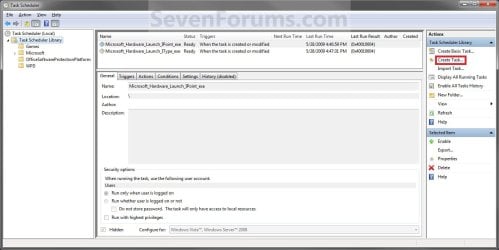
Step1.jpg
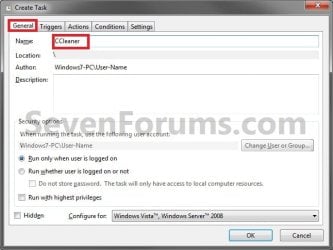
3. Under the General tab, type in the "Name" of the program you want to create this shortcut for. (see screenshot below)
NOTE: This will be the name of the task. As an example, I will use CCleaner for that program. Make note of this name, you will need it later in step 12 and 14 below.
Step2.jpg
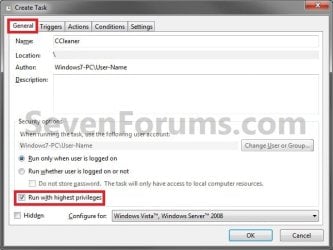
4. Check the Run with highest privileges box. (See screenshot below)
Step3.jpg
5. Click/tap on the Configure for drop down box to open it, and select Windows® 7, Windows Server™ 2008 R2 or the Windows you are currently in. (see screenshot above and below)
NOTE: This is like compatibility mode. If the program does not support running in Windows 7 normally, then you can select the OS that is does support running in instead to have it run in compatibility mode as if it was running in that OS instead of Windows 7.

Drop_Down_Box.jpg
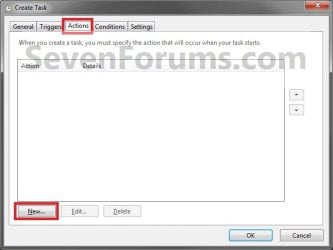
6. Click/tap on the Actions tab, then on the New button. (see screenshot below)
Step4.jpg
7. In the Program/script: box in the Actions tab, copy and paste the path below. (see screenshot below step 9)
NOTE: Thank you to chillz for the updated steps 7 and 8.
%windir%\System32\cmd.exe
8. In the Add arguments (optional): box in the Actions tab, type in the argument below. (see screenshot below step 9)

NOTE: Substitute Task Name in the argument below with the name you entered in step 3 (ex: CCleaner) within quotes, and substitute Full Path of Program in the argument below with the actual full path of the program's .exe file within quote.
/c start "Task Name" "Full Path of Program"


For example:

Code:
/c start "CCleaner" "C:\Program Files\CCleaner\CCleaner64.exe"
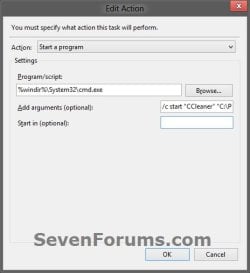
9. Click/tap on OK. (see screenshot below)
step7.jpg
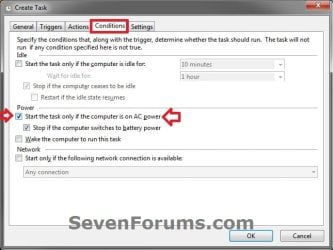
10. Click/tap on the Conditions tab, and uncheck the Stop if the computer switches to battery power box first, then uncheck the Start the task only if the computer is on AC power box. (see screenshots below)
NOTE: This step is mostly for laptops, so that you will be able to run the program when the laptop is running on battery power.
step8.jpg

Conditions.jpg

11. Click/tap on OK. (See screenshots above)

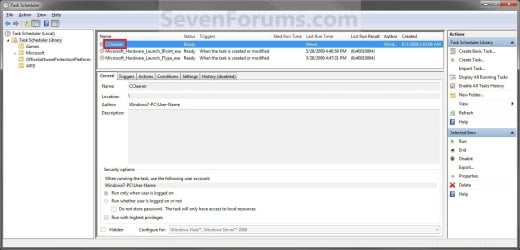
12. You will now see your new task created with the name (ex: CCleaner) you gave it in step 3. Close Task Scheduler. (see screenshot below)
Step9.jpg
13. Right click or press and hold on an empty area of your desktop, then click/tap on New and Shortcut.

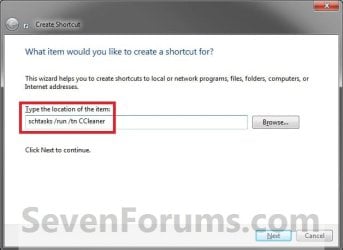
14. Type in the target below for the location field, then click/tap on the Next button. (see screenshot below)
NOTE: Subsitute task-name in the target with the name (ex: CCleaner) within quotes that you used in step 3.
schtasks /run /tn "task-name"

For example: For my task name CCleaner I used from step 3, I would type:
schtasks /run /tn "CCleaner"
Step10.jpg
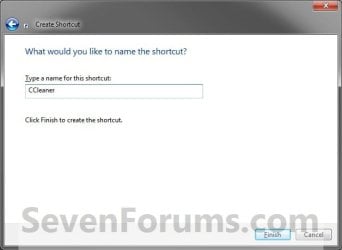
15. Type in a name you want for the shortcut (ex: CCleaner), then click/tap on the Finish button. (see screenshot below)
Step11.jpg
16. Right click on the new shortcut (ex: CCleaner) on the desktop, then click/tap on Properties.

17. Click/tap on the Shortcut tab, and on the Change Icon button. (see screenshot below)
Step12.jpg
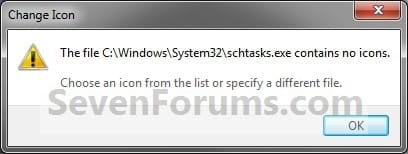
18. Click/tap on OK. (see screenshot below)
Step13.jpg
19. Click/tap on the Browse button. (see screenshot below)
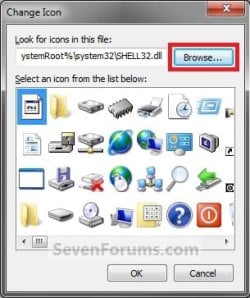
Step14.jpg
20. Navigate to the .exe file of the program that you have created this shortcut with, select it, and click/tap on Open. (see screenshot below)
NOTE: If you have a icon of your own that you would prefer to use instead, then navigate to where you have that icon saved at instead.
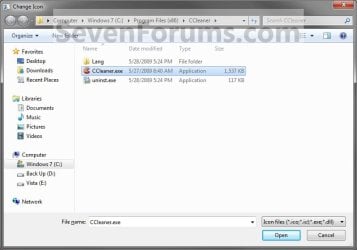
Step15.jpg
21. Select the icon you want for the shortcut, then click/tap on OK. (see screenshot below)
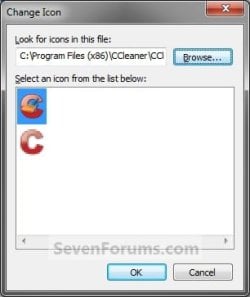
Step16.jpg
22. Click/tap on OK. (see screenshot below)
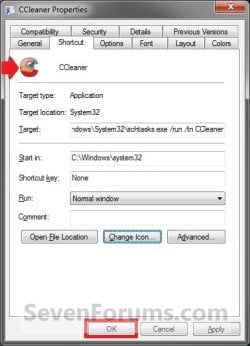
Step17.jpg
23. You can now use this elevated shortcut to run at startup in your "Startup" folder, run at startup as a task, Pin to Start Menu, Pin to Taskbar, assign a keyboard shortcut, or move to where you like for easy use.

24. When you run this new elevated shortcut, you will now no longer have to click/tap on YES to approve the UAC prompt to allow the program run as administrator.


   Tip
To Undo and Remove this Task:
  • While having Task Scheduler Library selected in the left pane, right click on the task in the right pane that you created in step 12, then click on Delete and Yes to approve.
  • Delete the shortcut.
That's it,
Shawn


Last edited:
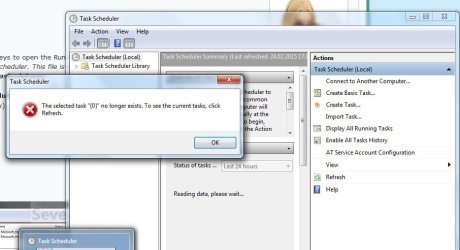
I tried this and it all looked good but I keep getting error messages and nothing is recorded.
I do not think it is a problem with what you propose as I get this message right from the start!
Once the read has finished there are no tasks to edit.$
I tried again but the task was already defined even though it cannot be displayed!
 

Attachments

  • 20150224User account modif.jpg
    20150224User account modif.jpg
    113.6 KB · Views: 877

My Computer

Computer type
Laptop
Computer Manufacturer/Model Number
Toshiba
OS
Windows 7
Hello Nigelino, and welcome to Seven Forums.

Not sure what could be wrong there, but you might see if starting over from scratch with a new name may work better. Be sure to double check and follow each step exactly. It's not hard to make a mistake by accident. :)
 

My Computer

Computer type
PC/Desktop
Computer Manufacturer/Model Number
Self built custom
OS
64-bit Windows 11 Pro for Workstations
CPU
Intel i7-8700K OC'd to 5 GHz
Motherboard
ASUS ROG Maximus XI Formula Z390
Memory
64 GB (4x16GB) G.SKILL TridentZ RGB DDR4 3600 MHz
Graphics Card(s)
ASUS ROG-STRIX-GTX1080TI-O11G-GAMING
Sound Card
Integrated
Monitor(s) Displays
2 x Samsung Odyssey G7 27"
Screen Resolution
2560x1440
Hard Drives
1TB Samsung 990 PRO M.2,
4TB Samsung 990 PRO PRO M.2,
TerraMaster F8 SSD Plus NAS
PSU
Seasonic Prime Titanium 850W
Case
Thermaltake Core P3
Cooling
Corsair Hydro H115i
Keyboard
Logitech wireless K800
Mouse
Logitech MX Master 4
Internet Speed
2 Gb/s Download and 100 Mb/s Upload
Antivirus
Malwarebyte Anti-Malware Premium
Browser
Google Chrome
Other Info
Logitech Z625 speaker system,
Logitech BRIO 4K Pro webcam,
HP Color LaserJet Pro MFP M477fdn,
APC SMART-UPS RT 1000 XL - SURT1000XLI,
Galaxy S23 Plus phone
This is a very well written tutorial! I would like to add one comment for less experienced people (like myself): If the task is not directly in the Task Scheduler Library, then one has to specify the whole path to the task (e.g. Target: C:\Windows\System32\schtasks.exe /run /tn "Microsoft\Windows\Maintenance\SixEngine", instead of just "SixEngine".) This is probably obvious for more experienced users, but for me it wasn't obvious at first sight :o. -lgutai.
 

My Computer

Computer type
PC/Desktop
Computer Manufacturer/Model Number
Self built
OS
windows 7 64 bit professional
CPU
Intel Core i7 930
Motherboard
ASUS P6X58D
Memory
Corsair Core i7 XMS3 24 GB PC 12800 DDR3
Graphics Card(s)
ASUS GTX480
Sound Card
Integrated
Monitor(s) Displays
SAMSUNG SyncMaster 2443bwx
Hard Drives
5x SAMSUNG F3 (1 TB)
PSU
Cooler Master Silent Pro 1000 W
Case
Lian Li PC=A77B
Cooling
Noctua NH-D14
This is a very well written tutorial! I would like to add one comment for less experienced people (like myself): If the task is not directly in the Task Scheduler Library, then one has to specify the whole path to the task (e.g. Target: C:\Windows\System32\schtasks.exe /run /tn "Microsoft\Windows\Maintenance\SixEngine", instead of just "SixEngine".) This is probably obvious for more experienced users, but for me it wasn't obvious at first sight :o. -lgutai.

Hello lgutai,

That's why is was specified in step 2, but thank you for helping to make sure this is done by others to avoid issues. :)
 

My Computer

Computer type
PC/Desktop
Computer Manufacturer/Model Number
Self built custom
OS
64-bit Windows 11 Pro for Workstations
CPU
Intel i7-8700K OC'd to 5 GHz
Motherboard
ASUS ROG Maximus XI Formula Z390
Memory
64 GB (4x16GB) G.SKILL TridentZ RGB DDR4 3600 MHz
Graphics Card(s)
ASUS ROG-STRIX-GTX1080TI-O11G-GAMING
Sound Card
Integrated
Monitor(s) Displays
2 x Samsung Odyssey G7 27"
Screen Resolution
2560x1440
Hard Drives
1TB Samsung 990 PRO M.2,
4TB Samsung 990 PRO PRO M.2,
TerraMaster F8 SSD Plus NAS
PSU
Seasonic Prime Titanium 850W
Case
Thermaltake Core P3
Cooling
Corsair Hydro H115i
Keyboard
Logitech wireless K800
Mouse
Logitech MX Master 4
Internet Speed
2 Gb/s Download and 100 Mb/s Upload
Antivirus
Malwarebyte Anti-Malware Premium
Browser
Google Chrome
Other Info
Logitech Z625 speaker system,
Logitech BRIO 4K Pro webcam,
HP Color LaserJet Pro MFP M477fdn,
APC SMART-UPS RT 1000 XL - SURT1000XLI,
Galaxy S23 Plus phone
Hello, I've tried using that to steam, but every time I do one of the actions (see in screenshot), it prompts me with UAC.
Plus, it is showing 2 steam icons on the task bar.
f9zh1Xy.png
 

My Computer

Computer type
Laptop
Computer Manufacturer/Model Number
HP
OS
Windows 7 Ultimate 64bit
CPU
Intel Core2 Duo T6500 2.10GHz
Motherboard
Hwelett-Packard F.14, 23/01/2009
Memory
4gb
Graphics Card(s)
Intel Family Chipset 4 Series
Hard Drives
Hitachi HTS541612J9SA00 ATA Device
Antivirus
MSE
Browser
Chrome
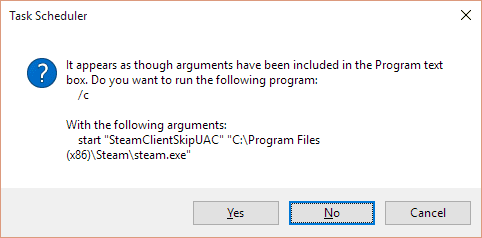
Umm, I have a dialog box I need you to look at.
Untitled.png

Does this work on Windows 10?
 
Last edited:

My Computer

Computer type
PC/Desktop
Computer Manufacturer/Model Number
Custom
OS
Microsoft Windows 7 Home Premium 64-bit Service Pack 1
CPU
AMD A10-6800K APU with Radeon(tm)™ HD Graphics 4100
Motherboard
ASRock FM2A85X Extreme4-M
Memory
(2) G.Skill F3-12800CL10-8GBXL
Graphics Card(s)
ASUS R7 250 Series (0x6610)
Sound Card
Realtek High Definition Audio
Monitor(s) Displays
Acer X213H LCD monitor, 21"
Screen Resolution
1920 x 1080 x 32 bits @ 60 Hz
Hard Drives
WD Black, 1.0TB, WDC WD1002FAEX-00Z3A0
PSU
Rosewill Quark-650
Case
Raidmax Comet SECC Steel ATX Mid Tower Computer Case
Cooling
1 x 80mm + 2 x 120mm + Stock cooler
Mouse
Gear Head Wireless Optical 5-button mouse
Internet Speed
FTTx 6000 / 1000
Antivirus
Avast! Free Antivirus 2015.10.0.2208
Browser
Google Chrome Version 40.0.2214.115
Other Info
*AMD Dual-Graphics
*Uses OpenDNS
*Uses Folding@Home
*HP 16x Super-Multi DVD Writer
*Superspeed 74-in-1 Card Reader
*Maximum overclock has not been determined.
Hey Honeycomb,

I haven't tested it yet in Windows 10, but it should work. However, most have not had success using it with Steam though.
 

My Computer

Computer type
PC/Desktop
Computer Manufacturer/Model Number
Self built custom
OS
64-bit Windows 11 Pro for Workstations
CPU
Intel i7-8700K OC'd to 5 GHz
Motherboard
ASUS ROG Maximus XI Formula Z390
Memory
64 GB (4x16GB) G.SKILL TridentZ RGB DDR4 3600 MHz
Graphics Card(s)
ASUS ROG-STRIX-GTX1080TI-O11G-GAMING
Sound Card
Integrated
Monitor(s) Displays
2 x Samsung Odyssey G7 27"
Screen Resolution
2560x1440
Hard Drives
1TB Samsung 990 PRO M.2,
4TB Samsung 990 PRO PRO M.2,
TerraMaster F8 SSD Plus NAS
PSU
Seasonic Prime Titanium 850W
Case
Thermaltake Core P3
Cooling
Corsair Hydro H115i
Keyboard
Logitech wireless K800
Mouse
Logitech MX Master 4
Internet Speed
2 Gb/s Download and 100 Mb/s Upload
Antivirus
Malwarebyte Anti-Malware Premium
Browser
Google Chrome
Other Info
Logitech Z625 speaker system,
Logitech BRIO 4K Pro webcam,
HP Color LaserJet Pro MFP M477fdn,
APC SMART-UPS RT 1000 XL - SURT1000XLI,
Galaxy S23 Plus phone
:thumbsup:
 

My Computer

Computer type
PC/Desktop
Computer Manufacturer/Model Number
Self built custom
OS
64-bit Windows 11 Pro for Workstations
CPU
Intel i7-8700K OC'd to 5 GHz
Motherboard
ASUS ROG Maximus XI Formula Z390
Memory
64 GB (4x16GB) G.SKILL TridentZ RGB DDR4 3600 MHz
Graphics Card(s)
ASUS ROG-STRIX-GTX1080TI-O11G-GAMING
Sound Card
Integrated
Monitor(s) Displays
2 x Samsung Odyssey G7 27"
Screen Resolution
2560x1440
Hard Drives
1TB Samsung 990 PRO M.2,
4TB Samsung 990 PRO PRO M.2,
TerraMaster F8 SSD Plus NAS
PSU
Seasonic Prime Titanium 850W
Case
Thermaltake Core P3
Cooling
Corsair Hydro H115i
Keyboard
Logitech wireless K800
Mouse
Logitech MX Master 4
Internet Speed
2 Gb/s Download and 100 Mb/s Upload
Antivirus
Malwarebyte Anti-Malware Premium
Browser
Google Chrome
Other Info
Logitech Z625 speaker system,
Logitech BRIO 4K Pro webcam,
HP Color LaserJet Pro MFP M477fdn,
APC SMART-UPS RT 1000 XL - SURT1000XLI,
Galaxy S23 Plus phone
Massive thanks

Just registered here to say a massive thank you for this easy to use simple instructions.
Now I can start my program in Admin mode without having to worry about turning down UAC. :)

Cheers!
 

My Computer

Computer type
PC/Desktop
Computer Manufacturer/Model Number
Dell
OS
Windows 7 64 Bit
CPU
Intel(R) Core i7-4790 CPU @ 3.60 GHz 3.60 GHz
Memory
16 GB
Some weird things

I've just had some weird experiences with all of this and maybe you can tell me what is going on with it.

First, I followed this http://www.sevenforums.com/tutorials/10499-task-manager-create-elevated-shortcut.html tutorial to create a shortcut that launches an elevated Task Manager without the UAC prompt. It works great. But when I put it in my Startup folder, it's completely ignored. I can reboot all day (something I have unfortunately been doing lately, as you can read all about in another thread elsewhere, but which, blessedly, is no longer the case) and it won't launch Task Manager at boot up. However, it is a convenient item I have kept in my Startup folder for reasons I will get to below.

So then I SLAVISHLY followed your instructions for this tutorial, thus proving that it is a letter perfect description of everything you will see if you follow the instructions. However, I ended up with something that also didn't launch Task Manager at bootup. However squared, if I execute the entry in my Startup folder once I wait long enough to be sure it isn't going to launch on its own, it gives me the UAC prompt. How rude. So I use the other entry in the Startup folder to launch Task Manager. This is the first instance of it being convenient to have kept that entry.

I must sidetrack for a moment to point out one step in the tutorial, step 11 to be precise, that caused me a bit of a problem for a moment. I suppose I shouldn't admit this in public but I have only one user defined in my system, it is an Administrator, and its password is blank. This is my home computer and nobody else uses it. No eager teenagers wanting to import viruses with their games, no wife wanting to run up exorbitant bills shopping online, nor any other reason to try to secure the system, other than with the lock on the front door of the home. Typing a password all the time would be so annoying. So I don't have one. This caused an error message (which I suppose I should have captured to include in this post, but sorry, I didn't) that prompted me to go into the Local Security Policy application and change the policy "Limit local account use of blank passwords to console logon only" to disabled. This allowed me to save the definition of the scheduled task in Task Scheduler in step 11 of the tutorial. End of sidetrack.

So I started looking closely at the definition of the started task. Why launch a command window with the program I really want to launch as a parameter of that? So I coalesced the two together. I didn't do step 8, and in step 7 I just entered taskmgr.exe directly in the "Program/script" box. Plus, at step 22, after changing the icon, I also went into Advanced and turned on the Administrator permission. I'm not sure why you don't have this step in the tutorial. Is it really unnecessary? Maybe that explains . . . Oh it does!! You're so smart, Shawn. OK. I've turned off the "Run as Administrator" attribute of the shortcut. Clearly, setting Administrator privileges in step 4 of the tutorial is enough to make it elevate. How interesting . . . I'll have to remember this concept for future reference: an unelevated shortcut can launch an elevated entry defined in the Task Scheduler. Maybe I don't need both shortcuts in my Startup folder after all.

In any case, there is still a reason for me to post this. You know, when you launch Task Manager once your system is running, you get the little green square over near the system clock in the Notification Area of the Task Bar. So even if the Task Manager itself is obscured by other windows, you can get a coarse idea of whether the CPU is busy doing something. Well, if you launch Task Manager automatically at bootup, it's so early in the process that you don't always get the little green square in the Notification Area. I pretty much never get it. Maybe it depends on the speed of your CPU. You have to close Task Manager & run the entry in the Startup folder manually to make the little green square show up. Kind of defeats the purpose of the whole exercise, doesn't it? So . . . I think you can see what my question is going to be.

So my thought is to create a .BAT script whose second line invokes schtasks. Its first line would be something that waits for some specified delay. Maybe 10 or 15 seconds, maybe less, like I say, it may depend on the speed of your CPU. And then put a shortcut to that in your Startup folder. I'm looking in the Command Reference . . . There is no DELAY command. That would be too easy . . . Hmm . . . There is a WAITFOR. I wonder if it works to wait for a signal that of course will never come so long as you specify a timeout . . . News soon . . .
 

My Computer

Computer type
PC/Desktop
Computer Manufacturer/Model Number
ASUS (assembled myself)
OS
Windows 7 Professional 64-bit
CPU
Intel Core i7-4790K Quad CPU @ 4.00 GHz
Motherboard
ASUS Z97-AR, Intel Z97 Express chipset, ATX form factor
Memory
2x4G DDR3 1600MHz DIMMs
Graphics Card(s)
Intel HD Graphics 4600 on mobo; NVidia GeForce GT 710 PCI-E
Sound Card
Realtek High Definition Audio, integrated on mobo
Monitor(s) Displays
Dell SE2417HGX, 20.5"x11.5" viewable area; 32" Toshiba HDTV
Screen Resolution
1920 x 1080 @ 60 Hz, 32-bit color depth
Hard Drives
Western Digital 500G SATA
Seagate 150G SATA
2 x Seagate 6T SATA
2 x Seagate 18T SATA
PSU
EVGA 500B (500 Watts)
Case
NZXT H230 mid-tower
Cooling
CPU fan, PSU fan, 2 case fans, NVidia fan
Keyboard
Perixx 513H
Mouse
Touch pad integrated into keyboard
Internet Speed
Intel Ethernet Conn(2)I218-V, on mobo, ISP=cableTV 400Mbps
Antivirus
Comodo
Browser
Firefox
Other Info
Ext'l DVD rec: LG HL-DT-ST DVDRAM GP10NB20 USB
Monitor conn to VideoPort via HDMI-to-VideoPort adap
Realtek ALC892 8-channel High Definition Audio CODEC featuring Crystal Sound 2
Audio conn to surr recv via 25' optical S/PDIF TOSLINK audio cable
SYSINFO: 11 NIC ports but only 1 actively conn via DHCP to ISP
ISP bundled w/ cable TV+cell, claims 400Mbps,
but really 50 million bytes/sec
That works like a champ. Here's what I launch from my Startup folder now:

Code:
rem In order to get the little green square in the Task Bar Notification Area, we need to wait a bit.
waitfor /t 20 ThisSignalWillNeverArrive
rem Now we can launch our Scheduled Task which in turn launches Task Manager.
schtasks.exe /run /tn "Launch Task Manager"
I tried it with 15 seconds and it was not quite long enough. The Task Bar appears to do some sort of initialization that takes (relatively speaking) forever and you won't get the little green square until after it's done whatever that is. But like I say, your CPU might get away with a shorter delay or you might need a longer one. You'll just have to experiment.

Curiously, for the first time EVER, my other plain-Jane shortcut to the Task Manager launched properly during one of my experiments. Go figure. Well, I will keep it, just not in my Startup folder, since it is the one I'll use to launch Task Manager manually for whatever reason might arise, because there's no point in waiting the 20 second delay at some later time.
 

My Computer

Computer type
PC/Desktop
Computer Manufacturer/Model Number
ASUS (assembled myself)
OS
Windows 7 Professional 64-bit
CPU
Intel Core i7-4790K Quad CPU @ 4.00 GHz
Motherboard
ASUS Z97-AR, Intel Z97 Express chipset, ATX form factor
Memory
2x4G DDR3 1600MHz DIMMs
Graphics Card(s)
Intel HD Graphics 4600 on mobo; NVidia GeForce GT 710 PCI-E
Sound Card
Realtek High Definition Audio, integrated on mobo
Monitor(s) Displays
Dell SE2417HGX, 20.5"x11.5" viewable area; 32" Toshiba HDTV
Screen Resolution
1920 x 1080 @ 60 Hz, 32-bit color depth
Hard Drives
Western Digital 500G SATA
Seagate 150G SATA
2 x Seagate 6T SATA
2 x Seagate 18T SATA
PSU
EVGA 500B (500 Watts)
Case
NZXT H230 mid-tower
Cooling
CPU fan, PSU fan, 2 case fans, NVidia fan
Keyboard
Perixx 513H
Mouse
Touch pad integrated into keyboard
Internet Speed
Intel Ethernet Conn(2)I218-V, on mobo, ISP=cableTV 400Mbps
Antivirus
Comodo
Browser
Firefox
Other Info
Ext'l DVD rec: LG HL-DT-ST DVDRAM GP10NB20 USB
Monitor conn to VideoPort via HDMI-to-VideoPort adap
Realtek ALC892 8-channel High Definition Audio CODEC featuring Crystal Sound 2
Audio conn to surr recv via 25' optical S/PDIF TOSLINK audio cable
SYSINFO: 11 NIC ports but only 1 actively conn via DHCP to ISP
ISP bundled w/ cable TV+cell, claims 400Mbps,
but really 50 million bytes/sec
I was mistaken about that first time ever comment. That was not the source of the unexpected launch of Task Manager. It was the scheduled task launching Task Manager, and then my script also tried to launch it & it was just a redundant step. So I went into Task Scheduler and updated the definition of the started task so it had no triggers. See, I had defined a trigger that it launch at bootup. No, that's what I'm trying to avoid. I'm trying to get it to launch at bootup after a delay.

So now it works perfectly.
 

My Computer

Computer type
PC/Desktop
Computer Manufacturer/Model Number
ASUS (assembled myself)
OS
Windows 7 Professional 64-bit
CPU
Intel Core i7-4790K Quad CPU @ 4.00 GHz
Motherboard
ASUS Z97-AR, Intel Z97 Express chipset, ATX form factor
Memory
2x4G DDR3 1600MHz DIMMs
Graphics Card(s)
Intel HD Graphics 4600 on mobo; NVidia GeForce GT 710 PCI-E
Sound Card
Realtek High Definition Audio, integrated on mobo
Monitor(s) Displays
Dell SE2417HGX, 20.5"x11.5" viewable area; 32" Toshiba HDTV
Screen Resolution
1920 x 1080 @ 60 Hz, 32-bit color depth
Hard Drives
Western Digital 500G SATA
Seagate 150G SATA
2 x Seagate 6T SATA
2 x Seagate 18T SATA
PSU
EVGA 500B (500 Watts)
Case
NZXT H230 mid-tower
Cooling
CPU fan, PSU fan, 2 case fans, NVidia fan
Keyboard
Perixx 513H
Mouse
Touch pad integrated into keyboard
Internet Speed
Intel Ethernet Conn(2)I218-V, on mobo, ISP=cableTV 400Mbps
Antivirus
Comodo
Browser
Firefox
Other Info
Ext'l DVD rec: LG HL-DT-ST DVDRAM GP10NB20 USB
Monitor conn to VideoPort via HDMI-to-VideoPort adap
Realtek ALC892 8-channel High Definition Audio CODEC featuring Crystal Sound 2
Audio conn to surr recv via 25' optical S/PDIF TOSLINK audio cable
SYSINFO: 11 NIC ports but only 1 actively conn via DHCP to ISP
ISP bundled w/ cable TV+cell, claims 400Mbps,
but really 50 million bytes/sec
:thumbsup:
 

My Computer

Computer type
PC/Desktop
Computer Manufacturer/Model Number
Self built custom
OS
64-bit Windows 11 Pro for Workstations
CPU
Intel i7-8700K OC'd to 5 GHz
Motherboard
ASUS ROG Maximus XI Formula Z390
Memory
64 GB (4x16GB) G.SKILL TridentZ RGB DDR4 3600 MHz
Graphics Card(s)
ASUS ROG-STRIX-GTX1080TI-O11G-GAMING
Sound Card
Integrated
Monitor(s) Displays
2 x Samsung Odyssey G7 27"
Screen Resolution
2560x1440
Hard Drives
1TB Samsung 990 PRO M.2,
4TB Samsung 990 PRO PRO M.2,
TerraMaster F8 SSD Plus NAS
PSU
Seasonic Prime Titanium 850W
Case
Thermaltake Core P3
Cooling
Corsair Hydro H115i
Keyboard
Logitech wireless K800
Mouse
Logitech MX Master 4
Internet Speed
2 Gb/s Download and 100 Mb/s Upload
Antivirus
Malwarebyte Anti-Malware Premium
Browser
Google Chrome
Other Info
Logitech Z625 speaker system,
Logitech BRIO 4K Pro webcam,
HP Color LaserJet Pro MFP M477fdn,
APC SMART-UPS RT 1000 XL - SURT1000XLI,
Galaxy S23 Plus phone
Hi Brink,
I tried to do all steps but the domain users not run anyway. Can you help this issue for me. I test by notepad.exe.
Thanks.
 

My Computer

Computer type
Laptop
OS
Windows 7 Ultimate x64
I haven't tested this with domain users, and don't think it will work for them. :(
 

My Computer

Computer type
PC/Desktop
Computer Manufacturer/Model Number
Self built custom
OS
64-bit Windows 11 Pro for Workstations
CPU
Intel i7-8700K OC'd to 5 GHz
Motherboard
ASUS ROG Maximus XI Formula Z390
Memory
64 GB (4x16GB) G.SKILL TridentZ RGB DDR4 3600 MHz
Graphics Card(s)
ASUS ROG-STRIX-GTX1080TI-O11G-GAMING
Sound Card
Integrated
Monitor(s) Displays
2 x Samsung Odyssey G7 27"
Screen Resolution
2560x1440
Hard Drives
1TB Samsung 990 PRO M.2,
4TB Samsung 990 PRO PRO M.2,
TerraMaster F8 SSD Plus NAS
PSU
Seasonic Prime Titanium 850W
Case
Thermaltake Core P3
Cooling
Corsair Hydro H115i
Keyboard
Logitech wireless K800
Mouse
Logitech MX Master 4
Internet Speed
2 Gb/s Download and 100 Mb/s Upload
Antivirus
Malwarebyte Anti-Malware Premium
Browser
Google Chrome
Other Info
Logitech Z625 speaker system,
Logitech BRIO 4K Pro webcam,
HP Color LaserJet Pro MFP M477fdn,
APC SMART-UPS RT 1000 XL - SURT1000XLI,
Galaxy S23 Plus phone
using schtasks and runas from cmd prompt

Regarding inability for a standard user to run an elevated program, you could use the runas command with the /savecred option

I have a question about running the schtasks from the cmd prompt. Is there a way to pass parameters or variables to the scheduled task? I saw that in your setup of your tasks, you put the specific program in the parameters. Is it possible to put a variable as the parameters, so that you could potentially only have to create one scheduled task that could be called from the cmd line?

I am currently using the runas command to launch process explorer from a standard user account. However since UAC is now enabled, the dialog is not shown and process explorer says access denied for some information that is only available to admins, which makes me think that it is skipping the UAC dialog.
 

My Computer

Computer type
PC/Desktop
Computer Manufacturer/Model Number
custom build
OS
Windows 7 Professional x64
CPU
AMD Phenom II X6 1090T 3.20GHz CPU
Motherboard
Gigabyte GA-890FXA-UD7 AM3 rev2.0
Memory
8.0GB DDR3 1333MHz (PC3-10666) SDRAM
Graphics Card(s)
2x XFX Radeon HD 5870 1GB CrossFire
Monitor(s) Displays
Samsung 2253LW Monitor
Hard Drives
Corsair Force GT 240GB SATA 3 6.0Gb/s SSD
PSU
Thermaltake TR2 TRX-1200M 1200W PSU
Case
CoolerMaster HAF 932 ATX Full Tower
Cooling
XIGMATEK Aegir SD128264 CPU Cooler
Keyboard
Microsoft Sculpt Ergonomic Keyboard
Mouse
Logitech M570 Wireless Trackball
Internet Speed
AT&T U-verse Max Turbo (30Mb/s down, 2Mb/s up)
Antivirus
ESET Smart Security
Browser
Google Chrome
Other Info
ASUS RT-AC66U Router
Regarding inability for a standard user to run an elevated program, you could use the runas command with the /savecred option

I have a question about running the schtasks from the cmd prompt. Is there a way to pass parameters or variables to the scheduled task? I saw that in your setup of your tasks, you put the specific program in the parameters. Is it possible to put a variable as the parameters, so that you could potentially only have to create one scheduled task that could be called from the cmd line?

I am currently using the runas command to launch process explorer from a standard user account. However since UAC is now enabled, the dialog is not shown and process explorer says access denied for some information that is only available to admins, which makes me think that it is skipping the UAC dialog.

You might see if this may help any to use. :)

How to Create an Elevated Program Shortcut a Standard User is able to Run in Windows 7
 

My Computer

Computer type
PC/Desktop
Computer Manufacturer/Model Number
Self built custom
OS
64-bit Windows 11 Pro for Workstations
CPU
Intel i7-8700K OC'd to 5 GHz
Motherboard
ASUS ROG Maximus XI Formula Z390
Memory
64 GB (4x16GB) G.SKILL TridentZ RGB DDR4 3600 MHz
Graphics Card(s)
ASUS ROG-STRIX-GTX1080TI-O11G-GAMING
Sound Card
Integrated
Monitor(s) Displays
2 x Samsung Odyssey G7 27"
Screen Resolution
2560x1440
Hard Drives
1TB Samsung 990 PRO M.2,
4TB Samsung 990 PRO PRO M.2,
TerraMaster F8 SSD Plus NAS
PSU
Seasonic Prime Titanium 850W
Case
Thermaltake Core P3
Cooling
Corsair Hydro H115i
Keyboard
Logitech wireless K800
Mouse
Logitech MX Master 4
Internet Speed
2 Gb/s Download and 100 Mb/s Upload
Antivirus
Malwarebyte Anti-Malware Premium
Browser
Google Chrome
Other Info
Logitech Z625 speaker system,
Logitech BRIO 4K Pro webcam,
HP Color LaserJet Pro MFP M477fdn,
APC SMART-UPS RT 1000 XL - SURT1000XLI,
Galaxy S23 Plus phone

My Computer

Computer type
PC/Desktop
Computer Manufacturer/Model Number
custom build
OS
Windows 7 Professional x64
CPU
AMD Phenom II X6 1090T 3.20GHz CPU
Motherboard
Gigabyte GA-890FXA-UD7 AM3 rev2.0
Memory
8.0GB DDR3 1333MHz (PC3-10666) SDRAM
Graphics Card(s)
2x XFX Radeon HD 5870 1GB CrossFire
Monitor(s) Displays
Samsung 2253LW Monitor
Hard Drives
Corsair Force GT 240GB SATA 3 6.0Gb/s SSD
PSU
Thermaltake TR2 TRX-1200M 1200W PSU
Case
CoolerMaster HAF 932 ATX Full Tower
Cooling
XIGMATEK Aegir SD128264 CPU Cooler
Keyboard
Microsoft Sculpt Ergonomic Keyboard
Mouse
Logitech M570 Wireless Trackball
Internet Speed
AT&T U-verse Max Turbo (30Mb/s down, 2Mb/s up)
Antivirus
ESET Smart Security
Browser
Google Chrome
Other Info
ASUS RT-AC66U Router
drag and drop

Very nicely done, thanks a lot.
But what should i enter in program/script, if i am running portable program, that is not installed.
Namely, i have a problem with drag and drop in my photoshop6, since i installed win10, dropping the photos in won't work, which is quite frustrating.
After i tried with code in powershell:
Get-AppXPackage -AllUsers | Foreach {Add-AppxPackage -DisableDevelopmentMode -Register “$($_.InstallLocation)\AppXManifest.xml”}

drag and drop worked, but ..... it corrupted all other windows apps, @N#%$%&/ .... so i had to re-install the wins again.

Photoshop is portable - not installed. Its not checked to run as admin, but still there is a yellow and blue shield on the icon and i can not do darn thing to change it.
Before i had win7 and no problems with dropping.

Can somebody help please :geek:
 

My Computer

Computer type
PC/Desktop
OS
Win 7
CPU
@ 3.40 GHz
Screen Resolution
LG IPS 234 digital
Back
Top