Solved Error: Windows could not check for updates automatically. (Important)

bdiblik

New member
Local time
11:42 PM
Messages
15
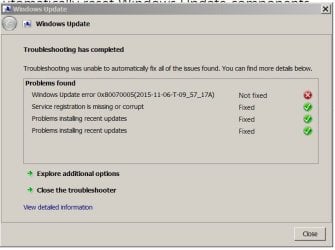
I keep getting this message from the Action center (Win7 Home Prem) - When I click on it to open it looks for Windows updates, if it finds any I can install no problem. After reboot, the message will appear again after a few minutes and tells me "Updates were installed: Never" but if I go to Update history it shows the current updates installed successfully. Using the troubleshooter it says: Windows Update error 0x80070005 but does not fix it. I have checked the services and reset the update settings, still get the error. The system has been scanned for Virus and malware (found some and cleaned). Any suggestion greatly appreciated!
 

My Computer

OS
Windows 7 Pro 64 bit
Hi bdiblik & welcome to sevenforums.

Please follow Windows Update Posting Instructions

What scanners did you run?

What anti-virus, anti-malware programs do you have installed?

Post CheckSUR.log & CheckSUR.persist as well.

Auto tool to find and copy those to desktop attached.

If I can't resolve your issue, NoelDP certainly can.!
 

Attachments

My Computer

Computer type
Laptop
OS
Win 7 Home Premium x64/Linux Lite 2.6 x64
sfc /scannow - no issues
Malwarebytes - 1 issue removed
SuperAntiSpyware - 0 issues
MSE full scan - 12 issues - removed
 

Attachments

My Computer

OS
Windows 7 Pro 64 bit
Well, that's good news! :D

Still learning on your error code.

NoelDP is the expert.

I can try to help you. After I return from flu shot.

If you feel ambitions you can use search function upper right hand corner of screen, & search for your error code. Read posts by NoelDP.

Please post WindowsUpdate.log located at: C:\Windows

Hope issue is not corrupt hive! :( That's not repairable. Usually repair install from within Windows environment (choose Upgrade) is fix. No it won't delete your installed programs, files, folders, music, video, pictures, etc., it only replaces Windows.

If you need to do that, and NoelDP is the expert here, I have detailed instructions on how to obtain DVD if you don't have it, how to obtain Windows product key if you don't have it, how to burn ISO from Microsoft to DVD, plus links to excellent videos, on repair install and burning ISO to DVD. Everything is free to you (I like free).
 

My Computer

Computer type
Laptop
OS
Win 7 Home Premium x64/Linux Lite 2.6 x64
Here is the log - Thanks! I did search/read about 80070005 but it seems to apply to other problems as well. The odd thing here is that every time the message pops up that it can not check automatically, I can click on check updates and install (if any new ones are there)
 

My Computer

OS
Windows 7 Pro 64 bit
Good news, didn't see any hive issues

Did see this:

WARNING: PostReboot: Failed to read event cache file

Try running attached. Batch file by Shawn Brink.

Then try windows update again.

Post results.
 

Attachments

Last edited:

My Computer

Computer type
Laptop
OS
Win 7 Home Premium x64/Linux Lite 2.6 x64
Does the bat file create a log or other output that I can post? The error remains after running the bat.
 

My Computer

OS
Windows 7 Pro 64 bit
PS - If it is easier to do a repair, I am willing to give that a shot. Some more details on this system, which is not mine, I have created a cloned hard drive that I can experiment with. I have the Windows install disks. You say the programs and data will remain in tact?
 

My Computer

OS
Windows 7 Pro 64 bit
Repair install is easy, takes time to complete & you then have 200 important updates & 13 to install when you boot. If you decide to do repair install, if you have 4 gig or RAM or less, only install 100 or so first time, if you don't you will most likely get out of memory error. Windows uses RAM to save updates until it can verify integrity. If you start Task Manager, click performance tab, you can watch RAM slowly fill. 8 gig or more you s should have no problem. Just in case you do decide to do repair install, which will definitely fix issue, you might end up with other minor issues, i.e. need to reinstall printer, turn windows media features off, reboot, turn back on. With Avast you will receive side-by-side configuration error. Control Panel>click Avast>Repair. When Avast starts background services will not be running (usually) open Avast click resolve all & wait a few. Good to go.

If you decide to do repair install, and machine doesn't have SP1 installed use comparability mode. To do that, right-click DVD choose>open click compatibility tab click compatibility checkbox and select Windows 7.

Here's info on repair install:

Repair Install by Shawn Brink great tutorial by the way

Britec Computer has a video on it Repair Install to Fix Windows 7 Without Reformatting

Brian is an awesome guy who believes most anyone can repair computer with a little knowledge on issue. I subscribe to his YouTube channel and watch most of his videos.

Don't fret, repair install will preserve all your installed programs, files, folder, music, video, pictures, etc. I do them all the time.

It saves a folder called Windows.Old, which, as the name implies, your system before repair install, you can revert to if attempted repair install fails (not very often) I've done 3 in the past few days.

After you run your repaired windows & everything is up and running to your satisfaction, you can delete the Windows.Old file. How to delete Windows.Old

Usually you will have minor issues.

For one, Avast will have a side-by-side configuration conflict.

How to solve, click Control Panel>Uninstall Programs>Avast>Change>Repair.

After Avast starts, background services failed to start. Open Avast Control Panel, choose>Repair All and wait a few minutes & Avast will be up and running.

Might have to uninstall and reinstall Adobe Flash if you try to run videos & they crash immediately. Had this issue on desktop.

Might have to delete printer & reinstall, choose new driver, (not use one that is installed (recommended))

Windows Media Player might not function.

Solution, open Turn Windows Features On or Off, click + along side Media Features, uncheck Windows Media Center & Windows Media Player. Reboot is required. Windows applies updates, restarts. Turn those features back on again.

Two things you will need:


  1. Windows 7 x64 DVD or ISO file
  2. Windows 25 character product key.

If you don't have DVD you can download ISO from Microsoft Download Center

You can't copy & past ISO (image file) with Windows copy & paste, you have to burn ISO disc. I use ImgBurn (free) I like free.

How to burn win7 ISO to disk with ImgBurn.

Download ImgBurn

If you don't have windows product key, it's in the registry in binary form (ones & zeros).

Run attached batch file. It will convert binary to alphanumeric and display it for you

I usually copy 5 characters, skip line on paper, copy 5 characters, etc. Then double/triple check that it matches. Easy to transpose characters or write C when it should have been G. (windows doesn't use A, 1 (one), or 0 (zero) in product key.

When doing repair install one screen offers Upgrade as option, that the one you want (it doesn't actually upgrade just reinstalls Windows 7)

If you are presented a choice of Windows i.e. (Starter, Basic, Home Premium, Professional, or Ultimate) choose the operating system you have. (it's called AIO (all-in-one). Every Windows 7 ISO or DVD has all versions installed, what controls whether it's a certain version is ei.cfg file, which you can uninstall in from the ISO, manually or with eicfg_removal_utility.zip

I ran the tool on my Win7x32 and Win7x64 discs to simplify the repair install, fresh install process.

If you need any additional help, please feel free to ask.

 

Attachments

My Computer

Computer type
Laptop
OS
Win 7 Home Premium x64/Linux Lite 2.6 x64
Thank you for the detailed information. I have everything I need for the repair. One last question before I jump in, if you had the choice of a completely fresh install or the repair install, which would be the better choice? I understand that a full, fresh install may be a bit more work but I have the time and would like to end up with the best solution. Again, Thank You!
 

My Computer

OS
Windows 7 Pro 64 bit
I'd repair install

If you don't need any of your installed programs, you could transfer all your personal files, folder, etc. to Flash Drive or External HDD (fresh install requires reformatting) you could do fresh install.

Nothing at all wrong with Repair Install, both install windows 7.

Fresh install & you have to reinstall all your installed programs. I have well over 100, would take me days, maybe a week. & you still have all the updates to install.

Repair install takes a few hours, Updates, probably like overnight. I'd repair install.

Like I said in earlier instructions on repair install, if you have 4 gig RAM or less, choose a portion of the 200, & 13 optional updates. If you have 4 gig Ram choose about 100. You can watch the RAM load up with Task Manager, Performance tab.

I did repair install on 3 machines past few days. Piece of cake.

Updates may take many hours (6-7 or less up to 24-48 not likely) to start downloading & or installing.

Set Power Options to NEVER, & let it run.
 

My Computer

Computer type
Laptop
OS
Win 7 Home Premium x64/Linux Lite 2.6 x64
So I was going to try the repair but I could not find Service pack 1 in the Windows Updates, which I need to uninstall before the repair can begin. I have a Windows 7 Home Premium 32 bit disk that includes SP1 but during the validation it said that the installed Windows is newer than the one I am trying to install. System properties says SP1. Is there a way around that?
 

My Computer

OS
Windows 7 Pro 64 bit
Your system specs say Win7x64 pro.

Can't use Win7x32 for Win7x64.

If that's the case you'll have to download ISO from M$ & burn to DVD. see above post.

If not, you could try to uninstall SP1, & use Compatibility Mode.

wusa /uninstall /KB:976932 /quiet /norestart

Open elevated command prompt. Click start orb lower left screen, type cmd, right-click cmd.exe, choose>run as administrator

copy & paste bold code above.

When it finishes executing the window will close.

Restart

Try now, or try compatibility mode for Windows 7.

Should work now.

Either way, let us know your results.
 

My Computer

Computer type
Laptop
OS
Win 7 Home Premium x64/Linux Lite 2.6 x64
ISO's from Microsoft Download Center include sp1

OEM media (the customized Windows install DVD that came with your PC) might cause errors, such as "Windows 7 Professional cannot be upgraded to Windows 7 Professional".

The Windows version that you're running needs to be no newer than that on the installation media. If you installed Windows 7 SP1, then you'll need installation media with SP1 already in place.

From one of Shawn Brink's posts:

If you have Windows 7 SP1 installed, then you either must use a "retail" Windows 7 SP1 installation disc to be able to do a repair install, or uninstall SP1 to be able to use a retail Windows 7 installation disc to do a repair install with.
 

My Computer

Computer type
Laptop
OS
Win 7 Home Premium x64/Linux Lite 2.6 x64
Sorry, should have been more clear - this is not my PC. It is in fact a 32bit Home Premium unit that I am working on. My install disc is a Microsoft iso with SP1 (not a retail disc). There already was a folder "Windows.old" so I am wondering if some one already tried a repair install some time ago. I did try to uninstall SP1 but it was NOT listed in the installed updates. I tried the command line wusa /uninstall /KB:976932 /quiet /norestart but nothing happened, just a window with the different wusa command options. Is it possible that the previous installation was done with a disc that included SP1 and that is why it is not listed in the updates?

You have been extremely helpful and I have taken up too much of your time on this. Since there are not many programs and little user data, I will proceed with a fresh install. I am sure I will get another chance to try a repair install, especially now that I have all this info you provided.
 

My Computer

OS
Windows 7 Pro 64 bit
No problem, I boo boo all the time, more so as I age! Been retired for a few years with too much time on may hands.

If your computer is several years old, like when win7 first came out, your M$ disc is most likely pre sp1.

I'd download the ISO, burn it with ImgBurn and give it a go. Couldn't hurt, doesn't take a whole lot of time.

To the best of my knowledge, pre sp1 disc will not work for repair install ever.

If your friend ever needs it, he'll have win7x32 w/sp1. Good idea to make two copies.

I've had DVD's, including my win7x64 become corrupt. Guess you'd call it a backup disc.

If you do go with fresh install, install CCleaner, on tools, lower right corner, you can save a list of installed programs to text file. Save having to write all of them down.

Don't make it a slipstream disk (all updates installed on disk) you can't do a repair install, well actually it will let you, but the programs that will add the updates, most popular (RT seven lite) alters files and folders already on disk, which is what the windows updates do to the files/folders on your HDD. You end up with a machine that causes headaches, not good.

I never use slipstream disc for fresh install, because you are then precluded from ever doing a repair install.
 

My Computer

Computer type
Laptop
OS
Win 7 Home Premium x64/Linux Lite 2.6 x64
Hello wben353 - Thanks for all your help! I did tri another win 7 iso and it did repair install however I wound up with a different update error, I thing 8007000E - did a quick search on that but did not see any useful solutions. So, I threw in the hat and did a clean install - everything happy now! Thanks!
 

My Computer

OS
Windows 7 Pro 64 bit
Back
Top