Solved "Explore" option missing in Right-Click Context Menu

Nahtimu

New member
Member
Local time
11:17 PM
Messages
45
Location
Melbourne
Hi all,

Is there a way to add the WinXP style "explore" option in the right click -folder- context menu?
So the left window pane opens up the folder tree structure rather than using the right pane's folder view.

Thanks in advance.
 

My Computer

OS
Windows 7 Professional 64Bit
CPU
Intel® Core i7-930 - 8M Cache, 2.80 GHz, 4.80 GT/s
Motherboard
ASROCK X58 Extreme 3
Memory
6Gb DDR3 1600MHz
Graphics Card(s)
Gigabyte GeForce GTX 470 1280MB - NVIDIA
Sound Card
On Board Realtek HD Audio
Monitor(s) Displays
HP L1950g LCD
Screen Resolution
1280x1024
Hard Drives
2 x SATAII C:500Gb D:1Tb
PSU
750W Antec TruePower
Case
ZALMAN
Cooling
air
Internet Speed
6 Mb/s
Explore and Open are the same thing in Vista and 7. The Folder tree, now called Navigation Pane is always visible unless hidden by the user.
 

My Computer

Computer type
PC/Desktop
Computer Manufacturer/Model Number
Alienware Aurora ALX R4
OS
Windows 10 Pro (x64)
CPU
Intel Core i7-3930K (3.2GHz - 4.5GHz)
Motherboard
Alienware Aurora-R4 x79
Memory
4x Samsung 4GB PC3-12800 DDR3 (16GB 1600MHz)
Graphics Card(s)
Nvidia Geforce GTX 690
Sound Card
SteelSeries Siberia Elite
Monitor(s) Displays
Dell UltraSharp U3011
Screen Resolution
2560x1600
Hard Drives
Samsung 850 Pro 256 GB, Seagate 1TB Desktop Hybrid HDD, 2x Western Digital 4TB Green HDD
PSU
875W Some Dell PSU <.<
Case
Alienware Aurora ALX
Cooling
Custom Liquid Cooling (EK CPU & GPU blocks) dual EK 480RAD
Keyboard
Logitech G710+ Mechanical
Mouse
Logitech G700s
Internet Speed
Verizon Fios (50 mbps average)
Other Info
Server: Intel NUC D54250WYK: i5-4250U, 16GB, 256 GB mSATA, Windows Server 2012 R2
ok I have XP at work - 'explore' in XP opens a new windows with the navigation pane (left pane folder tree structure) view whereas 'open' just opens the standard folder view...

There must be some reg hack to get that option back similar to the 'search' option in the context menu's?
 

My Computer

OS
Windows 7 Professional 64Bit
CPU
Intel® Core i7-930 - 8M Cache, 2.80 GHz, 4.80 GT/s
Motherboard
ASROCK X58 Extreme 3
Memory
6Gb DDR3 1600MHz
Graphics Card(s)
Gigabyte GeForce GTX 470 1280MB - NVIDIA
Sound Card
On Board Realtek HD Audio
Monitor(s) Displays
HP L1950g LCD
Screen Resolution
1280x1024
Hard Drives
2 x SATAII C:500Gb D:1Tb
PSU
750W Antec TruePower
Case
ZALMAN
Cooling
air
Internet Speed
6 Mb/s
Suely you have the 'Explore' (Windows Explorer) icon on your taskbar. One-click and you're there. Less than the right-click and select in XP.
 

My Computer

OS
Windows 7 64-bit
CPU
Intel i7 920 @ 4GHz
Motherboard
Asus P6T Deluxe V2
Memory
6Gb
Graphics Card(s)
nVidia GTX 285
Sound Card
X-Fi Extreme Audio PCIe
Screen Resolution
1900x1200
If you are wanting to open in a new window, Hold Shift then right click.
But there is no "Explore" or "Open" distinction in Windows 7, they are exactly the same.
 

My Computer

Computer type
PC/Desktop
Computer Manufacturer/Model Number
Alienware Aurora ALX R4
OS
Windows 10 Pro (x64)
CPU
Intel Core i7-3930K (3.2GHz - 4.5GHz)
Motherboard
Alienware Aurora-R4 x79
Memory
4x Samsung 4GB PC3-12800 DDR3 (16GB 1600MHz)
Graphics Card(s)
Nvidia Geforce GTX 690
Sound Card
SteelSeries Siberia Elite
Monitor(s) Displays
Dell UltraSharp U3011
Screen Resolution
2560x1600
Hard Drives
Samsung 850 Pro 256 GB, Seagate 1TB Desktop Hybrid HDD, 2x Western Digital 4TB Green HDD
PSU
875W Some Dell PSU <.<
Case
Alienware Aurora ALX
Cooling
Custom Liquid Cooling (EK CPU & GPU blocks) dual EK 480RAD
Keyboard
Logitech G710+ Mechanical
Mouse
Logitech G700s
Internet Speed
Verizon Fios (50 mbps average)
Other Info
Server: Intel NUC D54250WYK: i5-4250U, 16GB, 256 GB mSATA, Windows Server 2012 R2
Sorry that I'm jumping in here, but I'm mystified by this thread. Surely, you just right-click the relevant folder and the option 'open in new window' is there amongst the options. No need for holding shift at all.
I must be misunderstanding this whole thing. It's been a bad day!
 

My Computer

OS
Windows 7 64-bit
CPU
Intel i7 920 @ 4GHz
Motherboard
Asus P6T Deluxe V2
Memory
6Gb
Graphics Card(s)
nVidia GTX 285
Sound Card
X-Fi Extreme Audio PCIe
Screen Resolution
1900x1200
Hi all,

Is there a way to add the WinXP style "explore" option in the right click -folder- context menu?
So the left window pane opens up the folder tree structure rather than using the right pane's folder view.

Thanks in advance.

Hello Nahtimue,

You can right click on a folder and click on Open in new window for one way. You can also use the tutorial below to set how you want folders to open for same or new window.

http://www.sevenforums.com/tutorials/14562-open-each-folder-same-own-separate-new-window.html

Hope this helps,
Shawn
 

My Computer

Computer type
PC/Desktop
Computer Manufacturer/Model Number
Self built custom
OS
64-bit Windows 11 Pro for Workstations
CPU
Intel i7-8700K OC'd to 5 GHz
Motherboard
ASUS ROG Maximus XI Formula Z390
Memory
64 GB (4x16GB) G.SKILL TridentZ RGB DDR4 3600 MHz
Graphics Card(s)
ASUS ROG-STRIX-GTX1080TI-O11G-GAMING
Sound Card
Integrated
Monitor(s) Displays
2 x Samsung Odyssey G7 27"
Screen Resolution
2560x1440
Hard Drives
1TB Samsung 990 PRO M.2,
4TB Samsung 990 PRO PRO M.2,
TerraMaster F8 SSD Plus NAS
PSU
Seasonic Prime Titanium 850W
Case
Thermaltake Core P3
Cooling
Corsair Hydro H115i
Keyboard
Logitech wireless K800
Mouse
Logitech MX Master 4
Internet Speed
2 Gb/s Download and 100 Mb/s Upload
Antivirus
Malwarebyte Anti-Malware Premium
Browser
Google Chrome
Other Info
Logitech Z625 speaker system,
Logitech BRIO 4K Pro webcam,
HP Color LaserJet Pro MFP M477fdn,
APC SMART-UPS RT 1000 XL - SURT1000XLI,
Galaxy S23 Plus phone
Sorry guys maybe I'm not being clear here...
I use explorer extensively so the issue is not how to open Exlorer or where to find Explorer icons or open Explorer in it's own windows, etc... please.

Does anybody remember in Win XP 'Open' & 'Explore' actually behaved differently? The Explore option opened a new window and the important thing is it opened up the FOLDER TREE STRUCTURE - which expanded the child sub-folders automatically.

In a nutshell, the reason it's nice to have is you can right click on a specific folder to Explore it's subfolders, rather than the current displayed folders and files. There are uses for this.

There was a reg-hack to insert the 'search' option back and I was hoping that there may be a hack to add the Explore option back...
 

My Computer

OS
Windows 7 Professional 64Bit
CPU
Intel® Core i7-930 - 8M Cache, 2.80 GHz, 4.80 GT/s
Motherboard
ASROCK X58 Extreme 3
Memory
6Gb DDR3 1600MHz
Graphics Card(s)
Gigabyte GeForce GTX 470 1280MB - NVIDIA
Sound Card
On Board Realtek HD Audio
Monitor(s) Displays
HP L1950g LCD
Screen Resolution
1280x1024
Hard Drives
2 x SATAII C:500Gb D:1Tb
PSU
750W Antec TruePower
Case
ZALMAN
Cooling
air
Internet Speed
6 Mb/s
I thought, at first you might be asking about Navigation Pane is always visible, to the best of my knowledge, you can not get rid of the left side navigation pane.

The Explore option opened a new window and the important thing is it opened up the FOLDER TREE STRUCTURE - which expanded the child sub-folders automatically.
Also, in Explorer, Hit Alt
Tools / Folder Options
General / Navigation pane
Check both boxes ( http://www.sevenforums.com/tutorials/853-navigation-pane-show-all-folders.html and http://www.sevenforums.com/tutorials/1014-navigation-pane-automatically-expand-current-folder.html )
Now when you Right Click and choose "open in new window"
It will auto expand the folders sub folders on the left.


Also, get used to using the Bread Crumbs in the Address Bar at top.
Click the little Arrows between folders and get a list of subs. It's very nice feature. You might find it useful.


Note: there is still a slight bug that the folders on the nav pane don't act right, and scroll up where you have to scroll down a bit to see the rest of the folders. Hopefully this will be fixed in SP1.
 
Last edited by a moderator:

My Computer

Computer Manufacturer/Model Number
Self Built
OS
Win 7 Ultimate 32bit
CPU
C2D E6600 2.4Ghz
Motherboard
Intel D965WH
Memory
4G Kingston KHX5400D2
Graphics Card(s)
EVGA GTX 570 HD SC (012-P3-1573-KR)
Sound Card
On-Board
Monitor(s) Displays
Samsung 226BW
Screen Resolution
1680 x 1050
Hard Drives
2 x 250 Seagate Barracuda
2 x 500 Seagate Barracuda (Raid1)
PSU
Corsair TX750W
Case
In-Win C589
Cooling
Stock Intel Cooling
Also, in Explorer, Hit Alt
Tools / Folder Options
General / Navigation pane
Check both boxes
Now when you Right Click and choose "open in new window"
It will auto expand the folders sub folders on the left.
-------------------------------------------------------------------------------
Thanks Tepid, this is the closest to understanding what I'm trying to convey. I will definately try that later on, that may do the trick...

Also, for our small user-base (some have moved over to Win7), they have very valid reasons why they need the explorer to behave as it did in XP, with the 'explore' option. Maybe I can record it and post it somewhere...

And due to the nature of my work (IT Support) I am very familiar with bread crumbs, backspace, navigating using various methods, etc... I think it's one of those things that you'd need to see it in action to realise how important Explorer is...

------------------------------------------------------------------------------
Anyway I think I've unwillingly confused a few people here and I was just hoping someone else who uses explorer extensively would know what I'm on about...
But I think this thread should be closed now..

Thanks to all that have replied :) Cheers.
 

My Computer

OS
Windows 7 Professional 64Bit
CPU
Intel® Core i7-930 - 8M Cache, 2.80 GHz, 4.80 GT/s
Motherboard
ASROCK X58 Extreme 3
Memory
6Gb DDR3 1600MHz
Graphics Card(s)
Gigabyte GeForce GTX 470 1280MB - NVIDIA
Sound Card
On Board Realtek HD Audio
Monitor(s) Displays
HP L1950g LCD
Screen Resolution
1280x1024
Hard Drives
2 x SATAII C:500Gb D:1Tb
PSU
750W Antec TruePower
Case
ZALMAN
Cooling
air
Internet Speed
6 Mb/s
I occasionally use FreeCommanderPortable and Q-Dir is not bad for some situations.
 

My Computer

Computer Manufacturer/Model Number
Self Built
OS
Win 7 Ultimate 32bit
CPU
C2D E6600 2.4Ghz
Motherboard
Intel D965WH
Memory
4G Kingston KHX5400D2
Graphics Card(s)
EVGA GTX 570 HD SC (012-P3-1573-KR)
Sound Card
On-Board
Monitor(s) Displays
Samsung 226BW
Screen Resolution
1680 x 1050
Hard Drives
2 x 250 Seagate Barracuda
2 x 500 Seagate Barracuda (Raid1)
PSU
Corsair TX750W
Case
In-Win C589
Cooling
Stock Intel Cooling
Tepid, THANK YOU. Checking both boxes under the Navigation section has provided the required explorer functionality that we had with Windows XP. I've now really warmed up to Windows 7 :geek:

I think I better familiarise myself with terminology like Navigation Pane vs Folder Tree Structure.

Thanks again :)
 

My Computer

OS
Windows 7 Professional 64Bit
CPU
Intel® Core i7-930 - 8M Cache, 2.80 GHz, 4.80 GT/s
Motherboard
ASROCK X58 Extreme 3
Memory
6Gb DDR3 1600MHz
Graphics Card(s)
Gigabyte GeForce GTX 470 1280MB - NVIDIA
Sound Card
On Board Realtek HD Audio
Monitor(s) Displays
HP L1950g LCD
Screen Resolution
1280x1024
Hard Drives
2 x SATAII C:500Gb D:1Tb
PSU
750W Antec TruePower
Case
ZALMAN
Cooling
air
Internet Speed
6 Mb/s
As a side note.... if you want explorer to open like it did in XP. At the Computer Screen

Right Click the icon on the toolbar and then right click on Windows Explorer
Click Properties
and change Traget to
Code:
%windir%\explorer.exe /e /root,
do not forget the comma
 

My Computer

Computer Manufacturer/Model Number
Self Built
OS
Win 7 Ultimate 32bit
CPU
C2D E6600 2.4Ghz
Motherboard
Intel D965WH
Memory
4G Kingston KHX5400D2
Graphics Card(s)
EVGA GTX 570 HD SC (012-P3-1573-KR)
Sound Card
On-Board
Monitor(s) Displays
Samsung 226BW
Screen Resolution
1680 x 1050
Hard Drives
2 x 250 Seagate Barracuda
2 x 500 Seagate Barracuda (Raid1)
PSU
Corsair TX750W
Case
In-Win C589
Cooling
Stock Intel Cooling
ahh yes, I'll document this hint, thanks.
 

My Computer

OS
Windows 7 Professional 64Bit
CPU
Intel® Core i7-930 - 8M Cache, 2.80 GHz, 4.80 GT/s
Motherboard
ASROCK X58 Extreme 3
Memory
6Gb DDR3 1600MHz
Graphics Card(s)
Gigabyte GeForce GTX 470 1280MB - NVIDIA
Sound Card
On Board Realtek HD Audio
Monitor(s) Displays
HP L1950g LCD
Screen Resolution
1280x1024
Hard Drives
2 x SATAII C:500Gb D:1Tb
PSU
750W Antec TruePower
Case
ZALMAN
Cooling
air
Internet Speed
6 Mb/s
This still doesn't completely service the requirements.

If I have drilled down 5-6 folders deep, with regular, non-explorer tree navigation windows, then having located some files I want to move around in the structure, I could previously with XP simply right click a folder at that level and choose "Explore". This opened an expanded split window at the nav point. I could then drag/drop files within the tree or otherwise navigate it.

Now, if I right click the same folder I can only choose Open, which does not give me access to the tree, it always opens the same type of window I currently have open, Explorer tree if I have a tree open, single pane if that's what I have open.

It worked fine, it should have been left alone. Changing this was as unnecessary as taking our start menu from it's multi-colored, multi-iconed functional design to a monochrome list of menu items which do not draw the eye and allow for quick location/selection of the desired item. Just my opinion.
 

My Computer

OS
Win7
You could always use an alternative for Explorer like PowerDesk. I use Explorer a lot also but there are time when I like PowerDesk better. It's not free but it's a good program.

Q-dir is another I use sometimes and it's free.

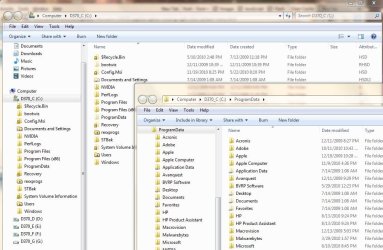
Just for grins, I looked at what Explore from the Context Menu in XP does and what Open in new Window does in Win 7 and I really don't see any difference.

Here is XP:
XP-Explore.jpg

and here is Win7:
Win7-Explore.jpg

Both opened a new window, expanded the folder tree in the left pane and display the top level folder in the right pane. I'm sure I'm missing something but I just don't see a real difference.
 

My Computer

Computer type
PC/Desktop
Computer Manufacturer/Model Number
Lenovo IdeaCenter 450
OS
Windows 10 Pro X64
CPU
Intel Quad Core i7-4770 @ 3.4Ghz
Memory
16.0GB PC3-12800 DDR3 SDRAM 1600 MHz
Graphics Card(s)
Intel Integrated HD Graphics
Sound Card
Realtek HD Audio
Monitor(s) Displays
HP 22" LCD
Screen Resolution
1680 x 1050
Hard Drives
250GB Samsung EVO SATA-3 SSD
2TB Seagate ST2000DM001 SATA-2
1.5TB Seagate ST3150041AS SATA
Keyboard
Dell USB
Mouse
Lenovo USB
Internet Speed
Cable via Road Runner 3MB Upload, 30MB Download
Antivirus
Windows Defender, MBAM Pro, MBAE
Browser
Seamonkey
Other Info
UEFI/GPT
PLDS DVD-RW DH16AERSH
I agree with kgouldsk - the suggestions here have not serviced my requirements.

Especially when I used to (in Windows Vista) be able to open my Favourites Folders in IE8 by using the 'Explore' option. The removal of the feature has impacted on other components.

What do I mean by 'Explore my Favorites'?
Well, try this...
1. open IE,
2. click on the Favorites icon (under the back and forward icons)
3. Right-click on one of the folders....
== NO EXPLORE OPTION ==
There used to be one when using Windows Vista and XP.

Why would I want it? Well, let's say you wanted to copy and paste a whole lot of links into an explorer folder, and perhaps rename one or two afterwards.... Not so easy, is it?

Previously once you'd managed to Explore the folder, you had it right there - in front of you - you could copy and drag and rename and paste to your heart's desire.

I miss you 'EXPLORE' option.
 

My Computer

OS
Windows 7 Professional 64-bit
--snip--

I miss you 'EXPLORE' option.

It is labeled "OPEN" now...jeeze. In Windows 7, "Explore" was relabeled to "Open" because both happen to do the same exact thing. It took me five seconds to figure this out. To open IE and create a folder and all that jazz.
 

My Computer

Computer type
PC/Desktop
Computer Manufacturer/Model Number
Alienware Aurora ALX R4
OS
Windows 10 Pro (x64)
CPU
Intel Core i7-3930K (3.2GHz - 4.5GHz)
Motherboard
Alienware Aurora-R4 x79
Memory
4x Samsung 4GB PC3-12800 DDR3 (16GB 1600MHz)
Graphics Card(s)
Nvidia Geforce GTX 690
Sound Card
SteelSeries Siberia Elite
Monitor(s) Displays
Dell UltraSharp U3011
Screen Resolution
2560x1600
Hard Drives
Samsung 850 Pro 256 GB, Seagate 1TB Desktop Hybrid HDD, 2x Western Digital 4TB Green HDD
PSU
875W Some Dell PSU <.<
Case
Alienware Aurora ALX
Cooling
Custom Liquid Cooling (EK CPU & GPU blocks) dual EK 480RAD
Keyboard
Logitech G710+ Mechanical
Mouse
Logitech G700s
Internet Speed
Verizon Fios (50 mbps average)
Other Info
Server: Intel NUC D54250WYK: i5-4250U, 16GB, 256 GB mSATA, Windows Server 2012 R2
ahhh.... you're right! LogiEarth, you have solved my problem. I was looking so hard for what I was used to seeing, that I didn't see it.

Okay, so maybe it's not an issue. Alright, alright - definitely not an issue anymore.

I still feel they should have named it "Explore" instead of "Open". Semantics, I know....
 

My Computer

OS
Windows 7 Professional 64-bit
Tepid is almost right!
Using his information, add a couple of steps -

Right click on START
Open Windows Explorer then add his steps below:

Also, in Explorer, Hit Alt
Tools / Folder Options
General / Navigation pane
Check both boxes ( Navigation Pane - Show All Folders and Navigation Pane - Automatically expand to current folder )
Now when you Right Click and choose "open in new window"
It will auto expand the folders sub folders on the left.
 

My Computer

OS
win 7 64 bit
Back
Top