External Hard Drive Not Detecting. Disk 1 Unknown.

Liyah

New member
Local time
11:57 AM
Messages
9
Hi.
My external (seagate) hard drive can be detected, but it won't show on My Computer. I tried few options however the device is still not being recognised.

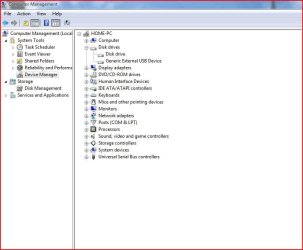
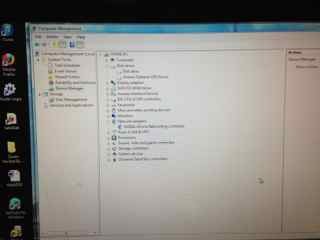
It appears in my device manager. I have uninstalled it, plug my hard drive back. It gets detected, but it still won't appear in My Computer.

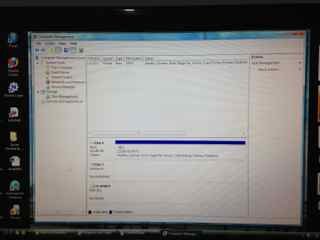
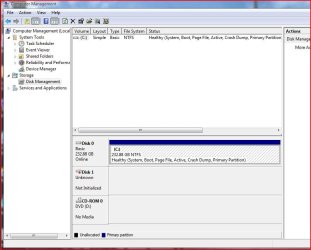
It also appears in disk management. It's shows as Disk 1 Unknown, Not Initialised and the right column is blank.

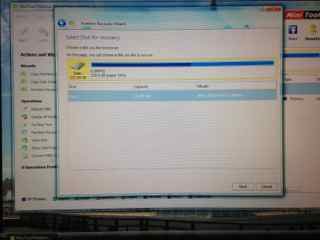
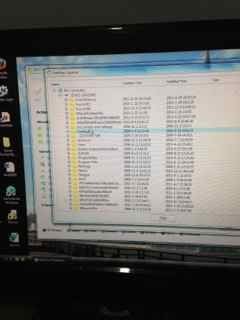
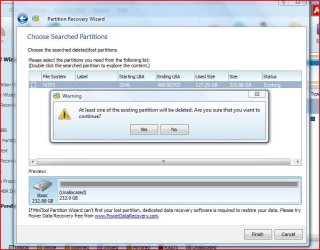
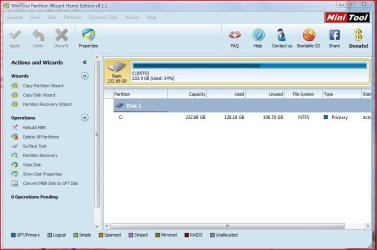
I downloaded the MiniTool Partition Wizard and attempted to recover my data. I completed all the steps expect the last step as I can't right click to give the drive a letter.

I have important unbacked information on this device. Any help would greatly be appreciated. Thanks
 

Attachments
  • Device Manager.jpg
    Device Manager.jpg
    9.7 KB · Views: 24
  • Disk Management.jpg
    Disk Management.jpg
    10.5 KB · Views: 24
  • MiniTool 1.jpg
    MiniTool 1.jpg
    11.1 KB · Views: 24
  • MiniTool 2.jpg
    MiniTool 2.jpg
    11.6 KB · Views: 24
  • MiniTool 3.jpg
    MiniTool 3.jpg
    10.9 KB · Views: 24
  • MiniTool 4.jpg
    MiniTool 4.jpg
    10.3 KB · Views: 24

My Computer

Computer type
PC/Desktop
OS
Windows 64
Hello Liyah,

Your screenshots are two small to be able to read.

For now in Disk Management, see if you area able to right click on the smaller Disk 1 box in the lower pane, and click on an Online or Initialize option in the context menu. Afterwards, make sure the disk has a drive letter.

Disk - Set as Offline or Online

Hope this helps for now, :)
Shawn
 

My Computer

Computer type
PC/Desktop
Computer Manufacturer/Model Number
Self built custom
OS
64-bit Windows 11 Pro for Workstations
CPU
Intel i7-8700K OC'd to 5 GHz
Motherboard
ASUS ROG Maximus XI Formula Z390
Memory
64 GB (4x16GB) G.SKILL TridentZ RGB DDR4 3600 MHz
Graphics Card(s)
ASUS ROG-STRIX-GTX1080TI-O11G-GAMING
Sound Card
Integrated
Monitor(s) Displays
2 x Samsung Odyssey G7 27"
Screen Resolution
2560x1440
Hard Drives
1TB Samsung 990 PRO M.2,
4TB Samsung 990 PRO PRO M.2,
TerraMaster F8 SSD Plus NAS
PSU
Seasonic Prime Titanium 850W
Case
Thermaltake Core P3
Cooling
Corsair Hydro H115i
Keyboard
Logitech wireless K800
Mouse
Logitech MX Master 4
Internet Speed
2 Gb/s Download and 100 Mb/s Upload
Antivirus
Malwarebyte Anti-Malware Premium
Browser
Google Chrome
Other Info
Logitech Z625 speaker system,
Logitech BRIO 4K Pro webcam,
HP Color LaserJet Pro MFP M477fdn,
APC SMART-UPS RT 1000 XL - SURT1000XLI,
Galaxy S23 Plus phone
Hi Shawn.
I tried to initialise disk but I received an incorrect function response. What should I do now?
 

My Computer

Computer type
PC/Desktop
OS
Windows 64
I tried again and now I received "the drive cannot find the sector requested" response.
 

My Computer

Computer type
PC/Desktop
OS
Windows 64
I wrote and then deleted this post 12 hours ago not wanting to override Brink.:) My logic was that just initialising the disk will do no harm. It will only write the MBR code in the first sector. If the MBR was corrupted that should set it right.

Now here it goes. Try it and let us know.

Hi Liyah

Wait. Don't do anything.

As far as I can see, after you did a quick scan with the Partition Recovery Wizard and selected the partition, the preview map at the bottom shed its Unallocated nature and showed your drive as before. Yes or No ?

If yes, rerun Partition Recovery Wizard and check. If after selecting the partition, the preview map shows your drive as before just click on Finish. (Most probably instead of clicking on the Finish button on that window, you clicked on the Cancel button before.)

That should take you back to the Partition Wizard main screen where your external drive would be shown with NTFS partition/s as before.

If it does not have a drive letter, right click on it and give it a drive letter.

Then go to the top tool bar and click on APPLY for the changes to take effect.

If in doubt post a screenshot of the Window after selecting the partition - the quick scan result. Use the Windows Snipping tool to capture the screenshot.

How to Use the Snipping Tool in Vista
 

My Computer

OS
Windows 7 Home Premium 32 bit
Hi Jumanji.
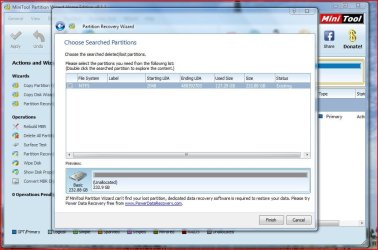
I rerun Parition Recovery Wizard and pressed Finish. It returns to the main screen, however it doesn't allow me to right click and give it a letter. I have limited options on the operations and giving the drive a letter doesn't appear.
 

Attachments

  • MiniTool 3.JPG
    MiniTool 3.JPG
    36.9 KB · Views: 13
  • MiniTool 2.JPG
    MiniTool 2.JPG
    67.2 KB · Views: 1
  • MiniTool 1.JPG
    MiniTool 1.JPG
    84.5 KB · Views: 1

My Computer

Computer type
PC/Desktop
OS
Windows 64
Please wait. I shall be back in another half an hour.
 

My Computer

OS
Windows 7 Home Premium 32 bit
Will do. No worries
 

My Computer

Computer type
PC/Desktop
OS
Windows 64
OK, I am back earlier than scheduled.:) ( I was just preparing the screenshot)

When you get to the screen showing the partitions after the quick scan, you should select all partitions shown by placing a tick mark clicking on the square. (Have a look at the following screenshot wherein I had selected all the four partitions shown.)

24-09-2014 14-10-53.jpg

When you do that the preview map should turn from Unallocated and show your full drive as it existed before without any unallocated space.

Please rerun Partition Recovery Wizard Quickscan, select all the partitions shown and post a screenshot.

If after examination I say "yes go ahead" only then you will click on Finish.
 

My Computer

OS
Windows 7 Home Premium 32 bit
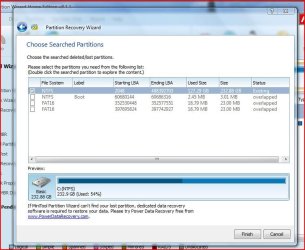
Hi. Whilst you were away, I ran a full scan and these are the results. I didn't press anything else pass the preview screen. Should I cancel and run a Quick Scan instead?
 

Attachments

  • FullScan.JPG
    FullScan.JPG
    68.2 KB · Views: 1

My Computer

Computer type
PC/Desktop
OS
Windows 64
There was no need to have run the Full scan. Anyway no harm.

The basic principle here is you should select only those partitions that will make the preview map show your drive as it existed before.

Here you have selected the right partition, the first one and the preview map shows your drive full without any unallocated space. Do not select the other three which show as overlapped.

You had only single volume. Right. And your drive capacity is 250 GB right.

Now highlight the selected ticked partition in that screen and double click on it. That should show all the files in your drive. ( I think you had done it even in the first post and seen it. I could see it there) If you are happy that all your files are there close that Window showing the files and click on finish.

Anyway I repeat select only that partition that shows as existing and click on Finish.

Post the screenshot of the main screen.
 

My Computer

OS
Windows 7 Home Premium 32 bit
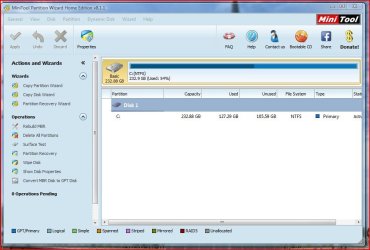
Ok. I selected the first parition only and pressed Finish. This is what the main screen looks like
 

Attachments

  • Main Screen.JPG
    Main Screen.JPG
    73.3 KB · Views: 0

My Computer

Computer type
PC/Desktop
OS
Windows 64
To start with did Partition Wizard show your external drive?

You are only running PRW on your system drive. All along I have been assuming that you are running Partition Recovery Wizard on your external drive. :mad:

Now it looks like PW is not at all showing your external drive.

So may be we have to start afresh.

Post a screenshot of Windows Disk Management with your external drive connected.

Also run Partition Wizard and post a screenshot. Does it show the external drive at all?

Not a good day for me to have duped myself like this.:)
 

My Computer

OS
Windows 7 Home Premium 32 bit
How can I tell if Partition Wizard shows my external drive. All this time I thought it was running my drive.
 

Attachments

  • Device Manager.JPG
    Device Manager.JPG
    52 KB · Views: 0
  • Disk Management.JPG
    Disk Management.JPG
    66.8 KB · Views: 0
  • Partition Wizard.JPG
    Partition Wizard.JPG
    70 KB · Views: 0

My Computer

Computer type
PC/Desktop
OS
Windows 64
Never mind. Things like this do happen.

We are back to your post # 3 and 4.

You tried to initialise the disk. Response : incorrect function.

You tried again. Response: "the drive cannot find the sector requested"

Partition Wizard cannot find the drive.

There are only two things I can suggest now.

1. Try your external drive on another working PC. How does it behave?

2. Run the manufacturer's diagnostic/repair utility and check whether the drive is OK.
 

My Computer

OS
Windows 7 Home Premium 32 bit
Ok.1) I'll try with another PC tomorrow 2) I ran the sea tools and it failed the short generic test but passed the Drive self-test.
 

My Computer

Computer type
PC/Desktop
OS
Windows 64
If your drive is a Seagate drive and you are using SeaTools for Windows, if the Short Generic Test failed, you have to run the Long Generic test with repair option to fix any bad sectors.

Please read the user guide here http://www.seagate.com/files/www-co...seatools/en-us/seatools-for-windows-en-us.pdf

Find whether your drive is repaired or recommended for RMA./ warranty replacement. Save the log file/s for expert analysis if need be.

When you try the drive on another PC, try to get the screenshot of Windows Disk Management with the drive connected. If it shows up as unknown and not initialised then try to initialise and post the results.

If initialisation succeeds you will get a screen asking you whether you want to format the drive as an MBR Disk or GPT disk. Just cancel it and quit. Do not format.
 
Last edited:

My Computer

OS
Windows 7 Home Premium 32 bit
Back
Top