Firefox 33 - Startup Issue

PCrazy123

New member
Local time
9:09 PM
Messages
46
Hey sevenforums.

Since I updated to version 33 on every startup it makes two-three connections to 173.194 series ips (I checked using who.is and its Google ip), incoming data of few hundred KBs and then connections end. It only happens when a new firefox window is opened for first the time - does not happen when subsequent windows are opened.

Is it happening due to the new option in Advanced>Certificates tab 'Query OCSP responder servers to confirm the current validity of certificates'.

This issue occurs after clean install of 33 and from 32 to 33 upgrade. Same ddons are installed that I used with version 32.
 

My Computer

Computer type
PC/Desktop
OS
Win7 Ultimate 32bit

My Computer

Computer type
Laptop
Computer Manufacturer/Model Number
ASUS
OS
Microsoft Windows 7 Home Premium 64-bit 7601 Multiprocessor Free Service Pack 1
CPU
AMD C-60 APU with Radeon(tm) HD Graphics
Motherboard
ASUSTeK COMPUTER INC. X501U
Memory
4.00 GB
Graphics Card(s)
AMD Radeon HD 6290 Graphics
Sound Card
(1) AMD High Definition Audio Device (2) Realtek High Defi
Screen Resolution
1366 x 768 x 32 bits (4294967296 colors) @ 60 Hz
Hard Drives
Hitachi HTS545050A7E380 SATA Disk Device
Antivirus
Comodo CIS & FW, SecureAplus App Whitelisting, Threatfire
Browser
Cyberfox 64bit, Opera 64bit, Airfox
Other Info
Spy-The-Spy, HitmanPro.Alert, Norton Connect Safe, MJRegWatcher, BitDefender TrafficLight, Voodoo Shield, Zemana AntiMalware
I'm using Cyberfox 64bit and as far as I can work out that option isn't checked by default.

The issue might well be down to this feature:

https://blog.mozilla.org/futurereleases/2012/05/09/rolling-out-https-google-search/

I reckon you could change search providers and remove Google replacing it with an alternative.


You might also find this interesting:

http://www.sevenforums.com/browsers-mail/344502-firefox-sends-file-download-data-google.html

Thanks for helping.

This 'Query OCSP responder servers to confirm the current validity of certificates' was on by default in 32bit Firefox. I unchecked this option but the ip issue still there.

This is happening when I open a new window and homepage is set to about:blank. I removed Google from the Manage Search Engines menu but this issue still happens. Also happens when I download anything from browser 'Save As' option but not if I use a download manager.

http://www.sevenforums.com/browsers-mail/344502-firefox-sends-file-download-data-google.html Only 'exe' files data is sent or for all types of files? And is it only for downloads via browser or even when using a download manager?
 

My Computer

Computer type
PC/Desktop
OS
Win7 Ultimate 32bit

My Computer

Computer type
PC/Desktop
Computer Manufacturer/Model Number
Intel(R) Core(TM) i5-2320 CPU @ 3.00GHz (Gateway computer)
OS
Microsoft Windows 7 Home Premium 64-bit 7601 Multiprocessor Free Service Pack 1
CPU
Intel(R) Core(TM) i5-2320 CPU @ 3.00GHz
Motherboard
Gateway IPISB-VR
Memory
8.00 GB
Graphics Card(s)
Intel(R) HD Graphics
Sound Card
(1) Realtek High Definition Audio (2) Intel(R) Display Aud
Monitor(s) Displays
ViewSonic 2250 Series
Screen Resolution
1920 x 1080 x 32 bits (4294967296 colors) @ 60 Hz
Hard Drives
(1) WDC WD10EADX-22TDHB0 (2) Generic Mini SD Reader USB Device (3) Generic USB CF Reader USB Device (4) Generic USB MS Reader USB Device (5) Generic USB SD Reader USB Device (6) Generic USB xD/SM Reader USB Device (7) Seagate FreeAgent Go
Keyboard
Gateway
Mouse
Logitech
Internet Speed
20 Mbps (Theoretical.)
Antivirus
Avast
Browser
Firefox
FF connecting to Google

http://www.sevenforums.com/browsers-mail/344502-firefox-sends-file-download-data-google.html Only 'exe' files data is sent or for all types of files? And is it only for downloads via browser or even when using a download manager?

I don't know but it would make sense if it applies to any downloaded file that contains any type of executable. Also I don't personally use download managers but I'd assume that some come with their own built in malware scans.

So far I haven't found any way of preventing Firefox connecting to Google completely. I'm using several tools/ utilities I still see one connection and haven't yet tracked down the cause of it! I'm using Cyberfox though.


Checked connections with:

Netstat (command)
CurrPorts
CrowdInspect
Comodo KillSwitch
TCPEye
MetaScan Online

All show a single connection:

Google_Firefox1.jpg
 

My Computer

Computer type
Laptop
Computer Manufacturer/Model Number
ASUS
OS
Microsoft Windows 7 Home Premium 64-bit 7601 Multiprocessor Free Service Pack 1
CPU
AMD C-60 APU with Radeon(tm) HD Graphics
Motherboard
ASUSTeK COMPUTER INC. X501U
Memory
4.00 GB
Graphics Card(s)
AMD Radeon HD 6290 Graphics
Sound Card
(1) AMD High Definition Audio Device (2) Realtek High Defi
Screen Resolution
1366 x 768 x 32 bits (4294967296 colors) @ 60 Hz
Hard Drives
Hitachi HTS545050A7E380 SATA Disk Device
Antivirus
Comodo CIS & FW, SecureAplus App Whitelisting, Threatfire
Browser
Cyberfox 64bit, Opera 64bit, Airfox
Other Info
Spy-The-Spy, HitmanPro.Alert, Norton Connect Safe, MJRegWatcher, BitDefender TrafficLight, Voodoo Shield, Zemana AntiMalware
Success!

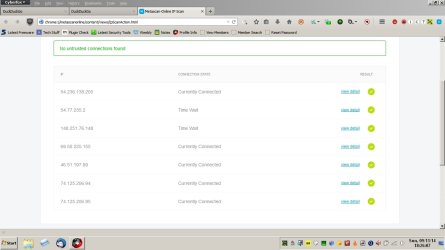
Finally I can run Cyberfox with no connections to Google ip addresses on startup. The single connection was due to setting https encrypted dot google dot com as home page. Even after opening a new (non google) tab and clearing cookies the connection persisted. Changing home page to something else resolved the issue.

Opened a new tab but no connection to Google ip's detected:

Cyberfox Connections.jpg

Edit:

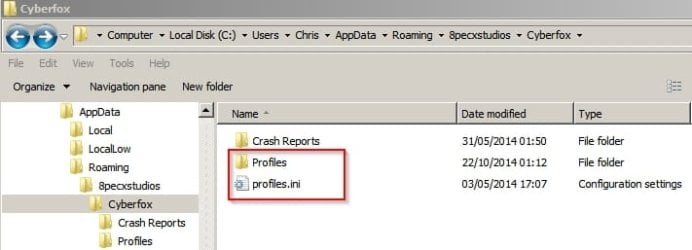
I'd suggest backing up your Profiles folder and .ini file by copying them to another folder before trying any further modifications. That way you can restore your current profile if needed.

Profiles.jpg
 
Last edited:

My Computer

Computer type
Laptop
Computer Manufacturer/Model Number
ASUS
OS
Microsoft Windows 7 Home Premium 64-bit 7601 Multiprocessor Free Service Pack 1
CPU
AMD C-60 APU with Radeon(tm) HD Graphics
Motherboard
ASUSTeK COMPUTER INC. X501U
Memory
4.00 GB
Graphics Card(s)
AMD Radeon HD 6290 Graphics
Sound Card
(1) AMD High Definition Audio Device (2) Realtek High Defi
Screen Resolution
1366 x 768 x 32 bits (4294967296 colors) @ 60 Hz
Hard Drives
Hitachi HTS545050A7E380 SATA Disk Device
Antivirus
Comodo CIS & FW, SecureAplus App Whitelisting, Threatfire
Browser
Cyberfox 64bit, Opera 64bit, Airfox
Other Info
Spy-The-Spy, HitmanPro.Alert, Norton Connect Safe, MJRegWatcher, BitDefender TrafficLight, Voodoo Shield, Zemana AntiMalware

Thanks for helping.

Maybe one of these from the list in the link:

Which one of these is safe to disable?

http://www.sevenforums.com/browsers-mail/344502-firefox-sends-file-download-data-google.html Only 'exe' files data is sent or for all types of files? And is it only for downloads via browser or even when using a download manager?

I don't know but it would make sense if it applies to any downloaded file that contains any type of executable. Also I don't personally use download managers but I'd assume that some come with their own built in malware scans.

So far I haven't found any way of preventing Firefox connecting to Google completely. I'm using several tools/ utilities I still see one connection and haven't yet tracked down the cause of it! I'm using Cyberfox though.

Checked connections with:

Netstat (command)
CurrPorts
CrowdInspect
Comodo KillSwitch
TCPEye
MetaScan Online

All show a single connection:

Thanks for helping.

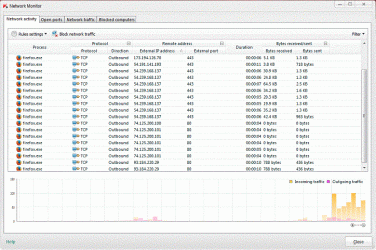
I always get two\three connections for a few seconds after initial window then connections stop. I am checking with the Network Monitor window in Kspersky Internet Security 2013.

Finally I can run Cyberfox with no connections to Google ip addresses on startup. The single connection was due to setting https encrypted dot google dot com as home page. Even after opening a new (non google) tab and clearing cookies the connection persisted. Changing home page to something else resolved the issue.

Opened a new tab but no connection to Google ip's detected:

Edit:

I'd suggest backing up your Profiles folder and .ini file by copying them to another folder before trying any further modifications. That way you can restore your current profile if needed.

Thanks for helping.

I have homepage always set to about:blank but still the connections happen for a few seconds.
 

My Computer

Computer type
PC/Desktop
OS
Win7 Ultimate 32bit
about:config settings Firefox - disable

Well on my machine with no connections to Google ip addresses the following apply:

Suggested:
Updating phishing sites database. Setting browser.safebrowsing.enabled to false in about:config will disable this feature.

My config:
browser.safebrowsing.enabled false

Suggested:
Prefetching links if the page it's on defines any. See the Prefetch FAQ and network.prefetch-next for further information. To disable pings in prefetched links, see browser.send_pings.

My config:
browser.send_pings false

Suggested:
Updating the Add-ons Blocklist. Setting extensions.blocklist.enabled to false in about:config will disable this feature.

My config:
extensions.blocklist.enabled true

Suggested:
Updating metadata for installed add-ons (described here). Setting extensions.getAddons.cache.enabled to false in about:config will disable this feature. [2]

My config:
extensions.getAddons.cache.enabled false

Which ones are safe to disable?

Well setting browser.safebrowsing.enabled to false will remove some additional security but maybe you don't want it. See:

Recently Chrome has introduced new feature (also called 'Safe Browsing') to alert you on malicious internet downloads. However due to faulty implementation, this feature often mark good files as malicious and block you from downloading it. On top of that, this annoying feature is useless as most of us already have antivirus on our system to get rid of those malicious files.

Source: Chrome Malware Alert Blocker Tool : Free Tool to Enable or Disable Malicious File Warning in Google Chrome | www.SecurityXploded.com

I believe that the same safe browsing feature has been added to Firefox. It's up to you if you want to disable it. Most users would argue that doing so reduces security.

I don't see any safety issues with disabling the rest.

I know nothing about Kaspersky network monitor. Does it show the process path for the connection?

Also check out some features that have been removed from Cyberfox:

Removed features (Telemetry, Healthreport, Crashreporter And other components that collection information).

https://8pecxstudios.com/Forums/viewtopic.php?f=8&t=298

Do you get the same results if you start Firefox in Safe Mode? If not then possibly one of your add ons is to blame.
 
Last edited:

My Computer

Computer type
Laptop
Computer Manufacturer/Model Number
ASUS
OS
Microsoft Windows 7 Home Premium 64-bit 7601 Multiprocessor Free Service Pack 1
CPU
AMD C-60 APU with Radeon(tm) HD Graphics
Motherboard
ASUSTeK COMPUTER INC. X501U
Memory
4.00 GB
Graphics Card(s)
AMD Radeon HD 6290 Graphics
Sound Card
(1) AMD High Definition Audio Device (2) Realtek High Defi
Screen Resolution
1366 x 768 x 32 bits (4294967296 colors) @ 60 Hz
Hard Drives
Hitachi HTS545050A7E380 SATA Disk Device
Antivirus
Comodo CIS & FW, SecureAplus App Whitelisting, Threatfire
Browser
Cyberfox 64bit, Opera 64bit, Airfox
Other Info
Spy-The-Spy, HitmanPro.Alert, Norton Connect Safe, MJRegWatcher, BitDefender TrafficLight, Voodoo Shield, Zemana AntiMalware
Well on my machine with no connections to Google ip addresses the following apply:

Suggested:
Updating phishing sites database. Setting browser.safebrowsing.enabled to false in about:config will disable this feature.

My config:
browser.safebrowsing.enabled false

Suggested:
Prefetching links if the page it's on defines any. See the Prefetch FAQ and network.prefetch-next for further information. To disable pings in prefetched links, see browser.send_pings.

My config:
browser.send_pings false

Suggested:
Updating the Add-ons Blocklist. Setting extensions.blocklist.enabled to false in about:config will disable this feature.

My config:
extensions.blocklist.enabled true

Suggested:
Updating metadata for installed add-ons (described here). Setting extensions.getAddons.cache.enabled to false in about:config will disable this feature. [2]

My config:
extensions.getAddons.cache.enabled false

Which ones are safe to disable?

Well setting browser.safebrowsing.enabled to false will remove some additional security but maybe you don't want it. See:

Recently Chrome has introduced new feature (also called 'Safe Browsing') to alert you on malicious internet downloads. However due to faulty implementation, this feature often mark good files as malicious and block you from downloading it. On top of that, this annoying feature is useless as most of us already have antivirus on our system to get rid of those malicious files.

Source: Chrome Malware Alert Blocker Tool : Free Tool to Enable or Disable Malicious File Warning in Google Chrome | www.SecurityXploded.com

I believe that the same safe browsing feature has been added to Firefox. It's up to you if you want to disable it. Most users would argue that doing so reduces security.

I don't see any safety issues with disabling the rest.

I know nothing about Kaspersky network monitor. Does it show the process path for the connection?

Also check out some features that have been removed from Cyberfox:

Removed features (Telemetry, Healthreport, Crashreporter And other components that collection information).

https://8pecxstudios.com/Forums/viewtopic.php?f=8&t=298

Do you get the same results if you start Firefox in Safe Mode? If not then possibly one of your add ons is to blame.

Thanks for helping.

I tried it with all add ons disabled but still the same result.
 

My Computer

Computer type
PC/Desktop
OS
Win7 Ultimate 32bit
Check FF Cache

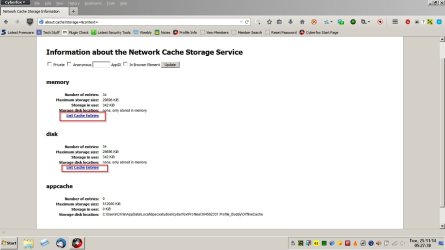
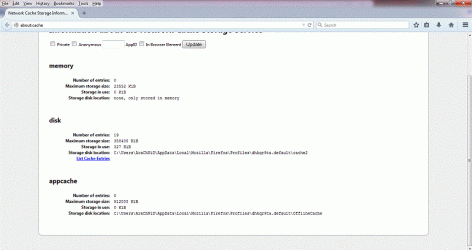
Well maybe try checking the cache to see if there are any entries there that give you a clue.

Type about:cache in the address bar and see what you find.

Cyberfox Cache.jpg

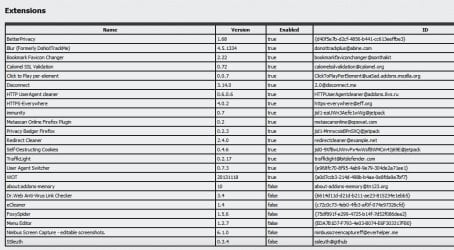
There could be other reasons why I don't see the same connection though. I'm using a lot of privacy enhancing add ons:

Cyberfox Extensions.jpg

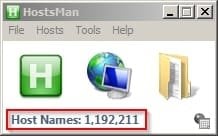
Along with a huge HOSTS file:

HostsMan.jpg

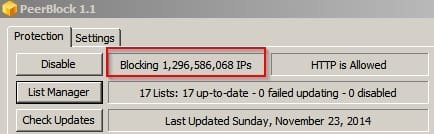
And a large IP address blocklist:

IP Block.jpg

It's possible that one of the above blocks the connection but manually checking through that number of entries is probably impossible!

Note: I cannot give specific details on the above as it's against the forum rules to discuss most of the above.

Let us know if you find anything suspicious in FF cache!
 

My Computer

Computer type
Laptop
Computer Manufacturer/Model Number
ASUS
OS
Microsoft Windows 7 Home Premium 64-bit 7601 Multiprocessor Free Service Pack 1
CPU
AMD C-60 APU with Radeon(tm) HD Graphics
Motherboard
ASUSTeK COMPUTER INC. X501U
Memory
4.00 GB
Graphics Card(s)
AMD Radeon HD 6290 Graphics
Sound Card
(1) AMD High Definition Audio Device (2) Realtek High Defi
Screen Resolution
1366 x 768 x 32 bits (4294967296 colors) @ 60 Hz
Hard Drives
Hitachi HTS545050A7E380 SATA Disk Device
Antivirus
Comodo CIS & FW, SecureAplus App Whitelisting, Threatfire
Browser
Cyberfox 64bit, Opera 64bit, Airfox
Other Info
Spy-The-Spy, HitmanPro.Alert, Norton Connect Safe, MJRegWatcher, BitDefender TrafficLight, Voodoo Shield, Zemana AntiMalware
Well maybe try checking the cache to see if there are any entries there that give you a clue.

Type about:cache in the address bar and see what you find.

View attachment 341434

There could be other reasons why I don't see the same connection though. I'm using a lot of privacy enhancing add ons:

View attachment 341435

Along with a huge HOSTS file:

View attachment 341436

And a large IP address blocklist:

View attachment 341437

It's possible that one of the above blocks the connection but manually checking through that number of entries is probably impossible!

Note: I cannot give specific details on the above as it's against the forum rules to discuss most of the above.

Let us know if you find anything suspicious in FF cache!

Thanks for helping. Sorry for my late reply.

After updating to Firefox 34.0.5 I get some new ips upon startup alongside the '173.' ips. I checked the cache but nothing seemed suspicious to me, all entries were for the websites visited, what should I be looking for? Since version 32 of Firefox, after I use the 'Clear Everything' option in Clear History, CCleaner detects many entries in Firefox cache2\trash folder, is this related to the problem?
 

My Computer

Computer type
PC/Desktop
OS
Win7 Ultimate 32bit
Firefox new version

Sorry but I don't know much about the new version. I'm sticking with Cyberfox. You know that you can create another profile and try launching with that profile to see if it's any different?

Creating a new Firefox profile on Windows - MozillaZine Knowledge Base

I have two Cyberfox profiles currently. The old one has some issues and the fresh one was created after a clean install. I then transferred some elements of the old profile into the new one. So far so good.

Cyberfox - Choose User Profile.jpg

Maybe you've tried the "Hold down the Shift Key" trick when starting Firefox?

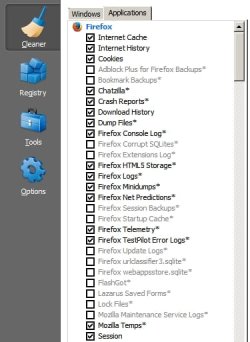
As for Ccleaner - I don't use the default settings and disk Cache is kept disabled entirely.

I think that I did notice that upon inspecting the cache it appeared that FF was making use of Google Embedded Fonts and blocked connection using my hosts file.
 

Attachments

  • Options.jpg
    Options.jpg
    33.5 KB · Views: 18
  • FF CCleaner.jpg
    FF CCleaner.jpg
    31.7 KB · Views: 18
Last edited:

My Computer

Computer type
Laptop
Computer Manufacturer/Model Number
ASUS
OS
Microsoft Windows 7 Home Premium 64-bit 7601 Multiprocessor Free Service Pack 1
CPU
AMD C-60 APU with Radeon(tm) HD Graphics
Motherboard
ASUSTeK COMPUTER INC. X501U
Memory
4.00 GB
Graphics Card(s)
AMD Radeon HD 6290 Graphics
Sound Card
(1) AMD High Definition Audio Device (2) Realtek High Defi
Screen Resolution
1366 x 768 x 32 bits (4294967296 colors) @ 60 Hz
Hard Drives
Hitachi HTS545050A7E380 SATA Disk Device
Antivirus
Comodo CIS & FW, SecureAplus App Whitelisting, Threatfire
Browser
Cyberfox 64bit, Opera 64bit, Airfox
Other Info
Spy-The-Spy, HitmanPro.Alert, Norton Connect Safe, MJRegWatcher, BitDefender TrafficLight, Voodoo Shield, Zemana AntiMalware
Thanks for helping. Sorry for my late reply.

After updating to Firefox 34.0.5 I get some new ips upon startup alongside the '173.' ips. I checked the cache but nothing seemed suspicious to me, all entries were for the websites visited, what should I be looking for? Since version 32 of Firefox, after I use the 'Clear Everything' option in Clear History, CCleaner detects many entries in Firefox cache2\trash folder, is this related to the problem?

Maybe clean the cache then run Firefox and check the Firefox cache (about:cache) look at any new entries and try to find out if any of them could possibly be related to the ip addresses that you're concerned about. That's how I pinned down Google Embedded Fonts.
 

My Computer

Computer type
Laptop
Computer Manufacturer/Model Number
ASUS
OS
Microsoft Windows 7 Home Premium 64-bit 7601 Multiprocessor Free Service Pack 1
CPU
AMD C-60 APU with Radeon(tm) HD Graphics
Motherboard
ASUSTeK COMPUTER INC. X501U
Memory
4.00 GB
Graphics Card(s)
AMD Radeon HD 6290 Graphics
Sound Card
(1) AMD High Definition Audio Device (2) Realtek High Defi
Screen Resolution
1366 x 768 x 32 bits (4294967296 colors) @ 60 Hz
Hard Drives
Hitachi HTS545050A7E380 SATA Disk Device
Antivirus
Comodo CIS & FW, SecureAplus App Whitelisting, Threatfire
Browser
Cyberfox 64bit, Opera 64bit, Airfox
Other Info
Spy-The-Spy, HitmanPro.Alert, Norton Connect Safe, MJRegWatcher, BitDefender TrafficLight, Voodoo Shield, Zemana AntiMalware
Sorry but I don't know much about the new version. I'm sticking with Cyberfox. You know that you can create another profile and try launching with that profile to see if it's any different?

Creating a new Firefox profile on Windows - MozillaZine Knowledge Base

I have two Cyberfox profiles currently. The old one has some issues and the fresh one was created after a clean install. I then transferred some elements of the old profile into the new one. So far so good.

View attachment 343669

Maybe you've tried the "Hold down the Shift Key" trick when starting Firefox?

As for Ccleaner - I don't use the default settings and disk Cache is kept disabled entirely.

I think that I did notice that upon inspecting the cache it appeared that FF was making use of Google Embedded Fonts and blocked connection using my hosts file.

Thanks for helping.

I tried in two different PCs, one with fresh clean install plus a new profile and in the other with installed firefox and results are same in both systems.

I'll disable the Disk Cache and try the Shift key trick.

Thanks for helping. Sorry for my late reply.

After updating to Firefox 34.0.5 I get some new ips upon startup alongside the '173.' ips. I checked the cache but nothing seemed suspicious to me, all entries were for the websites visited, what should I be looking for? Since version 32 of Firefox, after I use the 'Clear Everything' option in Clear History, CCleaner detects many entries in Firefox cache2\trash folder, is this related to the problem?

Maybe clean the cache then run Firefox and check the Firefox cache (about:cache) look at any new entries and try to find out if any of them could possibly be related to the ip addresses that you're concerned about. That's how I pinned down Google Embedded Fonts.

Thanks for helping.

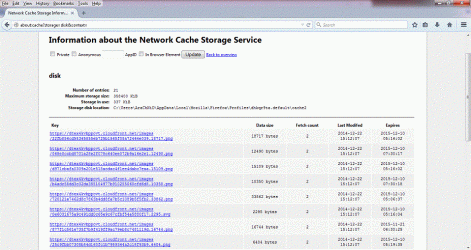
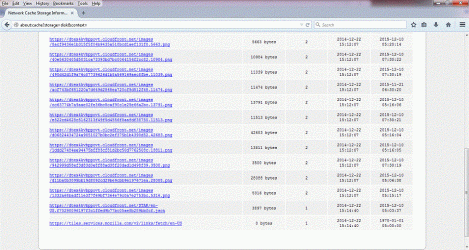
I tried this method and here are the screenshots :
 

Attachments

  • firefox2a.gif
    firefox2a.gif
    82.2 KB · Views: 3
  • firefox2b.gif
    firefox2b.gif
    75.7 KB · Views: 1
  • firefox2c.gif
    firefox2c.gif
    144.1 KB · Views: 2
  • firefox2d.gif
    firefox2d.gif
    182.1 KB · Views: 2

My Computer

Computer type
PC/Desktop
OS
Win7 Ultimate 32bit
Maybe you've tried the "Hold down the Shift Key" trick when starting Firefox?

As for Ccleaner - I don't use the default settings and disk Cache is kept disabled entirely.

I tried the 'Hold down SHIFT key' trick and got the 'Start FF in Safe Mode' prompt, and still got the ips. But when I check the about:cache after Safe Mode there are no entries to list, all data is shown as 0 kb.

I've also disabled the Disk Cache as shown in your screenshot. Are you using CCEnhancer? I don't have all these firefox cleanup options that are in your CCleaner screenshot.
 

My Computer

Computer type
PC/Desktop
OS
Win7 Ultimate 32bit
Tiles in Firefox

Maybe you've tried the "Hold down the Shift Key" trick when starting Firefox?

As for Ccleaner - I don't use the default settings and disk Cache is kept disabled entirely.

I tried the 'Hold down SHIFT key' trick and got the 'Start FF in Safe Mode' prompt, and still got the ips. But when I check the about:cache after Safe Mode there are no entries to list, all data is shown as 0 kb.

I've also disabled the Disk Cache as shown in your screenshot. Are you using CCEnhancer? I don't have all these firefox cleanup options that are in your CCleaner screenshot.

Yes I use CCEnhancer and also combine the winapp2.ini file with entries from other cleaners. That's not recommended for most users though!

I took a quick look at those cached URL's and it seems that you might be using the new FF version with "Tiles" enabled. If that's the case then whatever you see in those tiles is responsible.

Here's what I'd do to pin it down:

Disable Tiles: http://www.thewindowsclub.com/disable-remove-ad-tiles-from-firefox

List the ip addresses and block connection to them using either a Firewall or in my case Peerblock (or a combination of both). We are not really allowed to talk specifically about Peerblock on SevenForums as it is against the forum rules but in your case it could be used to create your own custom list of ip addresses to block.

You could also try adding the domains to your hosts file. I have numerous cloudfront dot net entries in mine.

Also see URL's listed here: https://bugzilla.mozilla.org/show_bug.cgi?id=1093297

Once blocked run Firefox and see if you notice any difference or have any issues with things not working correctly.
 

My Computer

Computer type
Laptop
Computer Manufacturer/Model Number
ASUS
OS
Microsoft Windows 7 Home Premium 64-bit 7601 Multiprocessor Free Service Pack 1
CPU
AMD C-60 APU with Radeon(tm) HD Graphics
Motherboard
ASUSTeK COMPUTER INC. X501U
Memory
4.00 GB
Graphics Card(s)
AMD Radeon HD 6290 Graphics
Sound Card
(1) AMD High Definition Audio Device (2) Realtek High Defi
Screen Resolution
1366 x 768 x 32 bits (4294967296 colors) @ 60 Hz
Hard Drives
Hitachi HTS545050A7E380 SATA Disk Device
Antivirus
Comodo CIS & FW, SecureAplus App Whitelisting, Threatfire
Browser
Cyberfox 64bit, Opera 64bit, Airfox
Other Info
Spy-The-Spy, HitmanPro.Alert, Norton Connect Safe, MJRegWatcher, BitDefender TrafficLight, Voodoo Shield, Zemana AntiMalware
Back
Top